Edition 1.0
September 2026. Describes the live BizHub365 One product.
User manual · Edition 1.0
The complete handbook for CRM, bookings, invoicing, banking, payroll, reporting, and HMRC Making Tax Digital.
Front matter
September 2026. Describes the live BizHub365 One product.
A4 colour. Enable background graphics. Running headers and page numbers print automatically.
Download the EPUB from the toolbar. Chapters reflow on phones and e-readers. The EPUB carries EPUB Accessibility 1.1 metadata and a navigable contents list for screen readers and read-aloud.
Supports Making Tax Digital submissions for VAT and for Income Tax (UK and foreign property).
© 2026 Tweed Tyne Technologies Ltd. All rights reserved. BizHub365 is a product of Tweed Tyne Technologies Ltd, 5 South Charlotte Street, Edinburgh, Scotland, EH2 4AN. Registered in Scotland SC874131. ICO ZC184042.
This manual is for customers and accountants using BizHub365. It is not tax, legal, or accounting advice. Feature availability can depend on your role, VAT registration, payroll setup, and operator feature flags. Prices are shown exclusive of any store-tax presentation at checkout and may change.
BizHub365 is not affiliated with Konica Minolta or Microsoft.
Part I · Getting started · Chapter 1
BizHub365 is one connected workspace for customers, bookings, invoicing, banking, payroll, reporting, and HMRC Making Tax Digital.
BizHub365 is UK cloud software for small businesses, sole traders, and the accountants who look after them. It is built and operated by Tweed Tyne Technologies Ltd in Edinburgh. One subscription covers the whole business — there are no per-user fees.
Keep customers, quotes, a public booking page, and a digital business card in one place.
Raise invoices, take card payments, chase reminders, and match bank receipts.
Double-entry books, VAT and ITSA submissions, RTI payroll, and statutory reports.
Owners, staff, subcontractors, and accountants each see the tools that match their role.
Trades, salons, consultants, landlords, shops, cafés, and professional firms all use the same platform. When you choose a sector during setup, BizHub365 orders the top bar's Bookings and Jobs areas and the dashboard around the work you actually do, so a salon sees Bookings before Jobs and a builder sees Jobs first.
Read Part I if you are new. Use the later parts as a desk reference when you need a specific job done. Each chapter starts with where to click, then the steps, then the settings that change the behaviour.
| Part | Use it when you need to |
|---|---|
| I · Getting started | Create the account, learn the layout, invite people, and manage billing. |
| II · Customers | Store contacts, take bookings, and share your card. |
| III · Money | Quote, invoice, spend, jobs, and bank. |
| IV · Books and tax | Report, pay staff, and submit to HMRC. |
| V · Run the business | Brand documents, connect apps, import data, and work with an accountant. |
Part I · Getting started · Chapter 2
The same document is the on-screen handbook, the print edition, and the ebook.
Open bizhub365.com/guide from any browser. The left-hand contents stay in view. The gold and navy bar at the top prints the page or downloads the PDF and EPUB files.
Choose Print and set the paper size to A4. Headers, page numbers, and a table of contents with page references are included. Print colour as-is so the navy cover, step numbers, and callout boxes stay readable.
Download BizHub365 User Manual.epub for Apple Books, Kindle (after conversion if needed), Kobo, or any EPUB reader. Chapters reflow to the screen size. Colour callouts remain, page furniture does not.
| You will see | It means |
|---|---|
| Where to find it | The menu path from the signed-in navigation bar. |
| Numbered blue steps | Do these in order. |
| Tip | A faster or safer way to do the same job. |
| Note | Background that changes how a screen behaves. |
| Caution / Important | A step that can lock records, submit to HMRC, or delete data. |
Part I · Getting started · Chapter 3
Signup is three short steps: your details, the business, then a 14-day trial.
Where to find it: Sign Up Now
Start at bizhub365.com and choose Sign Up Now, or go straight to /mybusiness/onboarding/. If an accountant sent you a referral link, use that URL so they are connected automatically. If a partner gave you an offer link, open that first: see Partner offers.
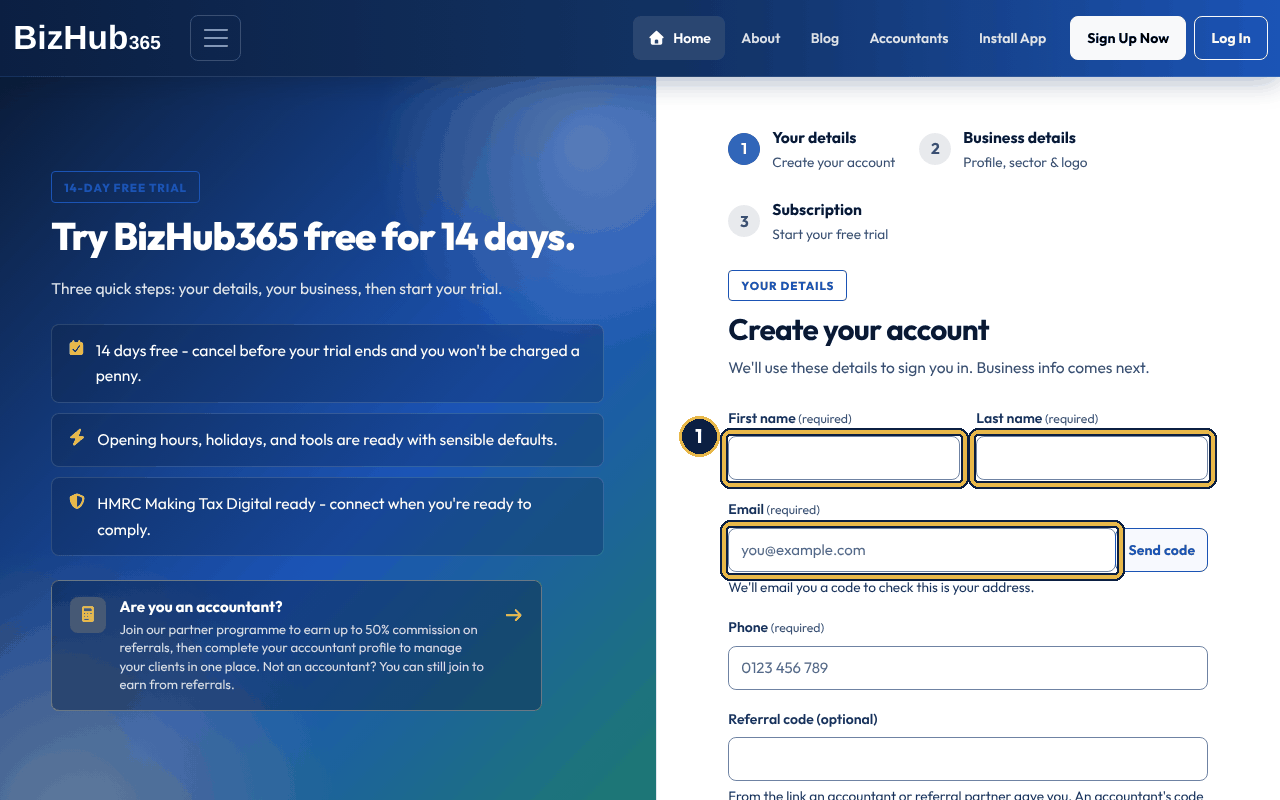
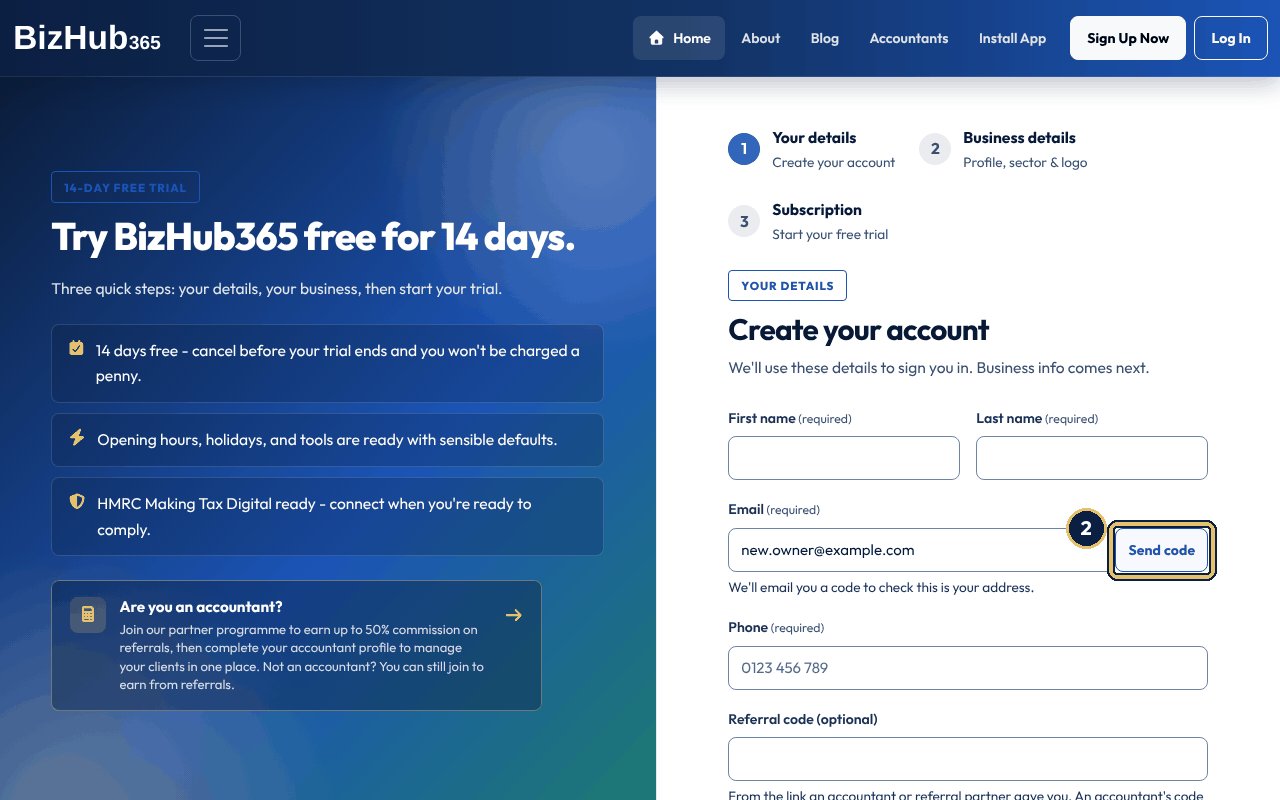
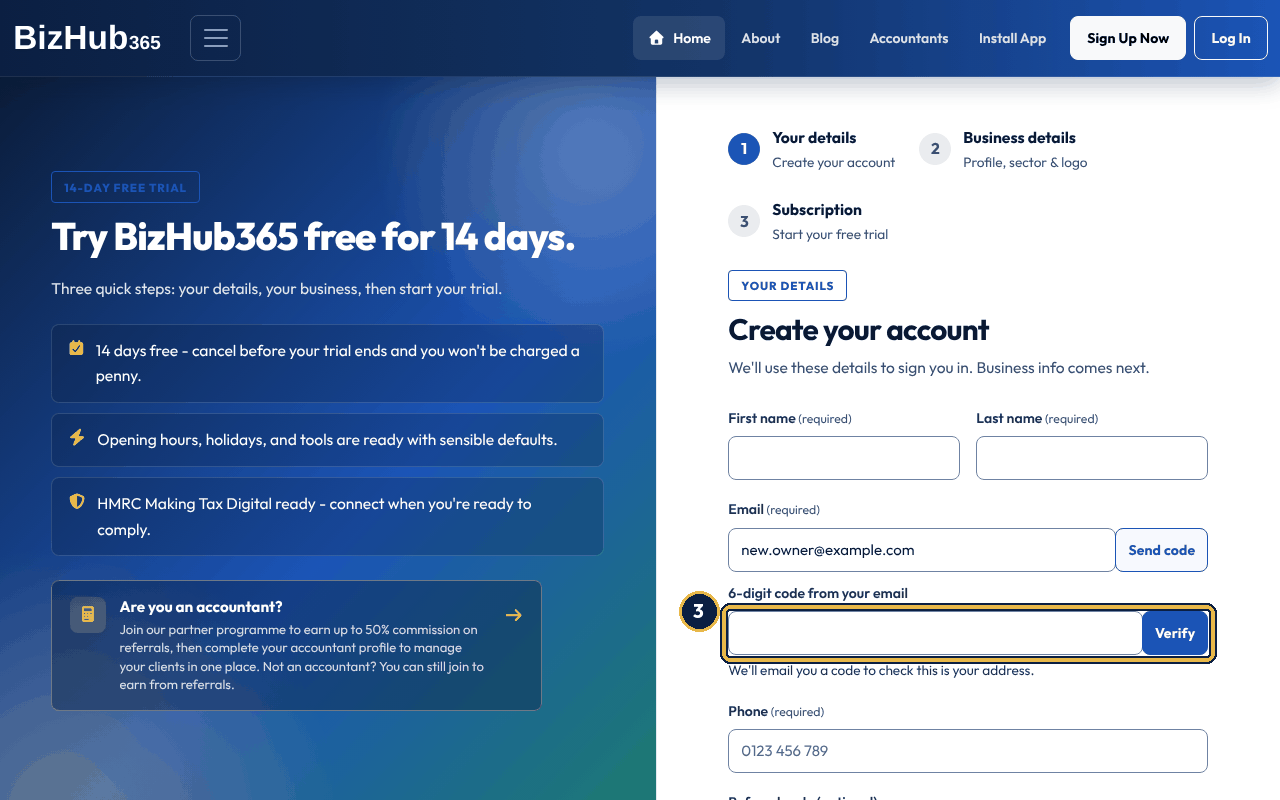
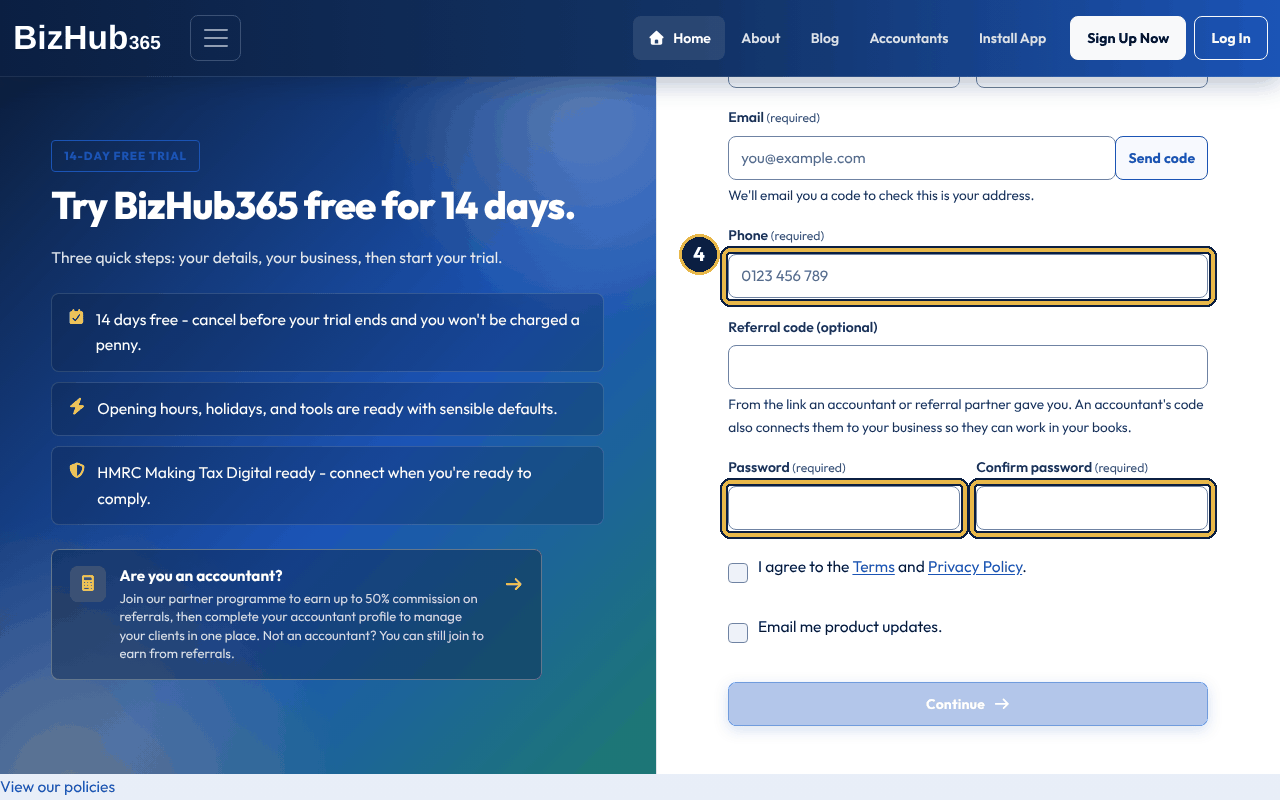
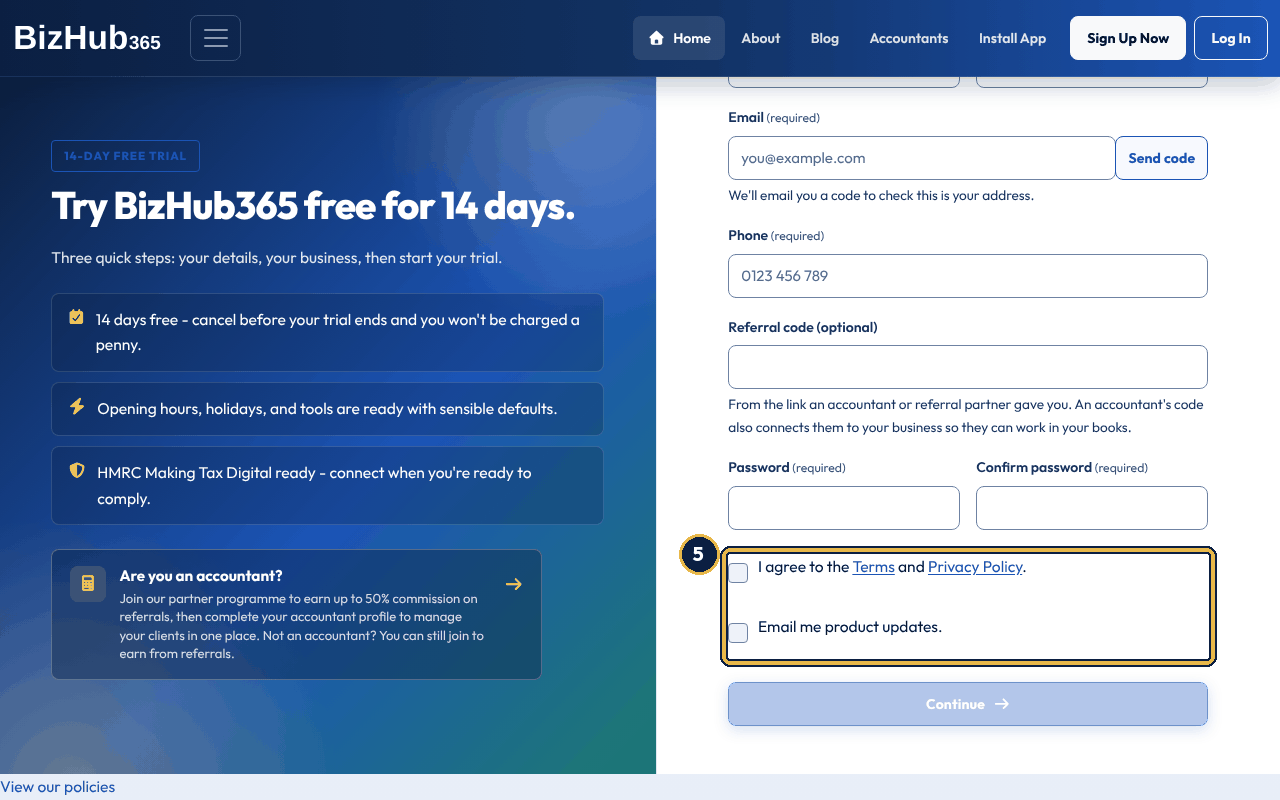
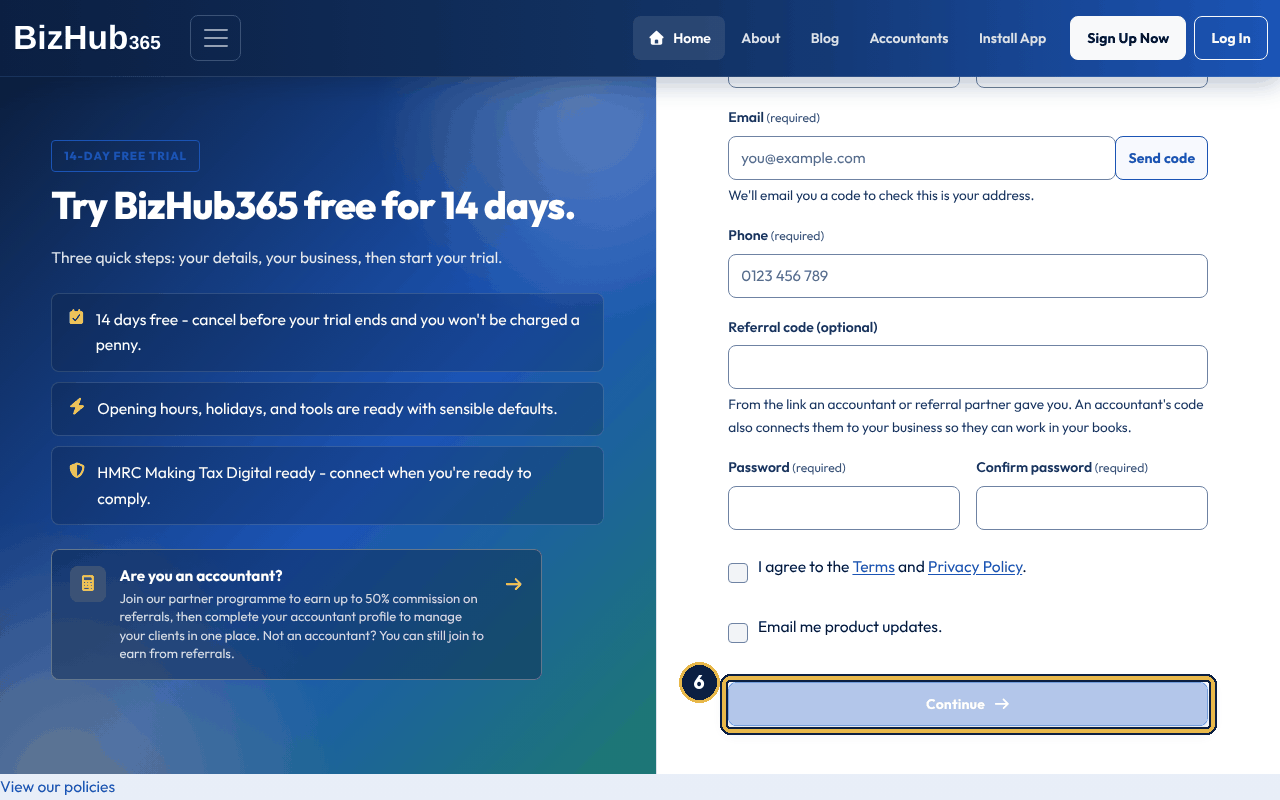
When it worked: BizHub365 creates your sign-in and opens Step 2, where you describe the business.
| If this happens | Do this |
|---|---|
| Continue is greyed out. | Your email address is not verified yet. Do steps 2 and 3. If you changed the email address after verifying it, verify the new one. |
| No code arrives. | Check your junk or spam folder, and check the address for typing mistakes. Then choose Send code again. |
| The line under the box says Too many attempts. Request a new code. | A code allows five wrong tries. Choose Send code to get a new one. |
| The code is refused although you typed it correctly. | Codes work once and for 15 minutes. Choose Send code for a fresh one. |
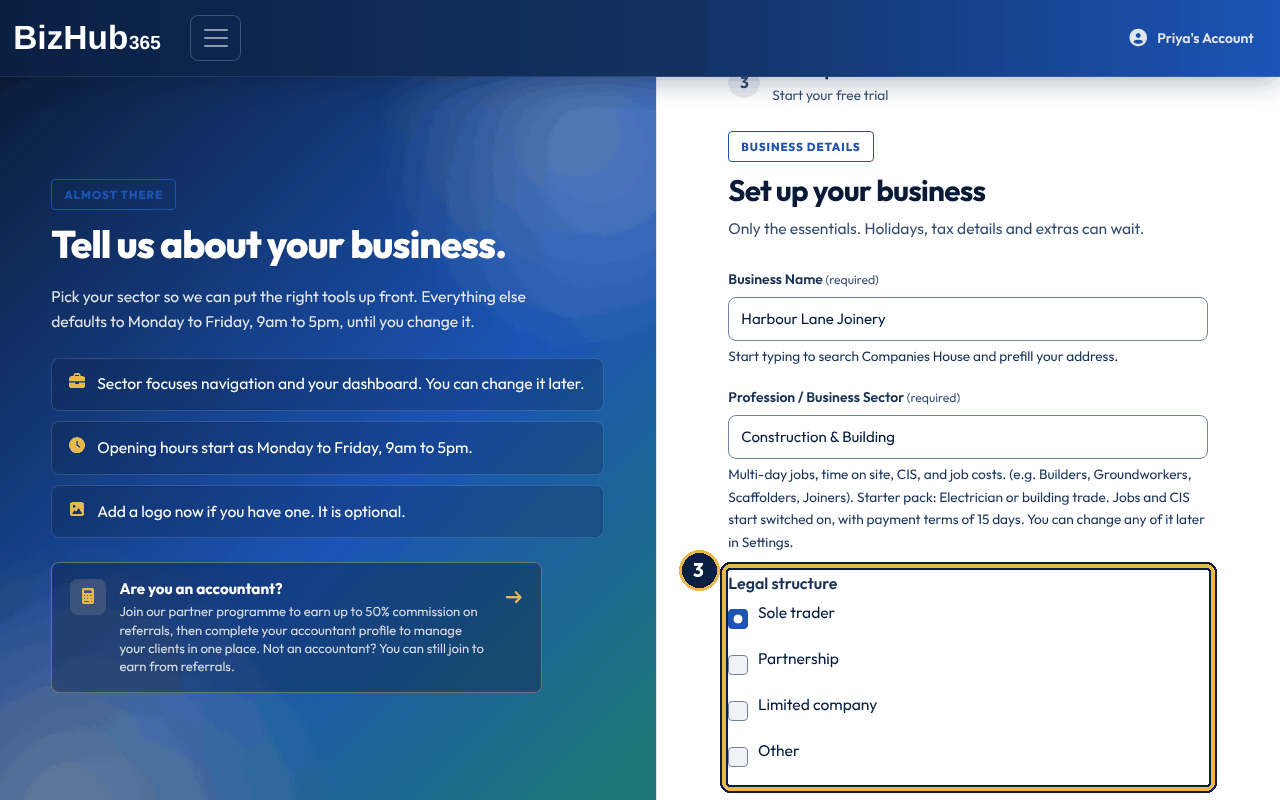
After Step 1 you are signed in, and BizHub365 opens Set up your business (/mybusiness/onboarding/business/). The progress bar at the top shows Your details done and Business details as the current step. This page creates the business record that everything else belongs to: its name and address go on every quote and invoice, and the sector you choose lays out the dashboard and menus for your trade.
Only the essentials are asked for. Opening hours, holidays, tax details and the rest wait until Business Settings. Your sign-in email address becomes the business email address and the phone number from Step 1 becomes the business phone number; both can be changed later in Settings → Business and tax setup. The panel on the left also offers the accountant partner programme (Are you an accountant?), which is a different sign-up: see Accountants and client work.
| Field | Required | What to enter |
|---|---|---|
| Business Name | Yes | The name customers see on your documents and booking page. Type three or more letters and a list of matching registered companies from Companies House appears under the box. Choosing one fills in the name and, while the address box is still empty, the registered office address. Sole traders ignore the list and type their trading name. |
| Profession / Business Sector | Yes | One of the 13 sectors in the table below. The line under the box changes to describe what the sector puts first and the trades it suits. |
| Legal structure | Yes | Choose Sole trader, Partnership or Limited company (a private limited company, Ltd). Anything else? Choose Other and pick from the Other legal structure list that appears under it: Limited Liability Partnership (LLP), Public Limited Company (PLC), Community Interest Company (CIC), Charitable Incorporated Organisation (CIO), Co-operative, Unincorporated Association, Social Enterprise, or Freelancer / Contractor. |
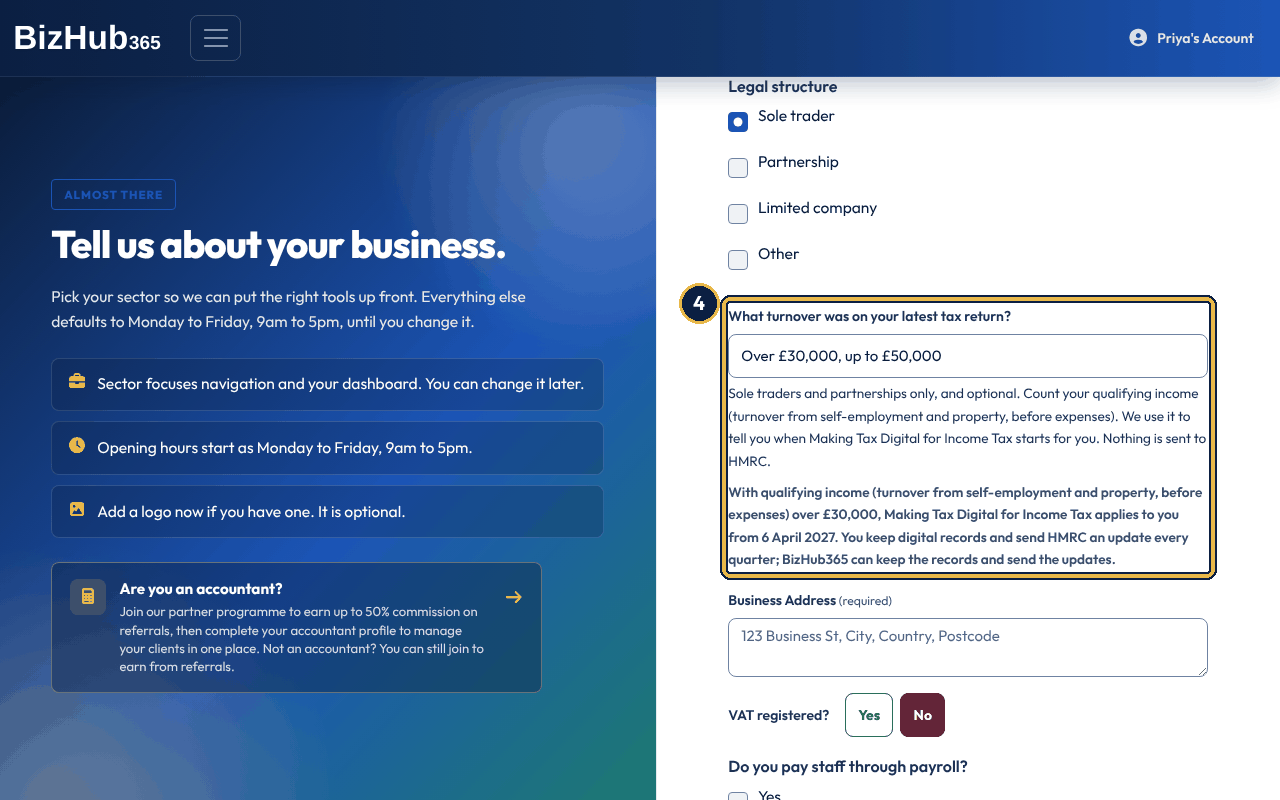
| What turnover was on your latest tax return? | No | Asked of sole traders (and freelancers) and partnerships only. Choose the band your qualifying income (turnover from self-employment and property, before expenses) was in on your latest tax return, or I have not sent a tax return yet. The answer under the box tells you straight away when Making Tax Digital for Income Tax starts for you (see the table below). Nothing is sent to HMRC. |
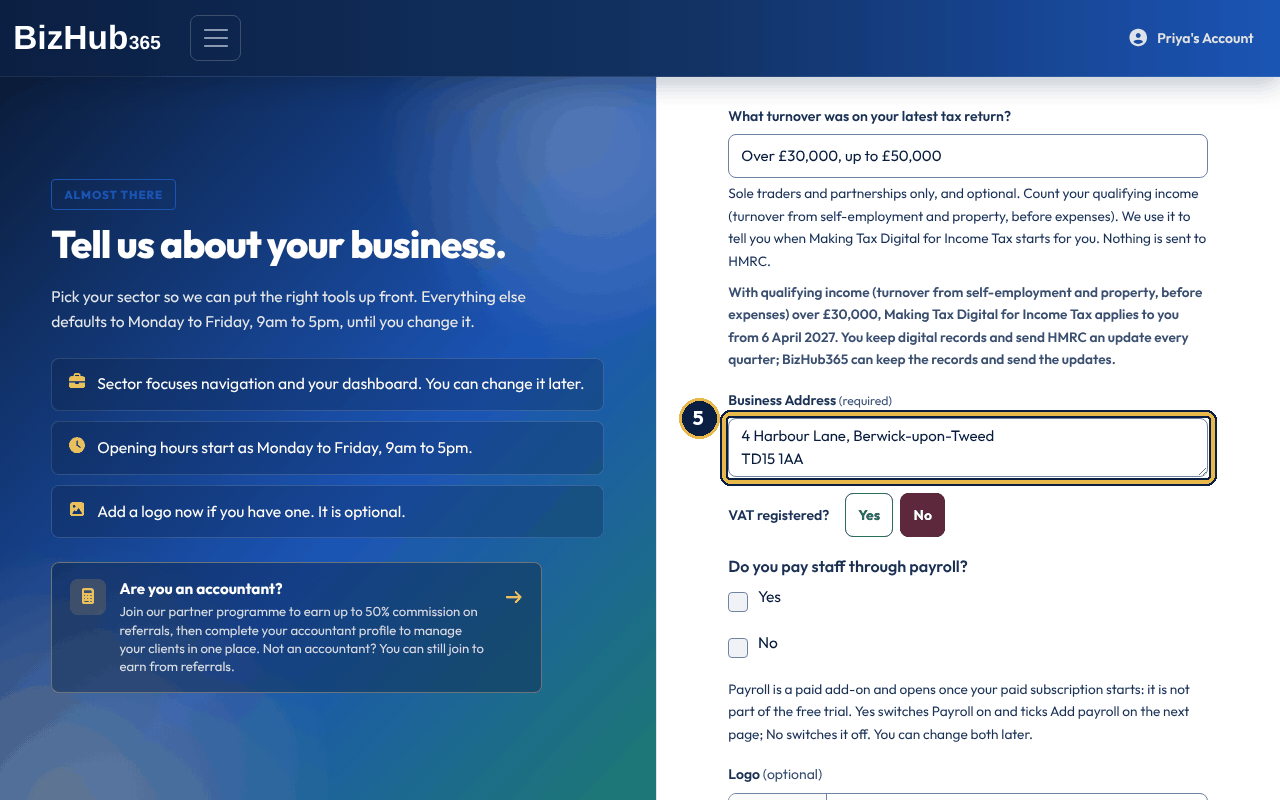
| Business Address | Yes | Your full postal address, on as many lines as you need. Filled in for you when you pick a company from the Companies House list. |
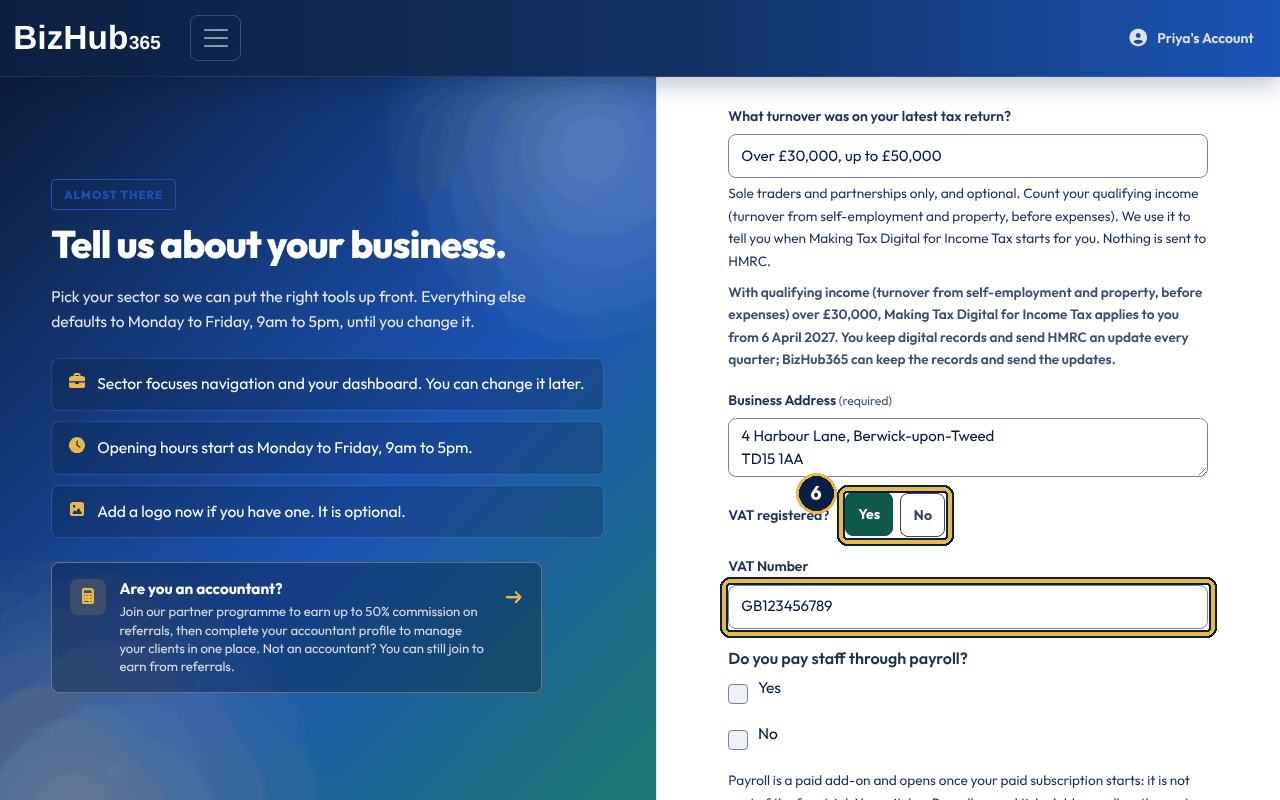
| VAT registered? | Yes (No is preselected) | Choose Yes or No. Yes shows the VAT Number box, which then has to be filled in. No hides the box and clears anything typed in it. |
| VAT Number | When VAT registered is Yes | Your VAT registration number. Leave No selected if you are not registered, and no VAT appears anywhere (see the note below). |
| Do you pay staff through payroll? | Yes | Yes switches the Payroll section on and ticks Add payroll for you on the next page. No switches Payroll off. Payroll is a paid add-on and opens once your paid subscription starts: it is not part of the free trial. You can change both later (Business Settings, Manage sections, and Settings → Subscription). |
| Logo | No | A PNG, JPEG, GIF or WebP image; SVG files are not supported. BizHub365 resizes it to 350 by 150 pixels and keeps transparency. If the file cannot be read as an image, the business is still created and a warning says the logo was not saved. |
Making Tax Digital for Income Tax means keeping digital records and sending HMRC an update every quarter. When it starts for you depends on your qualifying income: your turnover from self-employment and property, before expenses, as shown on your tax return. The answer at sign-up follows these dates:
| Qualifying income on your tax return | What the page tells you |
|---|---|
| Over £50,000 | It applies to you from 6 April 2026. |
| Over £30,000, up to £50,000 | It applies to you from 6 April 2027. |
| Over £20,000, up to £30,000 | It applies to you from 6 April 2028. |
| £20,000 or less | It is not required for you yet. |
| I have not sent a tax return yet | It depends on the qualifying income on your first tax return, with the dates above. |
Partnerships see one more sentence: partnerships are not in Making Tax Digital for Income Tax yet, and a share of partnership profits does not count towards these limits, but your own self-employment and property income does. Your answer is kept. The dashboard repeats it in a Making Tax Digital for Income Tax panel, and so does the Connect to HMRC step of the Get set up checklist. To change it, open Business Settings and use What turnover was on your latest tax return? in the Income Tax part of the page.
A sector is not a legal structure. It decides which Business overview cards come first and which menu items come first after Home, so the tools your trade uses most are nearest to hand. Five sectors also come with a starter pack (see Starter packs below). You can change it later in Business Settings, and you can reorder the Business overview cards yourself at any time.
| Sector | Examples | What it puts first |
|---|---|---|
| Trades & Field Services | Electricians, plumbers, heating engineers and other call-out trades | The diary: call-outs, jobs and follow-up invoices |
| Construction & Building | Builders, groundworkers, scaffolders, joiners | Multi-day jobs, time on site, CIS and job costs |
| Home & Property Services | Cleaners, landscapers, gardeners, pest control | Recurring visits, quotes and customer schedules |
| Beauty, Hair & Wellness | Hairdressers, barbers, beauty therapists, nail technicians | The appointment diary and keeping clients coming back |
| Health & Fitness | Personal trainers, physios, sports coaches | Sessions, packages and client follow-ups |
| Pet Care | Dog groomers, pet sitters, dog walkers | Bookings and client history |
| Professional Services | Accountants, bookkeepers, consultants, solicitors | Clients, invoices and compliance rather than diary volume |
| Creative & Digital | Web designers, photographers, marketing freelancers | Clients, projects and invoicing for delivery work |
| Education & Training | Tutors, driving instructors, coaches | Lesson diaries and recurring client bookings |
| Retail & E-commerce | Shops, online sellers, market traders | Sales, payments and your price list ahead of diary tools |
| Hospitality & Food | Cafés, caterers, mobile food traders | Bookings and sales for venues and caterers |
| Transport & Logistics | Couriers, removals, owner-drivers | Jobs, time logged and invoicing on the move |
| Other / Not listed | Anything else | The standard layout, which you can change later in Settings |
Some sectors come with a starter pack that sets a few things up for your trade when the business is created. The line under the sector box says which pack you get and what it sets. A pack is applied once, at sign-up: changing your sector later in Business Settings changes nothing else, and you can change everything a pack sets in Settings at any time.
| Starter pack | Sectors | What it sets |
|---|---|---|
| Cafe | Hospitality & Food | Bookings and Jobs start switched off. New invoices are due on receipt, with a thank-you note. Food and drink stock, packaging, utilities, rent, business rates, cleaning and insurance are listed first on Add Expense. |
| Hair and beauty | Beauty, Hair & Wellness | Bookings stays on for your appointment diary. New invoices are due on receipt. Salon products, chair or room rental, rent, utilities, training, advertising and insurance are listed first on Add Expense. |
| Electrician or building trade | Trades & Field Services, Construction & Building | Jobs and CIS start switched on. New invoices have 15 days to pay and a note that materials stay yours until paid. Building materials, fuel, vehicle costs, protective clothing, tools and equipment, insurance and phone are listed first on Add Expense. |
| Cleaning or mobile service | Home & Property Services | Bookings stays on for your rounds, and the dashboard's weekly check has a link to log your mileage. New invoices have 7 days to pay. Cleaning products, fuel, vehicle costs, parking, protective clothing, insurance and phone are listed first on Add Expense. |
Choosing Continue to subscription creates the business and makes you its administrator with every permission: view, edit, manage users and manage billing. BizHub365 applies the defaults listed under What BizHub365 prepares for you, links your accountant's referral if you came through their link or code, emails you the welcome message described under The emails you get while signing up, and opens Step 3.
A sign-in can set up one business this way. If your sign-in already belongs to a business, this page sends you to that business's Subscription & Billing page instead, and a second attempt to save is refused with Your account is already linked to a business. If a required box is empty, the page reloads with Please complete all required business details, the box is outlined, and everything you typed is kept.
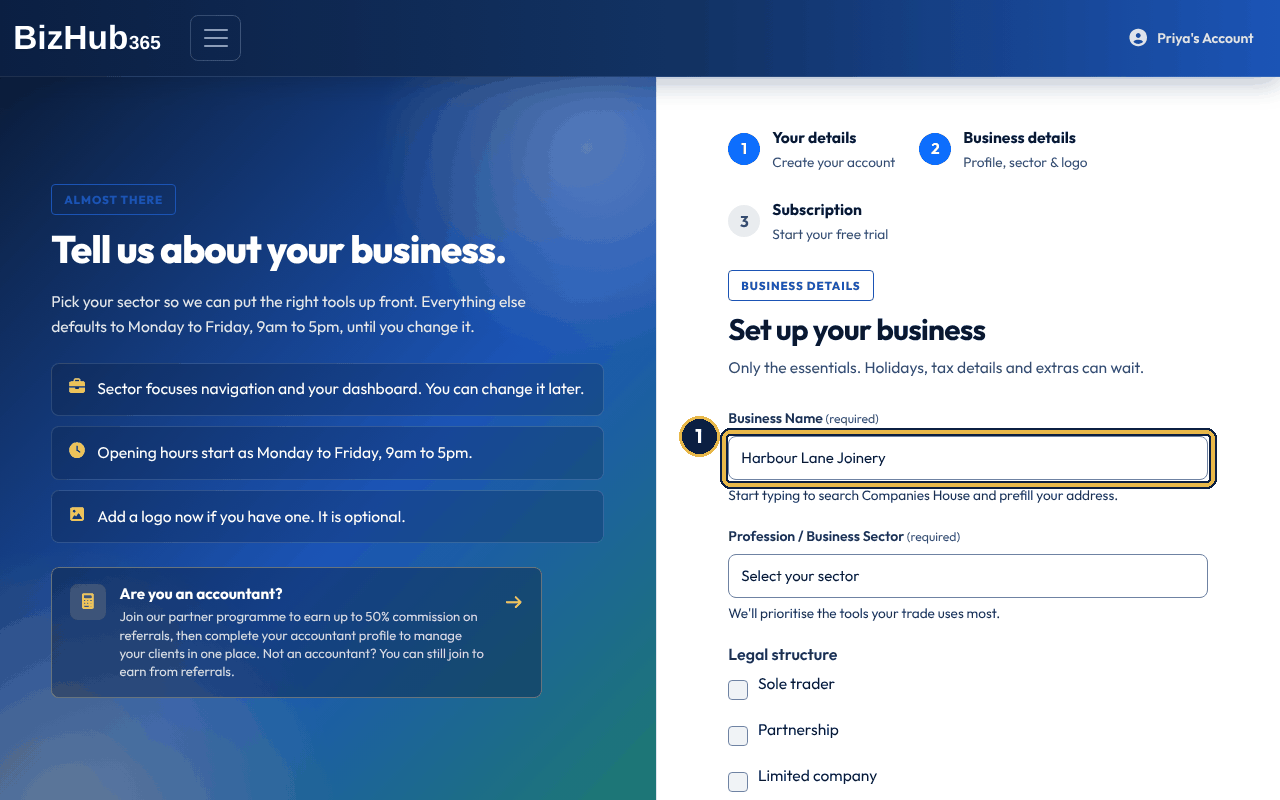
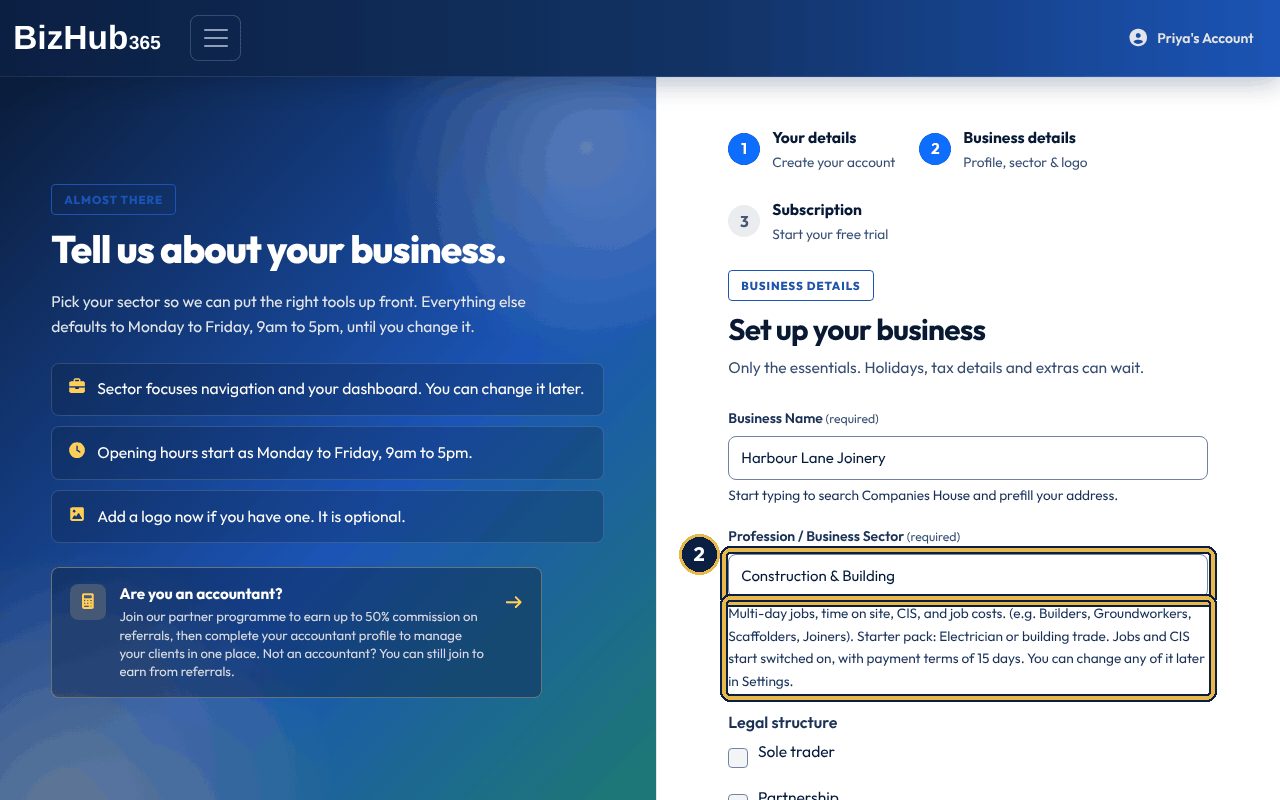
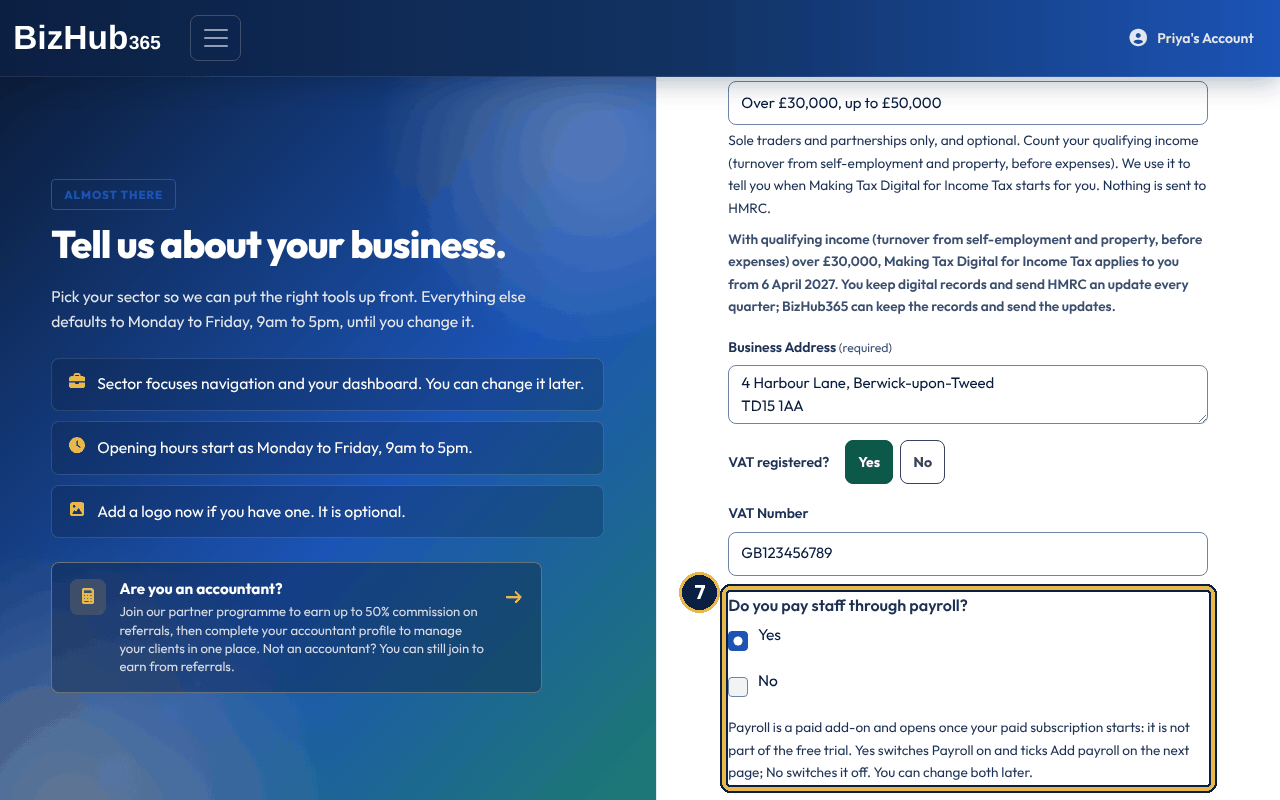
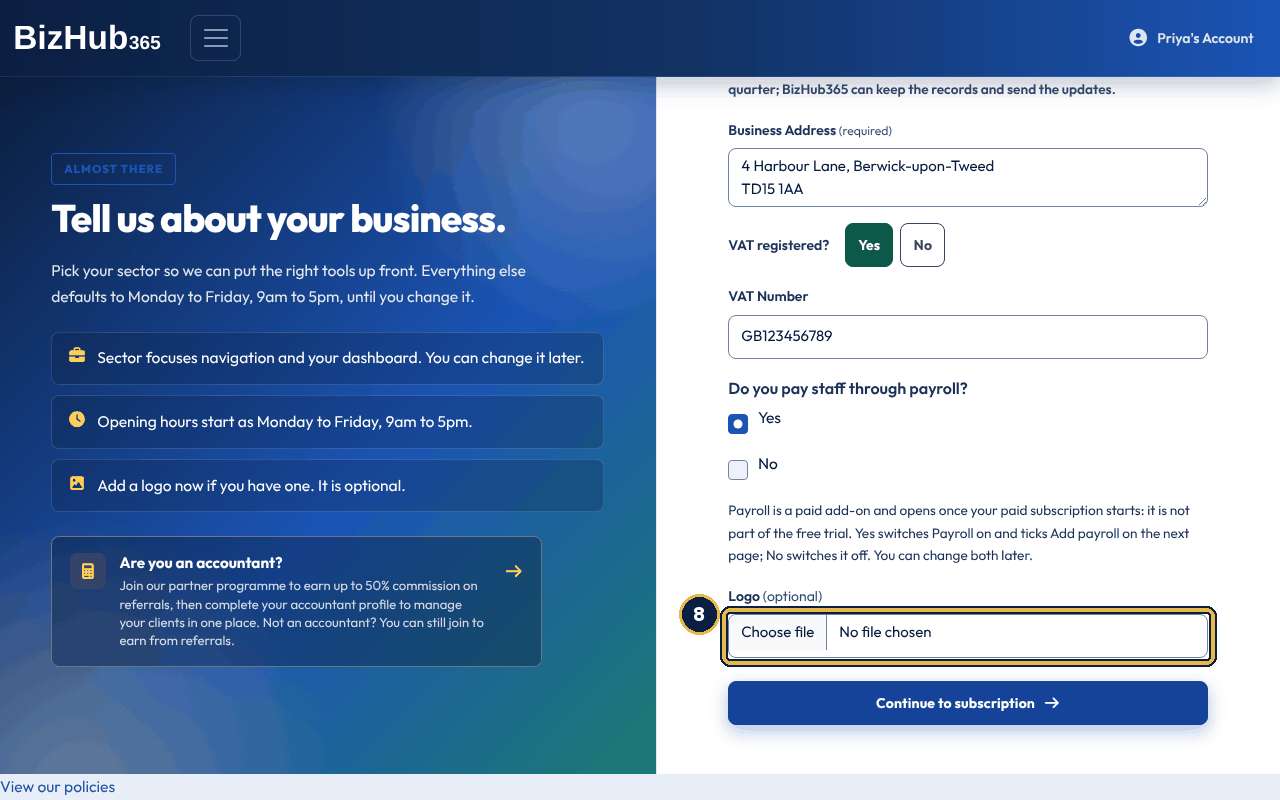
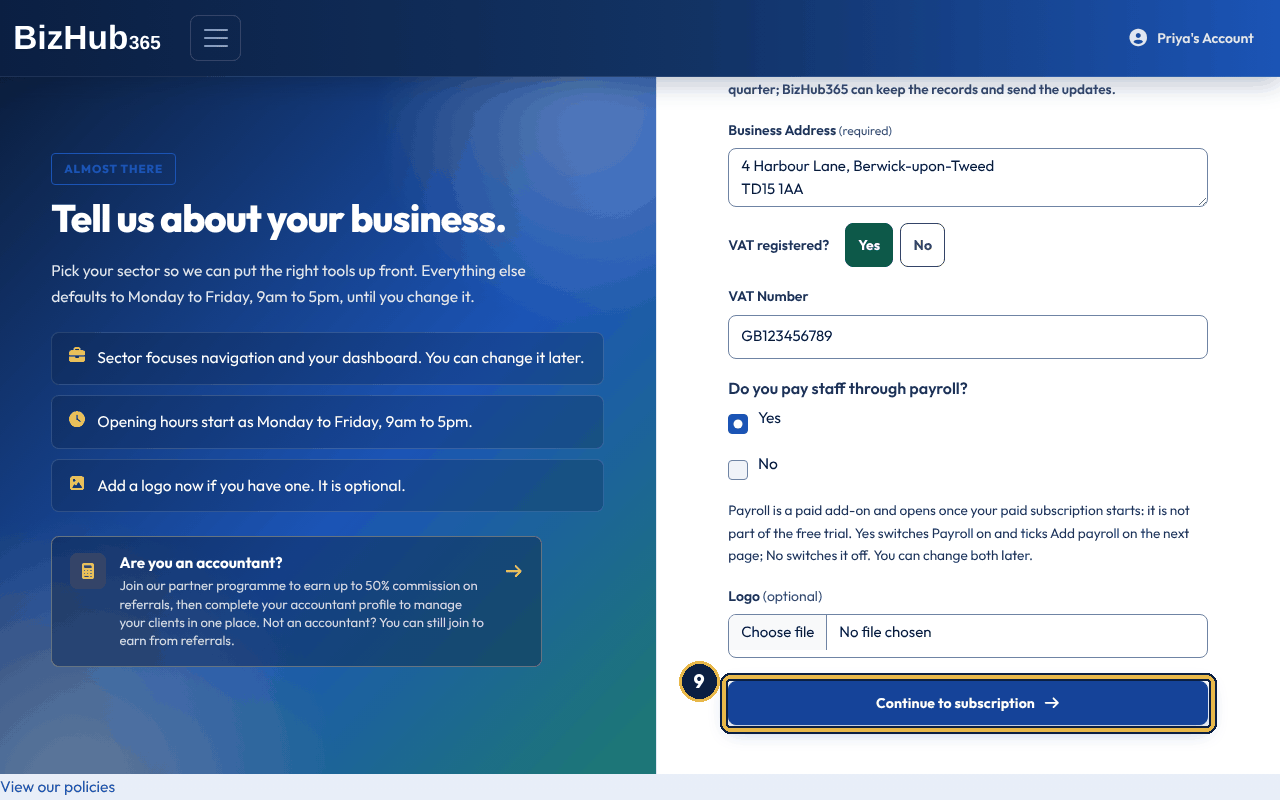
When it worked: BizHub365 creates the business, emails you a welcome message, and opens Step 3, Subscription & Billing, with the progress bar showing Business details done. If you answered the turnover question, a message at the top repeats when Making Tax Digital for Income Tax starts for you.
| If this happens | Do this |
|---|---|
| The page reloads with Please complete all required business details. | A required box is empty, or no legal structure is chosen (with Other, a type must be picked from the list too). The box is outlined. Fill it in and choose Continue to subscription again; everything else you typed is kept. |
| No companies appear when you type the name. | Type at least three letters and wait a moment. The list only shows registered companies, so sole traders see nothing. If Companies House cannot be reached, the list stays empty; type the name and address yourself. |
| A warning says Your logo was not saved. | The file could not be read as an image. The business is still created; add a PNG, JPEG, GIF or WebP logo later in Business Settings. |
| The page says Your account is already linked to a business. | Your sign-in already belongs to a business, so a second one cannot be created here. Open that business from the dashboard. |
The last step is Subscription & Billing, the same page you reach later from Settings → Subscription. During sign-up it shows the progress bar with Subscription as the current step, and the sentence at the top tells you the trial length: Start your 14-day free trial, card details now, no charge until the trial ends. A partner offer can change that sentence and the trial (see Partner offers).
There is one plan, BizHub365 One, at £19 a month or £190 a year (two months free) for the whole business, with no per-user fee. Under the price, choose Monthly or Annual. The plan card lists what is included: CRM and customer management, online bookings and diary, invoices, quotes and payments, bank imports and matching, advanced finance and reporting, a full audit trail, compliance tools, unlimited team members, the mobile app and priority support, plus VAT and Income Tax submissions where those HMRC services are switched on for the platform. Payroll is not in the plan. If you pay staff, tick Add payroll to add the payroll add-on: £10 a month covers up to 5 employees, then £2 a month for each employee after the fifth. The box shows the price for the employees you have now (a new business has none and is billed for 1). If you answered Yes to Do you pay staff through payroll? in Step 2, it is already ticked; untick it if you do not want it yet. Payroll is not part of the free trial: it opens once your paid subscription starts. You can also add or remove payroll later (see The payroll add-on). Start free trial sends you to Stripe's secure checkout page to enter your card. Stripe holds the card details; BizHub365 never sees the number. Nothing is charged for 14 days, and if you cancel from Settings → Subscription before the trial ends you pay nothing. See Subscription, trial, and billing for what happens after that.
Promo or voucher code: if BizHub365 or a partner gave you a code, type it in the box under the plan card and choose Apply. The line under the box confirms the discount (for example 20% off for 3 months) or says the code is invalid or expired. An applied code is carried into the checkout when you choose Start free trial.
Skip for now, go to dashboard, under the plan card, closes the sign-up wizard without a subscription. Until the business has one, every page apart from Subscription & Billing sends you straight back there with the message You need an active subscription to access this page, so skipping only lets you come back later: sign in again and you land on Subscription & Billing, where Start free trial is waiting.
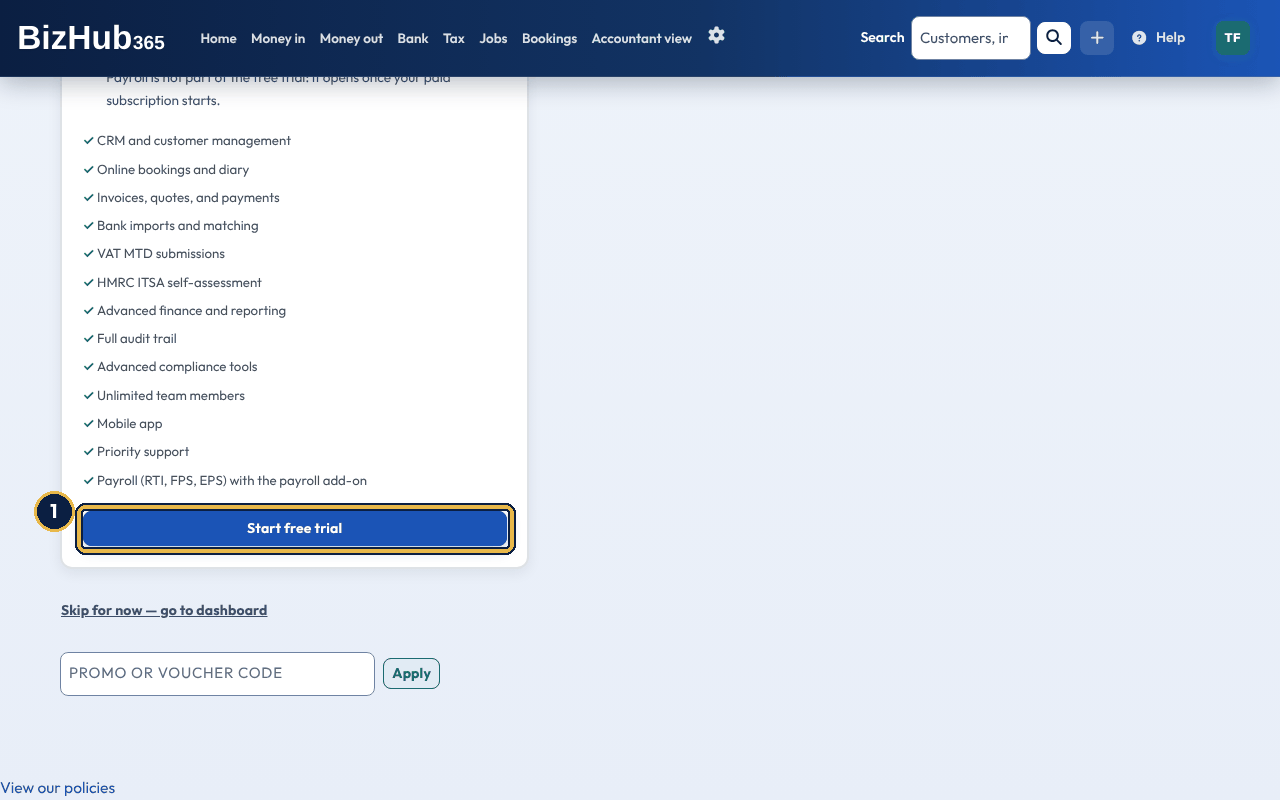
When it worked: Stripe sends you back to BizHub365, which shows Account created successfully! and opens your dashboard with the Get set up card at the top. Settings → Subscription now shows BizHub365 One with a Free Trial badge and the date the trial ends.
| If this happens | Do this |
|---|---|
| You are back on Subscription & Billing and it still offers Start free trial. | Stripe has not yet confirmed the trial to BizHub365. Wait a few seconds and reload the page rather than starting another checkout. If it still shows after a minute, contact support. |
| A red message says Could not start checkout or Network error. | Check your connection and choose Start free trial again. |
| The promo code is refused. | The code must be active; capital letters do not matter. Check it with whoever gave it to you, or continue without it. |
| You chose Skip for now and every page says You need an active subscription to access this page. | That message sends you to Subscription & Billing. Choose Start free trial there. |
Some partners, such as UK Business Forums, give their members a link to a BizHub365 offer page. The page says who the offer is for, how long the free trial is and whether a card is needed, lists what is included, and links to the normal sign-up and to sign-in. Offer pages are not linked from bizhub365.com and search engines are told not to index them, so you need the link from the partner.
Opening the page remembers the offer for your visit. Finish Step 1 and Step 2 in the same browser session and the offer is recorded on the new business, so Step 3 gives you the offer's trial instead of the standard 14 days. The UK Business Forums offer is 30 days with no card required. An offer covers the business's first subscription only: a business that has already had a subscription checks out without the offer's trial.
During a no-card trial, Subscription & Billing says No card needed at the top and shows a Keep your plan after the free trial card with Add payment details, which opens Stripe's secure page for your card. Add a card before the trial ends and your plan carries on at its normal price (BizHub365 One is £19 a month, plus the payroll add-on if you added it). If no card has been added when the trial ends, the trial stops and nothing is charged.
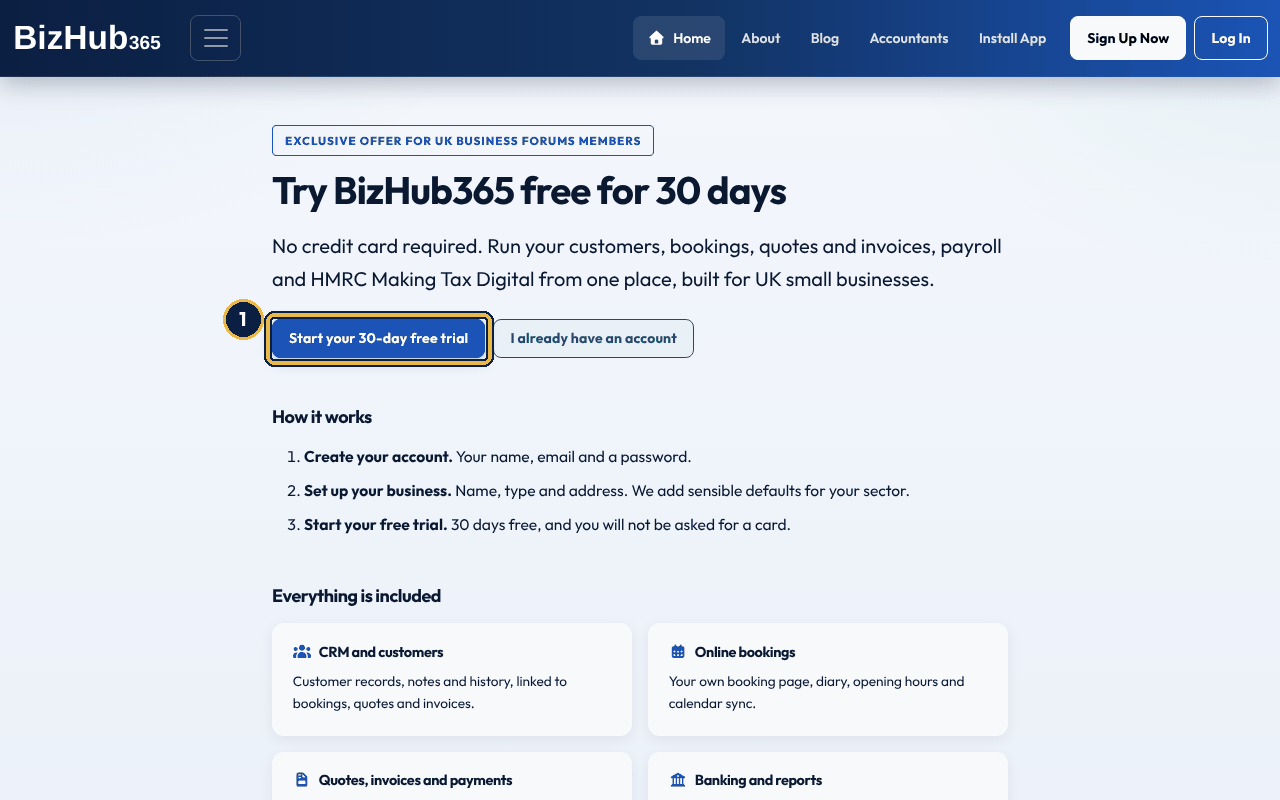
When it worked: Your trial runs for the offer's length. With a no-card offer, Settings → Subscription shows Keep your plan after the free trial with the trial end date and an Add payment details button.
| If this happens | Do this |
|---|---|
| The sentence at the top of Subscription & Billing says 14-day, not the offer's length. | The offer was not remembered: it lasts for one browser visit. If the business does not exist yet, open the partner's link again in this browser and carry on from there. If you have already created the business, contact support before starting the trial. |
| The offer link shows Not found. | Check the link with the partner. Offer codes are not listed anywhere and a wrong one shows a not-found page. |
BizHub365 sends the three emails below during sign-up and nothing else. They are all part of the service, so they arrive whether or not you ticked Email me product updates. If you signed up through an accountant's branded portal, they carry the accountant's brand name and reply address instead of BizHub365's.
| When it arrives | What it says and what to do | |
|---|---|---|
| Your BizHub365 sign-up code | When you choose Send code in Step 1. | Your 6-digit code, valid for 15 minutes. Type it into 6-digit code from your email and choose Verify. One address can be sent five codes an hour, and each code allows five wrong tries. If you did not ask for it, ignore it. |
| You already have a BizHub365 account | Instead of a code, when the address already has an account. | Links to sign in or to reset your password. The sign-up form says a code was sent either way, so nobody else can learn whether an address has an account. |
| Welcome to BizHub365 - let's get you set up! | When Step 2 creates the business, to your sign-in email address. | Confirms the length of your free trial and lists three first jobs with links: complete your business profile, set your services and availability, and share your booking page. Reply to it to reach support. |
If you ticked Email me product updates, you may also get product tips in the days after sign-up. They are sent by our customer relationship system, not by BizHub365 itself, only while you are opted in, and each one has an unsubscribe link. Nothing else is sent to your address by BizHub365 until you use a feature that emails you, such as a sign-in code or a receipt.
As soon as the business exists, the system seeds a usable workspace:
Where to find it: Dashboard→Get set up
After signup, the top of your dashboard shows a Get set up card with the steps that get the business ready, and how many are done. Each step says in one line why it matters and links to the page where you do it. Apart from the VAT question, you never tick anything yourself: BizHub365 checks your records each time you open the dashboard, so a step ticks itself off once the thing it asks for exists.
| Step | Done when |
|---|---|
| Complete your business details | The business has a name, type, address, email and phone number. |
| Are you VAT registered? | You answered it. The step asks the question with two buttons: No, not VAT registered ticks it off (the answer you gave at sign-up counts too); Yes, add my VAT details opens the VAT part of Business Settings, and the step becomes Add your VAT details until a VAT number is saved. Saving Business Settings also ticks it off. Only people who can edit the business see the buttons. |
| Add your bank account or import a statement | A bank is connected or a statement has been imported. Only shown when Banking is switched on. |
| Add your first customer | There is at least one customer. |
| Create your first invoice | There is at least one invoice. |
| Add your logo | A logo is uploaded in Business Settings. |
| Set up payroll | Payroll settings have your PAYE reference, Accounts Office reference and Gateway sign-in. Only shown when Payroll is switched on and the payroll add-on is on your plan. |
| Connect to HMRC | BizHub365 is connected to HMRC. Only shown when the Tax (HMRC) section and VAT or Income Tax are on. If you answered the turnover question, it also says when Making Tax Digital for Income Tax starts for you. |
| Invite your accountant or team (optional) | Someone else has access to the business or has been invited. This step never keeps the card on screen. |
The card goes away by itself once every step that is not optional is done. To bring it back after hiding it, open Business Settings, choose Manage sections and use Show the checklist on the dashboard under Setup checklist.
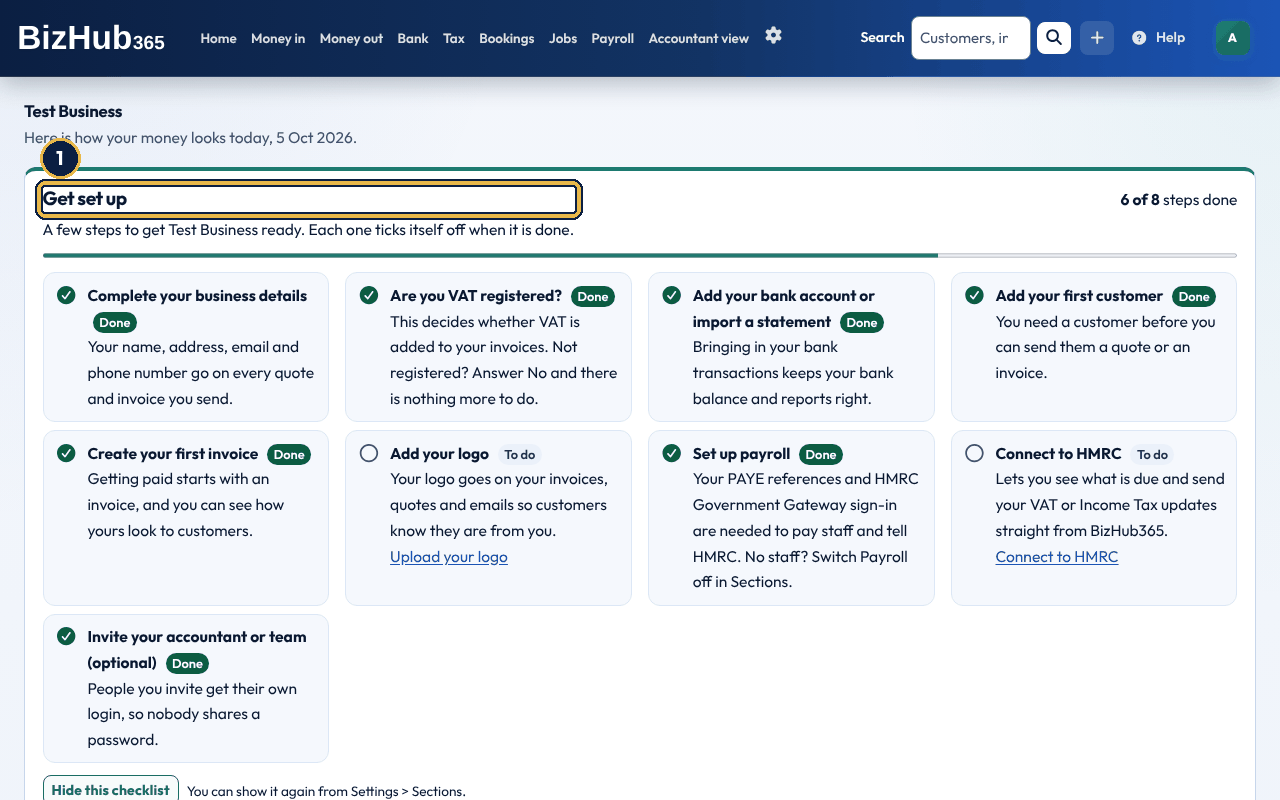
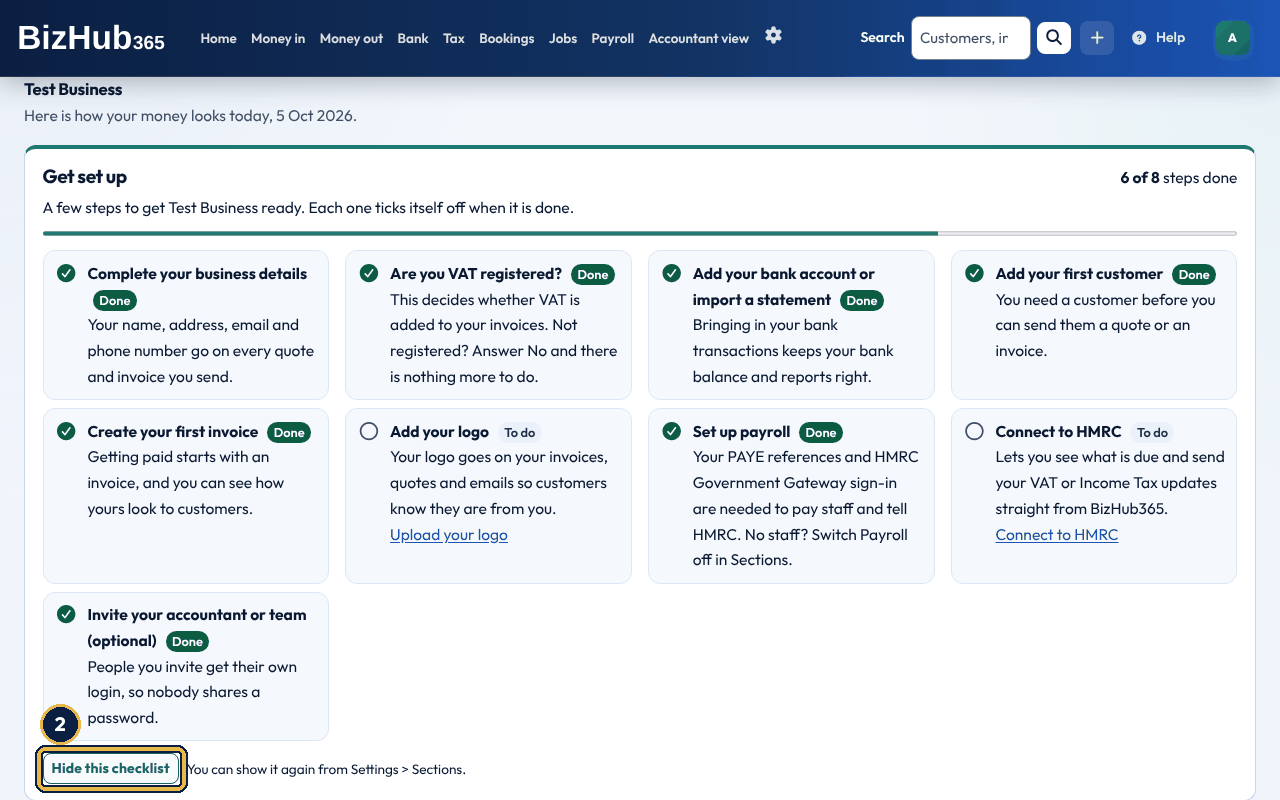
When it worked: The dashboard reloads without the card and shows Setup checklist hidden. You can show it again from Settings > Sections.
| If this happens | Do this |
|---|---|
| There is no Hide this checklist button. | You do not have the Edit permission for this business. Ask an administrator, or ask them to hide it. |
Part I · Getting started · Chapter 4
Use BizHub365 in a browser, install it as a desktop app, or get the app for iPhone, iPad and Android. One account works on all of them.
There are four ways to use BizHub365. They all sign in to the same account and show the same business, so you can start a job on one and finish it on another.
| Build | Where to get it | What you need |
|---|---|---|
| Web app | Go to bizhub365.com and choose Log In. | A current browser with cookies and JavaScript switched on. |
| Desktop app | Choose Install App on bizhub365.com, or use your browser's own install control. | Chrome or Edge on Windows, Mac, Linux or a Chromebook, or Safari on a Mac (File, Add to Dock). |
| iPhone and iPad | BizHub365 on the App Store. | An iPhone or iPad that the App Store page lists as supported, and an Apple Account. |
| Android | BizHub365 on Google Play. | An Android phone or tablet that the Google Play page lists as supported, and a Google account. |
Every sign-in has two parts: your email and password, then a second check that proves it is you. The second check is a code we email you, or, if you have set one up, a passkey, an authenticator app code or an approval on your phone in the BizHub365 app.
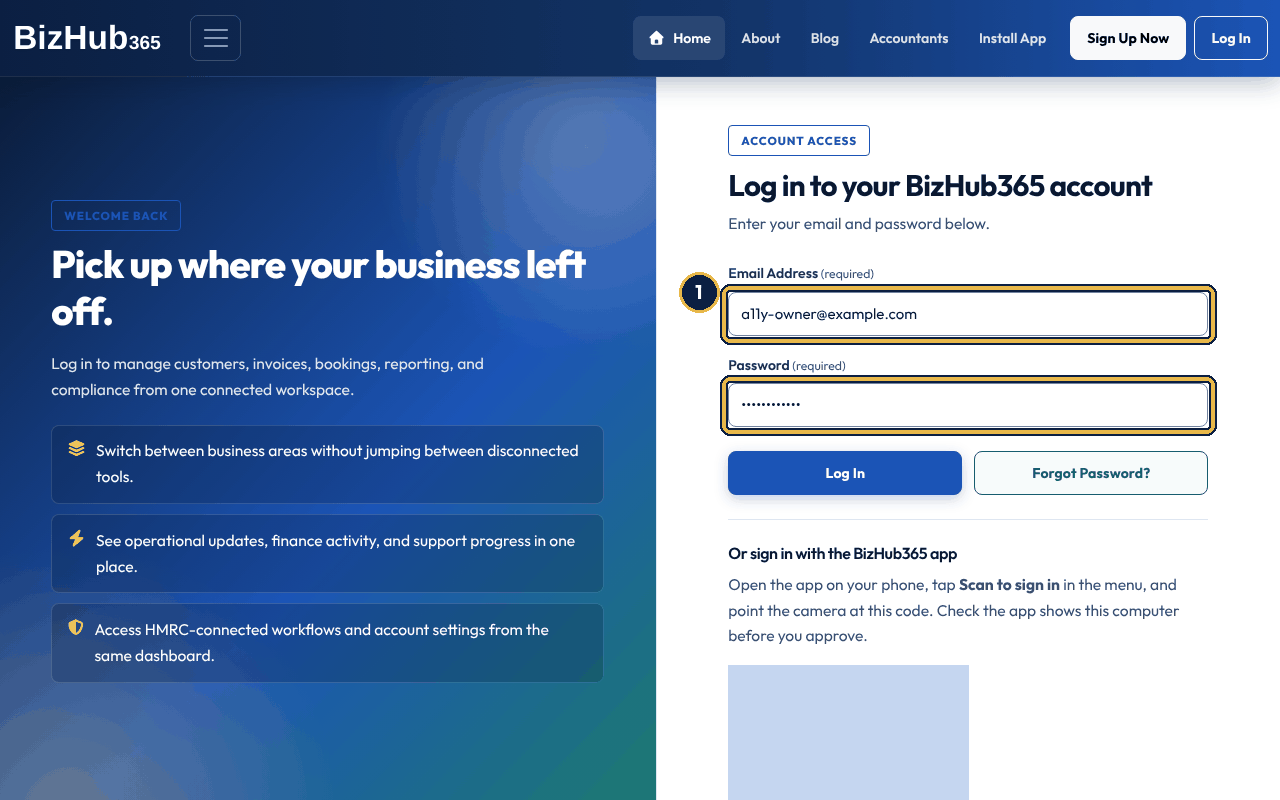
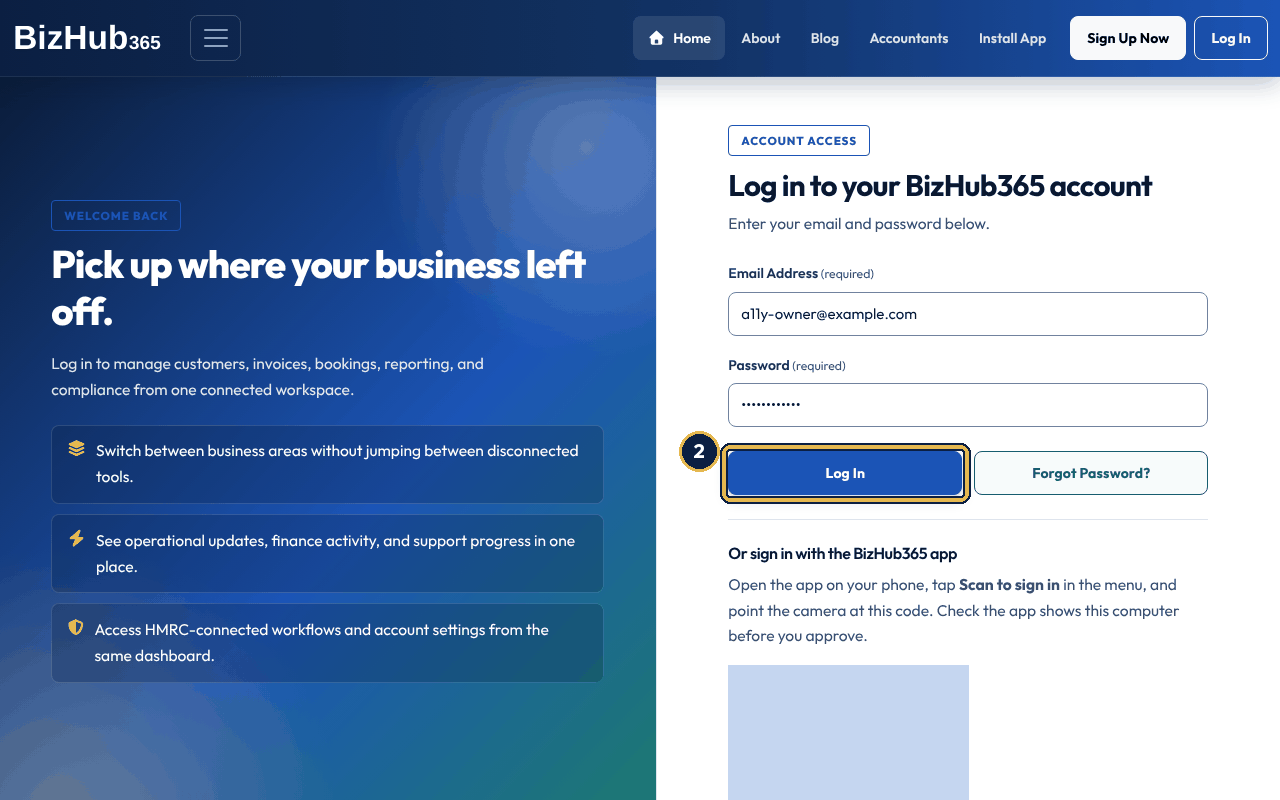
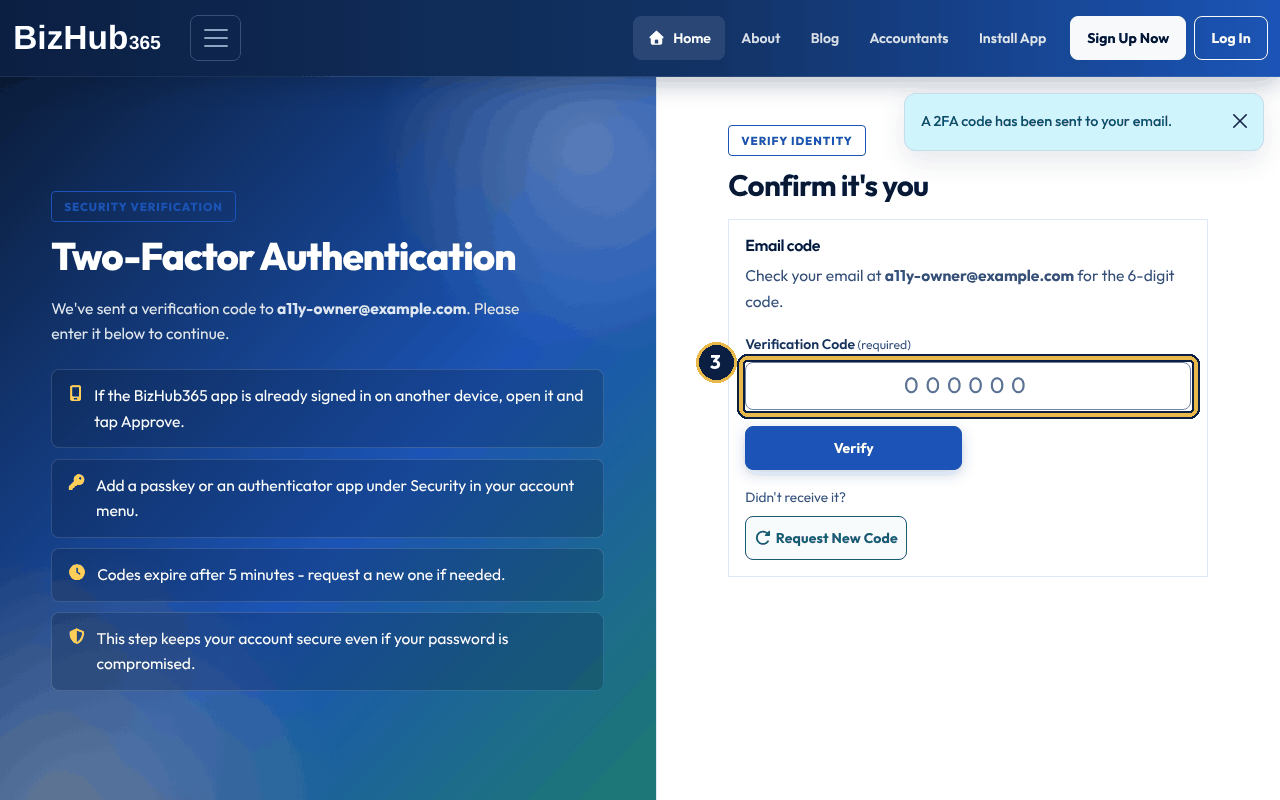
When it worked: You are signed in and BizHub365 opens.
| If this happens | Do this |
|---|---|
| The code email does not arrive. | Check junk or spam, then choose Request New Code under Didn't receive it?. |
| You have forgotten your password. | Choose Forgot Password? beside Log In and follow the emailed link. |
| You set up a passkey or authenticator app and no email came. | When a stronger check is set up, BizHub365 does not email a code straight away. Use that check, or choose Email me a code. |
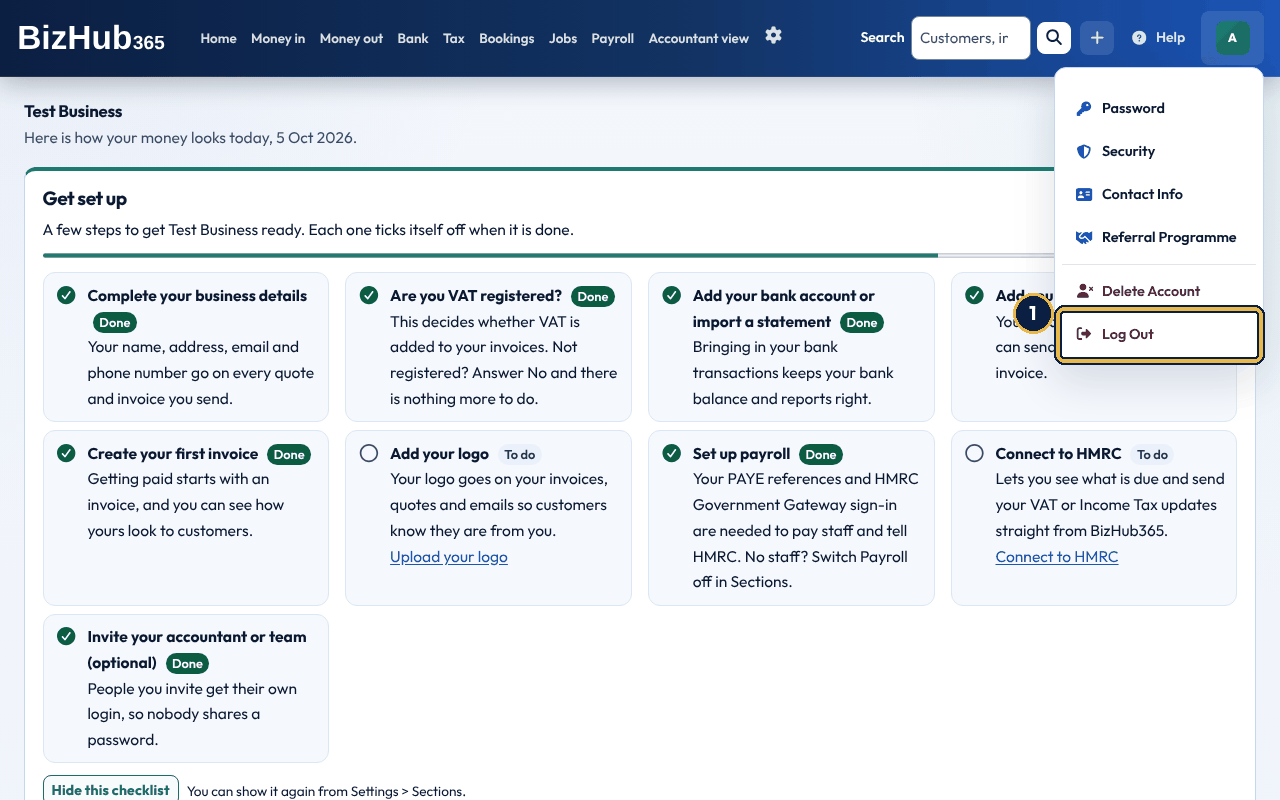
When it worked: The sign-in page opens. Anyone using this browser next has to sign in again, including the second check.
The desktop app is the BizHub365 website installed by your browser. It opens in its own window with the BizHub365 icon in your Start menu, Dock, launcher or shelf, and it is the same service as the web app: what you do in one shows in the other. It needs an internet connection. Without one, it shows a page saying you are offline instead of your data.
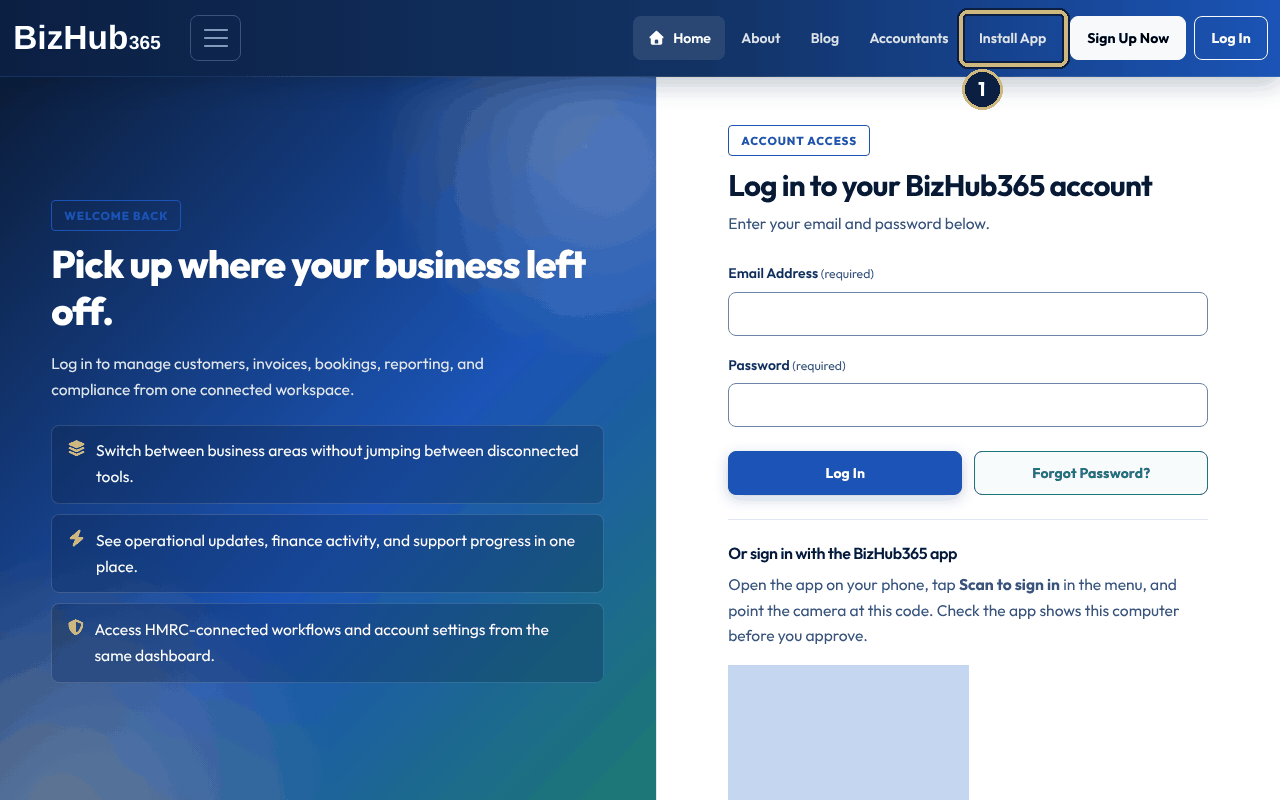
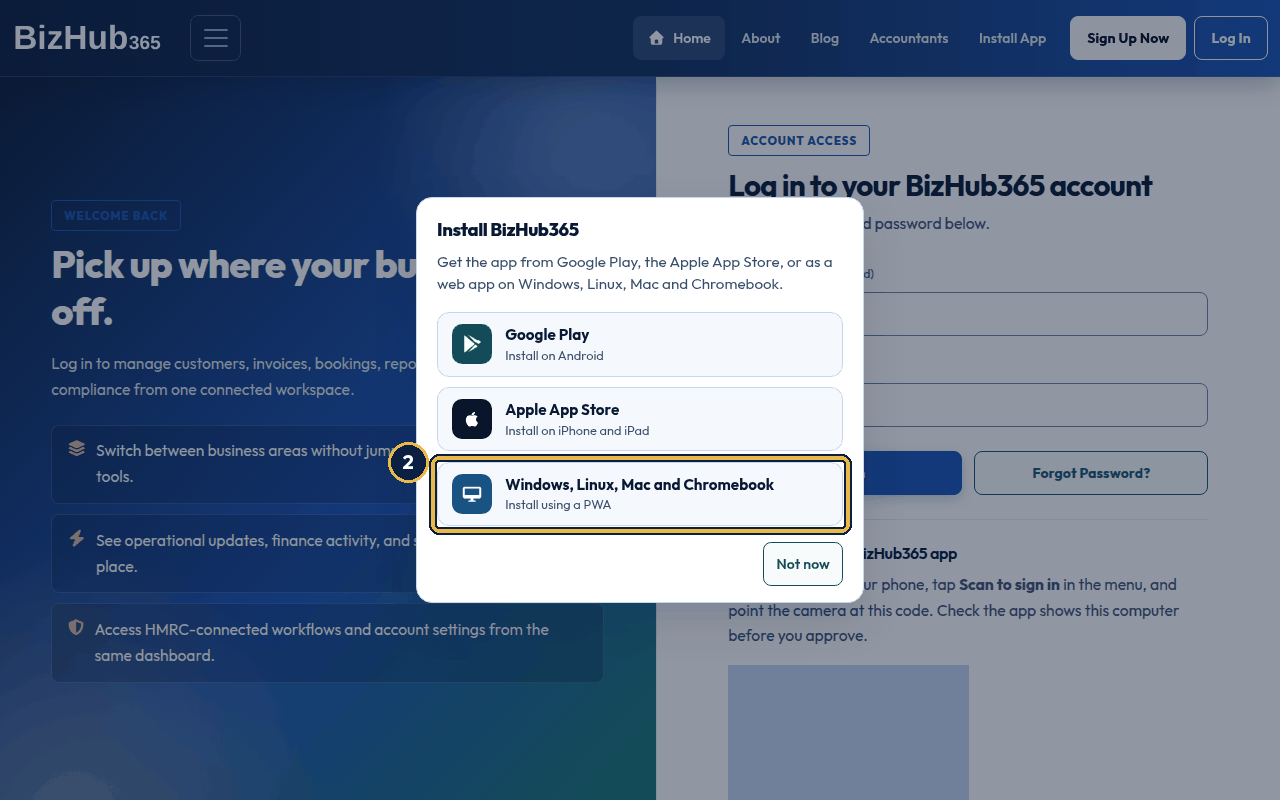
When it worked: BizHub365 opens in its own window, and the Install App button no longer shows in that browser.
| If this happens | Do this |
|---|---|
| The window says to use Install app in your browser menu. | Your browser has not offered the install yet. Use the install item in the browser's menu, or open bizhub365.com in Chrome or Edge. |
| You chose Not now. | Choose Install App again whenever you are ready. |
| Question | Answer |
|---|---|
| How do updates arrive? | Automatically. The desktop app loads BizHub365 from bizhub365.com each time, so it is always the current version. There is nothing to download. |
| Can I use it on more than one computer? | Yes. Install it on each computer and sign in on each one. |
| How do I sign out? | The same as on the web: your initials in the top bar, then Log Out. |
| How do I uninstall it? | Use your computer's normal way to remove an app, or the app's own window menu in Chrome or Edge. Uninstalling removes the app from this computer only; your account and data stay as they are. |
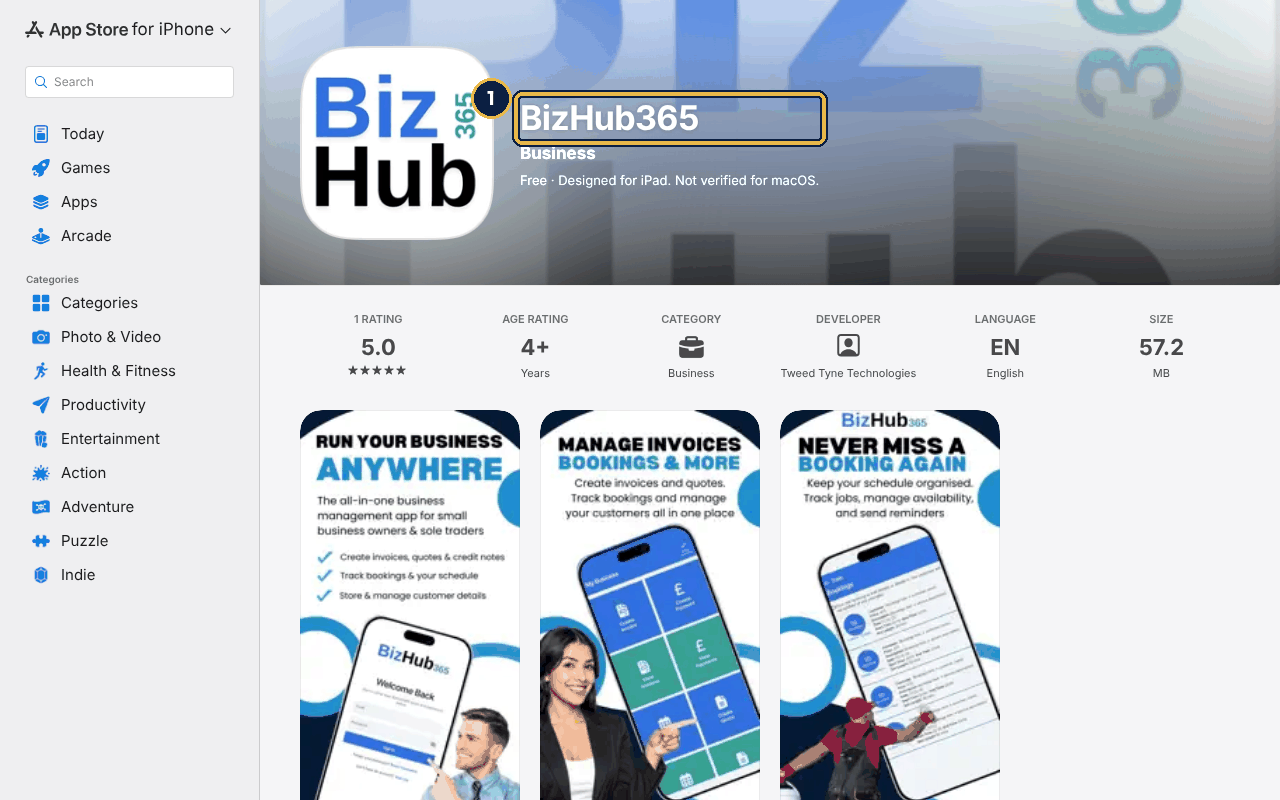
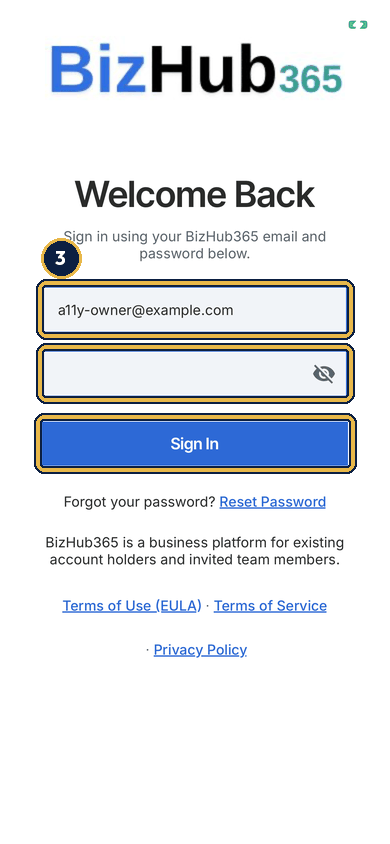
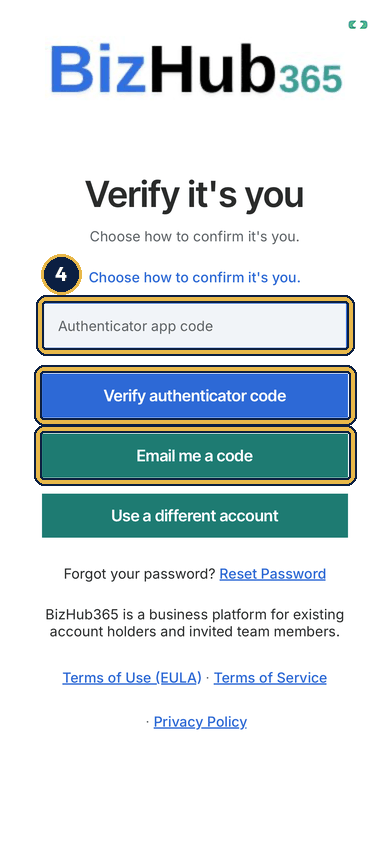
When it worked: The app opens your business on Home, with tabs along the bottom.
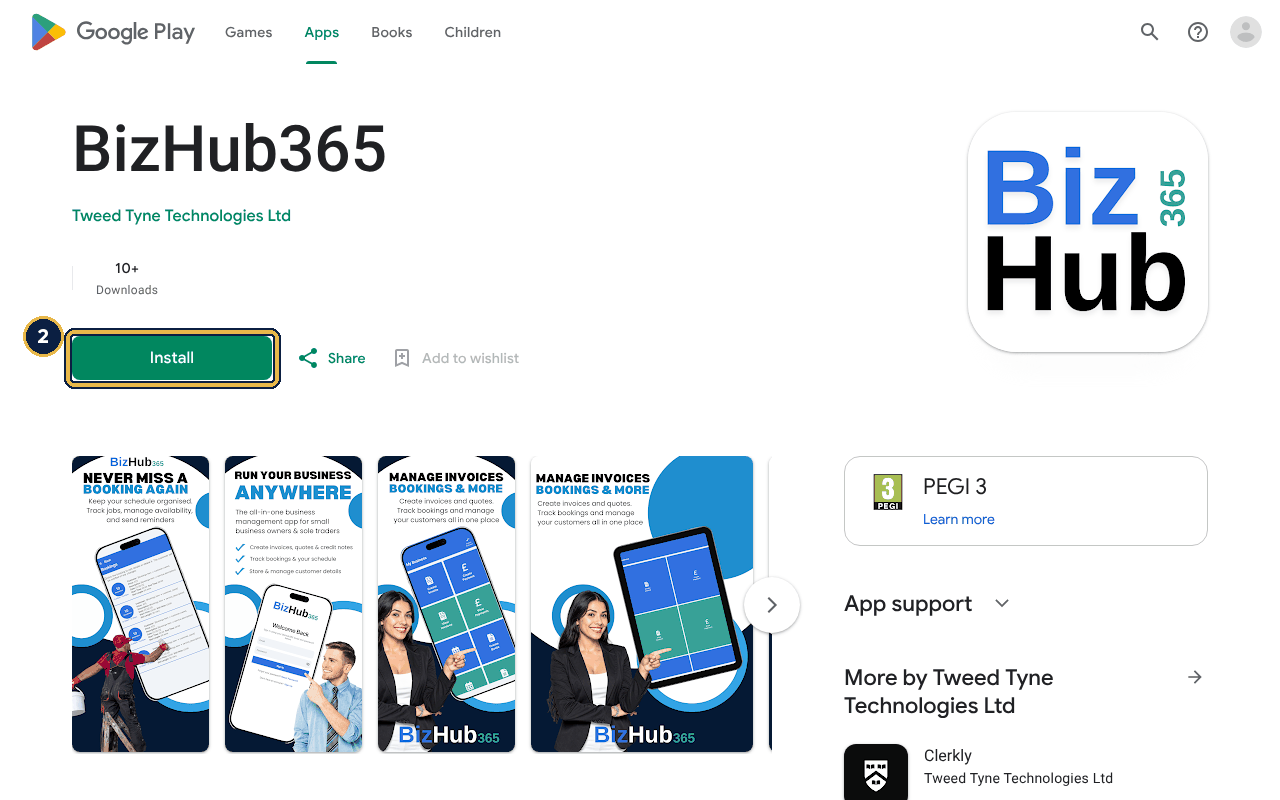
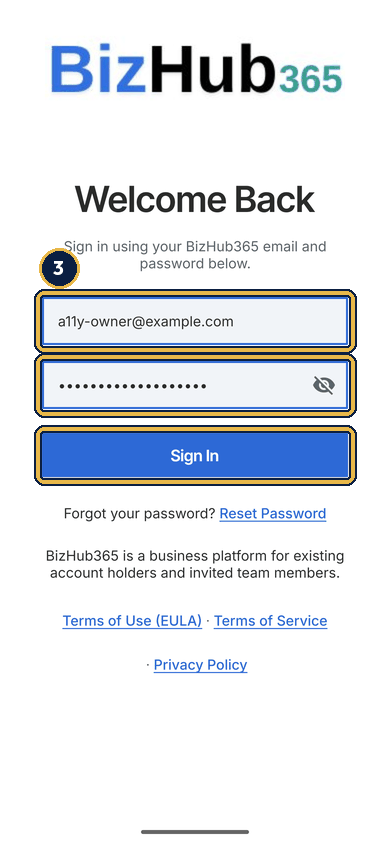
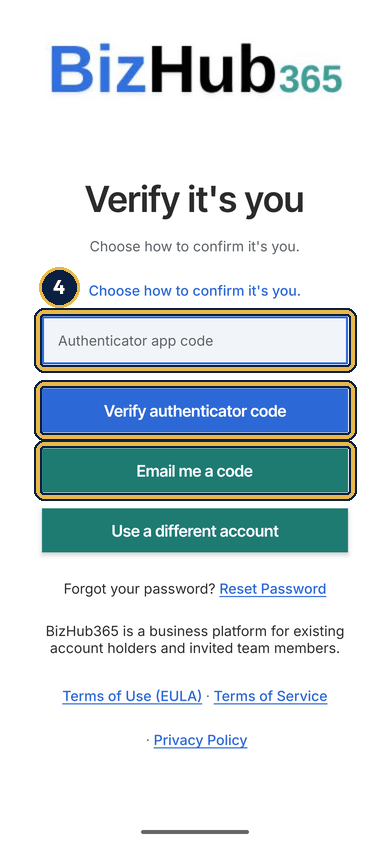
When it worked: The app opens your business on Home, with tabs along the bottom.
The app asks the first time it needs each permission, not when you install it. You can say no: the rest of the app keeps working, and you can change your mind later in the device's Settings.
| Permission | Asked on | Why, in the app's own words |
|---|---|---|
| Notifications | iPhone, iPad and Android, after you sign in | So the app can ask you to approve or deny a sign-in to your account, and remind you before tax deadlines (see Reminders before each deadline). On Android they arrive in the Sign-in approvals and Tax deadline reminders channels. Without notifications you can still sign in with a code, and the reminder emails still come. |
| Camera | iPhone, iPad and Android, the first time you capture a photo or scan a sign-in QR code | “BizHub365 uses the camera to capture invoices and receipts, and to scan the QR code that signs you in on a computer.” |
| Photos | iPhone, iPad and Android, the first time you upload from your photo library | “Choose photos of receipts and documents to attach to invoices and expenses.” |
| Face ID | iPhone and iPad, the first time you approve something | “Confirm it's you before you approve a sign-in or an HMRC submission.” |
| Location | iPhone and Android, only when you turn on automatic trips in Mileage, after the app explains what it collects; first while using the app, then all the time (Always on an iPhone) | “With automatic trips on, BizHub365 uses your location while you drive, even when the app is closed, to record your business mileage. Your route stays on your phone. Turn it off in Mileage at any time.” Refuse it and automatic trips stay off; starting and stopping trips yourself needs no location. Android also shows a Recording business trips notification while automatic trips are on, and a Trips to sort notification channel tells you when a trip has ended (see Turn on automatic trips). |
| Question | Answer |
|---|---|
| How do updates arrive? | Through the App Store or Google Play, like any other app. If your version is too old for something you try, the app says Please update the BizHub365 app to continue. Update it from the store and try again. |
| Can I use more than one phone? | Yes. Sign in on each one. Each phone you sign in on can approve your sign-ins; the list is under Phones that approve on the Security page, where you can remove one. |
| How do I sign out? | Tap Settings at the top of Home, tap Log out, then confirm. |
| How do I uninstall it? | Delete the app as you would any other. This removes it from the device only. Your account and business stay as they are; to close the account, see Security, audit, and deleting data. |
Part I · Getting started · Chapter 5
The navy bar is the same on every page. Sector and role change what it contains, not how it works.
Where to find it: Log In
Sign in with the email and password you registered. BizHub365 then asks for a second check. Use whichever you have set up: approve on your phone in the BizHub365 app, use a passkey, enter a code from your authenticator app, or have a 6-digit code emailed to you. If you have set up any of the first three, the email code is sent only when you choose Email me a code. Email codes expire after five minutes. Every sign-in has this second check, including signing in to the mobile app. Set up passkeys and an authenticator app under Security in your account menu (see Security, audit, and deleting data). The step-by-step how-to, with screenshots, is Sign in to the web app in Install BizHub365 on your devices.
Once you are signed in, going to bizhub365.com takes you straight to your dashboard instead of the public home page. Your password manager can fill in your email and password, and you can paste the emailed code. For security you are signed out after 8 hours without activity. Five minutes before that, BizHub365 asks if you are still there: choose Stay signed in to carry on. Save your work before you step away.
If the BizHub365 app is signed in on your phone, you can skip the password on a computer. The sign-in page shows a QR code under Or sign in with the BizHub365 app. Each code works once and for two minutes; the page fetches a fresh one by itself for ten minutes, then offers Show a new code. The app shows which browser and computer asked to sign in before you approve, and you can choose Deny instead.
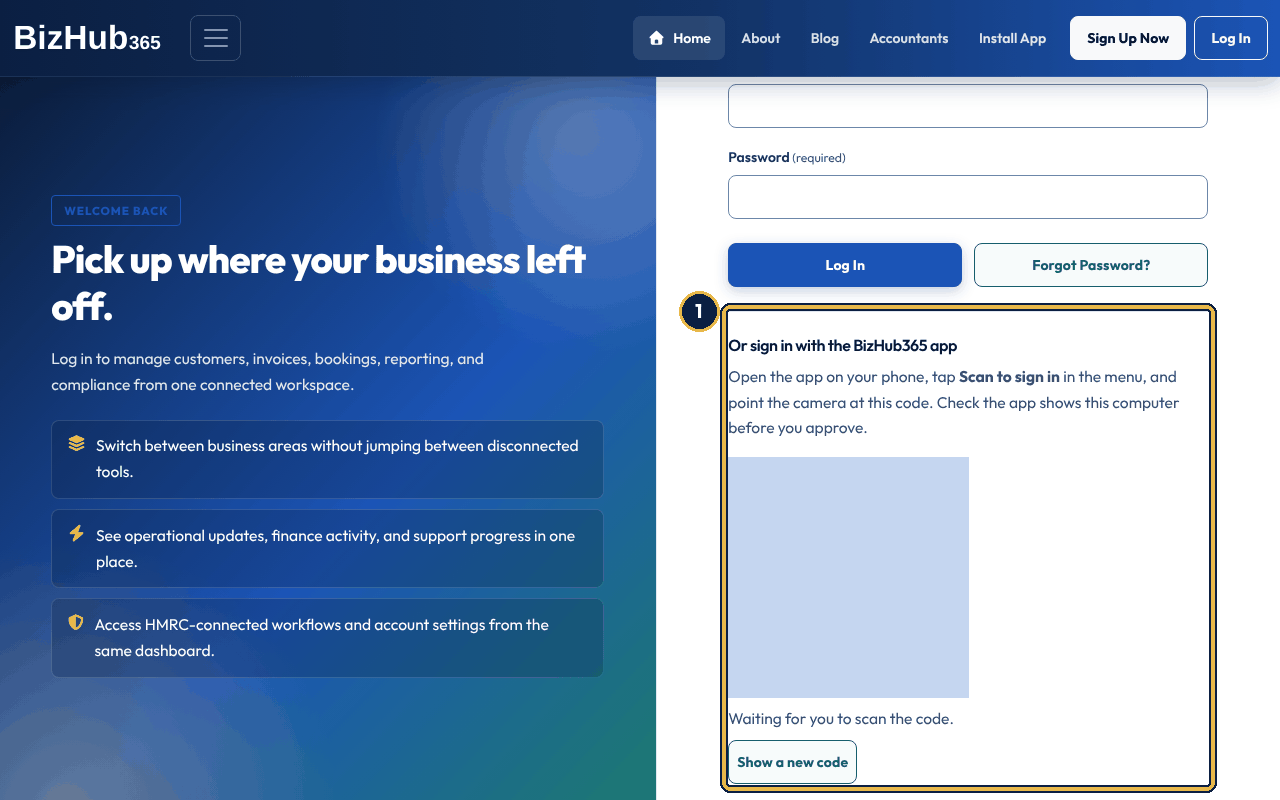
When it worked: The app says Approved. The computer will sign in in a moment. and the computer opens your dashboard by itself.
| If this happens | Do this |
|---|---|
| The page says the code has expired. | Codes last two minutes and the page replaces them for ten minutes. After that, choose Show a new code and scan again. |
| The app shows a browser or computer you do not recognise. | Tap Deny. The computer is not signed in. Then change your password from the account menu. |
| There is no QR code on the sign-in page. | Reload the page. If it still does not appear, sign in with your email, password and second check instead. |
Where to find it: Log In→Forgot Password?
Forgot Password? on the sign-in page emails you a link to set a new password. The link is in an email headed BizHub365 Password Reset Request, works once, and stops working one hour after it was sent. The page says the same thing, If an account with that email exists, a password reset link has been sent, whether or not the address has an account, so nobody can use it to find out who has one. Only the email address registered to the account gets the link. If you signed up through an accountant's branded portal, the email carries the accountant's brand and comes from their portal's address.
The new password must be at least 8 characters, not a commonly used password, not only numbers and not too like your name or email address, and be typed the same twice. Once it is set, BizHub365 emails Your BizHub365 account password has been changed (with your accountant's brand name if you use their branded portal) to the same address and signs you in as usual from the sign-in page; the second check still applies. Resetting the password does not sign out other devices or change your passkeys or authenticator app.
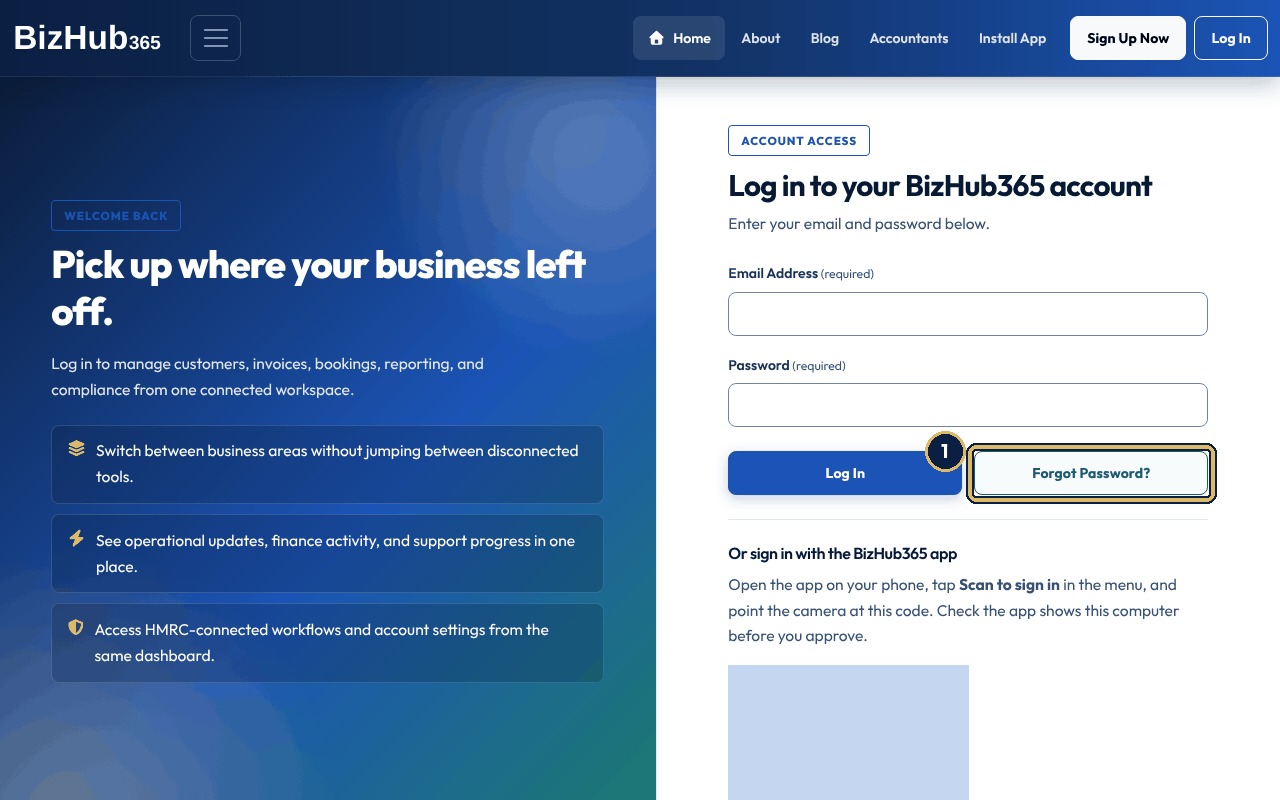
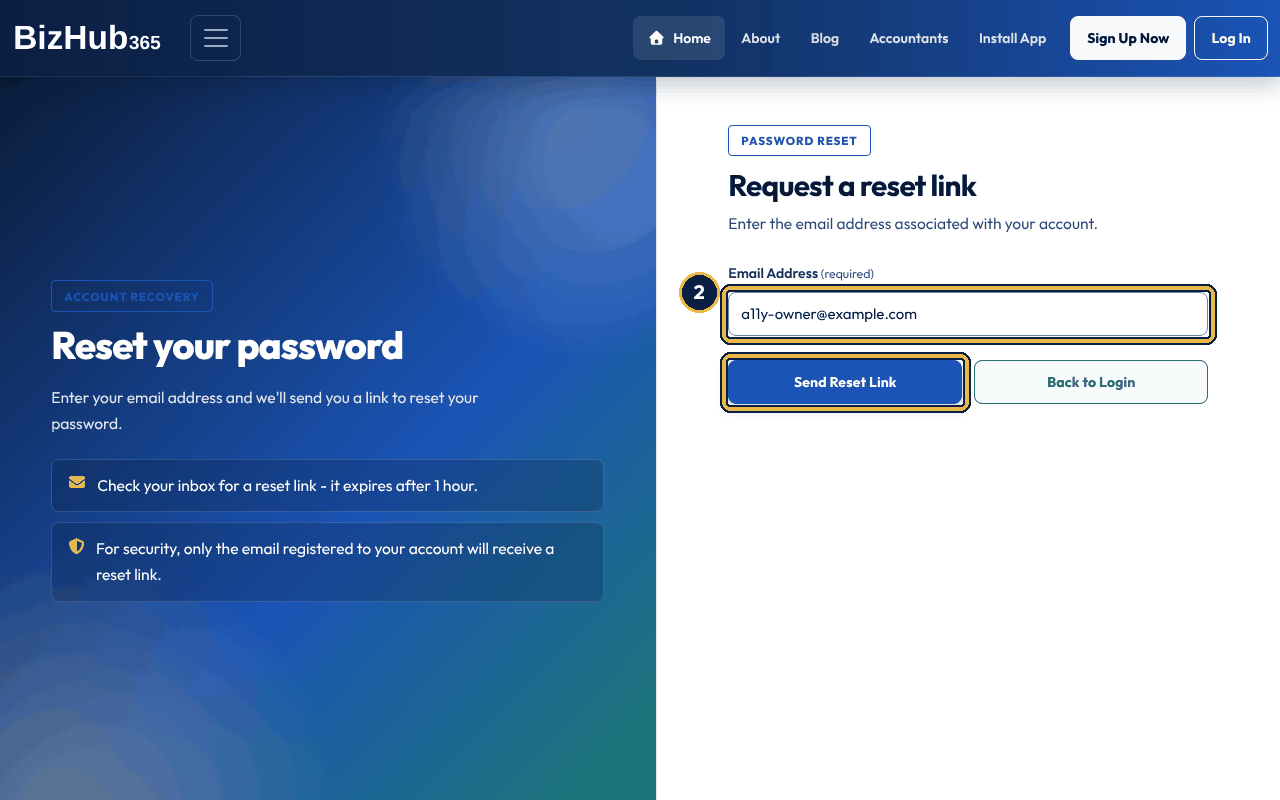
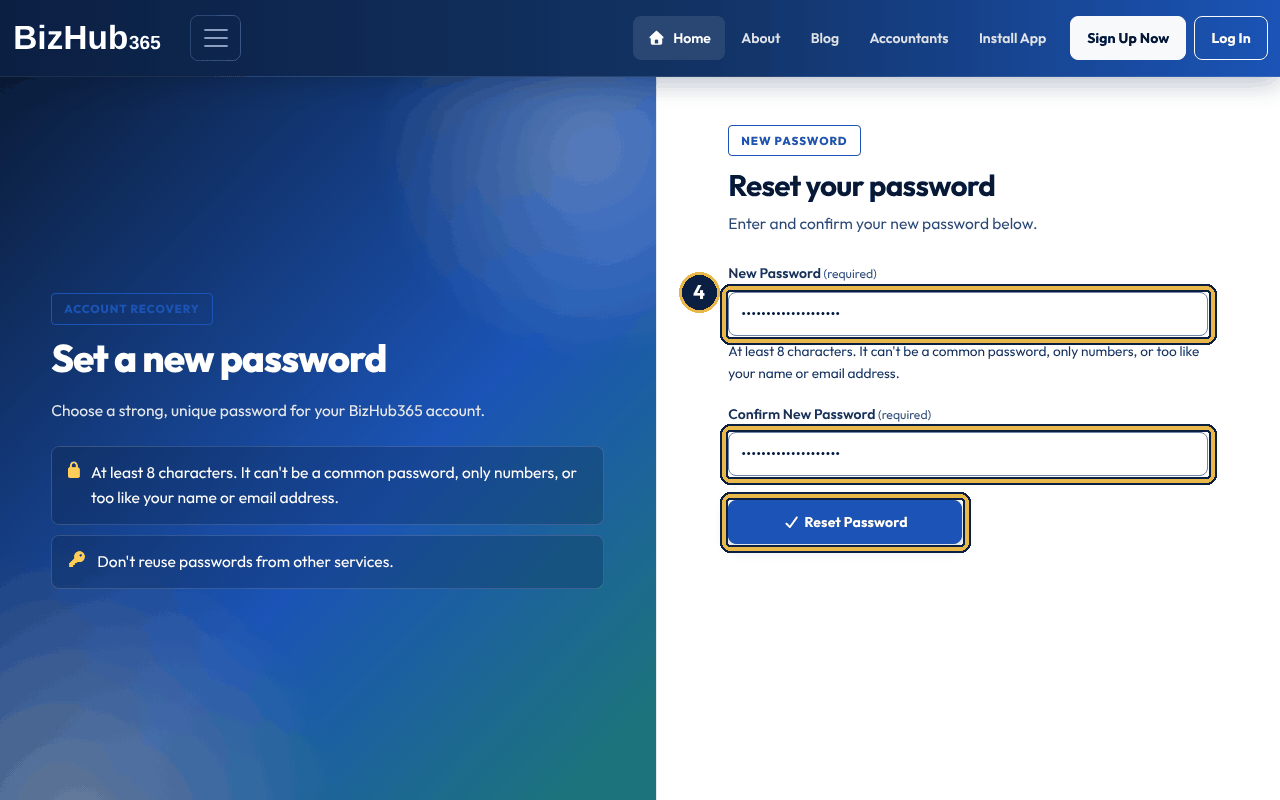
When it worked: The sign-in page opens with Your password has been reset successfully. You can now log in with your new password. Sign in with the new password; the usual second check follows.
| If this happens | Do this |
|---|---|
| No email arrives. | Check your junk folder, and check that you typed the address you registered with. The message on the page looks the same for an address that has no account. |
| The link opens Invalid or expired password reset link. | The link is more than an hour old or has already been used. Ask for a new one from Forgot Password?. |
| The page says Passwords do not match, or that the password is too short, too common, entirely numeric or too similar to your details. | Type the same new password in both boxes, at least 8 characters, not a commonly used password, not only numbers and not too like your name or email address, and choose Reset Password again. The link still works until it has been used. |
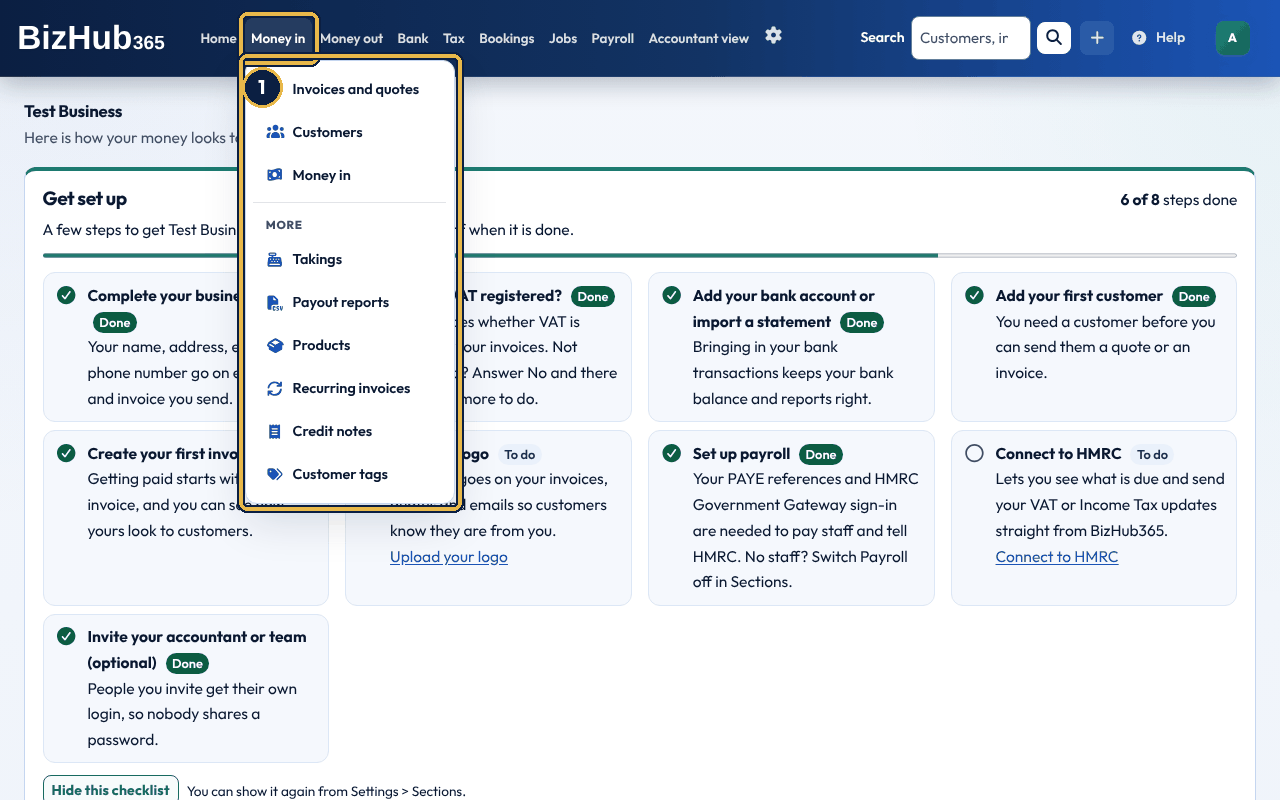
After you select a business, the top bar is your map of the product. It has six areas: Home, Money in, Money out, Bank, Tax, and Settings behind the cog, which opens the Settings page. Some areas appear only when your business uses them: Bookings, Jobs and Payroll when those sections are switched on (Payroll also needs the payroll add-on), and the Accountant view when the Accountant view section is on or you are the business's accountant. Bookings and Jobs follow the order your sector puts them in. When more than one of these is on, they share one menu, More, with each area under its own heading; when only one is on, it has its own menu. On the right are the Search box, the Create (+) menu, Help, and your initials, which open the account menu. On a phone, a tablet held upright or a narrow window (under 992 pixels wide) the whole bar folds behind the three-line button at the top right; choose it first, then the area.
Each area name opens a menu of its pages. The pages most people need come first; less used pages follow under the heading More in the same menu. What you see depends on your role: staff members see My Bookings, subcontractors see My Work, My Expense Claims and My Timesheets, and items that create or change records only appear when you can edit (see Roles, permissions, and your team). If your business has switched a section off in Business Settings → Sections, that section disappears from the menu (and from the mobile app) for everyone in the business. See Settings, branding, and the company register.
| Area | What lives there |
|---|---|
| Home | Your dashboard: cash, money owed, bills, tax due, income and expenses, and what needs your attention. |
| Money in | Invoices and quotes (the Invoices page, with Quotes, Money in and Takings tabs), Customers and Money in (everything you have received, with a To match tab for money not yet matched to an invoice). Under More: Takings (each day's till takings), products, recurring invoices, credit notes and customer tags. A business set up as a cafe, or hair and beauty, has Takings first, at the top of the menu and of the tabs. |
| Money out | Expenses (with Pending scans and Mileage tabs), Pending scans for receipts read by Scan with AI, and Mileage for your business trips. Fixed assets and CIS statements are here when those sections are switched on. Under More: suppliers, expense claims, my expense claims and document capture. |
| Bank | Transactions to sort, Connect your bank (where bank feeds are available), Upload a statement and Auto-sort rules (the rules that sort bank lines for you). Under More: import history. |
| Tax | Your tax (the Tax page: your next HMRC deadline, its figures and Send), VAT returns if you are VAT registered, Reports and For your accountant. Under More: HMRC Hub. |
| More | Shown when more than one of Bookings, Jobs, Payroll and the Accountant view is on: their pages in one menu, each under its own heading. |
| Bookings | Diary, new booking and booking settings (when the Bookings section is on). |
| Jobs | All jobs, new job and your time (when the Jobs section is on). |
| Payroll | Employees, pay runs, FPS, EPS, timesheets (when the Payroll section is on and you have the payroll add-on). |
| Accountant view | Ledger accounts, journal entries and the accountant reports, when the Accountant view section is on. Accountants and bookkeepers you invite always see it. |
| Settings (the cog) | The Settings page, which lists every business setting in groups, each with a line on what it is for: Business and tax setup (Business Settings), Invoice look (branding and templates), tax settings (on plans with international trading), company register, custom fields, opening hours, holidays, Team, Subscription, Connect & Integrations, Import & Recover, Security and the audit log. |
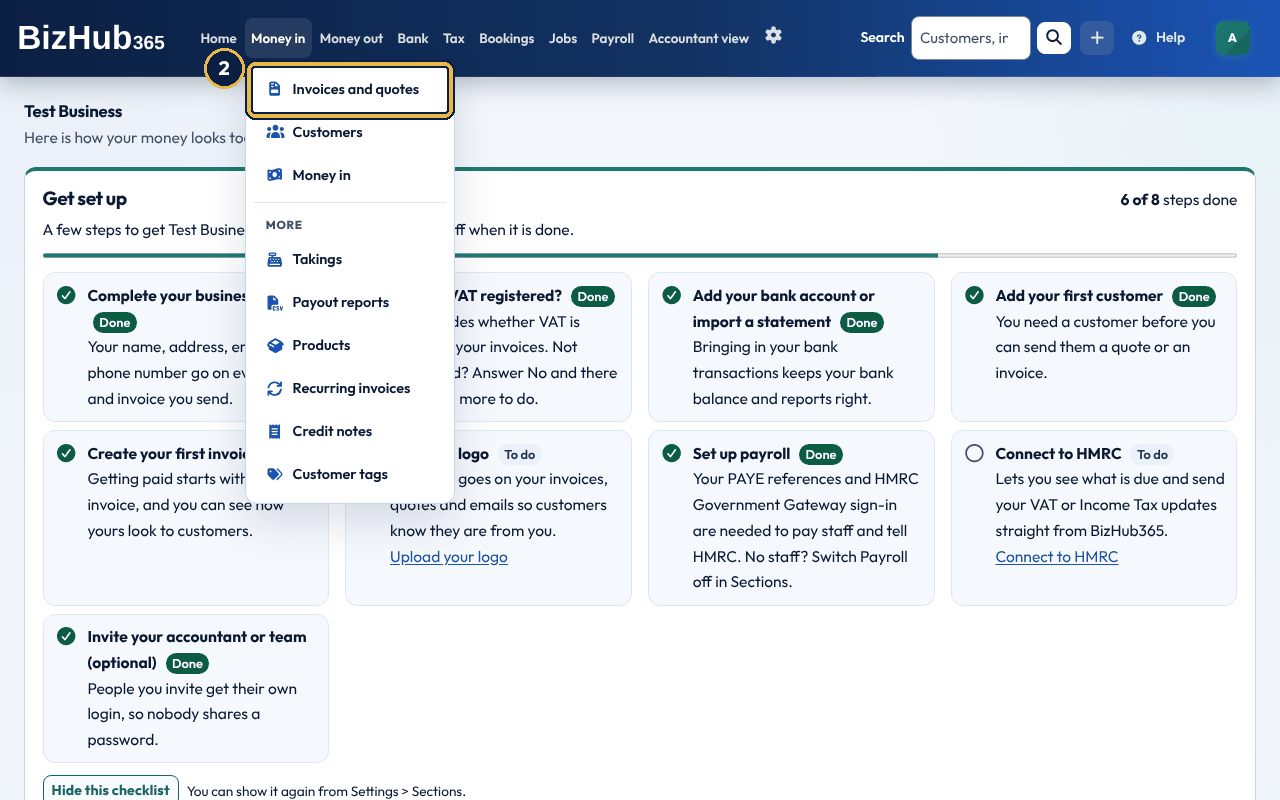
When it worked: The page opens. The top bar stays the same on every page, so you can go anywhere from anywhere.
| If this happens | Do this |
|---|---|
| An area or item you expect is not in the menu. | Either your role does not include it, or the business has switched that section off in Business Settings → Sections. Ask an administrator. Less used pages are under More at the bottom of each menu, business settings are on the Settings page the cog opens, and the Search box finds any page by name. |
Where to find it: The + button in the top bar
The Create (+) button on the right of the top bar is the fastest way to start something new from any page. Its menu, headed Create New, lists Invoice, Quote, Customer, Booking (when the Bookings section is on) and Expense or bill. The items appear only when you can edit the business; others see an empty menu. Customer opens the customer list with the add-customer form open, and Booking opens the diary with the new-booking form open.
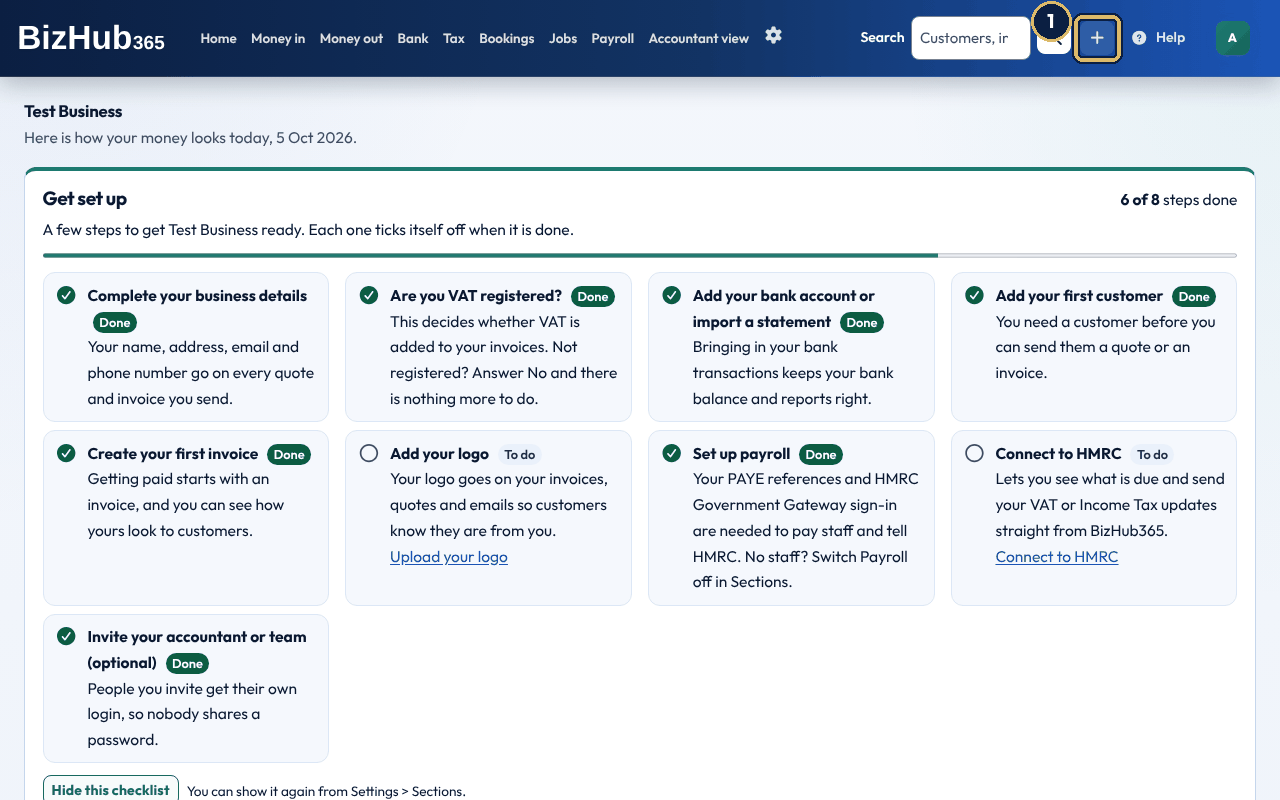
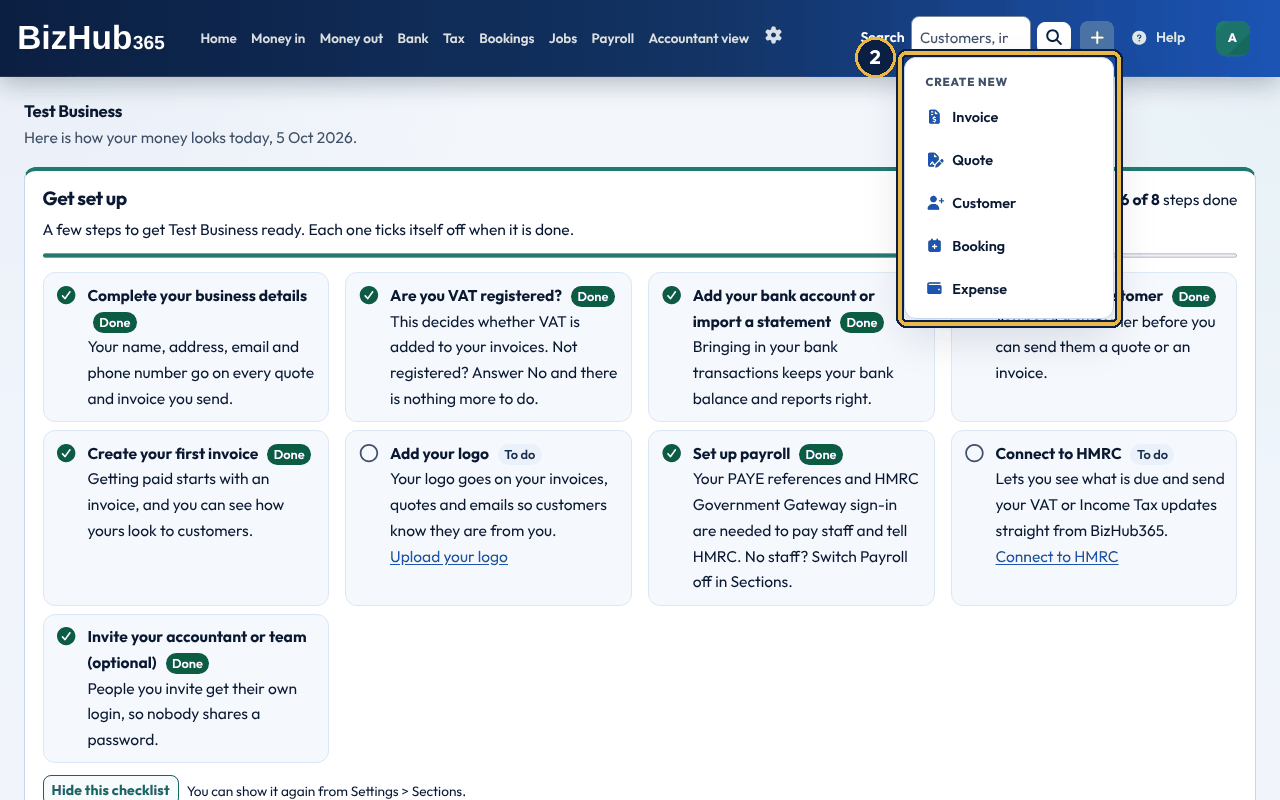
When it worked: The form for that record opens, ready to fill in.
| If this happens | Do this |
|---|---|
| The menu has no items. | You do not have the Edit permission for this business. Ask an administrator. |
| Booking is not listed. | The Bookings section is switched off for this business. An administrator can switch it on in Business Settings → Sections. |
Where to find it: Search box in the top bar
Type into Search at the top of any page and press Enter. On a phone, open the menu first. Search looks only in the business you are working in, and only shows things your role lets you open. A search needs at least two letters or a number and can be up to 100 characters.
| To find | Type |
|---|---|
| A customer | Part of their name, company, email or phone number, such as "smi" or "07700 900123". |
| An invoice or quote | Its number, such as 1042, the customer's name, or the total. |
| A bill or expense | The supplier, the reference on the bill, a word from the description, or the amount. |
| A supplier | Part of their name, email, phone number or VAT number. |
| A product | Its name or SKU. |
| A setting or page | The page name or what you want to do, such as "logo", "invite", "2FA", "password" or "journal". |
Amounts can be typed with or without the pound sign and pence: 250, 250.00 and £250.00 all find a total of £250.00. Results are grouped by type: Customers, Suppliers, Invoices, Bills and expenses, Quotes, Products and Pages. Each group shows up to five, with how many there are in total and a link to the full list; type more of the name or number to narrow it down. If nothing matches, the page suggests other things to try.
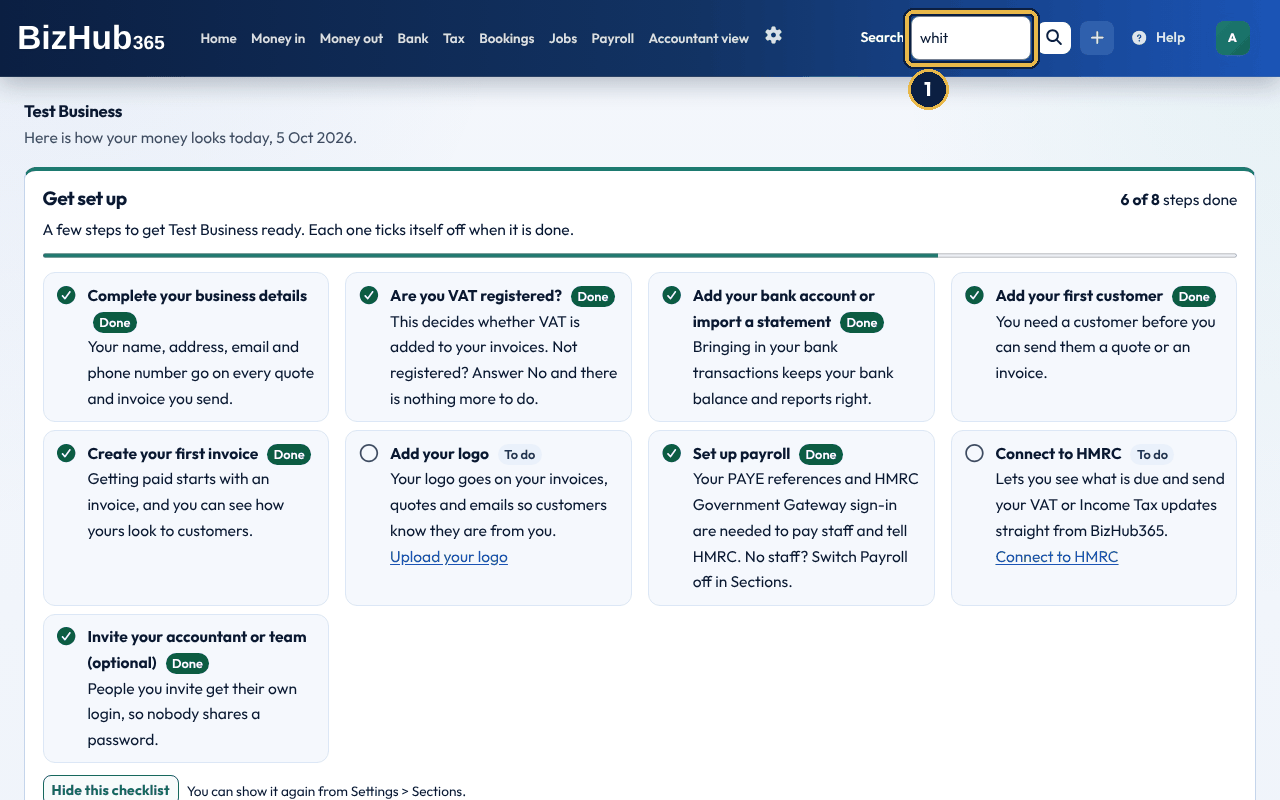
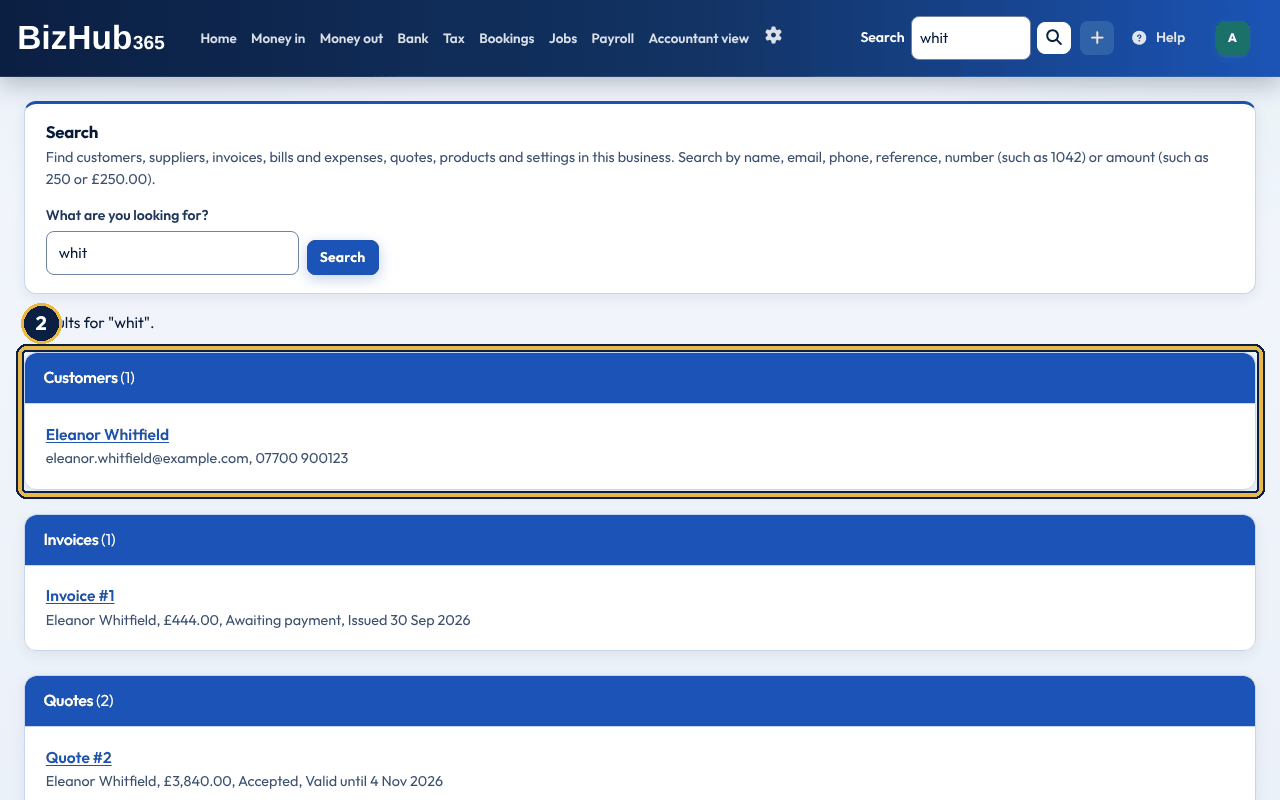
When it worked: The record or page opens. The search box in the top bar keeps your words while you are on the Search page.
| If this happens | Do this |
|---|---|
| The page says Type at least 2 letters, or a number, to search. | One letter is not enough. Type two or more, or a number such as an invoice number or amount. |
| No results, although you know the record exists. | Check the spelling or type less of the name. Search covers only the business you are working in, and only the records your role can open. |
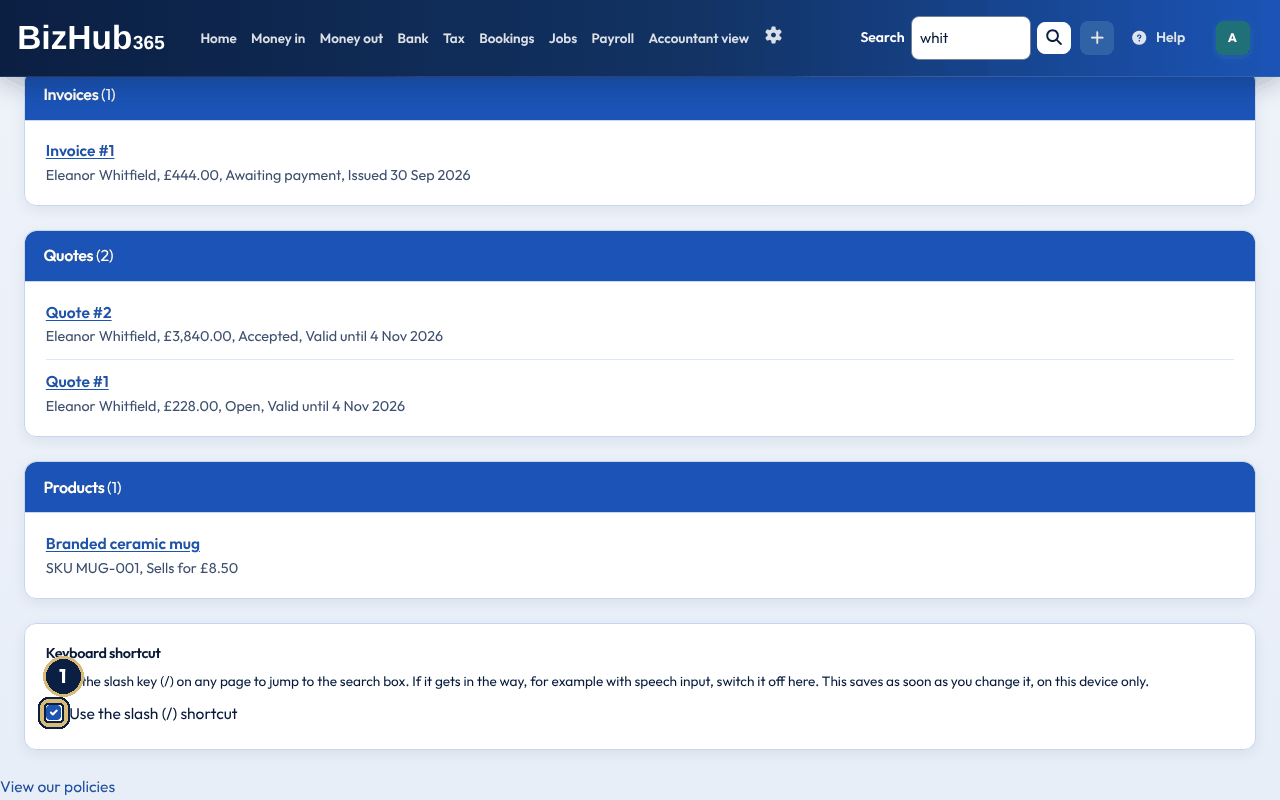
When it worked: The line under the tick box confirms the change, and the slash key hint disappears from the search box in the top bar on this device.
Where to find it: Dashboard
While your business is new, a Get set up card sits at the top with the steps still to do. See "The Get set up checklist" in Create your account and business.
Under it, two notices can appear. Making Tax Digital for Income Tax repeats when it starts for you, from your answer about your latest tax return (see When Making Tax Digital for Income Tax starts for you). The VAT threshold notice is described below.
If your business is not VAT registered, the dashboard adds up your sales for the last 12 months, to today (the same income as the Profit and Loss report for those dates). When that is close to the VAT registration threshold of £90,000 (85% of it, £76,500, unless your accountant changed the check) or over it, a notice says Your turnover is close to the VAT threshold or Your turnover is over the VAT threshold, with the figure. Choose Hide until I next sign in to put it away; it comes back the next time you sign in while your sales are still at that level. It never shows once you have a VAT number, or have said you are VAT registered.
What HMRC says: you must register for VAT if your VAT taxable turnover for the last 12 months goes over £90,000, or if you expect it to go over £90,000 in the next 30 days alone. VAT taxable turnover is everything you sell that is not exempt from VAT. Register within 30 days of the end of the month in which you went over. You can also choose to register below the threshold. Once registered, add your VAT number in Settings → Business and tax setup so VAT is added to your invoices from then on. If you are not sure, ask your accountant or HMRC.
The dashboard starts with your money. The top row shows four figures, and each one links to the list or report it comes from:
| Card | What it shows |
|---|---|
| Cash in bank | The balance of your bank accounts in your bookkeeping, up to today. With more than one account, each is listed. |
| Money owed to you | What customers still owe on unpaid invoices, and how much of it is overdue. The same figures as the invoice list. |
| Bills to pay | What you still owe suppliers, and how much is overdue. The same figures as the Aged Creditors report. |
| VAT and tax due next | Your next VAT return or Income Tax update and its due date, once you are connected to HMRC. |
Beside Needs your attention (under it on a phone), administrators (people with all four permissions) and your accountant see Tax to set aside: an estimate of the tax your profit so far will cost, so you can put the money aside before the bill comes. It shows once you have recorded something for the period, and says the date it was worked out to. It is an estimate from your own records, not a bill from HMRC. Your profit so far is your sales and other business income less your allowable expenses, worked out the same way as the figures you send to HMRC in your Income Tax updates (cash basis or traditional accounting, as you chose).
| Your business | What is estimated |
|---|---|
| Sole trader, freelancer, partnership or LLP | Income Tax and Class 4 National Insurance on the profit since 6 April (the start of the tax year), as if it were your only income. Class 2 National Insurance is no longer due. For a partnership or LLP it is on the whole profit: each partner pays on their own share. |
| Limited company | Corporation Tax on the profit since the start of the company's accounting period (from the accounting reference date in Business Settings, or 1 April if none is saved): 19% up to £50,000, 25% from £250,000, with marginal relief in between. The limits are shared with any associated companies you entered in Business Settings. |
| VAT registered | Also the VAT you owe so far for the VAT period you are in (VAT on sales less VAT you can claim back, using the Flat Rate Scheme if you are on it). If you can claim back more than you owe, the VAT is shown as nothing. |
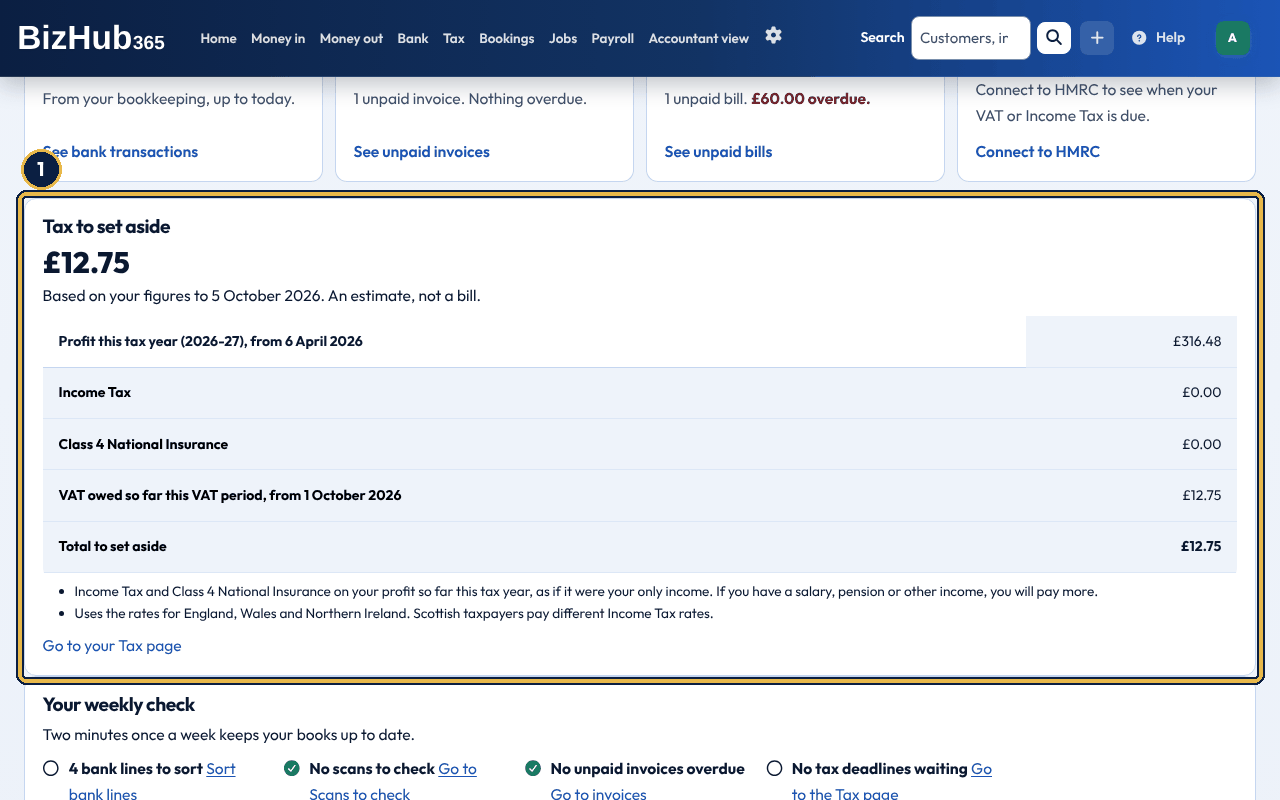
When it worked: You see the total to set aside, the tax it is made of and, if you are VAT registered, the VAT owed so far. Put that money aside, for example in a separate savings account.
| If this happens | Do this |
|---|---|
| The card is not there. | It shows only to administrators and the accountant, and only once something is recorded for this tax year (or accounting period). Charities, co-operatives and associations get no tax estimate. |
Under Needs your attention, Your weekly check lists the few things worth a two-minute look once a week, each with a count and a button: bank lines to sort (when the Banking section is on), pending scans (if you can add expenses), unpaid invoices that are overdue, and your next tax deadline (when the Tax page is in your menu). A line with nothing to do shows a tick. With the Cleaning or mobile service starter pack, the check also links to where you log your mileage. Every Monday morning the same check is also emailed to the business's administrators (people with all four permissions), but only when there is something to look at: bank lines to sort, pending scans, overdue invoices, or a tax deadline within 14 days or overdue. It comes once a week at most. Each administrator can turn the email off with Email me the weekly check on Contact Information (see Notifications); the check stays on the dashboard either way.
Below them, Income and expenses shows the last 12 months as a chart, one pair of columns for each month, with the totals and profit above it. The figures come from the Profit and Loss report, so the 12 months add up to that report for the same dates. Choose Show the figures for each month to see them as a table, and Open the Profit and Loss report for these months to go to the report.
Needs your attention lists overdue invoices, overdue bills, any overdue VAT return or Income Tax update by name and date, and a bank statement that has not been imported for more than 30 days. Each item has one button that takes you to where you can sort it out. When there is nothing, it says so.
The rest is on the Business overview page: choose Business overview at the top right of the dashboard. It has the cards you can arrange (HMRC status, tasks to complete, transactions to sort, the last bank import, business statistics, customers, biggest account balances, sending in receipts and bills, and recent activity), then Business setup: today's opening hours, upcoming holidays, your permissions and your subscription.
The cards on Business overview can be put in the order that suits how you start the day. Drag a card to a new place, or use Reorder cards for single clicks or taps. The order is saved for you on that business, and a new business starts with the order your sector suggests.
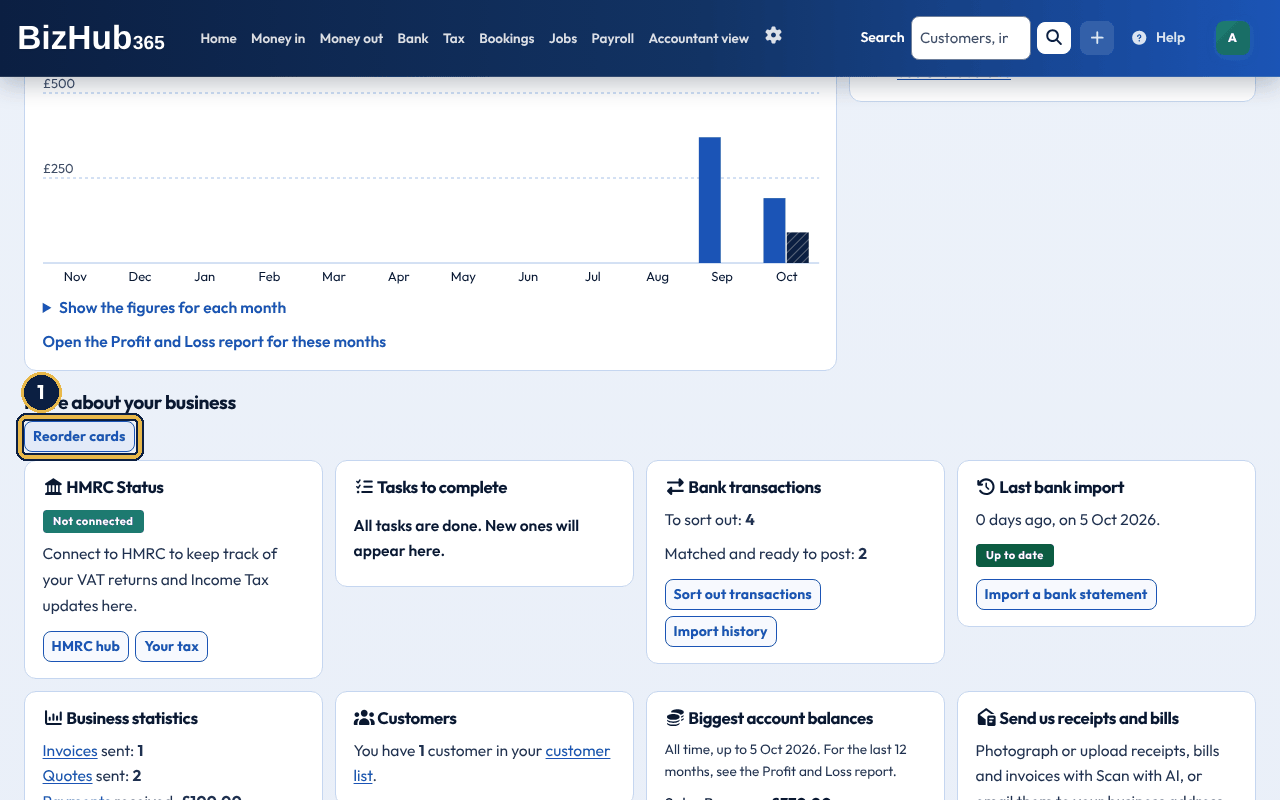
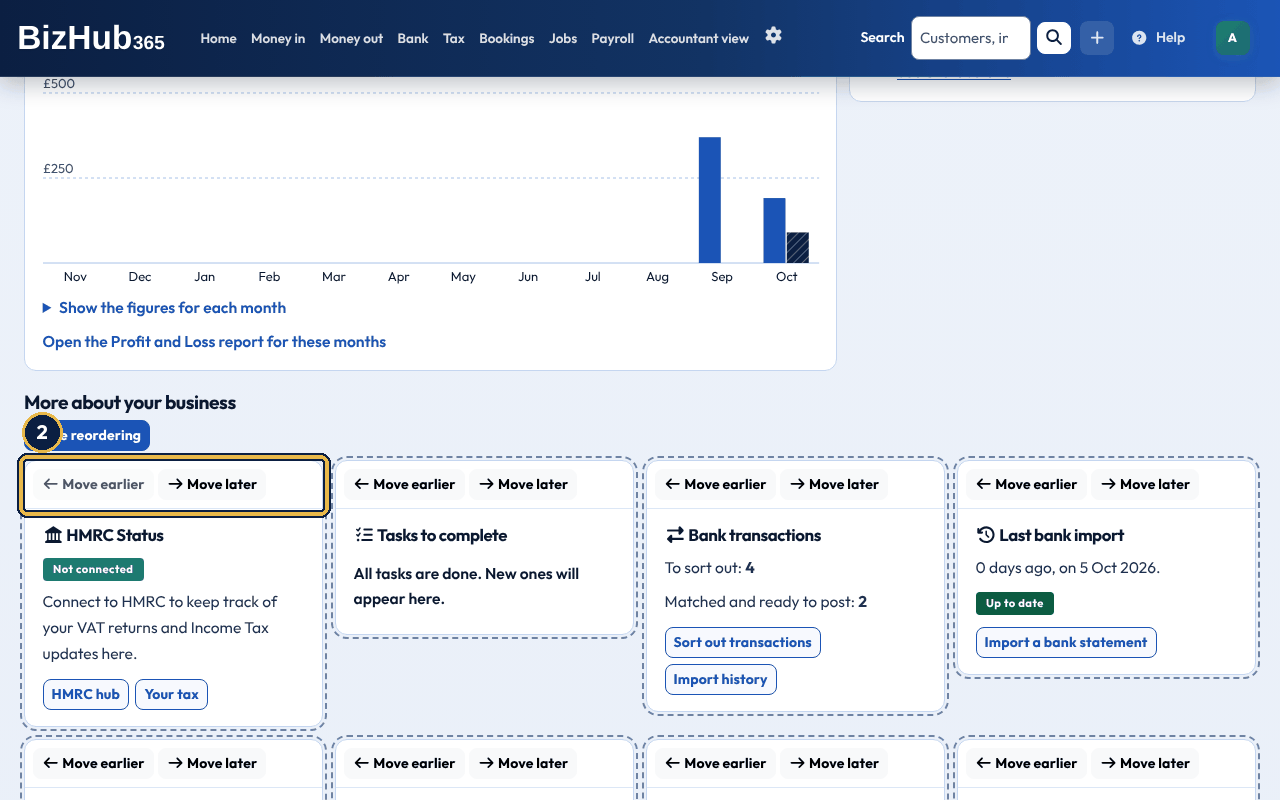
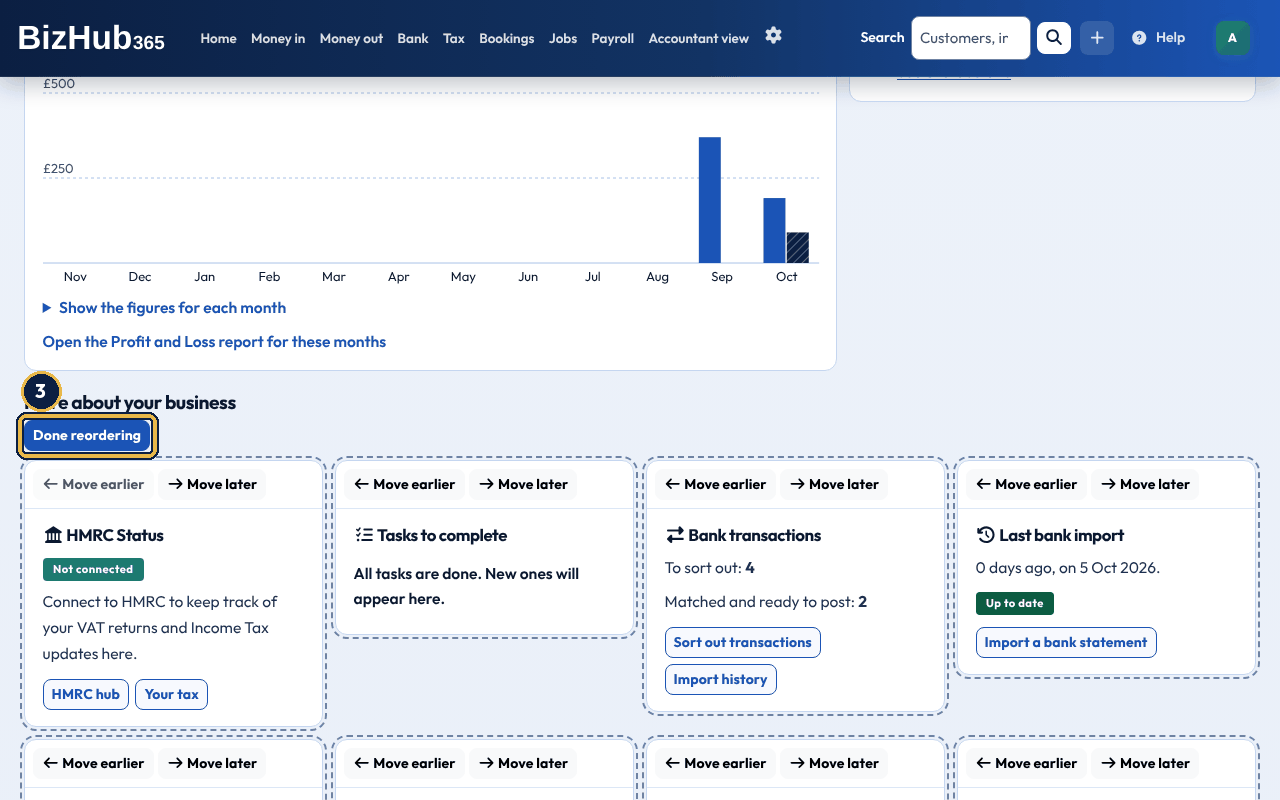
When it worked: The cards stay in the new order the next time you open this business's Business overview, on any device.
| If this happens | Do this |
|---|---|
| Move earlier or Move later is greyed out. | The card is already first or last. Move it the other way, or move its neighbour. |
Where to find it: Help button in the top bar
Choose Help in the top bar on any signed-in page. A help panel opens with the part of this guide for the page you are on, the common questions about it, and a search box. On a phone, open the menu first. Search looks through this guide and the help-centre answers. Guide links open the full guide in a new tab, so you do not lose your place. At the bottom of the panel are links to the full user guide and to contact support. Nothing in the panel is loaded from outside BizHub365.
The panel works with a keyboard and screen reader: focus moves into the panel when it opens, Tab stays inside it, and Esc or Close help closes it and puts you back on the Help button.
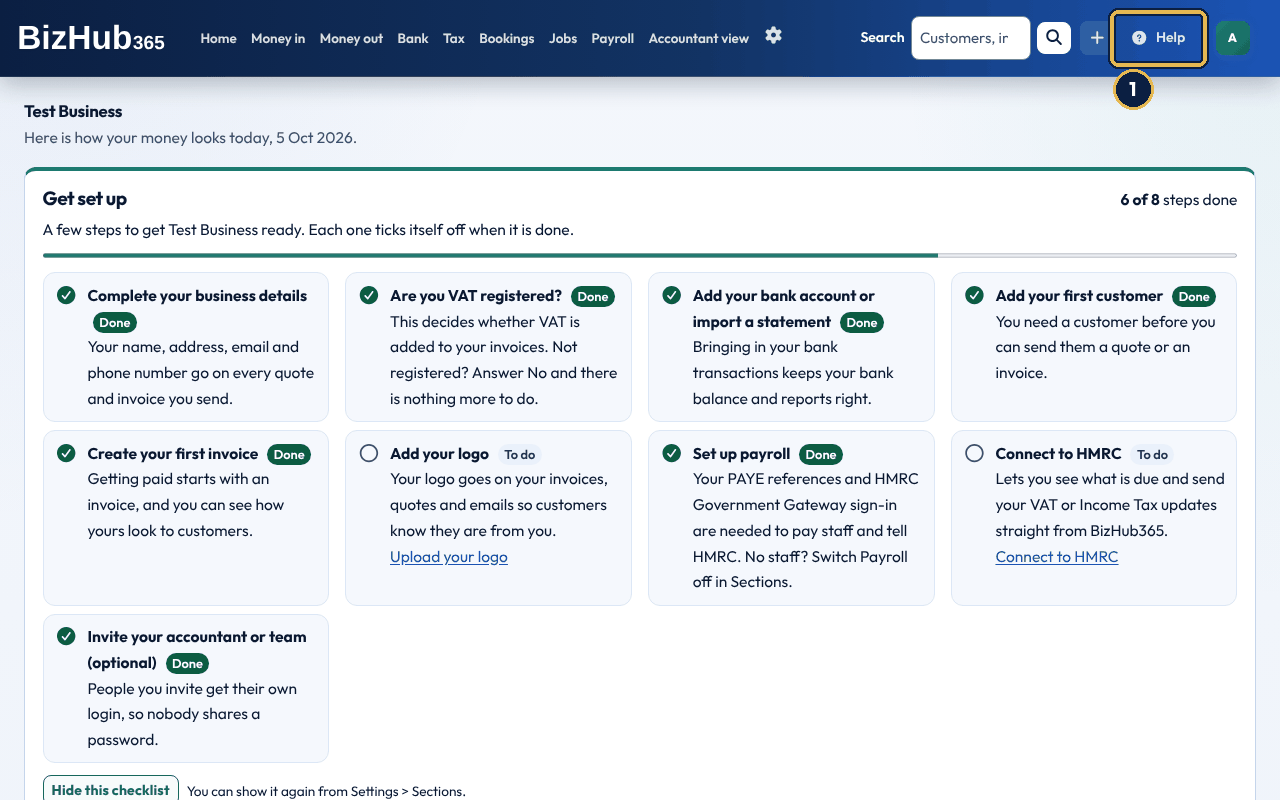
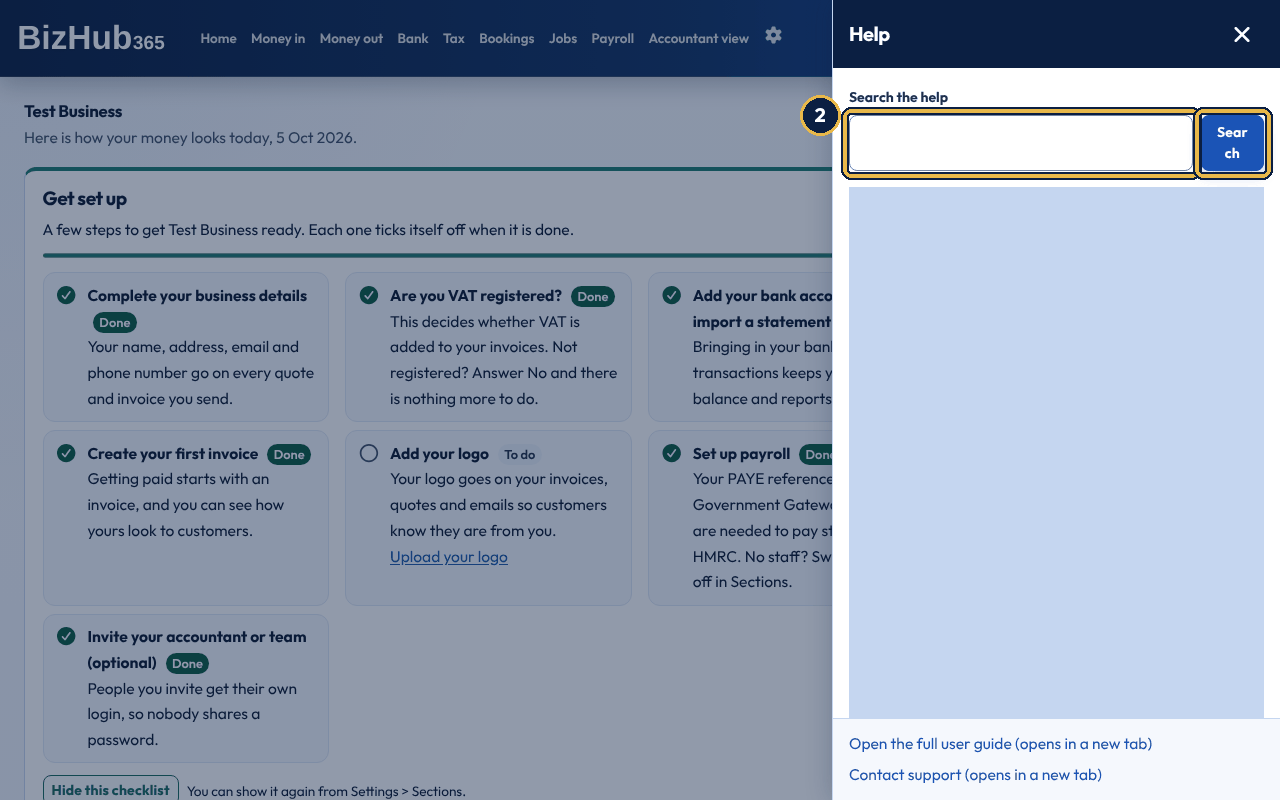
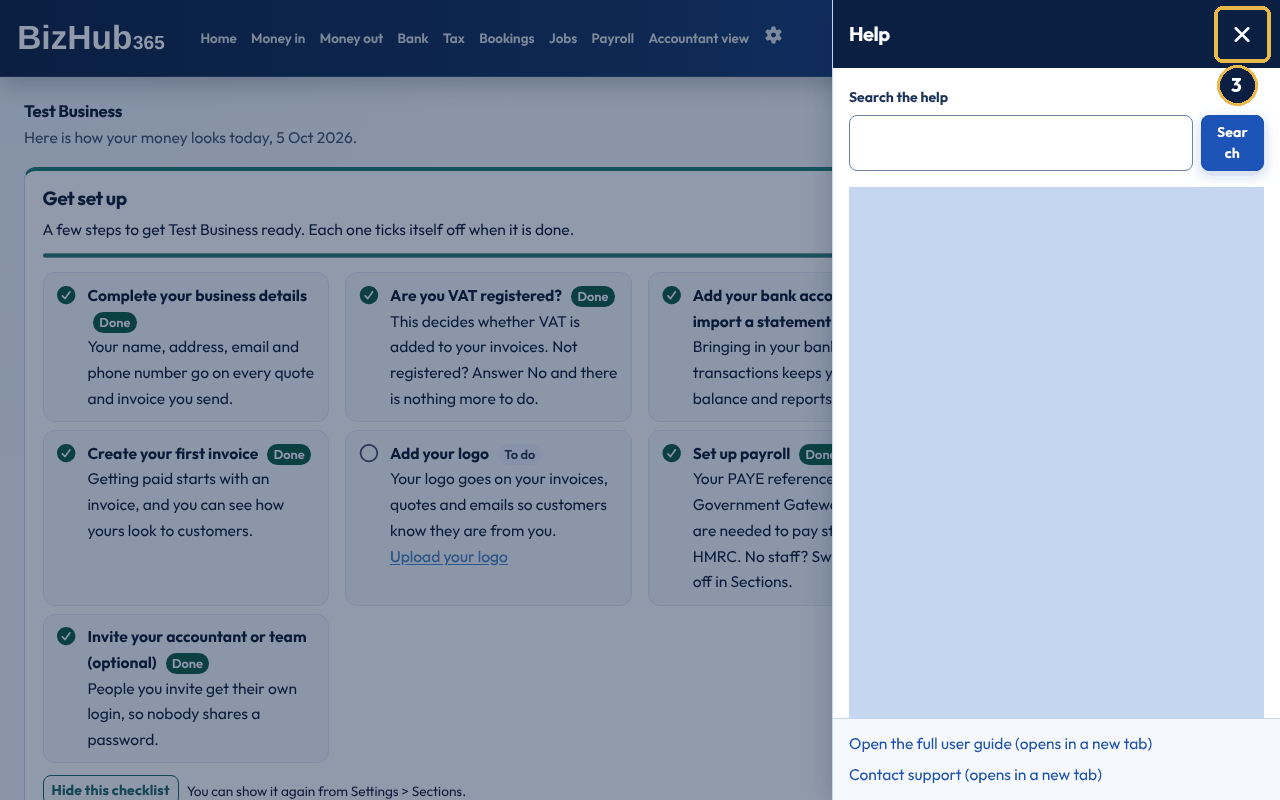
When it worked: The panel closes and focus returns to the Help button. Anything you typed on the page is still there.
| If this happens | Do this |
|---|---|
| The panel says help could not be loaded. | Check your connection and choose Help again. The full guide at /guide/ and the help centre are always available from the links at the bottom of the panel. |
Screens show money as £1,234.56, with a minus sign in front for negative amounts (-£12.50), and dates as 28 Sep 2026. Invoices in another currency use that currency's symbol. Downloads such as CSV exports, and anything sent to HMRC, keep the formats those files require, so a spreadsheet or HMRC still reads them correctly.
Most users belong to one business and land there automatically. Anyone can belong to more than one business: accept an invitation from each one with the same email address. Your role is set by each business separately, so you might be an Administrator in one and Read Only in another, and you only ever see the business you are viewing. If you belong to more than one business, a bar at the top of the screen shows Viewing: and the business you are in. Pick another business in Switch Business, then choose Switch. Accountants see their clients in the same list, marked (client). When you sign in you land in the first of them.
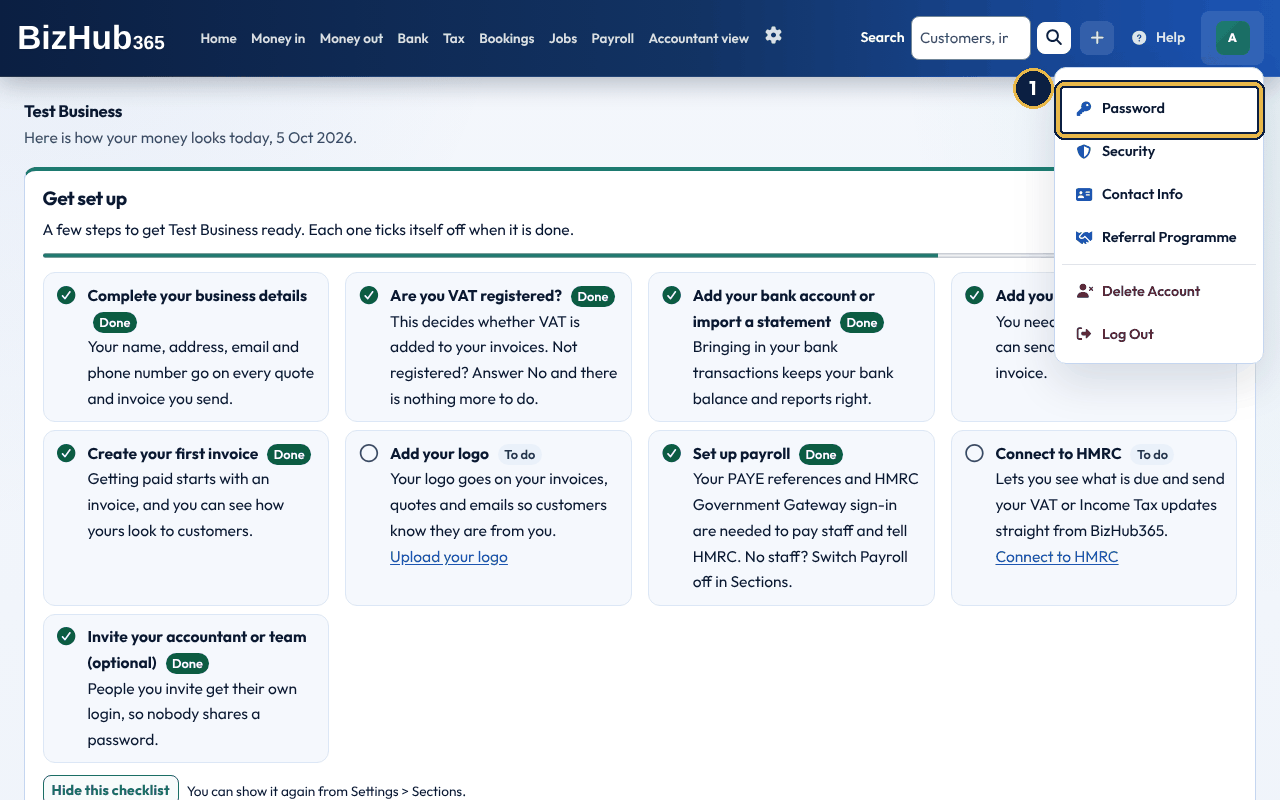
Where to find it: Your initials (top right)→Password / Security / Contact Info / Referral Programme / Log Out
The round button with your initials at the right of the top bar opens the account menu. It is about you, not the business:
| Item | What it does |
|---|---|
| Password | Change the password you sign in with (how-to below). |
| Security | Passkeys, your authenticator app, trusted devices and the second check. See Security, audit, and deleting data. |
| Contact Info | Your first name, last name, email address and phone number (how-to below). |
| Referral Programme | Earn commission by referring other businesses. See Accountants and client work. |
| Security, then Delete Account | Delete your sign-in: it is at the bottom of the Security page. This is separate from deleting a business; see Security, audit, and deleting data. |
| Log Out | Sign out on this device. See Sign out of the web app. |
Password opens Change Password. You type your current password and the new one twice. The new password must be at least 8 characters, not a commonly used password, not only numbers and not too like your name or email address. A wrong current password, a weak new password or two different new passwords is refused with a message, and each failed attempt emails you Failed Password Change Attempt on Your BizHub365 Account with the IP address, rough location and UK time (GMT or BST) it came from. A successful change emails Your BizHub365 account password has been changed. On an accountant's branded portal these emails carry the accountant's brand name instead of BizHub365, and replies go to the accountant. Both are recorded in the audit log. Changing the password does not sign out other devices.
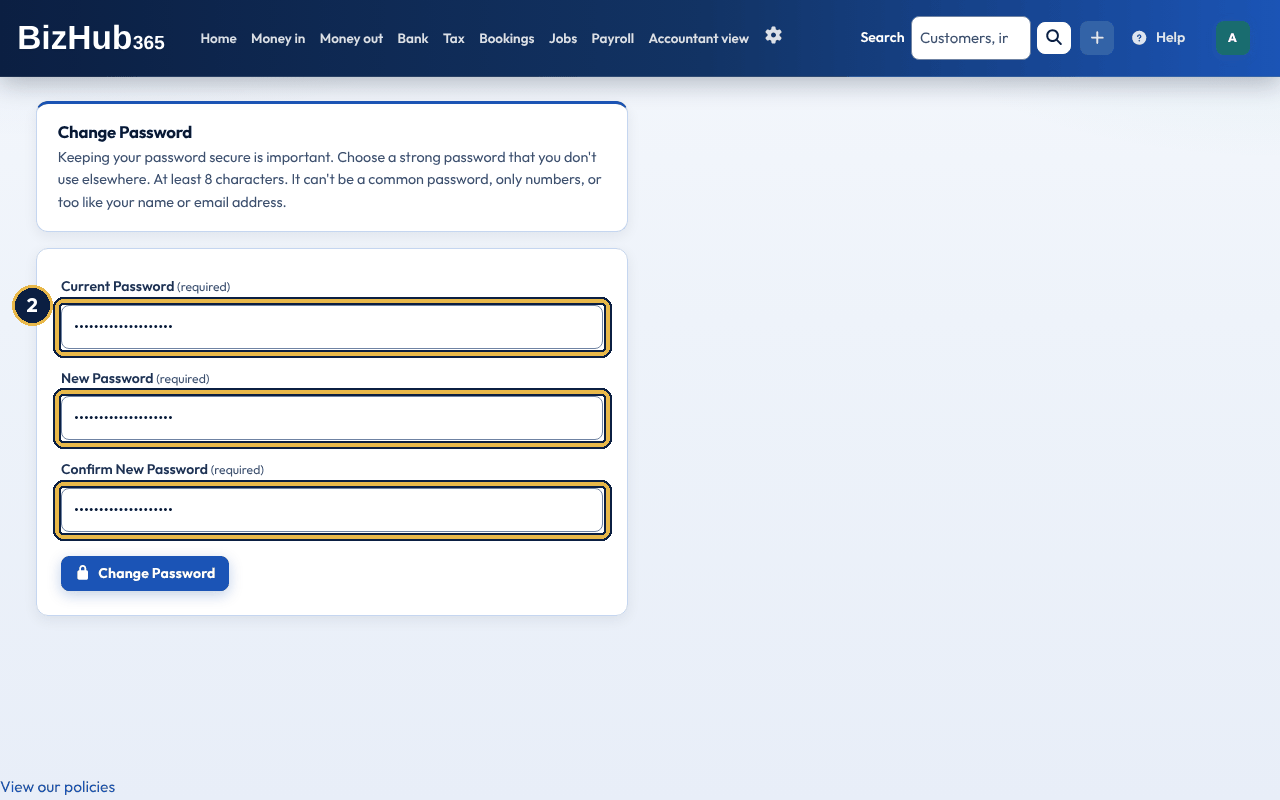
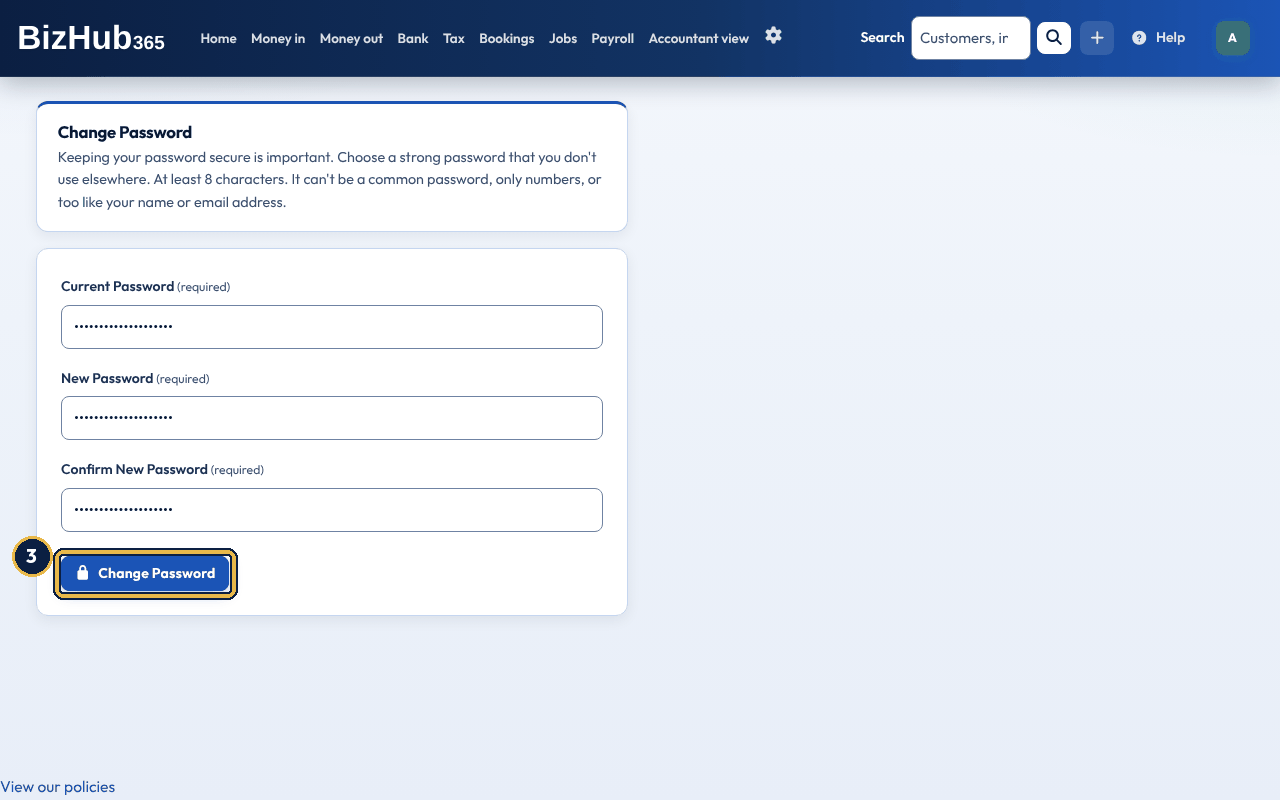
When it worked: The page shows Password changed successfully. and you get the confirmation email. Use the new password from your next sign-in.
| If this happens | Do this |
|---|---|
| Current password is incorrect. | Type the password you sign in with today. If you cannot remember it, sign out and use Forgot Password? on the sign-in page. |
| A message that the password is too short, too common, entirely numeric or too similar to your details, or New passwords do not match. | Choose a stronger password, or type the same new password in both boxes, and choose Change Password again. |
Contact Info opens Contact Information, with your First Name, Last Name, Email Address and Phone Number. All four are required. The email address here is the one you sign in with, so changing it changes your sign-in from the next time you sign in; no confirmation code is asked for. After you save, BizHub365 emails Your BizHub365 Contact Information has been Updated to the address now on the account and records the change in the audit log. These are your own details. The business's name, address, email and phone number are in Settings → Business and tax setup.
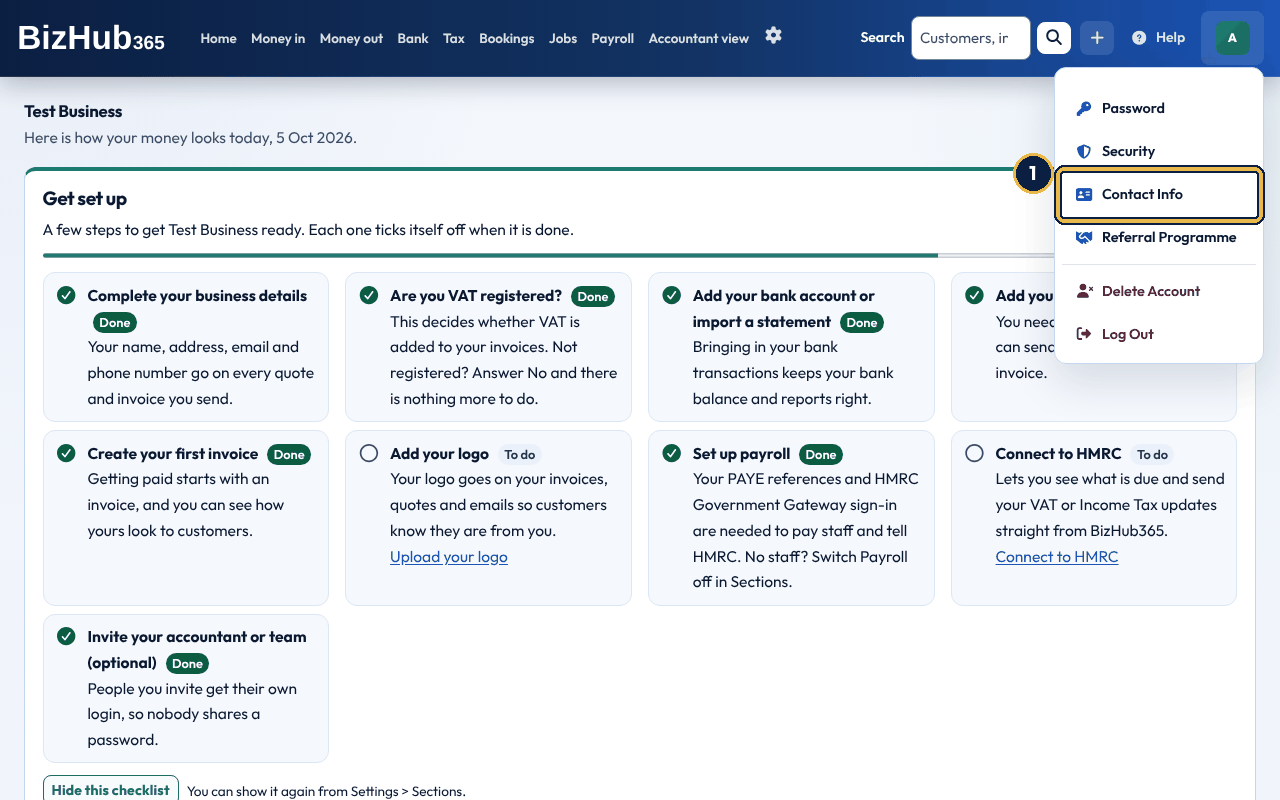
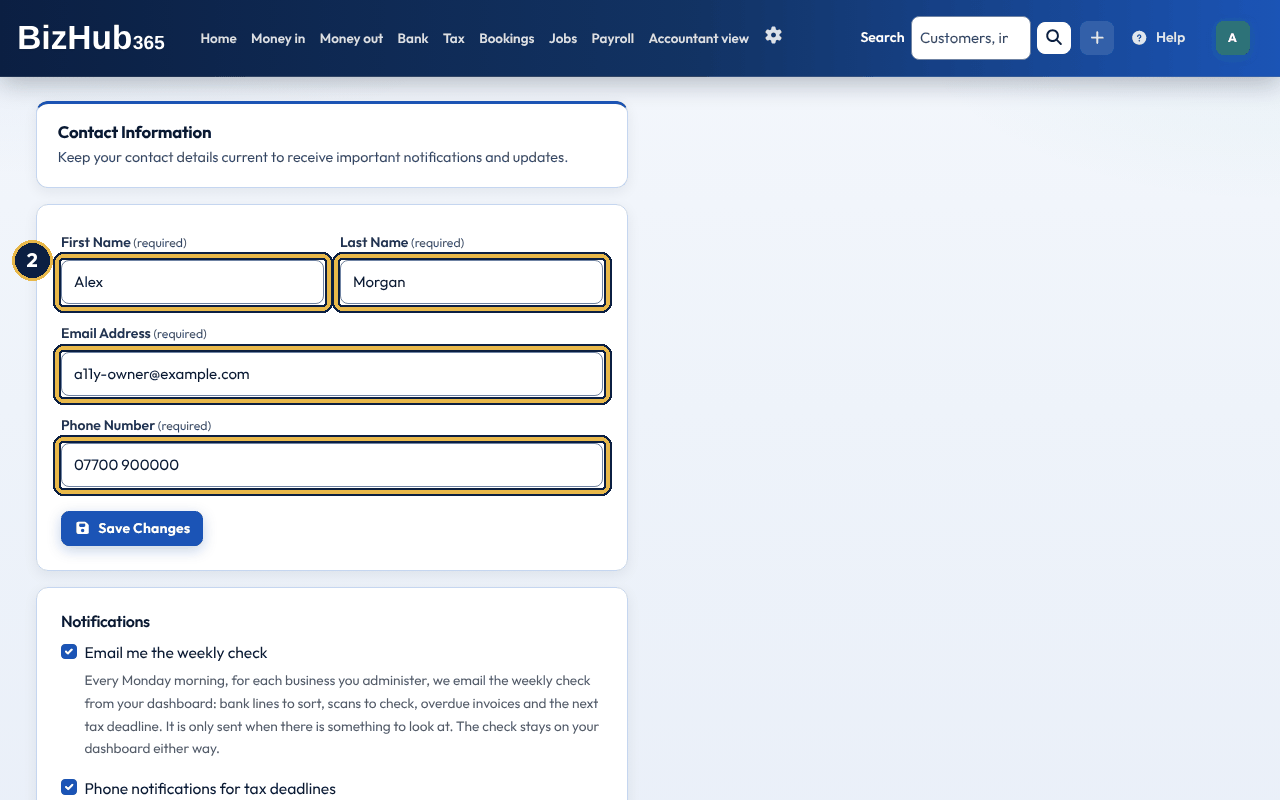
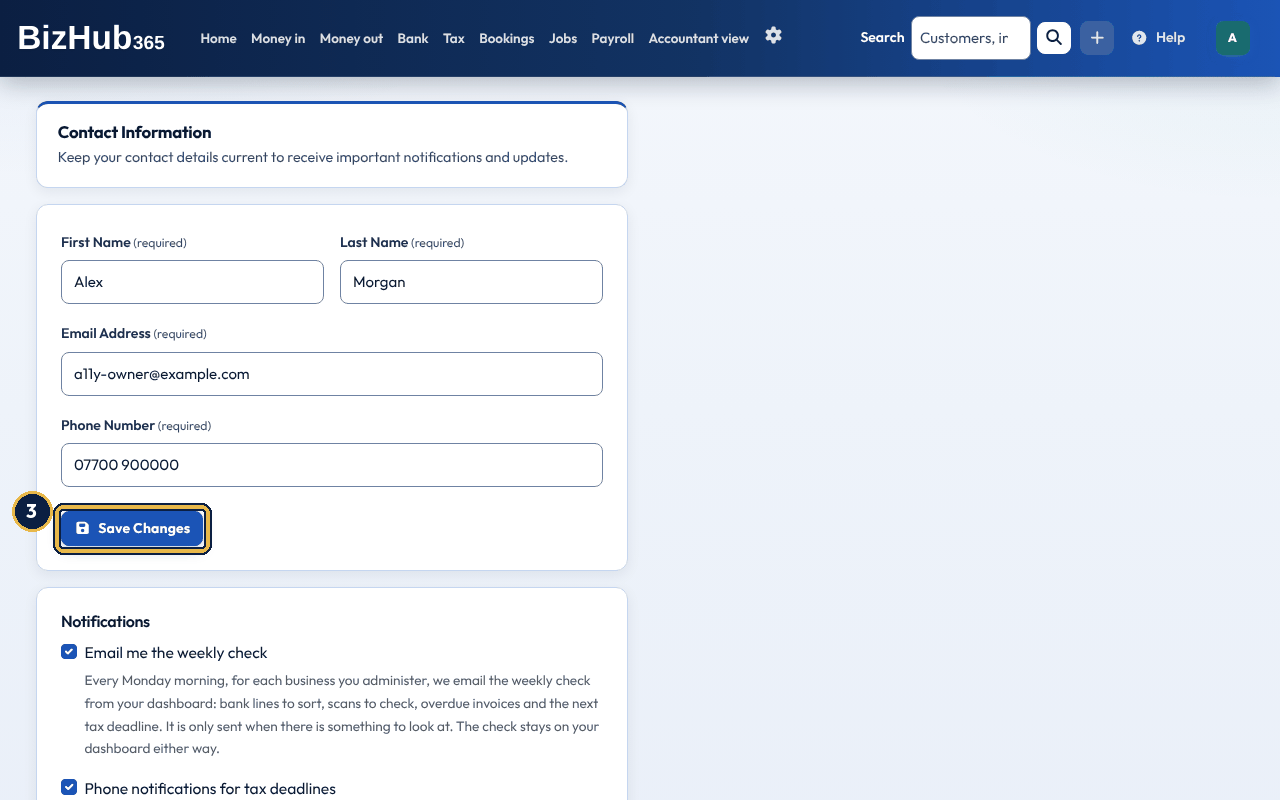
When it worked: The page shows Contact information updated successfully., the initials in the top bar change if your name did, and the notification email arrives at the address now on the account.
| If this happens | Do this |
|---|---|
| The browser will not let you save. | All four boxes are required and the email address must be a valid address. Fill them in and choose Save Changes again. |
| You changed the email address and now cannot sign in. | Sign in with the new address. If you mistyped it, use Forgot Password? with the address you typed, or contact support. |
Under your details, Notifications has two tick boxes, both ticked to start with.
In the app the same two choices are under Notifications on Settings → Your account: answer Yes or No to each and tap Save notifications.
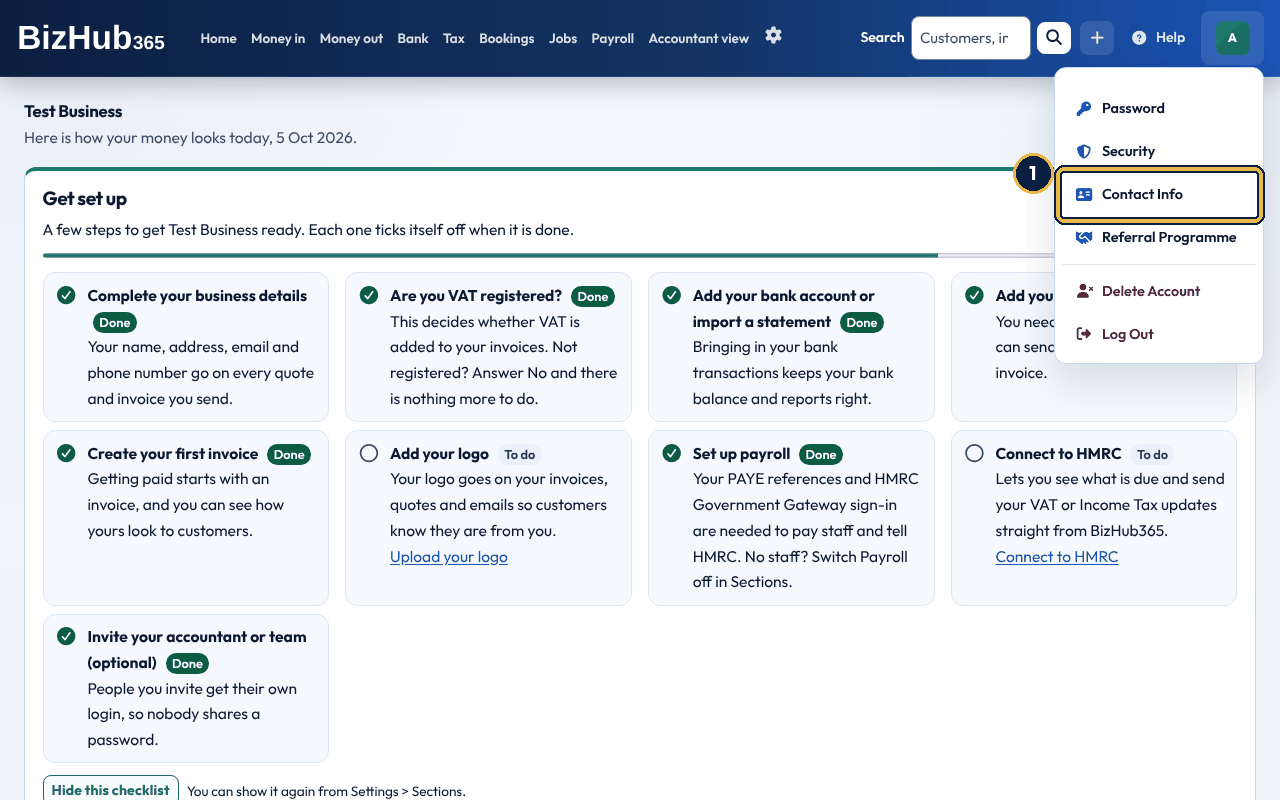
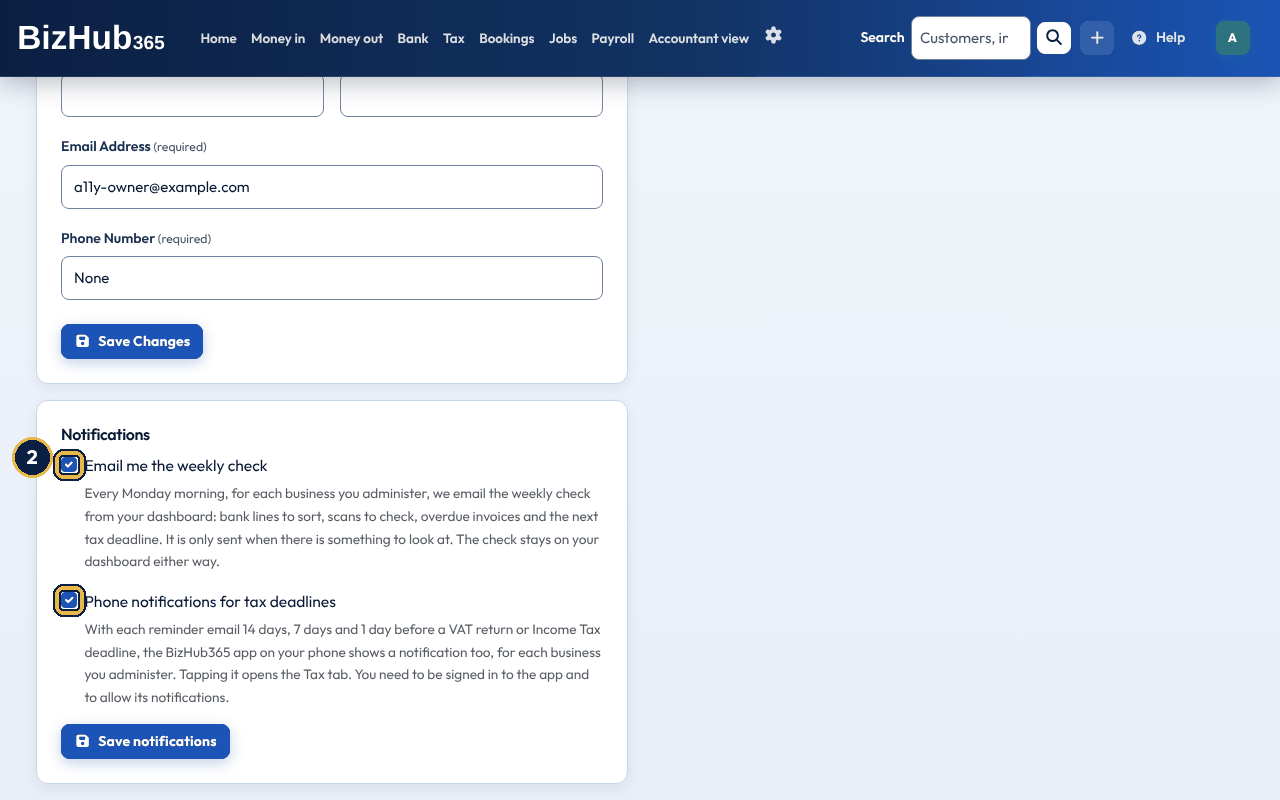
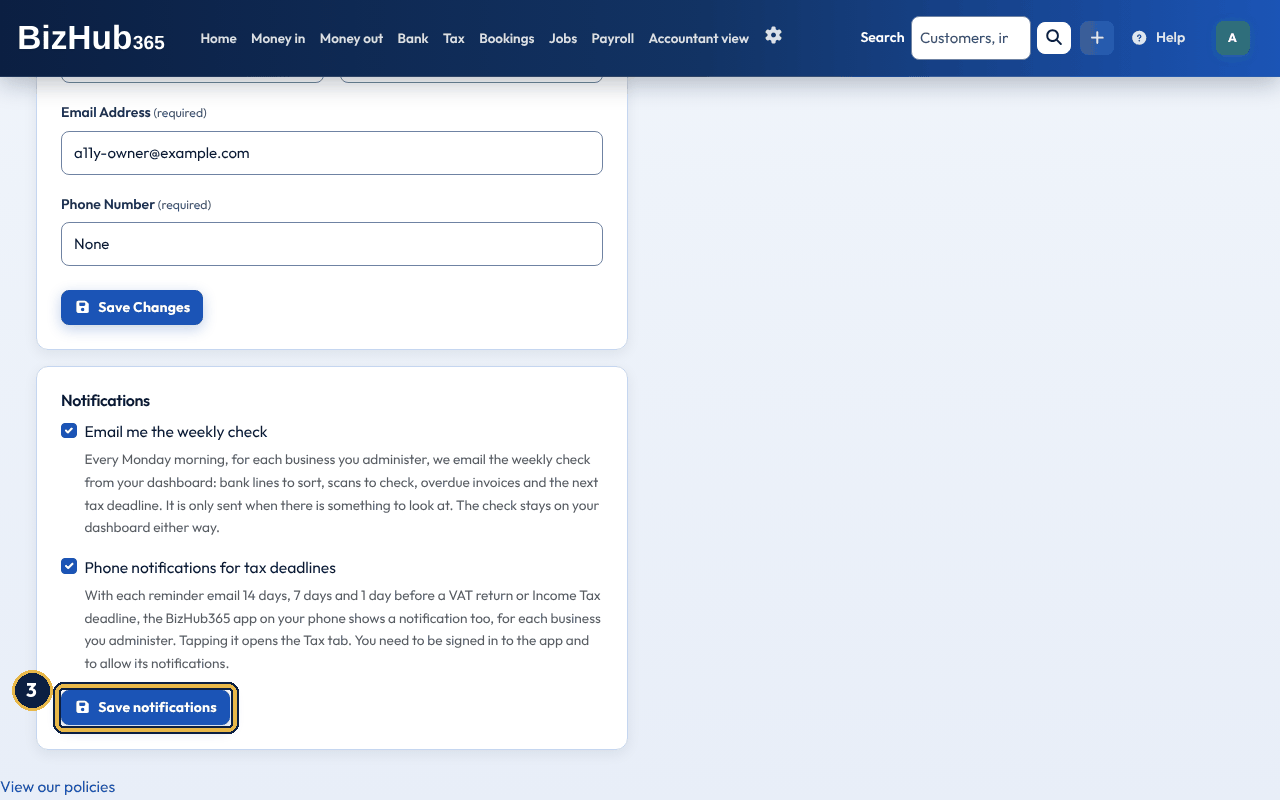
When it worked: A message confirms your choice. The weekly check stays on your dashboard either way.
Under Notifications, Appearance chooses how the website looks for you: Light (the start), Dark, or System (follow this device), which is dark when your phone or computer is set to dark and light otherwise, and changes with it. Dark uses navy backgrounds with light text and keeps the same buttons, colours for money in and money out, and focus outline. The choice is yours alone and applies wherever you sign in. Invoices, quotes, statements and other documents, their PDFs, and every email stay light, so what your customers see does not change. The public home page also stays light. The BizHub365 app on your phone has no Appearance setting of its own: it follows your phone's light or dark setting, and changes with it. Only the start-up screen with the logo stays white.
When it worked: A message confirms the theme, and the page changes to it straight away.
The first time you visit, a banner asks whether to allow analytics cookies. Nothing optional is set until you accept. To change your choice later, use Cookie settings in the page footer. Inside the app the footer is the same Tweed Tyne Technologies footer as the public pages, with the legal links (terms, privacy, cookies, accessibility, complaints), Cookie settings and our company details. Help and the user guide are on the Help button in the top bar.
Part I · Getting started · Chapter 6
Everyone has their own login and a role in your business. Invite people, change their role or remove them in User Management.
Where to find it: Settings→Team
Everyone you add to your business has one role. You choose it when you invite them and can change it later in Settings → Team.
| Role | What they can do |
|---|---|
| Administrator | View, edit, manage users and manage billing (Settings → Subscription and deleting the business). |
| Manager | View, edit and manage users. No billing. |
| Staff | View and edit everyday records, such as invoices, customers and bookings. |
| Read Only | Look at lists, records and reports. They can't create or change anything. |
| Business Staff Member | Only their own bookings (see below). |
| Accountant | An external accountant: view, edit and manage users, and they can work for more than one business. No billing access and no charge. |
| Subcontractor | Only logging time on the jobs assigned to them, plus their own expense claims and timesheets. They can belong to more than one business. |
User Management is Team in the settings menu, for Administrators, Managers and Accountants. Only an Administrator can make someone an Administrator or an Accountant, whether inviting them or changing their role.
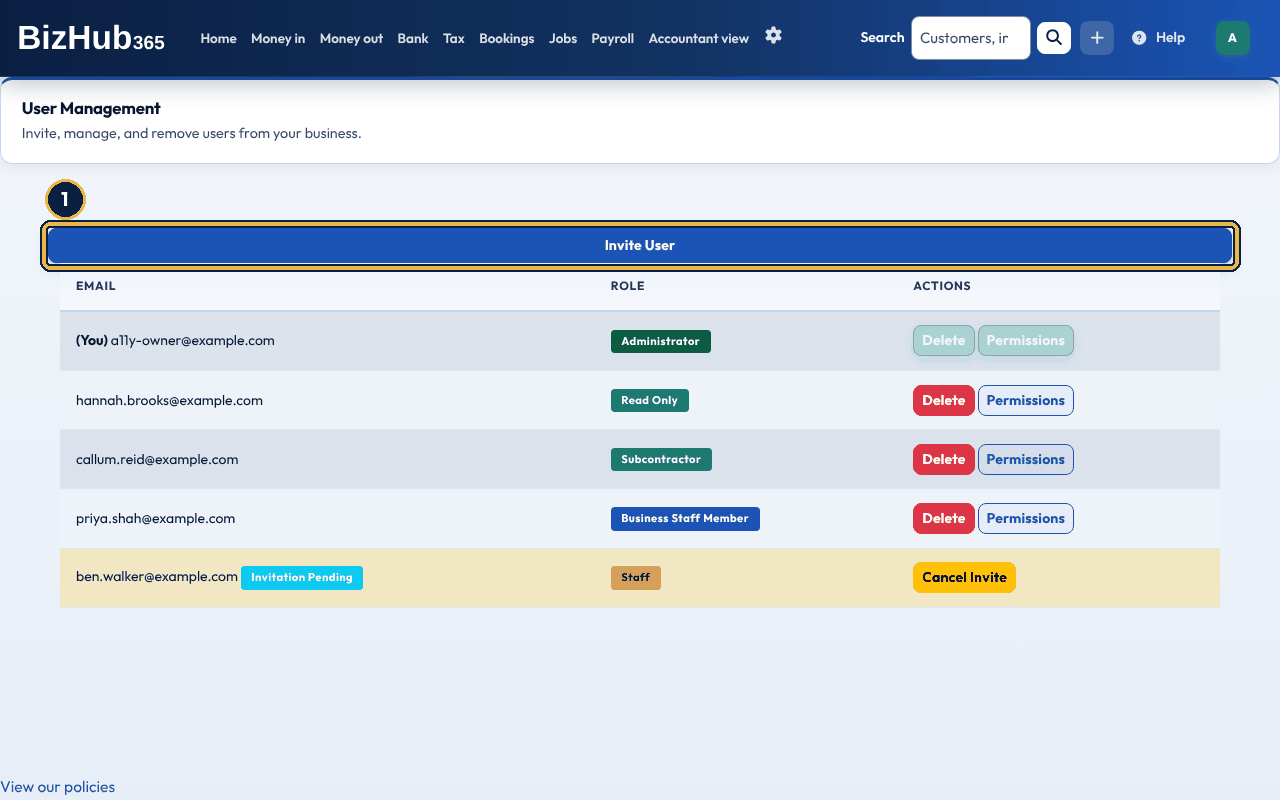
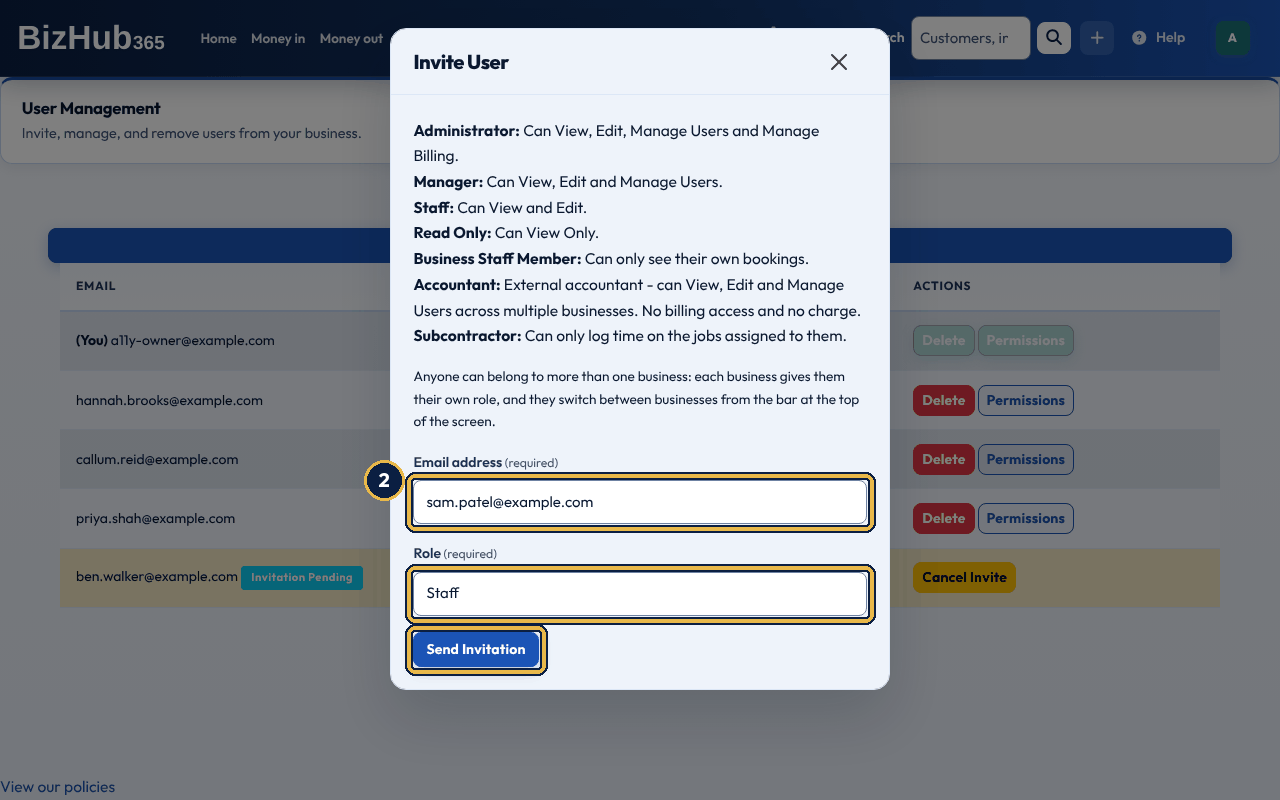
When it worked: You're back on User Management, with the message Invitation to [email] queued and will be sent within 10 minutes. They get an email headed You're invited to join a BizHub365 Business with a link to accept. User Management lists the invitation as Invitation Pending, with the role you chose, until they accept it.
| If this happens | Do this |
|---|---|
| User is already linked to this business. | They are already in your team. To give them a different role, use Permissions (see Change someone's role). |
| Only a business administrator can grant this role. | Ask an Administrator to send the invitation. |
| They didn't get the email | Ask them to check their junk folder. The link lasts 7 days; after that, cancel the invitation and send a new one. |
Adding someone always sends them an invitation, even if they already have a BizHub365 login. Nobody joins your business until they accept it.
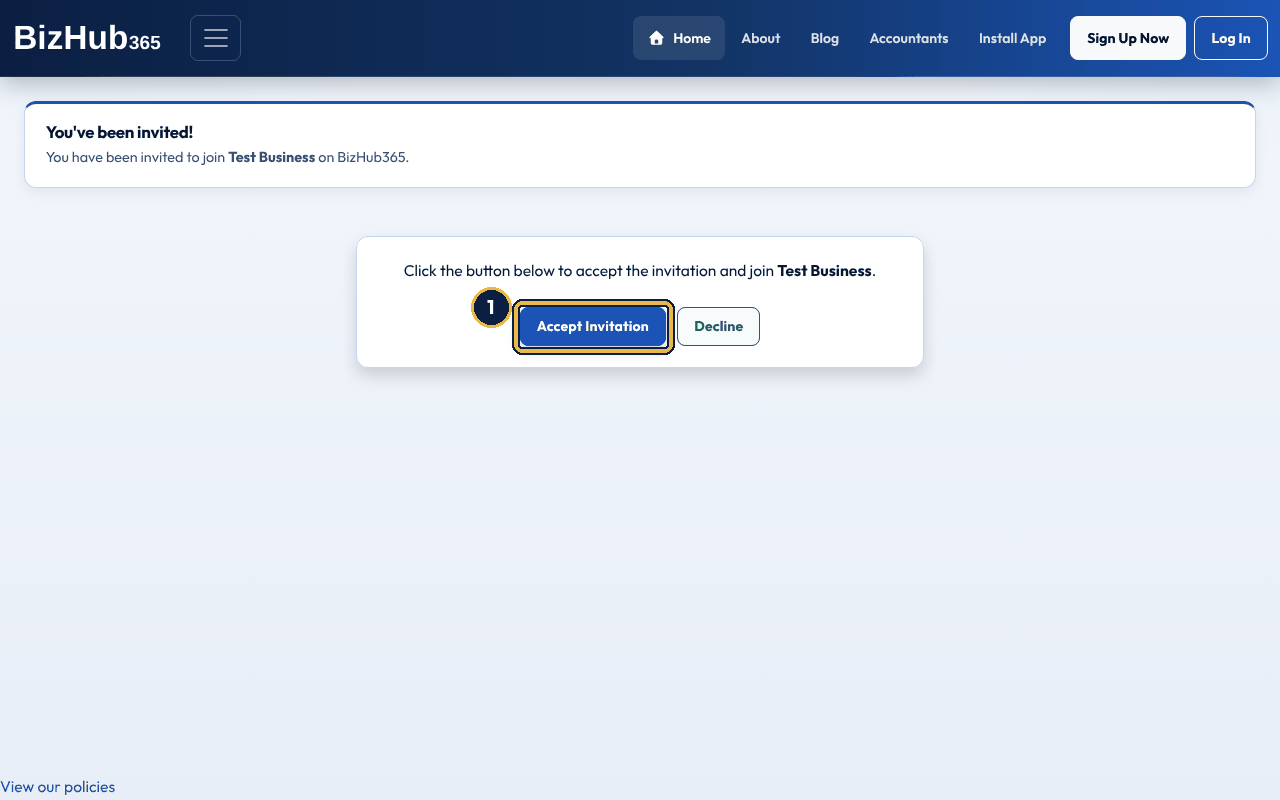
When it worked: You're signed in and taken to the business's dashboard, with the message You have joined the business: [name]. If you didn't have a login, one is made for you and an email headed Your BizHub365 account is ready gives you a temporary password. Change it as soon as you can (see Change your password).
| If this happens | Do this |
|---|---|
| An account with this email already exists. Please log in to accept the invitation. | Sign in with the email address the invitation was sent to, then open the link in the email again. |
| This invitation to join [business] has expired. | Invitations last 7 days. Ask the business to send you a new one. |
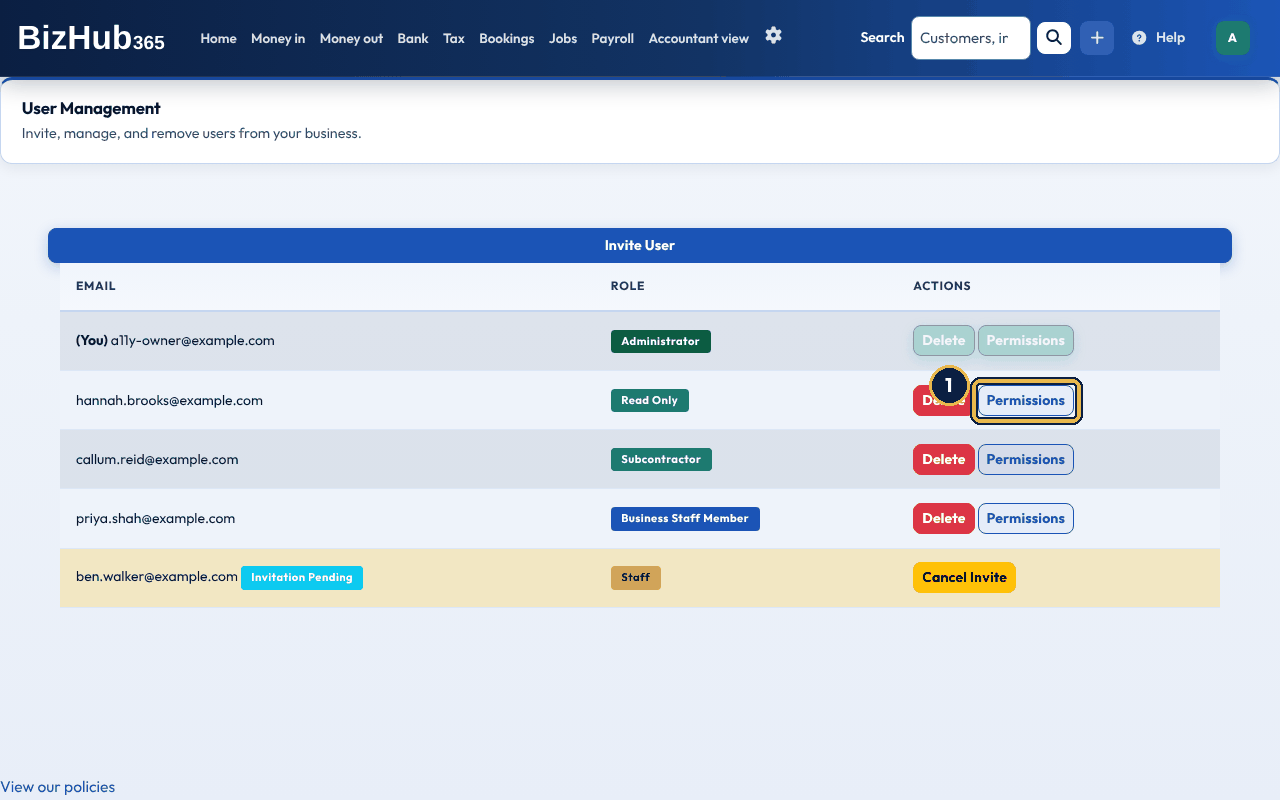
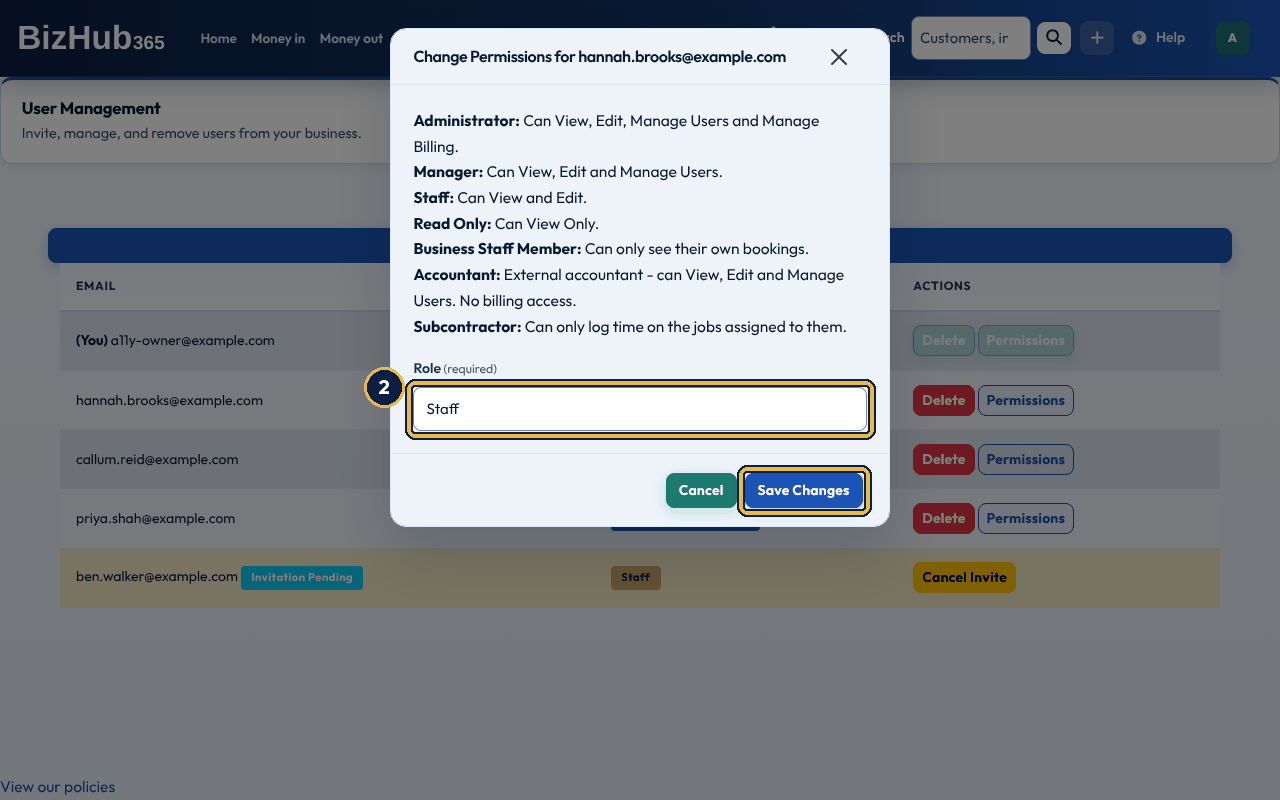
When it worked: You see [email]'s role has been updated to [role], and they get an email headed Your Role in BizHub365 Business Updated. The change is recorded in the audit log with the old and new role.
| If this happens | Do this |
|---|---|
| The Permissions button is greyed out | You can't change your own role. An Administrator's role can be changed only by another Administrator, and the business's last Administrator can't be given another role; the reason shows under the buttons. |
| [email] is an administrator. Tick "I want to change this administrator's role" to confirm. | Open Permissions again and tick the box before choosing Save Changes. |
| Only a business administrator can grant this role. | Only an Administrator can make someone an Administrator or an Accountant. |
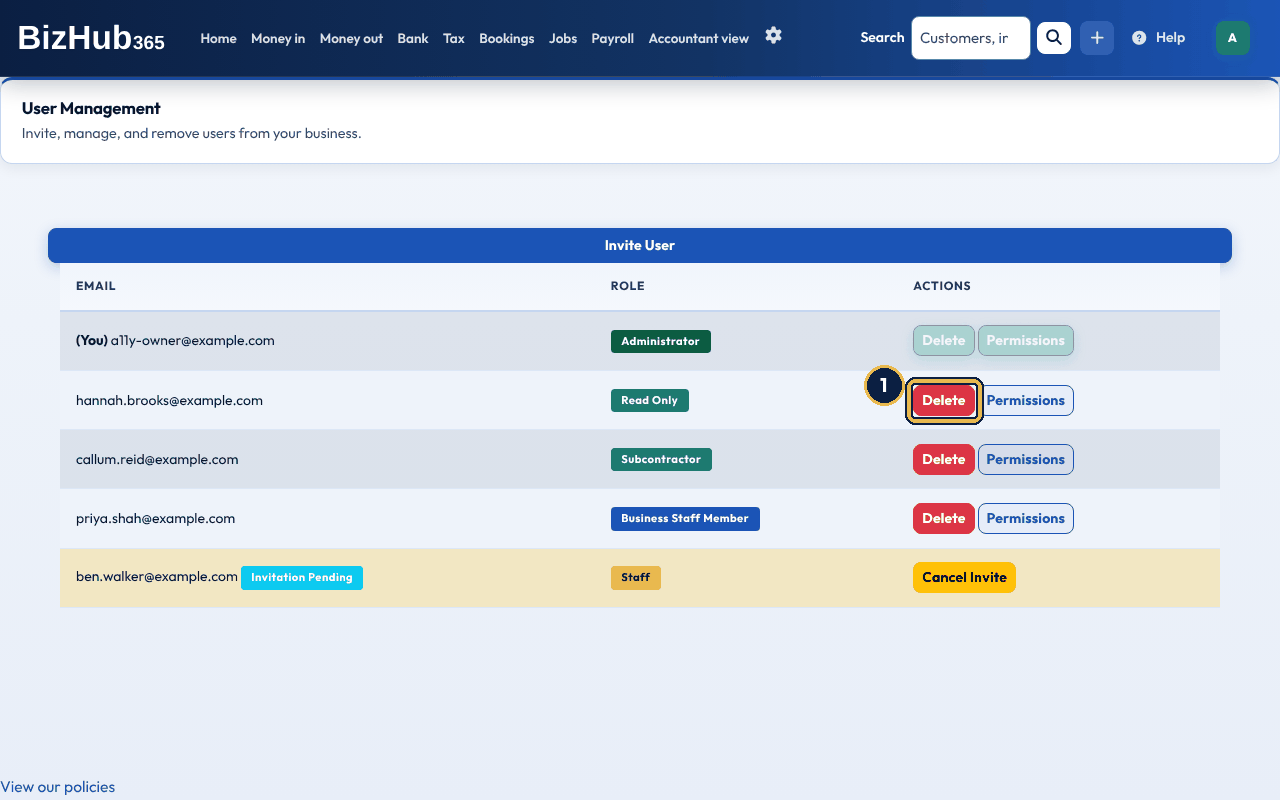
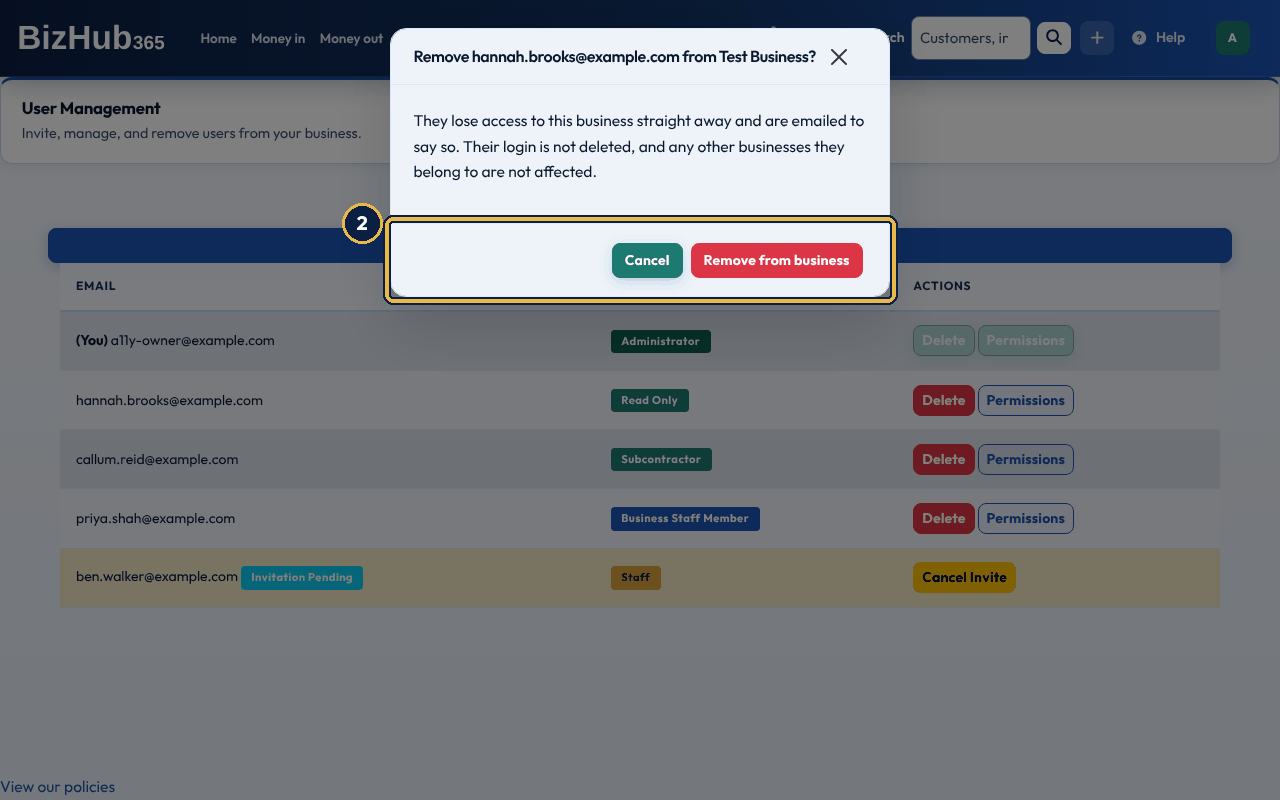
When it worked: You see [email] has been removed from the business, and they get an email headed Removed from BizHub365 Business. Their login isn't deleted; they just can no longer open your business. The removal is recorded in the audit log with the role they had.
| If this happens | Do this |
|---|---|
| The Delete button is greyed out | You can't remove yourself. An Administrator can be removed only by another Administrator, and the business's last Administrator can't be removed; the reason shows under the buttons. |
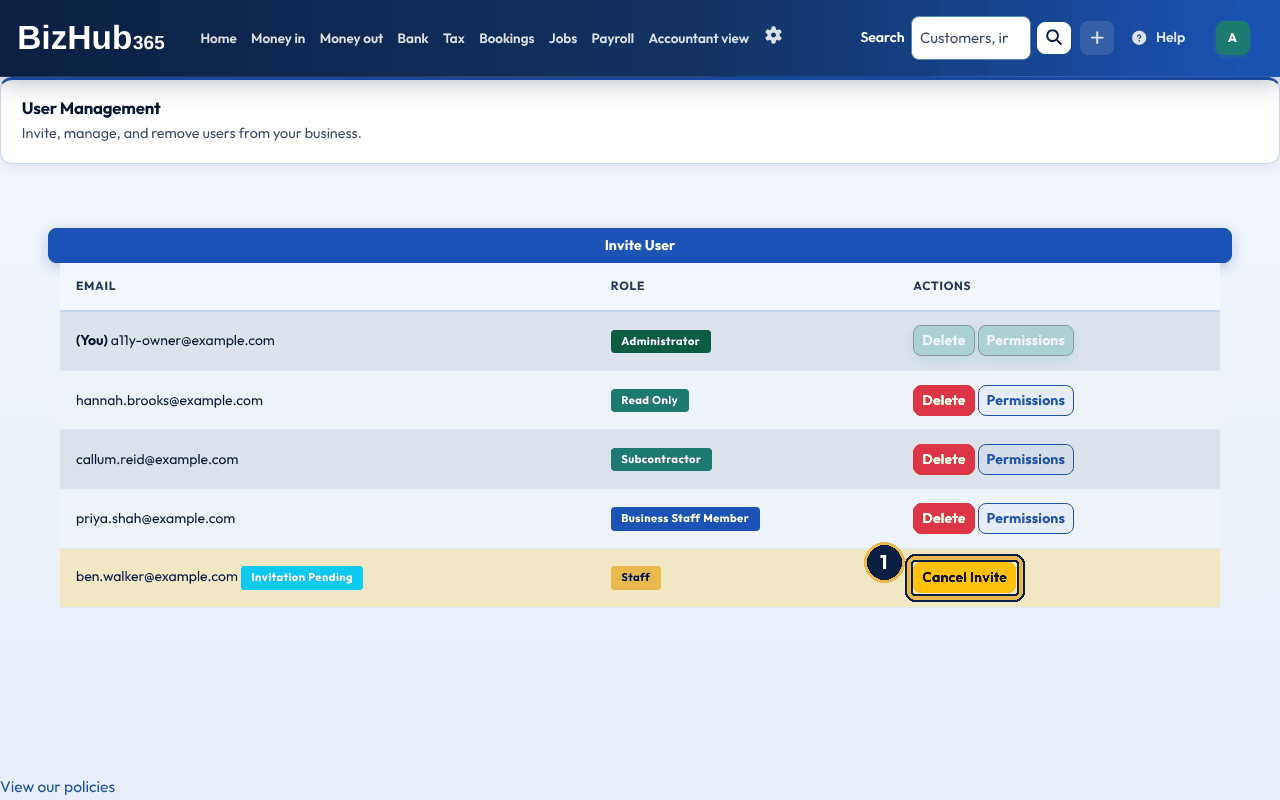
When it worked: You see The invitation has been canceled, and the link in the email no longer works.
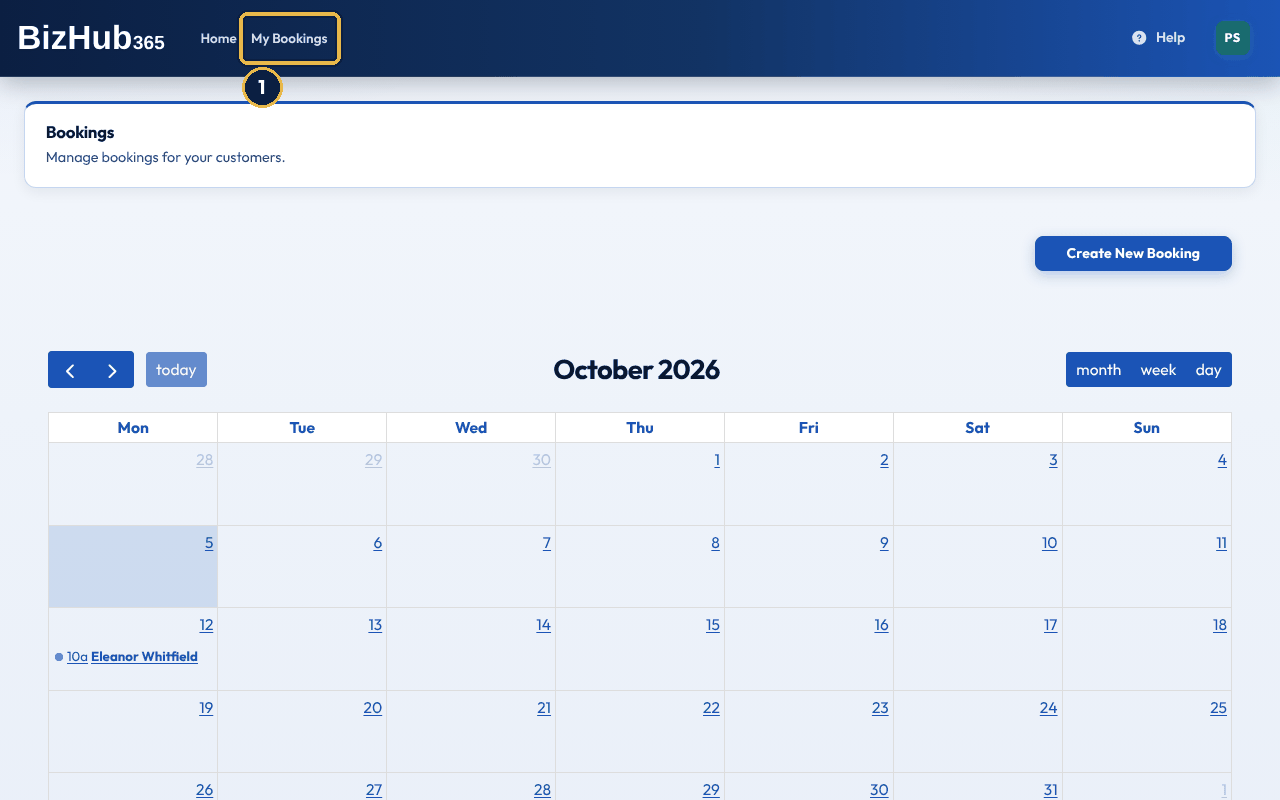
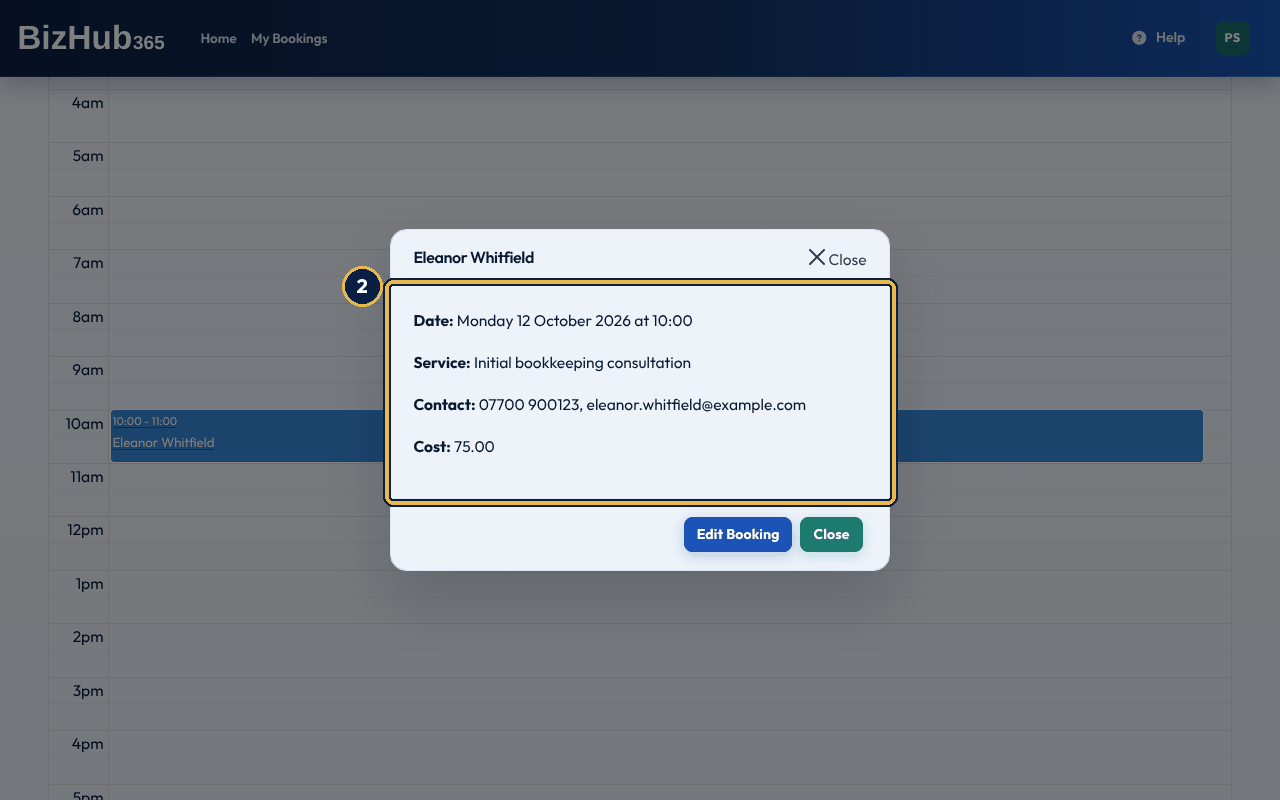
When it worked: You see only the bookings assigned to you; opening any other booking shows Booking not found. A booking you add with Create New Booking is assigned to you. To change or cancel a booking, ask someone in the business with the Staff role or above.
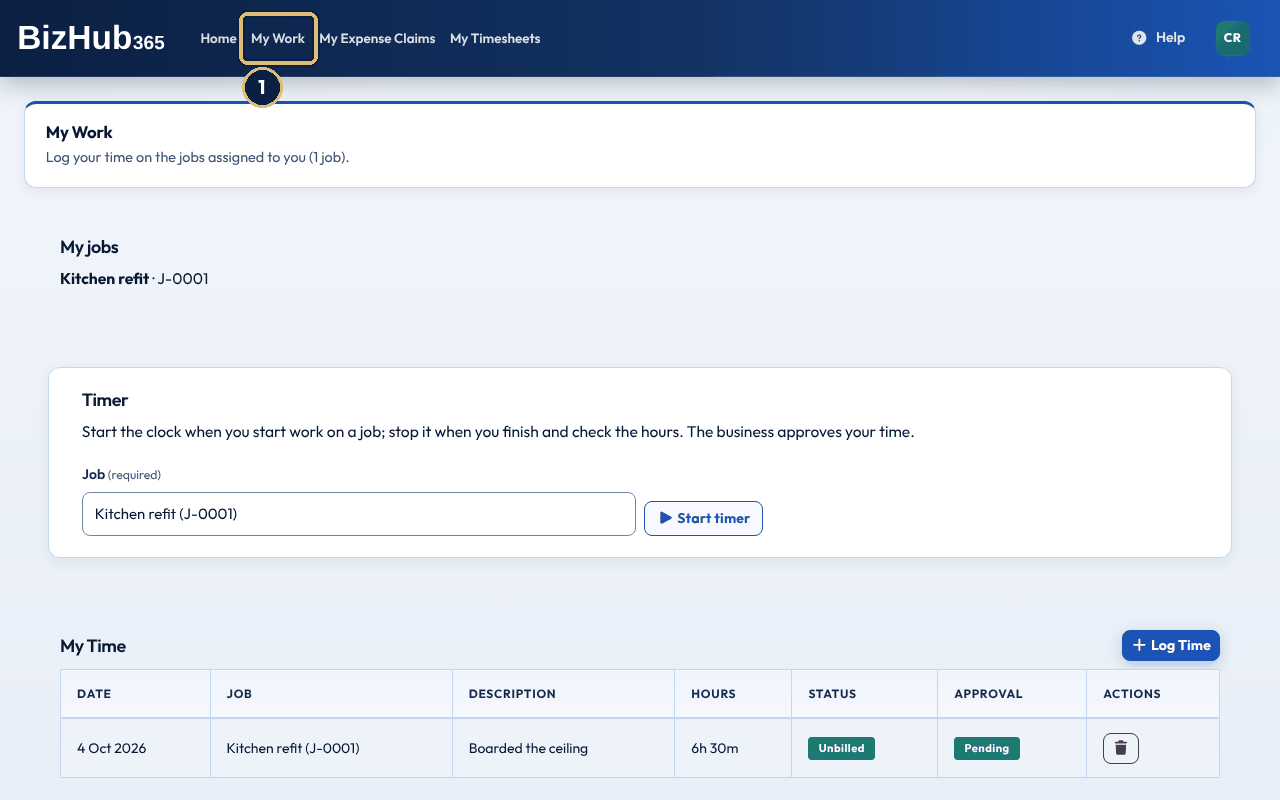
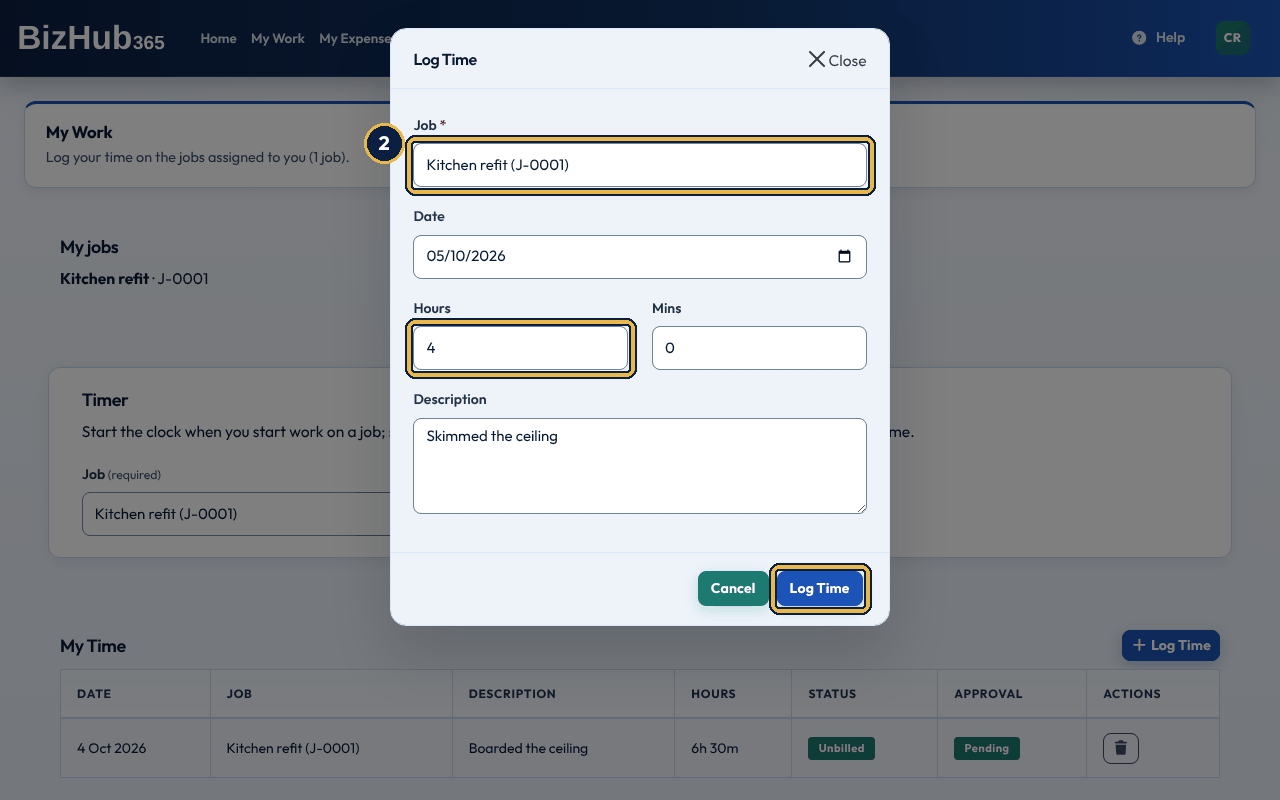
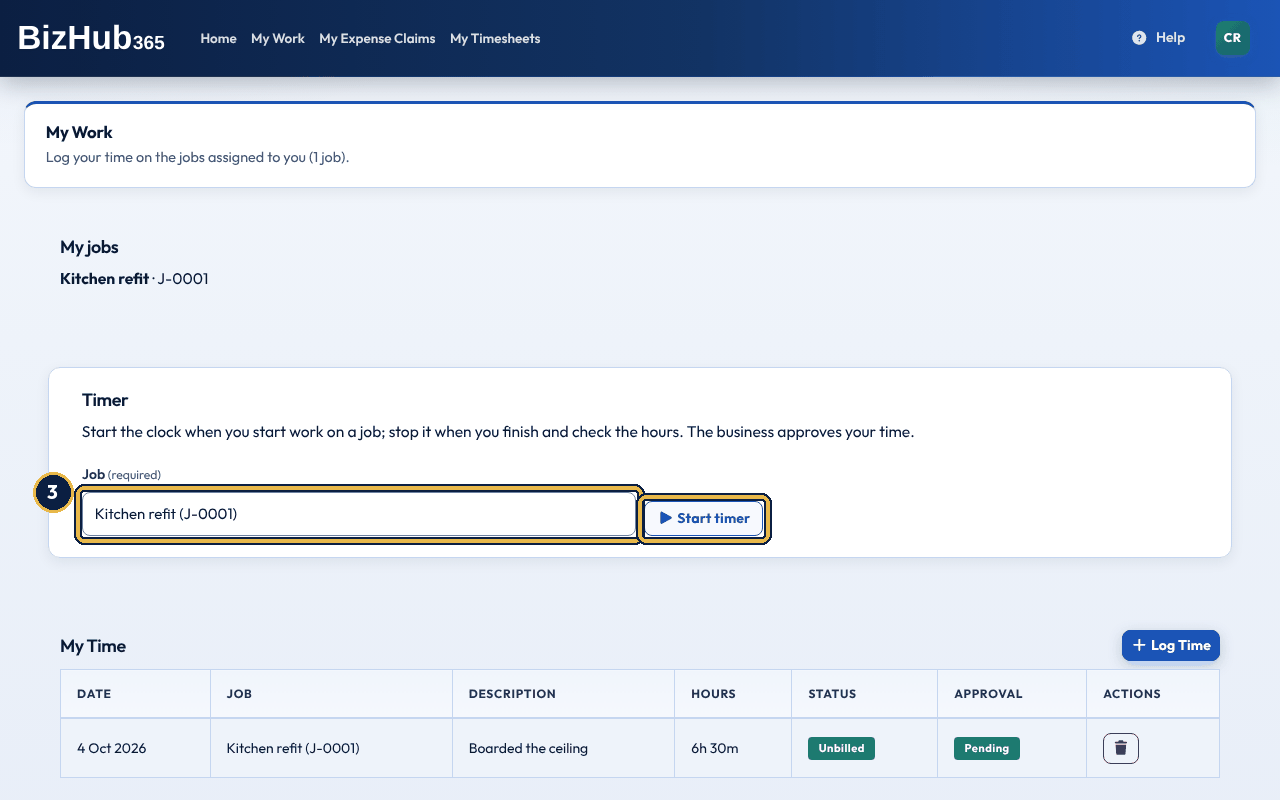
When it worked: You see Time entry added. (or, with the timer, Time saved: [hours]h [minutes]m.). The time is billable, so the business can invoice it once it approves it; it is Pending until then; the Approval column shows Pending, Approved or Rejected. You can't set a rate: the business sets it. Time that hasn't been approved or invoiced yet can be deleted with the bin button on its row (deleting a running timer cancels it). One timer runs at a time; the BizHub365 app's My work has the same timer.
| If this happens | Do this |
|---|---|
| Choose one of the open jobs assigned to you. | The job is done, cancelled or no longer assigned to you. Ask the business to open it again or add you to it. |
| You already have a timer running on [job]. Stop it first. | Stop the running timer under Timer, then start the next one. |
My Expense Claims is where subcontractors claim back costs (see Expenses and suppliers). My Timesheets works once the business has linked the subcontractor's login to their payroll employee record (Link to BizHub365 login on the employee). Until then it says Your account isn't linked to a payroll employee record yet - contact your employer.
Part I · Getting started · Chapter 7
BizHub365 One is £19 a month or £190 a year, unlimited users, with a 14-day free trial. Payroll is an add-on.
Where to find it: Settings→Subscription
BizHub365 One is the plan: CRM, bookings, invoicing, banking, VAT MTD, ITSA, multi-currency tax, audit trail, and priority support. One subscription covers every user you invite. Payroll is not in the plan: it is the payroll add-on (see The payroll add-on).
| Item | Detail |
|---|---|
| Plan | BizHub365 One |
| Price | £19 a month, or £190 a year (the monthly price x 10: 2 months free). VAT as shown at checkout. |
| Payroll add-on | £10 a month covers up to 5 employees, then £2 a month for each employee after the fifth. Annual: £100 a year covers up to 5 employees, then £20 a year for each employee after the fifth. |
| Trial | 14 days. Card taken at signup, charged only when the trial ends. |
| Users | Unlimited. No per-seat fee. |
| Contract | No fixed term. Cancel at any time. |
| Billing | On the website only, through Stripe Checkout. The iPhone and Android apps are free and sell nothing. |
If you signed up through a partner's offer page, your trial may be longer and start without a card. The subscription page says so and shows the date the trial ends. To keep your plan, choose Add payment details on Settings → Subscription before that date. Stripe opens so you can add a card, and your plan carries on after the trial at its normal price (£19 a month for BizHub365 One, plus the payroll add-on if you added it). If no card has been added when the trial ends, the trial stops and nothing is charged. You can subscribe again from the same page.
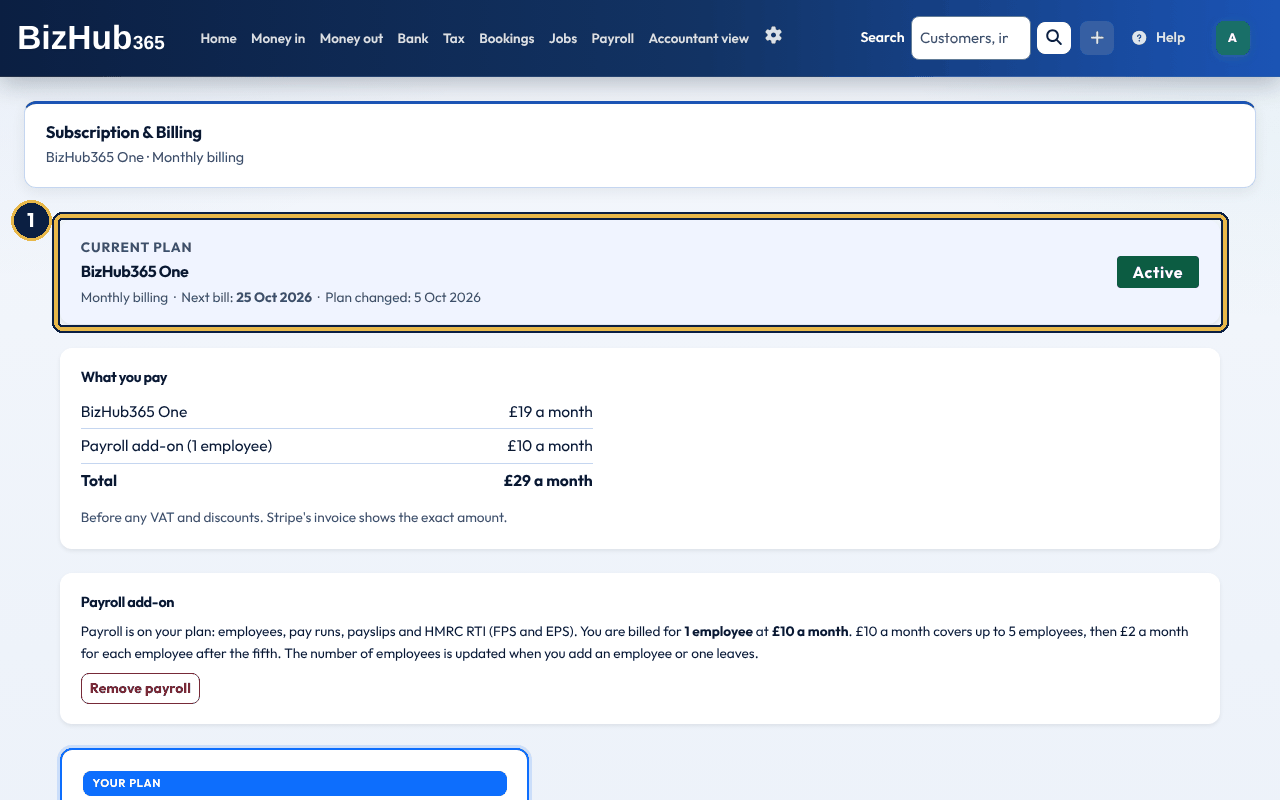
When it worked: Below it, What you pay lists BizHub365 One, the payroll add-on with the number of employees billed (if you have it) and the total for each month or year, before VAT and discounts. The plan card further down shows Your current plan.
| If this happens | Do this |
|---|---|
| You do not have permission to manage billing for this business. | Only people who can manage billing see the subscription. Ask an Administrator. |
The line under the page title names your plan and billing period too, for example BizHub365 One · Monthly billing. Without a subscription it says Subscribe to get started. To subscribe, or to subscribe again after cancelling, choose Monthly or Annual on the plan card, tick Add payroll if you pay staff, and choose Get BizHub365 One. Stripe's checkout page opens for your card details. New businesses start their free trial the same way (see Start your free trial).
The Promo or voucher code box is only shown before you subscribe, because a code applies to a new subscription. Type the code, choose Apply, then choose Get BizHub365 One.
The new card is used from the next payment. The button is there for active and trial subscriptions, and while a failed payment is being retried. During a trial that started without a card, use Add payment details instead (see above).
BizHub365 One does not include payroll. The payroll add-on opens the Payroll menu: employees, timesheets, pay runs, payslips and HMRC RTI (FPS and EPS). It costs £10 a month covers up to 5 employees, then £2 a month for each employee after the fifth. For example, 6 employees cost £12 a month and 10 employees £20 a month. On annual billing it is £100 a year covers up to 5 employees, then £20 a year for each employee after the fifth. It is billed with your plan, on the same monthly or annual dates, as a second line on the same Stripe invoice.
When you add an employee, an employee leaves or you take one back on, BizHub365 updates the number billed. The change is prorated: the difference for the rest of the current period goes on your next invoice (a credit if the number went down). The number is checked again a few days before each renewal.
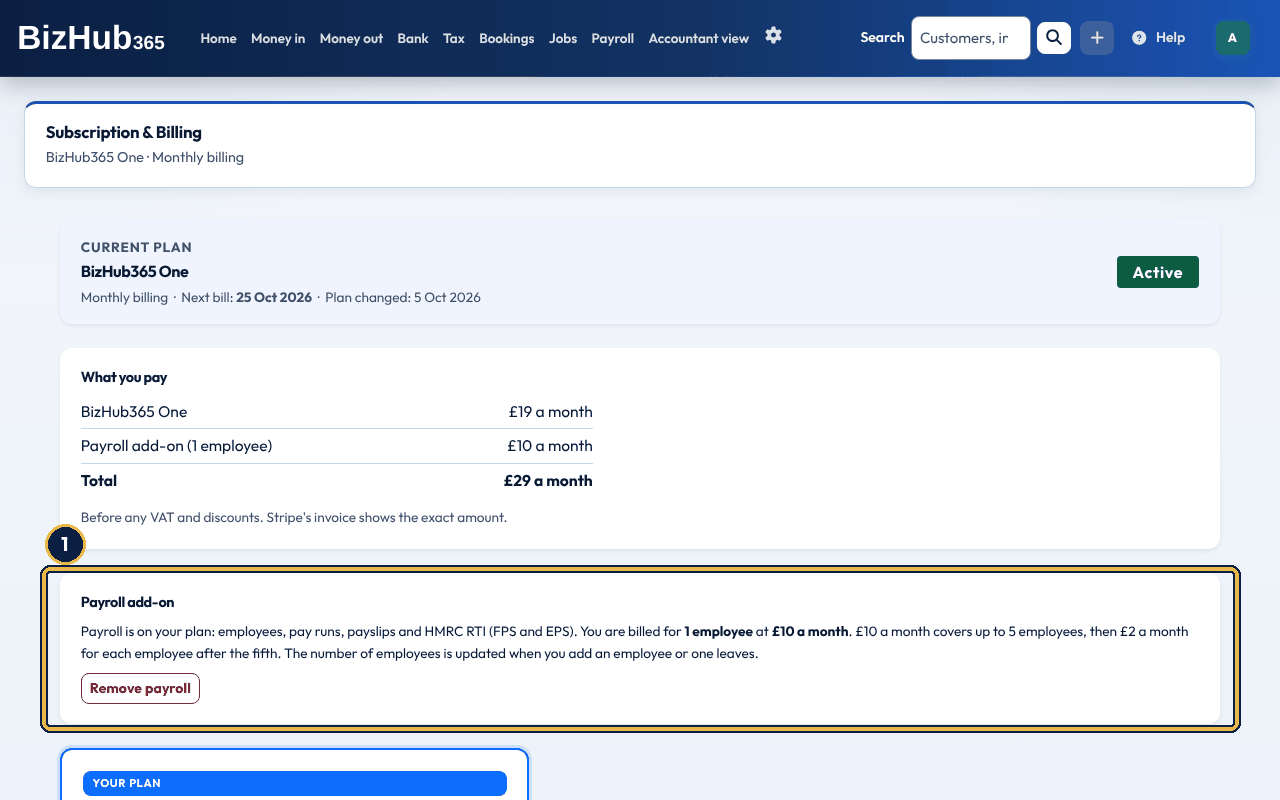
When it worked: The page reloads with a message. After Add payroll it gives the price and the number of employees, and the Payroll menu appears. After Remove payroll the Payroll menu goes; your employees, pay runs and HMRC submissions are kept for when you add payroll again.
| If this happens | Do this |
|---|---|
| Your last payment failed. | Pay the outstanding invoice first (see If a payment fails), then try again. |
| We could not add payroll just now. | Nothing has changed. Try again in a few minutes. |
How payroll changes are charged:
You can cancel at any time. Two choices are shown side by side, with the refund for each:
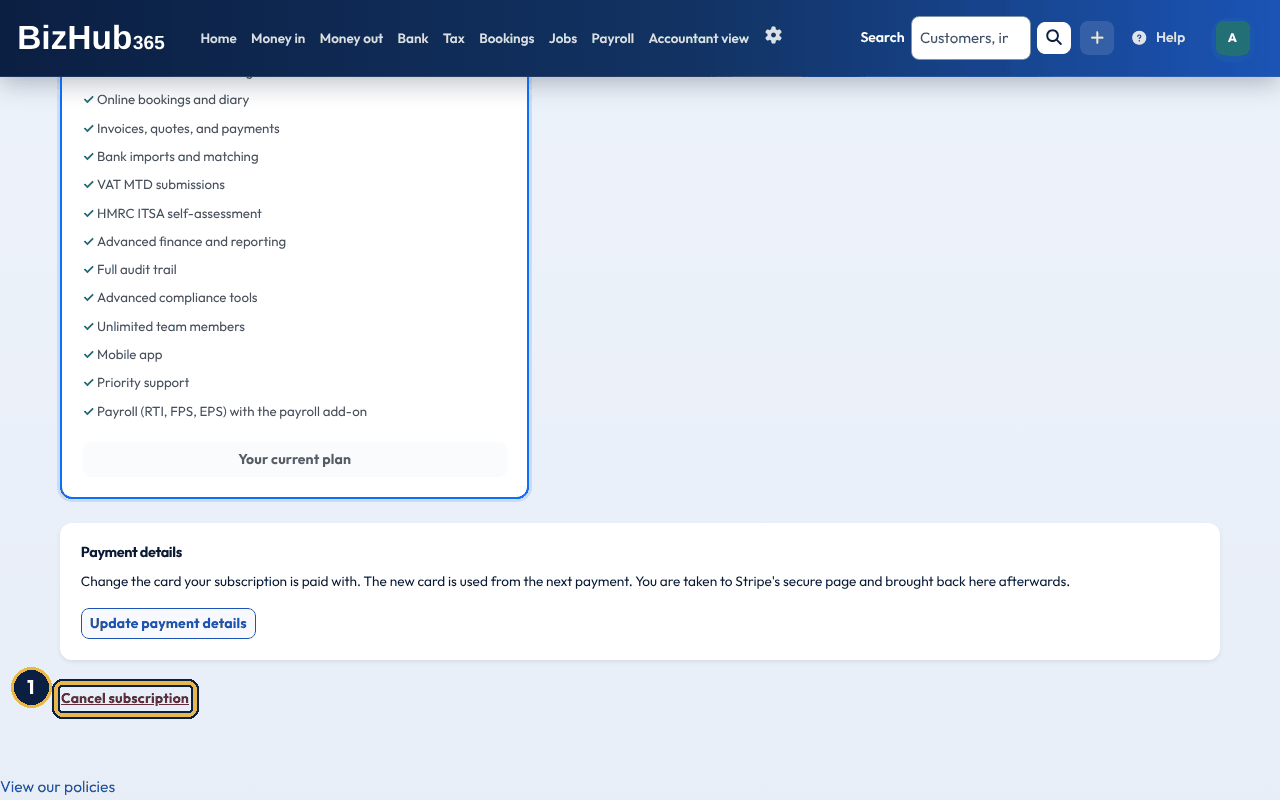
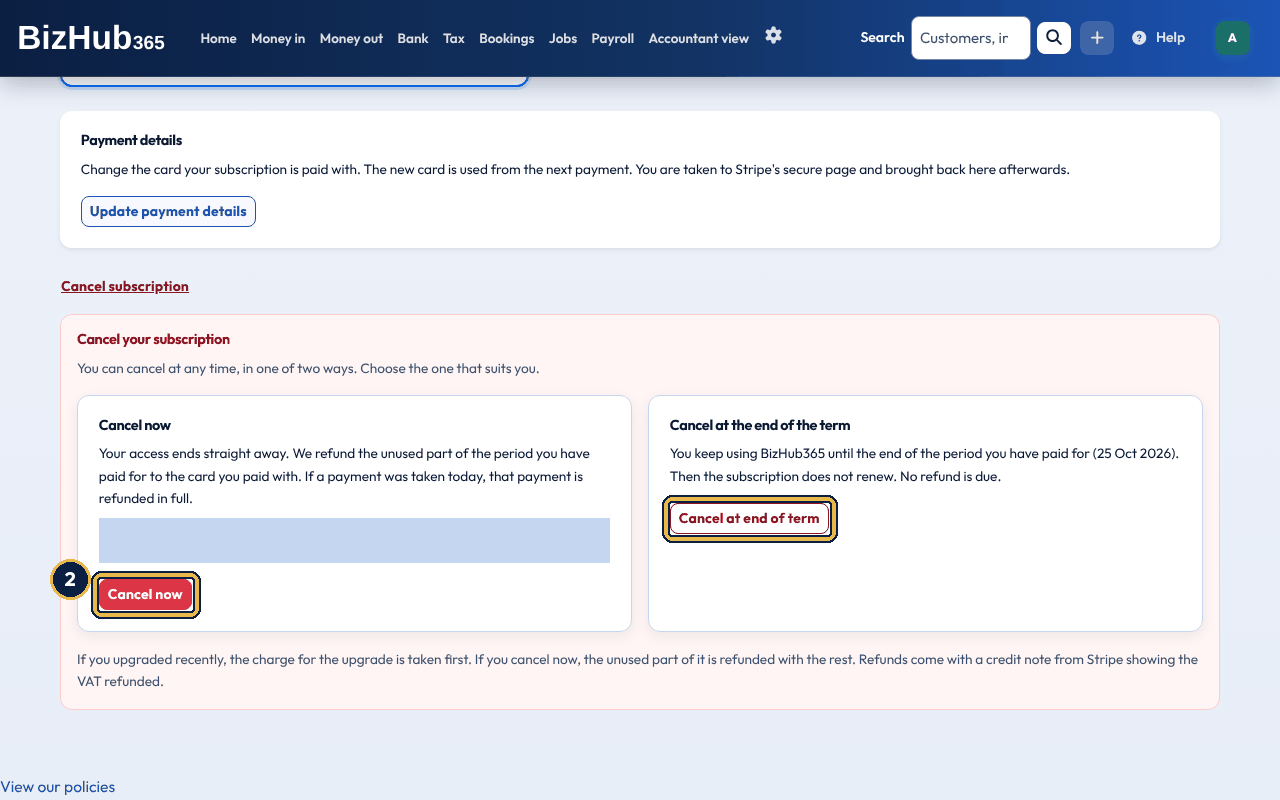
When it worked: The page reloads with a message at the top: the refund on its way to your card, or Your subscription is set to end on [date] and will not renew. After Cancel at end of term the Current Plan card shows Set to end on that date with a Set to end badge, and the cancel buttons are replaced by Resume subscription.
| If this happens | Do this |
|---|---|
| We could not work out your refund just now. | You can still cancel: the box that asks you to confirm tells you what happens. |
| You change your mind after Cancel at end of term | Choose Resume subscription before the end date (see Resume a subscription that is set to end). |
How refunds work:
Changed your mind after Cancel at end of term, or after Cancel before this charge in a reminder email? You can resume until the end date.
The page shows Your subscription has been resumed and will not end, the badge goes back to Active, and the next bill date returns. Nothing is charged when you resume: the plan, price and billing date stay the same. A subscription you cancelled now cannot be resumed; subscribe again instead.
From 1 December 2026, everyone who can manage billing gets an email before each payment is taken: at least 14 days before an annual renewal, and at least 3 days before a monthly renewal or before a free trial turns into a paid plan. It gives the date, the amount including VAT (with the payroll add-on, if you have it), what the payment is for and the card it will be taken from. If there is no card on file, it says so and links to the Subscription page to add one.
The email has two buttons that work without signing in:
Opening a button only shows what will happen. Nothing changes until you press the confirm button on that page, and you get a confirmation email. The buttons stop working on the payment date and after one of them has been used. Then the page asks you to sign in instead.
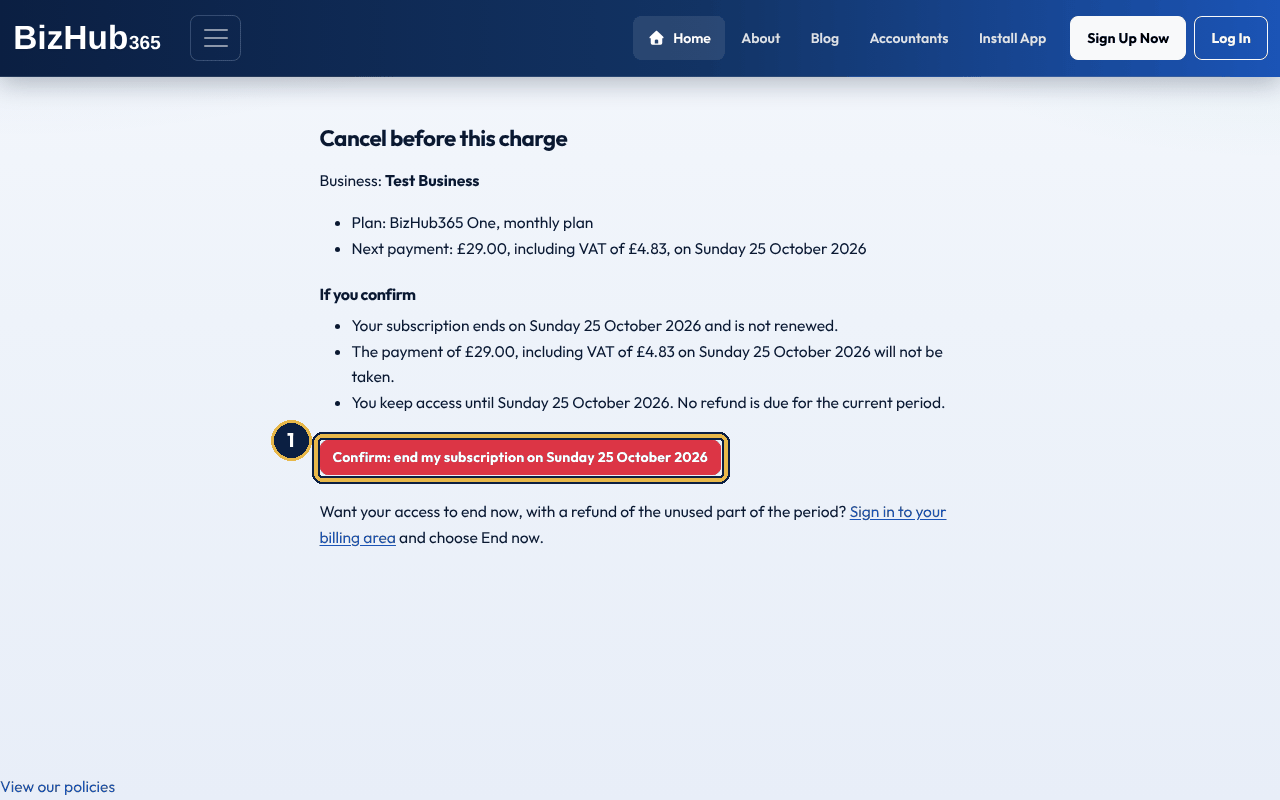
When it worked: The page says Your subscription will end on [date], the payment isn't taken and you get a confirmation email. You keep access until then.
| If this happens | Do this |
|---|---|
| This link no longer works | The payment date has passed, the subscription has changed since the email was sent, or one of its buttons has already been used. Choose Sign in and use Settings → Subscription. |
| You change your mind | Sign in and choose Resume subscription on Settings → Subscription before the end date (see Resume a subscription that is set to end). |
Part I · Getting started · Chapter 8
Work from the browser, install the desktop app, or use the iOS and Android apps.
bizhub365.com is the full product. Use it on any modern desktop or tablet browser. Chrome, Edge, Firefox, and Safari are supported.
Step-by-step install guides for every device, with screenshots, are in Install BizHub365 on your devices.
BizHub365 can be installed as a desktop app from the browser. Look for Install App in the navigation bar.
If your accountant gave you their own branded portal, there is no Install App button. Use the install icon in Chrome or Edge's address bar instead. The app installs under your accountant's firm name and logo.
Download BizHub365 from the App Store or Google Play (bundle com.tweedtyne.bizhub365).
When you open the app it goes to the sign-in screen, or, once you are signed in, to Home. It works with your first business; there is no business switcher in the app. A business without a subscription shows This isn't available on your account. with Log out, and a referral partner with no business opens Referral Programme. Along the bottom are five tabs, the same areas as the website's menu: Home, Money in, Money out, Bank and Tax, with the round + button between Money in and Money out. Settings is the sixth area: tap Settings at the top of Home. Anything you can't use is left out: adding needs the Edit permission, Income Tax updates, VAT returns and payroll need Manage Billing, Bank is hidden when the Banking section is off, and areas your business has switched off are hidden. Older links to the app's menu open Home.
Home's title is your business name. Share B Card at the top opens your digital business card: its QR code and buttons to share or preview it. Settings beside it opens Settings (see below).
| Card | What it shows |
|---|---|
| Tax to set aside | The same estimate as the website's Home: the total, then how it is made up (profit this tax year or accounting period, Income Tax and Class 4 National Insurance, or Corporation Tax, and VAT owed so far this VAT period), with Based on your figures to [date]. An estimate, not a bill. and any notes. Go to Tax opens the Tax tab. The card shows only when there are figures to work from, and only to administrators and your accountant (see Tax to set aside). |
| Profit this month | Income less expenses from the 1st of this month to today, from your Profit and Loss report. A loss shows as Loss this month. |
| To do | Scans to check (Pending scans), Bank lines to sort and Overdue invoices, each with how many. Tap one to open it. When there is nothing waiting it says Nothing to do. You are up to date. |
| Also in your business | Areas your business has switched on: Bookings, New booking and Payroll (see the tables below). CIS and Fixed assets are on the website only. |
Pull down, or tap Refresh at the bottom, to load Home again. If part of it can't load, Home says so with Try again.
| Choice | What it opens |
|---|---|
| Daily takings | Record a day's takings (see Daily takings below). Shown when your business was set up as a cafe, or hair and beauty (then it is first), or has recorded takings before. |
| Scan with AI | Scan with AI, to photograph or upload a receipt or bill into Pending scans. |
| Record money in | Choose the invoice a customer has paid (the same as Record money in on the Money in tab). |
| Add expense | Create Expense. |
| New invoice | Choose a customer, then the invoice form. |
| Start a trip | Mileage, where Start trip and Stop trip are. |
Close closes the list.
| Entry | What you can do |
|---|---|
| Record money in | Records a customer's payment against an invoice. Choose the invoice, check the Payment Value (filled in with the invoice total), choose the Payment Method and choose Save payment. The payment is dated today. Other money in (income with no invoice, money that is not income) is recorded on the website. |
| View money in | Payments from your customers with their customer, invoice, method and date. Search by customer or payment method. The website's Money in page shows all money in, including takings and money still to match. |
| Refund from a supplier | Records money a supplier paid back (see Refunds from suppliers): the Date received (YYYY-MM-DD), the Amount received, the Supplier if they are on your list, then the Expense it refunds (their expenses with something left to refund, each with how much is left) or the Expense category, and, if you are VAT registered, the VAT given back (left as the expense's when you chose one), with an optional description and reference. Choose Record refund. It reduces that expense and is never counted as income. The same rules as the website apply, and any problem is shown beside its box. Changing or deleting a refund is done on the website. Needs the Edit permission. |
| Daily takings | Your recent days' takings, newest first: the date and till, card and cash, the total taken and any Card to come (card takings your card company has not yet paid into your bank). Tap a day to see it all: sales by VAT rate, tips, paid-outs, cash to bank and the till count. Days are changed or deleted on the website. Record a day's takings opens the form: the Date (YYYY-MM-DD), what was taken by Card, in Cash and in Other ways (recorded as paid into your bank account), Tips by card and Tips in cash, the sales (by VAT rate if you are VAT registered: standard 20%, reduced 5%, zero-rated and exempt; otherwise one Sales total), any paid-outs (Add a paid-out: what for, amount, category and, if VAT registered, the VAT on the receipt) and, if you like, the till, Z reading, cash counted and float. Taken and Sales and tips are shown as you type: they must be the same. Choose Save takings. The same rules as the website apply, and any problem is shown beside its box and read out by your screen reader. With no signal the day is kept on your phone and uploaded later (see No signal?). A business set up as a cafe, or hair and beauty, has Daily takings first on this tab. |
| New invoice | Choose a customer (or Add new customer), choose the Payment terms, add lines with Add invoice item (and Add time/labour), add notes and payment instructions, and choose Save and Send Invoice. The invoice is dated today and emailed to the customer with its PDF. |
| Invoices | The Due and Paid tabs list your invoices. Send Invoice emails one again, Download shares its PDF, and Delete deletes it (the customer is emailed that it was cancelled). Tap an invoice to change its payment terms, lines or notes and choose Update and Send Invoice, which emails the updated invoice once. Locked invoices can't be changed. |
| New quote | The same form as an invoice, dated today. Save and Send Quote saves it and emails it to the customer. |
| Quotes | Resend Quote emails it, Make Invoice turns it into an invoice, and Delete deletes it. |
| Jobs | Shown while the Jobs section is on. Your jobs with the Open, Done and All tabs and a search; each shows its customer, due date and stage. Tap a job to see its figures so far (Quoted, Invoiced, Paid, Costs and Profit so far) and its quotes, invoices, expenses, mileage trips and bookings. Adding and changing jobs is done on the website. |
| New credit note | Choose the customer, type the amount, VAT rate (if you're VAT registered) and reason, and choose Save and Send Credit Note, which saves it and emails it to the customer. |
| Credit notes | Send emails a credit note; Use credit applies its whole amount. |
| Add customer, Customers | Add a customer (Create Customer), or tap one to change their details and choose Update Customer. Customers are deleted on the website. Email and Call open your mail or phone app. |
| Entry | What you can do |
|---|---|
| Scan with AI | Take a photo, Choose from photo library (up to 10 at once) or Choose a PDF or file. Each file waits in Pending scans; nothing is added to your accounts until you save it. The screen also shows your business's email address for receipts. |
| Pending scans | Shows how many are waiting. Each scan shows whether AI is still reading it, what it read, or that it failed. Review and save opens Create Expense filled in; Discard removes the scan. |
| Add expense | Create Expense: supplier, reference, description, date, whether it is paid, the amounts (net, VAT and gross if you're VAT registered), category and a receipt file, then Save Expense. Scan with AI on this screen can add to Pending scans or fill in the form from a photo or file. |
| Expenses | Your expenses, with Delete for unlocked ones. Payments on an expense lists how it was paid; Move to another account on a payment lets you choose a different account it was paid from, and Save posts the change. A payment that is locked or matched to a bank transaction can't be moved here. |
| Mileage | Your business trips (see Mileage). Start trip records the time and an optional start postcode; it does not use your location and asks for no location permission. Under Trip in progress, type the end postcode and the Business miles (or the mileometer readings at the start and end, or tap Suggest miles), then Stop trip. This month lists this month's trips with their allowance and totals. Add trip manually adds a trip by hand, and Add a vehicle adds your first vehicle; vehicles are changed on the website. Set up automatic trips lets the app record your drives by itself (off unless you turn it on; see Turn on automatic trips), and Trips to sort lists the recorded trips with Business and Personal. |
The Bank tab lists your bank lines. To sort shows the lines waiting to go in your books: Match invoice or Match expense when there is a suggested match, Add to books, or Ignore. History lists imported transactions, and Ledger your accounts when the Accountant view section is on (accountants always have it); tap one to see its lines. A key under the header says what Dr and Cr mean on that account (on a bank account, Dr is money in and Cr is money out). Upload a statement on the website. When bank feeds are switched on for you, Bank connections at the top of the Bank tab lists your connected accounts with their status, the bank account in your books each one feeds and how long the consent runs. Connect a bank lets you choose your bank by its logo or search for it, says in a few lines what you're agreeing to (with More about how this works for the full explanation) and opens your bank's page in the app to approve access. Back in the app, Choose bank accounts asks which bank account in your books each connected account feeds: one of yours, A new bank account or Not now; see Connect your bank for a bank feed. Choose bank account, Re-confirm, Connect again and Disconnect work as on the website. Without it, connect your bank on the website.
| Entry | What you can do |
|---|---|
| Tax to set aside | The same card as on Home, when there are figures to work from. |
| Income Tax updates | Update from HMRC fetches your income sources and deadlines. Income sources sends a quarterly update or annual summary for each income source; Deadlines lists what HMRC expects and when; Returns triggers a tax calculation and submits the final declaration. |
| VAT returns | Connect HMRC (in your browser) and Sync VAT. Tap a return to see boxes 1 to 7, Finalise return, then Submit to HMRC. Only VAT-registered businesses see it. |
| Reports | Financial Reports: search for a report, choose the From and To dates, and Download PDF. |
Every send to HMRC from the app shows the same responsibility notice and declaration as the website, then asks you to confirm with a passkey, your authenticator app or an emailed code (see HMRC Making Tax Digital).
| Entry | What you can do |
|---|---|
| Bookings | Your bookings, without cancelled ones. Tap one to change it (see below). Delete deletes one and emails your business that it was cancelled; an invoice for it is kept. |
| New booking | Send Booking Link emails a customer your booking page with an optional message. Book Now chooses a customer, a description, cost, slot length and start date, shows the free slots, and Make Booking books one: the customer is emailed a confirmation. No invoice is created or emailed, whatever the cost, the same as a booking made on the website. If you want to charge for it, raise an invoice from New invoice. |
| Payroll | HMRC Payroll. Staff lists employees and adds one (name, date of birth, start date, NI number and tax code). Pay runs creates a pay period and finalises it; tap a pay run to add payslips (basic pay) and see its totals. RTI creates and sends the FPS, and creates and sends a no-payment EPS. Payroll settings are changed on the website. |
Tap Settings at the top of Home. Back returns to Home.
| Entry | What you can do |
|---|---|
| Manage business | Manage Business Settings (name, contact details, VAT number, NI number, payment instructions and logo, and your receipts email address), Business Holidays, Business Hours, Business Users (invite and remove users), Custom Links for your business card, and Sections. |
| Your account | Your name, email and phone (Save Profile Info), your password (Update Password), Delete Account, and Passkeys, authenticator app and phones, which opens Security. |
| Share B Card | The same business card screen as the button at the top of Home. |
| Refer and earn | Join the referral programme, or see your referral code, Share my referral code, your held, available and paid commission and the businesses you referred. Your referral link and bank details are on the website. |
| Scan to sign in | Scan the QR code on a computer's sign-in page, check the browser and place shown, and choose Approve (with your fingerprint, face or passcode) or Deny. |
| Help | Opens the help centre in your browser. |
| Log out | Asks you to confirm, then signs you out of the app. |
The iPhone and Android apps are free and for signing in only. There is no sign-up in the app: create your account on the website (see Create your account and business). Subscriptions are bought, changed and cancelled on the website only (see Subscription, trial, and billing). The apps show no prices or plans. If your account has no subscription, or something needs a part of the plan your account doesn't have, the app says This isn't available on your account.
Part II · Customers · Chapter 9
The customer record is the hub for invoices, bookings, statements, and the work you do for them.
Where to find it: Money in→Customers
A customer is anyone you sell to: a person or a company. The record holds their contact details, tags, a log of your calls and meetings, files you attach, and a money summary drawn from their invoices, payments and credit notes. Invoices, quotes, bookings and jobs are all raised against a customer, so most work starts by adding or finding one.
Anyone with the View permission can open the customer list, a customer's page, and the exports. Adding, changing, deleting and tagging customers, logging interactions and sending statements need the Edit permission. Staff members and subcontractors do not have the Money in menu (see Roles, permissions, and your team). Names, company names, email addresses, phone numbers and addresses are encrypted in the database.
Where to find it: Money in→Customers
Customer Manager shows one card per customer: name, company, email address, phone number, and the type and date of the last interaction (or No interactions yet). Each card has two buttons: + logs an interaction, and the eye (View / Manage Customer) opens the customer's page. At the top are CSV and PDF exports, the search box, Sort By, Apply and New Customer. The list shows 24 customers a page; the page links at the bottom let you choose 48, 96, 192 or all.
| Control | What it does |
|---|---|
| Search Customers | Matches part of a first or last name, the full name, the company, the email address, the phone number (with or without spaces) or a tag name, ignoring capital letters. Choose Apply to search. |
| Sort By | Name (A-Z), Name (Z-A), Last Interaction (Oldest) or Last Interaction (Newest). Customers with no interactions come first when sorting oldest first and last when sorting newest first. Leave it on Sort By for A to Z. |
| New Customer | Opens the Add New Customer form. Create (+) → Customer opens the list with this form already open. |
| CSV, PDF | Download the whole list (see Export your customer list). |
| Field | Required | Notes |
|---|---|---|
| First Name, Last Name | Yes | Shown together as the customer's name on cards, documents and in search. |
| Company | No | For a business customer. Shown with the name wherever the customer is named, and in the exports. Leave it blank for a private customer. |
| Yes | Where invoices, quotes, statements and booking emails go. One customer per email address in a business: a second record with the same address is refused with A customer with this email already exists. | |
| Phone | Yes when adding | Any format; search matches it with or without spaces. |
| Address Line 1 | No | Type three or more characters and choose from the address suggestions under the box: Town/City, County and Postal Code are filled in for you. Or type every line yourself. |
| Address Line 2, Town/City, County, Postal Code | No | Printed on the customer's documents. |
The record also holds a country (GB unless something else sets it), a VAT number, a preferred currency and a tax jurisdiction override. The web pages do not show or edit those; the invoice and quote editors apply the customer's currency and tax treatment where they are set.
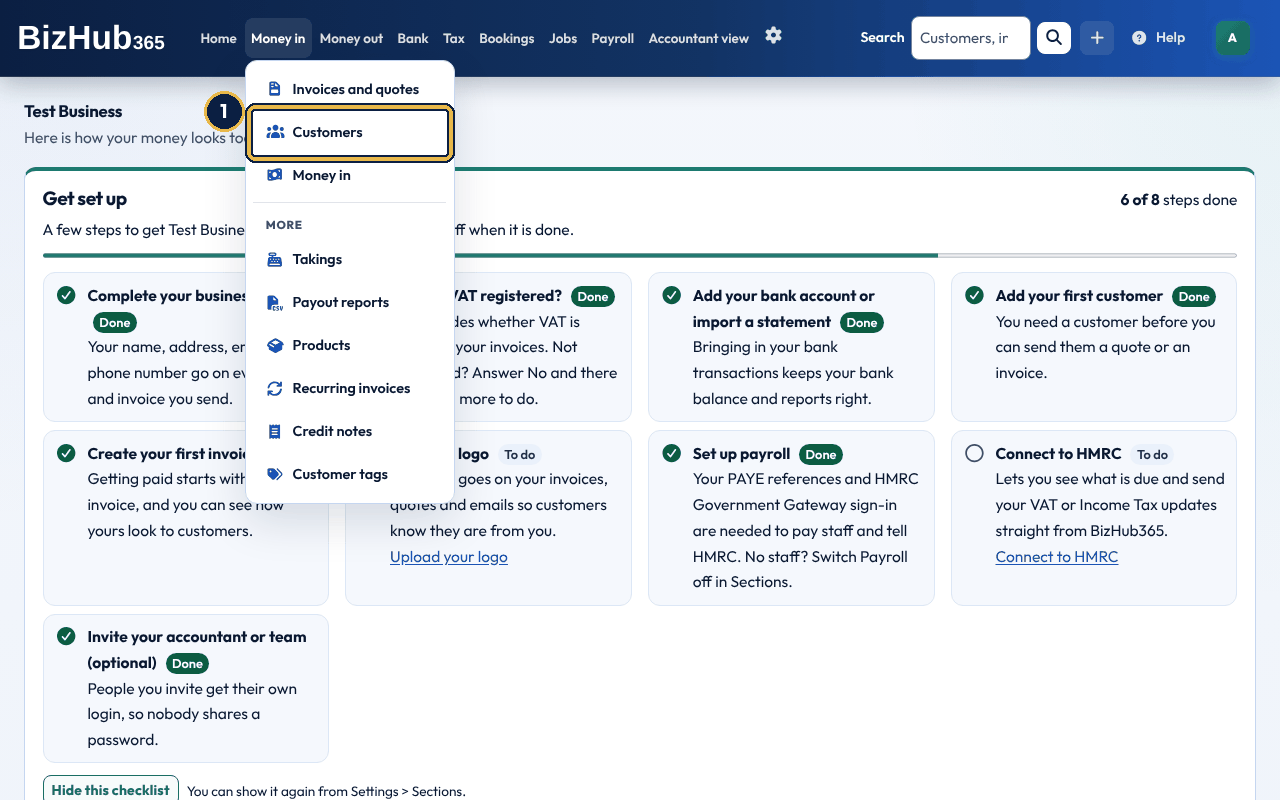
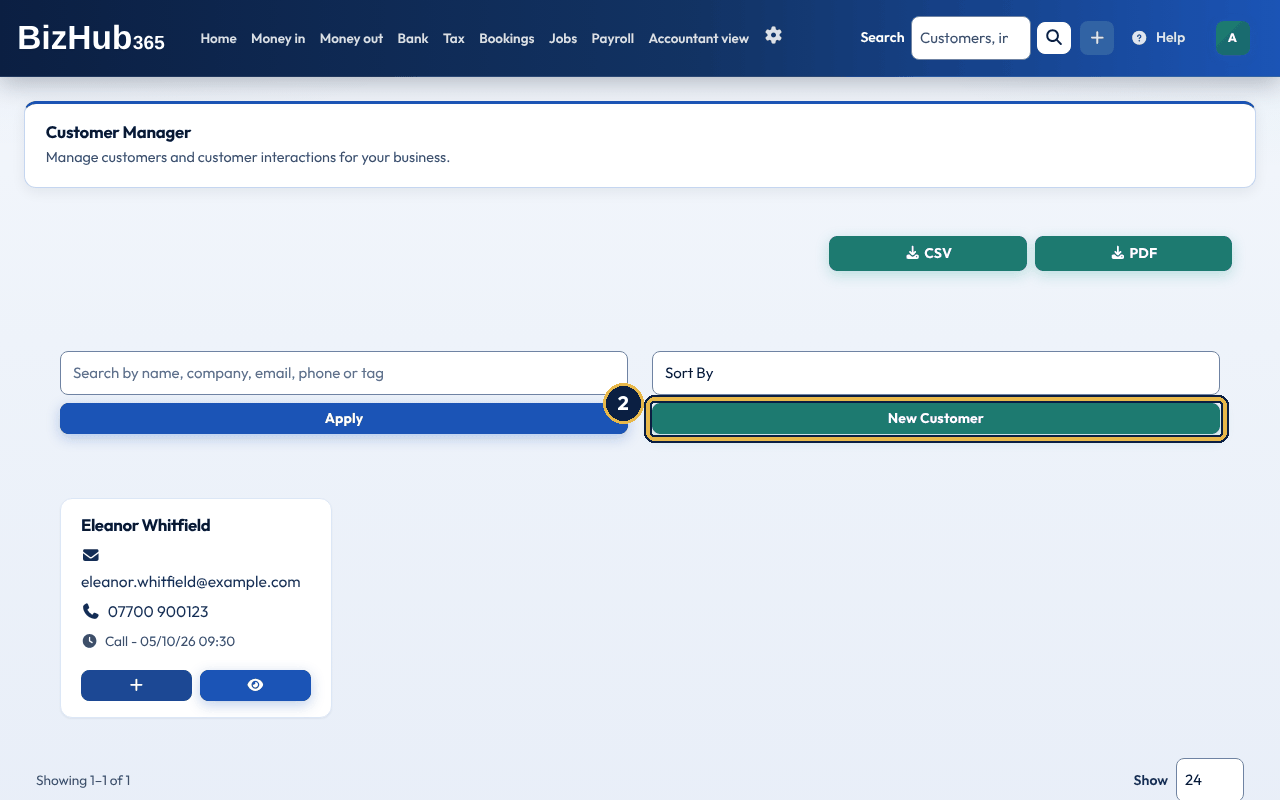
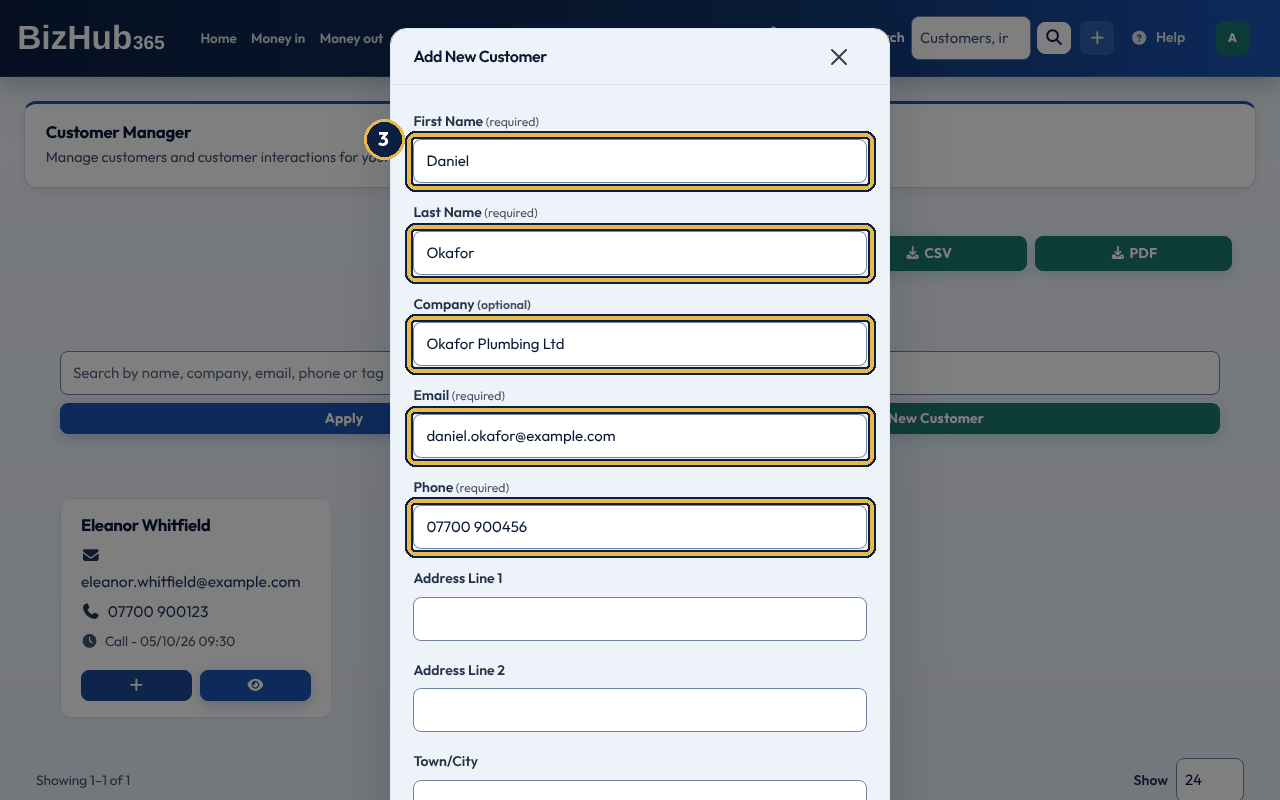
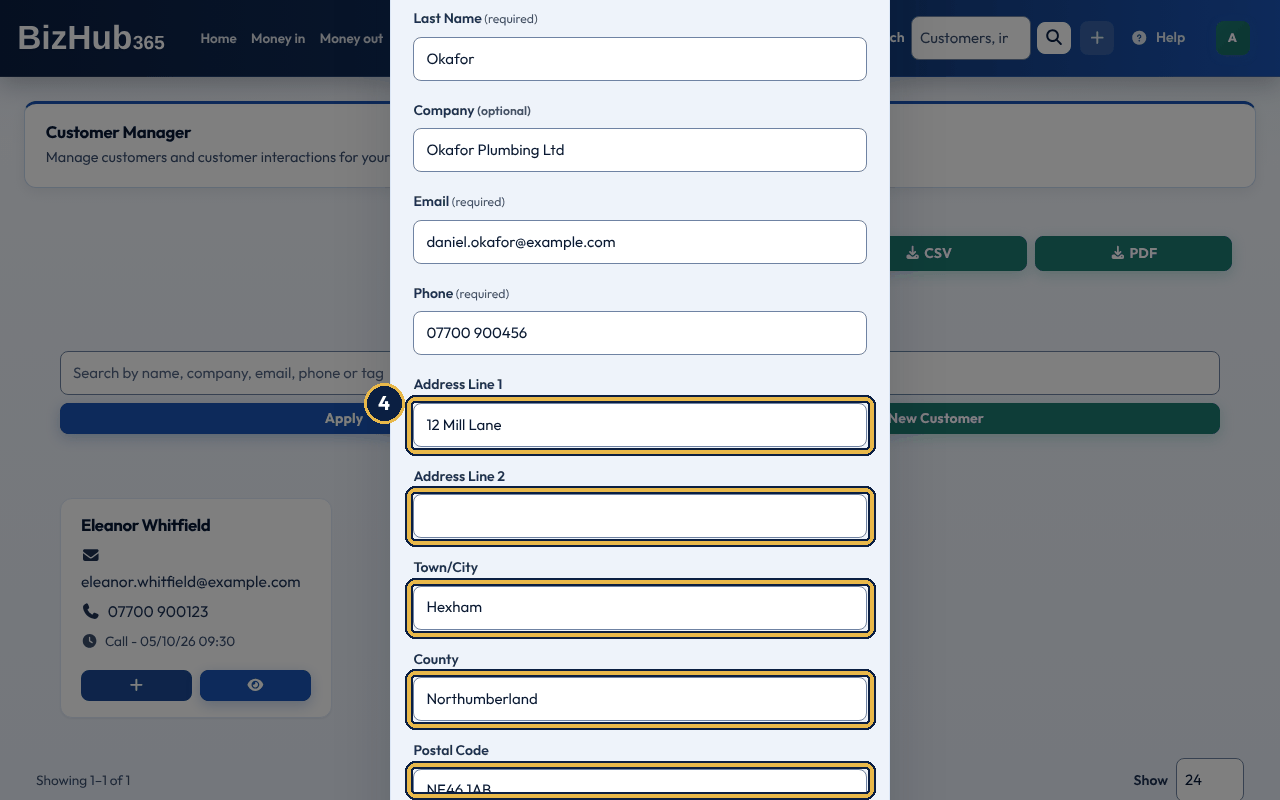
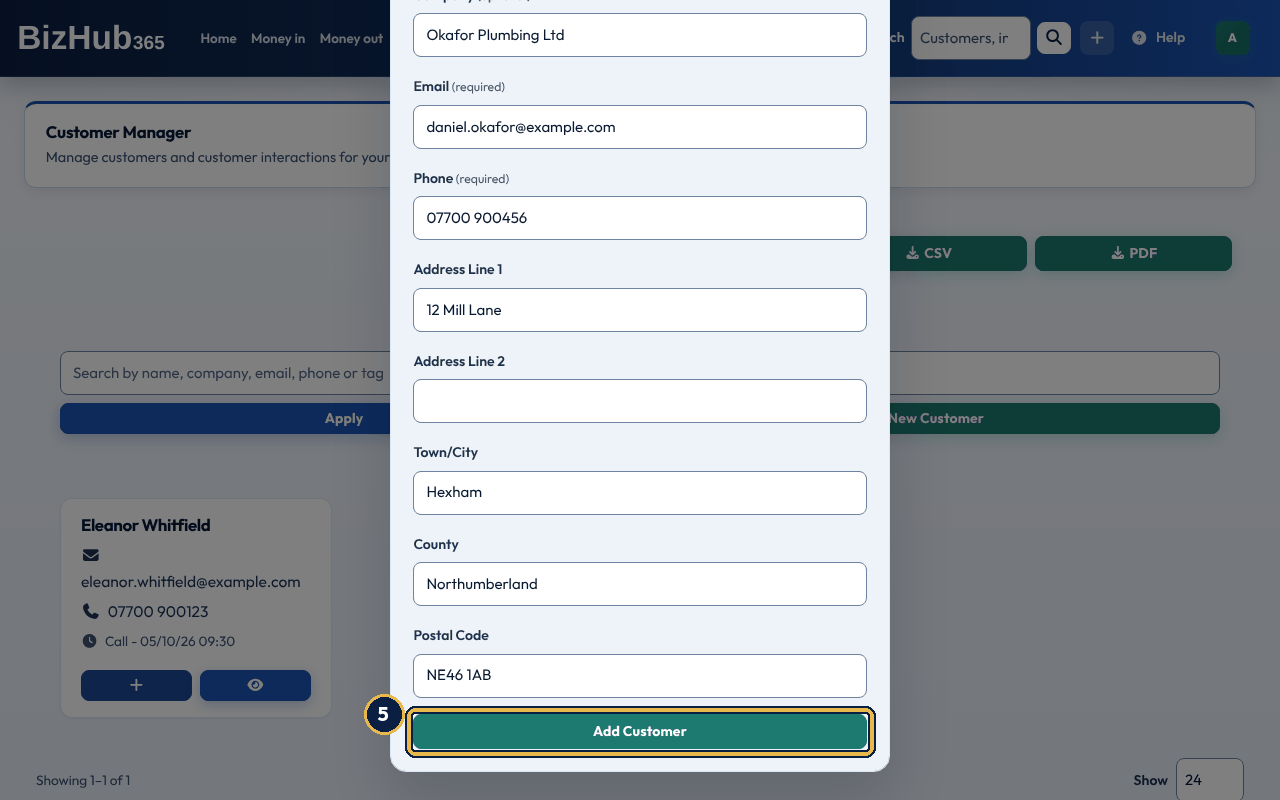
When it worked: The list reloads with Customer added successfully. and the new card in it. The customer is now offered in the customer pickers on invoices, quotes and bookings.
| If this happens | Do this |
|---|---|
| A customer with this email already exists. | Search the list for the address and use that record, or use a different address for the new customer. |
| All required fields must be filled. | First Name, Last Name, Email and Phone are required. Fill them in and choose Add Customer again. |
| No address suggestions appear. | Type at least three characters. If the suggestion service cannot be reached, nothing appears; type the address boxes yourself. |
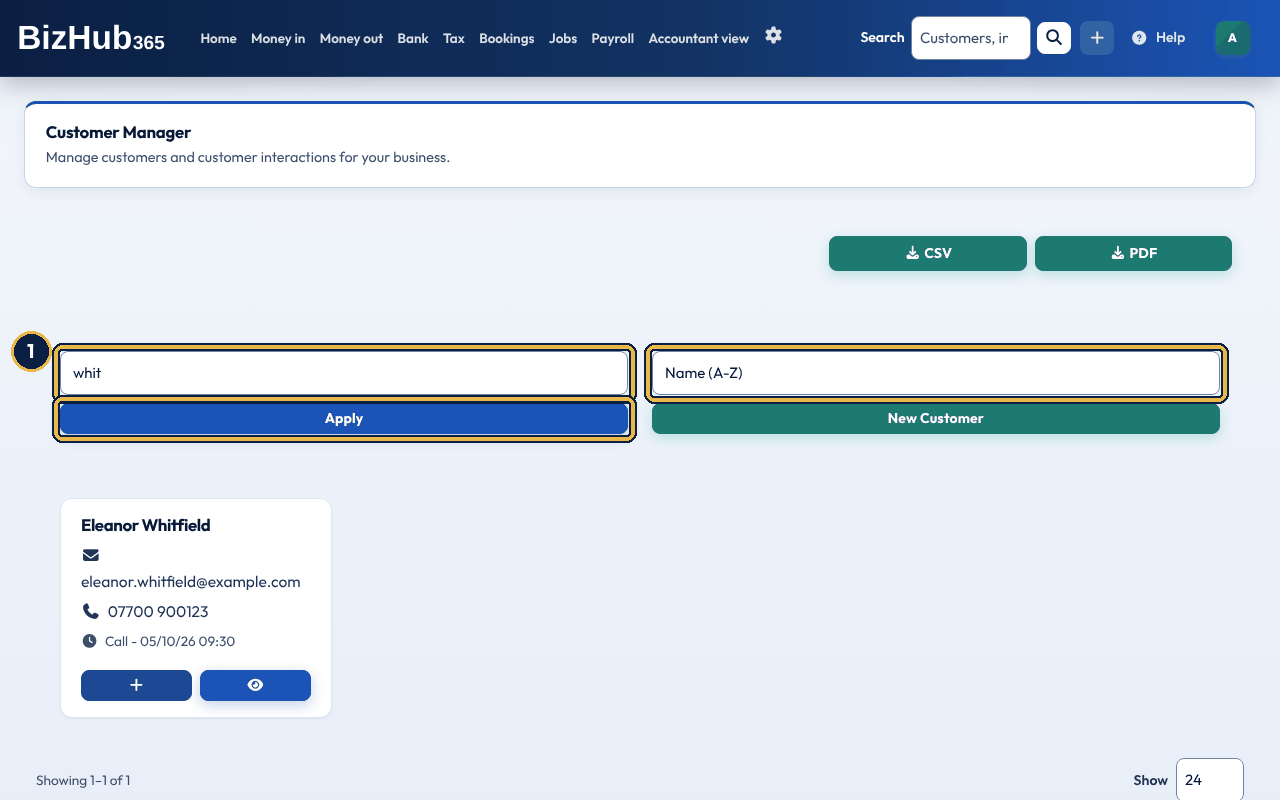
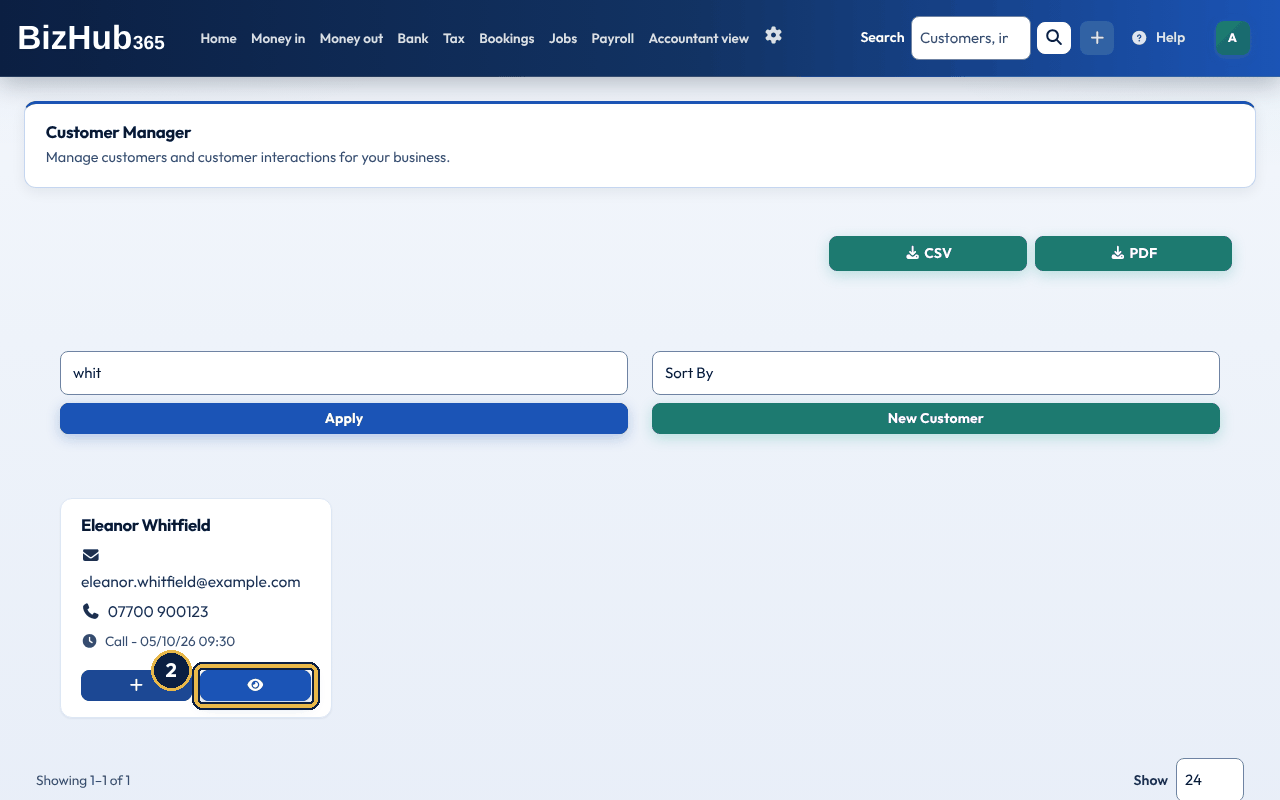
When it worked: The customer's page opens, headed with their name.
| If this happens | Do this |
|---|---|
| No customers found. | Type less of the name, or check the spelling. Search covers only the business you are working in. Clear the box and choose Apply to see everyone again. |
Open a customer to see everything about them on one page:
| Part of the page | What it shows and does |
|---|---|
| Contact Information | Company, email, phone, address and the business the customer is linked to, with Update Customer Information and Documents buttons. |
| Customer Tags | The customer's tags. The + adds one; choosing a tag offers to remove it. |
| Financial Summary | Total Invoices (how many), Total Paid, Total Outstanding (only while something is owed) and Credit Balance (only while an unapplied credit note exists), all in pounds. Under it, Send Statement. |
| Interactions | A table of your logged calls, emails, meetings and visits: date and time, type and notes, each with Delete. The + adds one. |
| Delete Customer | At the bottom. Asks you to confirm, and refuses customers with financial records (see below). |
The invoices, quotes and bookings themselves are opened from their own lists under Money in and Bookings, where you can search by the customer's name (see Quotes and invoices and Bookings and your public booking page).
Update Customer Information opens a form with the same boxes as when you added the customer. Saving it with Update Information changes the record at once. The customer is not emailed about the change.
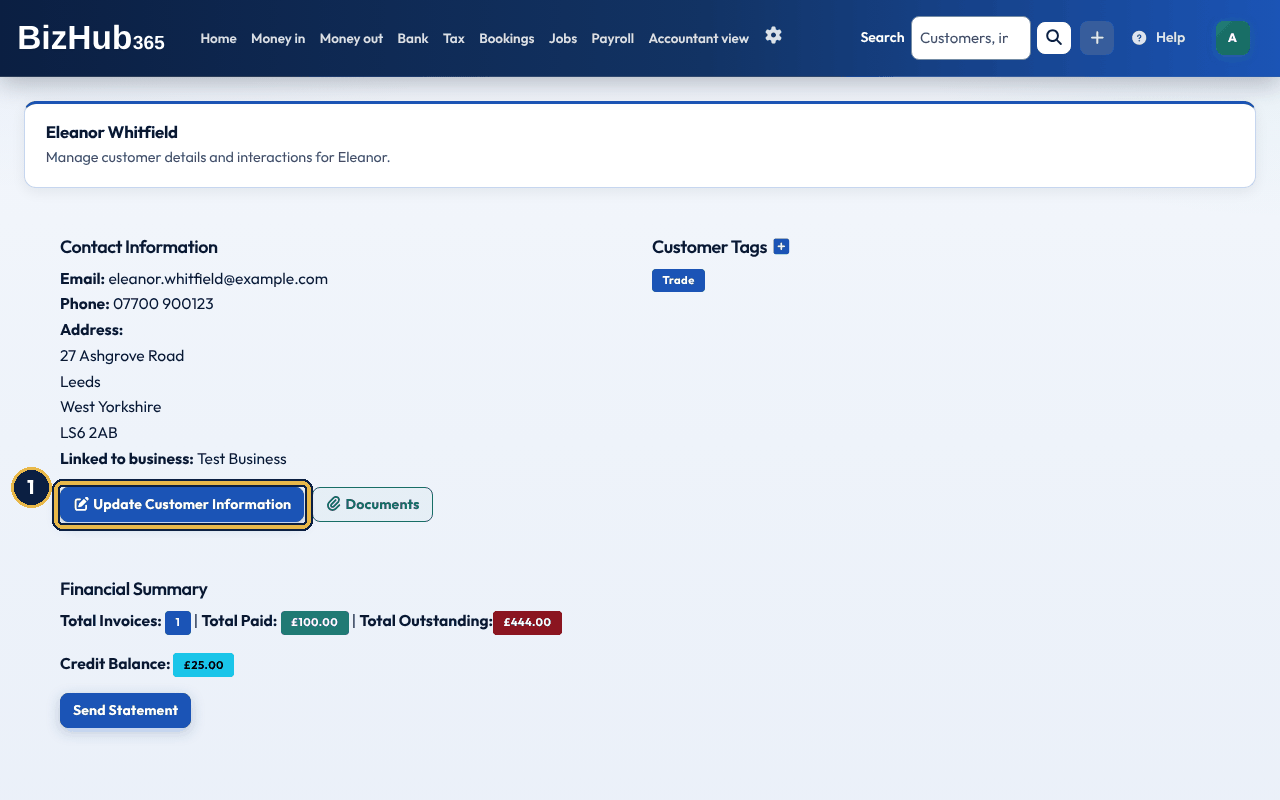
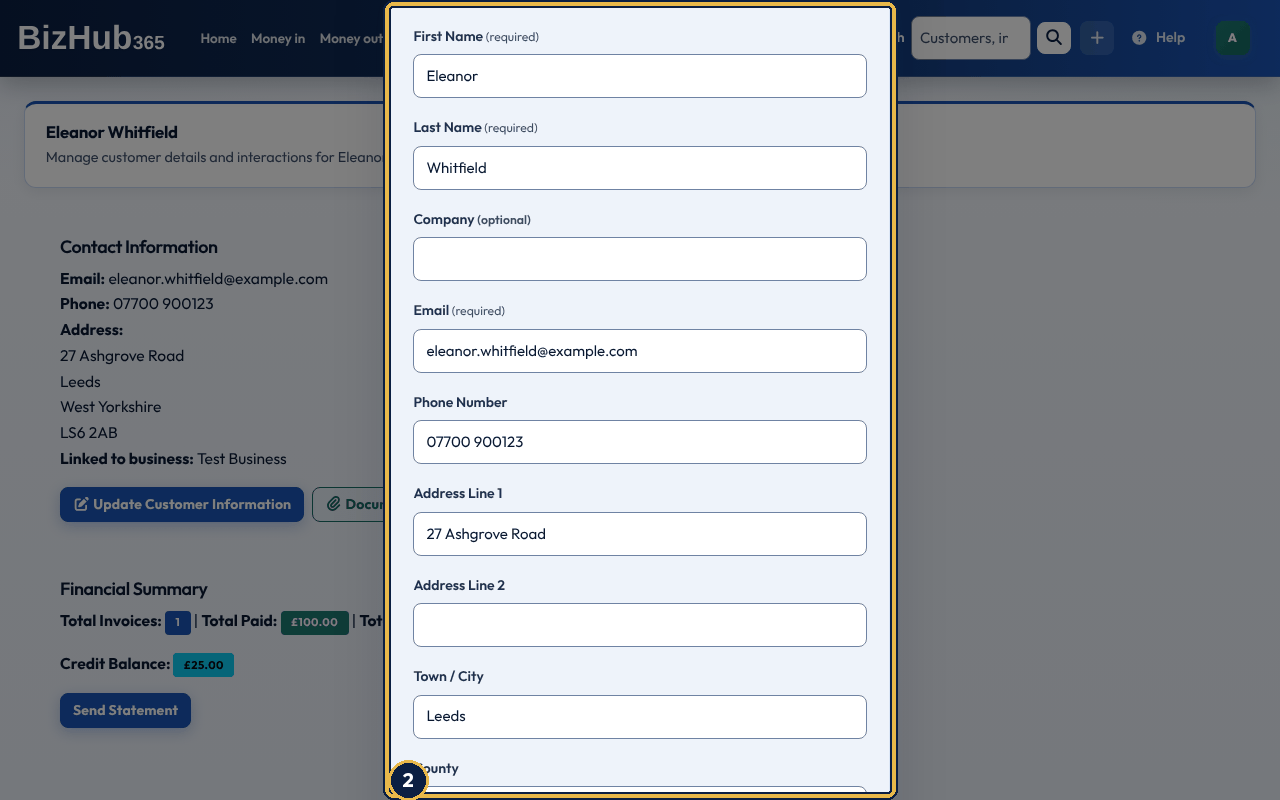
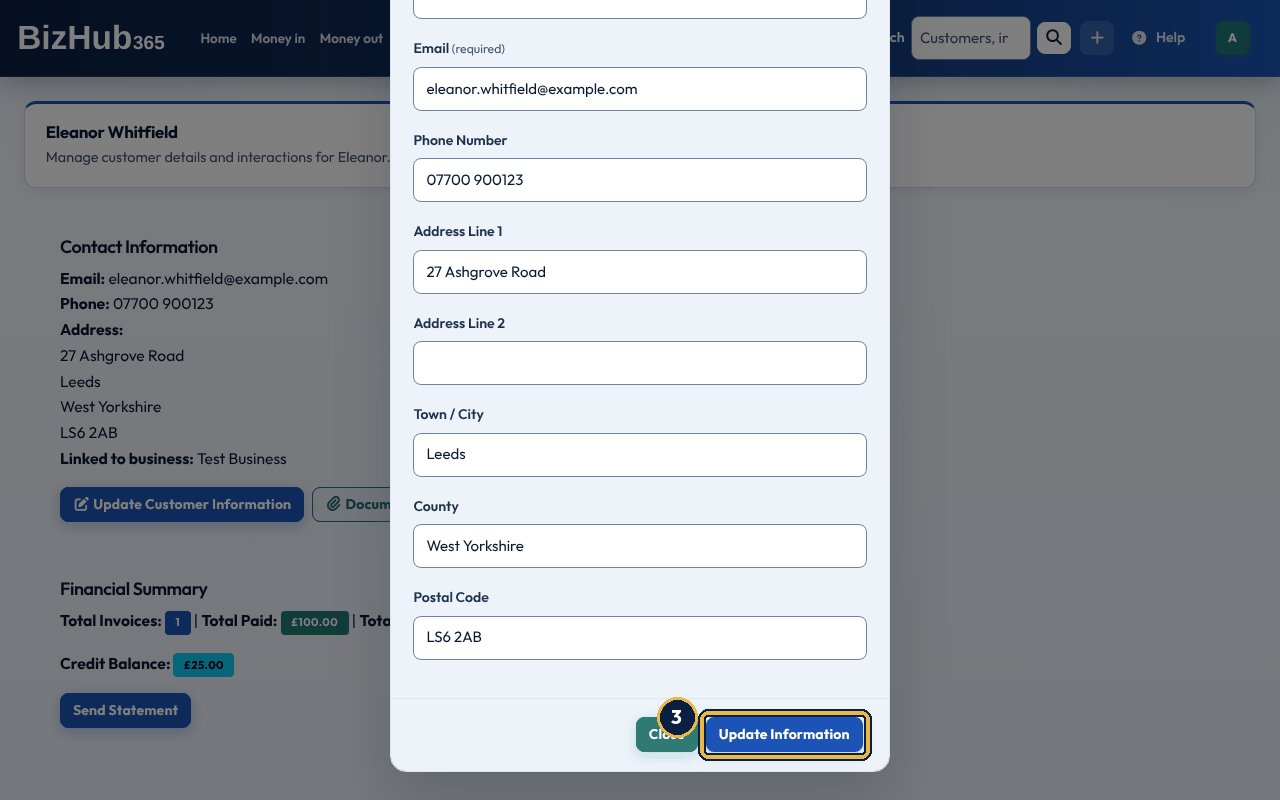
When it worked: The page reloads with Customer updated successfully. and the new details. The customer is not emailed; invoices, quotes and statements you send from now on go to the address now on the record.
| If this happens | Do this |
|---|---|
| The form will not save. | First Name, Last Name and Email are required and the email must be a valid address. |
An interaction is a dated note. Choose a type and write what happened; the date and time are recorded for you and cannot be changed. The types are Call, Email, Meeting, Visit and Other, the same from the customer's page and from the + on a card in the customer list. Notes are required. An interaction logged before these types were fixed keeps the type it was saved with (for example Contact Form). The most recent interaction shows on the customer's card, and Sort By can order the list by it. Delete on a row removes that note at once, without asking.
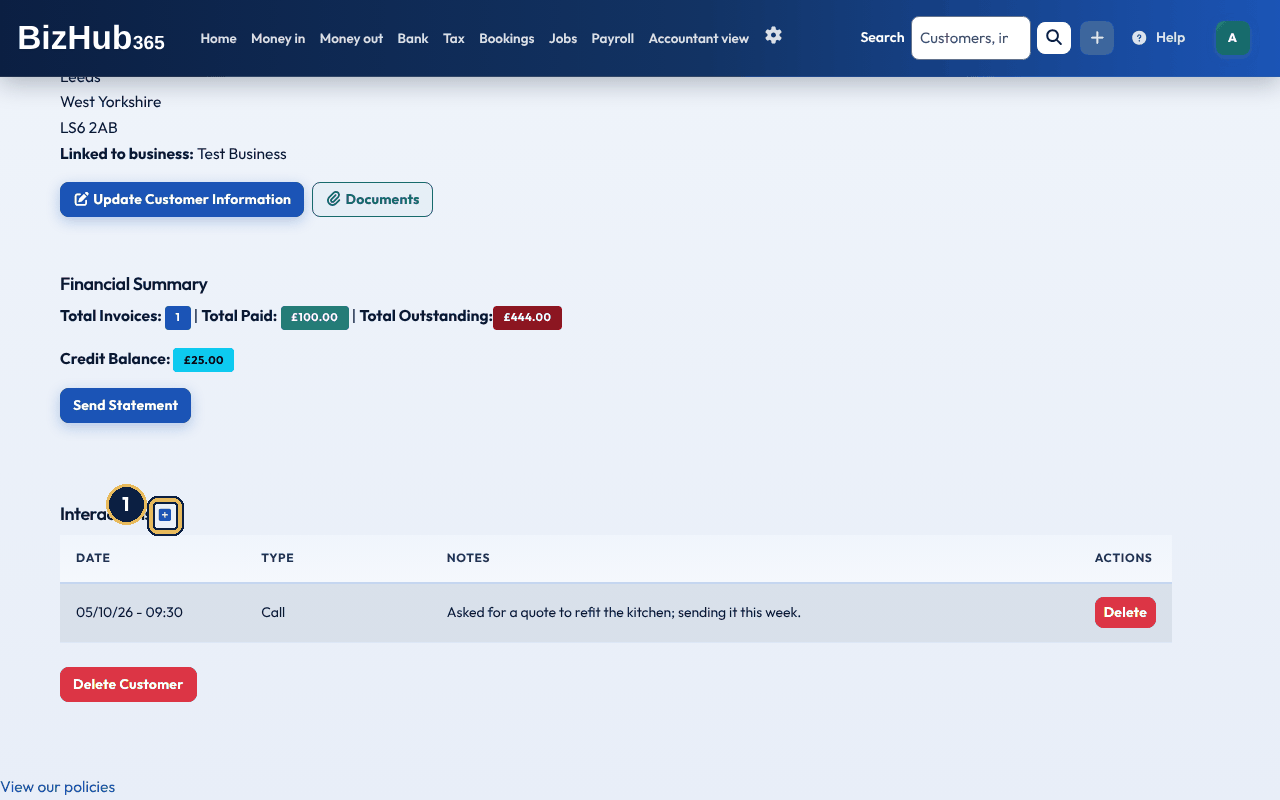
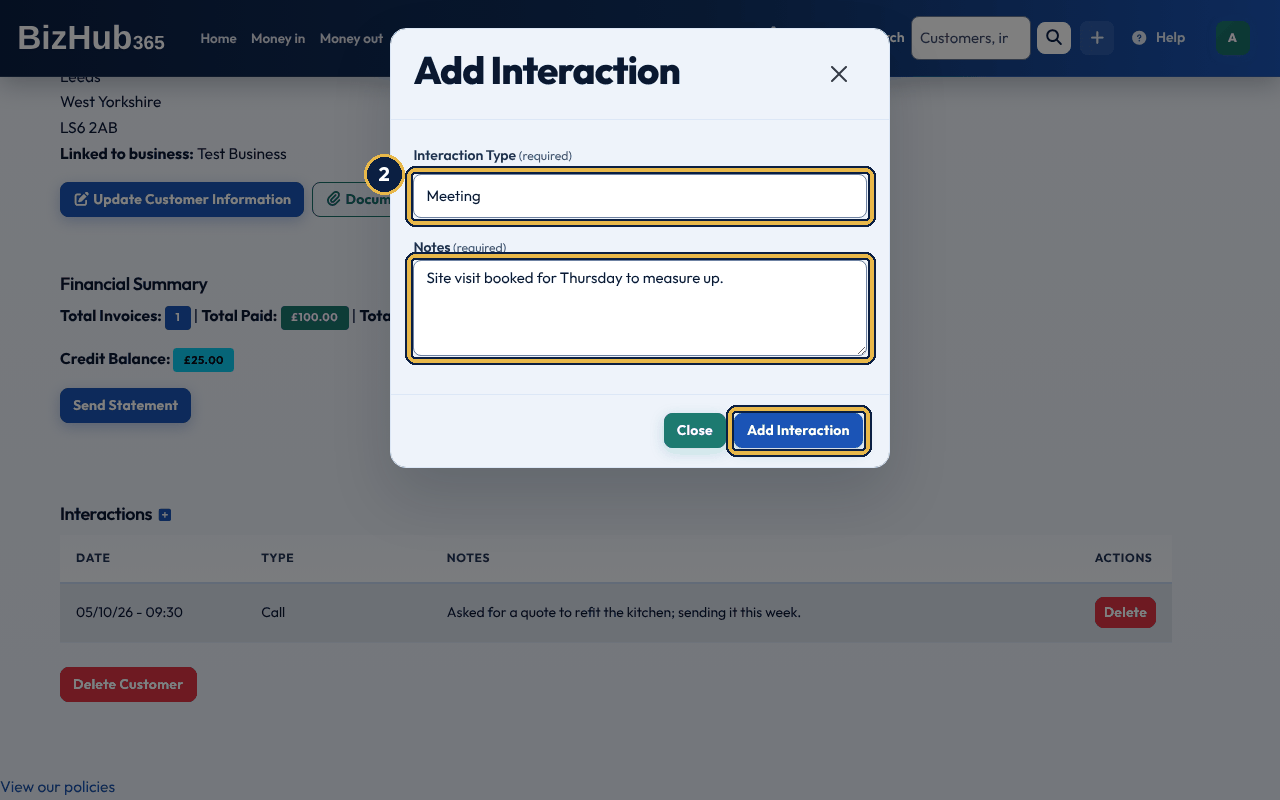
When it worked: The page reloads with Interaction added successfully. and the note at the top of the Interactions table, stamped with today's date and time.
Where to find it: Money in→Customer tags
A tag is a short label (up to 30 characters) that you put on customers to group them: trade, VIP, landlord, newsletter, and so on. Tags belong to the business, so a name you have used before is reused rather than duplicated (the message says the tag already existed). You add a tag from the customer's page. Money in → Customer tags lists every tag with how many customers carry it; choose one to see those customers in the list, and the list's search box matches tag names too.
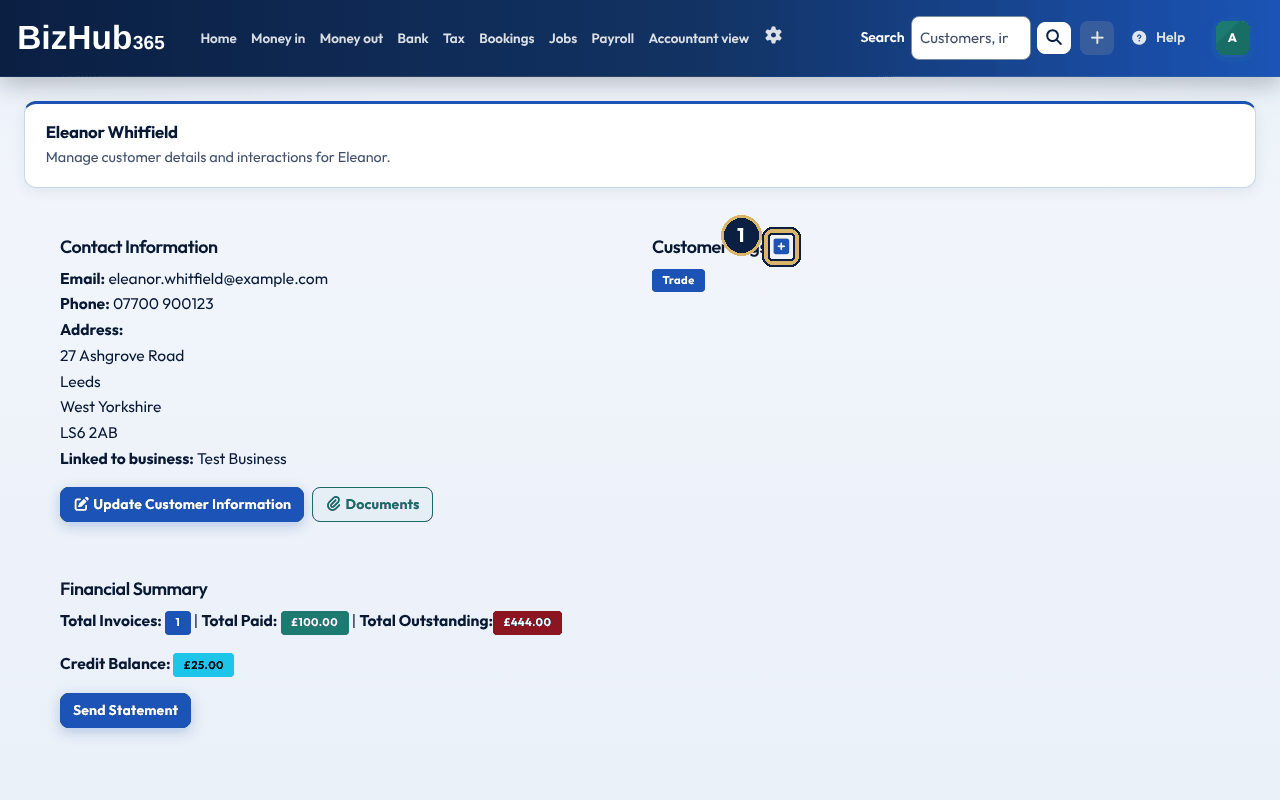
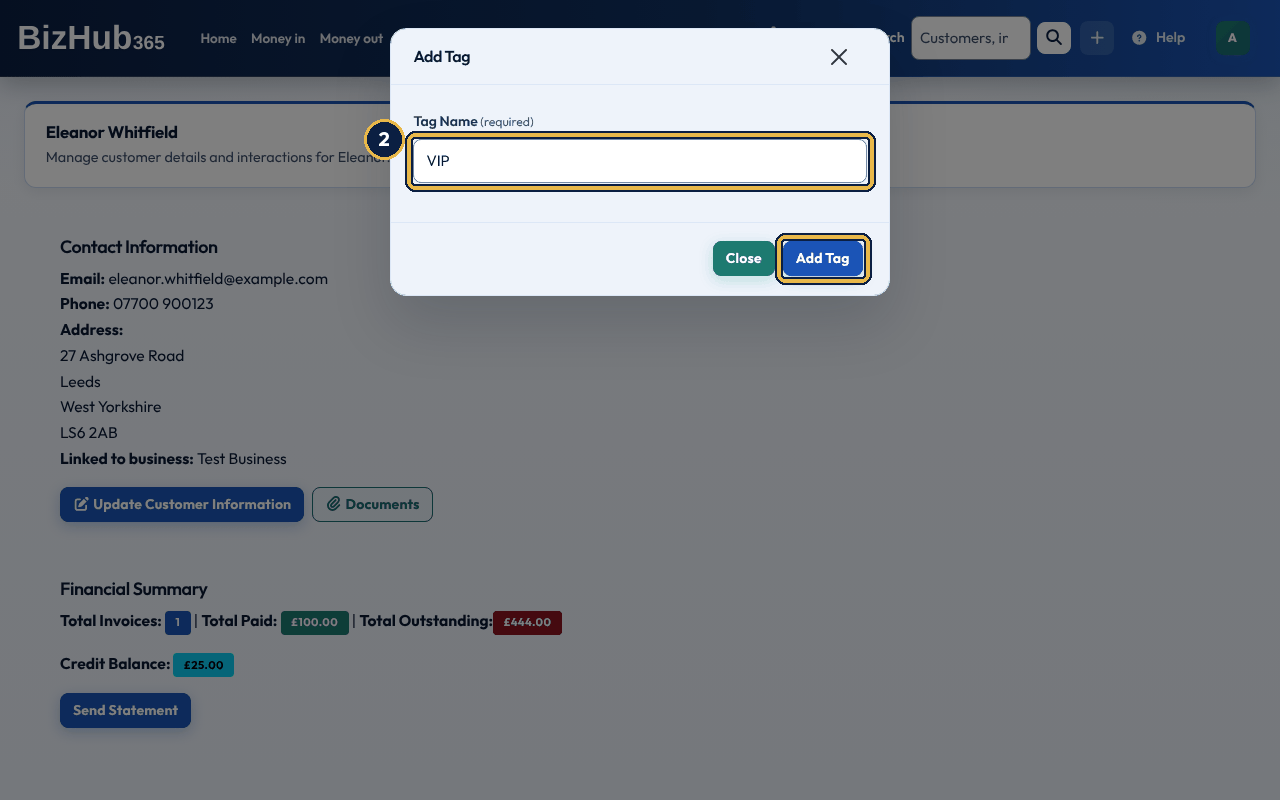
When it worked: The page reloads with the tag under Customer Tags and a message saying the tag was created, or already existed, and was added to the customer.
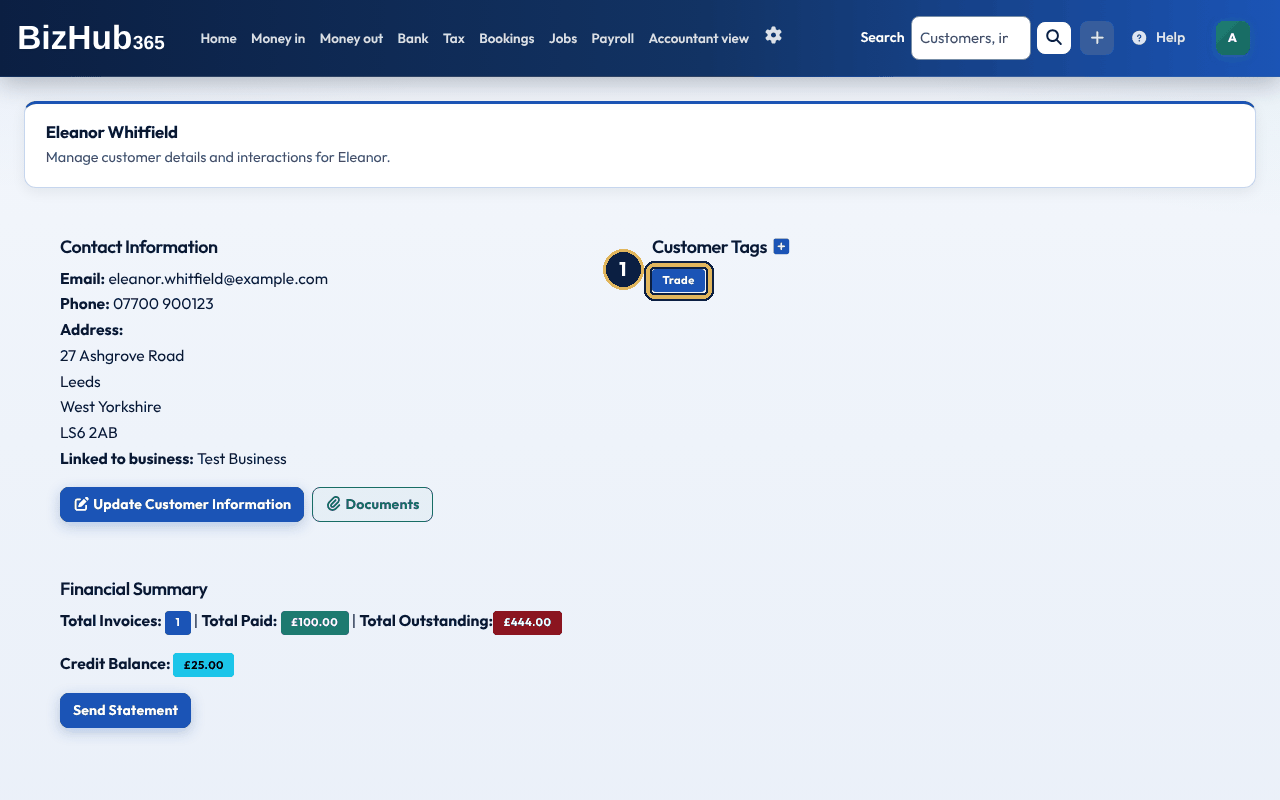
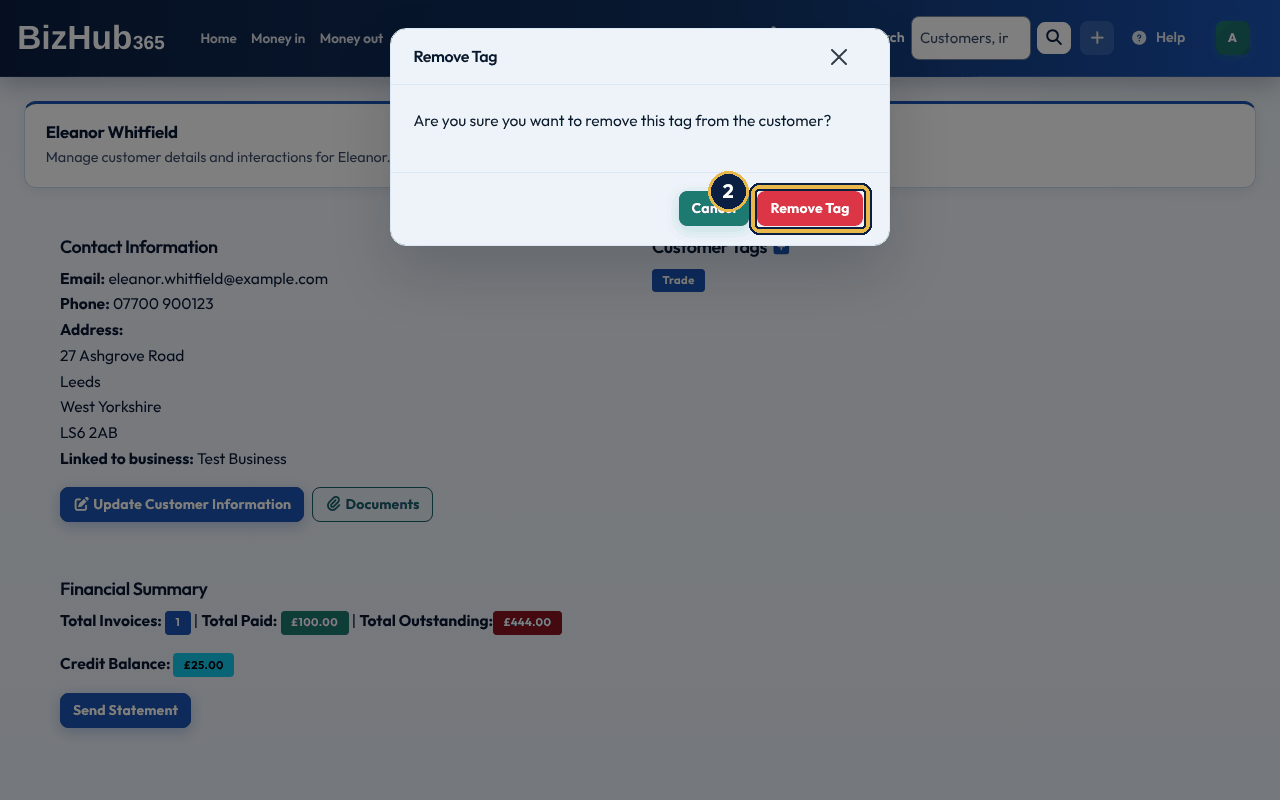
When it worked: The page reloads with the message that the tag was removed from the customer.
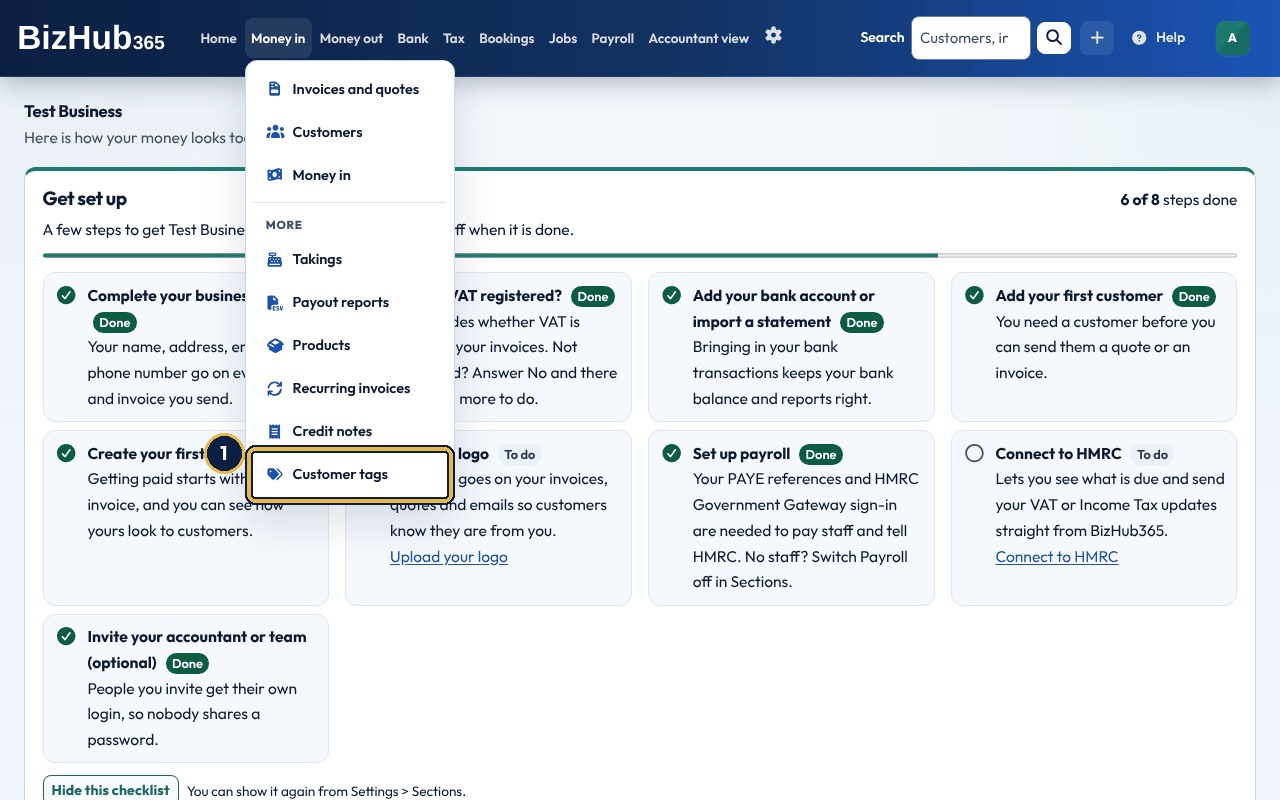
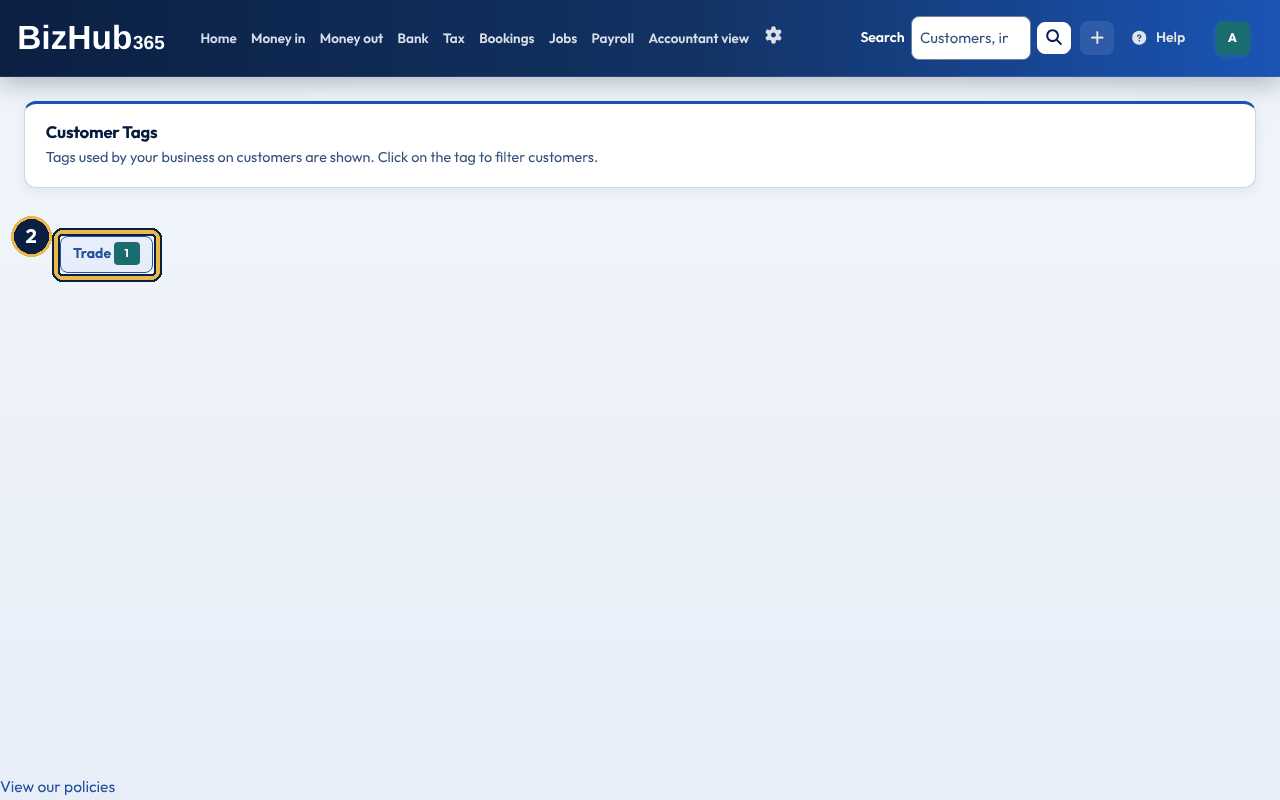
When it worked: The customer list opens showing only those customers. Clear the filter by opening Money in → Customers again.
| If this happens | Do this |
|---|---|
| No tags found for your customers. | No customer in this business has a tag yet. Add one from a customer's page. |
Send Statement on the customer's page emails the customer Your Account Statement: their outstanding or credit balance, every invoice with its due date and whether it is paid, every payment, and every credit note. It comes from your business name, with replies going to your business email address, and is sent by the mail queue within ten minutes.
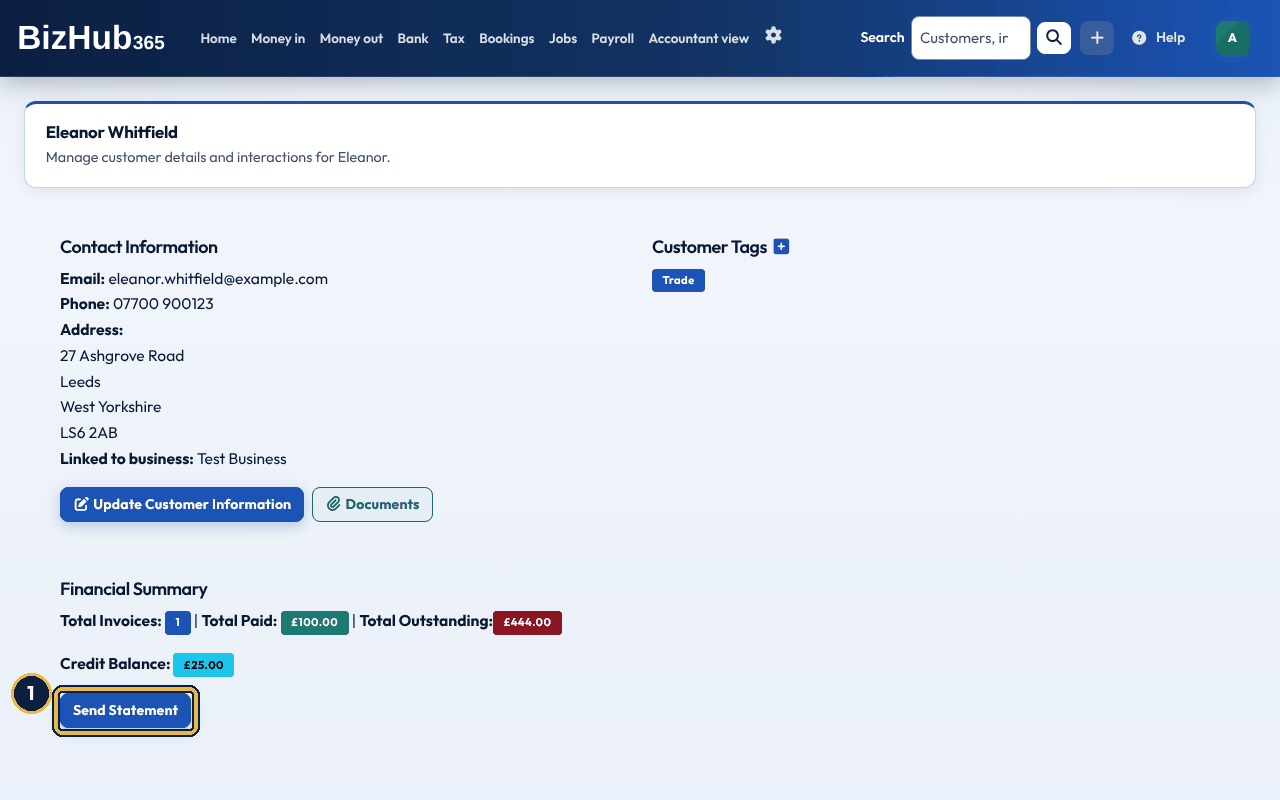
When it worked: The page shows Customer statement queued and will be sent within 10 minutes. The email goes to the address on the customer's record.
Documents opens a window where you can attach files to the customer (a signed contract, a site photo) and see what is already there: file name, size, when it was uploaded and by whom. Files can be up to 35MB each; a business can upload 1,000 files a day, or 50 a day during a free trial or a discounted billing month. Photos are reduced in size when stored. Delete on a row asks you to confirm and cannot be undone. The same window is on suppliers, payments and credit notes.
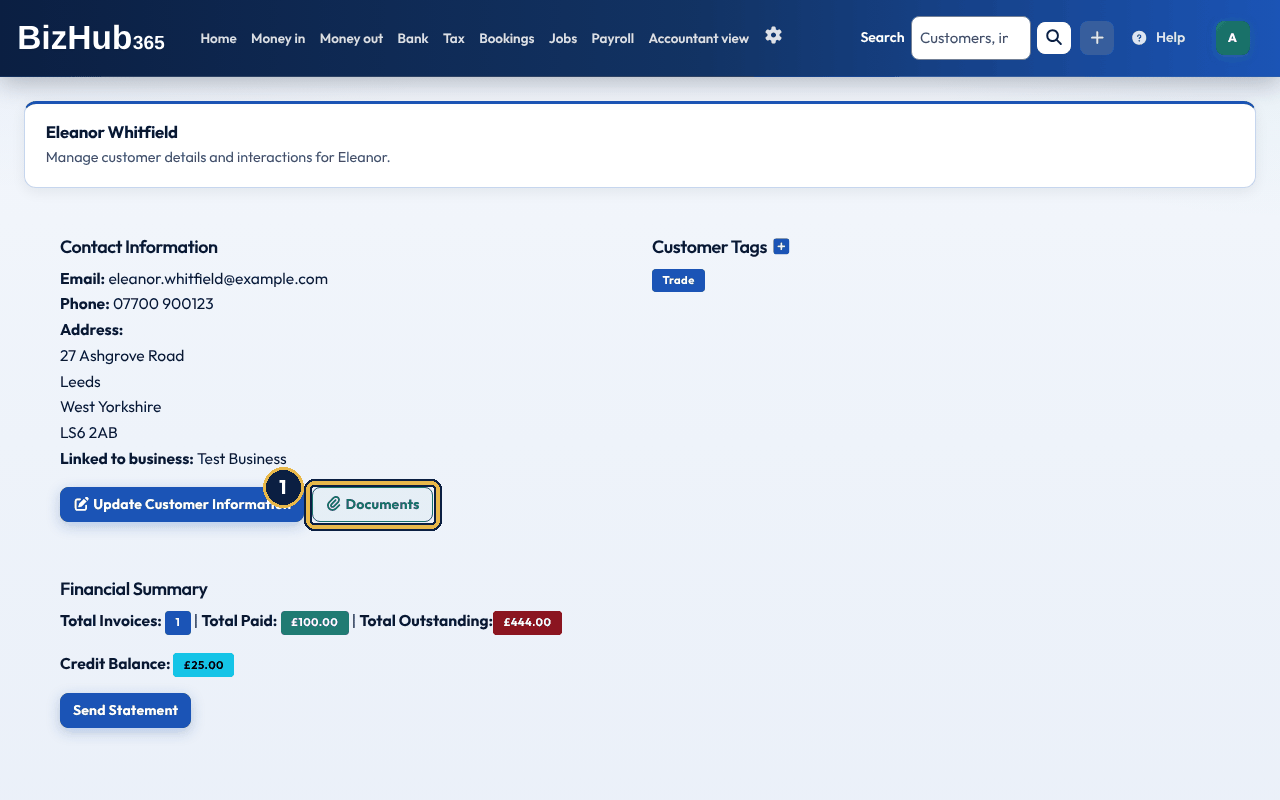
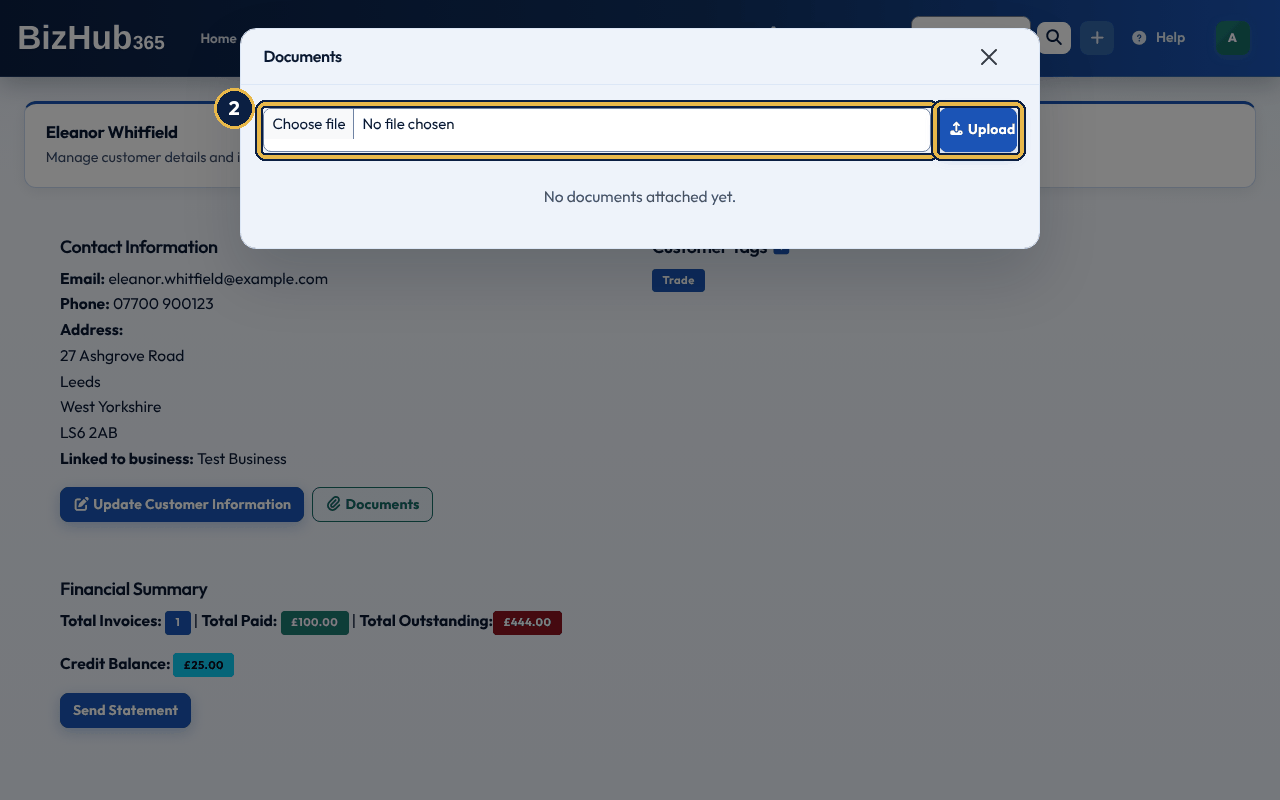
When it worked: The file appears in the table under the upload box. Choose its name to open it.
| If this happens | Do this |
|---|---|
| File is too large (max 35MB). | Shrink the file or split it. Only files on invoices, quotes and credit notes have the lower 3MB limit. |
Delete Customer at the bottom of the page asks you to confirm, then removes the record with its interactions and tags. A customer who has invoices, quotes, credit notes or payments cannot be deleted: UK law requires financial records to be kept for six years, and the message names the records that are in the way. There is no archive; a customer you no longer deal with simply stays in the list.
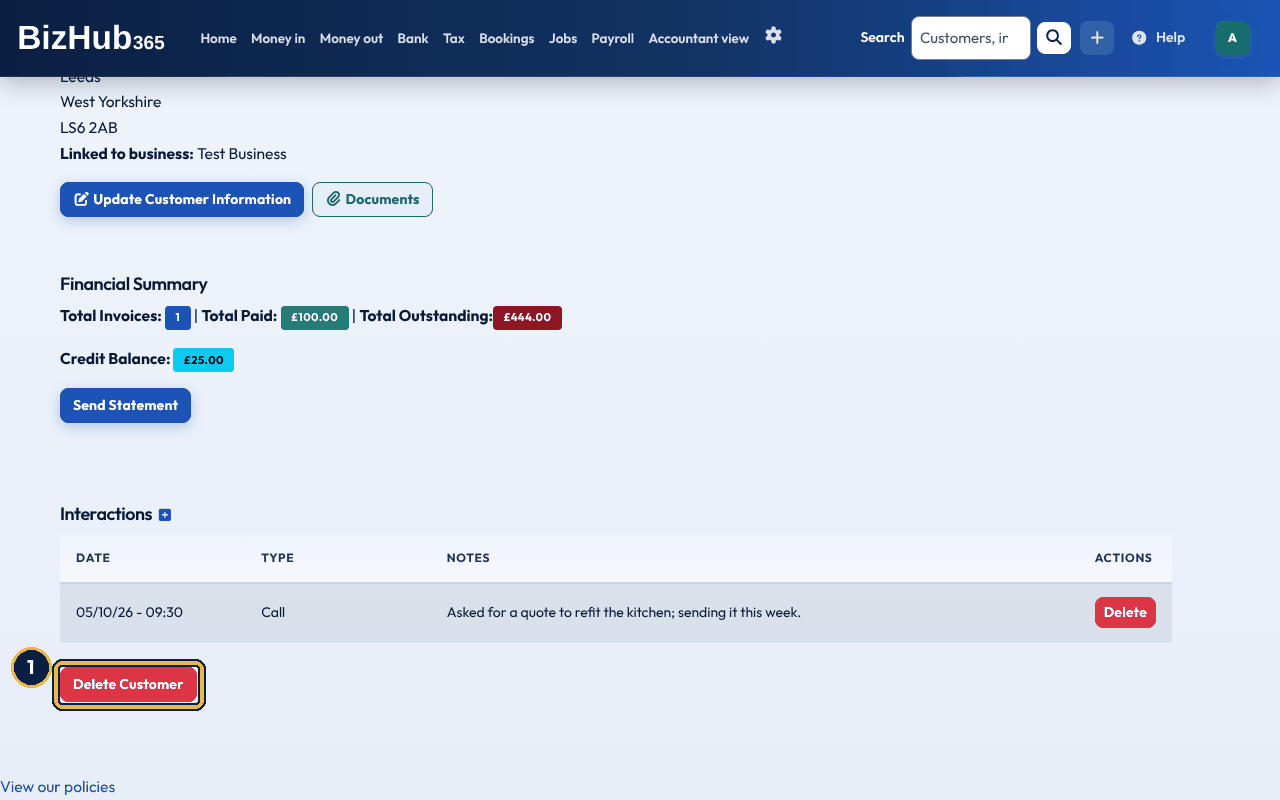
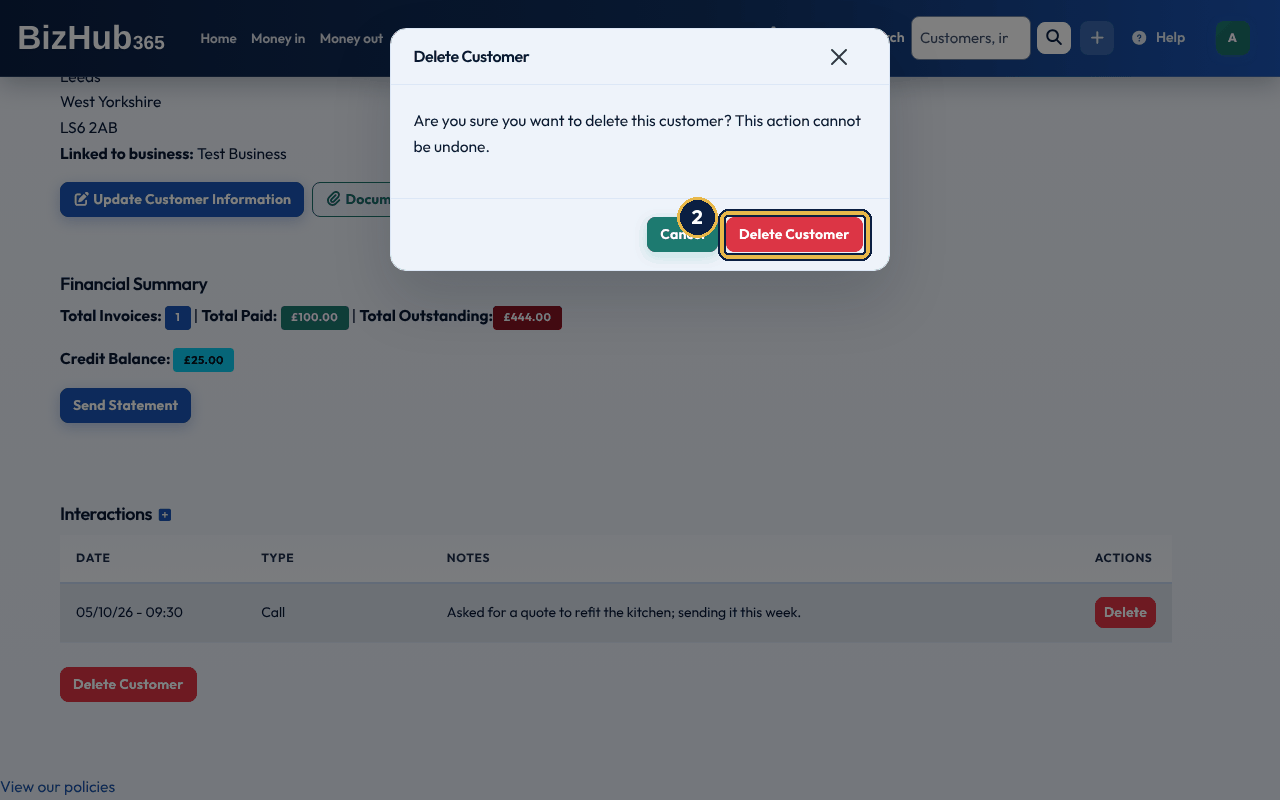
When it worked: The list reloads with Customer deleted successfully.
| If this happens | Do this |
|---|---|
| The message says the customer can't be deleted because they have financial records. | Those records must be kept for six years, so the customer stays with them. Leave the record in place. |
CSV downloads customers.csv with Customer ID, First Name, Last Name, Company, Email, Phone, Address Line 1, Address Line 2, Town/City, County, Postal Code and Created At, sorted by name. PDF downloads customers.pdf, a table of ID, Name (with the company), Email, Phone and Address headed with your business name and the date. A long list is built in the background: you are taken to a progress page and emailed when the file is ready.
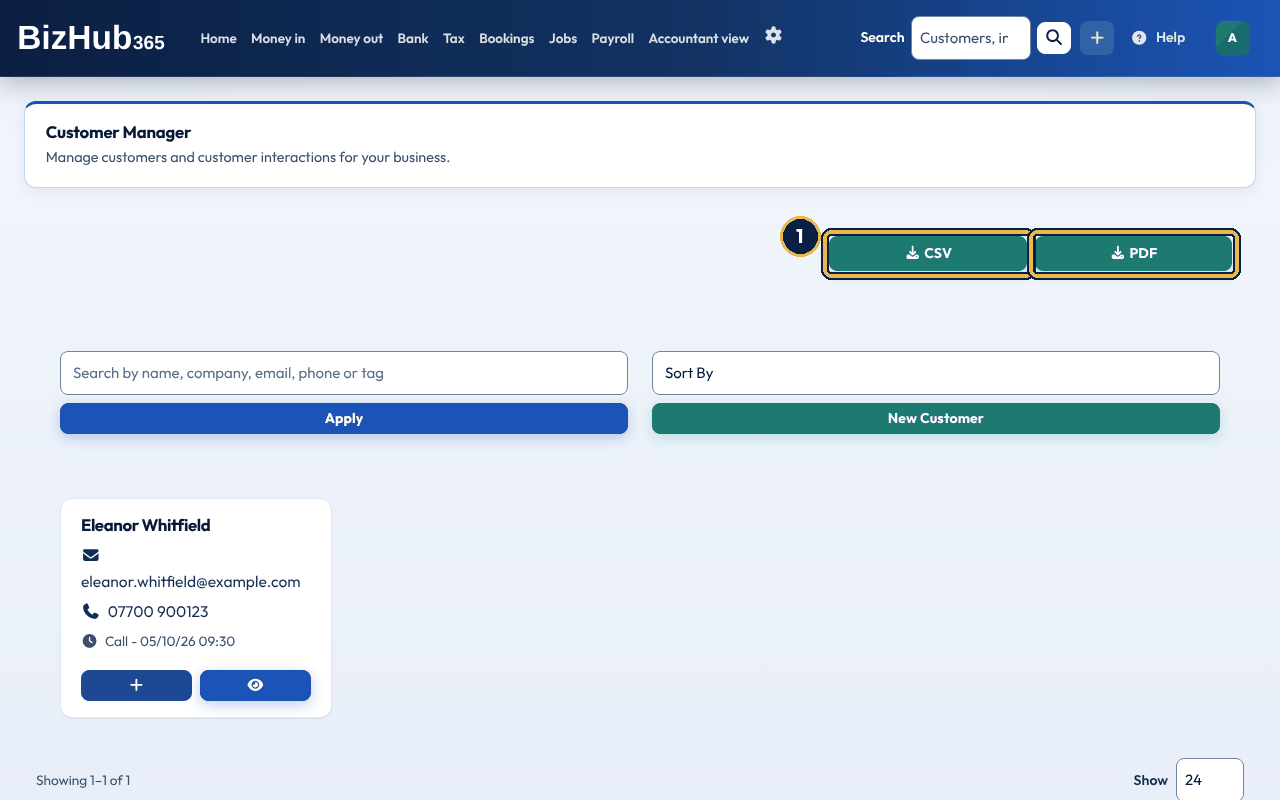
When it worked: The file downloads. For a long PDF, a progress page opens and the file is emailed to you when it is ready.
Part II · Customers · Chapter 10
Run the diary yourself, let customers book themselves, and see your bookings in Google, Outlook or Apple Calendar.
Where to find it: Bookings→Diary
The diary holds every appointment with your customers. You can add bookings yourself, and customers can book themselves on your public booking page. The Bookings menu in the top bar has Diary, New booking and Booking settings, and the Create (+) menu has Booking. They appear while the Bookings section is switched on for the business. Times offered in the diary's New Booking window come from your opening hours, in 30-minute slots over the next seven days, leaving out holidays and times already booked. The public page offers times from each staff member's weekly availability, or from your opening hours if you have no staff members.
Where to find it: Bookings→Booking settings
An appointment type is a service customers can book, with its length and price. A staff member is a person customers can book with, and each one has weekly hours and the appointment types they offer.
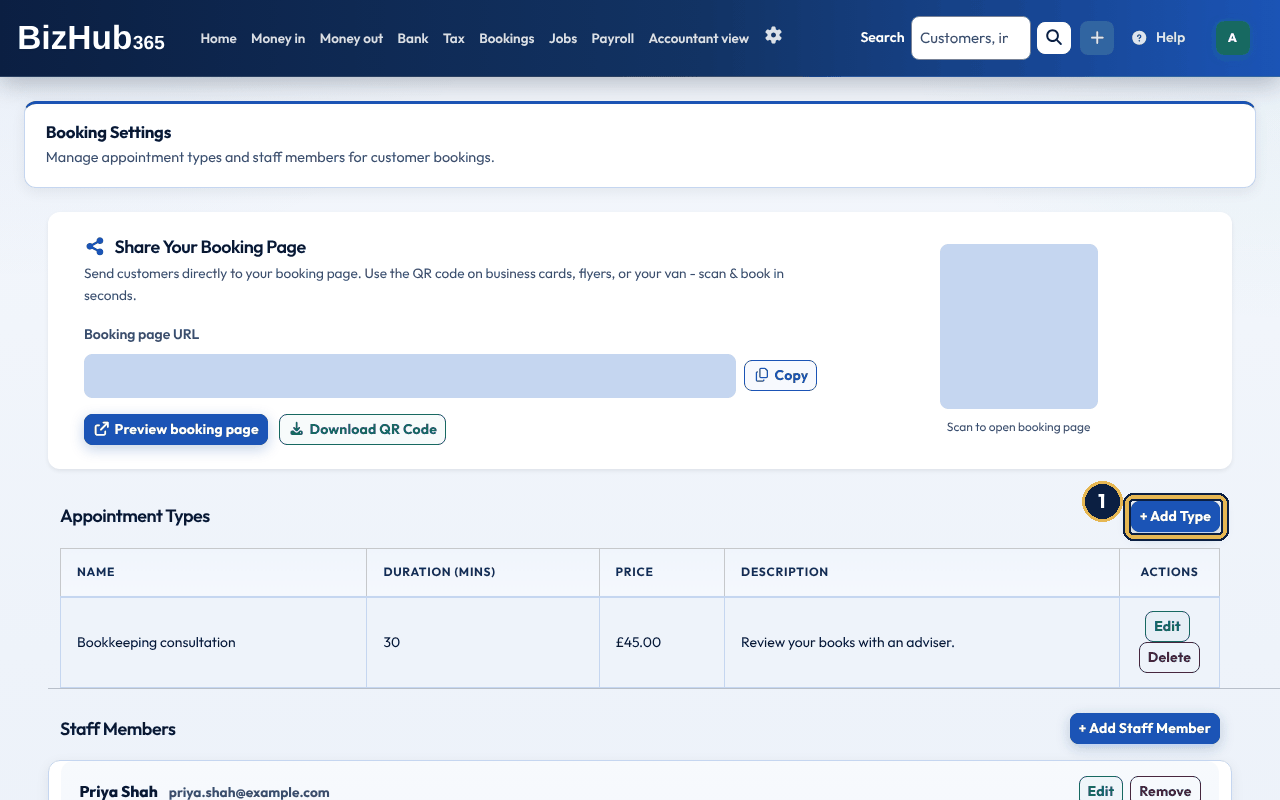
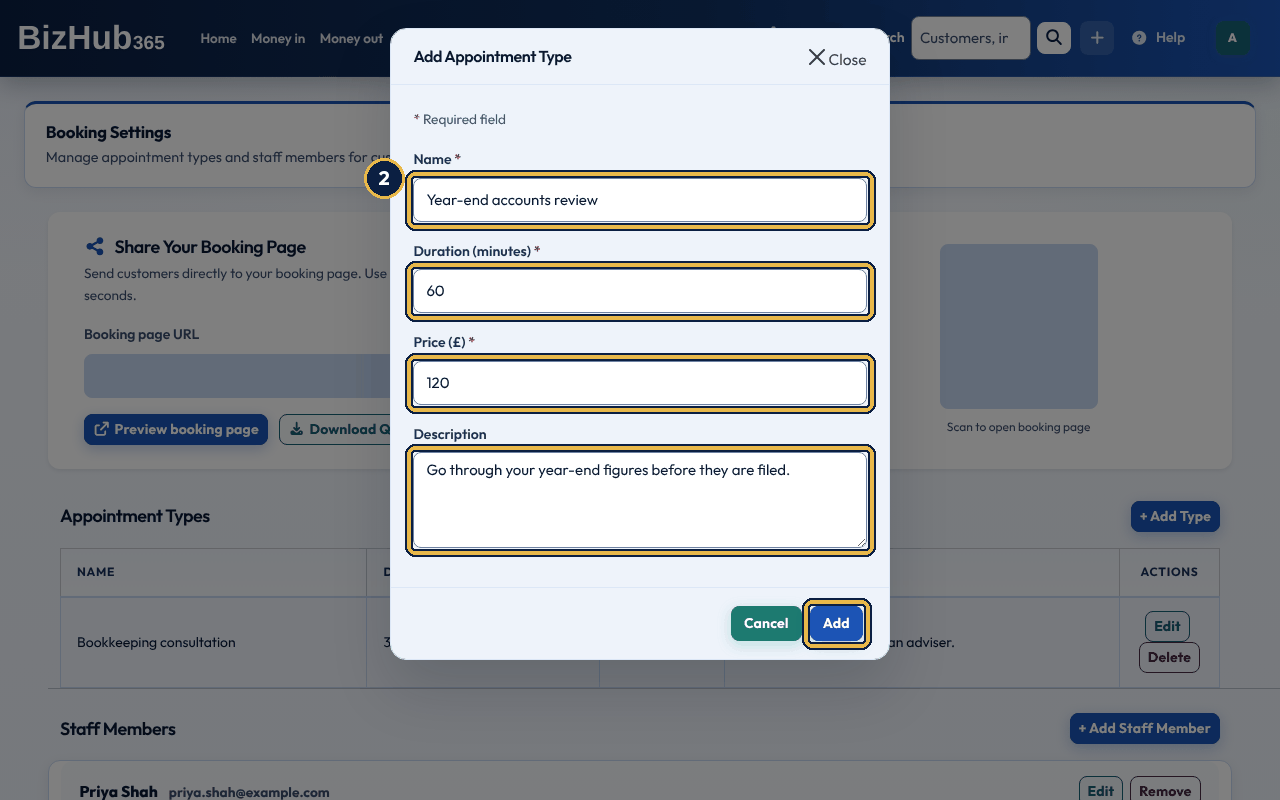
When it worked: The message Appointment type added appears and the type is listed with Edit and Delete. Customers see it on your booking page.
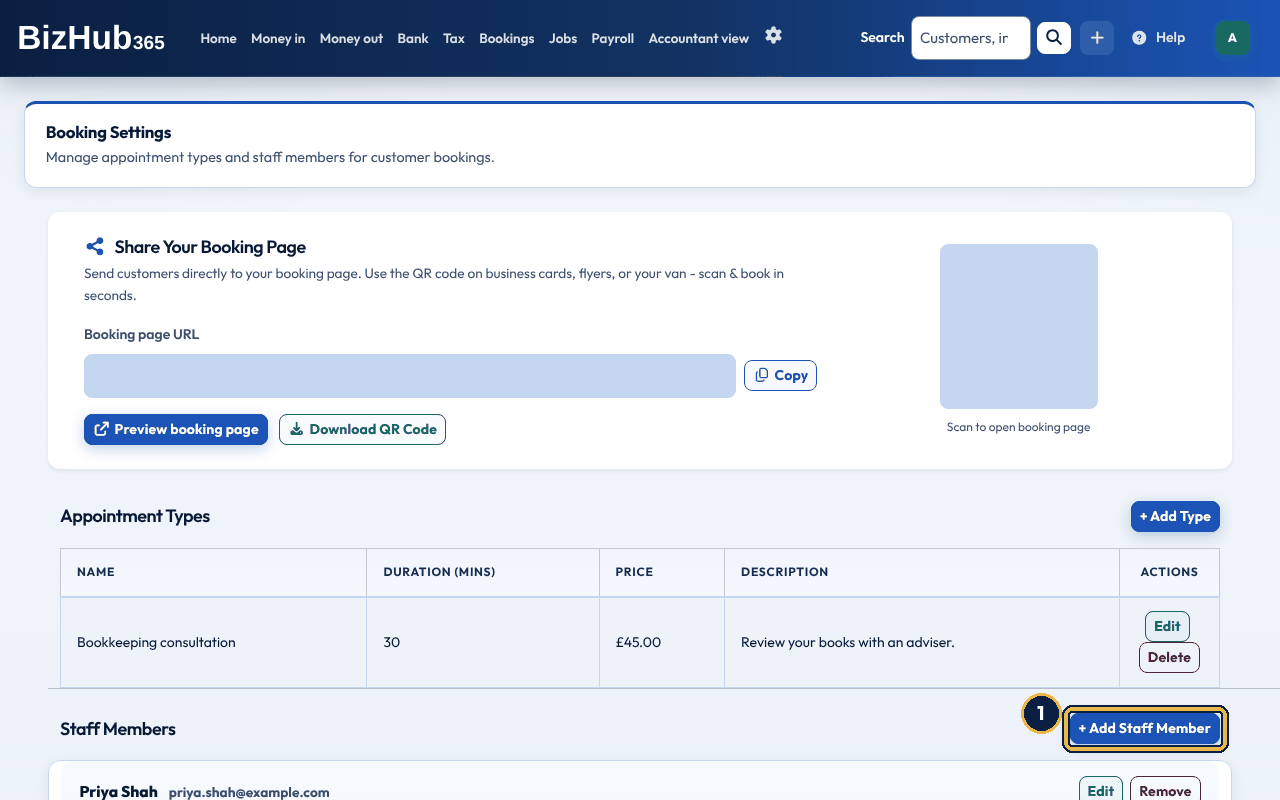
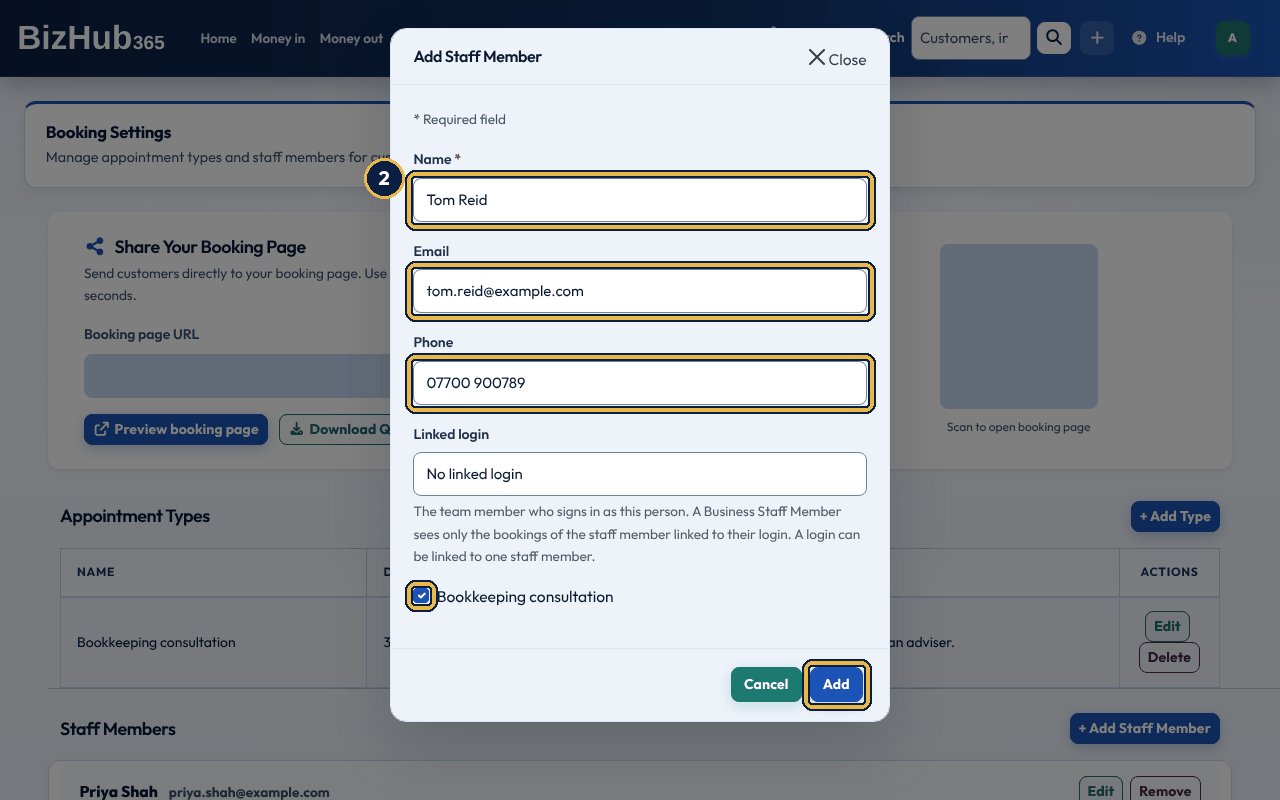
When it worked: The message Staff member added appears and the person is listed with their linked login, appointment types and a Weekly Availability table. To change the linked login later, choose Edit on their card.
| If this happens | Do this |
|---|---|
| A message says the login is already linked to another staff member. | Nothing was saved. Remove the login from the other staff member first, or choose a different one. |
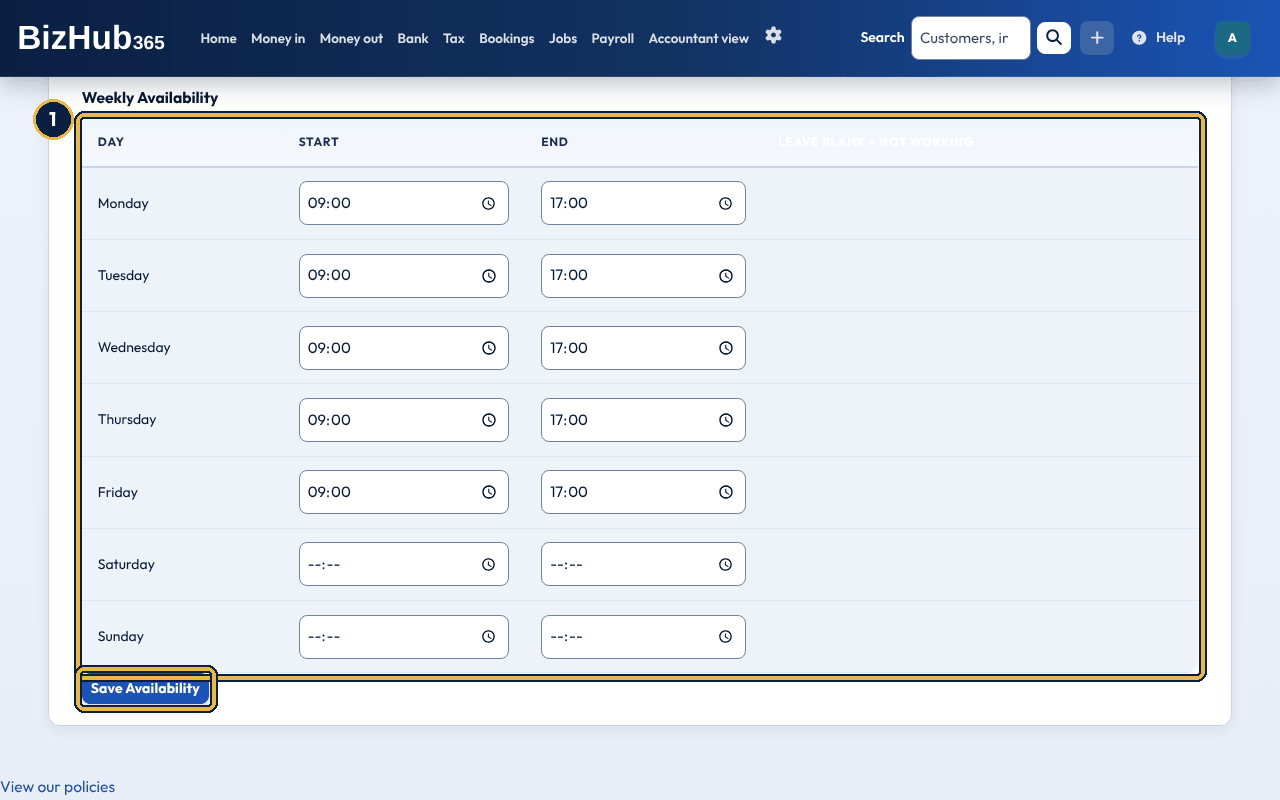
When it worked: A message says the availability is updated for that person. The public booking page offers their times from then on.
| If this happens | Do this |
|---|---|
| A message says to enter the hours as HH:MM, or that the end time must be after the start time. | Nothing was changed. Correct that day and save again. |
Where to find it: Bookings→Booking settings
Your public booking page is at /book/<business-id>/. Share Your Booking Page at the top of Booking Settings shows the link with Copy, Preview booking page, and a QR code with Download QR Code for flyers, cards or your van.
Where to find it: Settings→Business and tax setup→Sections
The public booking page and the booking widget on your website only work when Online Booking is switched on in Business Settings → Sections, and the Bookings section is on too. When online booking is off, those pages show “not found”, and Booking Settings shows a warning with a link to switch it on. Only a full administrator can change the switch (see Settings, branding, and the company register).
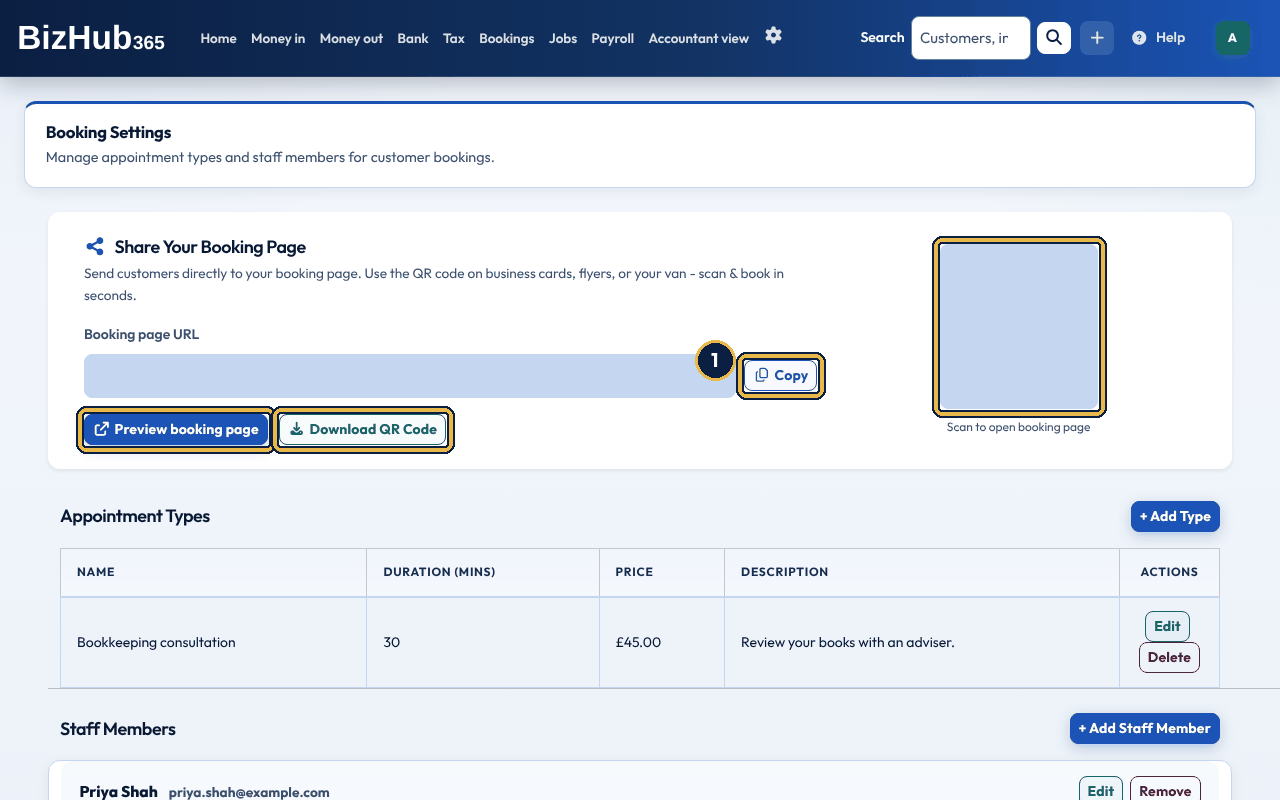
When it worked: Link copied! appears under the link, or the QR code is saved as an image.
Customers don't need an account. They choose a service, a date and time, and type their name, email and phone. The booking appears in your diary, the customer is emailed Your Booking Has Been Created, and your business email is sent New Booking Created.
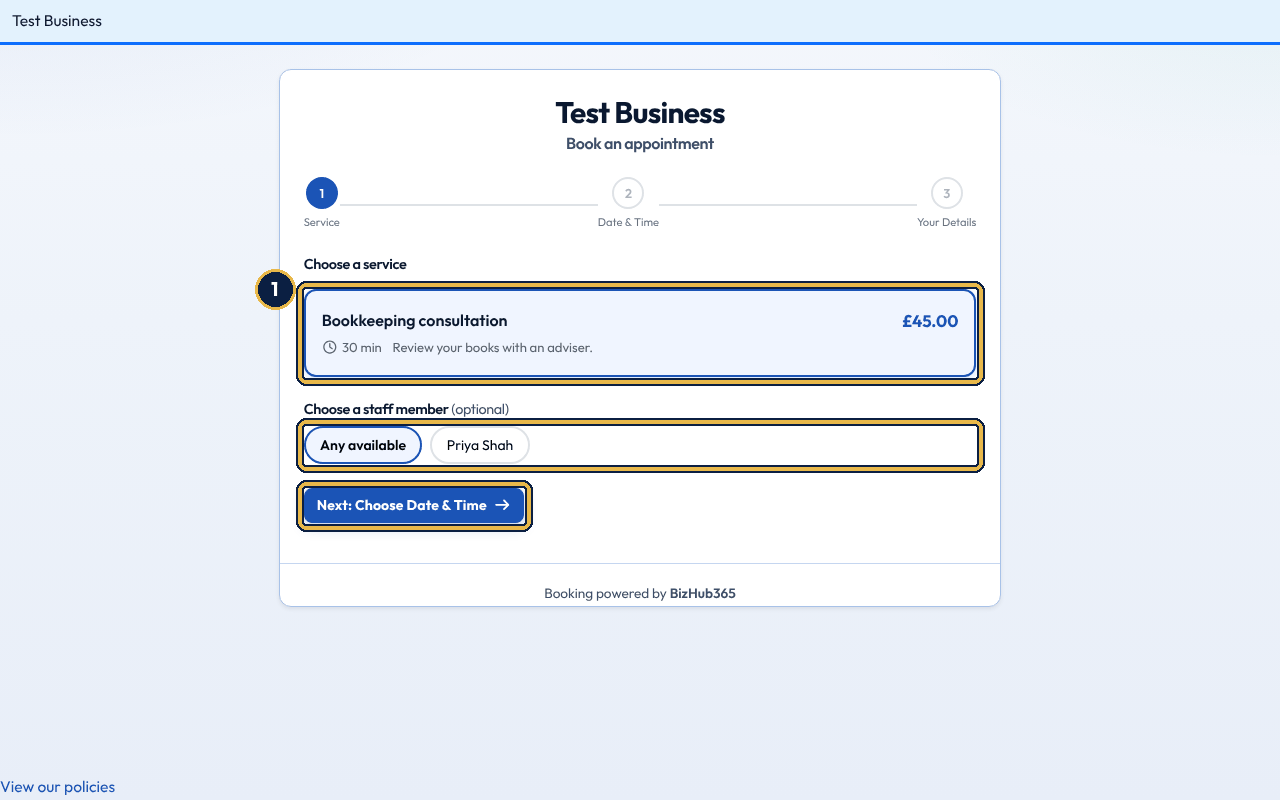
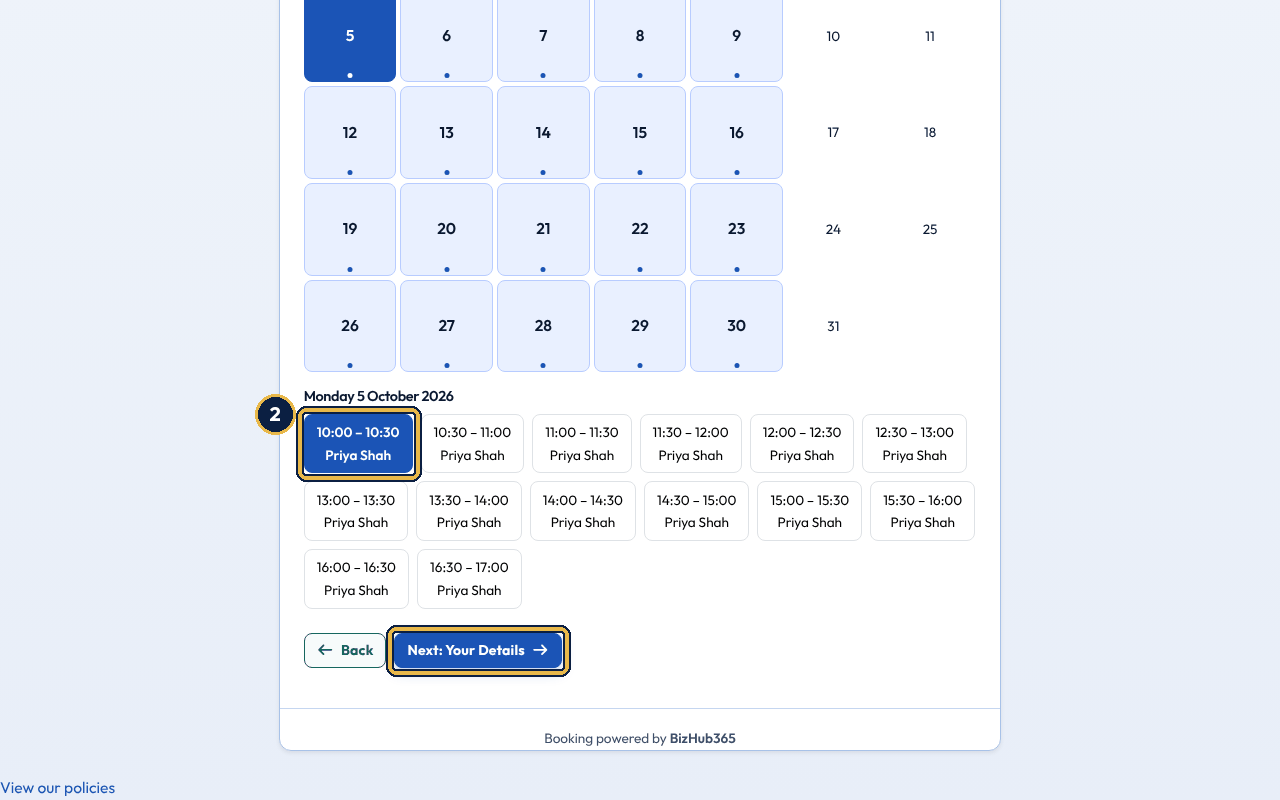
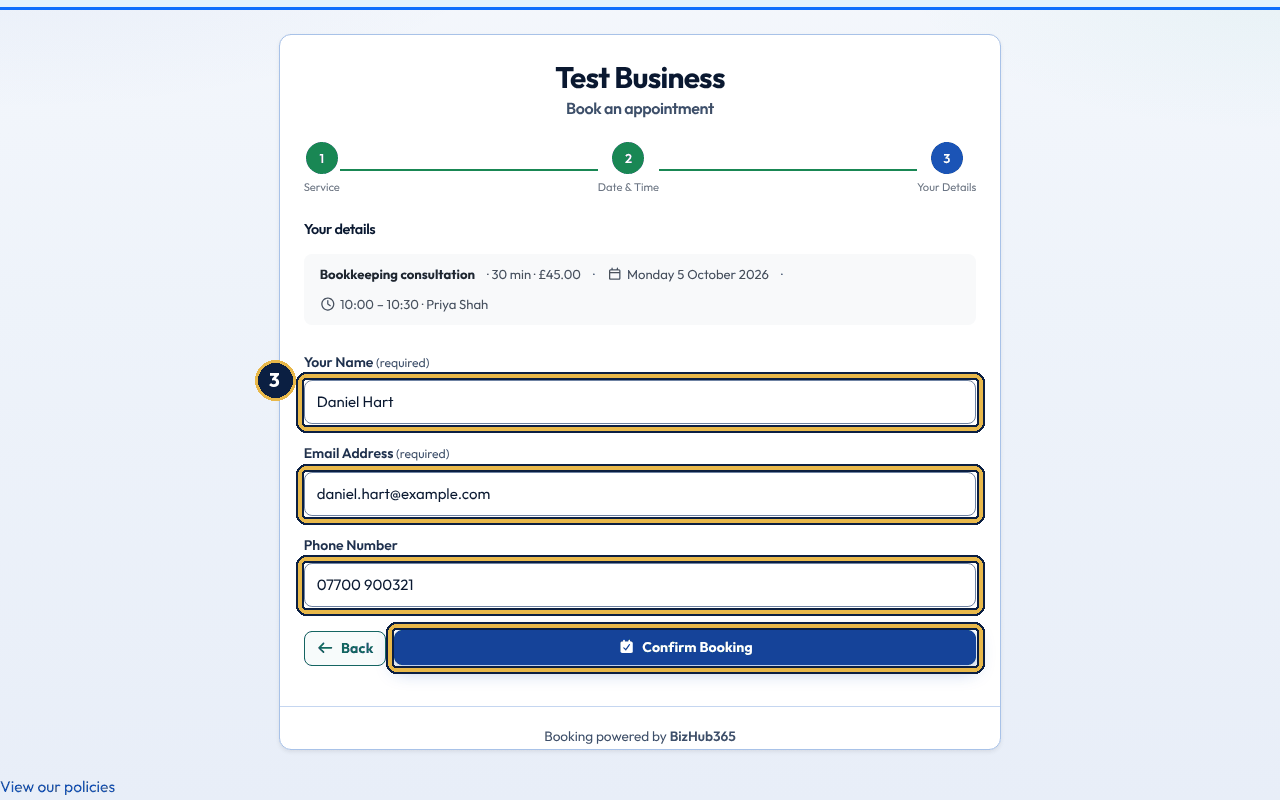
When it worked: The booking is in your diary and both emails are sent. The service name and price come from the appointment type.
| If this happens | Do this |
|---|---|
| The page says the time slot is no longer available. | Someone booked it first. The customer chooses another time; what they typed is kept. |
Customers can only book the times the page actually offers, and past times are never offered. In the BizHub365 app, New booking (under Also in your business on Home) has Send Booking Link: type the customer's name, email and an optional message, and they are emailed Book an appointment with your business name, with a link to your booking page. If no customer has that email, one is added.
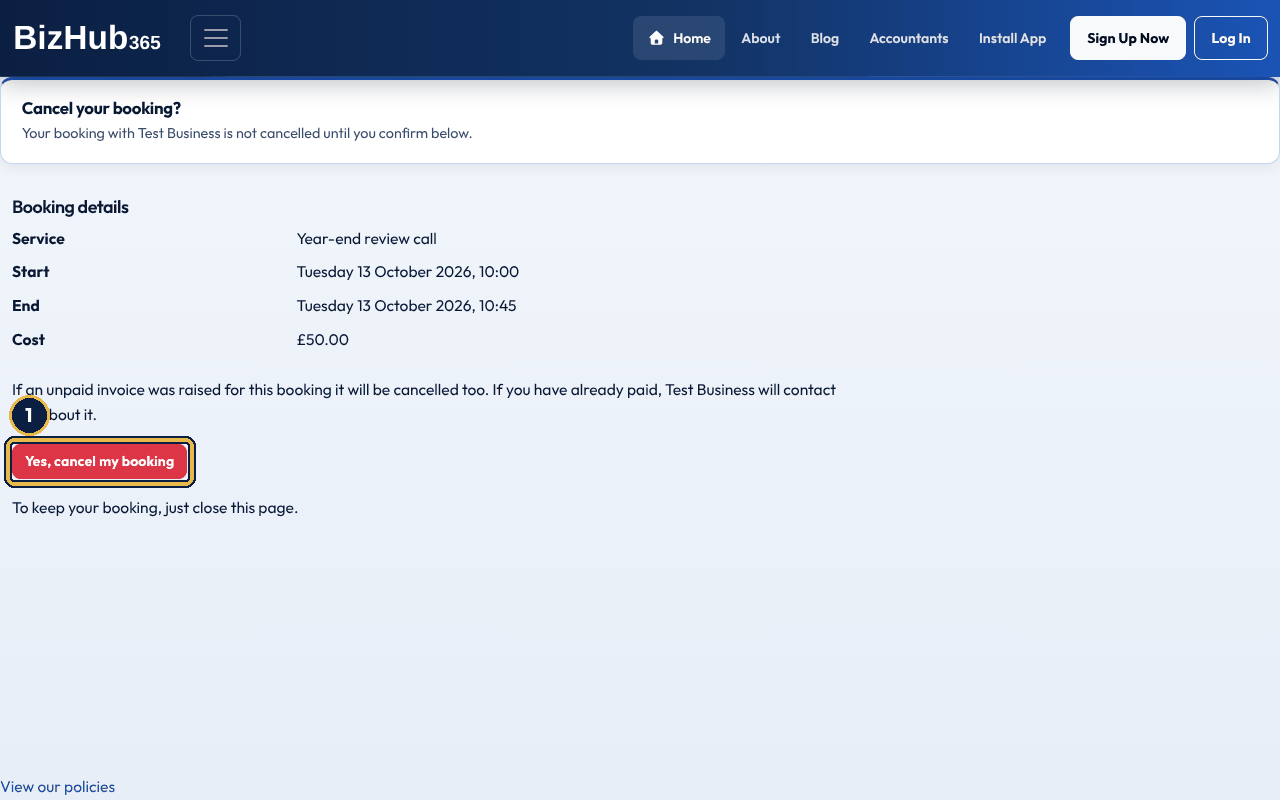
When it worked: The booking is removed from your diary and the customer is emailed Your Booking Has Been Cancelled.
Nothing is cancelled until the customer presses the button, so email scanners that open links cannot cancel bookings. If you raised an unpaid invoice for the booking, it is cancelled too and the customer is emailed Invoice cancelled due to booking cancellation. If the invoice has been paid or part paid, it is kept and your business email is sent a message so you can issue a credit note or refund.
Where to find it: Bookings→Diary
View Diary shows your bookings on a calendar by month, week or day (day on a phone). Choose a day to open it in day view, then choose a booking there to see its date, service, contact and cost, with Edit Booking.
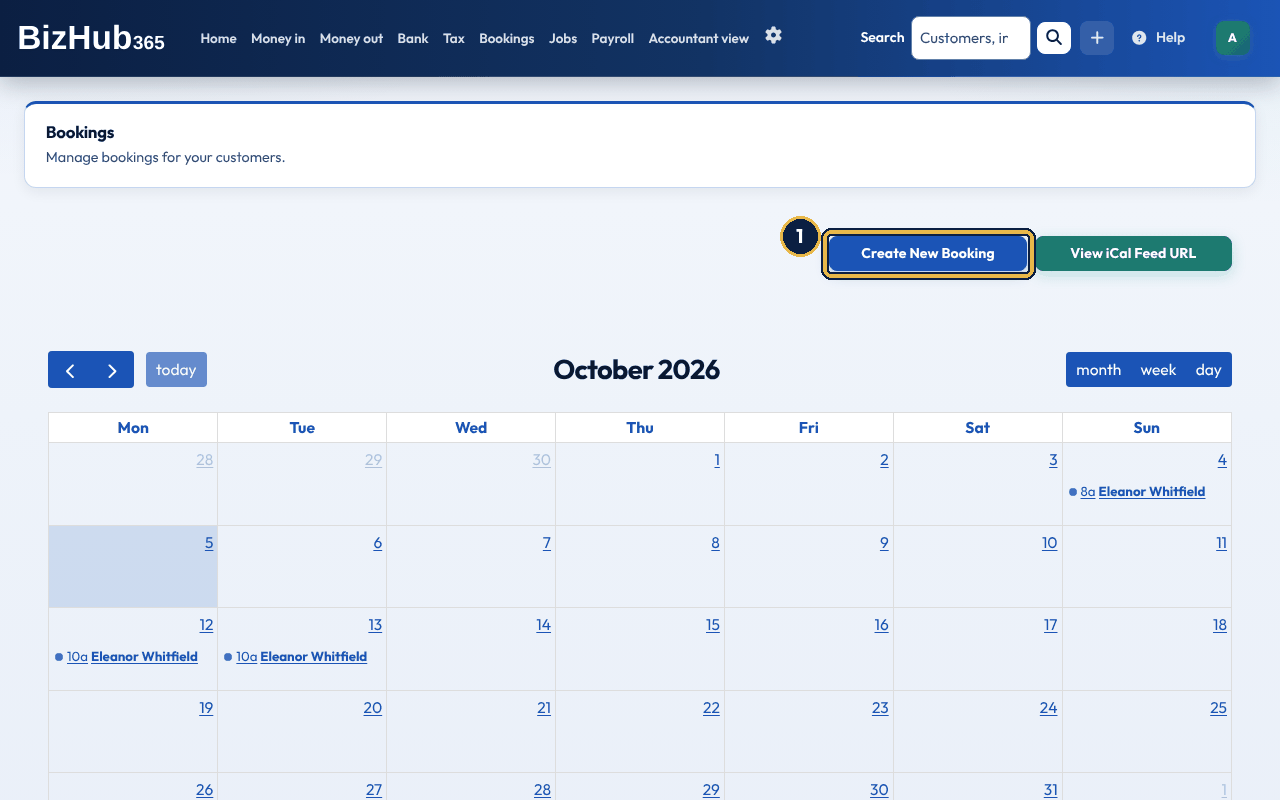
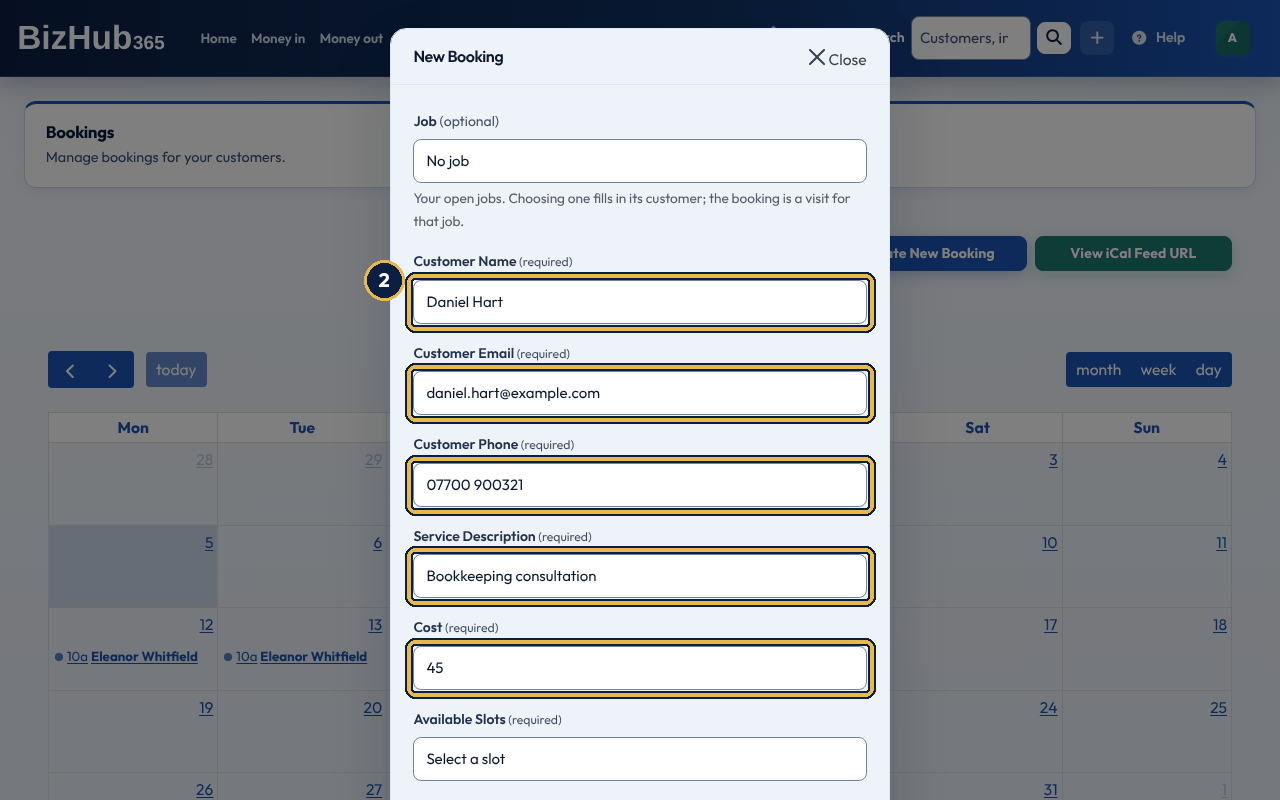
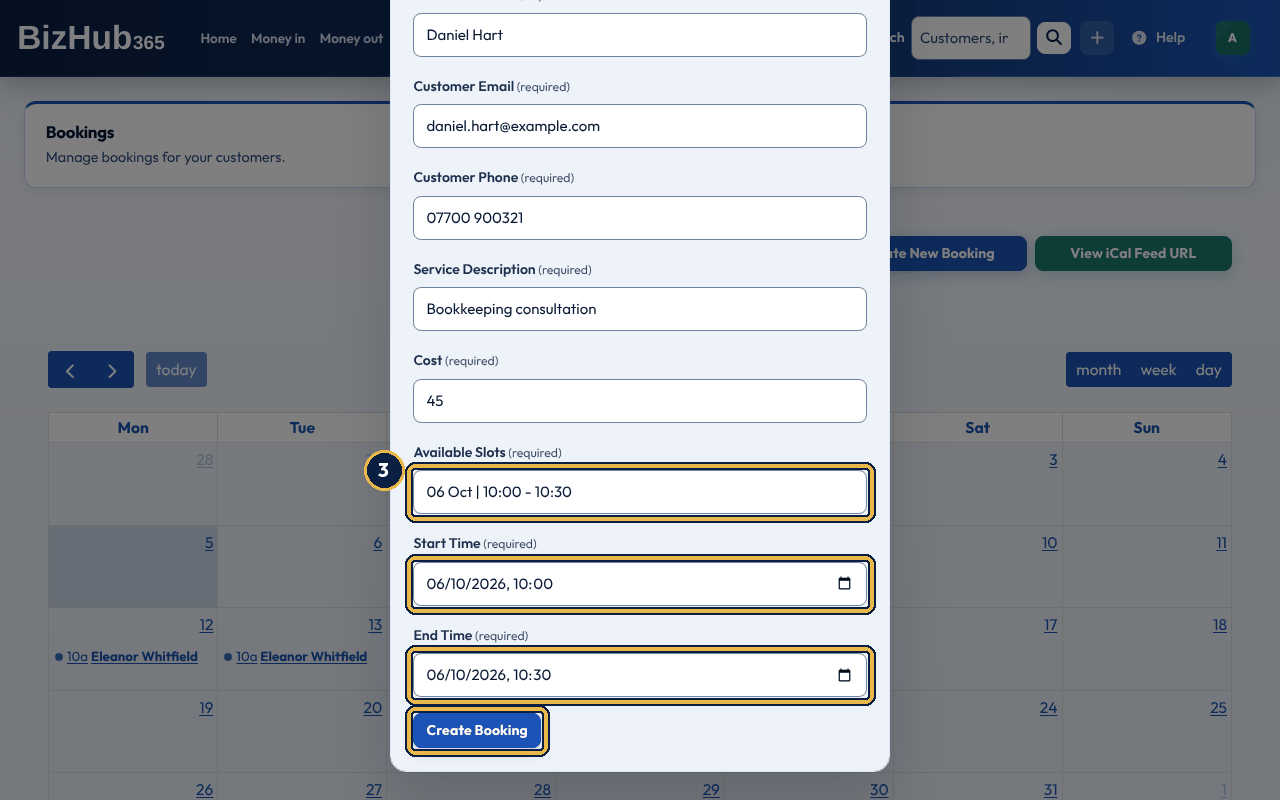
When it worked: The message Booking created successfully appears and the booking is on the diary. An existing customer with that email is used, or a new customer is added, and the same two emails as an online booking are sent.
| If this happens | Do this |
|---|---|
| A message says the time overlaps an existing booking. | Choose another slot. |
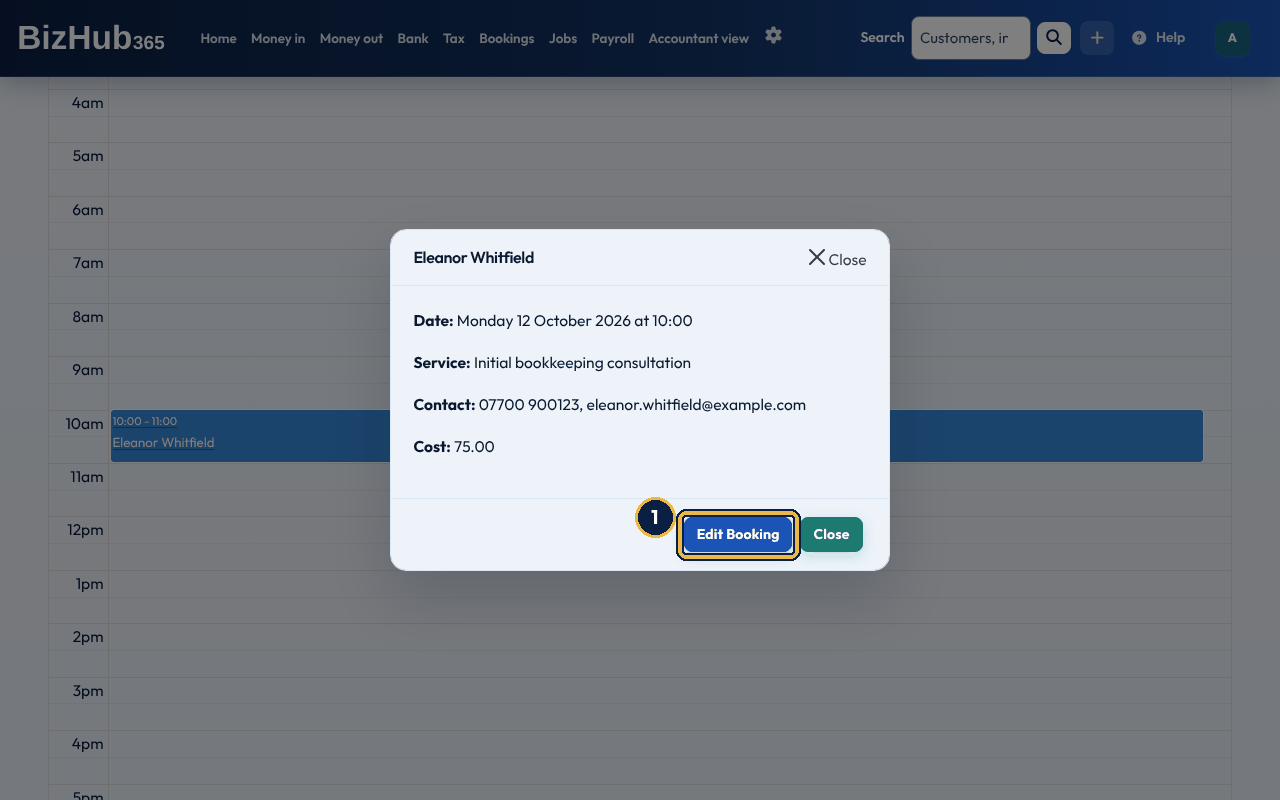
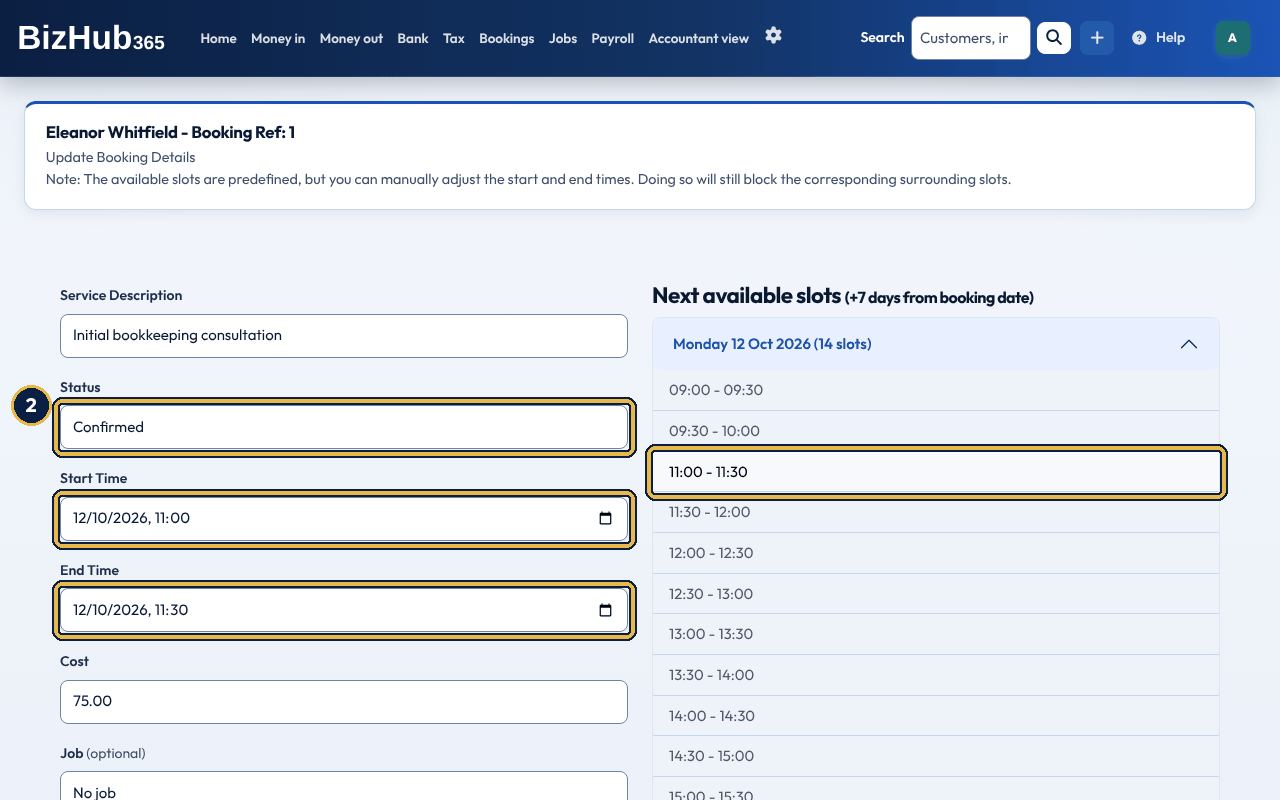
When it worked: The message Booking updated successfully appears, and the customer is emailed about what changed, from your business name with replies going to your business email address. Changing the status to Scheduled, Completed or Cancelled sends Your Booking Has Been Scheduled, Thank you for your business or Your Booking Has Been Cancelled. Any other change, such as a new time or cost, sends Your Booking Has Been Updated. If nothing changed, no email is sent and a message says so.
| If this happens | Do this |
|---|---|
| A message says the new time overlaps an existing booking. | Choose another time. Nothing was changed. |
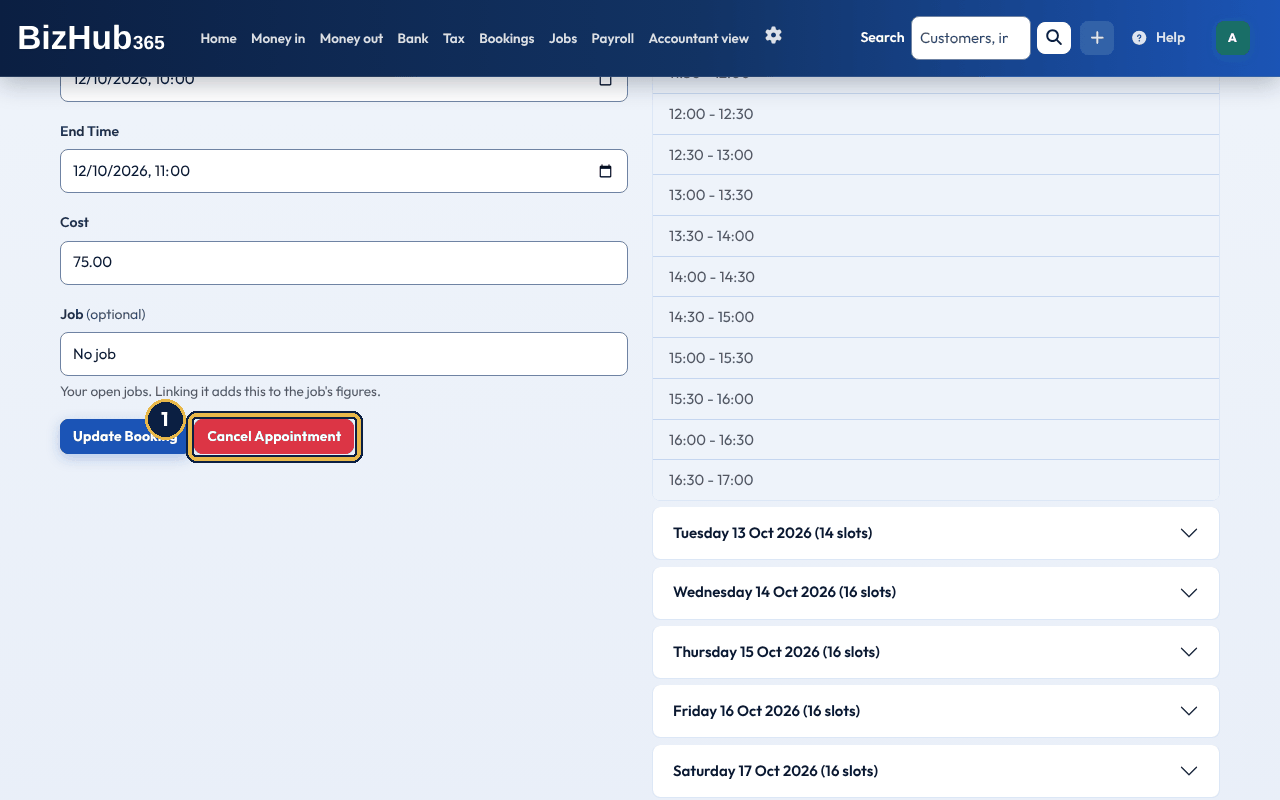
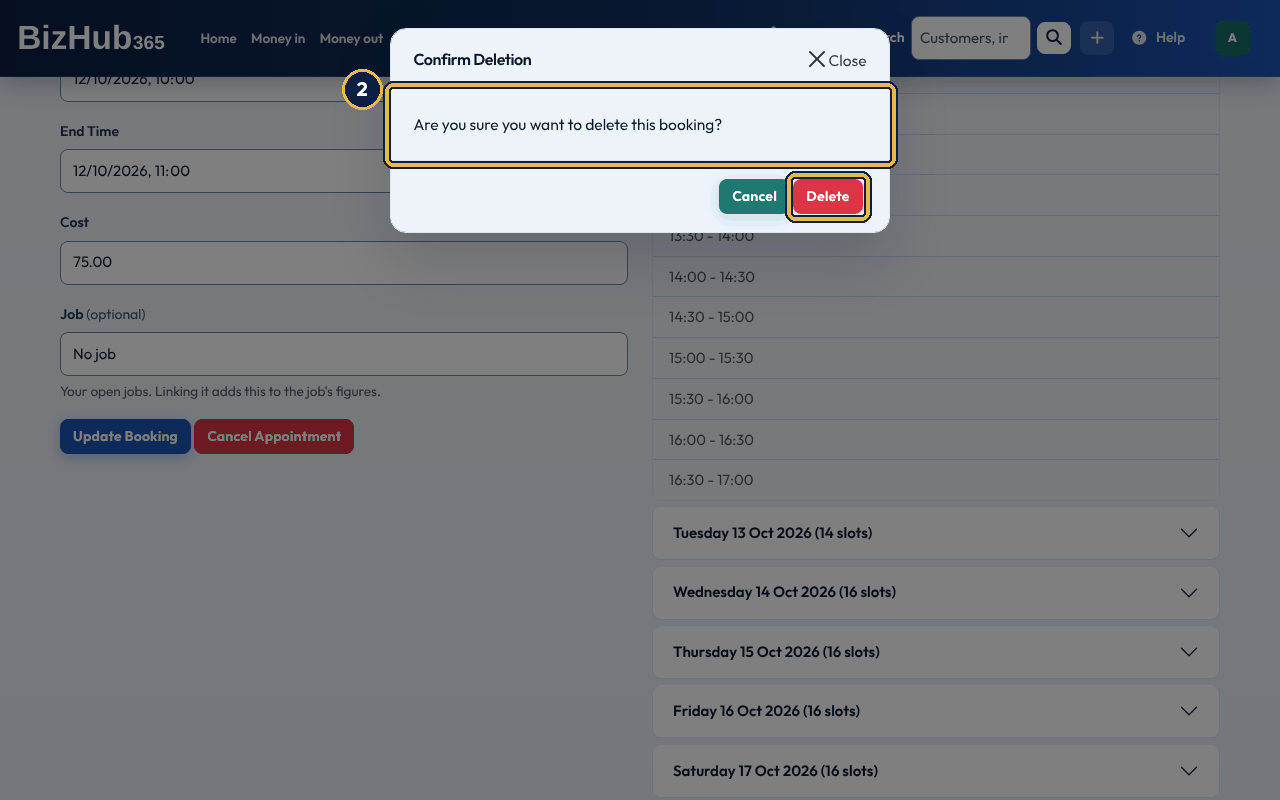
When it worked: The message Booking cancelled successfully appears, the booking is removed from the diary, and the customer is emailed Your Booking Has Been Cancelled with its start and end times in UK time.
If you raised an invoice for the booking, cancelling it yourself does not delete the invoice, whether or not it has been paid. The page also says Invoice # and its number for this booking has not been deleted and is still open, and the account owner (the first administrator of the business) is emailed Booking cancelled: invoice # is still open with the invoice PDF attached. You then decide: delete the invoice to void it, raise a credit note, or keep it, for example as a late-cancellation charge. The customer is not told about the invoice. This is different from the customer cancelling with their own link, described above, where an unpaid invoice is cancelled for them.
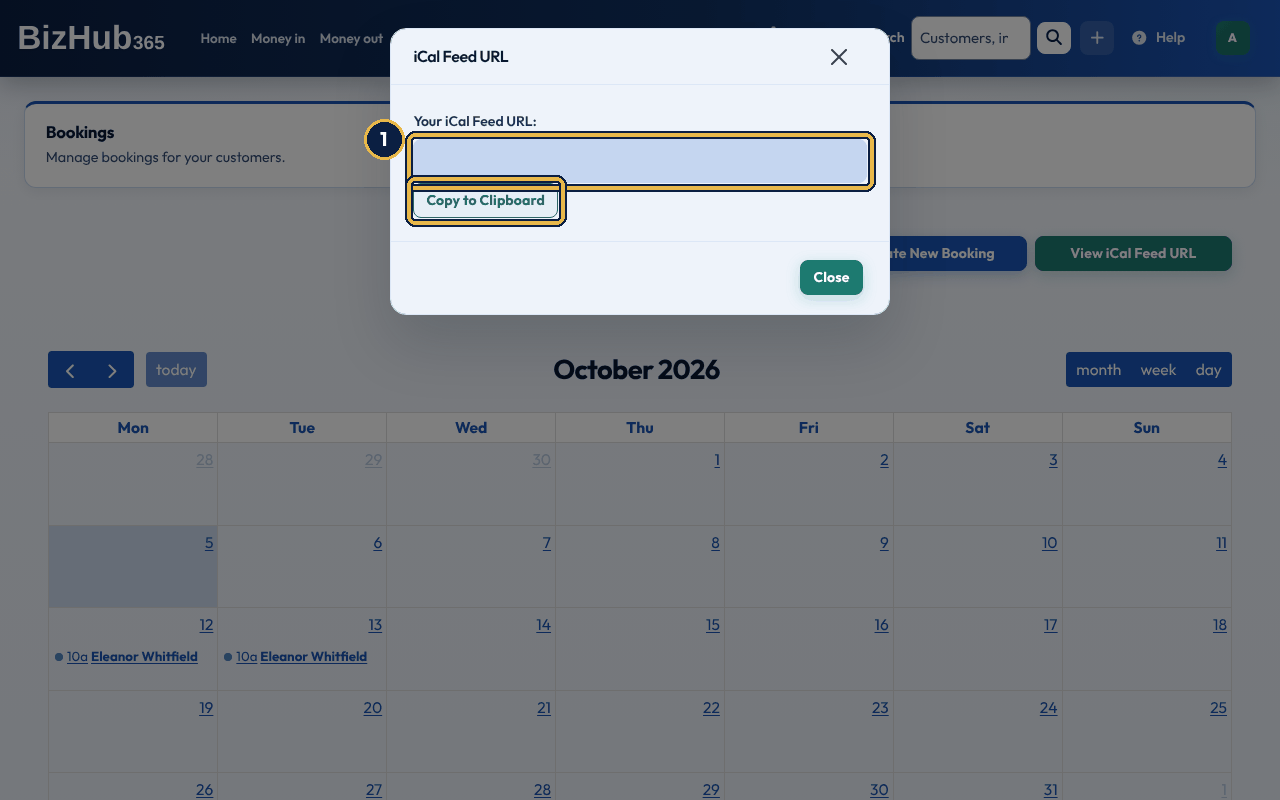
When it worked: Your calendar app shows the bookings and refreshes them on its own schedule.
Part II · Customers · Chapter 11
A public page with your trading details and links, to share by link or QR code.
Where to find it: Your public card→/bcard/<business-id>/
Your digital business card is a public page at /bcard/<business-id>/. It shows your logo, business name and type, your short description, address, phone, email and website, and the custom links you add, such as your booking page or social media. The details come from Settings → Business and tax setup: the Website URL and Short Business Description are there, under the settings that say they are displayed on your digital business card.
Your card is only public once you publish it. A new business starts with it off. Businesses that already had a card before the switch was added (11 October 2026) were left published, so links and QR codes already handed out keep working. While the card is off, its address shows a page not found to everyone, with none of your details, and the app's Share B Card screen says the card is switched off instead of showing the QR code. Members of the business with the Edit permission can change it.
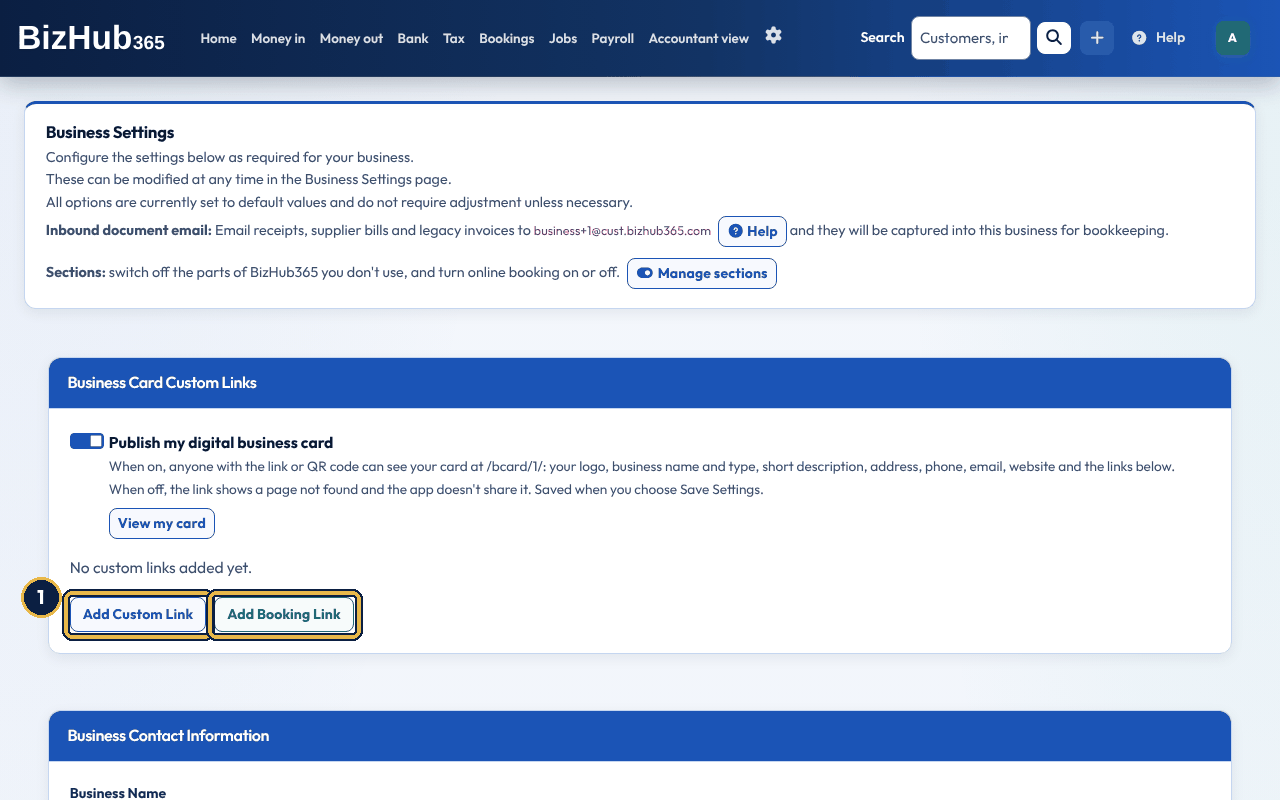
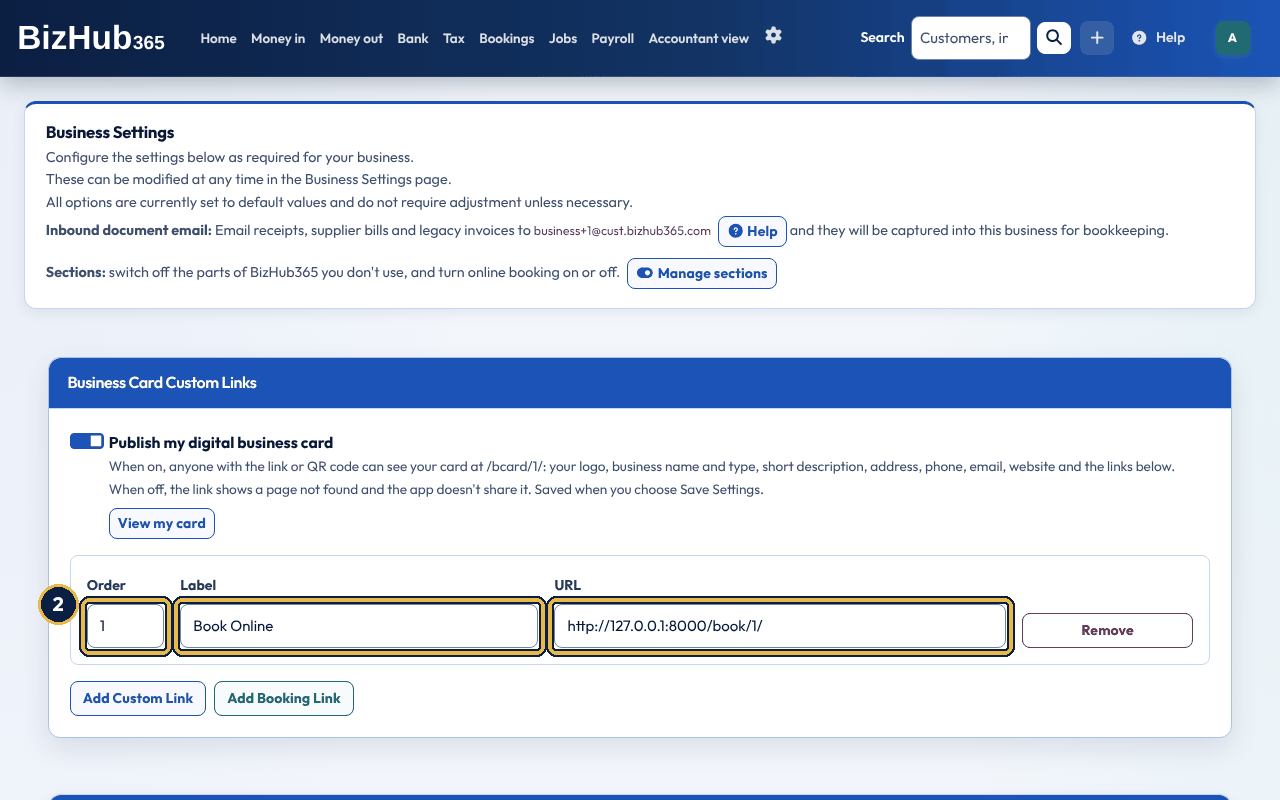
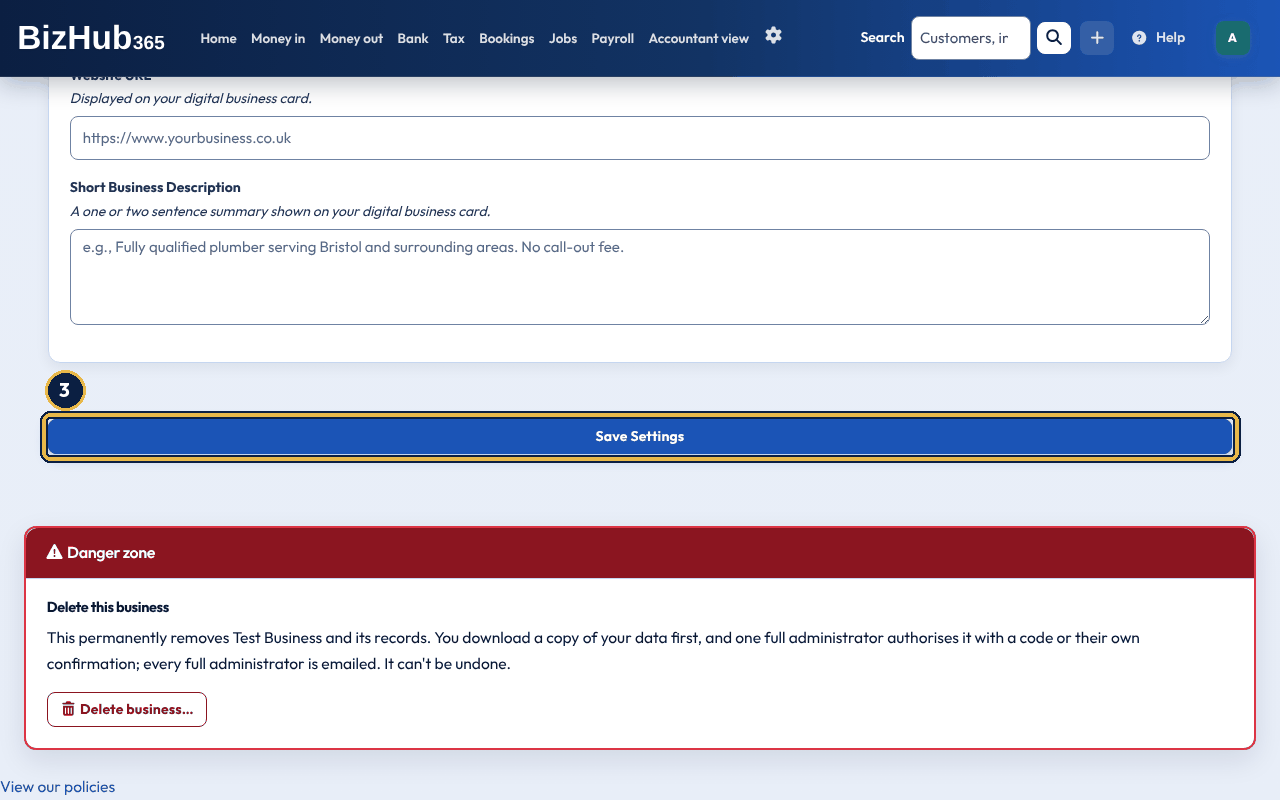
When it worked: The links appear on your card in order. Remove next to a link takes it off when you save.
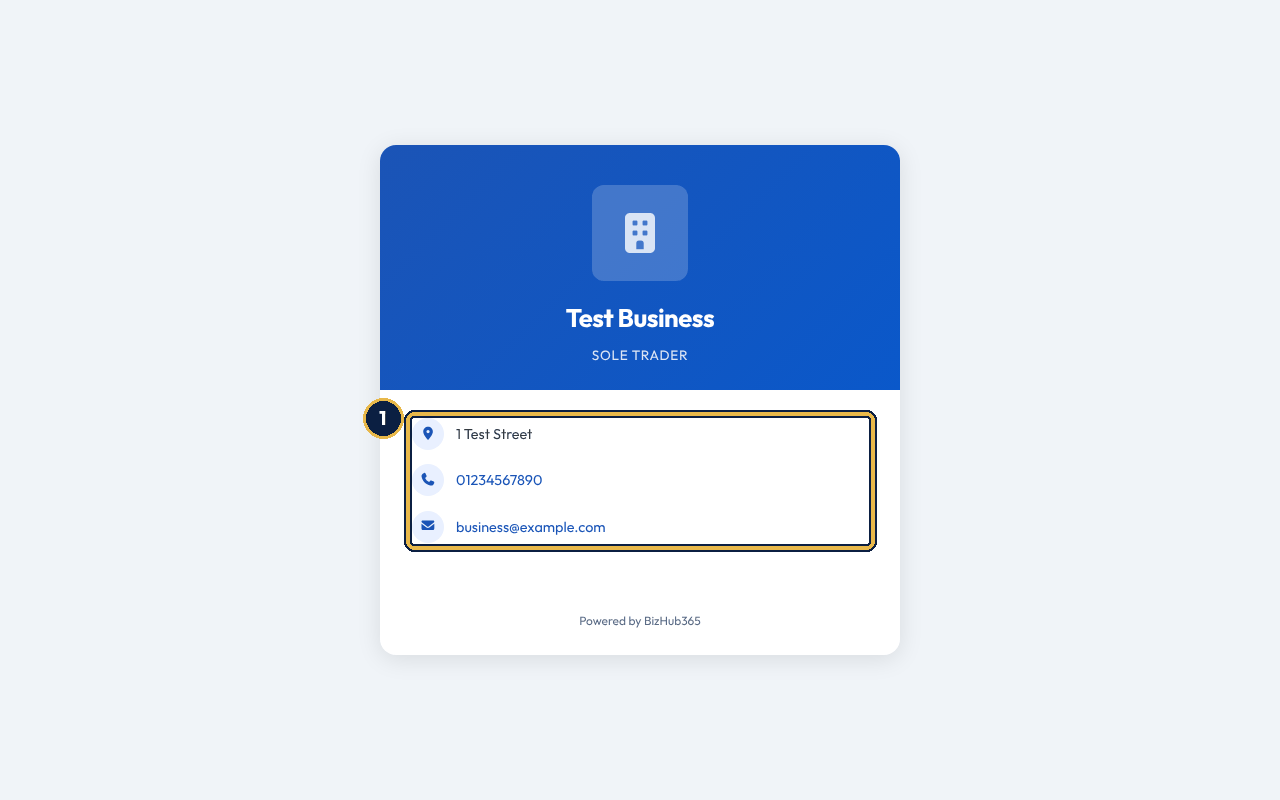
When it worked: The card shows your current details; changes in Business Settings appear as soon as you save them.
Part III · Money · Chapter 12
Price the work on a quote, convert it when the customer says yes, then send a branded invoice that posts to the ledger.
Where to find it: Create (+)→Invoice
An invoice asks a customer to pay. A quote prices work before the customer agrees to it, and becomes an invoice when they say yes. A recurring invoice is a template that BizHub365 turns into a real invoice, and emails, on a schedule. Creating, editing, sending, locking and deleting need the Edit permission; anyone with the View permission can open the lists, the invoices and the PDFs.
Everything is on one page, Create an invoice. The totals and a preview of the invoice update as you type, so you can check it before anyone sees it.
| Part of the page | What it holds |
|---|---|
| Customer | Find a customer shortens the Customer list as you type part of a name or email. Add new customer opens a small form (first name, last name and email required; company, address and phone optional) and chooses the new customer for you, without leaving the invoice. |
| Dates and reference | Invoice date; Payment terms: Due on receipt, 7, 15, 30, 45 or 60 days, starting with your default from Settings → Business and tax setup; Due date, worked out from the two and changeable; Your customer's reference (optional), up to 100 characters, printed on the invoice. |
| What you're charging for | Add one of your products or services and Add to invoice fill a line from your product list. Each line has Description, Quantity (whole numbers), Unit price (ex VAT when you are VAT registered), Discount (%) and, when VAT registered, the VAT rate; Remove deletes it. Add line adds a blank line and Add time entry a line for hours. Under each line, Income account with Change (see below). |
| More options | Job (optional), while the Jobs section is on; when you trade abroad, Currency (set to the customer's currency when you choose them) and Tax jurisdiction; and any custom fields you created in Settings → Custom fields. |
| Notes and attachments | Note for your customer (optional), printed on the invoice (a new invoice starts with the default note from Business Settings, if you set one), and photos or videos with What it shows (optional); Add another for more. The email links to them. |
| Totals | Net, VAT at each rate and the total; just the total if you are not VAT registered. |
| Preview | The invoice as your customer will get it, drawn the same way as the PDF. |
Save and send saves the invoice and emails it to your customer with the PDF. It first asks Email this invoice?, naming the customer, their email address and the total: choose Yes, send it or Go back. Save without sending saves it without emailing anyone. An invoice saved without sending still gets its invoice number and counts in your accounts from its invoice date. It shows as Not sent yet in the invoice list, and payment reminders are not sent for it. When you are ready, open it and choose Send to the customer's email address.
If something is missing or not valid, such as no customer, no line items, a date that does not exist, a quantity that is not a whole number, a discount over 100% or a due date before the invoice date, the form comes back with a list of what to fix at the top and everything you entered still filled in, including the line items. Nothing is saved until it is right. Quotes, recurring invoices and credit notes work the same way.
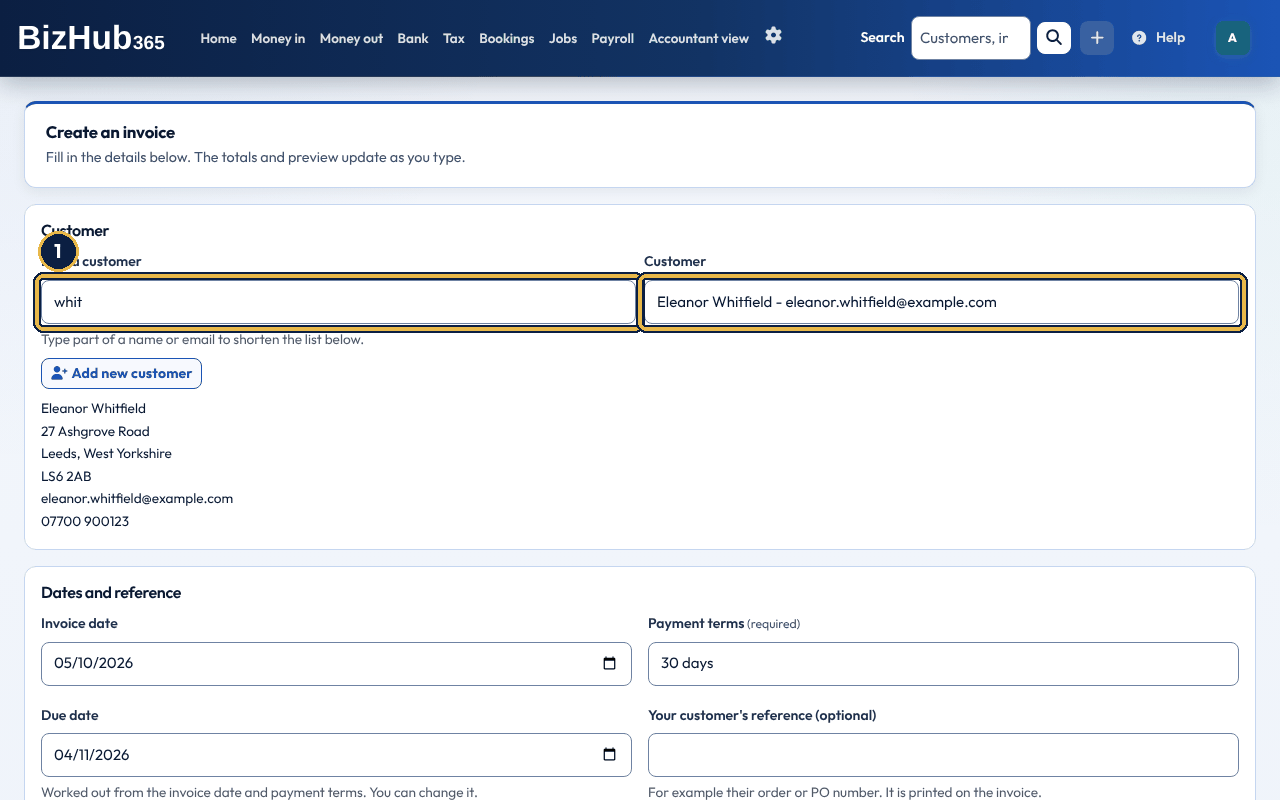
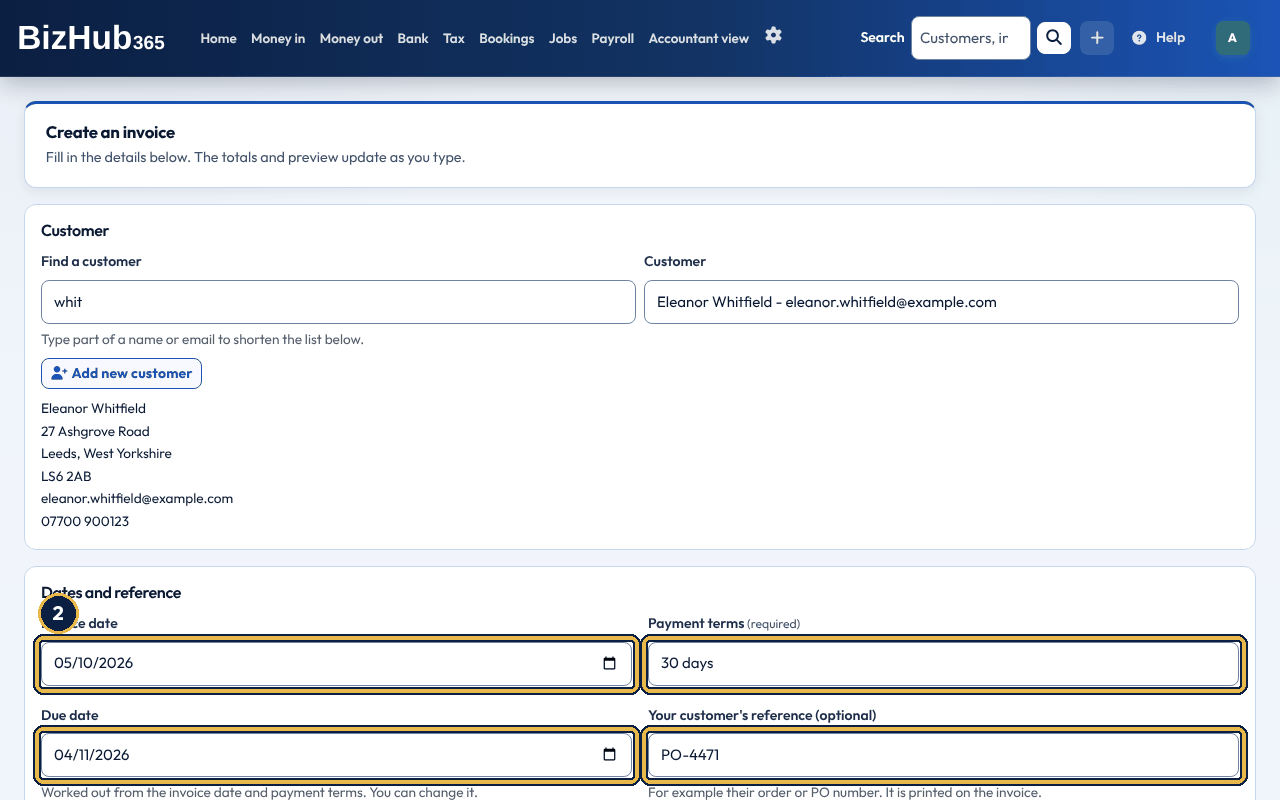
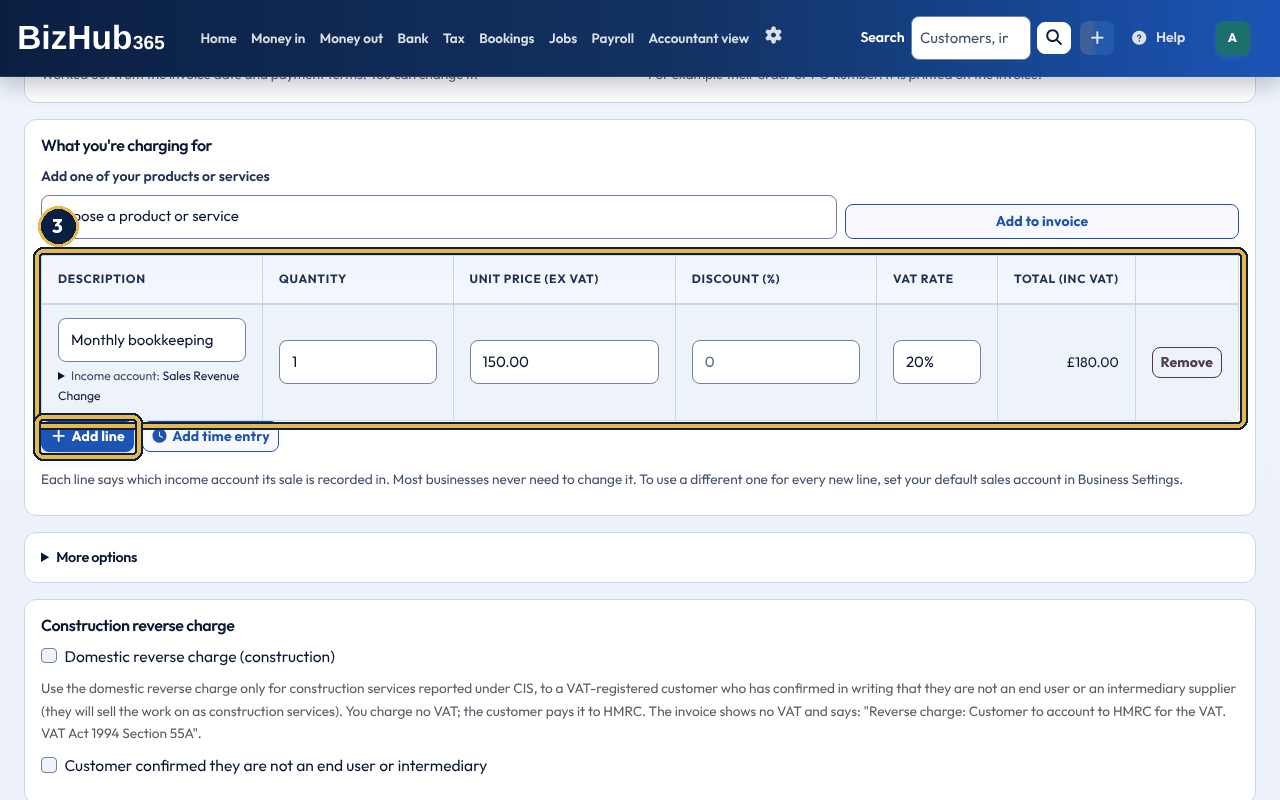
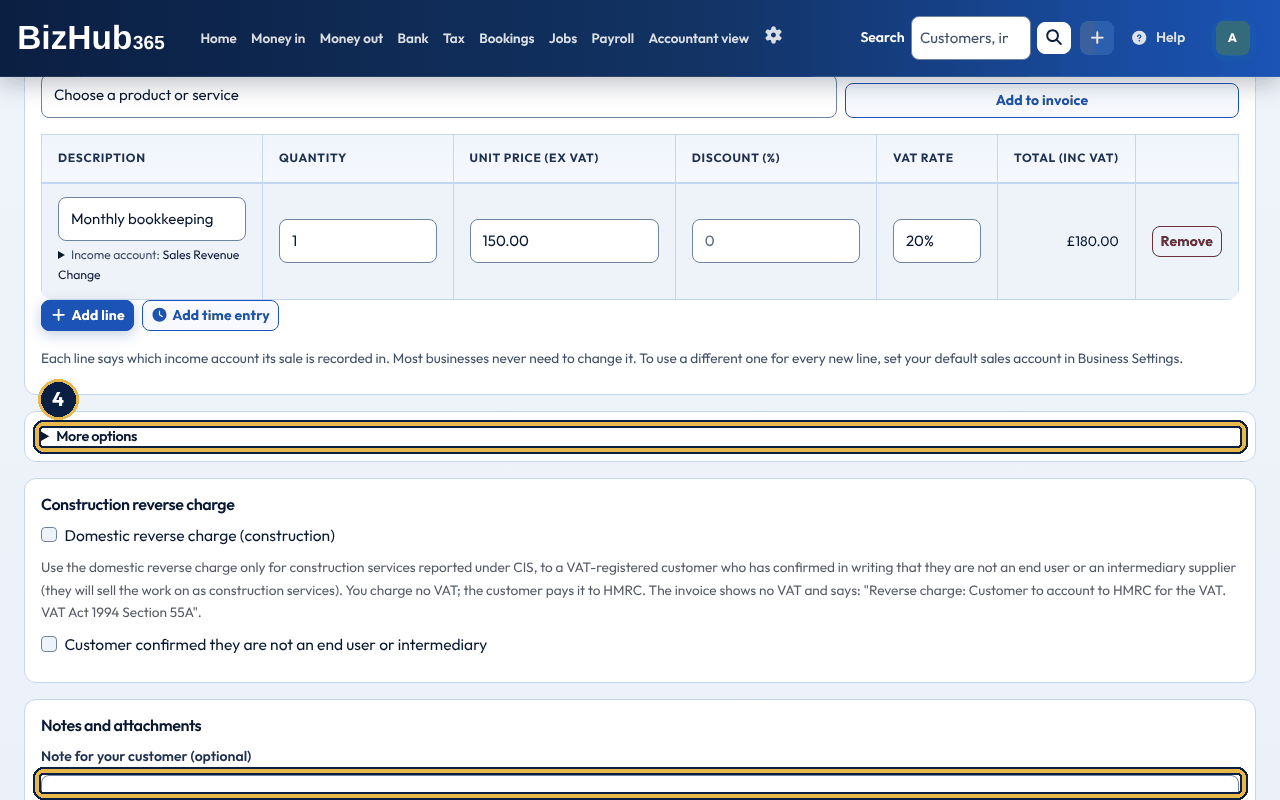
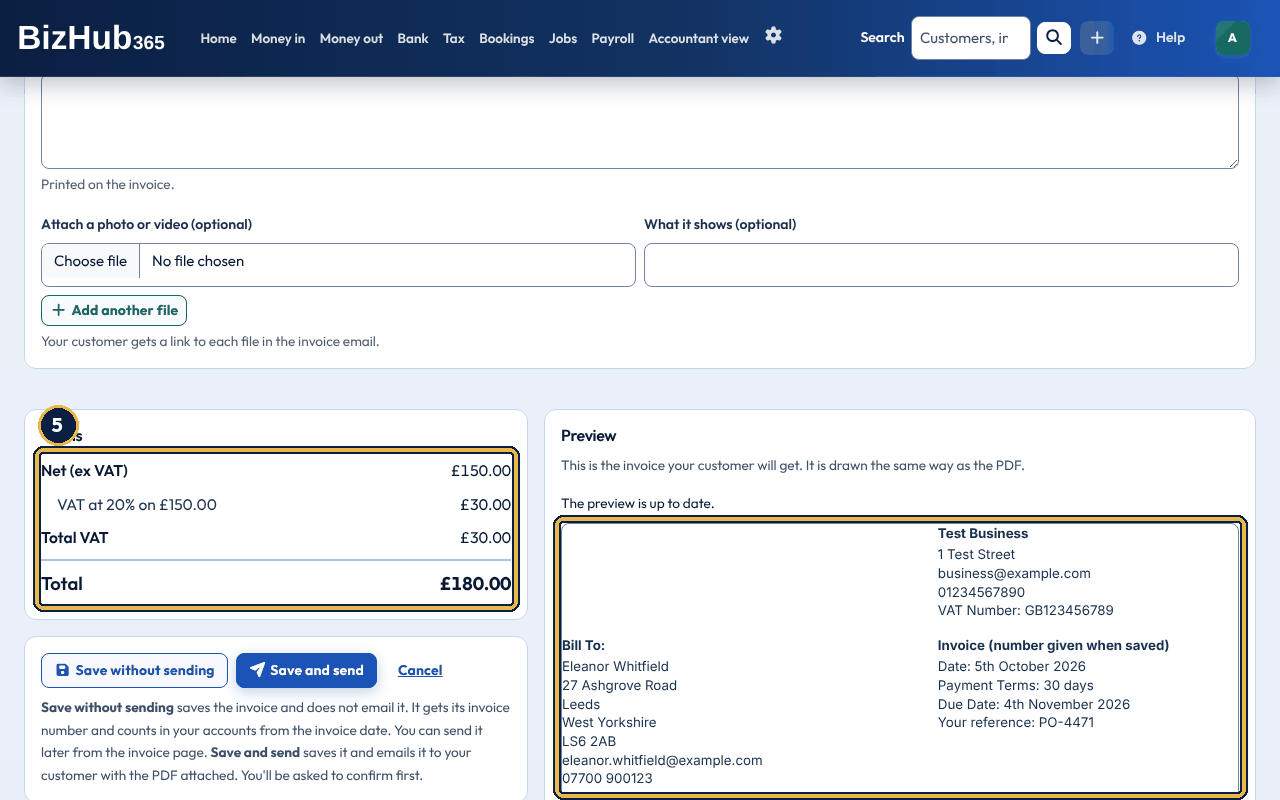
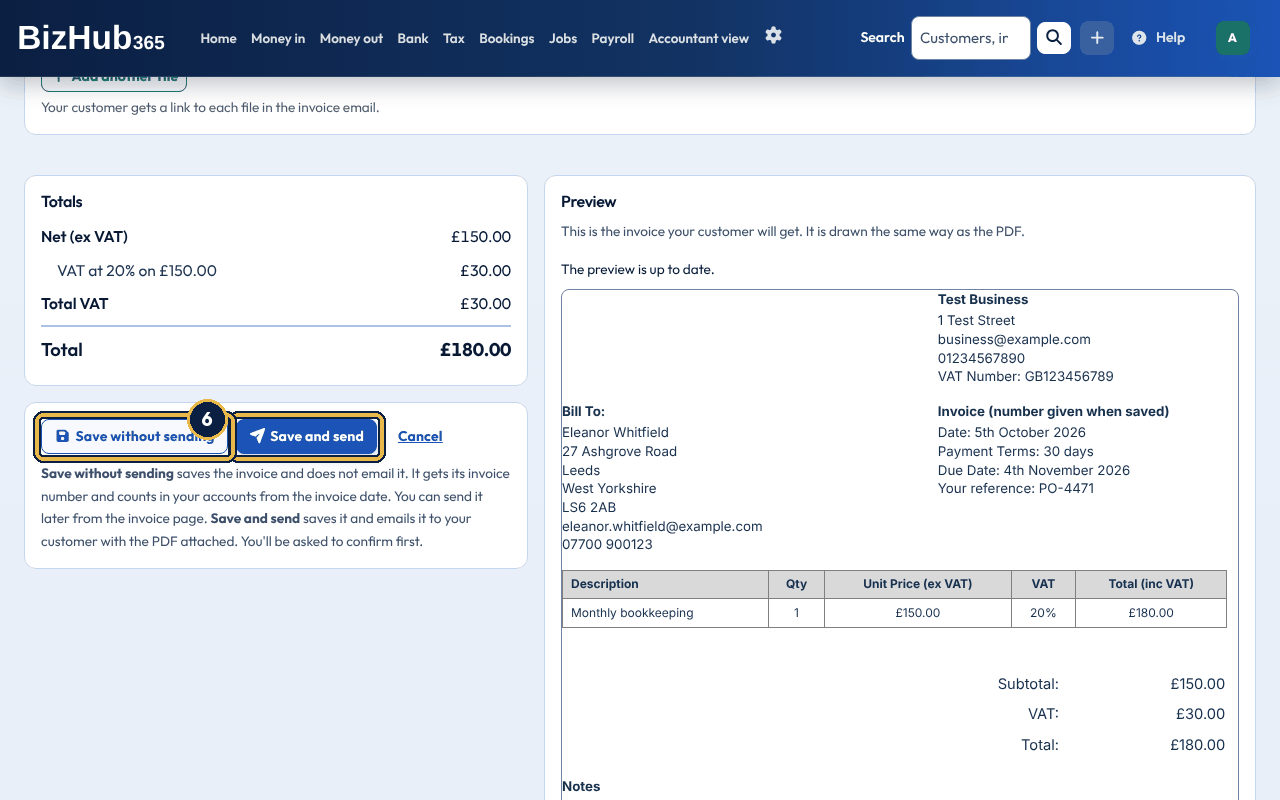
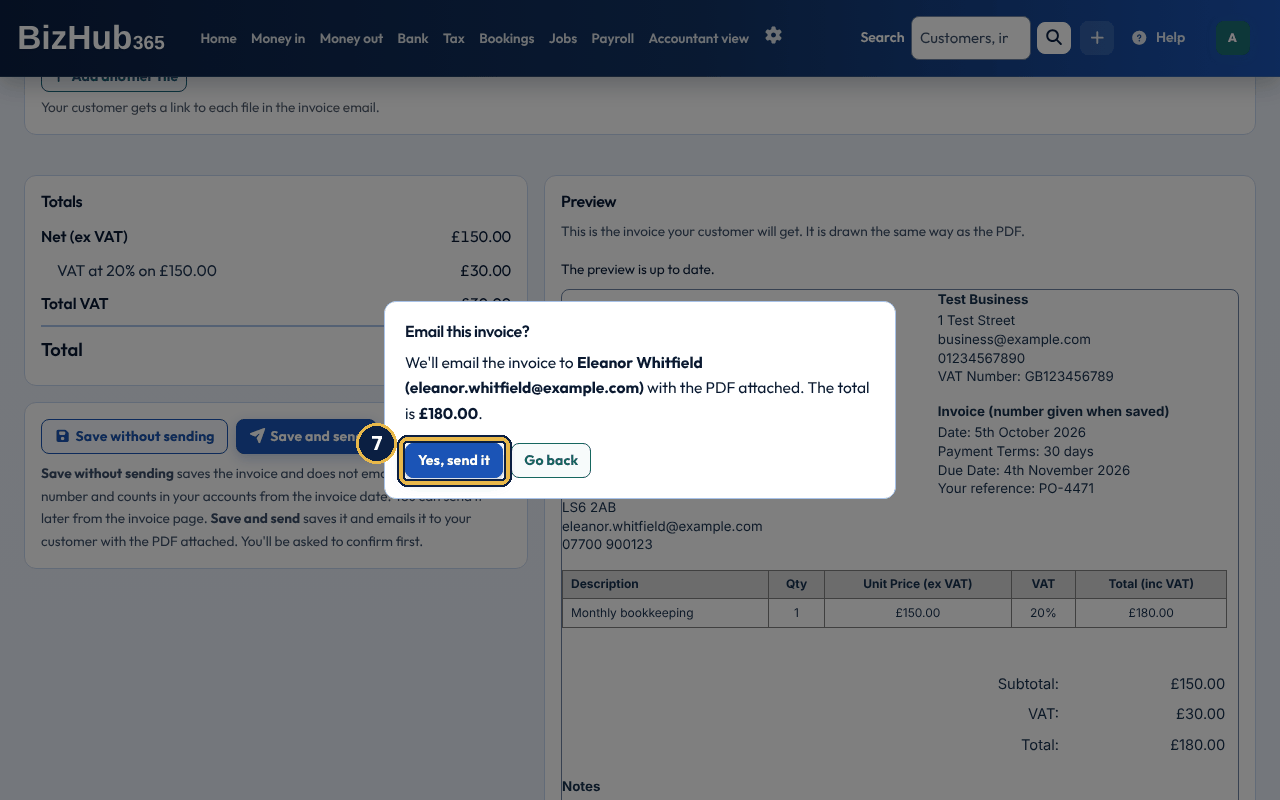
When it worked: The invoice opens with its number. The customer is emailed New Invoice # with the number and Created, with the PDF attached, the invoice is posted to your books, and it appears in Money in → Invoices and quotes as Awaiting payment.
| If this happens | Do this |
|---|---|
| The page comes back with a list of problems at the top. | Fix each one; select a problem to jump to its box. Nothing was saved, and everything you typed is still there. |
| Save and send does not ask for confirmation. | No customer is chosen. Choose one; the page will otherwise tell you a customer is needed. |
| The customer reports no email. | Check their address on the customer record, then use Resend in the invoice list. If the address bounced, see When an email can't be delivered. |
Where to find it: Money in→Products
Products is your price list: the products and services you sell, each with a SKU (your own code for it), a name, a sale price and, if you're VAT registered, a VAT rate. On an invoice, Add one of your products or services fills a line with the product's name, price, VAT rate and income account, so you don't type them each time. Changing a product later doesn't change invoices you've already raised. BizHub365 doesn't keep stock levels: Products is a list of prices, not a stock record. Products are always available; they are not a section you can switch off.
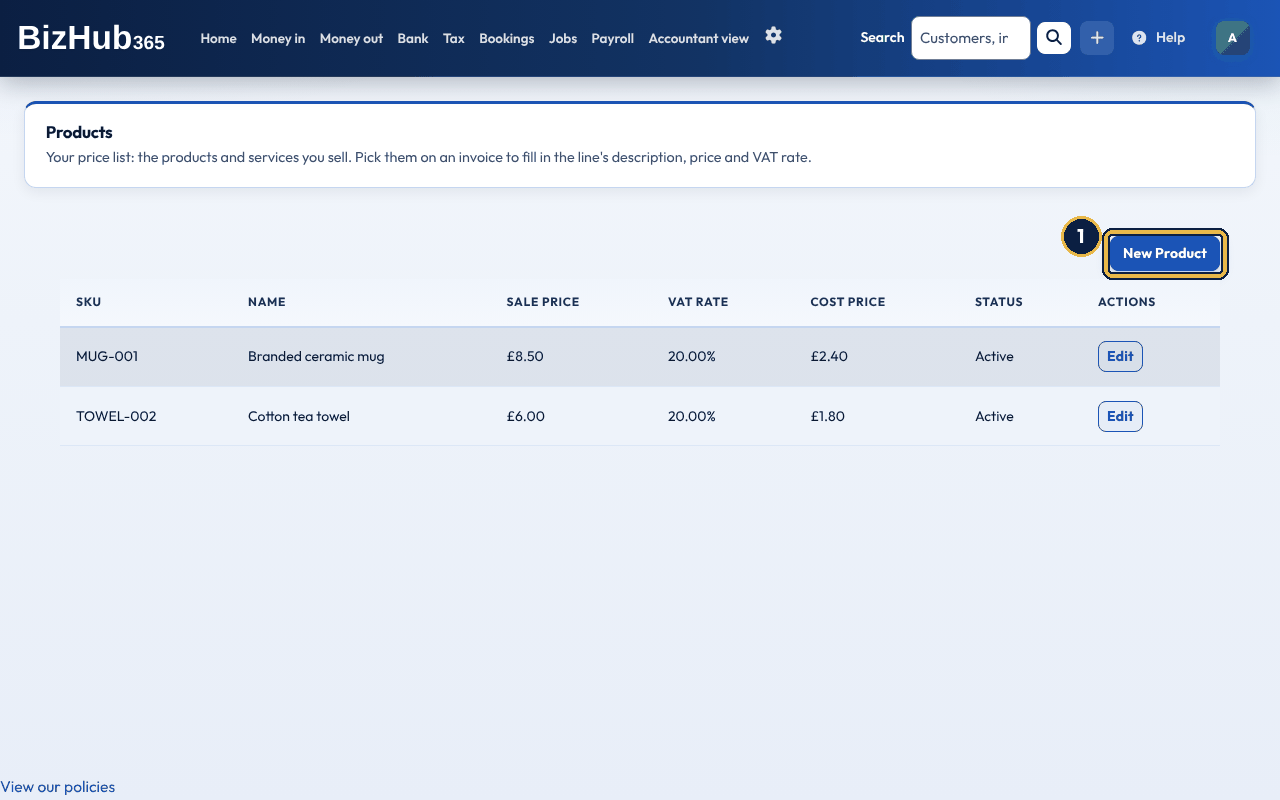
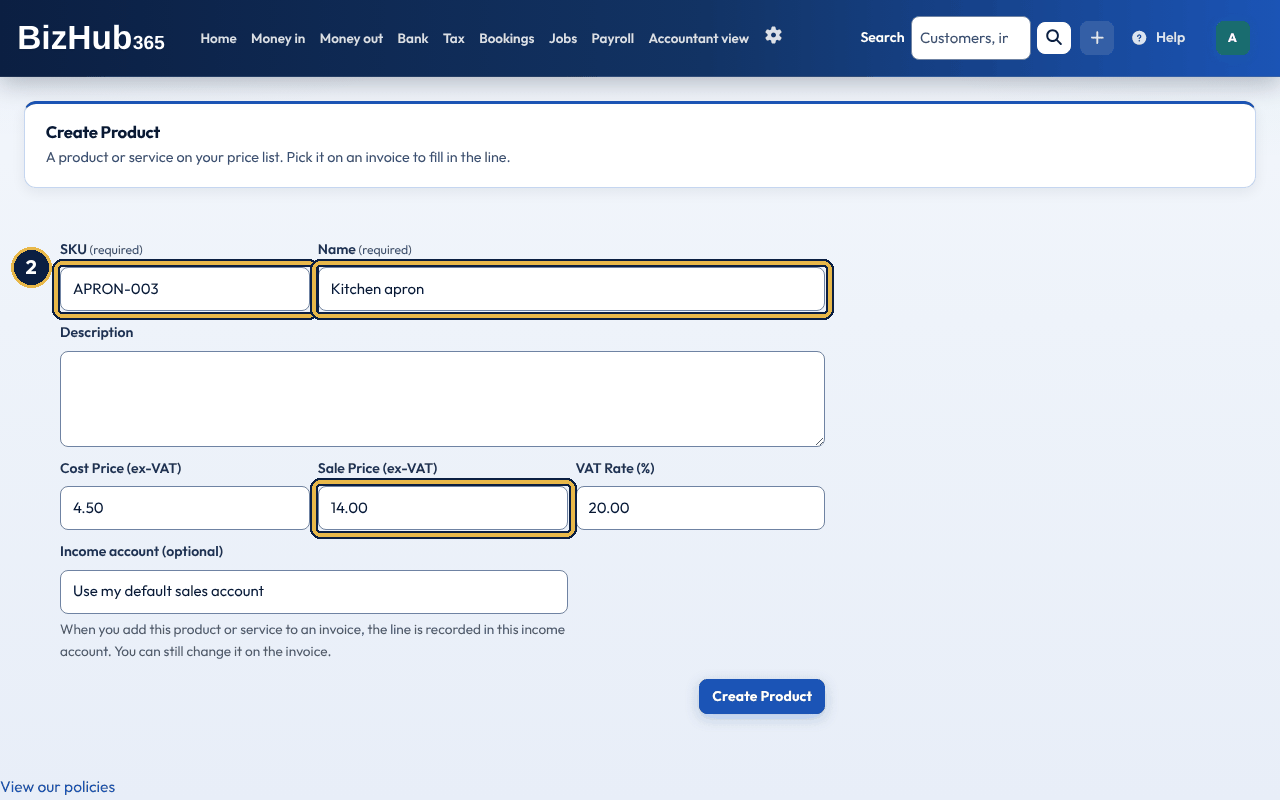
When it worked: You see Product '[name]' created. and the product is listed with its prices. It is now offered under Add one of your products or services on new invoices.
| If this happens | Do this |
|---|---|
| A field error when creating a product | The form stays filled in and the message beside the field explains what to change. If the SKU is already in use, choose a different one. |
Edit on a product changes its details. Products can't be deleted: to stop selling one, untick Active and choose Save Changes. It stays on the list as Inactive but can't be picked on new invoices. Members with only the View permission can see the list but not New Product or Edit.
Under each line's description you will see Income account: and the name of the account the sale is recorded in, such as Sales Revenue. Most businesses never need to change it. To use a different account for one line, choose Change and pick one from the list. Only your income accounts are listed. A new line starts with the product or service's own income account, if you set one on it in Products. Otherwise it uses your Default sales account from Settings → Business and tax setup, and if you haven't chosen one, Sales Revenue. The account only decides where the sale shows in your books and reports, for example on Profit and Loss by account. It never changes the invoice, its VAT or your VAT return. Invoices you raised before this was added, and any you change later, keep posting to Sales Revenue unless you pick another account. Recurring invoices and quotes have the same choice on each line, and it carries onto the invoice they become. The mobile app can send an account for each line too; when it doesn't, the default is used.
Saving an invoice posts double-entry journals automatically: debit debtors, credit each line's income account with its net amount (and VAT as required). If you are not VAT registered, the whole total goes to income and nothing is posted to VAT. You do not type the journal yourself. When you edit an invoice that is not locked, the original journal is reversed and a new one is posted for the new totals, so the books always match the invoice. If payments are already recorded against it, the invoice shows as paid or part paid against its new total.
Where to find it: Money in→Invoices and quotes
The top of Money in → Invoices and quotes shows three totals in pounds: Total outstanding (what customers still owe on unpaid invoices, after any part payments), Total overdue (the part of that past its due date, with a link to show just those invoices), and Paid this month (money received since the 1st; applying a credit note isn't counted as money in). Choose New invoice to start one straight from the list. CSV and PDF export the list. Use Search to find an invoice by its number (with or without #), or by the customer's name, company or email. From and To limit it to invoice dates. Search works with the date and status filters. Status (Any Status, All unpaid, Awaiting payment, Overdue, Paid) and Sort by (Newest first, Oldest first, Due date soonest first, Amount largest first, Invoice number) update the list as soon as you change them. For search and dates, choose Apply; Clear removes every filter. Each row has labelled buttons: Add payment (only while the invoice is unpaid), View, PDF and Resend. For an invoice marked Not sent yet, Resend sends it for the first time.
The status comes from the payments and the due date. It never changes the invoice's figures or the books.
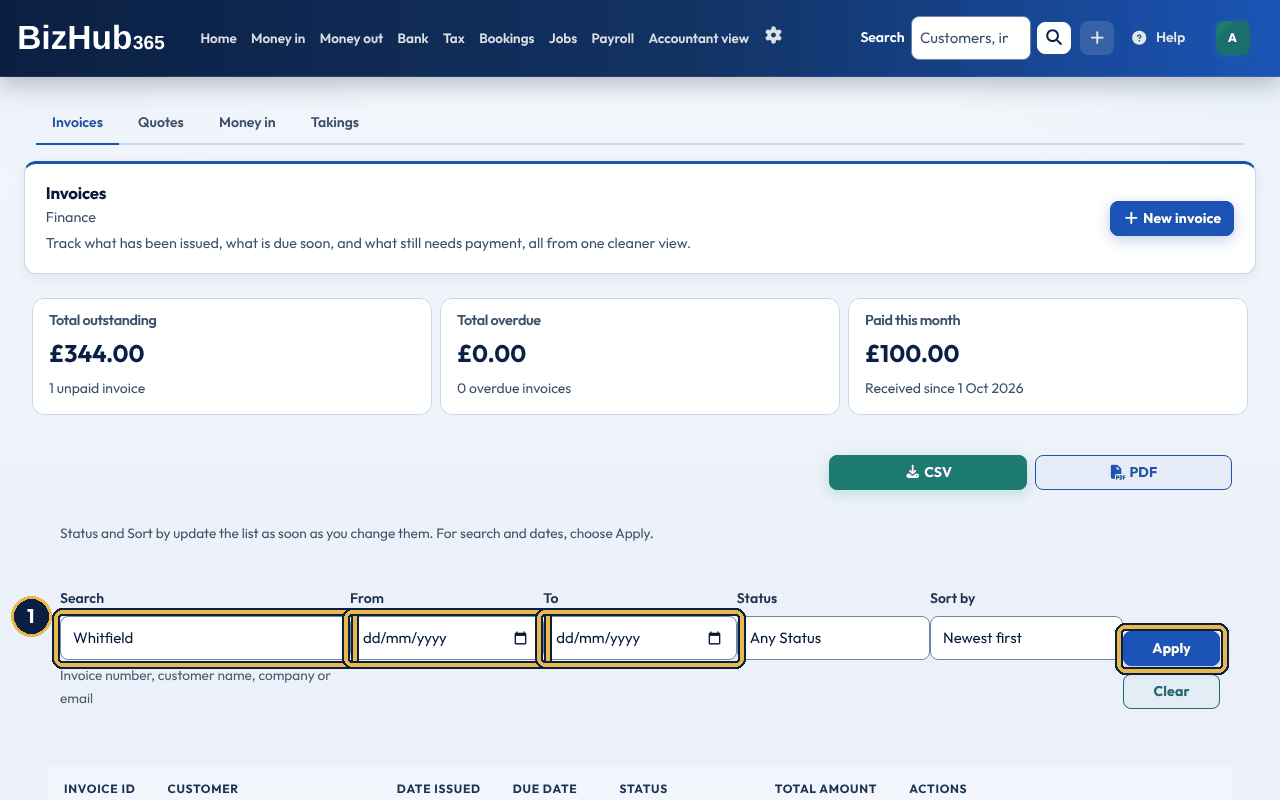
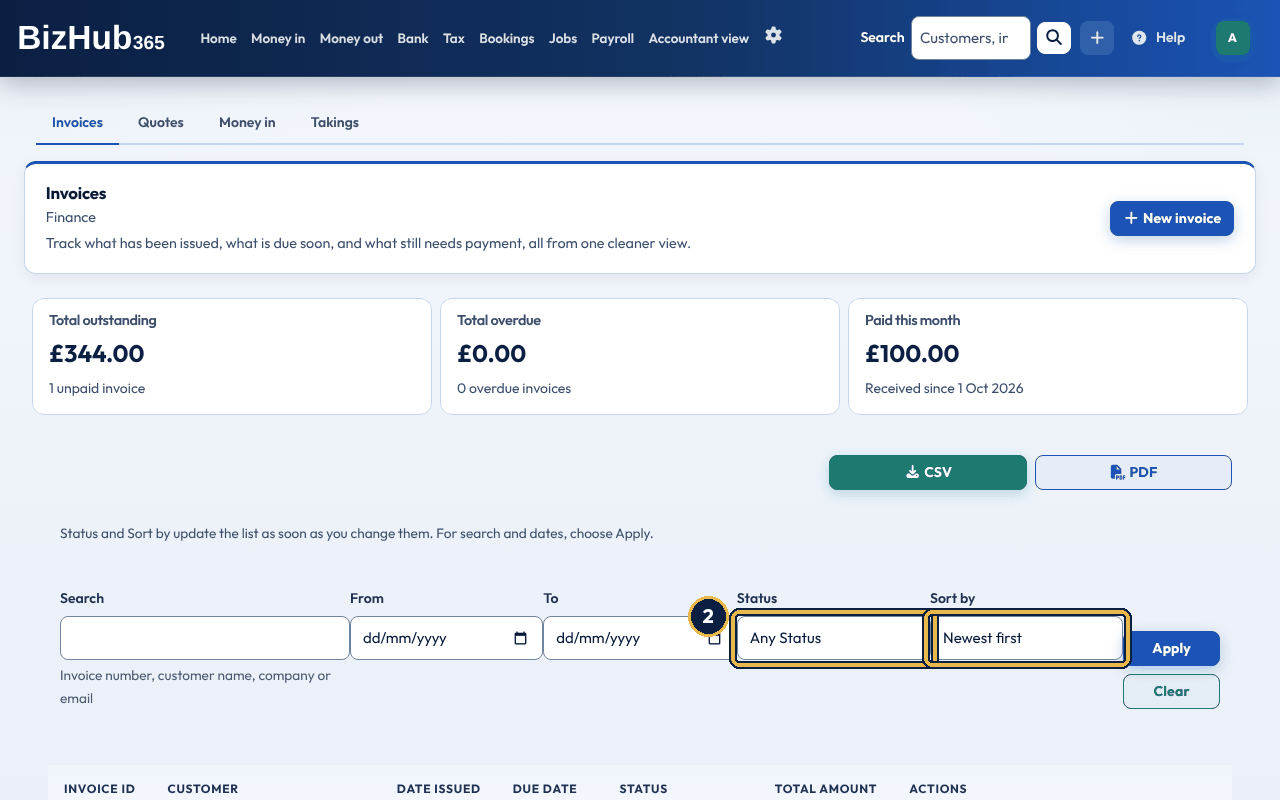
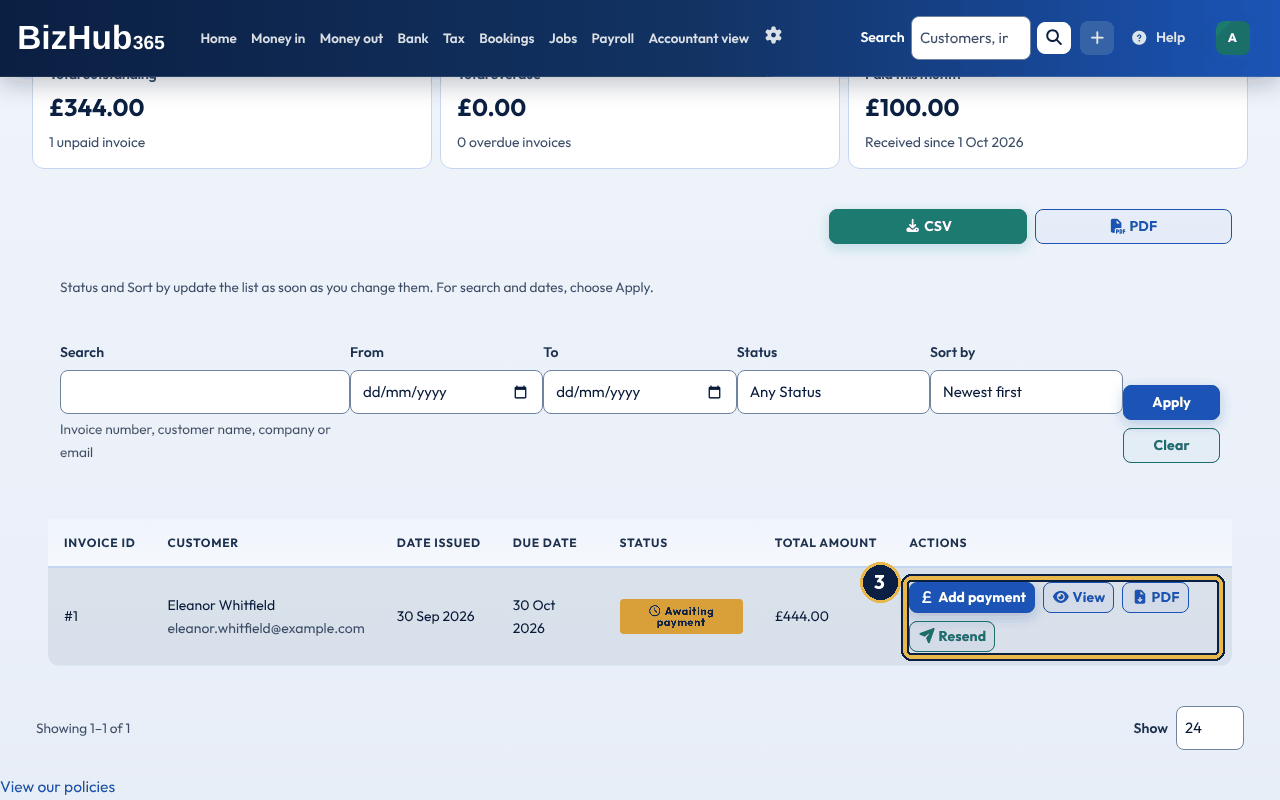
When it worked: The invoice opens, downloads or is queued to email, depending on the button.
Opening an invoice shows the customer's details, the invoice number, dates, the customer's reference, status, total and the payments received so far, the lines and time charges, the note, and the attachments, where you can add or remove photos and videos. Across the top are Download PDF, Edit Invoice, Add Payment (see Money in, credit notes, and statements), Delete Invoice and Lock Invoice or Unlock Invoice. An invoice that was saved without sending also has a blue box with Send to and the customer's email address.
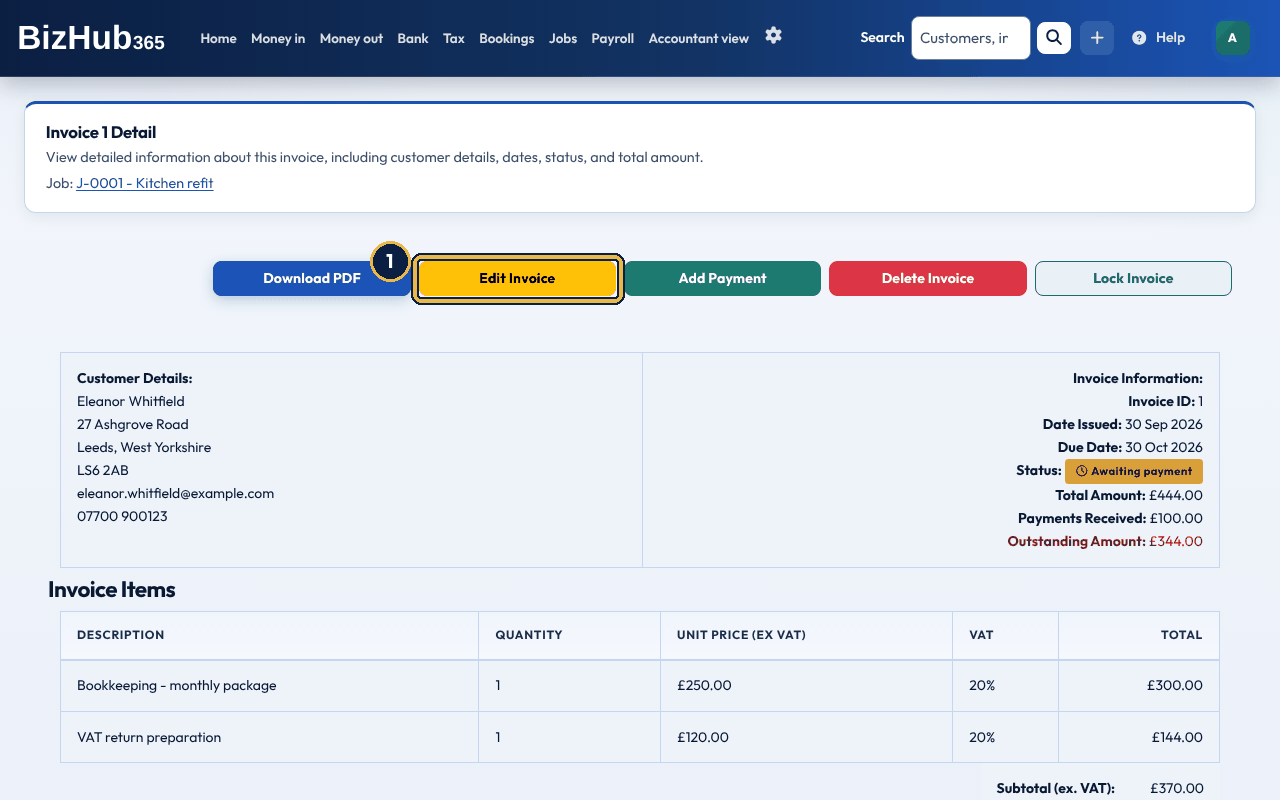
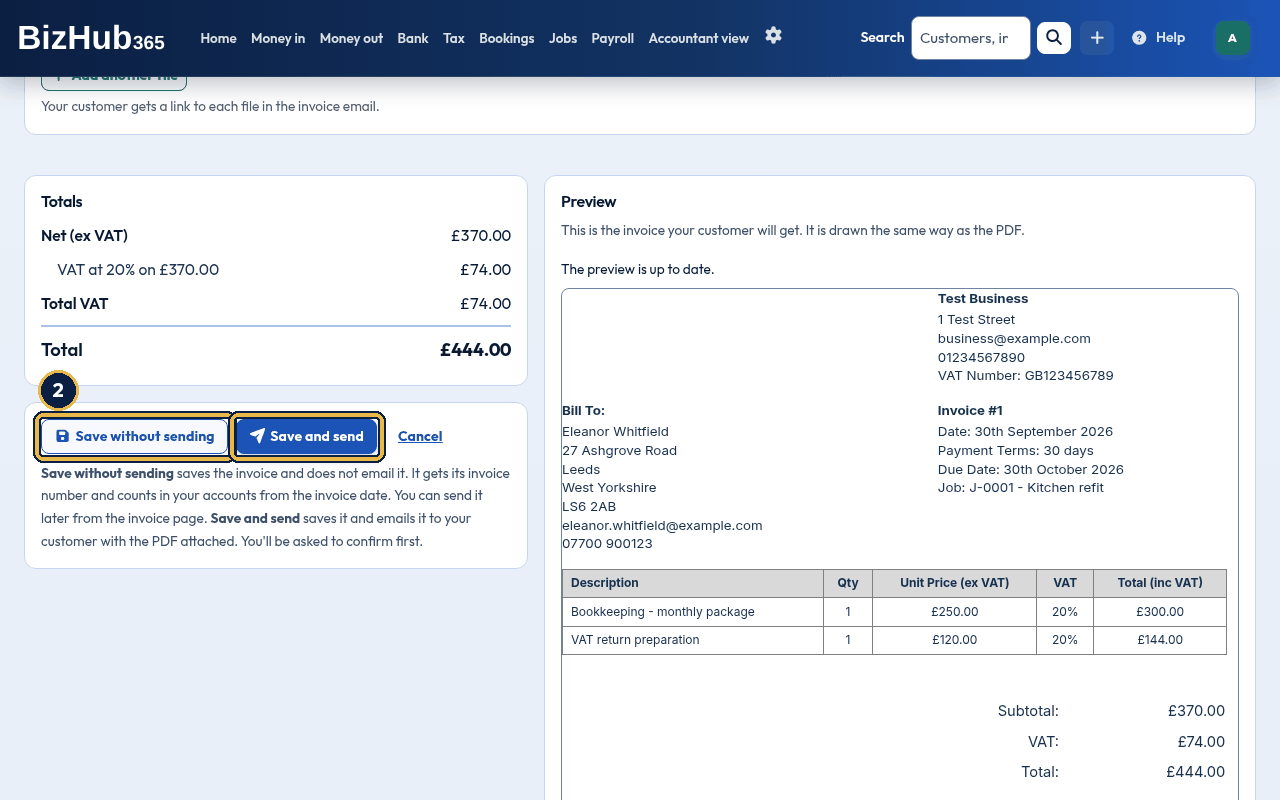
When it worked: The invoice shows the change, its journal is reposted for the new totals, and, if you sent it, the customer gets the Updated Invoice # email with the new PDF.
| If this happens | Do this |
|---|---|
| The form is read-only with a warning that the invoice is locked. | Choose Unlock Invoice on the invoice first. If it is in a submitted VAT return it cannot be unlocked; raise a credit note. |
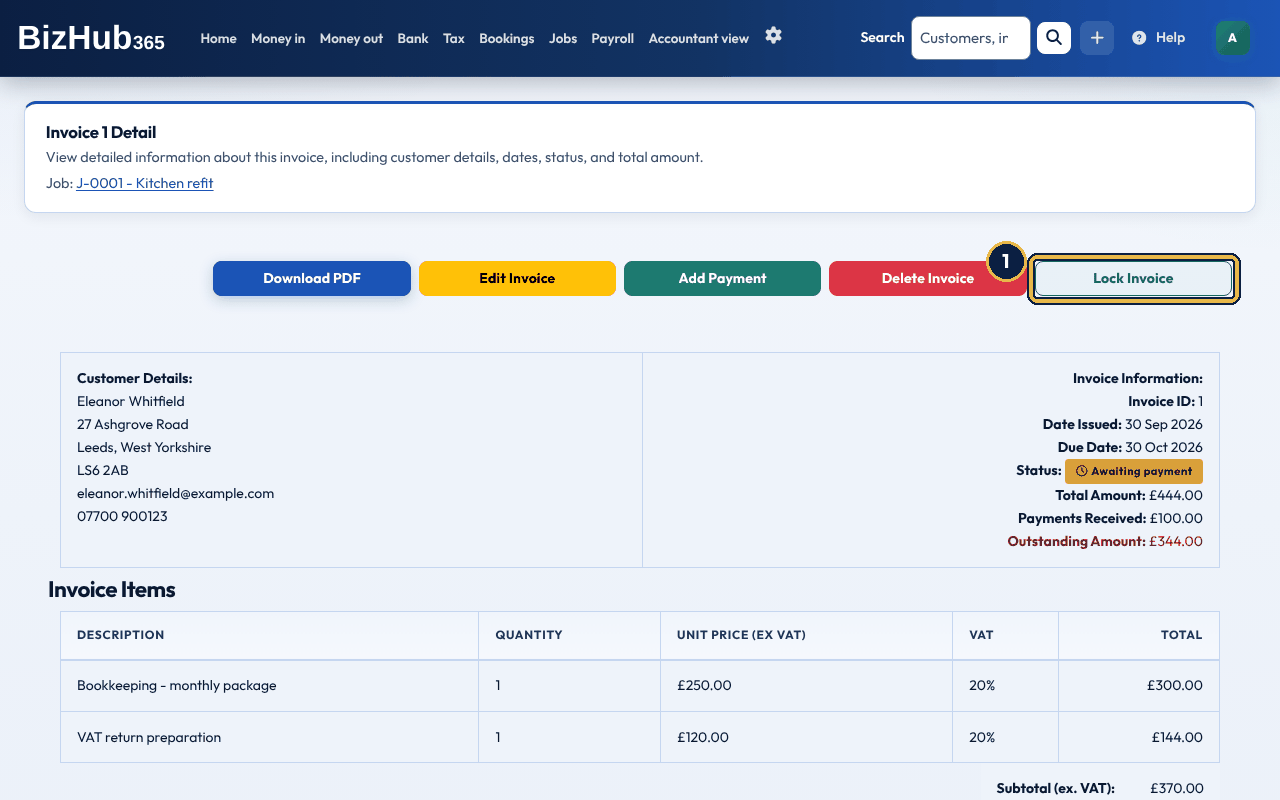
When it worked: The page says Invoice # and the number, locked or unlocked. While locked, Delete Invoice is greyed out and the edit form is read-only.
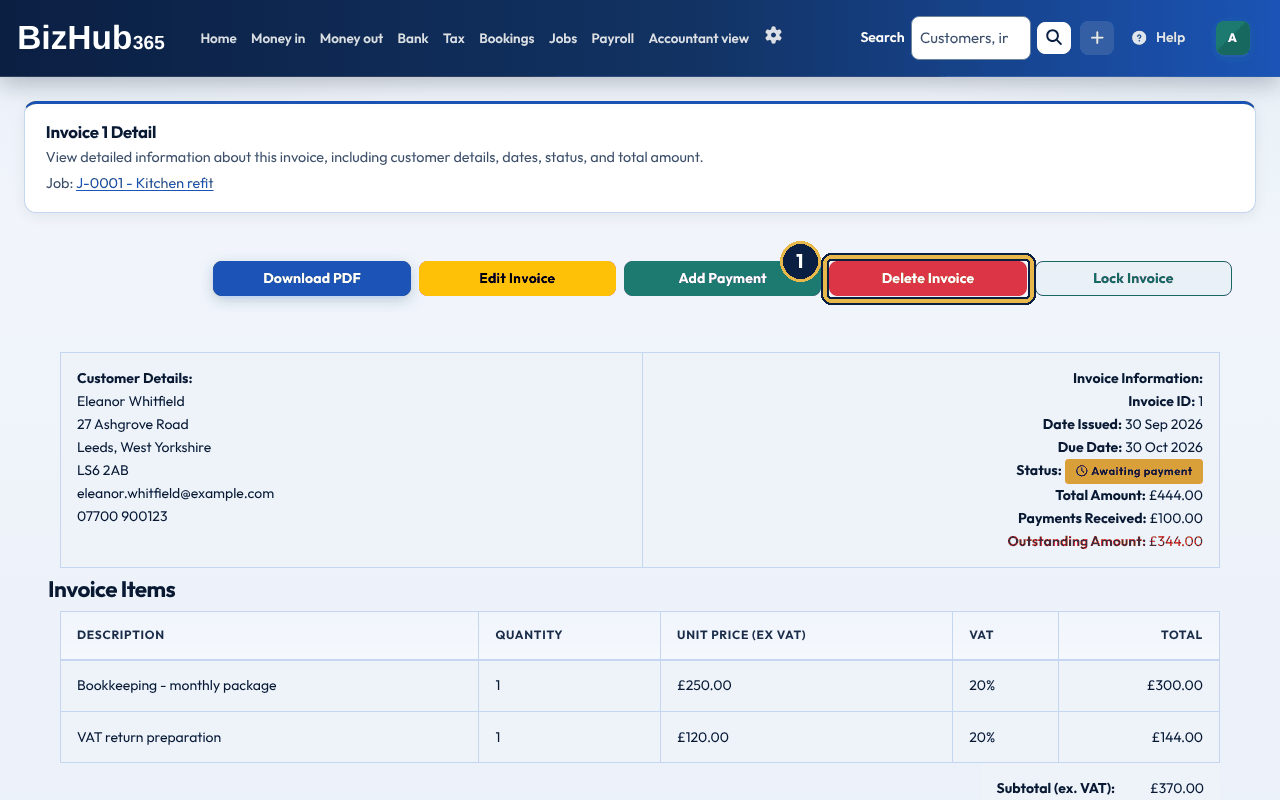
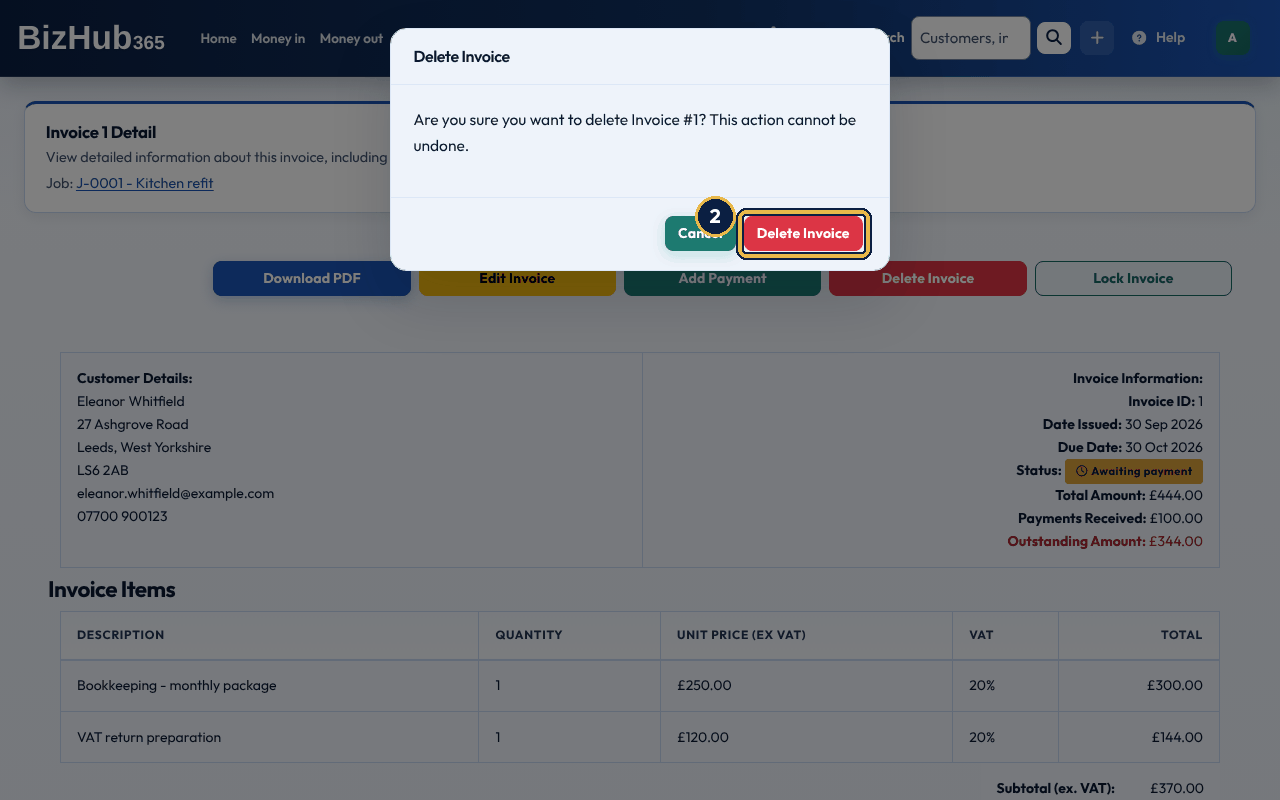
When it worked: The page says Invoice deleted successfully. Its journal is reversed and the customer is emailed an Invoice Cancellation Notice.
| If this happens | Do this |
|---|---|
| The message says the invoice has payments. | Delete the payments first from Money in → Money in (open the money in and delete its payment to this invoice), or keep the invoice and raise a credit note. |
| Delete Invoice is greyed out. | The invoice is locked. Unlock it first, unless it is in a submitted VAT return. |
BizHub365 can email upcoming, due-today, 1 to 3 days overdue, 7 to 14 days overdue, and a final notice. They are only sent for invoices your customer has been sent. See Money in, credit notes, and statements. When you have connected an online payment provider (Stripe Connect, PayPal, Square or GoCardless), invoice emails include a link where your customer can pay online.
If an email you send from BizHub365 bounces because the address does not exist, or the person reports it as spam, BizHub365 stops emailing that address. This applies to every email: invoices, quotes, receipts, reminders, payslips and the rest. It protects the delivery of your other emails. We email you once, at your business email address, naming the address that failed. After that, sending to it shows a message saying it was not sent. To fix it, correct the email address on the customer, supplier or employee, then send again. Emails go to the new address as normal. If the address was right and you think the bounce was a mistake, contact support and we can let mail through to it again.
Emails you send from BizHub365 to your customers, suppliers, employees and team, such as invoices, quotes, receipts, credit notes, statements, reminders, bookings, payslips, CIS statements and team invitations, carry your business name. When someone replies, the reply goes to the business email address in Business Settings, not to BizHub365, so keep that address up to date. If the business has no email address set, replies come to BizHub365 support instead.
Where to find it: Create (+)→Quote
Create a Quote has the Customer (a searchable list, with Add New Customer at the bottom), Job (optional) (while the Jobs section is on), Currency and Tax jurisdiction (when you trade abroad), the Quote Items lines with Add Line Item, the totals, your custom fields and attachments, and Save Quote. Saving does not email the customer. To send the quote, choose Resend (the paper plane) on its row in Money in → Invoices and quotes, Quotes tab: the customer gets the PDF and links to any files you attached. The quote is dated today and valid for 30 days.
Money in → Invoices and quotes, Quotes tab lists every quote with its customer, date, Valid Until and total; CSV and PDF export the list. Filter by Customer Name, Customer Email, From and To and choose Apply Filters. Each row has Convert to Invoice, View, PDF and Resend buttons until the quote is converted; then it shows View Invoice. Resend emails Quote Resend within ten minutes. A quote's own page shows its details and the Customer Response from the customer's job page, with Convert to Invoice, Start a job (or View job for the job it is on) and Delete Quote, which emails the customer a Quote Cancellation Notice.
When the customer accepts, convert the quote to an invoice. The customer, line items, totals, currency, tax treatment, job, and any custom fields used on both quotes and invoices copy across. You always choose the payment terms: Convert to Invoice in the Quotes list opens the quote's page with the payment terms window, as the button on the quote's page does. If your invoices have the CIS or Construction reverse charge parts, the window has them too (This is a CIS invoice to a contractor with the labour and CIS rate, and Domestic reverse charge (construction) with the customer's confirmation), so the invoice is right before it is emailed; the mobile app can send the same choices. If the labour is more than the total before VAT, nothing is converted and the quote's page says why. The new invoice is emailed to the customer, headed Invoice # with its number and your business name. Converting in the mobile app copies the same details. A quote can only be converted once. Customers can also accept or decline a quote from the customer's job page when you have shared that link, and BizHub365 reminds them about quotes you have sent them (with Resend) and they have not answered: three or more days after you last sent it, and again in the last two days before it expires. A quote you have not sent gets no reminders.
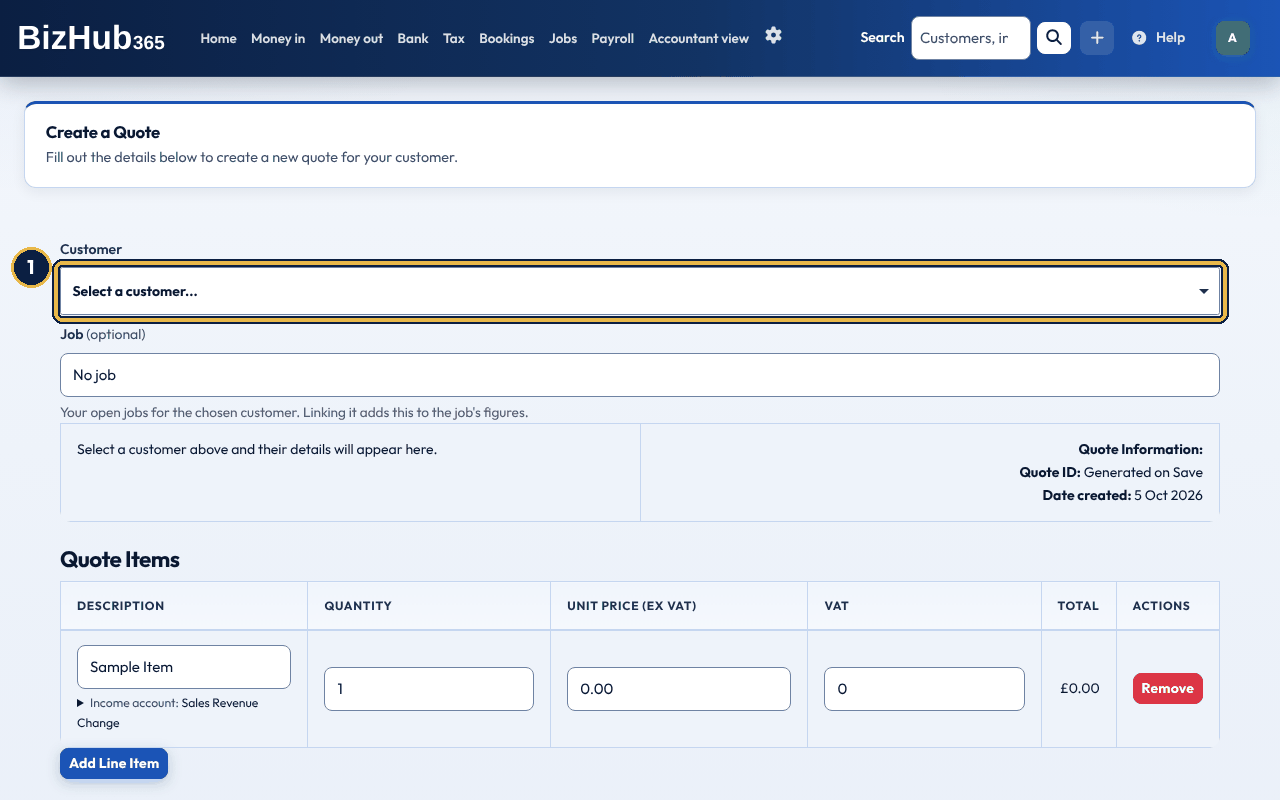
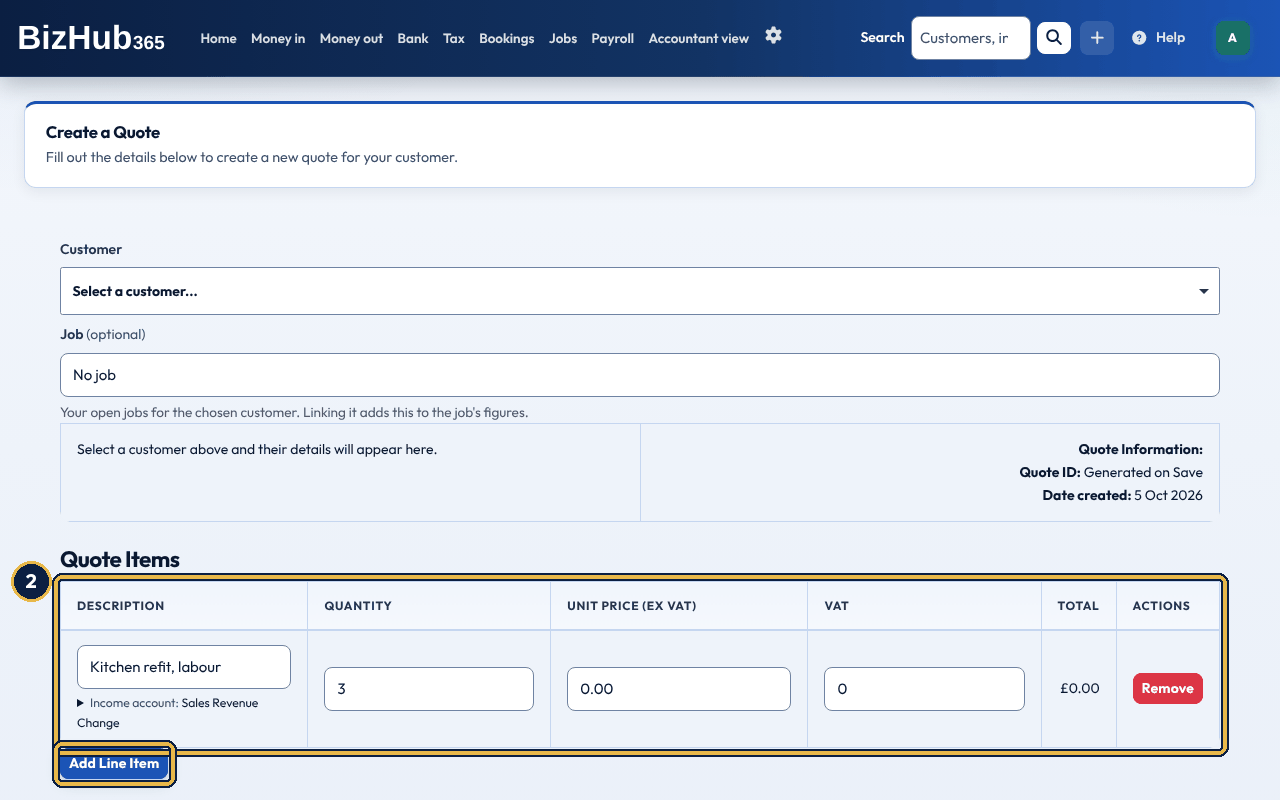
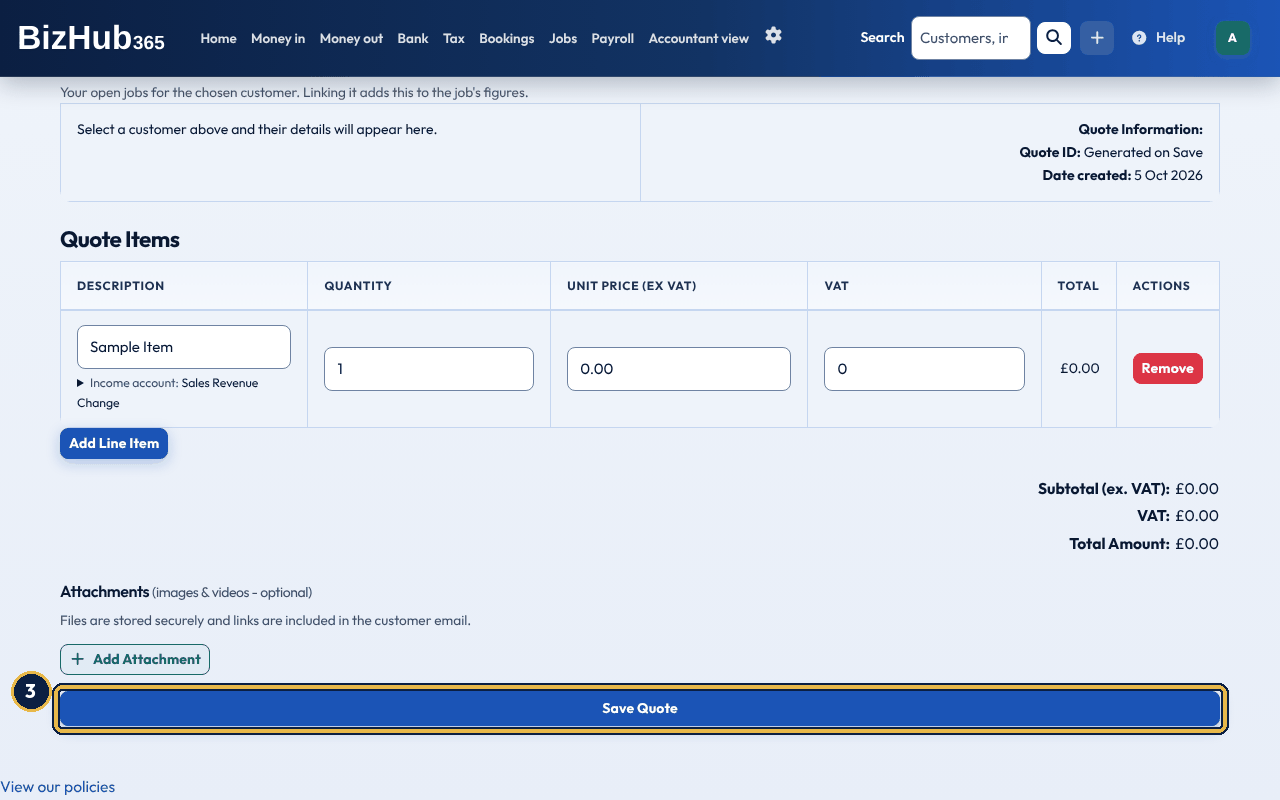
When it worked: The page shows Quote created successfully. It has not been emailed: choose Resend Email on the quote to send it to the customer. The quote appears in Money in → Invoices and quotes, Quotes tab, valid for 30 days. Choose Resend (the paper plane) on its row to email it to the customer with the PDF and links to any files you attached.
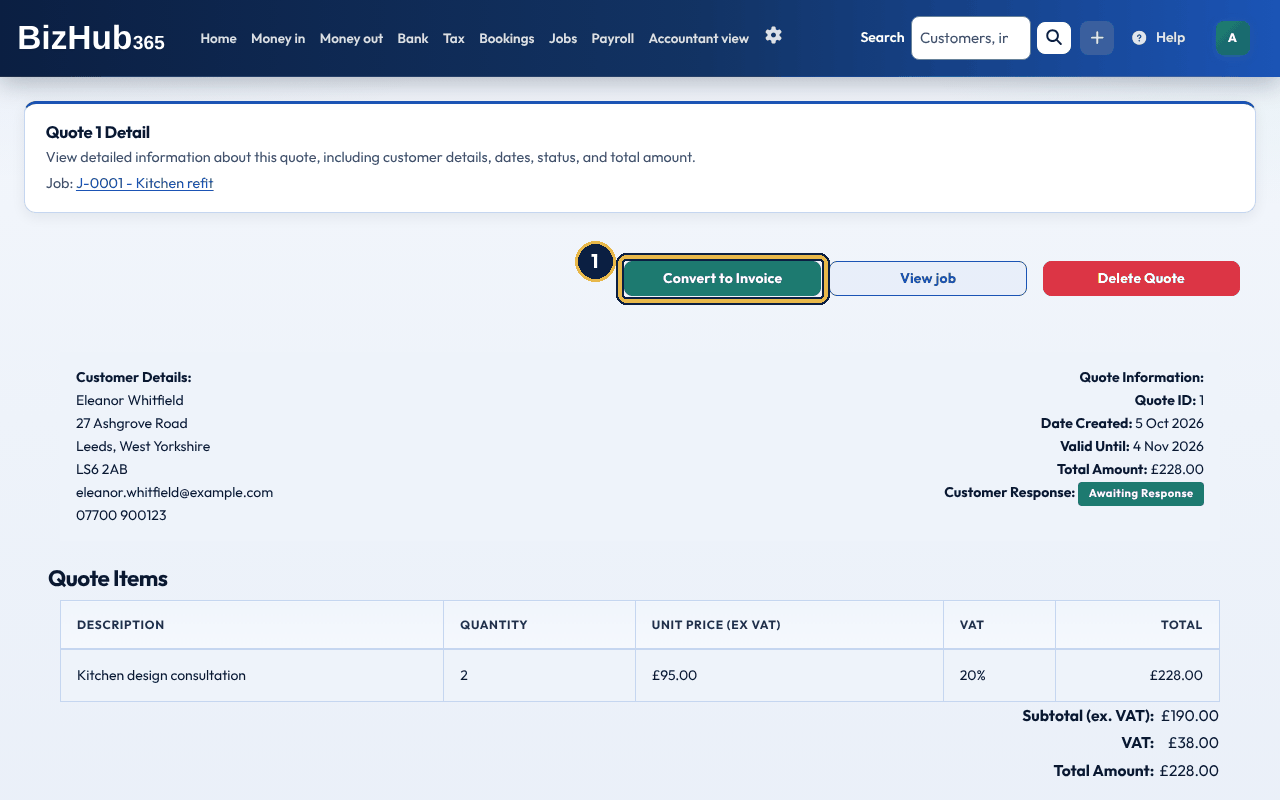
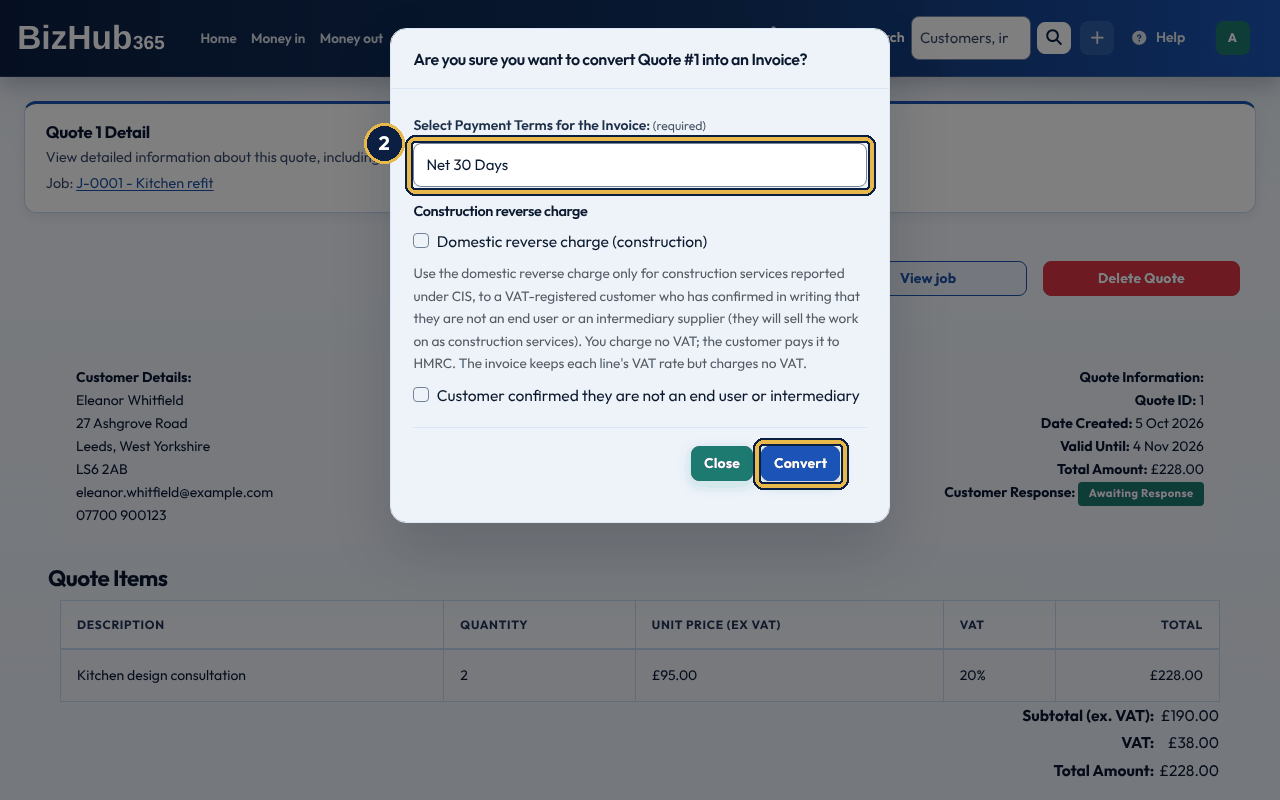
When it worked: The page says the quote was converted to an invoice with its number, the customer is emailed the invoice, and the quote's row in the list shows View Invoice.
| If this happens | Do this |
|---|---|
| There is no Convert to Invoice button. | The quote has been converted already. Use View Invoice. |
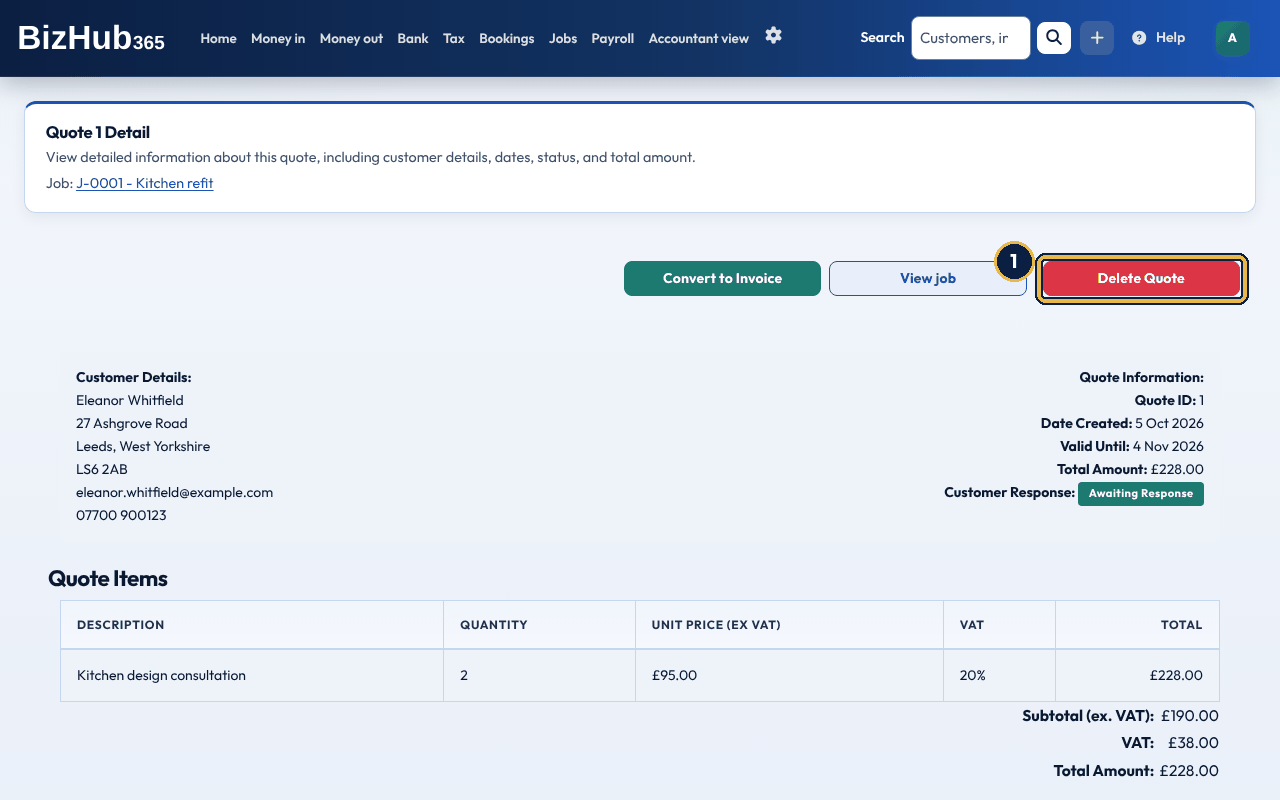
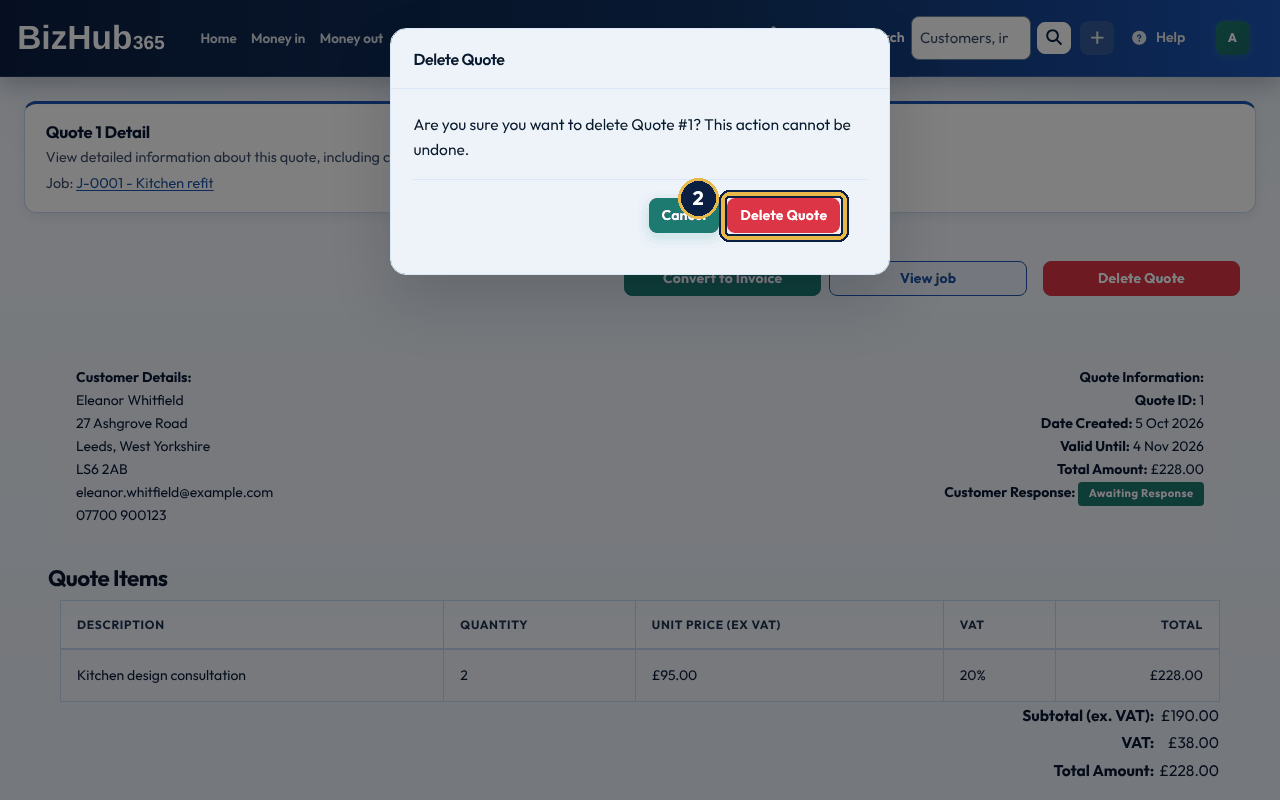
When it worked: The page says Quote deleted successfully. and the customer is emailed a Quote Cancellation Notice.
Where to find it: Money in→Recurring invoices
Use a recurring schedule for retainers, rent, or maintenance contracts. Each schedule is a template: early every morning, BizHub365 turns every schedule that is due into a real invoice, posts it to your books and emails it to the customer with the PDF, exactly as if you had created it by hand. If a run was missed it catches up. Create a Recurring Invoice has the Customer, Reference (your own label, optional), Frequency (Weekly, Monthly, Quarterly or Annually; Monthly to start with), Start Date (the first invoice date), End Date (optional; leave it blank for no end), Payment Terms, the invoice lines and time entries, custom fields, Notes and Payment Instructions (leave blank to use your business default). If your invoices have the CIS or Construction reverse charge parts, the recurring invoice form has them too, with the same boxes. Each invoice the schedule creates is raised with them: the CIS deduction is worked out from the labour and rate, and a reverse charge invoice charges no VAT. Edit the schedule to change them for the invoices still to come. Money in → Recurring invoices lists each schedule's reference, customer, frequency, next invoice date, end date and status, with Edit, Pause or Resume, and Delete, which asks you to confirm and does not affect invoices already sent.
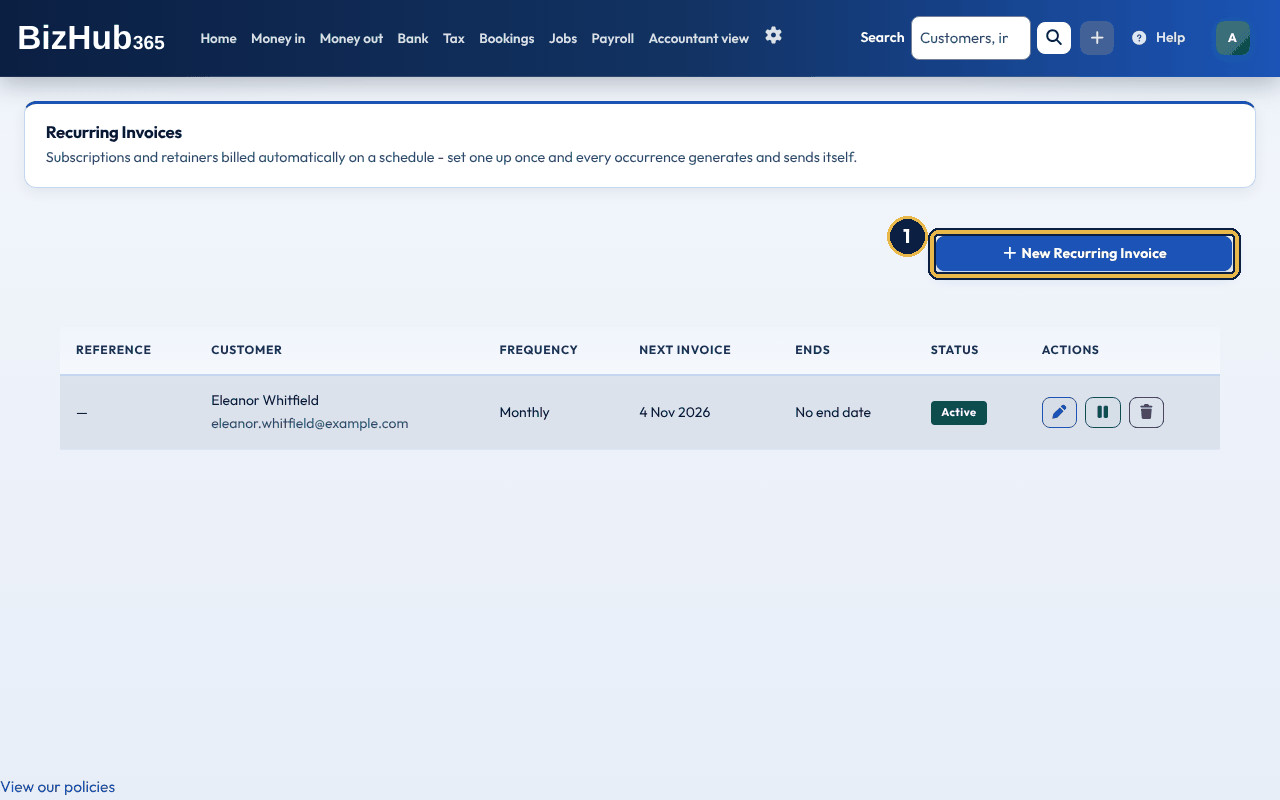
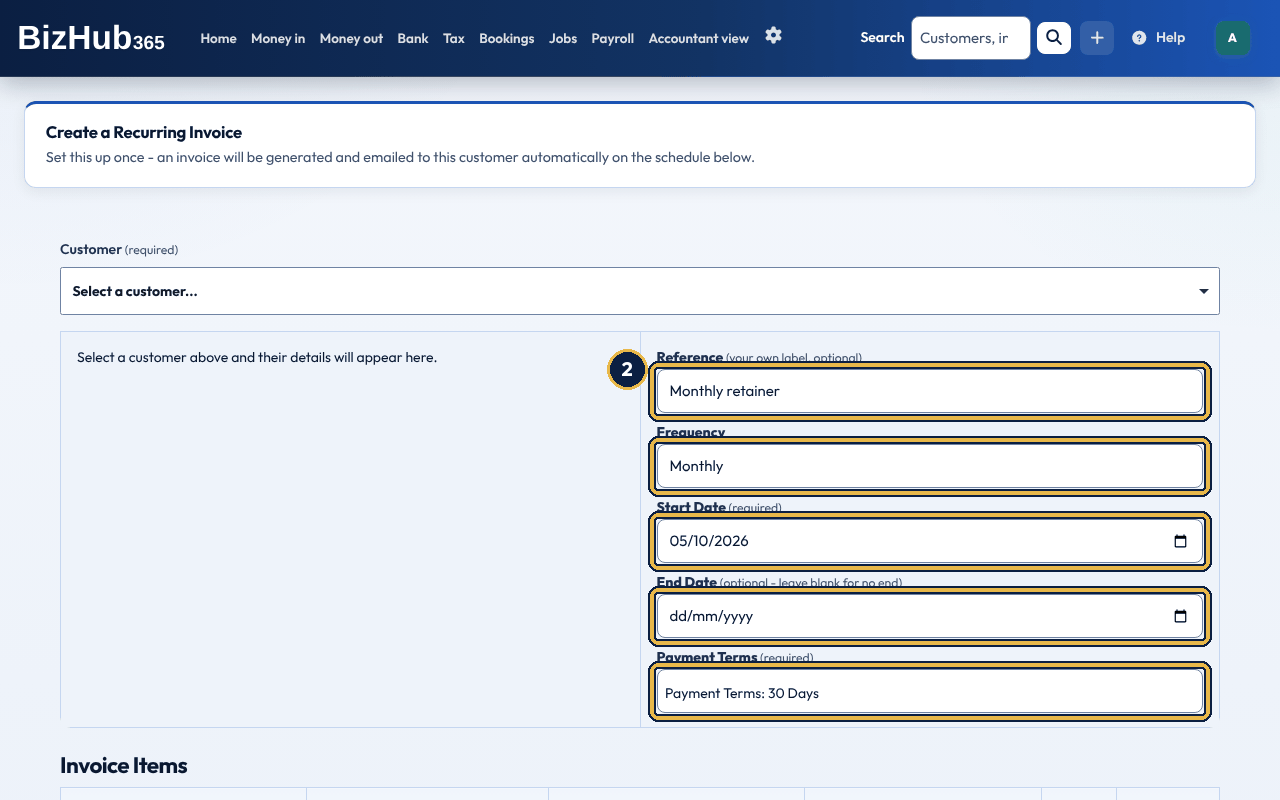
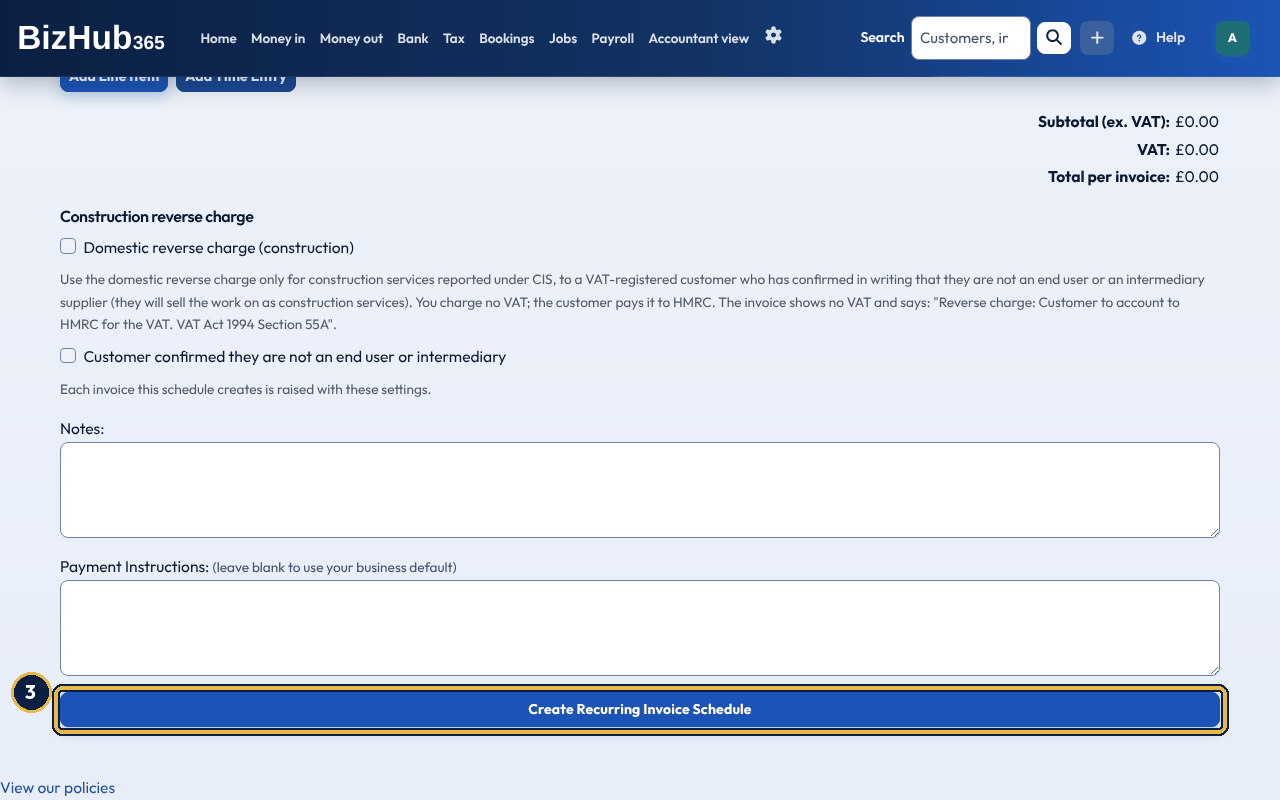
When it worked: The schedule appears in the list as Active with its next invoice date. On that date the first invoice is created and emailed.
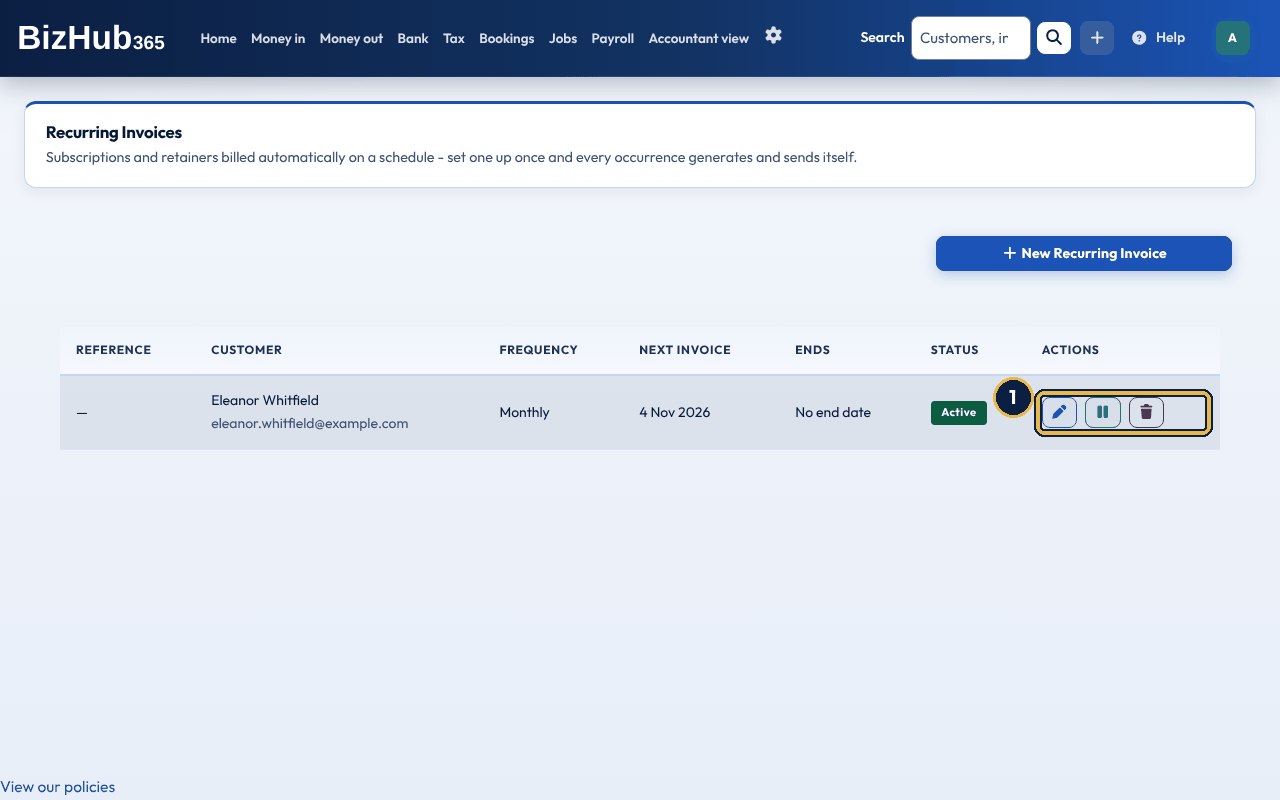
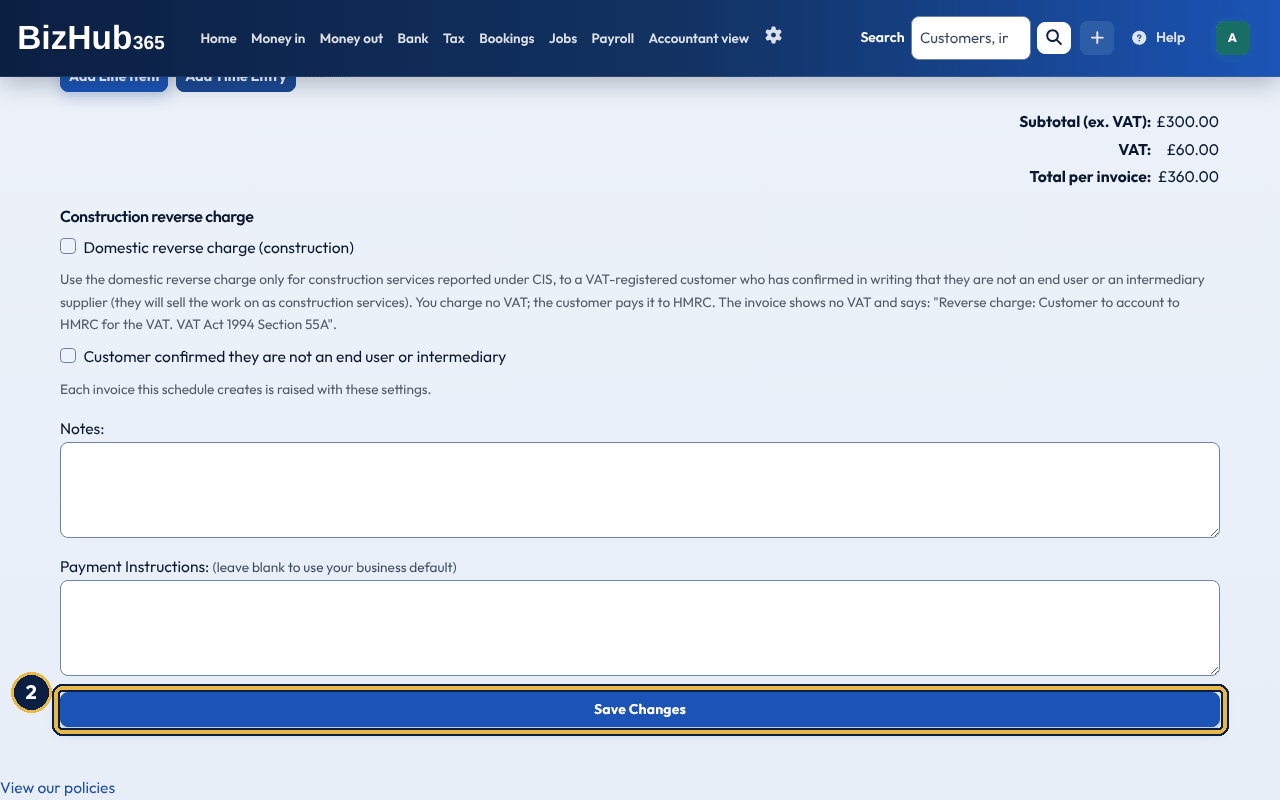
When it worked: The list shows the change. A paused schedule creates no invoices until you resume it; a deleted one is gone, and invoices it already sent are not affected.
Part III · Money · Chapter 13
Record money you receive and each day's till takings, match money to invoices, put money back with a credit note, and send a statement when a customer asks what they owe.
Where to find it: Money in→Money in
Money in is everything your business has received: payments from customers, other income with no invoice (such as a grant or a cash sale) and money that is not income (such as your own money paid in, or a loan). It replaced the old Payments received and Unallocated receipts pages; links to them open Money in. It is also a tab beside Invoices and Quotes. Money arrives in your books in three ways: Add Payment on an invoice, Record money in on the Money in page, or Record as money in and Apply To Invoice on a bank line (see Banking and reconciliation). Recording, changing, matching, deleting and locking need the Edit permission; anyone in the business can see the list.
On the invoice, Add Payment opens a window with Payment Amount, Payment Method (Credit Card, Bank Transfer, Cash, Cheque or Other) and Payment Date. The Add payment button on an unpaid invoice's row in Money in → Invoices and quotes opens the invoice at that window. The Payment Date starts at today and can be changed to an earlier day, but not a later one. A date in a VAT period you have already submitted to HMRC is refused. The customer is emailed Payment Received. Part payments are kept, and the invoice shows what is still owed until payments cover its total, when it shows as Paid.
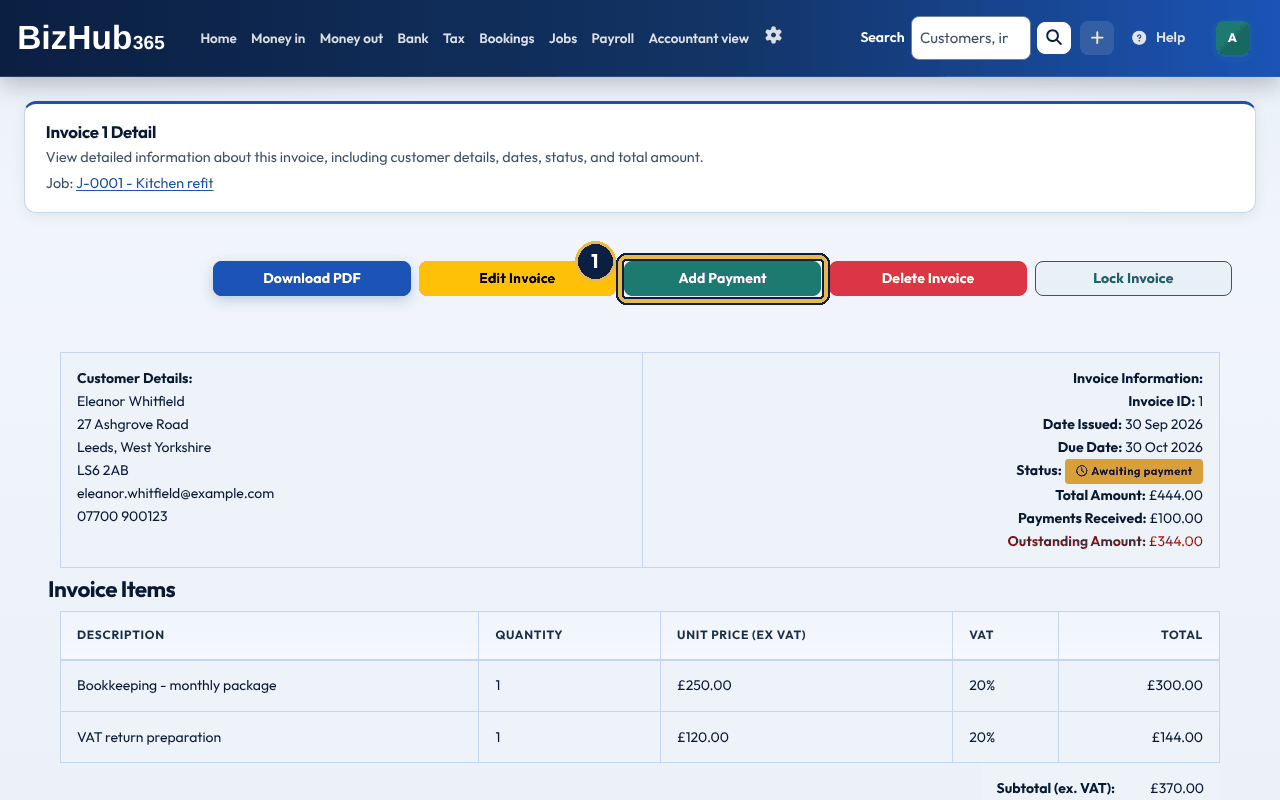
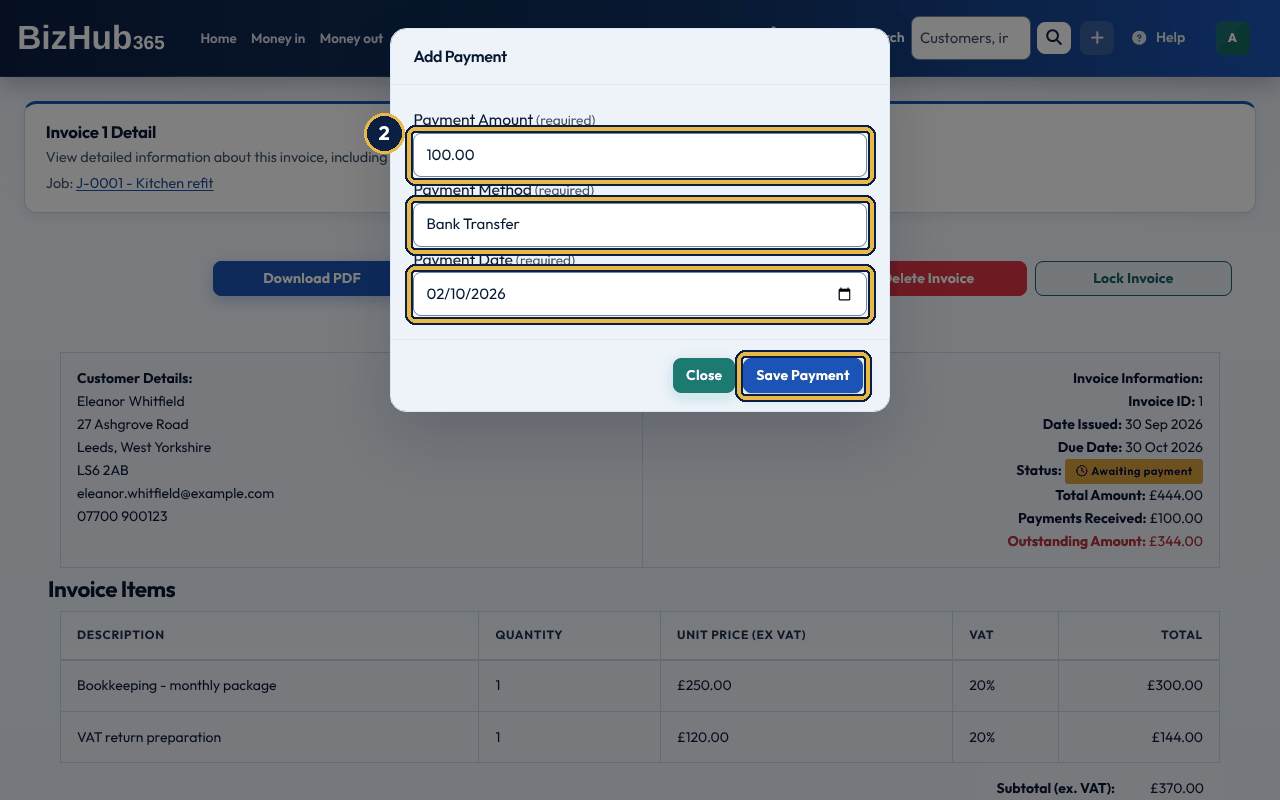
When it worked: The invoice shows the payment and what is still owed, or Paid. The customer is emailed Payment Received, and the money is listed in Money in → Money in.
| If this happens | Do this |
|---|---|
| The amount is more than is owed. | Record what was actually paid. An overpayment can be held for the customer as a credit note. |
If you work in construction as a subcontractor, the contractors you invoice take CIS tax off your labour before they pay you, and pay it to HMRC for you: 20% if you are registered for CIS, 30% if you are not, and nothing if you have gross payment status. VAT and materials are never taxed under CIS. To use it, choose your status under CIS status as a subcontractor in Settings → Business Settings (it is there when the CIS section is on). Your invoices then have a CIS (Construction Industry Scheme) part: tick This is a CIS invoice to a contractor, type the Labour, before VAT (leave it empty if the whole invoice is labour; the rest of the total before VAT is materials) and check the CIS rate, which starts at the rate for your status. The invoice total and its VAT don't change. The totals, the invoice page and the PDF also show the labour, the materials, the CIS deduction and the Amount due after CIS, which is what the contractor pays you. Everything that asks the contractor for money asks for the amount due after CIS, less anything they have already paid, never the full total: the online payment page and its Pay buttons (the page also shows the CIS deduction), the invoice email, payment reminders, the part payment email and the client portal. Once only the CIS is left, there is nothing to pay online and no more reminders are sent; record the CIS when the contractor's statement arrives. A CIS deduction you have already recorded is never taken off twice.
When the contractor pays, Add Payment on a CIS invoice has a second box, CIS taken off by the contractor, filled in with the CIS not yet recorded, and the Payment Amount starts at the money still to come. Check both against the contractor's payment and deduction statement and choose Save Payment. In Record money in, a CIS invoice in the customer's list has the same CIS taken off by the contractor box under its Amount to match. The payment and the CIS taken off together can't be more than is owed. The money and the CIS together settle the invoice. The CIS is kept as 1120 CIS tax suffered, which HMRC sets against your Income Tax; it is not an expense and not money received, so it is not in your cash figures. Your sales for Income Tax are the full invoice before CIS was taken off, and your VAT return is on the whole invoice. The year's total is on the Tax page as CIS taken this year. To correct the CIS, delete that CIS payment from the invoice and record it again.
Since 1 March 2021, most building and construction services reported under CIS, sold by one VAT-registered business to another, use HMRC's VAT domestic reverse charge: the supplier charges no VAT and the customer pays it to HMRC instead. It does not apply when the customer is an end user (they use the work themselves) or an intermediary supplier (connected to the end user and not selling it on); get the customer's written confirmation that they are neither before you use it, and keep it. HMRC's guidance is VAT Notice 735. If you are VAT registered and the CIS section is on (or you have a CIS status as a subcontractor), your invoices have a Construction reverse charge part: tick Domestic reverse charge (construction), and tick Customer confirmed they are not an end user or intermediary once they have. Keep the VAT rate on each line: the invoice charges no VAT and its total is the amount before VAT. The totals, the invoice page and the PDF say Reverse charge: Customer to account to HMRC for the VAT. VAT Act 1994 Section 55A and, for each rate, the VAT the customer accounts for, for example VAT at 20% of £1000.00 (£200.00) to be accounted for by the customer. A reverse charge invoice must be in pounds. On your VAT return the sale goes in Box 6 only, with nothing in Box 1. If you use cash accounting it goes on the return for the invoice date, paid or not, because reverse charge sales are outside the cash accounting scheme. On the Flat Rate Scheme it is left out of your flat rate turnover. Your sales for Income Tax are the invoice total, as usual. With cash accounting, money a customer paid before you raised the reverse charge invoice counts as standard-rated sales while it waits to be matched. When you match it to the reverse charge invoice, that VAT comes off (on a later return if the earlier one was already sent), so the money ends up with no VAT and the invoice is in Box 6 once. A credit note against a reverse charge invoice carries no VAT either: its whole value is the amount before VAT, and the credit notes list and the email to the customer show the same reverse charge wording. Recurring invoices have the same reverse charge tick (see Recurring invoices). Quotes don't, because a quote is not a VAT document: tick it in the Convert to Invoice window instead, and the invoice is raised with no VAT.
Where to find it: Money in→Money in
The list shows, newest first, the date the money was received, who it was from and its reference, what it is (for a customer's payment, the invoices it paid), how it arrived and where it went in, the amount, how much is still To match, and a Lock status: Unlocked, Locked (locked by hand) or a VAT return badge. Two tabs: All, and To match (with a count), which lists customer money with some of it not yet matched to an invoice. Filter by From and To dates, Customer and What it is, or search by reference, customer, amount or invoice number, then choose Apply. Clear removes the filters. CSV and PDF export what the list is showing. View opens the money's own page: how it arrived (and the bank line, if it came from one), the income or the invoices it paid, and its actions. On the To match tab, Match opens it at Match to an invoice.
Record money in at the top of the list opens a form in three parts. Everything is labelled and works with a keyboard and a screen reader; the parts that don't apply are hidden as you choose, and all of them show if your browser runs no scripts.
| Part | What to enter |
|---|---|
| The money | Date received (today or earlier; not in a VAT period you have already sent to HMRC), Amount received, an optional Reference, How it was paid (cash, card, bank transfer, cheque, online payment, voucher or other) and Where it went in: one of your bank accounts, or Cash on Hand for cash you kept. Choosing Cash moves it to Cash on Hand for you. |
| What is this money? | Payment from a customer, Other income, Refund from a supplier (see Refunds from suppliers) or Not income. |
| If it is a payment from a customer | The Customer, then their invoices with money owed, each with an Amount to match (Pay all fills in what is owed). Choose Show open invoices if the list doesn't appear by itself. Matched to invoices and Left to match later add up as you type. Anything left over waits on the To match tab; the customer can be left as Not known yet. |
Each invoice amount must be no more than is still owed on it, and together they can't be more than the amount received. If something needs fixing, the form comes back with There is a problem at the top listing each problem (each links to its box), and what you entered is kept. The invoices it pays are marked part paid or paid, with payments dated on the day the money was received. Recording money in here sends the customer no email unless you ask for one (Add Payment on the invoice always does).
For a payment from a customer who has an email address, the form has Email the customer a receipt under the invoices. It is not ticked to start with. Tick it and the customer is emailed a receipt when you choose Record money in (or Save changes): the amount and date received, the reference, how much went to each invoice and anything held on account. It uses your Payment Email branding, and replies go to your business email address. To send one later, open the money's page and choose Email receipt, then confirm. The button only shows for a customer's payment when the customer has an email address. If the address has bounced before, nothing is sent and a message tells you to correct it on the customer's record.
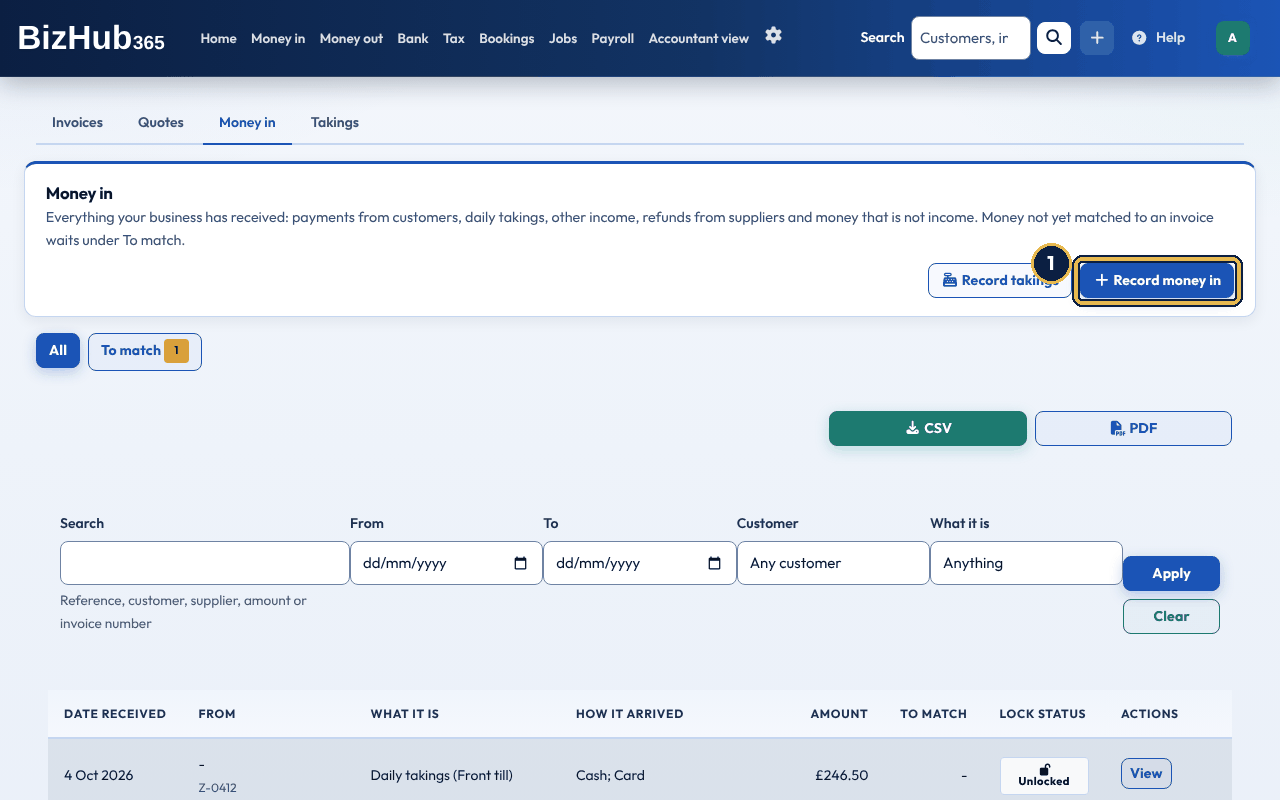
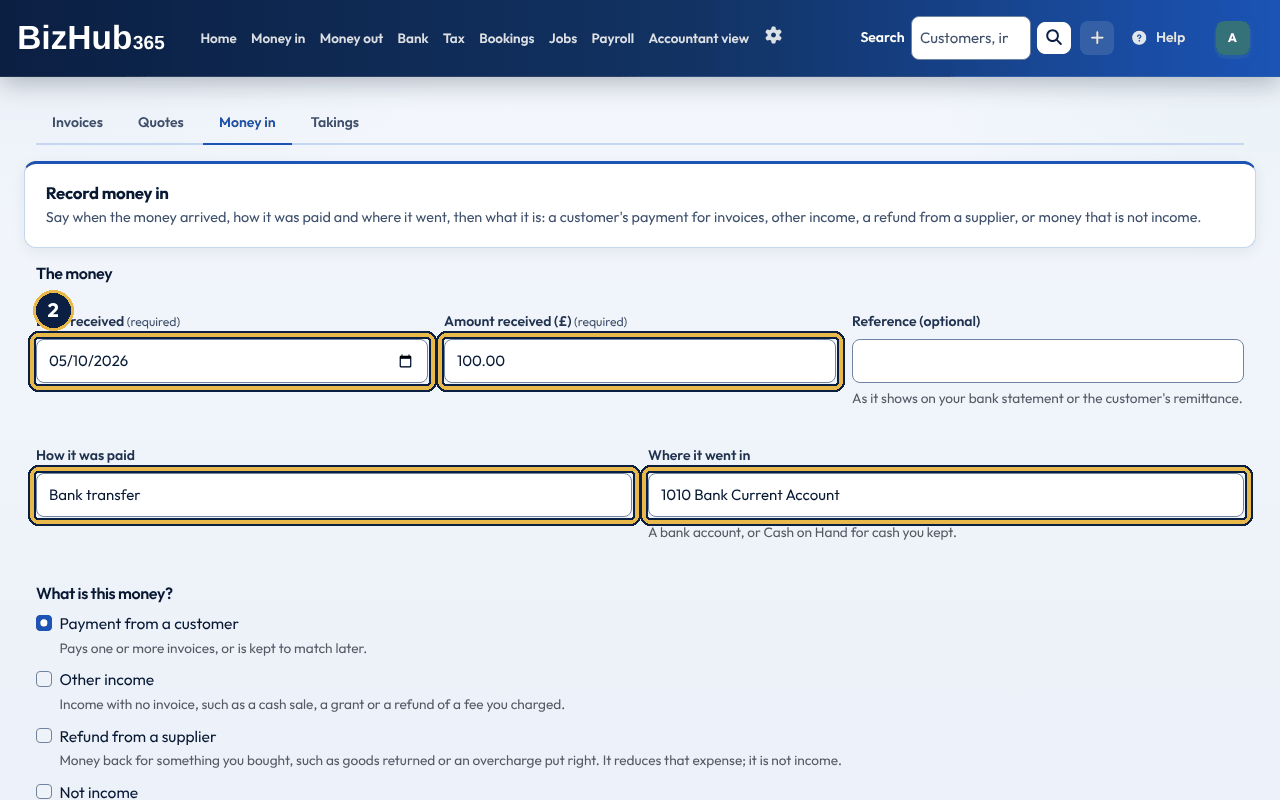
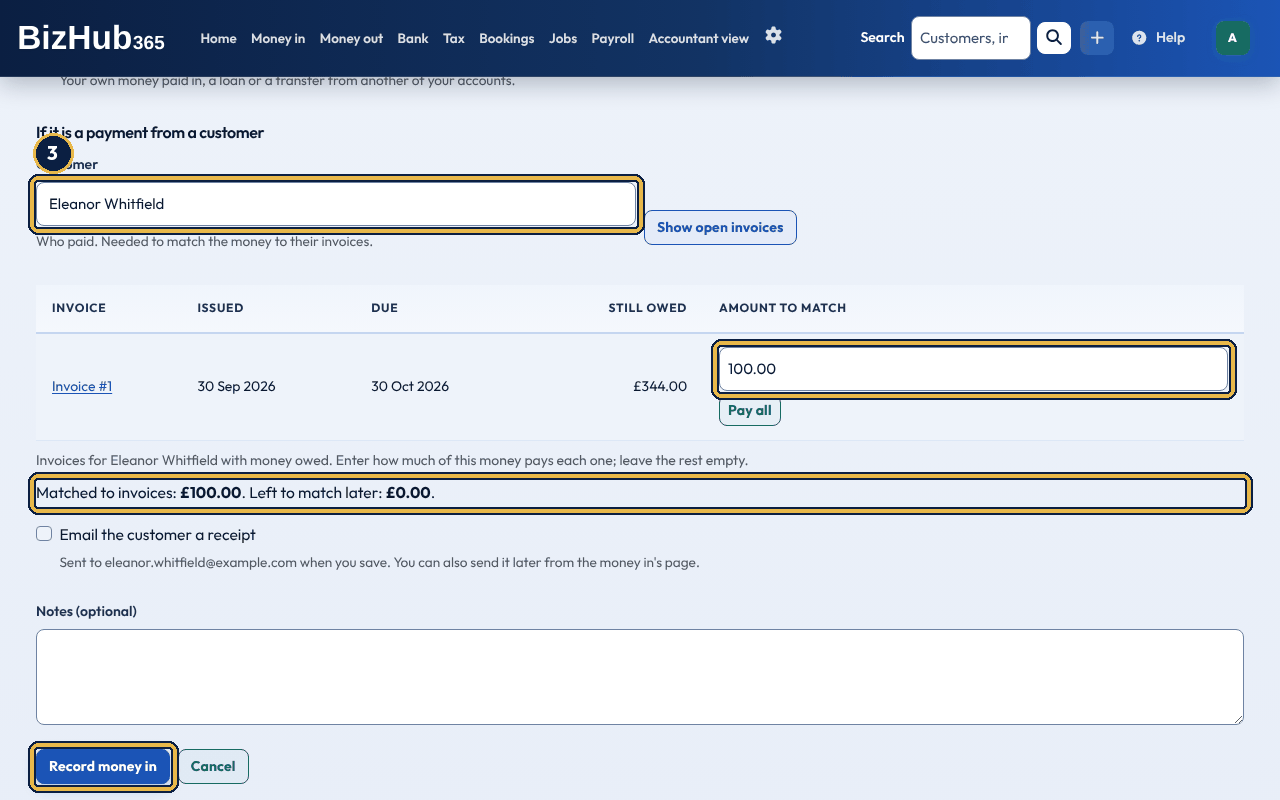
When it worked: The page says Money in # with its number and recorded, and shows the money's page. The invoices it paid show the payments, and any money left over is on the To match tab.
| If this happens | Do this |
|---|---|
| There is a problem appears at the top. | Choose each problem to go to its box, fix it, and choose Record money in again. Usually an amount is more than is owed on an invoice, or the invoices add up to more than was received. |
| The customer's invoice is not listed. | Only invoices with money still owed, in the same currency, are listed. A paid invoice needs a credit note or a refund instead. |
Choose Other income for income with no invoice: a cash sale, a grant, commission, an insurance payout or interest. Choose the Income account, add a description if you like, and say what it is For Income Tax: Sales (turnover) or Other business income. Other business income is sent to HMRC separately from your turnover in your quarterly updates. If you are VAT registered, choose the VAT on it. The amount received includes the VAT, and the form shows how it splits:
| VAT | What happens |
|---|---|
| Standard rate (20%) | One sixth is VAT. The VAT goes in box 1 of your VAT return and the rest in box 6. |
| Reduced rate (5%) | One twenty-first is VAT, in box 1; the rest in box 6. |
| Zero rate (0%) | No VAT. The whole amount goes in box 6. |
| Exempt | No VAT. The whole amount goes in box 6. |
| Outside the scope of VAT | No VAT, and in no box (for example a grant or an insurance payout). |
It counts in the VAT return and Income Tax period of the date it was received, on either basis. If you are not VAT registered there is no VAT choice, and the whole amount is income.
Choose Not income for money that comes in but isn't earned: Your own money paid in, A loan received, or Something else, such as a transfer from another of your accounts. It is left out of your sales, your Income Tax figures and your VAT return. Your own money goes to Owner's capital introduced, which is added to your accounts the first time you need it. A company has no owner's capital: choose the account instead, such as a director's loan account. For a loan or anything else, choose the Account it goes to.
Choose Refund from a supplier when a supplier pays money back for something you bought: goods returned, an overcharge put right, a deposit or a cancelled order refunded. It is not income, so it is never counted as sales. It reduces what that expense cost you: in your Income Tax figures it comes off the same expense category (in the period you received it, on either basis), and in your Profit and Loss it shows as less cost under the expense account, not as income. Choose the Supplier if they are on your supplier list, then choose Show their expenses (the list fills in by itself if your browser runs scripts) and pick the Expense it refunds: their expenses from the last two years with something left to refund, each showing how much is left. The refund then follows that expense's category and VAT, and it can't be more than is left to refund on it. With no expense chosen, choose the Expense category (the same list as Add Expense) and, if you are VAT registered, the VAT given back. The expense list shows Refunded with the amount and date under each expense refunded (each links to the money in), and what it cost after refunds. If you are VAT registered, the amount received includes the VAT you reclaimed on the purchase, and that VAT is given back: the VAT and the amount before VAT come off boxes 4 and 7 of your VAT return for the period you received it, never boxes 1 and 6. A refund of a purchase with no VAT reclaimed on it (outside the scope of VAT, or a construction reverse charge purchase) gives no VAT back. On the VAT Flat Rate Scheme you reclaimed no VAT on most purchases, so none comes off box 4 and the whole refund comes off the expense, except for a capital purchase of 2,000 pounds or more. If you are not VAT registered there is no VAT choice and the whole amount comes off the expense. A refund that reached your bank is easiest to record from the bank line: Record as money in fills in the date, the amount and the bank account (see Money in from your bank). A refund is never takings, so the takings warning there needs no tick. Change or delete a refund from its Money in page as any other money in.
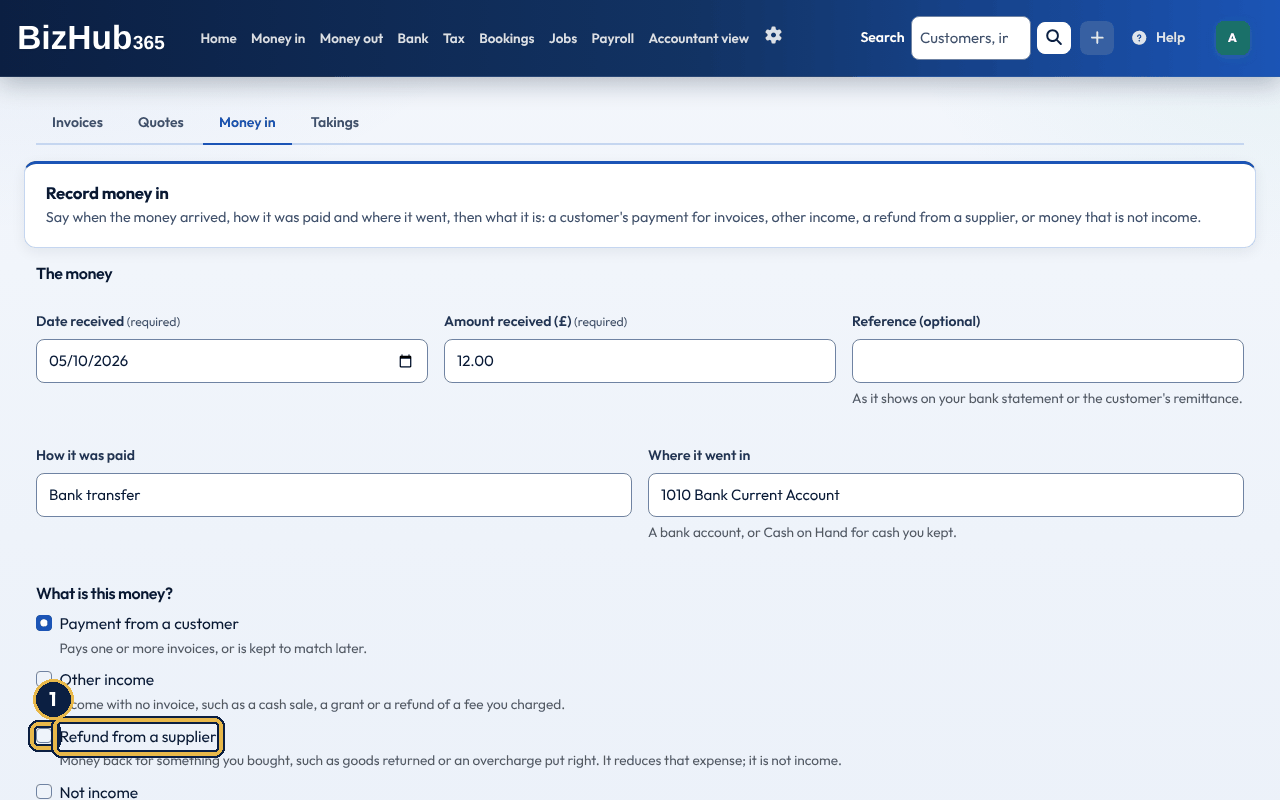
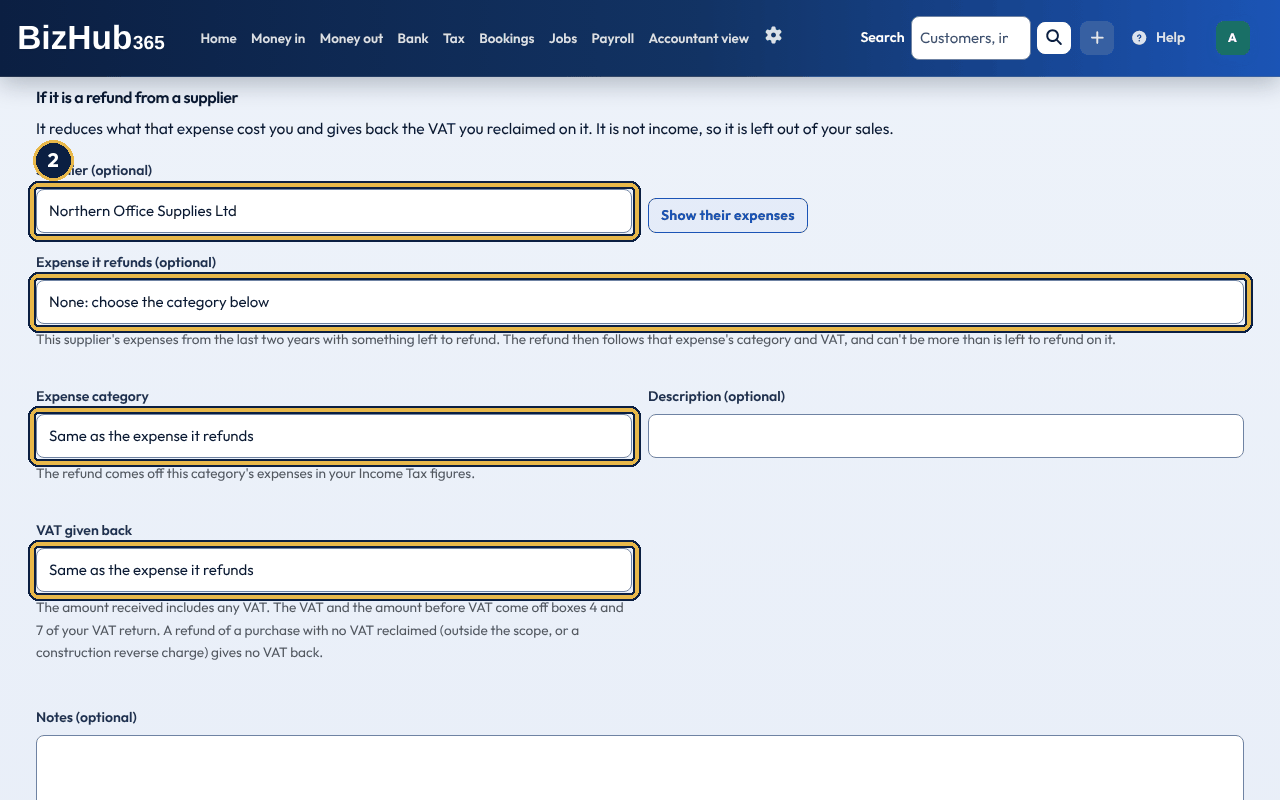
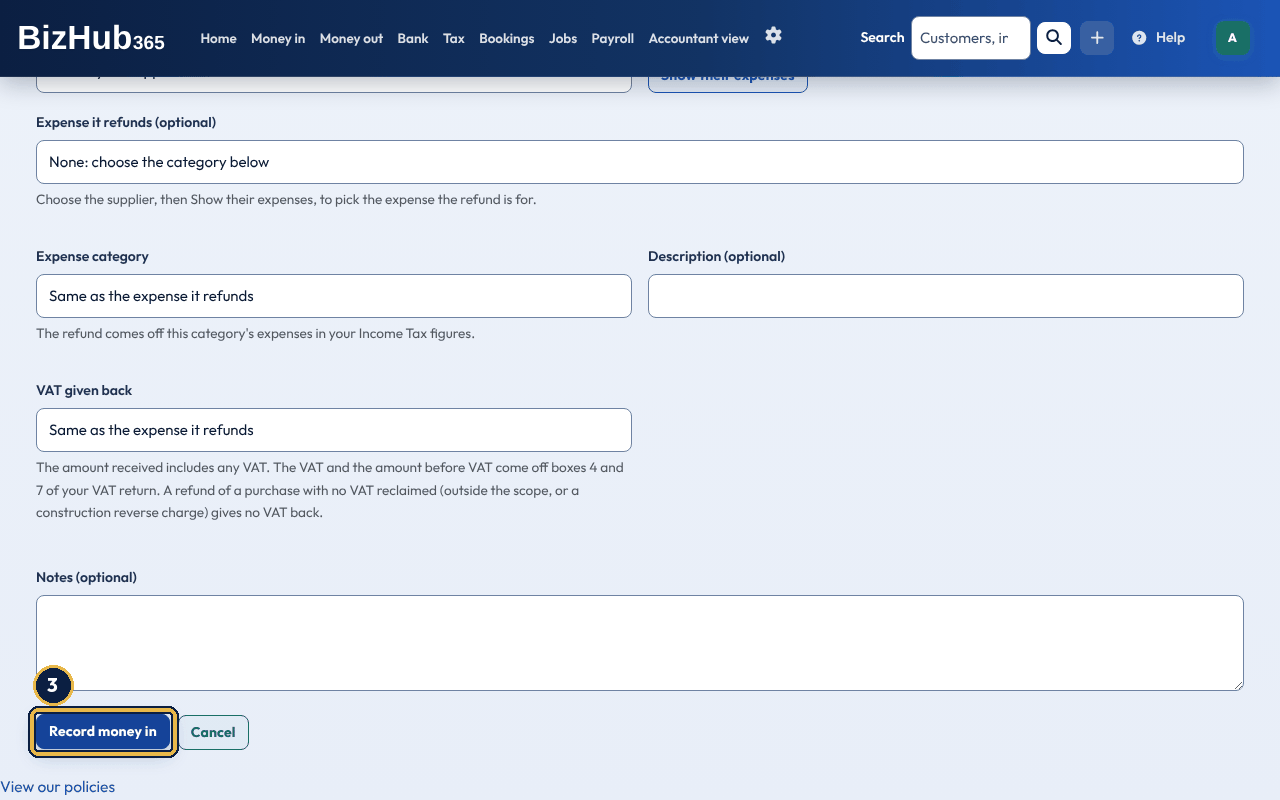
When it worked: The page says Money in # with its number and recorded, and shows the refund with The expense it reduces. The expense list shows Refunded under the expense it refunds.
| If this happens | Do this |
|---|---|
| That is more than is left to refund on expense # appears. | The expense has already been refunded in part. Check the amount, or leave the expense as None and choose the category instead if the refund also covers something else. |
| The expense is not in the list. | Only the supplier's expenses from the last two years with something left to refund are listed. Choose the category instead. |
On the money's page, Change opens the same form. Saving undoes what it recorded (its payments to invoices and its entry in your books, which are reversed so your audit trail keeps both) and records it again as you set it; it keeps its number. Money from a bank line keeps its bank line, amount and bank account. Lock protects it from changes (Unlock lifts it). Money in a VAT return that has been locked or submitted to HMRC is locked for good, and so is money with a payment in such a return. Delete asks you to confirm, deletes its payments and reverses its entries; a bank line it came from goes back to Transactions to sort. Under Invoices it paid, each payment has Receipt (a PDF), Delete, Lock or Unlock, and a paperclip for documents. Deleting a payment matched later puts the money back on To match; deleting one recorded with the money takes it off the money in. Documents at the top attaches files to the money in itself. Money recorded with more than one payment method or line elsewhere can't be changed here; delete it and record it again instead.
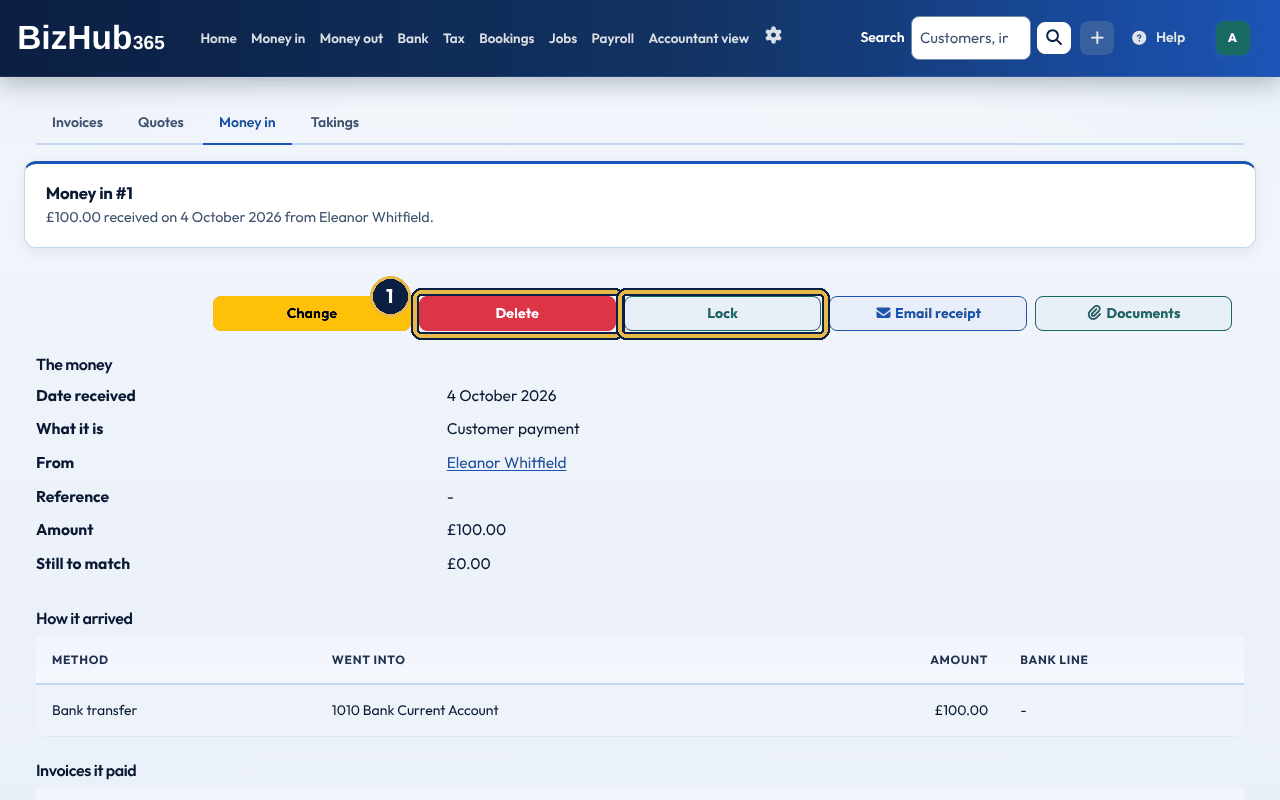
When it worked: The page confirms it was locked, unlocked or deleted. Deleting reverses its entries, and the invoices it paid show as owed again.
| If this happens | Do this |
|---|---|
| Delete is greyed out. | It is locked. Unlock it first; money in a VAT return that has been locked or submitted cannot be deleted at all. |
Where to find it: Money in→Money in
Money from a customer that isn't matched to an invoice yet (once called an unallocated receipt) waits on the To match tab: a bank line recorded without an invoice, or money left over after the invoices it paid. When nothing is waiting, the tab says Nothing is waiting to be matched to an invoice. On the money's page, Match to an invoice lists the customer's invoices with money owed (every customer's, if no customer was chosen). Choose the invoice and the amount, then Match. Money can be split across more than one invoice: match part of it, and the rest stays to match. The payment a match creates is dated on the day the money came in, not the day you match it, so it counts in that period on the cash VAT basis and the cash basis for Income Tax, and the invoice shows that date. If that day is in a VAT return that has been locked, finalised or submitted, or in a year whose accounts are final, the payment is dated on the first day after it instead, and it goes on your next VAT return. Until you match it, money waiting here still counts on the cash VAT basis and the cash basis for Income Tax: as a standard-rated sale in the period it came in. Matching it replaces that with the invoice's figures, so nothing is counted twice (see VAT returns).
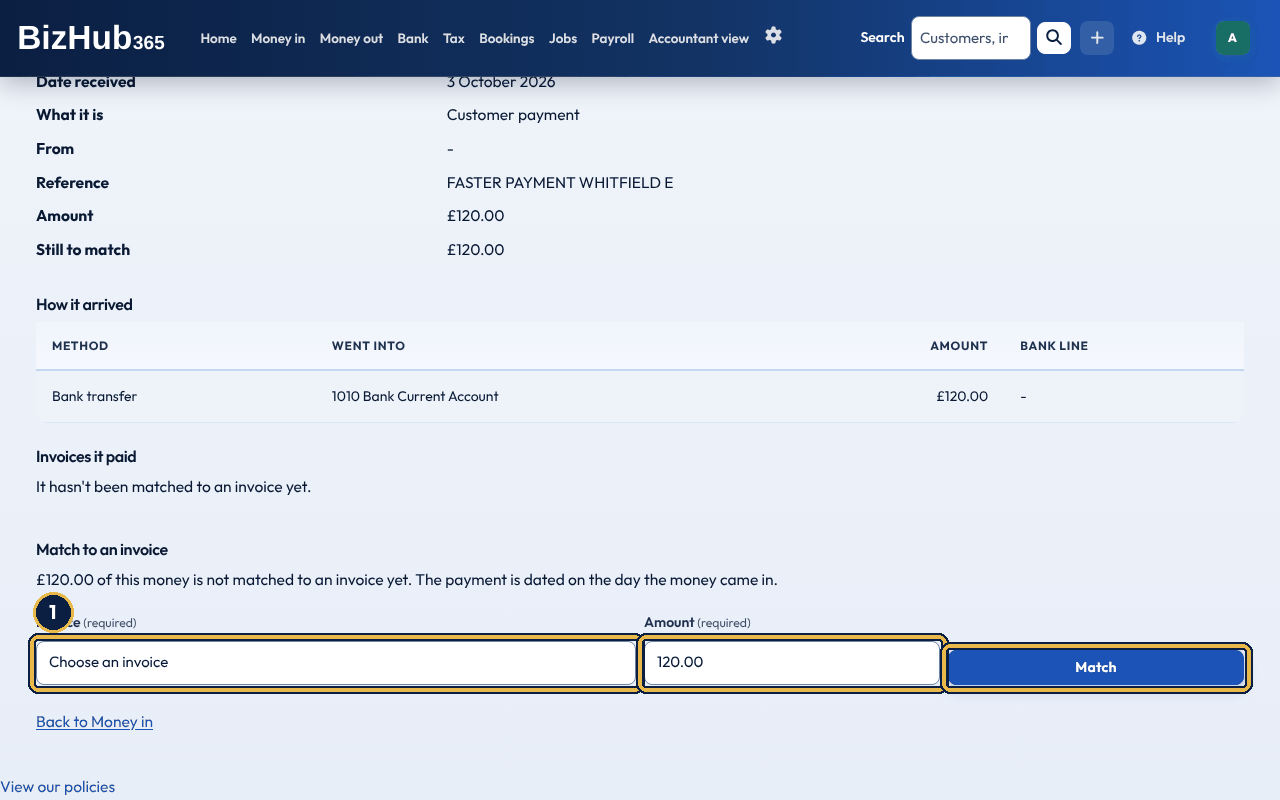
When it worked: The page says Money matched to the invoice. The invoice shows the payment, and the money leaves the To match tab once all of it is matched.
| If this happens | Do this |
|---|---|
| The page says Could not match this money with a reason. | Usually the amount is more than is left to match or still owed on the invoice, or the invoice is in a different currency. Lower the amount (any money left over stays to match) and choose Match again. |
| No invoices are listed. | The customer has no invoices with money owed. Raise the invoice first, then match the money to it. |
On Bank → Transactions to sort, each payment in has Apply To Invoice # (when BizHub365 suggests an invoice), Match To Selected Invoice, and Record as money in. Record as money in opens the form above with the date, the amount, the reference and the bank account taken from the bank line (the amount and account can't be changed), so you can match it to several invoices, record it as other income with its VAT, record a refund from a supplier, or say it is not income. Saving links the bank line to the money in and takes it off Transactions to sort. See Deal with each transaction.
Where to find it: Money in→Takings
If you sell over the counter, record each day's till takings instead of each sale. Takings is under More in the Money in menu, and a tab beside Invoices, Quotes and Money in. A business set up as a cafe, or hair and beauty, has it first. Each day you record is also listed in Money in as Daily takings. In the BizHub365 app, Daily takings is on the Money in tab and in the + button's list, and works with no signal (see The app, screen by screen). The Takings list shows the card takings to come, then, newest first, each day's date, till and Z reading, cash, card, other, tips, what was paid out of the till, the cash to bank and its lock status. View opens the day's page. Recording, changing and deleting takings need the Edit permission; anyone in the business can see them.
Record takings opens a form in parts, filled in from your till's end-of-day (Z) reading. Everything is labelled and works with a keyboard and a screen reader, and it works if your browser runs no scripts (use Update totals to see the totals).
| Part | What to enter |
|---|---|
| The day | The Date of the takings (today or earlier; not in a VAT period you have already sent to HMRC), and if you like the Till and the Z reading number. |
| What was taken | Cash, Card and Other ways (such as vouchers or a payment app), tips included, and the account other ways went into. Cash goes to Cash on Hand and card to Card takings to come (account 1020) until the money reaches your bank, so banking it later is not counted as income again. |
| Tips | Tips by card and Tips in cash: money customers chose to give. |
| Sales | If you are VAT registered, what you took at each VAT rate, VAT included: Standard rate 20%, Reduced rate 5%, Zero rate and Exempt. If you are not, one Sales total. Leave tips out. |
| Totals | What was taken, the sales and tips, the difference between them, what was paid out of the till and the Cash to bank. They add up as you type. |
| Paid out of the till | Each payment made with cash from the till (optional): see below. |
| Cash count | The Cash counted at the end of the day and the Float you keep for change (optional), to check the till. |
Cash, card and other ways must add up to the sales plus the tips. Tips by card can't be more than the card takings, nor tips in cash more than the cash. If something needs fixing, the form comes back with There is a problem at the top listing each problem (each links to its box), and what you entered is kept.
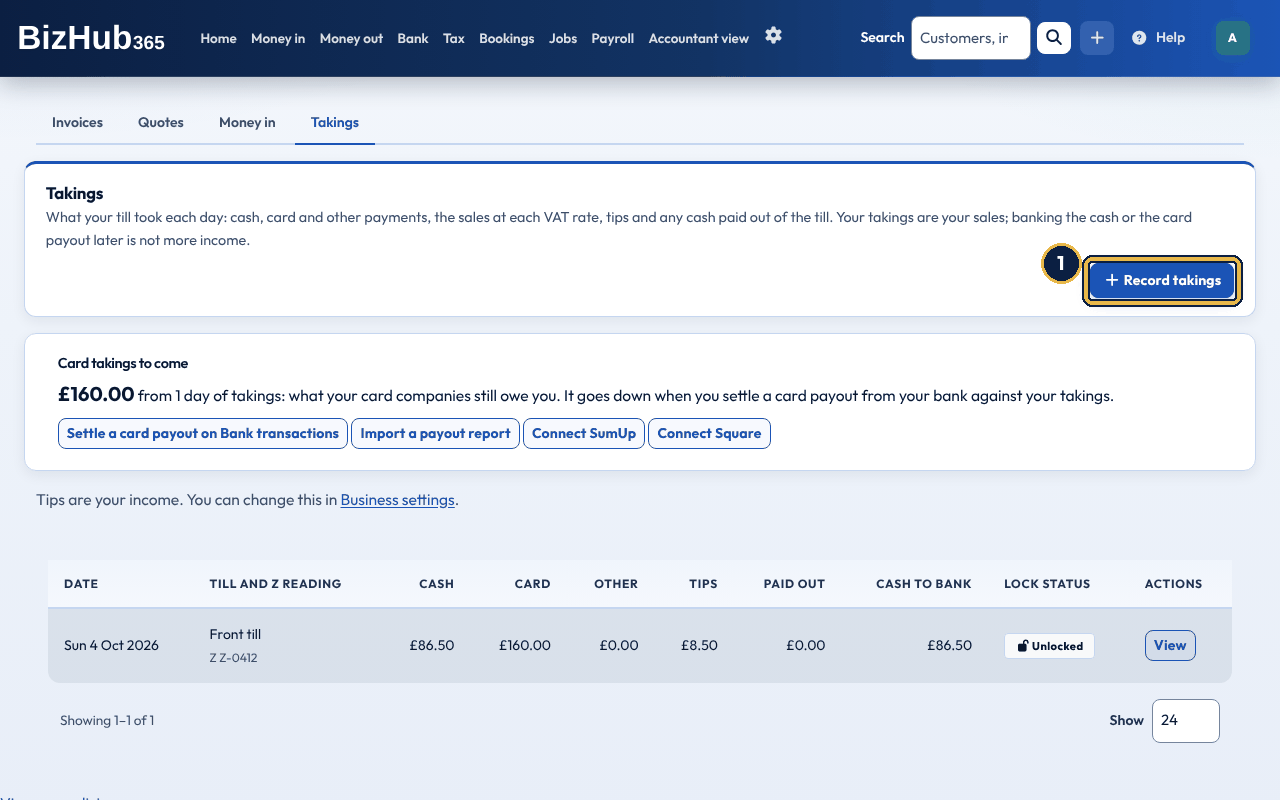
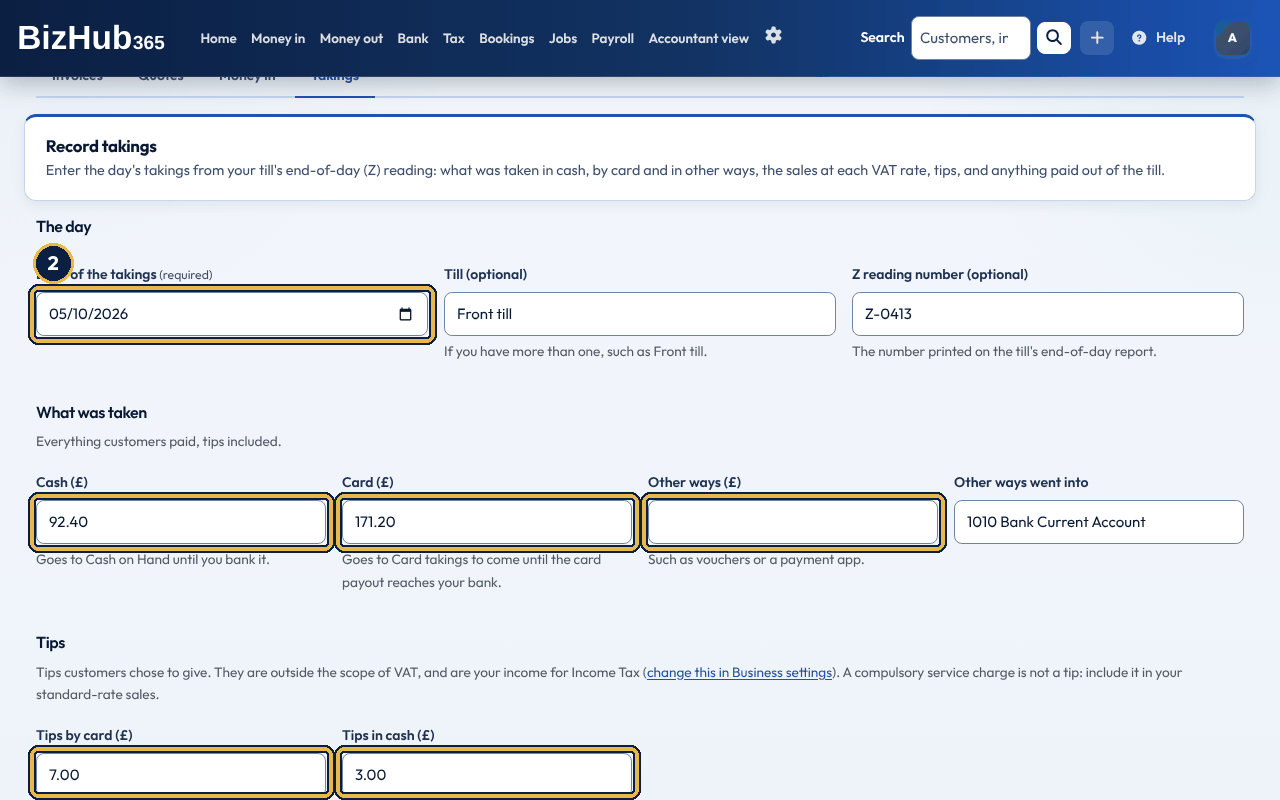
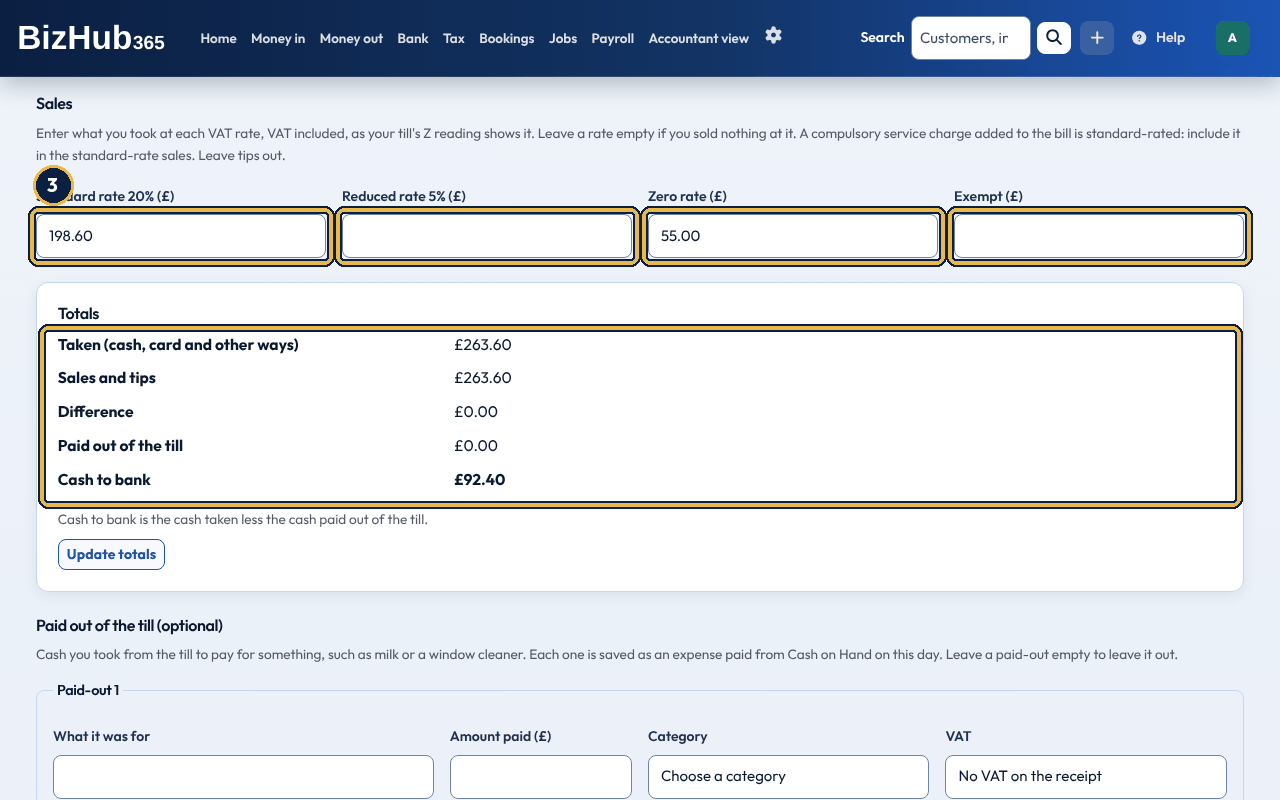
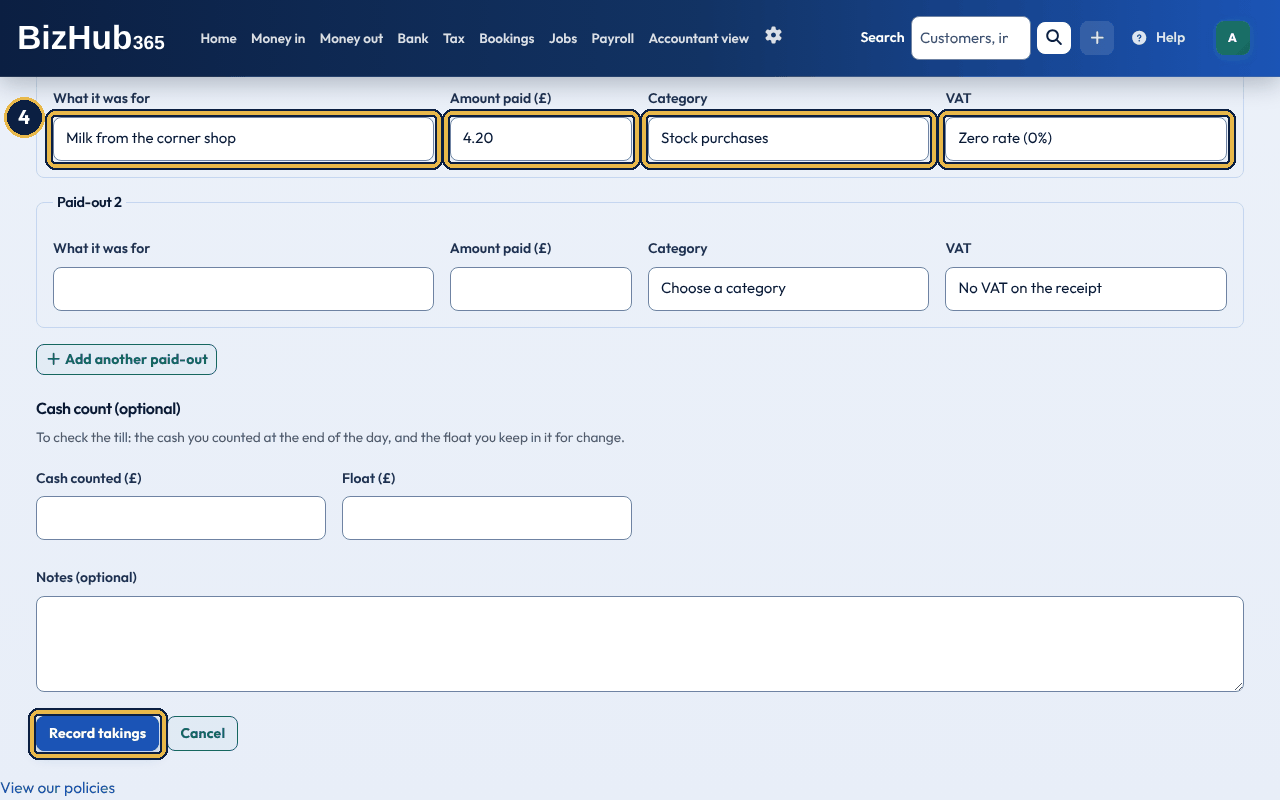
When it worked: The page says Takings for the date recorded, and shows the day's page. The day is listed under Takings and in Money in, and each paid-out is listed in Money out → Expenses.
| If this happens | Do this |
|---|---|
| There is a problem says the takings and the sales and tips must be the same. | Check each amount against the Z reading and your card terminal. Tips go only under Tips, not in the sales; cash paid out of the till goes under Paid out of the till, not off the cash. |
| The date is refused. | It is in a VAT period you have already sent to HMRC. Record the takings on a later date, or ask your accountant. |
Each VAT rate's sales are split as on Record money in: one sixth of standard-rate sales is VAT, one twenty-first of reduced-rate sales. The VAT goes in box 1 of your VAT return and the rest in box 6; zero-rated and exempt sales go in box 6 only. Takings count in the VAT return and Income Tax period of their date, on either basis. A compulsory service charge added to the bill is part of the price, so it is standard-rated: include it in your standard-rate sales, not in tips. Only tips customers choose to give are outside the scope of VAT.
Tips are outside the scope of VAT, so they are in no VAT box. How they are recorded depends on Tips in your takings in Settings → Business Settings:
| Setting | What happens |
|---|---|
| Tips are your income (the usual setting) | Tips go to 4010 Tips and count as your sales (turnover) for Income Tax. |
| Tips are owed to your staff | Tips go to 2410 Tips owed to staff, money you hold for your staff. They are not your income and are in no tax figure. Pay them to your staff through payroll. |
Changing the setting changes takings you record from then on. Takings already recorded keep how they were recorded; open the day and choose Change, then save, to record it again with the new setting.
A paid-out is cash taken from the till to pay for something, such as milk, a window cleaner or postage. For each one, type What it was for, the Amount paid, the Category (your business type's common categories are listed first) and, if you are VAT registered, the VAT on the receipt. Add another paid-out adds a row; leave a row empty to leave it out. Each paid-out is saved as an expense paid in cash from Cash on Hand on the takings date, so it counts in your expenses for Income Tax, and its VAT is reclaimed in box 4 of your VAT return, like any other expense. It is listed in Money out → Expenses, but it is changed or deleted with its day's takings, not from the Expenses list.
Cash to bank is the cash taken less the cash paid out of the till: what you should pay into the bank for that day. If you entered the cash counted and the float, the day's page also says whether the till is over or short: the cash counted should be the float plus the cash to bank. Paying the cash into the bank and the card payout reaching your bank are not more income. They only move the money from Cash on Hand and Card takings to come to your bank account: on the bank line, use Cash paid in or Settle card takings (see Takings in the bank), not Record as money in.
At the top of the Takings list, Card takings to come shows what your card companies still owe you: the card takings of every day not yet settled against a payout into your bank, and on how many days. It goes down each time you settle a card payout. Settle a card payout on Bank transactions takes you to Bank → Transactions to sort, where you settle the payout from its bank line. A day's page says, under Card, how much of its card takings has been settled by card payouts (and on which dates) and how much is still to come.
Where to find it: Money in→Payout reports
A card machine company, booking platform or delivery app pays you in payouts: your sales less refunds and its fees. Payout reports reads the CSV report you download from its website and puts each payout in your books, so the sales are counted once and the fees are an expense. It is under More in the Money in menu, and the Takings page has Import a payout report. Importing needs the Edit permission; anyone in the business can see the imports.
| Provider | Report to download | VAT on its fees (the usual setting) |
|---|---|---|
| Zettle by PayPal, Dojo | The payouts or settlements report, or the transactions report (its rows are added up per payout) | Exempt: card payment fees carry no VAT |
| Fresha, Treatwell, Booksy | The payouts report or payment statement | Standard rate: the commission includes VAT you can reclaim with their VAT invoice |
| Uber Eats, Deliveroo, Just Eat | The payment report or statement (Uber Eats order rows are added up per payout) | Standard rate: the commission includes VAT you can reclaim with their VAT invoice |
BizHub365 recognises the provider from the report's headings, or the file name; choose it when it can't. Reports change their headings from time to time, so it matches them loosely: it needs the payout date and two of the sales, fees and payout amounts (the third is worked out). Rows not paid out yet (no payout date, pending or scheduled) and rows in another currency are left out and listed. What a payout puts in your books depends on whether its sales are already in your daily takings:
| Your sales are | What happens |
|---|---|
| In your daily takings (card machines, when you record takings) | Nothing more is income. When the payout's bank line is on Bank transactions (the same amount, from 3 days before to 10 days after the payout date), the payout settles your card takings still to come, oldest first, for the payout plus the fees, exactly as Settle card takings does, and the fees are an expense at the VAT you chose. Without the bank line, the payout waits for it. |
| Not in your takings (bookings through a platform, orders through a delivery app, or a card machine when you don't record takings) | Each payout records its sales less refunds as money in (other income, at the VAT you chose, counted as sales for Income Tax) into Card takings to come, and its fees as an expense (Bank charges for card machines, Other allowable business expenses for platforms). Card takings to come then holds the payout, which its bank line settles: at once if the line is already there, otherwise later from Bank transactions. |
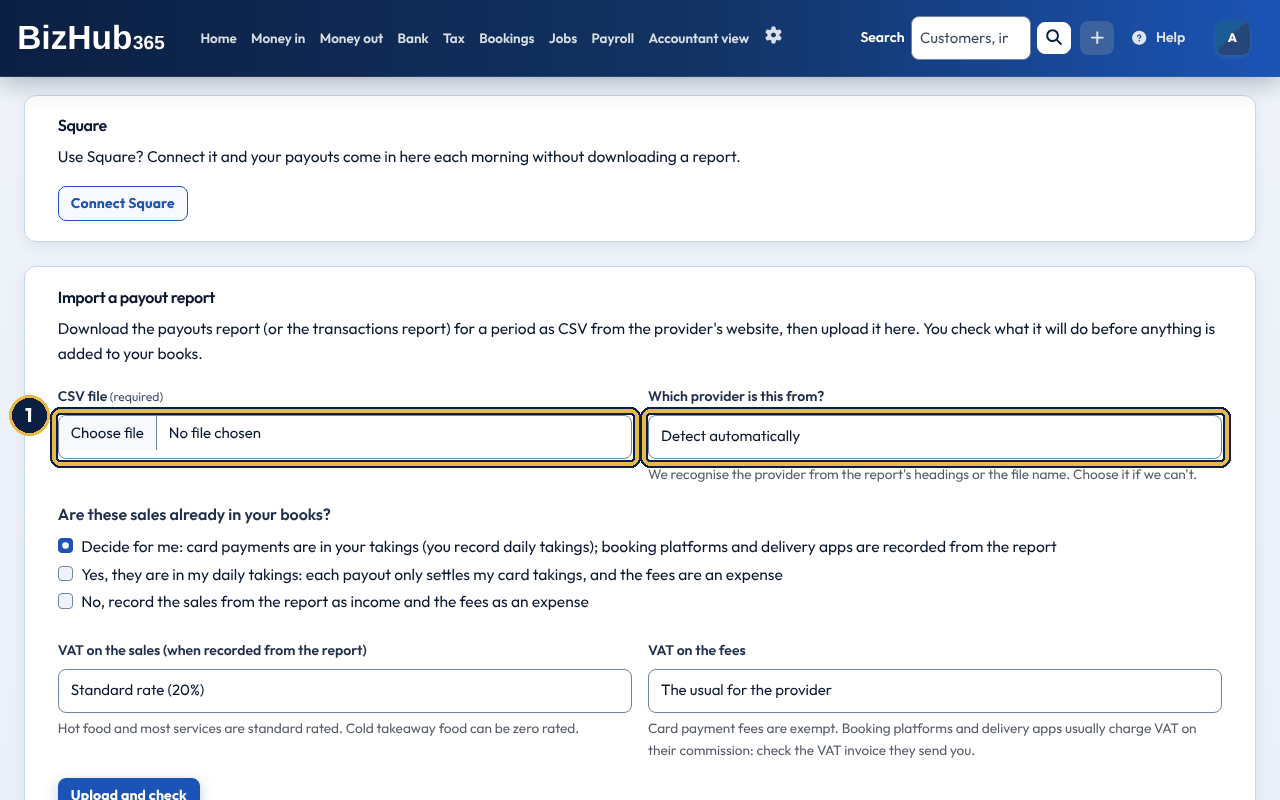
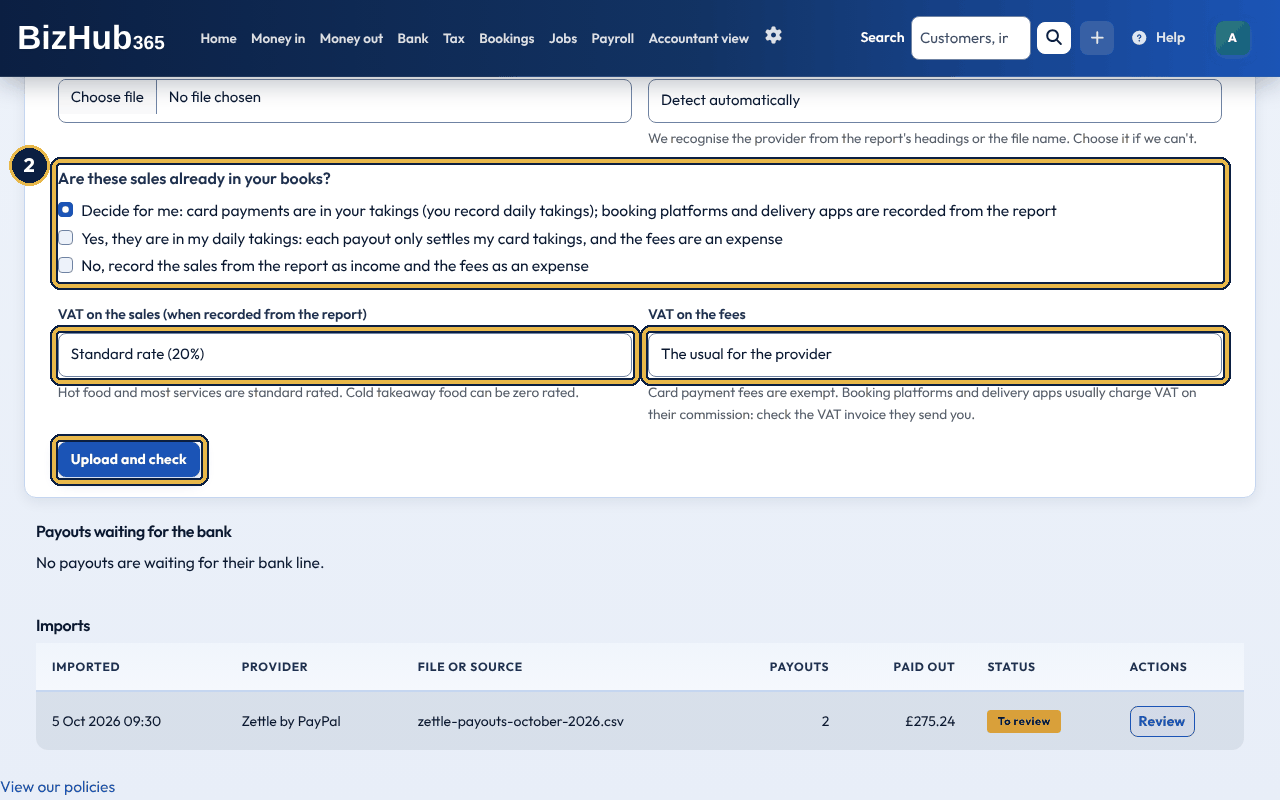
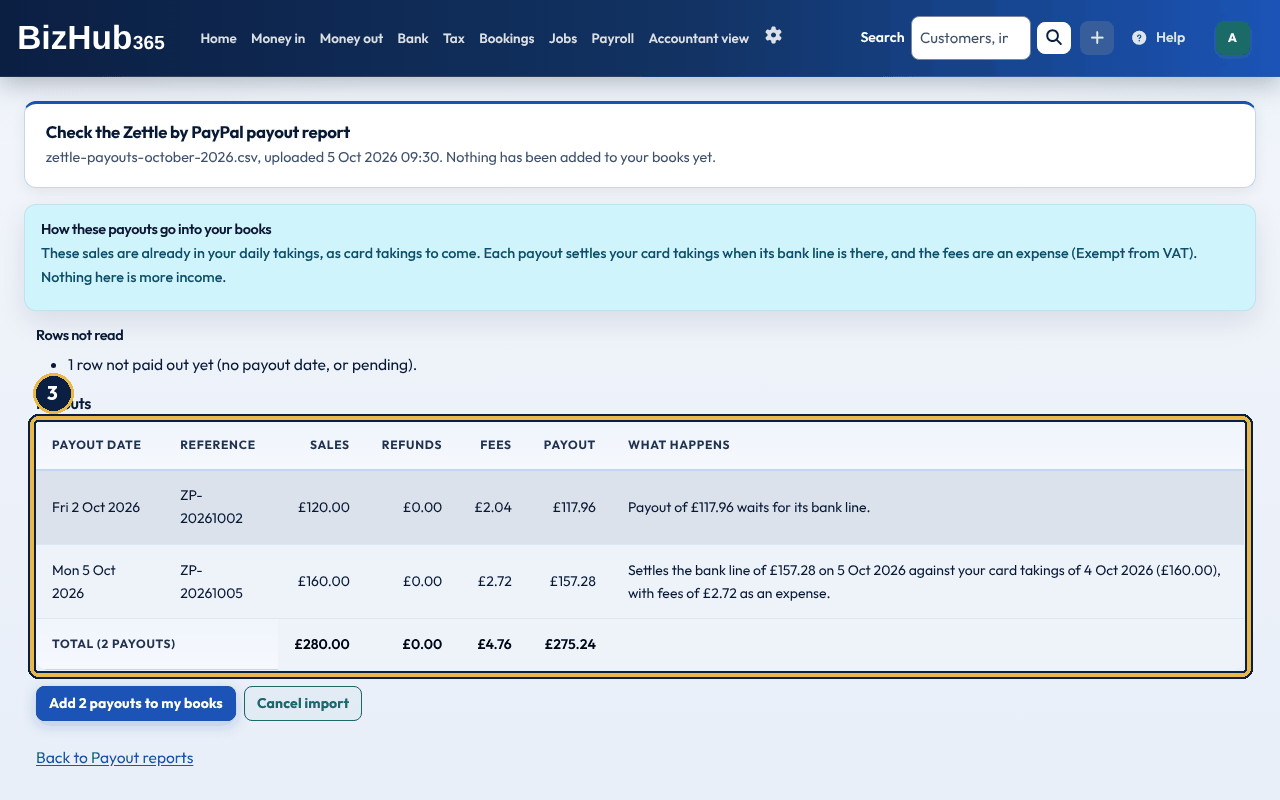
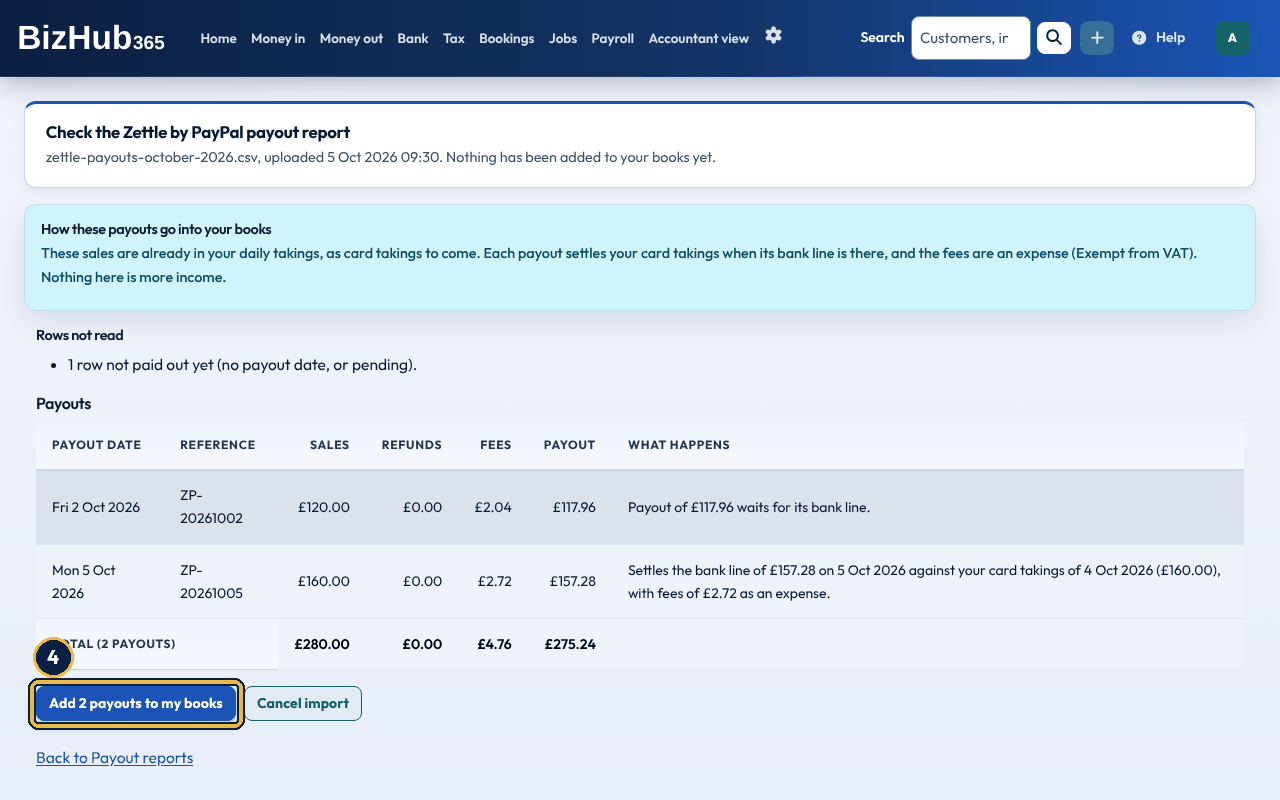
When it worked: A message says how many payouts were added and how many settled their bank lines. The import is listed under Imports, and payouts still to reach your bank under Payouts waiting for the bank.
| If this happens | Do this |
|---|---|
| There is a problem says the provider or the columns can't be found. | Check you downloaded the payouts or transactions report as CSV (not PDF or Excel), and choose the provider. |
| A payout is Left out because its figures don't add up. | The report has other charges or adjustments. Record that payout by hand: the sales as money in and the charges as an expense. |
| A payout waits although its bank line is there. | Your card takings still to come before the payout are less than the payout plus its fees. Record the missing days' takings, then settle it from Bank transactions. |
When a waiting payout reaches your bank, its row on Bank → Transactions to sort suggests the payout and has Settle with payout; the row warns that it looks like a payout from a payout report, so recording it as money in or posting it to an income account would count the sales twice. Add all to books leaves it alone. Undo on Import History puts the payout back to waiting. Importing the same report again skips the payouts already added: the same payout id, or the same payout date and amount when the report has no id. To take an import out of your books, open it and choose Undo import: the sales and fees it recorded are reversed and the bank lines it settled go back to Awaiting Processing, so you can import it again. An import whose sales or fees are in a VAT return that is locked or sent to HMRC can't be undone. Its money in and fees can't be changed or deleted on their own.
Where to find it: Settings→Connect & Integrations→SumUp
If you take cards with SumUp, connect your SumUp account instead of downloading its reports. BizHub365 only reads from SumUp: your payouts and your card payments. It can't take, move or refund money. Connecting needs the Manage Billing permission; the Takings and Payout reports pages have a Connect SumUp button that opens the same page. Each morning BizHub365 fetches your SumUp payouts of the last 35 days and puts the new ones in an import on Money in → Payout reports, listed as Fetched from SumUp. Nothing is added to your books until you check it and choose Add N payouts to my books, as for a payout report: when you record daily takings, each payout only settles your card takings and SumUp's fees are an expense (exempt from VAT, Bank charges); otherwise the sales are recorded from the payouts. A payout's sales are the amounts paid plus SumUp's fees; refunds and chargebacks taken off a payout are its refunds. Payouts already imported, or waiting in an import you haven't checked yet, are not fetched twice. Sync now on Payout reports fetches them straight away (Edit permission). On Takings, a SumUp card sales column shows SumUp's successful card payments less refunds for each day, and a day's page shows the same next to the card you recorded. When they differ by more than 1p, a warning says by how much: check the card total on your till's Z reading against SumUp and change the takings if one is wrong. The check never changes your takings. Cash recorded in the SumUp app is not counted. If SumUp stops accepting the connection (for example, you removed BizHub365 in your SumUp account), the SumUp page and Payout reports say Connect SumUp again. Disconnect SumUp stops the fetching; payouts already brought in stay in Payout reports.
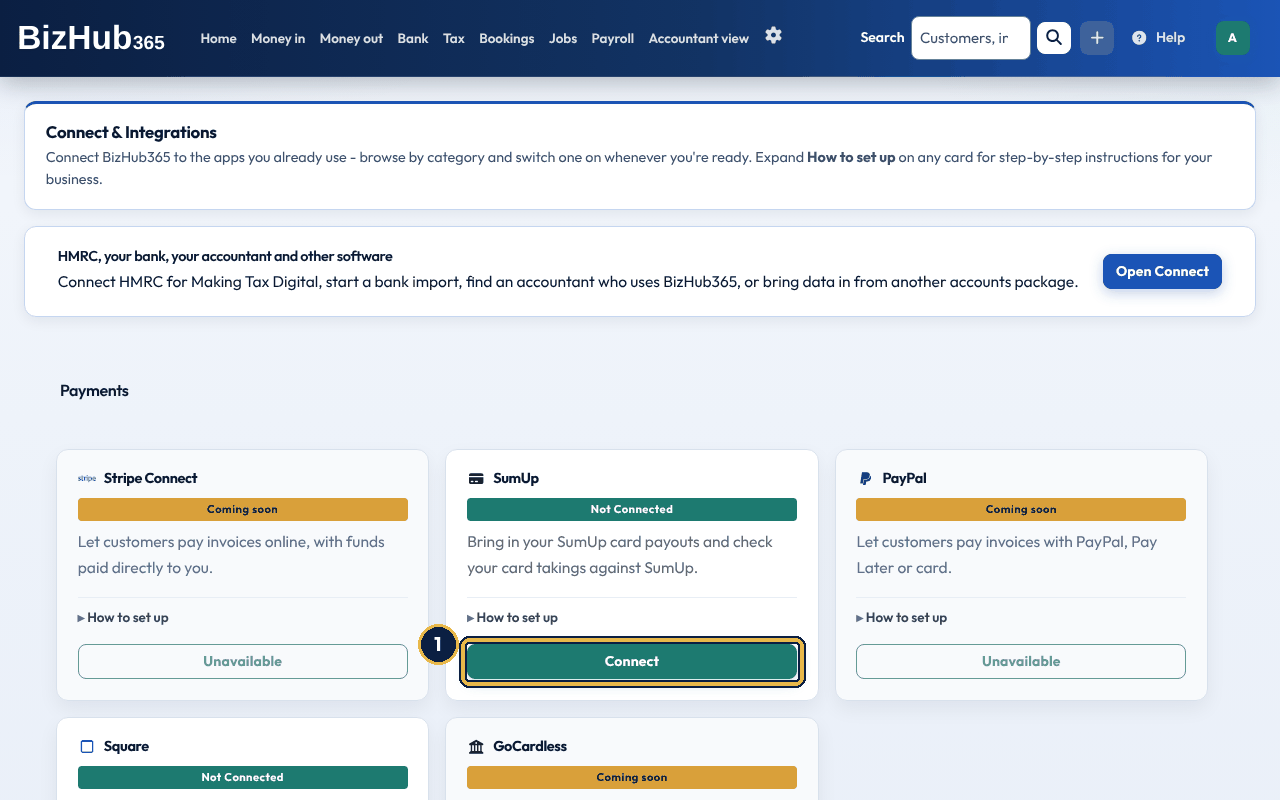
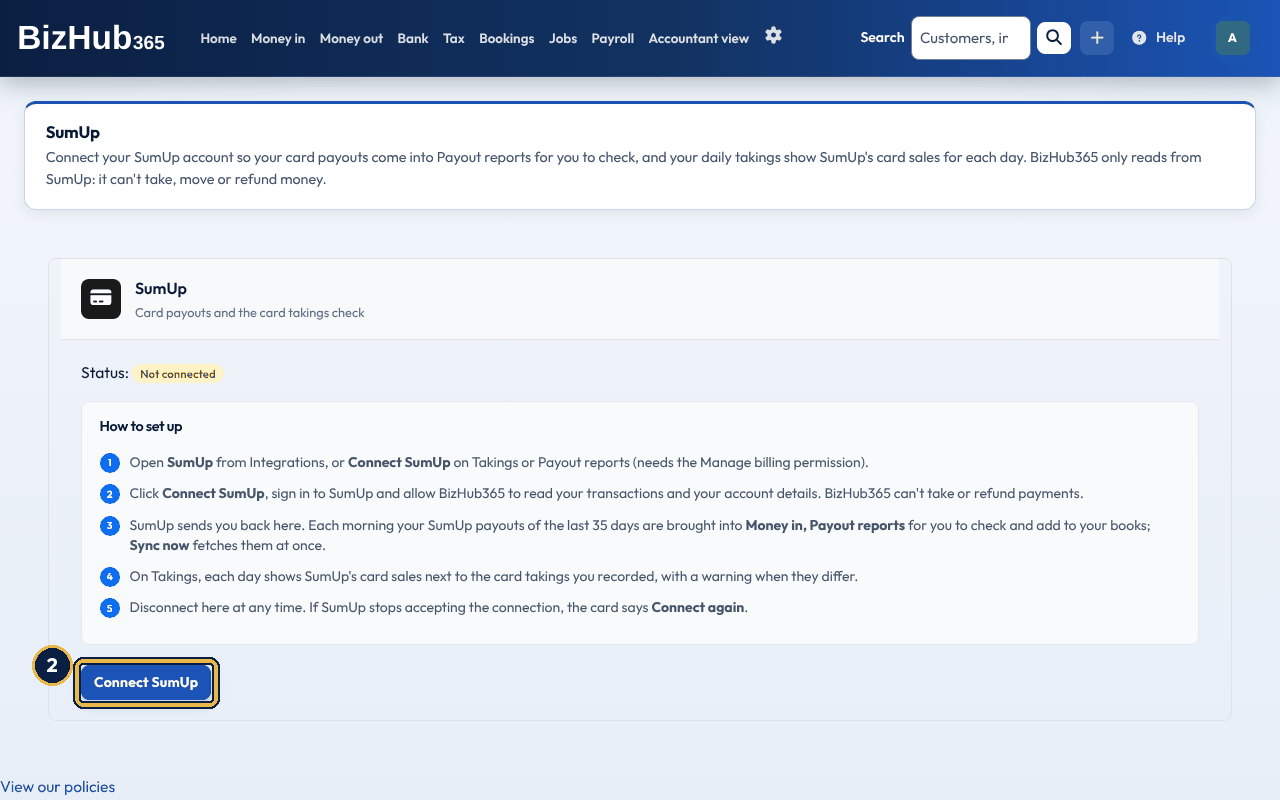
When it worked: The message SumUp is connected shows. Your payouts appear on Payout reports the next morning (or use Sync now there), and Takings shows SumUp's card sales for each day.
| If this happens | Do this |
|---|---|
| The SumUp connection link has expired. | You took more than 30 minutes, or signed in to BizHub365 as someone else on the way. Start again from the SumUp page. |
| The page says Connect SumUp again. | SumUp stopped accepting the connection. Choose Connect SumUp again and sign in to SumUp. |
| A SumUp payout waits although its bank line is there. | As for any payout report: record the missing days' takings, then settle it from Bank transactions. |
Where to find it: Settings→Connect & Integrations→Square
If you take cards with Square, connecting your Square account does two things: invoices in your Square account's currency get a Pay by card (Square) button (see Take payments online), and your Square payouts and card sales are read into BizHub365. Reading them can't take, move or refund money. Connecting needs the Manage Billing permission; the Takings and Payout reports pages have a Connect Square button that opens the same page. Each morning BizHub365 fetches the Square payouts paid in the last 35 days, from all your Square locations, and puts the new ones in an import on Money in → Payout reports, listed as Fetched from Square. Nothing is added to your books until you check it and choose Add N payouts to my books, as for a payout report: when you record daily takings, each payout only settles your card takings and Square's fees are an expense (exempt from VAT, Bank charges); otherwise the sales are recorded from the payouts. A payout's sales are its card payments, its refunds are the refunds and disputes taken off it, and its fees are Square's processing and other fees. A payout with anything else in it (an adjustment, a reserve or a Square Loans repayment) doesn't add up and is left out for you to record by hand. Payouts in another currency are left out. Payouts already imported, or waiting in an import you haven't checked yet, are not fetched twice. Sync now in the Square box on Payout reports fetches them straight away (Edit permission). On Takings, a Square card sales column shows Square's completed card payments (with tips) less what was refunded on them, for each day, and a day's page shows the same next to the card you recorded, with a warning when they differ by more than 1p. A refund counts on the day of the payment it refunds. Cash and other payments you record in Square are not counted. When SumUp is connected too, each has its own column. The check never changes your takings. If your Square account was connected before BizHub365 could read payouts, or Square stops accepting the connection, the Square page and Payout reports say Connect Square again to read payouts. Choose Connect Square again and allow access in Square. Disconnect Square stops the fetching and removes the Pay button; payouts already brought in stay in Payout reports.
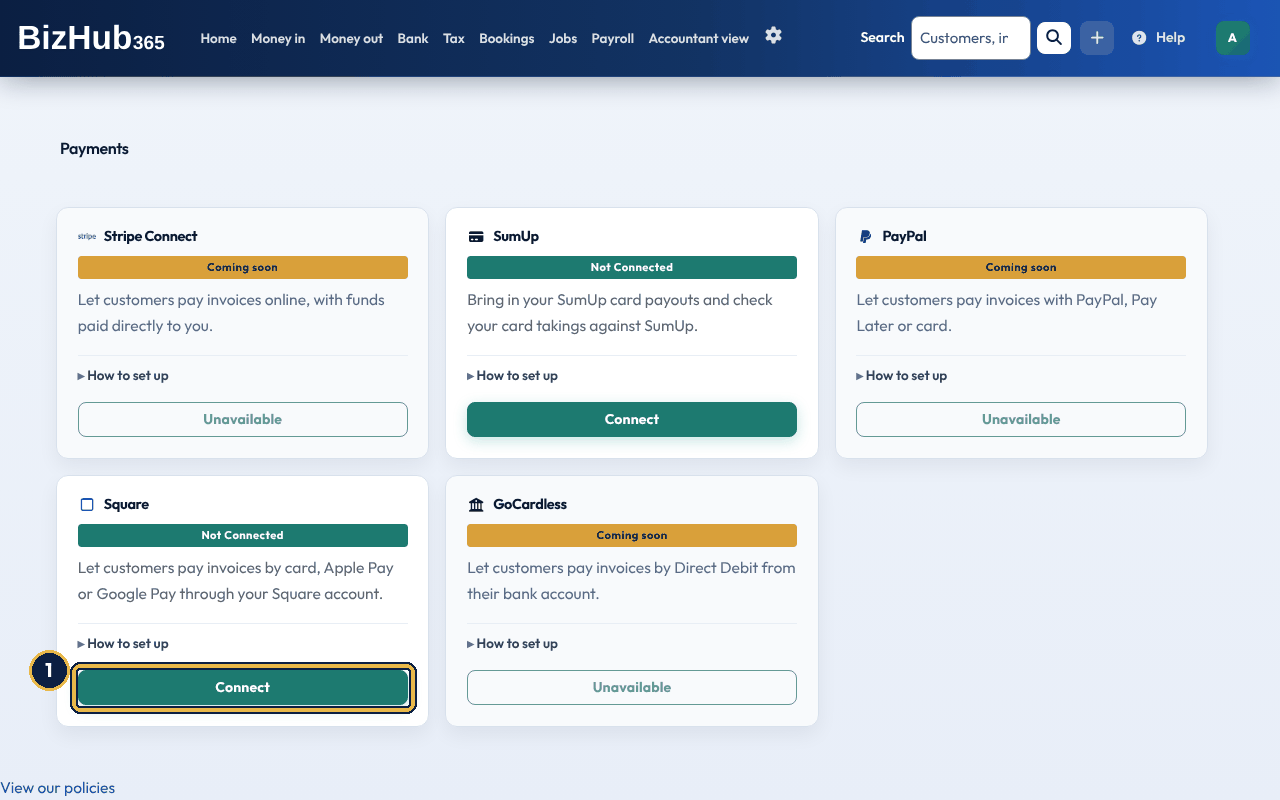
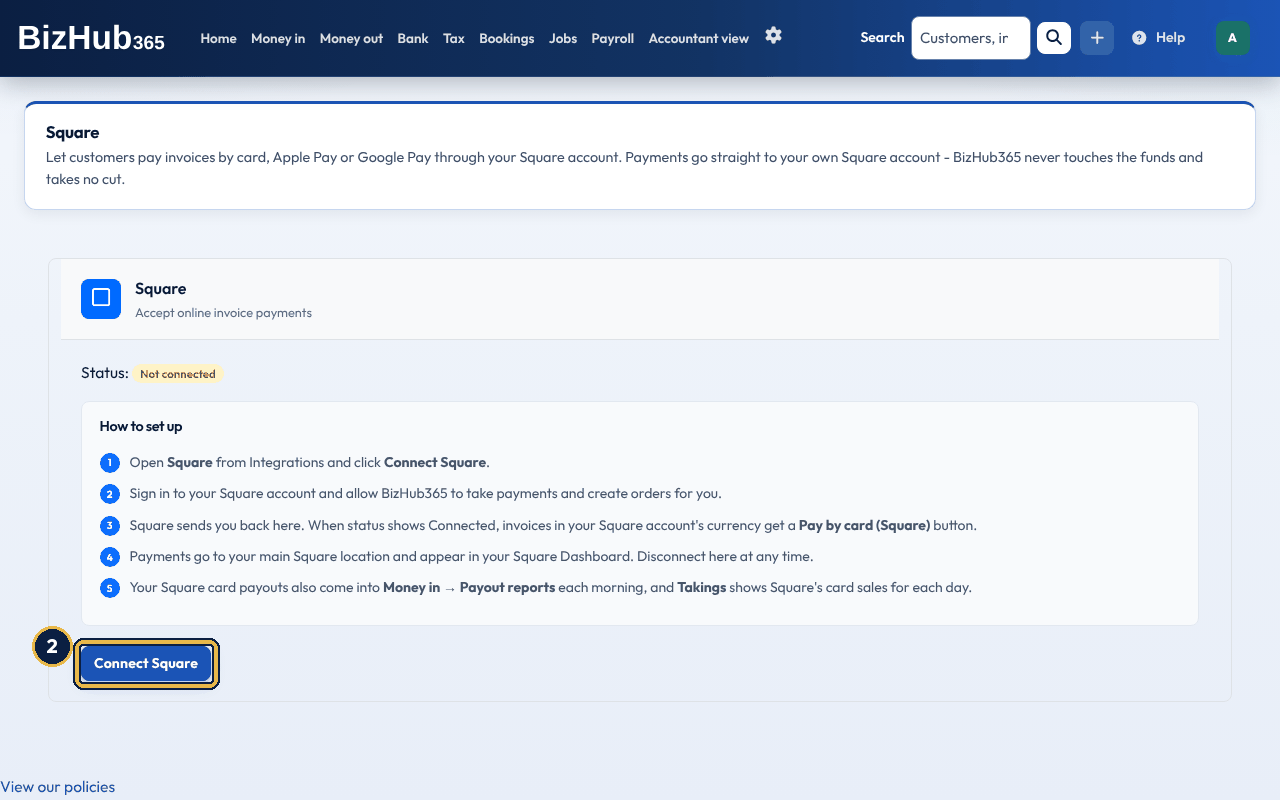
When it worked: The message Square is connected shows. Your payouts appear on Payout reports the next morning (or use Sync now in the Square box there), and Takings shows Square's card sales for each day.
| If this happens | Do this |
|---|---|
| The Square connection link has expired. | You took too long, or signed in to BizHub365 as someone else on the way. Start again from the Square page. |
| The page says Connect Square again to read payouts. | Your Square account was connected before BizHub365 could read payouts, or Square stopped accepting the connection. Choose Connect Square again and allow access in Square. |
| A Square payout is Left out because its figures don't add up. | It has an adjustment, a reserve or a loan repayment as well as sales and fees. Record that payout by hand: the sales as money in and the charges as an expense. |
On the day's page, Change opens the same form. Saving records the takings again as you set them (the old entries are reversed, so your audit trail keeps both); its paid-outs are recorded again as new expenses. Delete asks you to confirm, then deletes the takings and its paid-outs and reverses their entries. Lock protects the takings from changes (Unlock lifts it). Takings in a VAT return that has been locked or submitted to HMRC are locked for good, and so are takings with a paid-out in such a return. Documents attaches files, such as a photo of the Z reading.
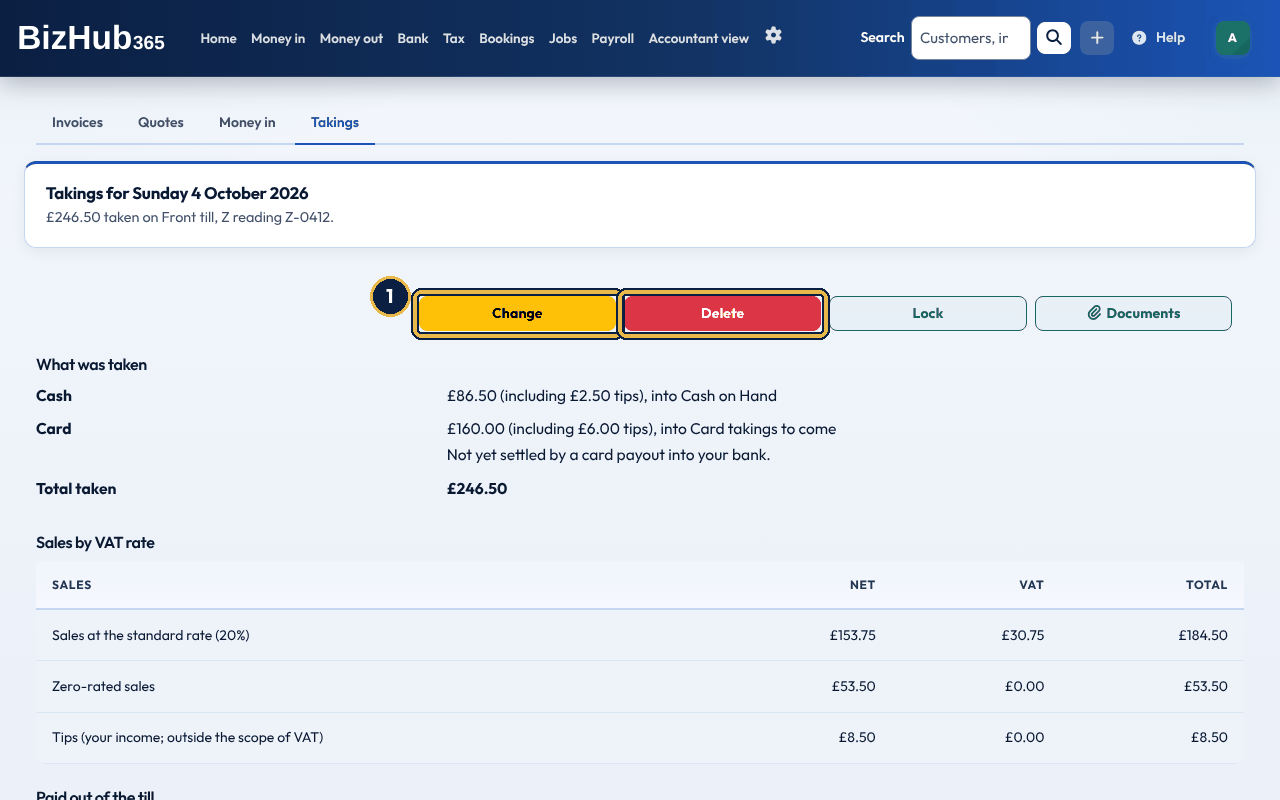
When it worked: The page says the takings were changed, or deleted with their paid-outs. Their old entries in your books are reversed.
| If this happens | Do this |
|---|---|
| There is no Change button and Delete is greyed out. | The takings, or one of their paid-outs, are locked. Unlock them first; takings in a VAT return that has been locked or submitted cannot be changed at all. |
| Delete, or lowering the card takings, is refused because they have been settled against a card payout. | Undo the settlement first: on Bank → Transactions to sort, open the Import History tab, find the payout and choose Undo. |
Connect a payment provider, such as Stripe Connect or PayPal, under Settings → Connect & Integrations (see Integrations, import, and recovery). Invoice emails then include a link to the invoice portal: a page your customer opens without signing in, showing your business, the invoice, the balance due and a pay button for each provider you have connected that accepts the invoice currency. A paid invoice shows no pay buttons. The portal also shows your payment instructions. The invoice and job pages for customers end with a Need help? box showing your business email and phone number, so keep them up to date in Business Settings. The payment lands in your own provider account and is recorded against the invoice automatically, once, even if the provider reports it more than once.
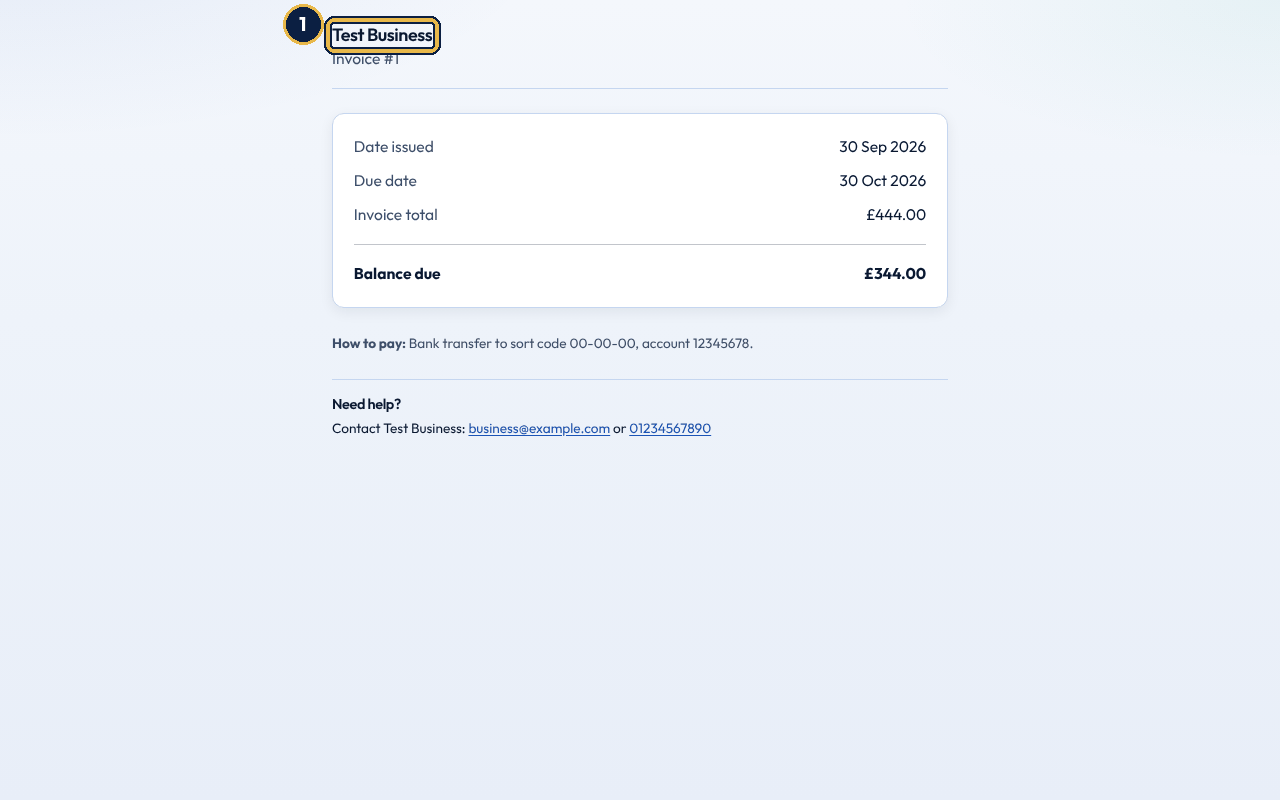
When it worked: After paying, the customer returns to the portal, the payment is recorded against the invoice, and they are emailed Payment Received.
BizHub365 emails your customer up to five reminders about each unpaid invoice that they have been sent, each at most once:
| When | Email subject |
|---|---|
| 3 to 7 days before the due date | Payment reminder: invoice (number) due in (n) days |
| On the due date | Invoice (number) is due today |
| 1 to 3 days overdue | Invoice (number) - payment not yet received |
| 7 to 14 days overdue | Action required: invoice (number) is overdue |
| 30 or more days overdue | Final notice: invoice (number) - immediate payment required |
They come from your business name and replies go to your business email address. Invoices saved without sending, and paid ones, get no reminders.
Where to find it: Money in→Credit notes
A credit note reduces what a customer owes you: for returned goods, a price correction or a goodwill gesture. Money in → Credit notes lists each one with its customer, reason, amount, date, notes and status: Open (credit still to use) or Applied (used up or settled). CSV and PDF export the list.
| Field in Add Credit Note | What to enter |
|---|---|
| Select Customer | Who the credit is for. Required. |
| Credit Value | The amount, including VAT when you are VAT registered. Required. |
| VAT rate | Only when VAT registered: the rate the original sale was charged at (20%, 5% or 0%). |
| Against invoice (optional) | The invoice it is for, if any. It must be one of that customer's invoices. Leave it on Not against a particular invoice otherwise. |
| Reason | Why the credit is given. Required, and shown on the list and to the customer. |
| Applied Notes (optional) | Your own notes about how it was settled. |
| Mark as applied | Tick only when the credit has already been settled another way, such as a refund; it is then never used against future invoices. |
Saving emails the customer Credit Note Issued and takes the credit note's net value off your sales and its VAT off the VAT you owe, on the day it is issued. If you are not VAT registered there is no VAT on a credit note: its whole value comes off your sales. A credit note against an invoice comes off the same income accounts as that invoice's lines, in the same proportions. One that isn't against an invoice comes off Sales Revenue. An open credit is used against the customer's next invoice automatically, oldest first and in the same currency: a smaller credit part pays it, a larger one pays it in full and the rest is kept as a new credit note. The customer is emailed Credit Note # with its number and Applied. The pencil on a row edits the reason, the notes and whether it is applied; the amount cannot be changed.
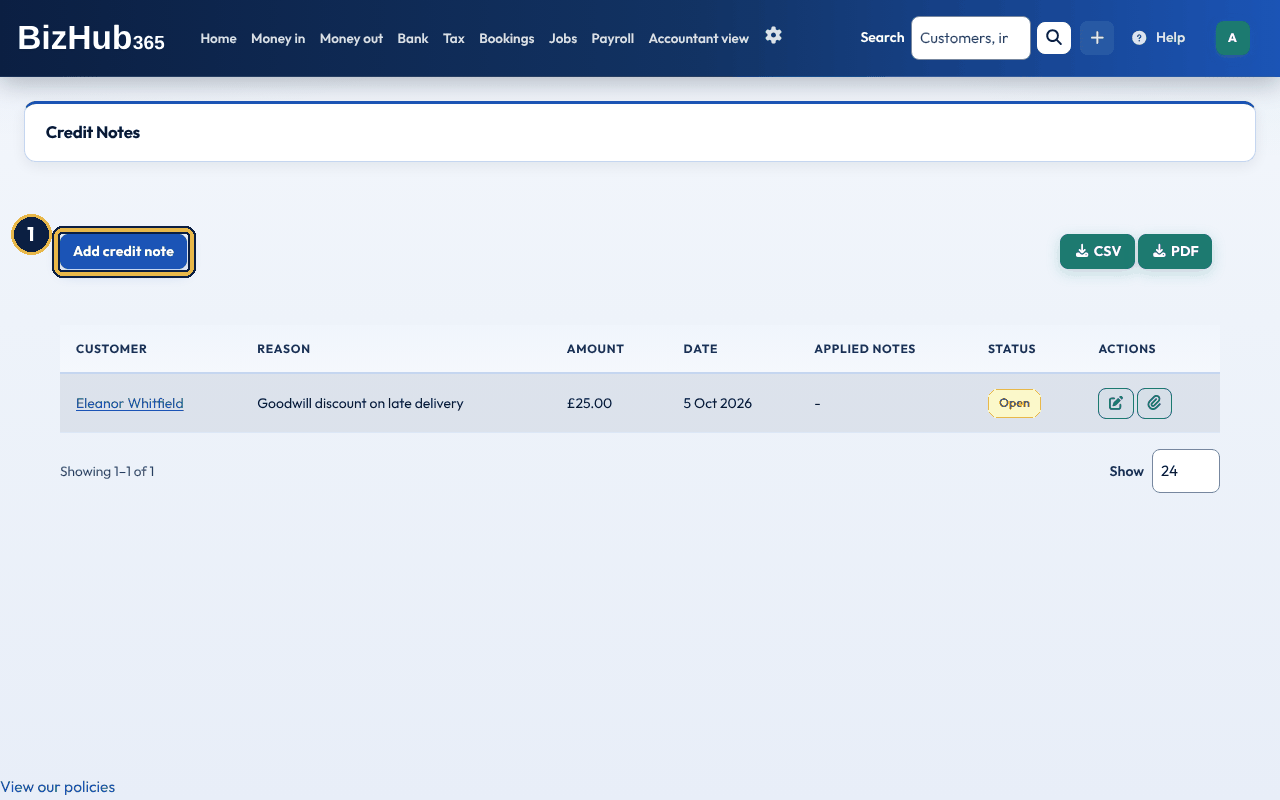
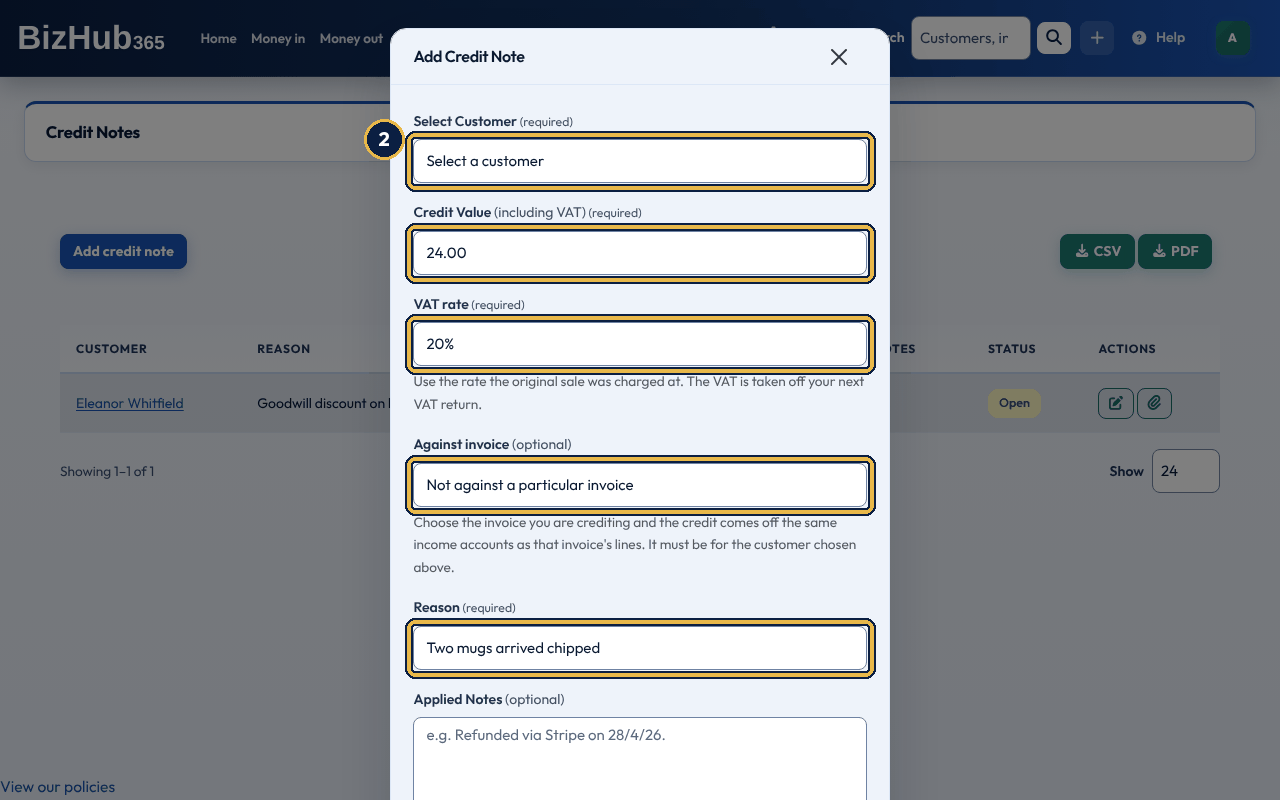
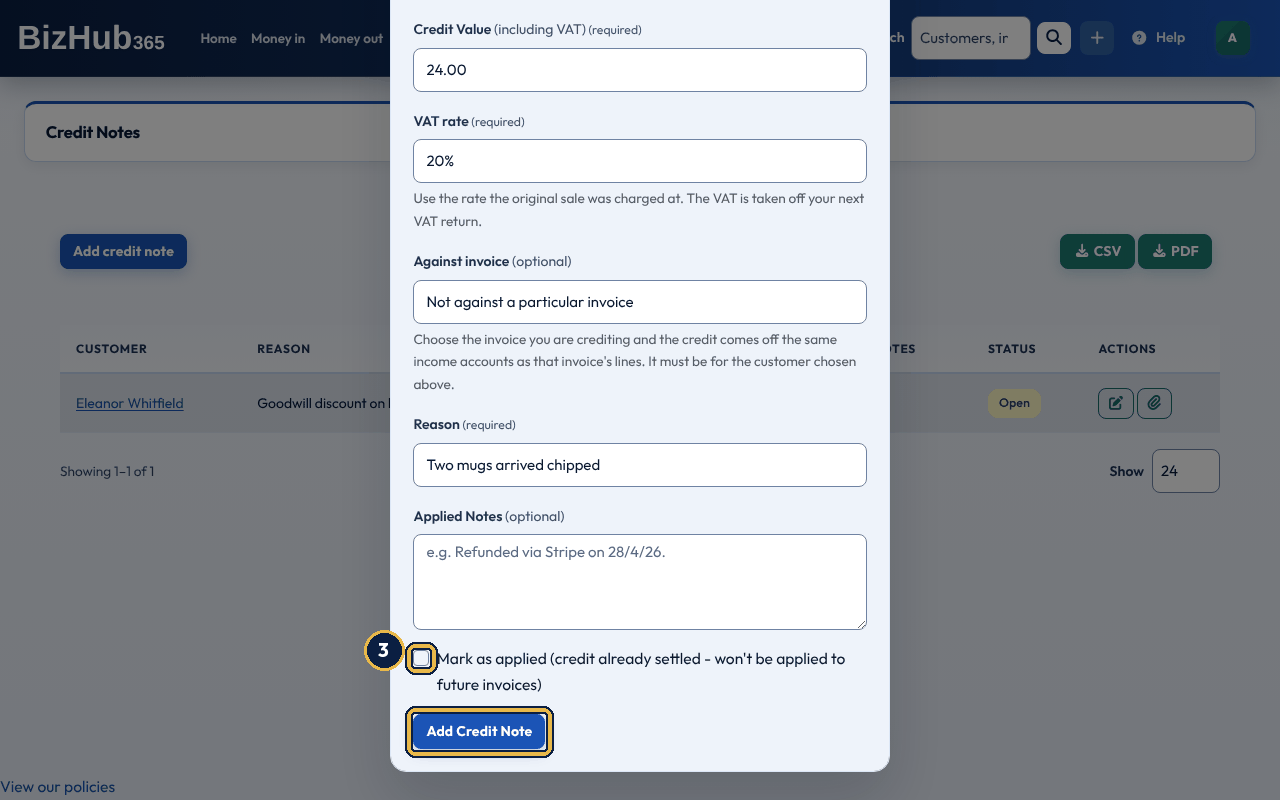
When it worked: The page says Credit Note created successfully., the credit note is listed as Open, and the customer is emailed Credit Note Issued.
| If this happens | Do this |
|---|---|
| The form comes back with a list of problems. | Fix each one: the customer, value and reason are required, and an invoice must belong to the chosen customer. |
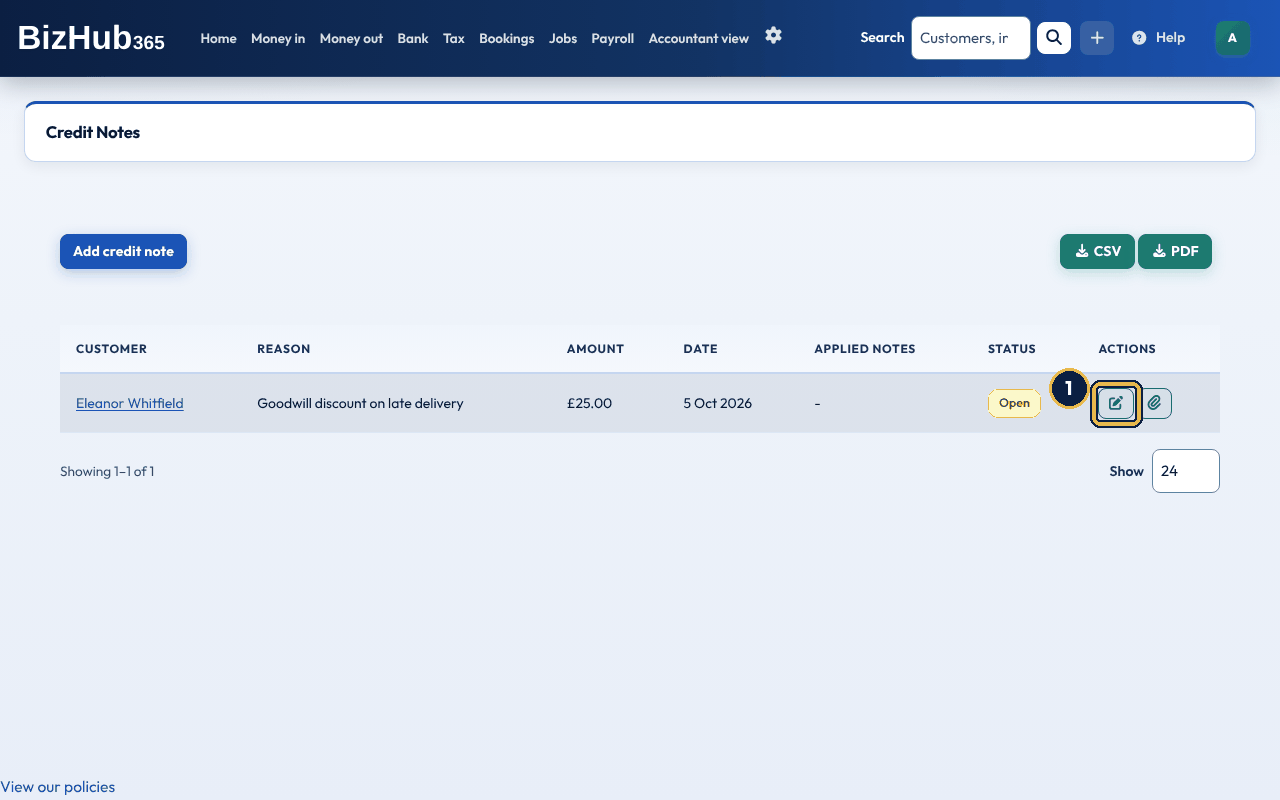
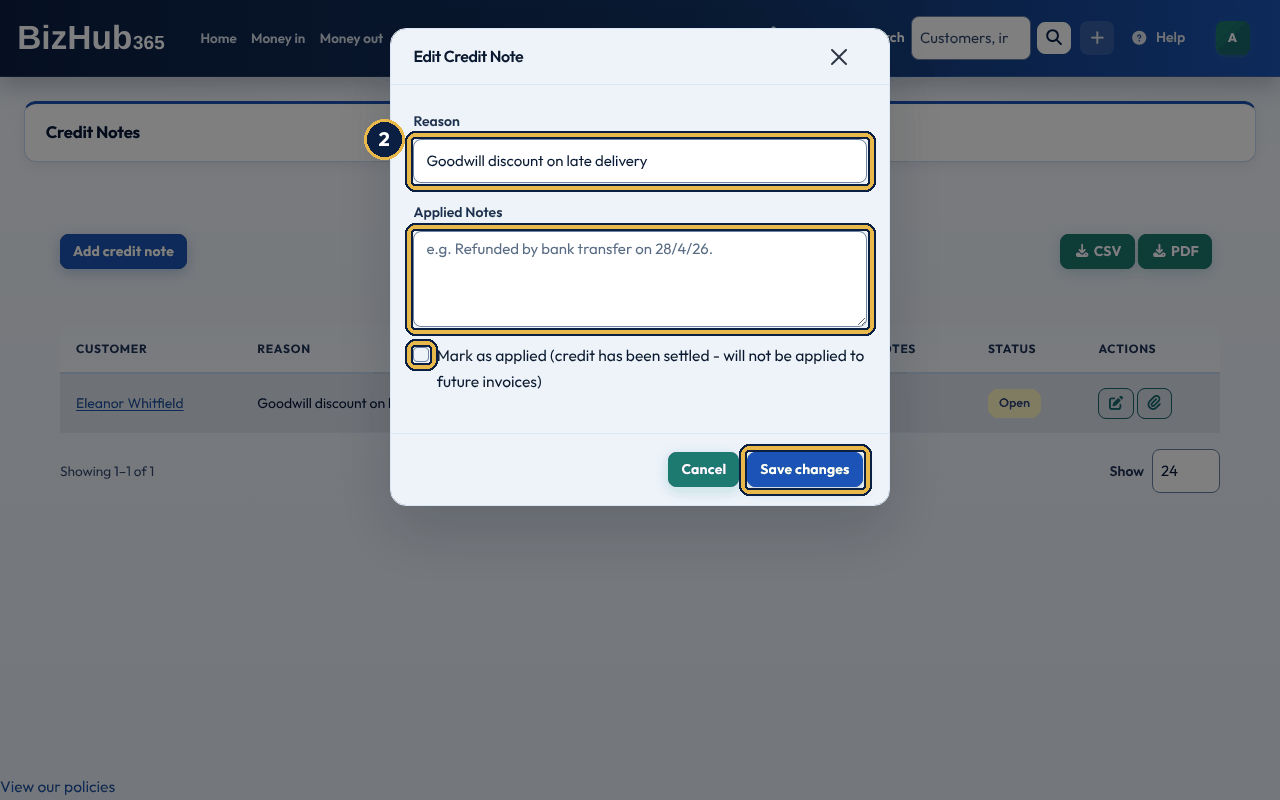
When it worked: The list shows the change. Marking it applied stops it being used against future invoices.
From the customer's page, Send Statement emails the customer their balance and every invoice, payment and credit note. See Send a customer a statement in Customers.
Part III · Money · Chapter 14
Record what the business spends, from a receipt photo, an email or a form, pay your bills, and keep suppliers, CIS and assets in the same books.
Where to find it: Money out→Expenses
An expense is anything the business spends money on: a till receipt, a supplier's bill, fuel, a subscription. Each one is posted to your accounts when you save it, and its VAT counts towards your VAT return. Money out → Expenses lists every expense with its date, supplier (or No supplier), description, category, amount and whether it is paid. You can add one by hand, photograph or upload a receipt with Scan with AI and save it from Pending scans, email it in (Document Capture), or have it created for you when a staff claim is approved.
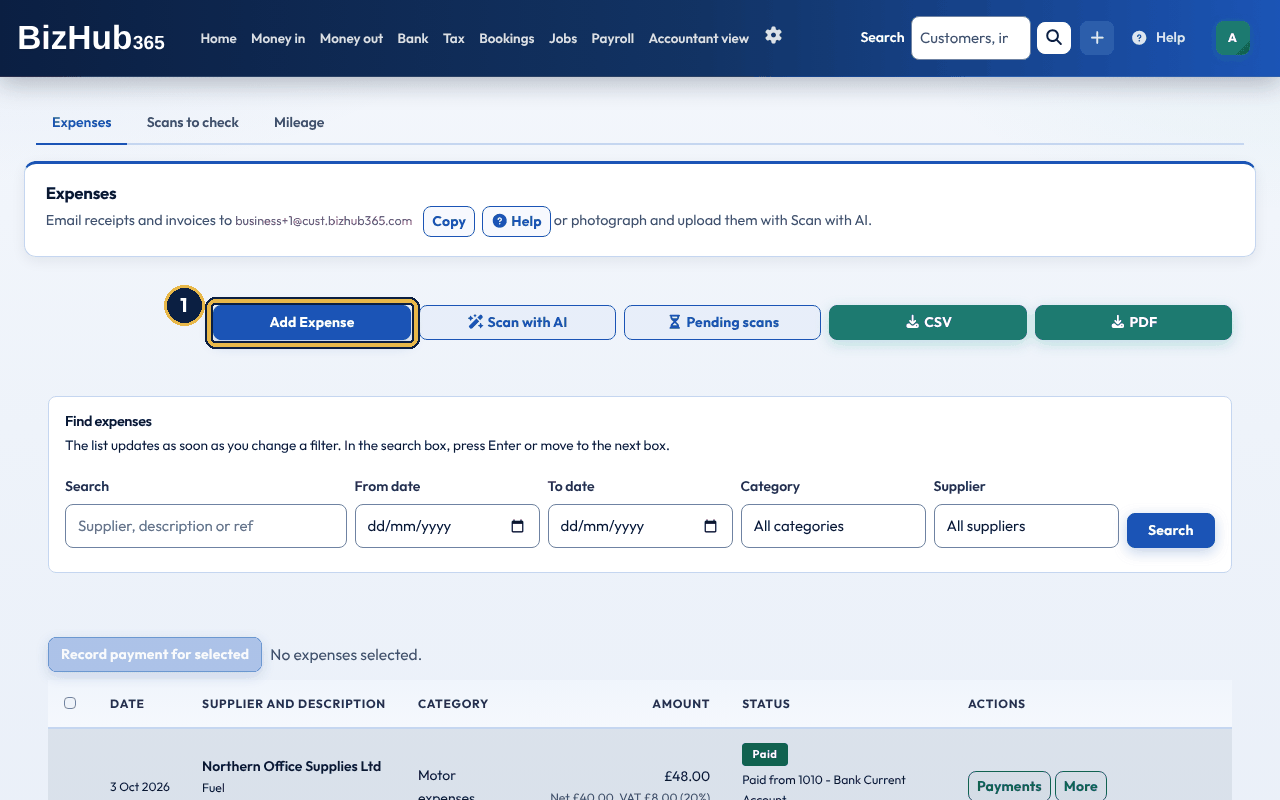
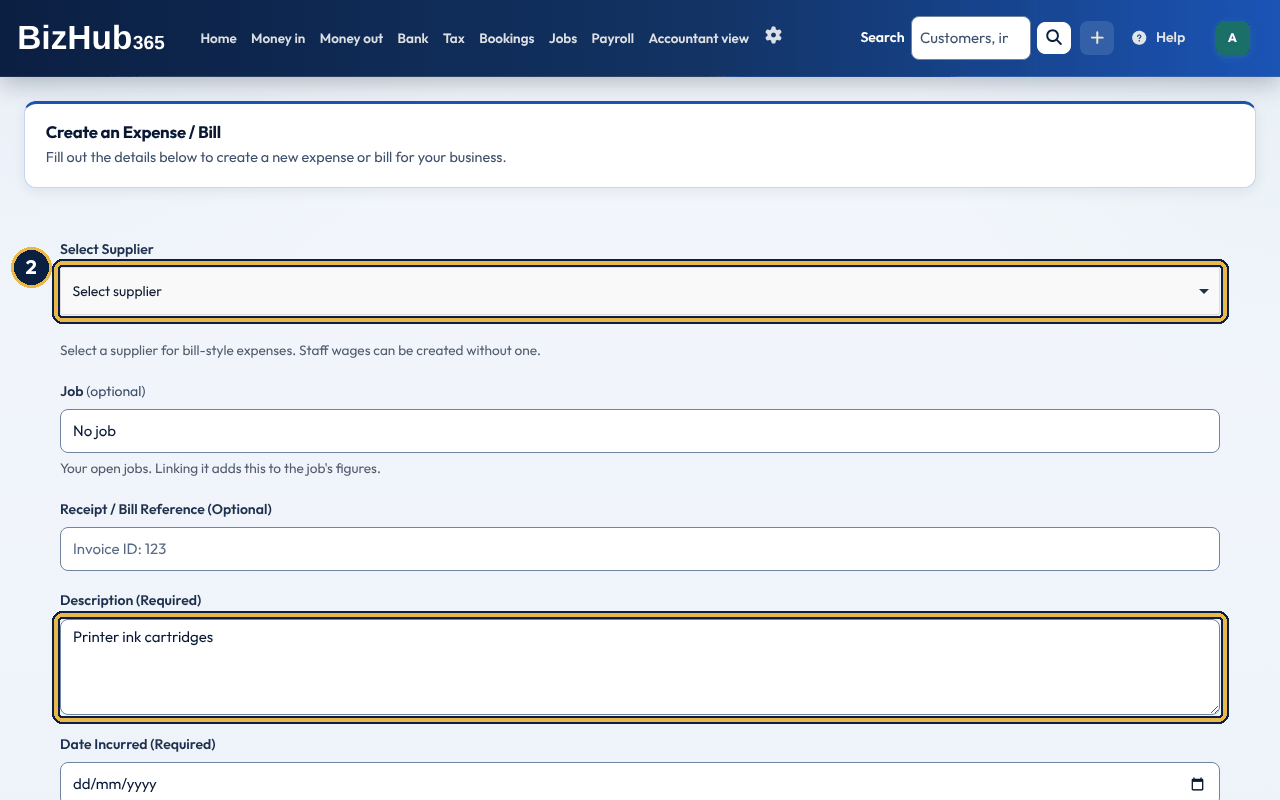
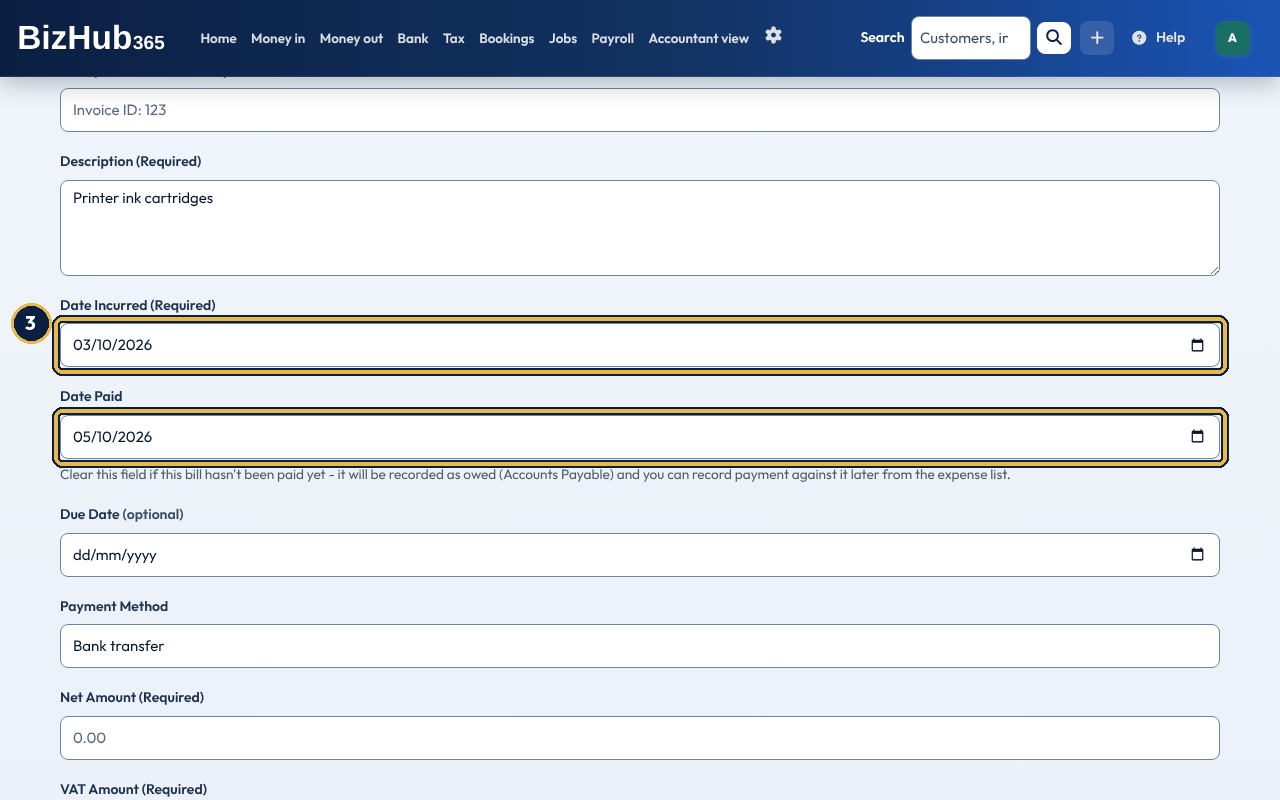
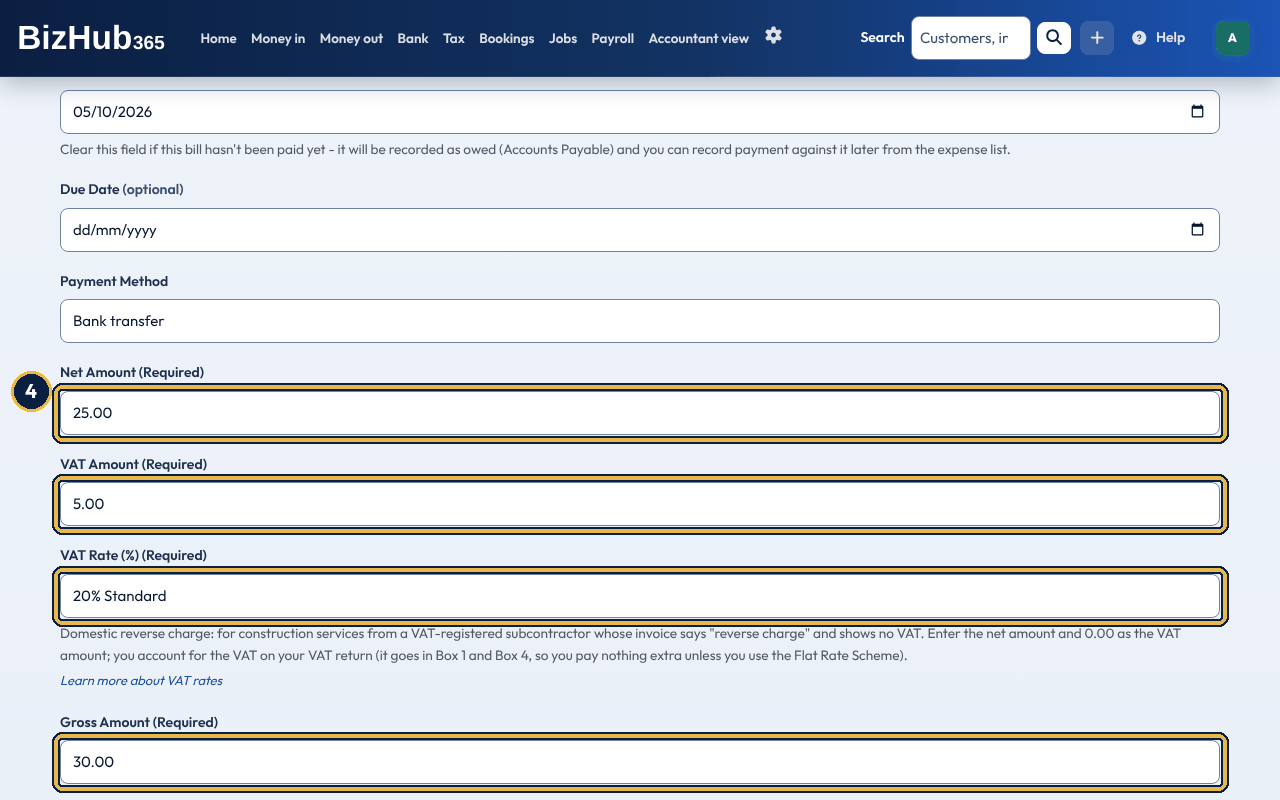
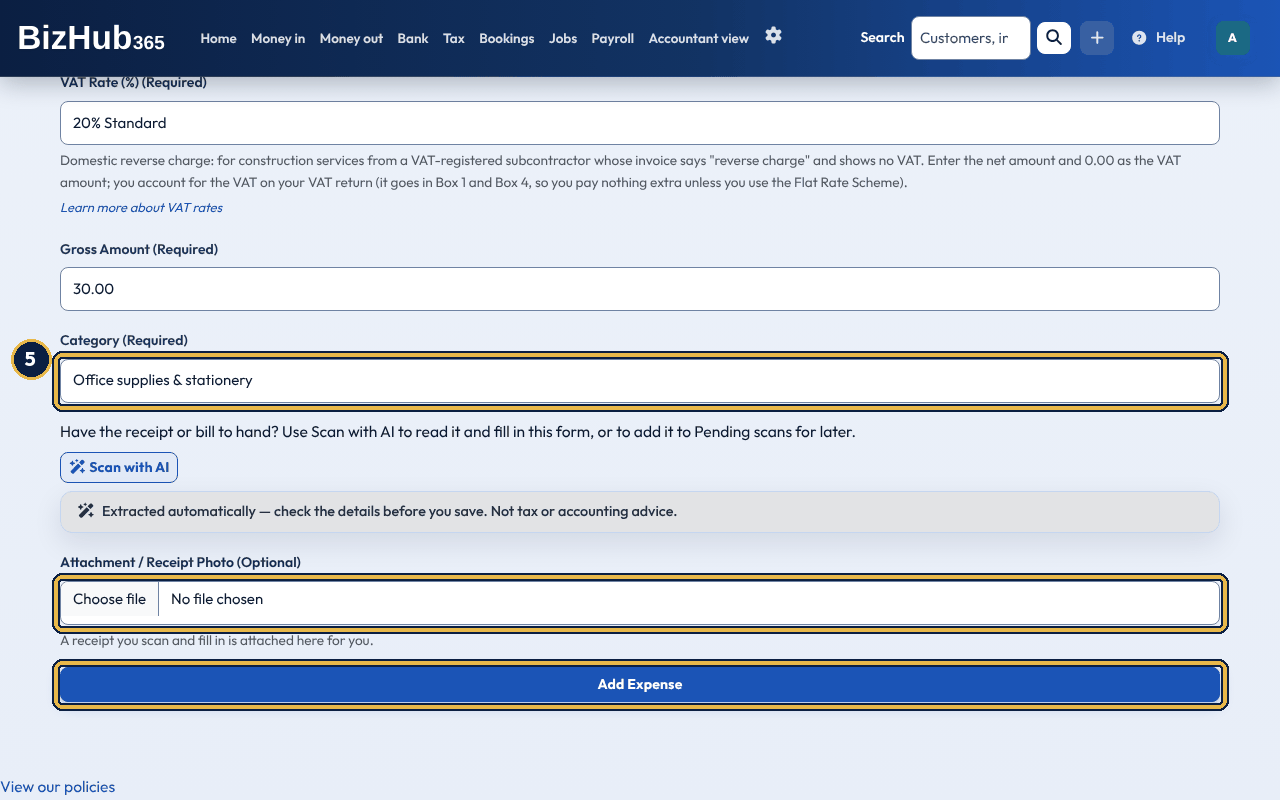
When it worked: The message Expense created successfully appears and the form is ready for the next one. The expense is in Money out → Expenses, marked Paid if it has a Date Paid and Unpaid if not.
| If this happens | Do this |
|---|---|
| The supplier is a CIS subcontractor. | Two more boxes appear: Labour Amount and Materials Amount. Fill both in. The form shows the CIS deduction and the amount payable to the subcontractor. |
| You chose the category Staff wages. | The supplier and bill reference are switched off, because they are not used for wages. |
If you are not VAT registered, you can't reclaim VAT, so the whole amount is the cost and no VAT is asked for or shown. Saving posts the expense to your accounts as a cost owed to the supplier. If it has a Date Paid, its payment is recorded too, as a separate payment on that date that takes the money from your bank account (Cash on Hand if the payment method is Cash). An unpaid one is owed to the supplier until you record its payment (see Expense payments).
When a VAT-registered subcontractor's invoice says the VAT domestic reverse charge applies, it shows no VAT and you account for the VAT instead (see Construction reverse charge). Choose Domestic reverse charge (construction) 20% or 5% as the VAT Rate; the choice is there when you are VAT registered and the CIS section is on. The Expenses list shows the VAT you account for next to the expense. On your VAT return the VAT (the net amount times the rate) goes in Box 1 and again in Box 4, so it costs you nothing, and the net amount goes in Box 7 (not Box 6). With cash accounting it goes on the return for the date incurred, paid or not. On the Flat Rate Scheme you pay the Box 1 VAT but can't reclaim it in Box 4, so for Income Tax the expense counts at its amount plus that VAT. Your accounts record the net amount only: the VAT due and the VAT reclaimed would both be in VAT Control and cancel out.
Where to find it: Money out→Expenses
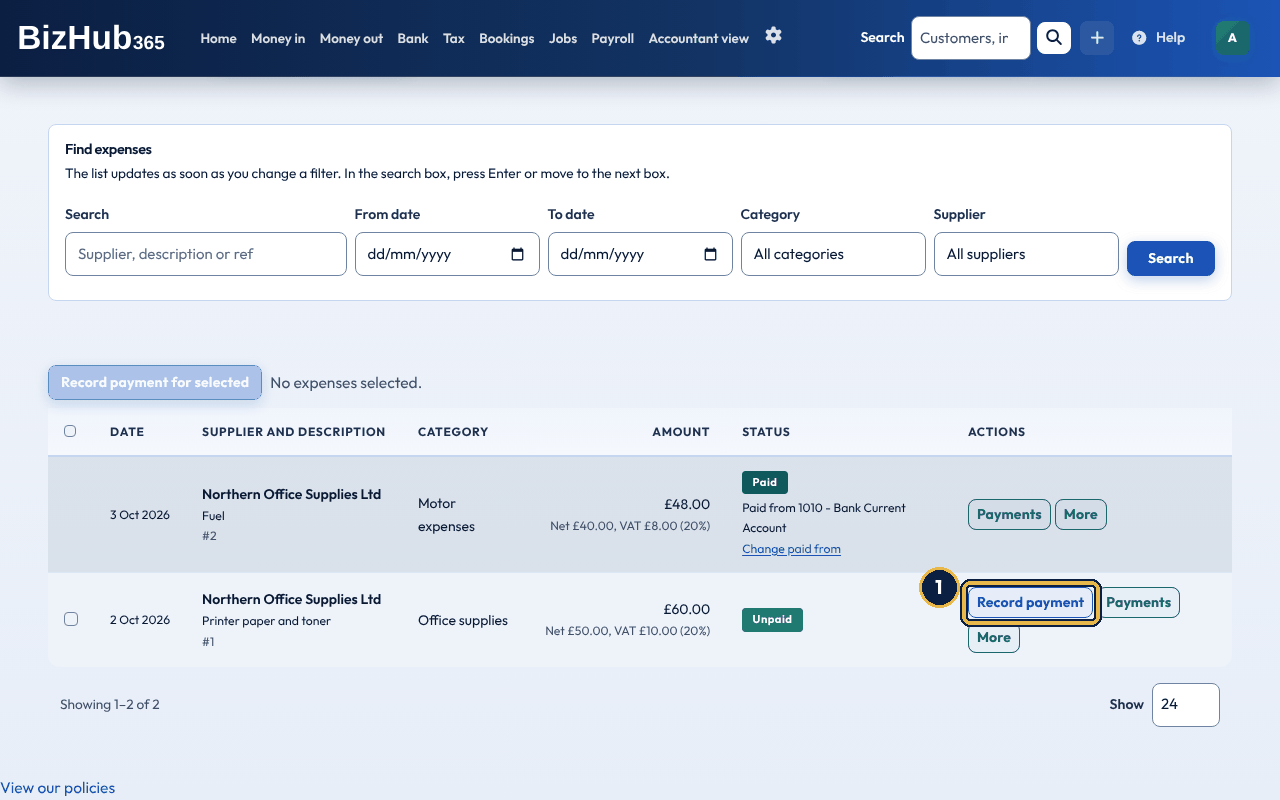
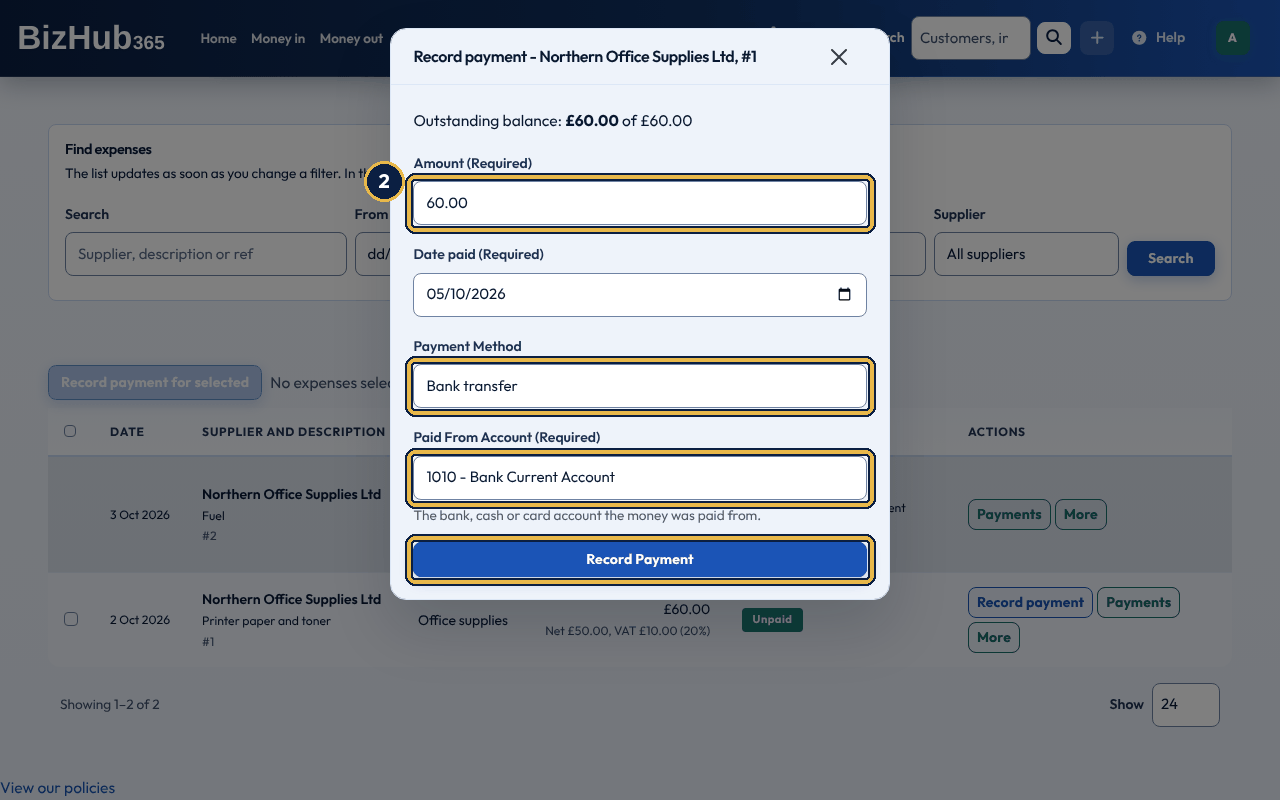
When it worked: A message says the payment of the amount from the account you chose is recorded against the expense, and its status changes to Paid or Part paid.
| If this happens | Do this |
|---|---|
| A message says the date is in a VAT return that is locked or sent to HMRC, or in a year whose accounts are final. | Use a later date: a closed period can't change. A date in the future is refused too. |
| The account you want is not in the Paid From Account list. | The list holds the bank, cash, credit card, director's loan and similar accounts. Add the account in Accountant view → Ledger accounts first. If that isn't in the menu, switch the Accountant view on in Business Settings → Sections. |
The Paid From Account is the bank, cash, credit card or director's loan account the money left. Cash picks Cash on Hand and the other methods pick your main bank account, but you can change it. Payments already recorded are listed in the same window, each with Undo. To change or undo payments, or mark the expense unpaid, choose Payments on the row (see Expense payments).
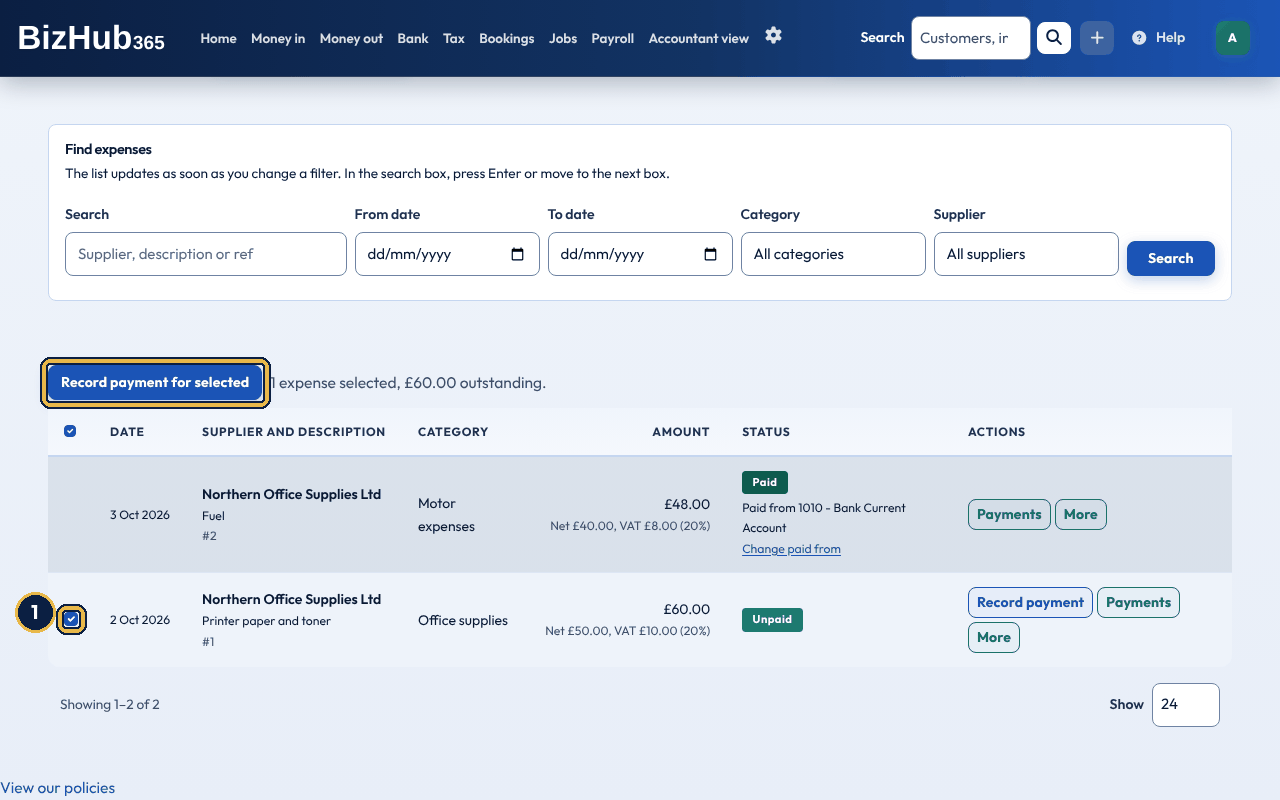
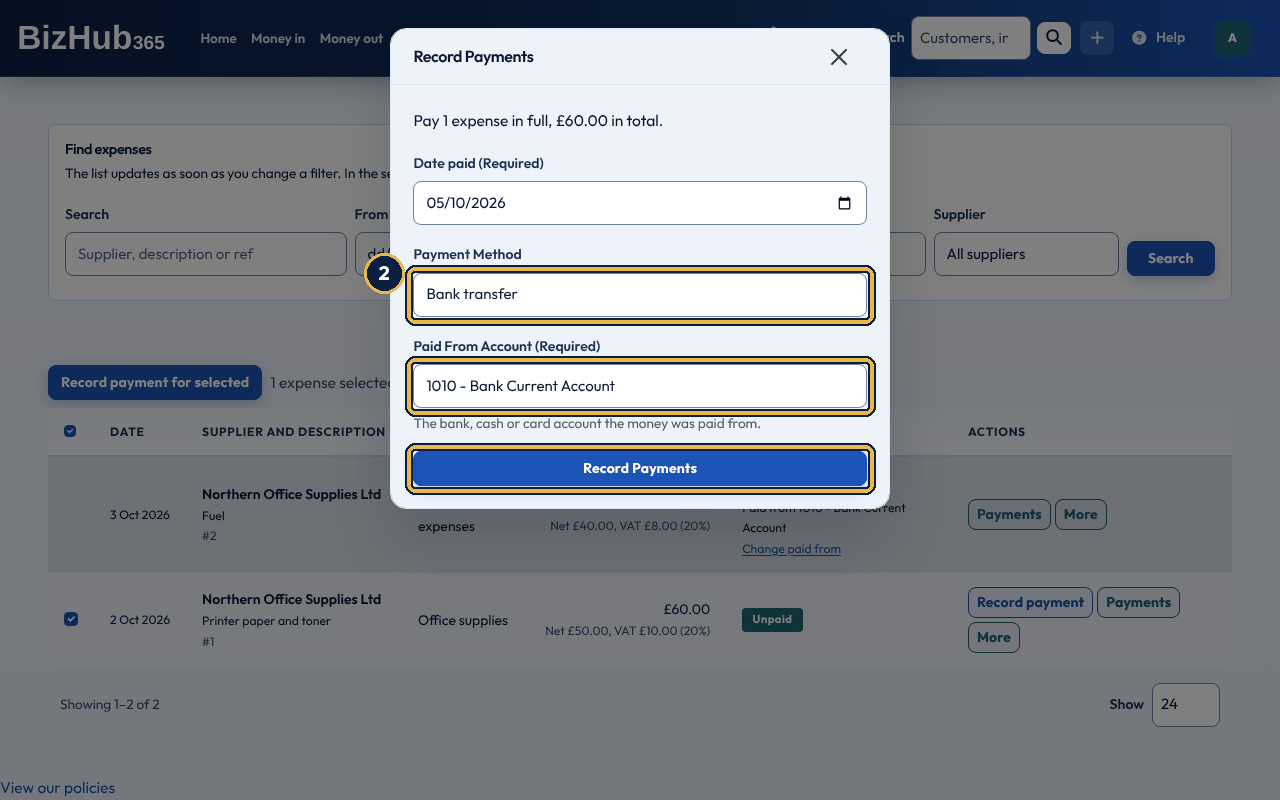
When it worked: A message says how many payments were recorded, the total and the account. Each bill is now Paid.
| If this happens | Do this |
|---|---|
| A message says a bill was not paid. | It names the bill and the reason, for example that it is already paid. The other bills are still recorded. |
Each selected bill is paid in full. A locked bill, or one included in a VAT return, can still be paid while it is unpaid. Once a locked bill is paid, its payment can't be undone.
Where to find it: Money out→Expenses
Each payment of an expense is its own record with its own entry in your accounts, dated the day it was paid: the expense itself is the cost, owed to the supplier from the date incurred, and each payment takes that amount from the account the money left. So you can pay an expense in parts, change a payment, undo it or mark the expense unpaid, and the cost is never changed. The status on the Expenses list is Paid, Part paid (with how much has been paid) or Unpaid. Matching an expense to a bank transaction on the Bank page records its payment from that bank line. An expense you add with a Date Paid, a scanned receipt, a till paid-out, card fees and your monthly mileage are paid when they are recorded. If you use the cash basis for Income Tax, or cash accounting for VAT, an expense counts when it is paid: each payment counts its share of the expense on the day it was paid, so an expense paid in two parts counts in the period of each part. A domestic reverse charge purchase still goes on the VAT return by its date incurred. With traditional accounting and the invoice basis nothing changes: the whole expense counts when it is incurred. With cash accounting, a payment dated in a period whose VAT return you have already finalised or locked goes on your next open VAT return, so it is never left out. A return fetched from HMRC for a period you filed with other software is not treated this way, because what you paid then was on that return. An expense can't be less than zero. When a supplier pays you back, record it with Record money in and Refund from a supplier (see Refunds from suppliers). A captured document whose total is below zero, such as a supplier's credit note, is not added as an expense either: record it the same way. Refunds you recorded before as an expense with a minus amount have been moved there for you, with the same figures, and any document attached to them moved with them.
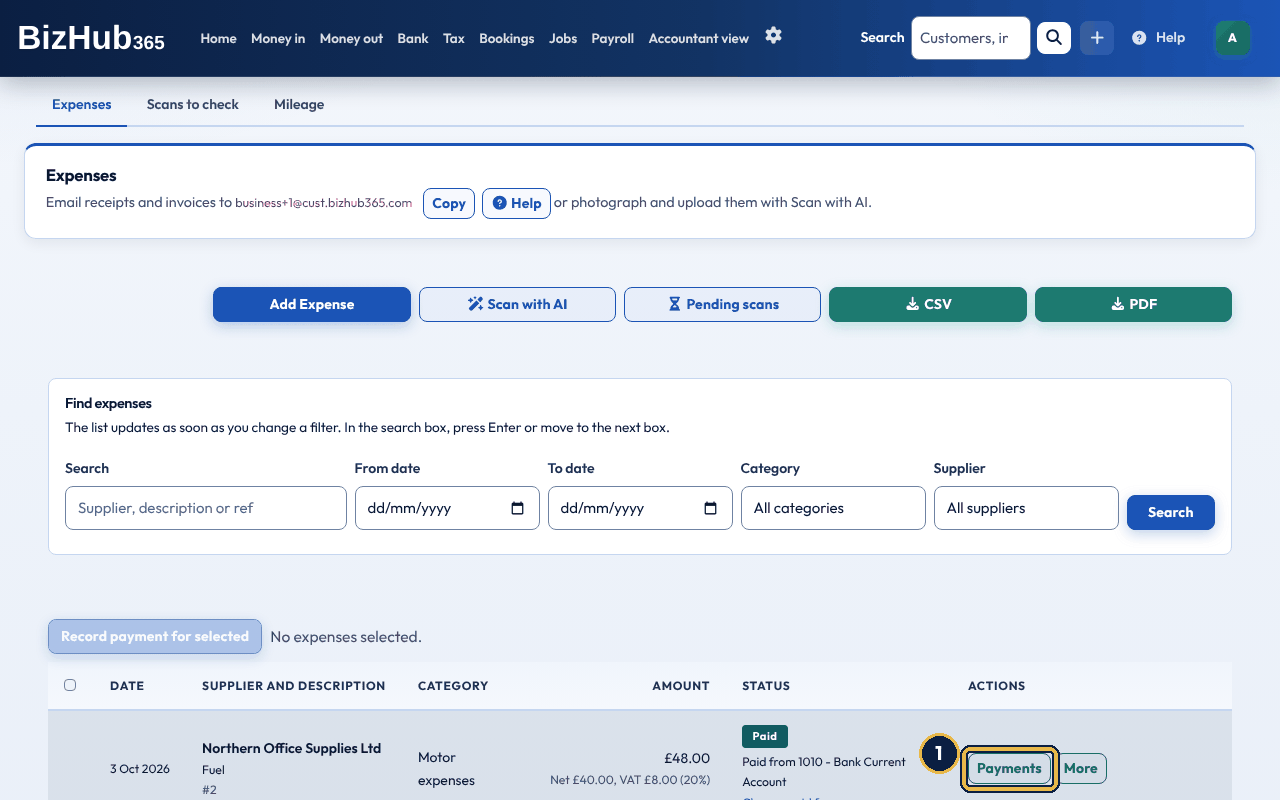
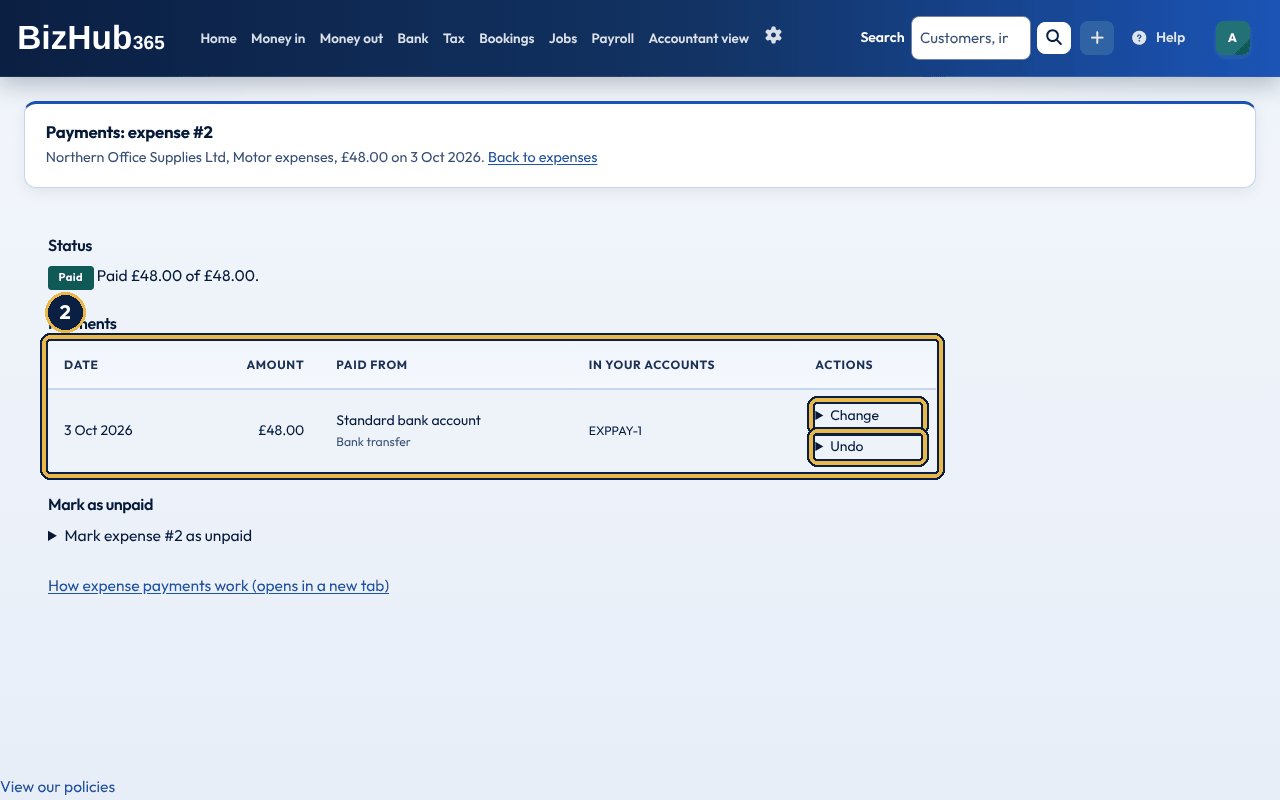
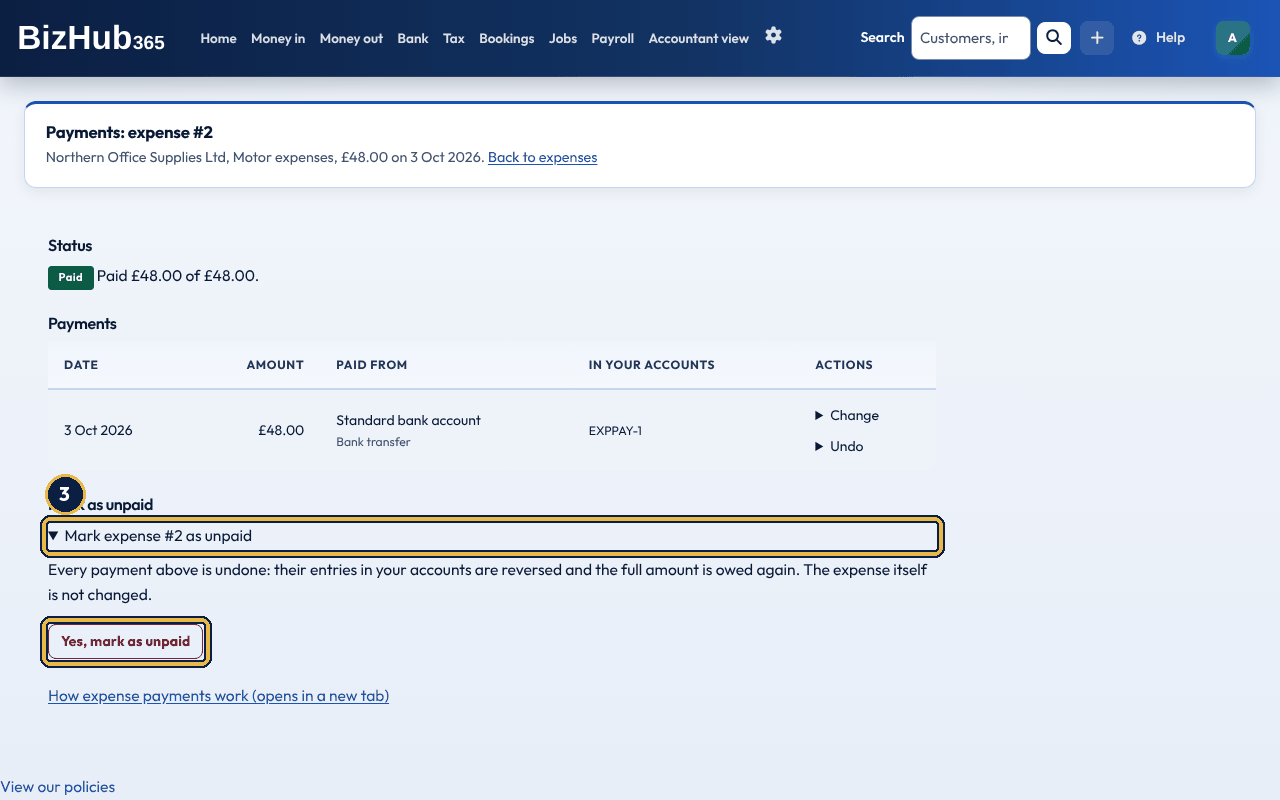
When it worked: A message says what was recorded, changed or undone, and the status at the top of the page shows Paid, Part paid or Unpaid with what is still owed.
| If this happens | Do this |
|---|---|
| There is no Change or Undo on a payment, and it says Locked. | The payment is in a VAT return that is locked or sent to HMRC, or the expense is locked and paid. It can't change; ask your accountant if it is wrong. |
| A payment has Undo but no Change. | It was recorded by matching a bank transaction. Undo puts the bank transaction back on the Bank page to match again. |
Changing or undoing a payment never deletes anything from your accounts: its entry is reversed and, for a change, posted again with the new details. Expenses paid before payments were records of their own show their payment as in the expense's own entry; changing or undoing it moves the expense to the new way first. In the app, the Expenses list shows Paid, Part paid or Unpaid and what is still owed. Record, change or undo payments on the website.
Where to find it: Money out→Expenses
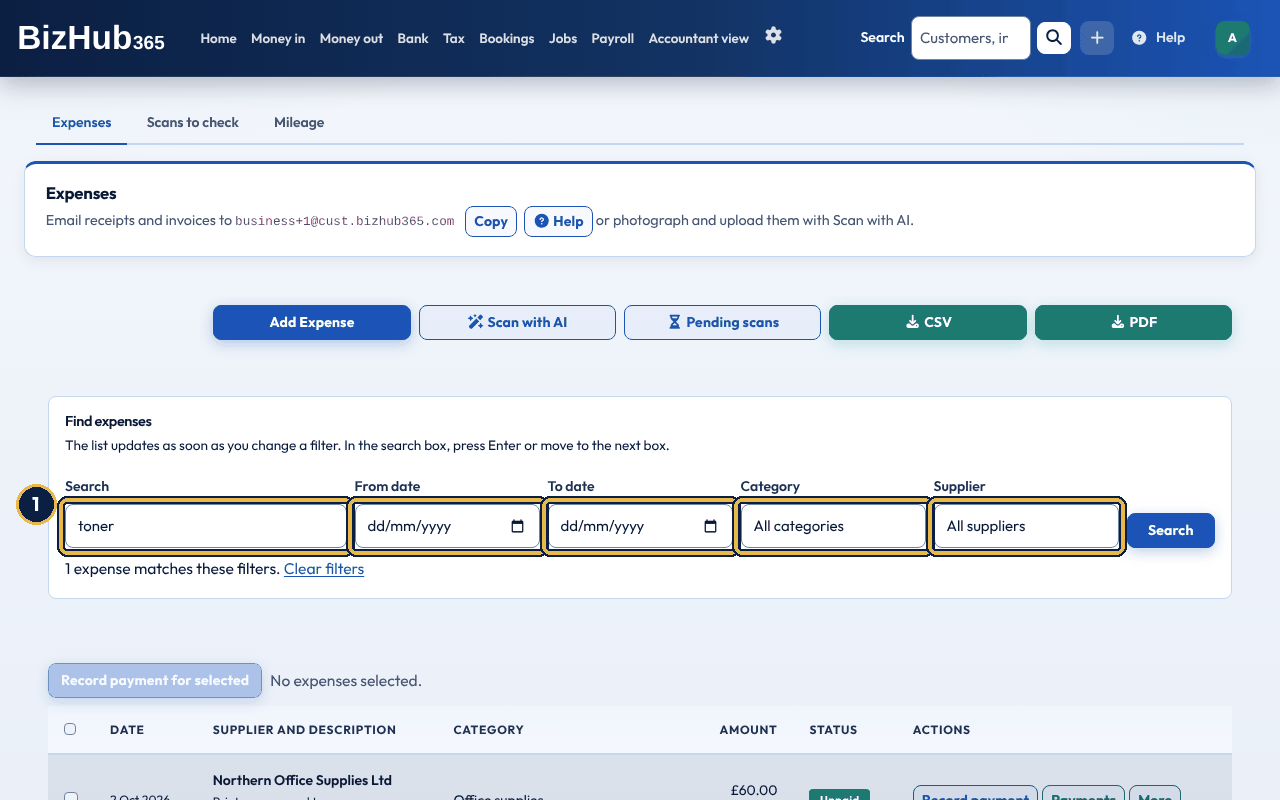
When it worked: The list shows only the matching expenses, with the number found under the filters and Clear filters to see them all again.
The list updates as soon as you change a filter. In the search box, press Enter or move to the next box. Filters only change what you see. They never change an expense, its VAT or your accounts. CSV and PDF above the list export it.
Approving a bill is optional. It records who signed it off and when, and it does not stop the bill being posted or paid. Most small businesses never use it, so the list only shows approval once your business has approved at least one bill. Until then, choose More on a row, then Mark as approved. After that, every bill shows Approved or Awaiting approval, and an Approve button appears on each row. Staff expense claims are different: a manager must approve a claim before it becomes an expense, so those rows show Staff claim, approved.
Where to find it: Money out→Expenses
More on each row holds Mark as approved, Lock (or Unlock) and Delete. Lock stops anyone changing or deleting the expense until someone unlocks it.
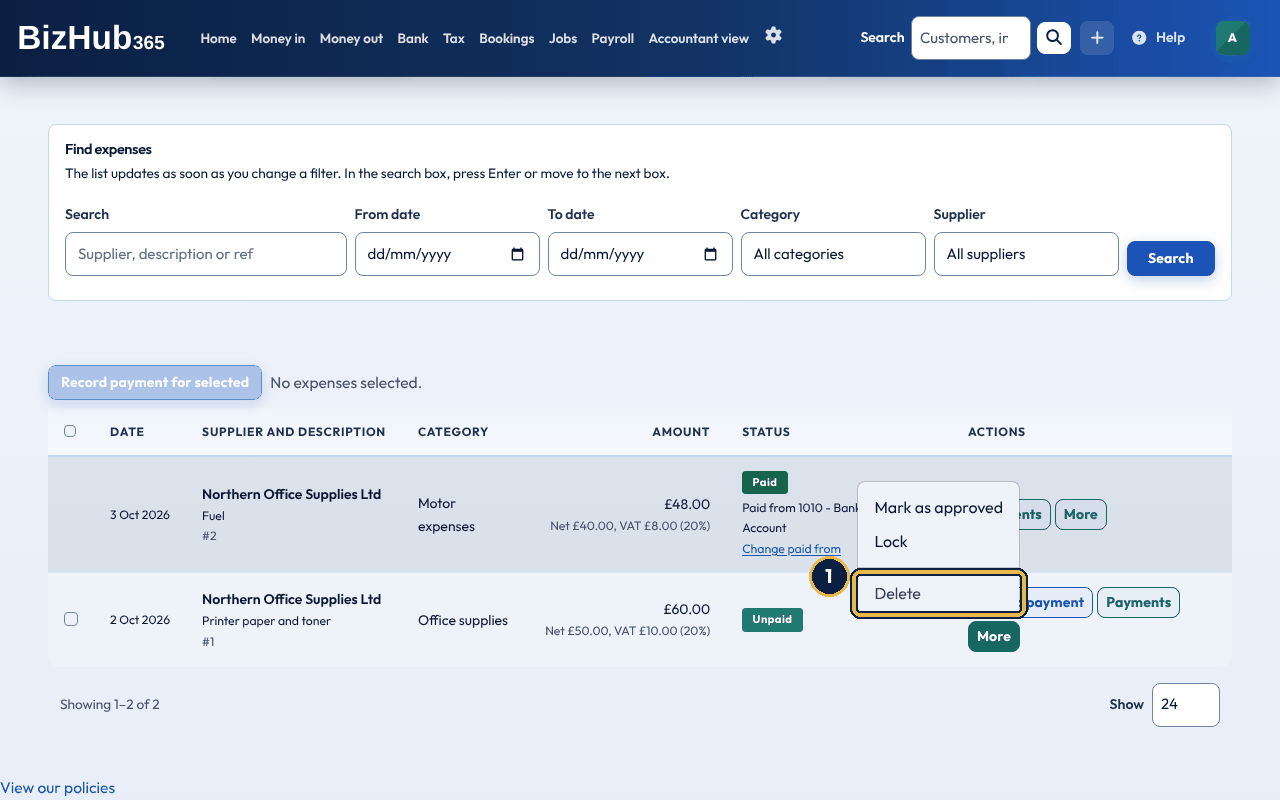
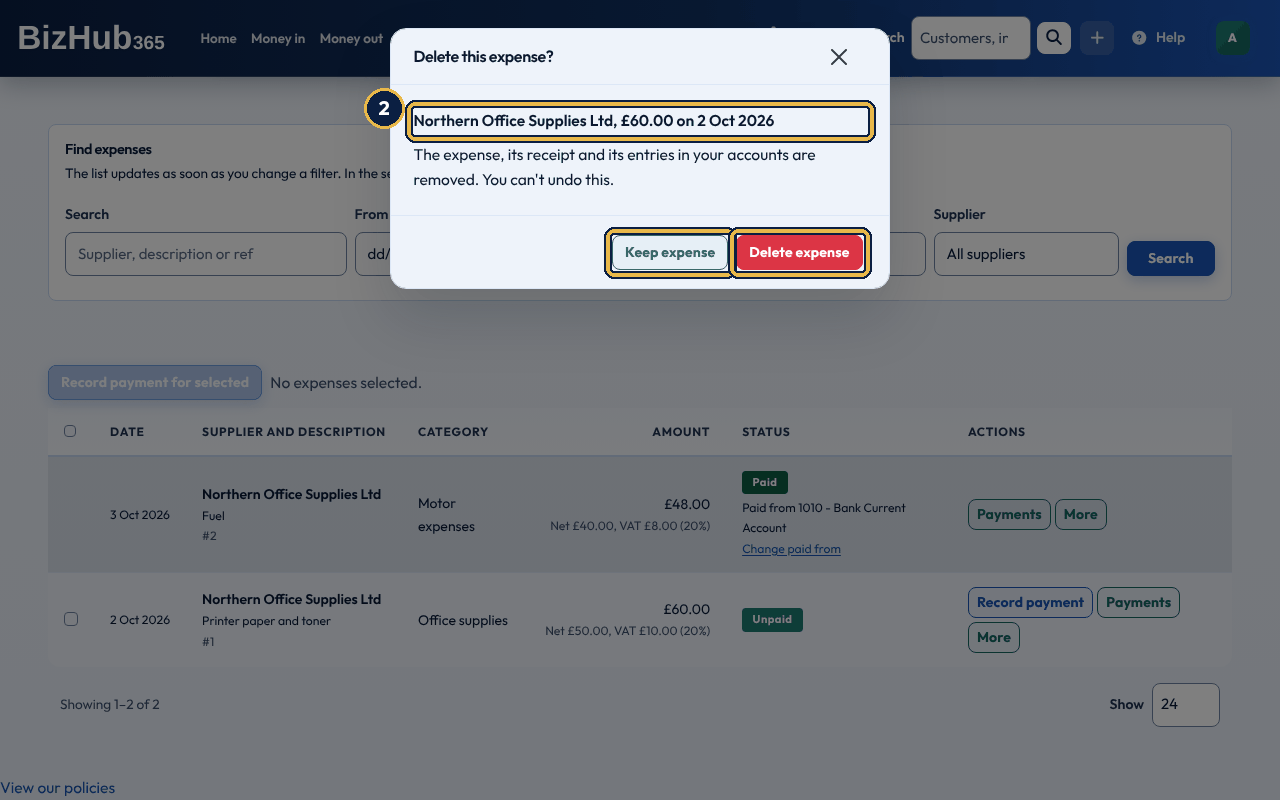
When it worked: The message Expense deleted successfully appears. The expense, its receipt and its entries in your accounts are removed.
| If this happens | Do this |
|---|---|
| More says Delete is not available. | The expense is locked, or in a VAT return. Unlock it first if you locked it; one in a VAT return stays. |
| A message says the expense paid for a fixed asset. | The asset's cost comes from it, so it can't be deleted. |
Where to find it: Money out→Document capture
Document Capture turns receipts, supplier bills, and old sales invoices into bookkeeping records without typing them in. Send them in by email. BizHub365 reads each file, works out what it is, and records it as an expense or an invoice for the business you have selected. To photograph or upload a document yourself, use Scan with AI instead: your scans wait in Pending scans for you to check and save.
The capture address only accepts documents from:
Email from anyone else is bounced back to the sender with an explanation. So is email that fails the sender’s email security checks, which helps stop fake bills that pretend to come from someone you trust.
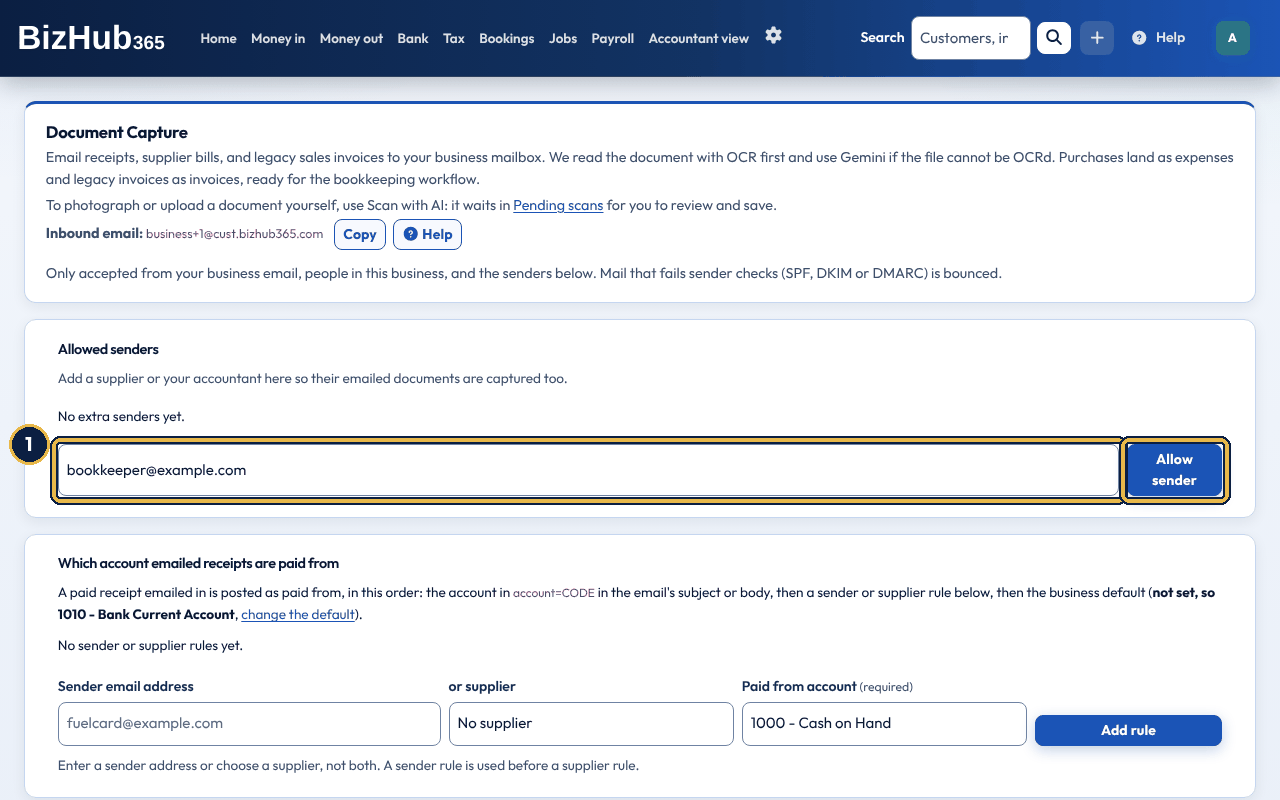
When it worked: A message says the address can now email documents in, and it is listed under Allowed senders with Remove beside it.
| If this happens | Do this |
|---|---|
| The page says only a user who can manage users can change this list. | Ask the business owner or an administrator to add the sender. |
| Document | Recorded as |
|---|---|
| A paid receipt (till or card receipt) | An expense, marked paid |
| A supplier bill you still have to pay | An expense, not yet paid |
| A sales invoice you raised in another system | A BizHub365 invoice. It is not emailed to the customer. |
| Anything BizHub365 cannot classify | An expense |
BizHub365 reads the text already in a PDF, or uses OCR on a scan or photo, and Claude, an AI model from Anthropic, reads the details from that text. If there is not enough text, Claude reads the file itself.
Each emailed document in Document Capture links to the expense or invoice it created. Open it and confirm the supplier or customer, the date, the gross amount, and the VAT before you rely on it in a VAT return or a report. If you are not VAT registered, any VAT printed on a receipt or bill is ignored and the total you paid is saved as the cost. Correct the record if anything was misread. The Document Capture list, and the ready email if you asked for one, say the details were extracted automatically and should be checked before you save, and that this is not tax or accounting advice.
Where to find it: Money out→Document capture
A paid receipt that arrives by email is recorded as a paid expense, so BizHub365 also has to record the bank, cash, card or loan account the money left. The Help button next to your capture address opens this section.
BizHub365 uses the first of these that applies:
CODE must be one of this business's bank, cash, credit card, director's loan or similar accounts. A code that doesn't exist, or that belongs to an income, expense, debtors, creditors, VAT or Credit Notes Liability account, is ignored: the receipt uses the next choice, and the Document Capture row says why. account=CODE is only read from emails the capture address accepts (the business email, people in the business and allowed senders). BizHub365 does not reply to say which account it used.
Each imported row in Document Capture shows the account used and how it was chosen: account= in the email, sender or supplier rule, business default, or standard bank account. A supplier bill that isn't paid yet is posted to creditors instead. Choose the account when you record the payment.
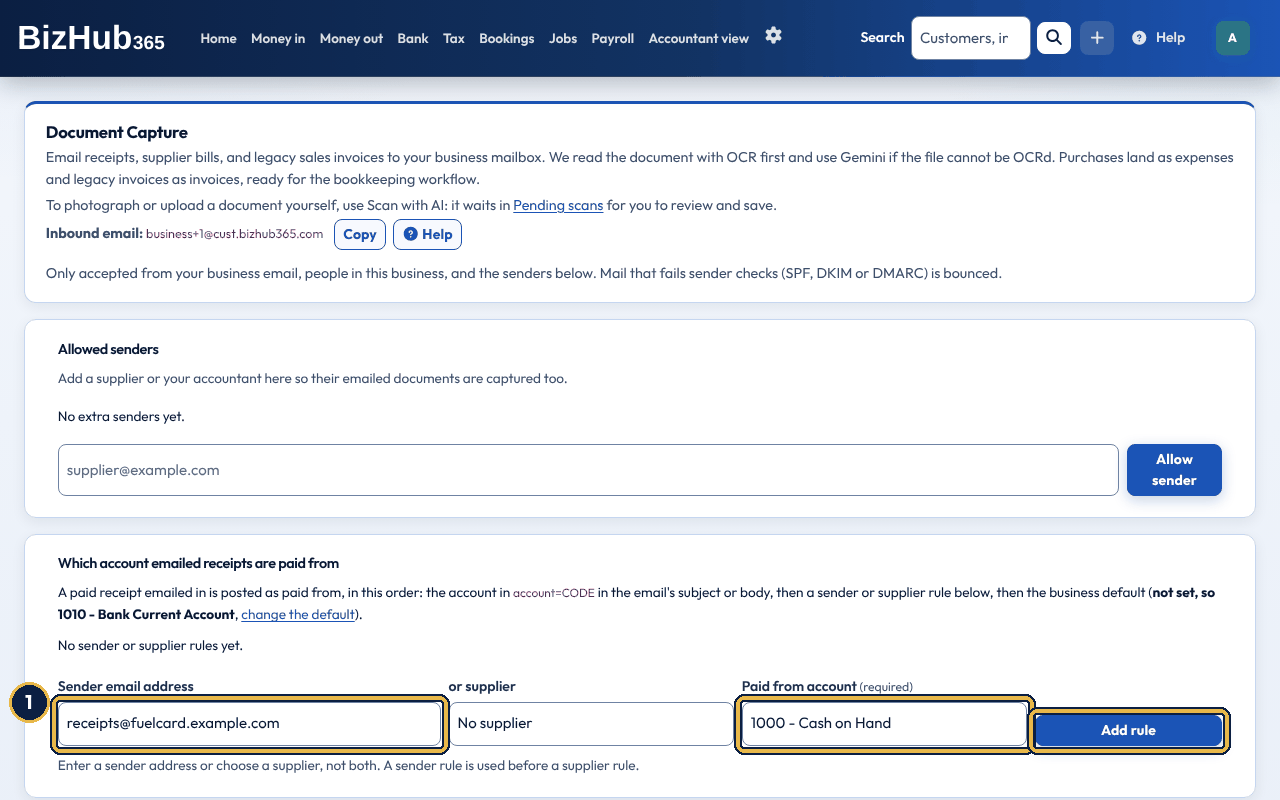
When it worked: A message says emailed receipts from that sender or supplier will be paid from the account, and the rule is listed with Remove beside it.
| If this happens | Do this |
|---|---|
| A message says to enter a sender or choose a supplier, not both. | Clear one of them. Add a second rule if you need both. |
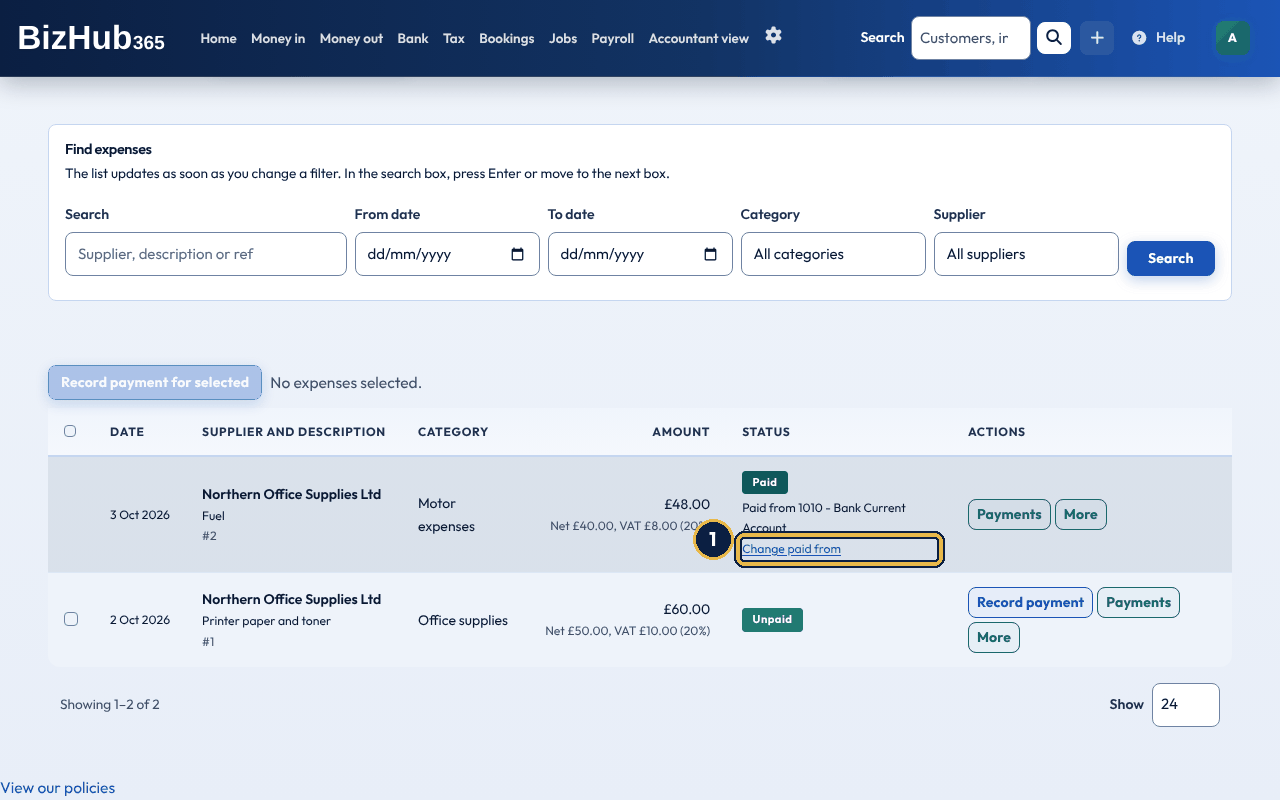
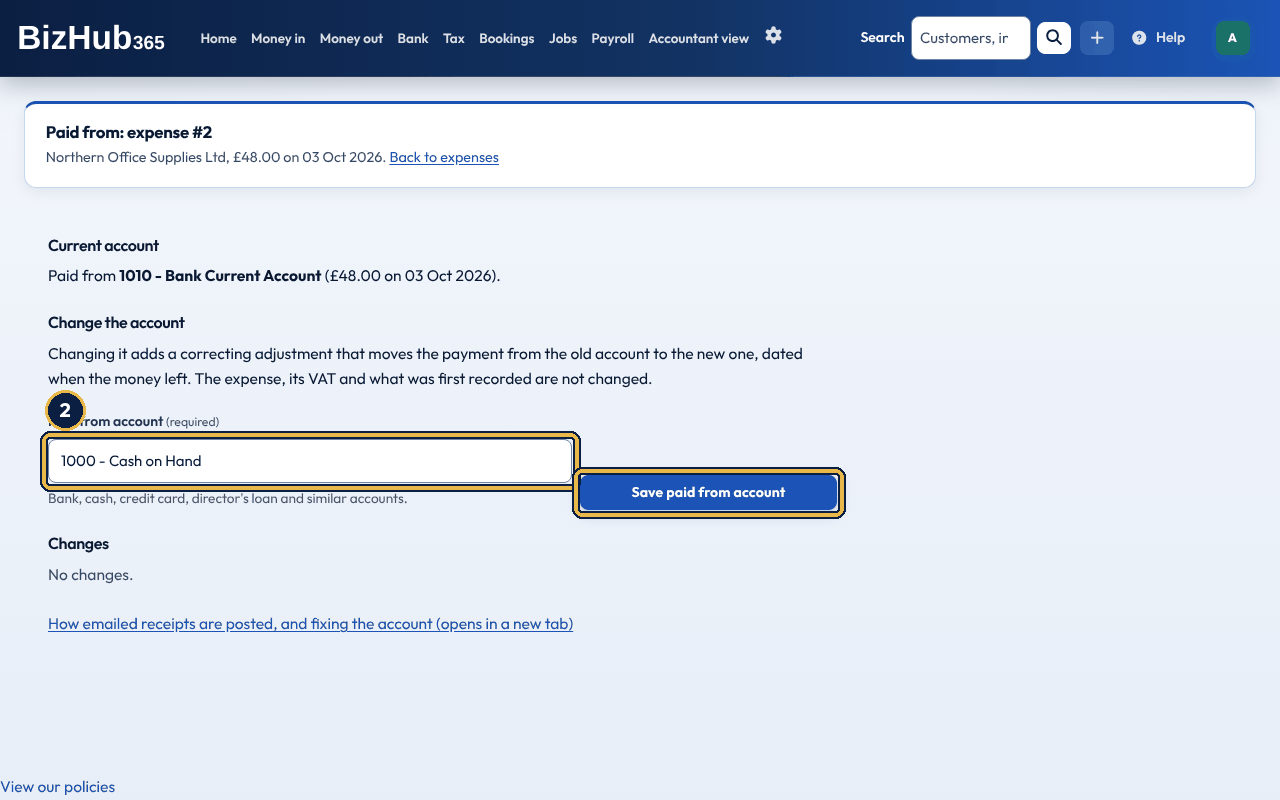
When it worked: A message says the expense is now paid from the new account and that a correcting adjustment moved the amount from the old one. The change is listed under Changes with who made it.
| If this happens | Do this |
|---|---|
| The page says the account can't be changed. | The expense is locked, or in a locked or submitted VAT return, or it was paid by a bank-feed transaction. See the note below. |
BizHub365 posts a correcting journal that moves the payment from the old account to the new one, dated when the money left. The expense, its VAT and its original journal don't change. This works for receipts imported to 1010 before these settings existed.
Where to find it: Money out→Expenses→Scan with AI
Scan with AI is the one way to photograph or upload a receipt, bill or invoice, on the website, the installed web app and the phone app. It is on Money out → Expenses, Money out → Pending scans, Business overview and the Add Expense form, and it works the same everywhere. Each photo or file goes to Pending scans. AI reads it in the background, so you can scan several in a row without waiting. Nothing is added to your accounts until you review and save it. Do not skip the check: AI can misread a 5 as an 8. If the day's scanning limit has been reached, the scan is read later and waits in Pending scans as Reading until then.
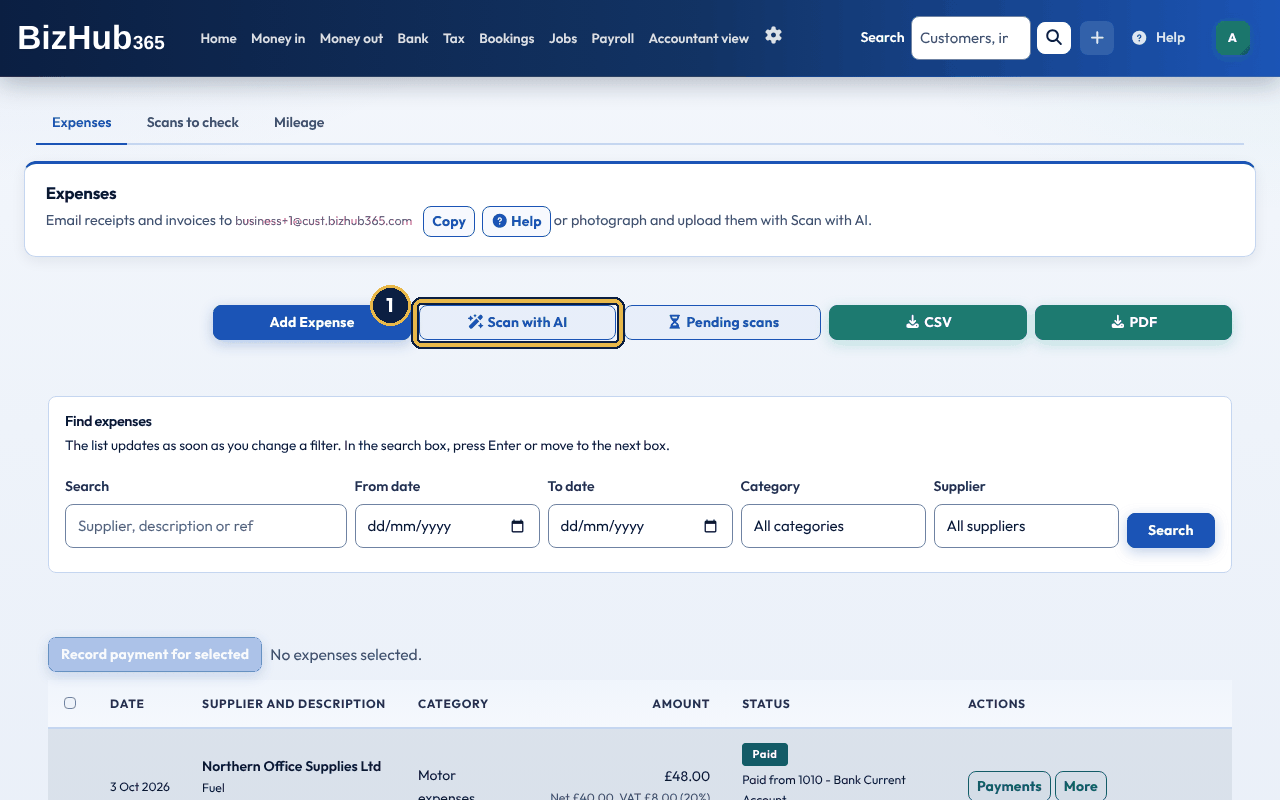
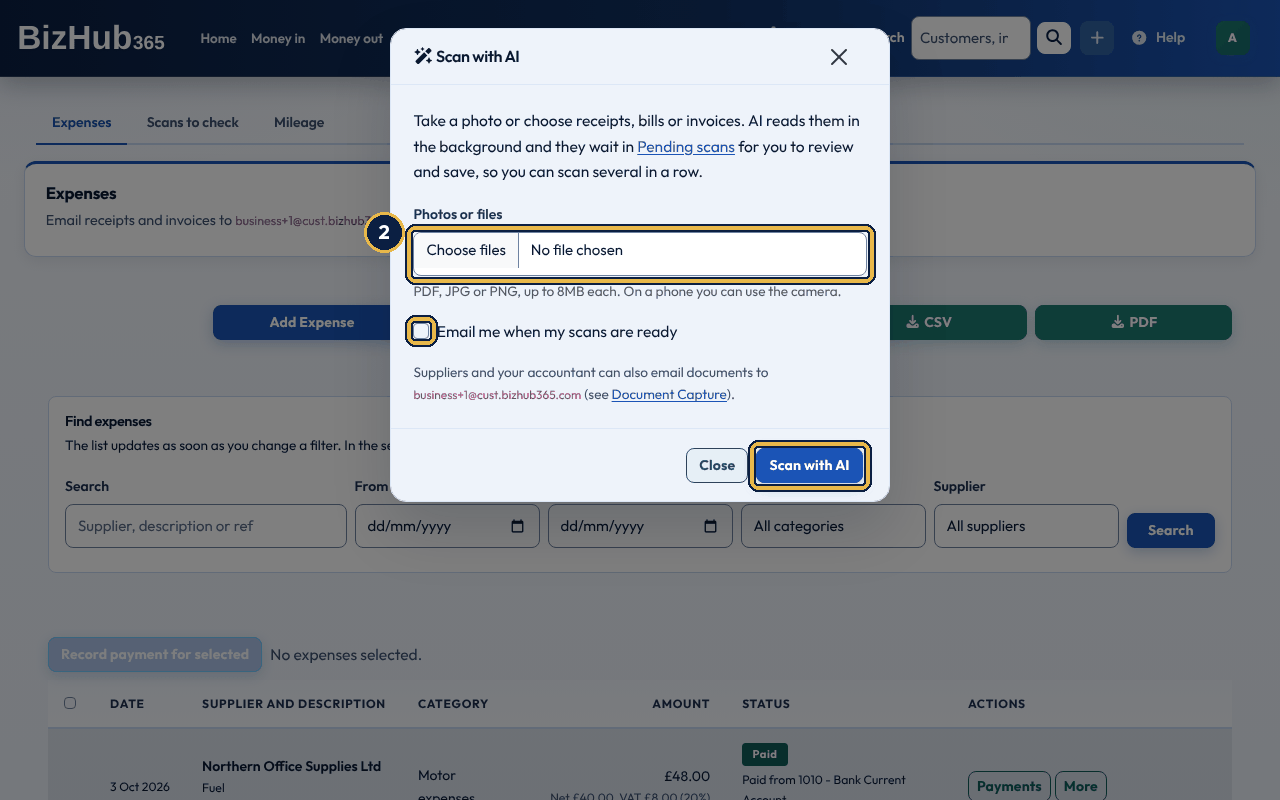
When it worked: The window says how many scans were added to Pending scans and shows Open Pending scans with the number waiting. You can choose more files straight away. If you ticked the box, the email Your scan is ready to review links to Pending scans.
| If this happens | Do this |
|---|---|
| A message says the file type is not supported or the file is too large. | Use a photo or a PDF no larger than 8MB. The other files you chose are still added. |
| A message says the scanning limit for this hour has been reached. | Try again later, or add the expense by hand. |
When you are already on the Add Expense form with one receipt, choose Scan with AI on the form and pick Scan and fill this form now under After scanning. The receipt is read straight away, the form is filled in for you to check, and the file is attached. Nothing is saved until you choose Add Expense. To scan several, leave Add to Pending scans chosen.
Where to find it: Money out→Pending scans
Pending scans lists every scan that has not been saved yet, newest first. When scans are waiting, the number is shown on Money out and Pending scans in the top bar, on the Pending scans tab of Expenses, on Business overview and next to Scan with AI on Money out → Expenses. Each scan shows the file name, when it was scanned, the details AI read (supplier, date, total, VAT if you are VAT registered, and reference) and its status: Reading while AI reads it, Ready to review when it can be saved, or Could not read. Choose Refresh to check on scans that are still reading. Only people who can add expenses see Pending scans.
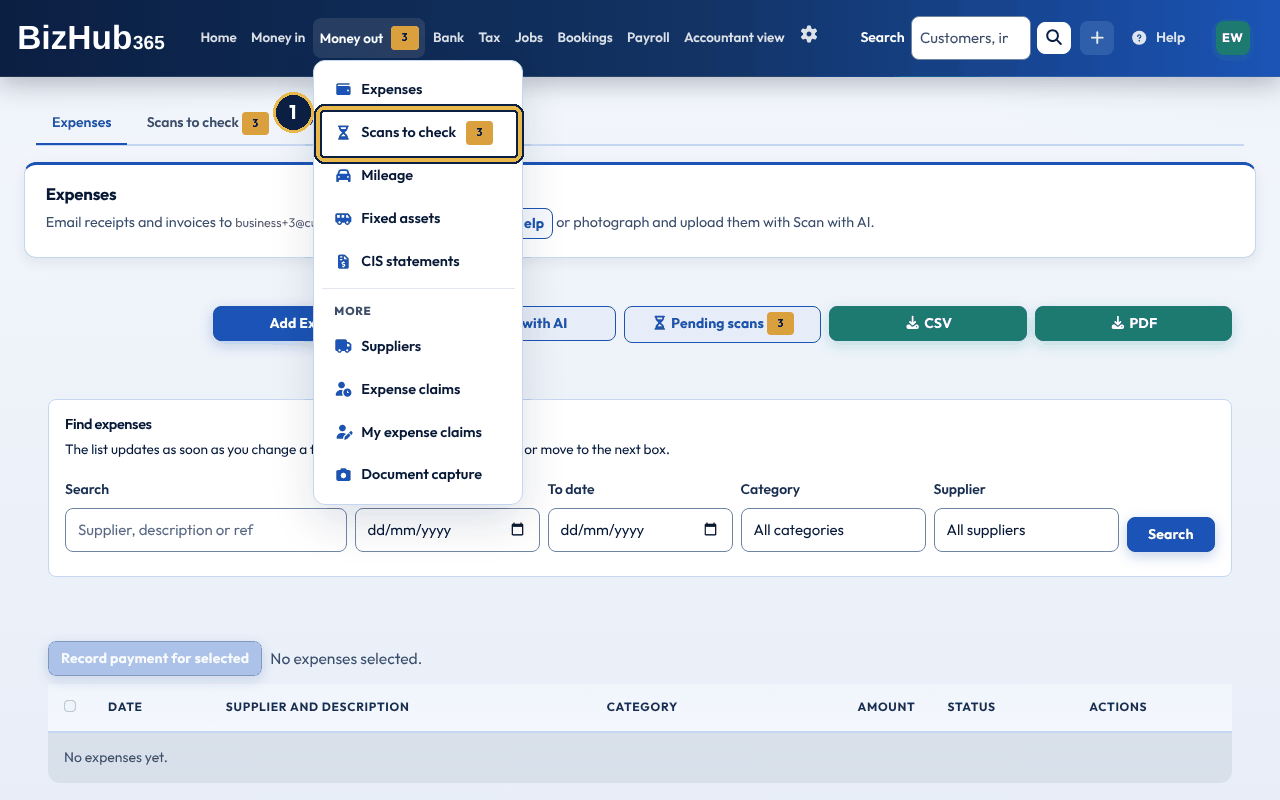
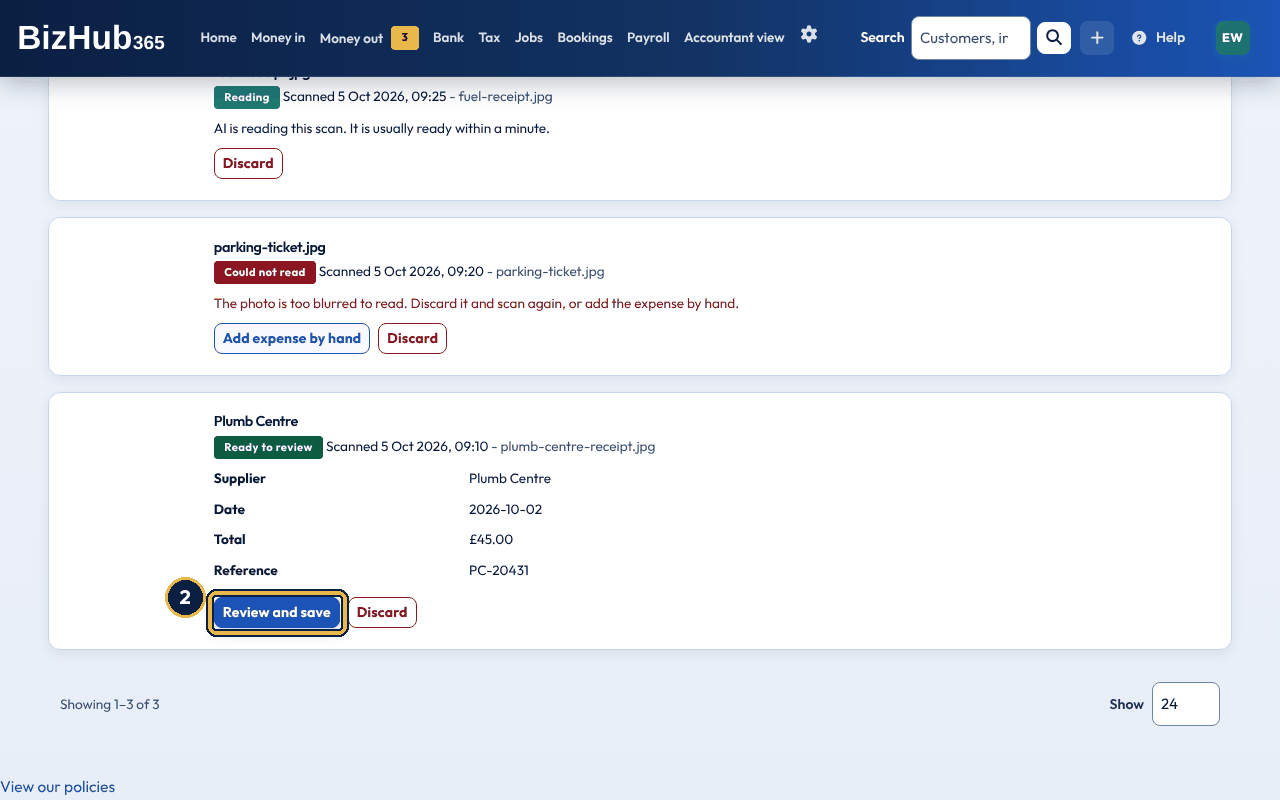
When it worked: The expense is saved with the scanned file attached, and posted to your accounts like any other expense. The scan leaves Pending scans and you are taken back to the next one, or to Expenses when none are left.
| If this happens | Do this |
|---|---|
| The scan says Could not read. | Choose Discard and scan it again with a clearer photo or the original PDF, or choose Add expense by hand. |
To remove a scan you don't need, choose Discard and confirm with Discard scan. The scan and its file are deleted; nothing in your accounts changes. A scan of an old sales invoice (from an email) shows Save as a sales invoice as well.
On Create Expense in the app, Scan with AI offers Add to Pending scans or Scan and fill now, which reads one receipt into the form. To attach a receipt without scanning it, use Click to attach file for a photo or Attach a PDF or file for a file.
With no signal, Scan with AI in the app still takes the photo or file and keeps a copy on your phone, Mileage still starts, stops and adds trips (for a vehicle the app has loaded once), and Daily takings still records a day. The message says it was saved on this phone. When the phone is back online the app uploads it by itself: when you open the app again, and every minute while it is open. A scan then goes to Pending scans as usual; a trip started and stopped with no signal keeps the times you tapped Start and Stop; a day's takings is recorded as if you had saved it online. Until then, Home, Scan with AI, Mileage and Daily takings show Waiting to upload with how many are waiting. Tap Try again to upload them now. Each one is only ever added once, however many times the app tries. If BizHub365 refuses one when it arrives (for example a file that isn't a PDF, JPG or PNG, a trip with no miles, or takings dated in a VAT period you have already sent to HMRC), it stays under Waiting to upload with the reason. For a trip, correct the details shown and tap Send again. For takings, tap Fix and send again: the form opens with what you entered and each problem beside its box; correct it and tap Send again. Or tap Discard and confirm to remove it from your phone. Nothing is thrown away without you choosing Discard.
Where to find it: Money out→Mileage
Mileage is the log of your own business trips: where you went, why, and the business miles. In a vehicle on HMRC mileage rates (simplified expenses) each trip earns an allowance, and each month's trips are added to your books as one travel expense. Start and stop trips in the BizHub365 app on your phone, let the app record them by itself (automatic trips), or add them here by hand. Mileage is also a tab on the Expenses page. The page shows one month at a time (Previous month and Next month): each trip with its miles, its rate and its allowance, the month's totals, a table by vehicle with the miles at the full rate and at 25p, and how many car and van miles you have done this tax year.
| Vehicle | HMRC mileage rate |
|---|---|
| Car or van | 55p a mile for the first 10,000 business miles in the tax year (6 April to 5 April), then 25p a mile. The 55p is the business's mileage rate (Money out, Expense claims), never more than HMRC's 55p. |
| Motorcycle | 24p a mile |
| Bicycle | Not covered: simplified mileage rates don't cover bicycles for the self-employed. Add a bicycle on actual costs and record its costs as ordinary expenses. |
The 10,000 miles count every car and van on HMRC mileage rates in the business together. A trip that crosses 10,000 is split: the miles up to 10,000 at 55p and the rest at 25p. Trips already added as an expense keep their figures, so a trip added late never takes more miles at 55p than are left. Each vehicle is claimed one of two ways. With HMRC mileage rates the allowance covers fuel, insurance, repairs and the vehicle itself, so don't add those as expenses. With actual costs you add fuel, insurance and repairs as normal expenses, and your trips here are the log of business use: the share of business miles in all the miles you drive is the share of those costs that is for the business. Trips in a vehicle on actual costs earn no allowance and are never added as an expense. A bicycle can only be on actual costs.
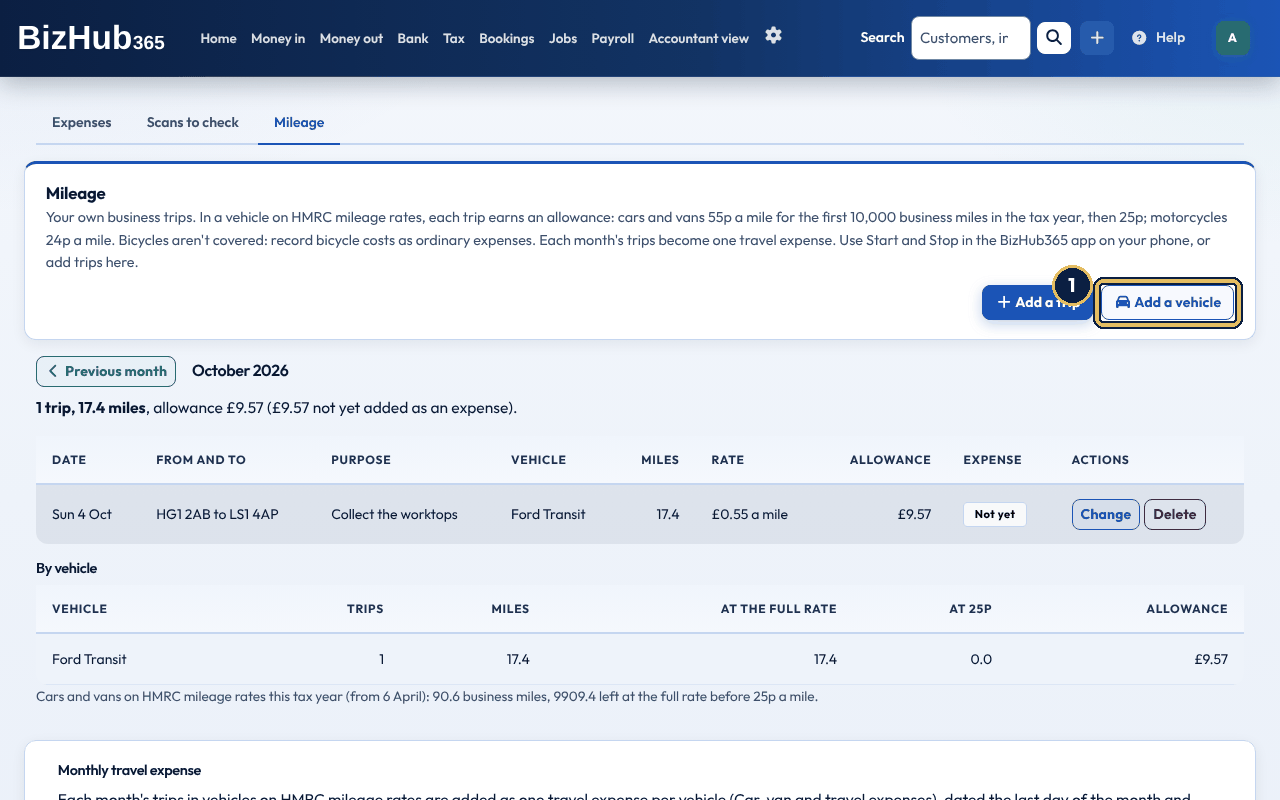
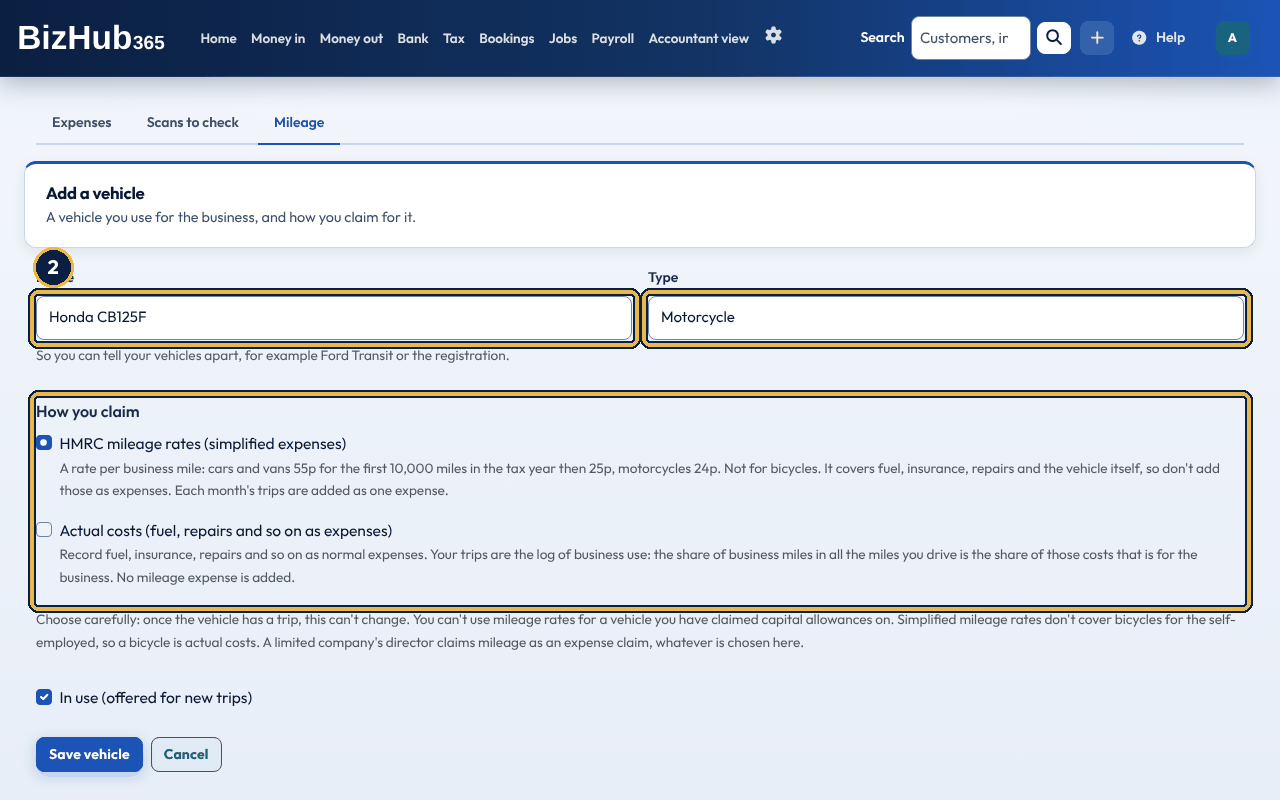
When it worked: The message that the vehicle is saved appears and it is listed under Vehicles. To change its name later, or untick In use when you stop using it, choose Change on its row.
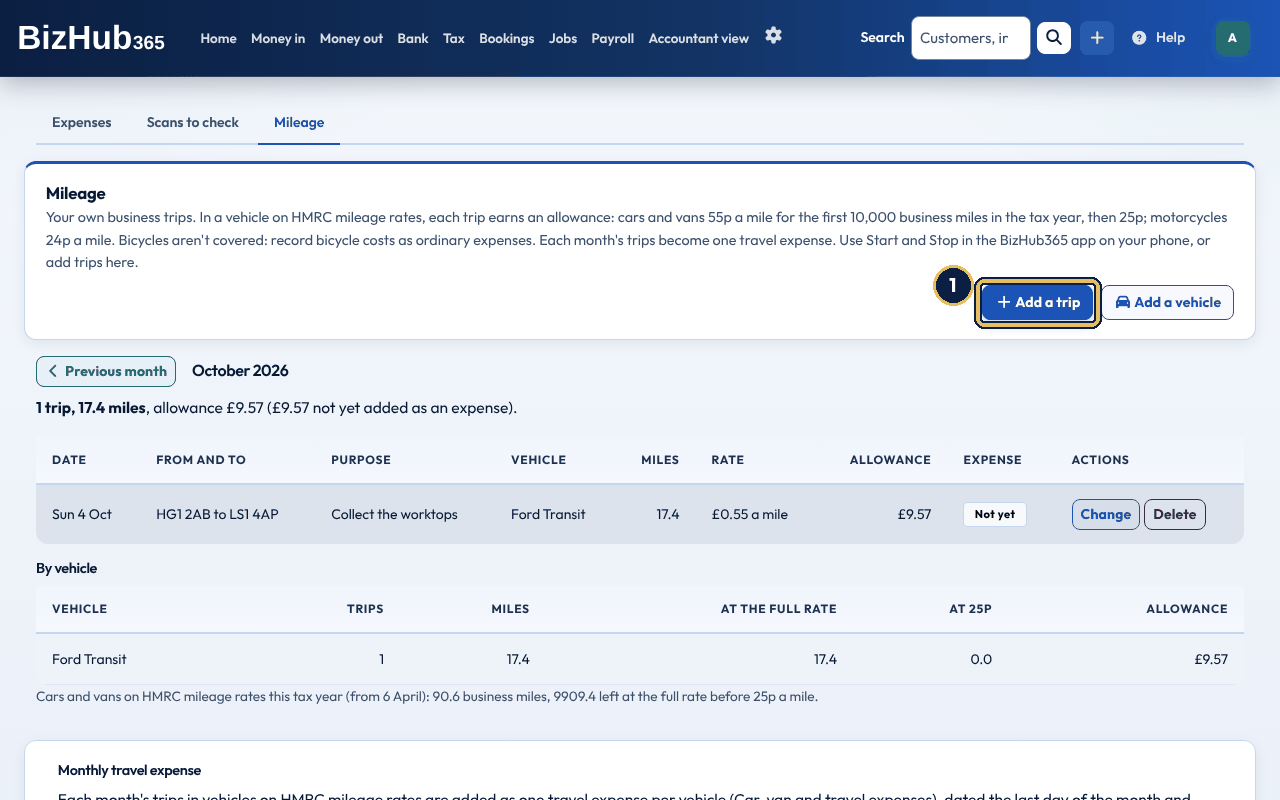
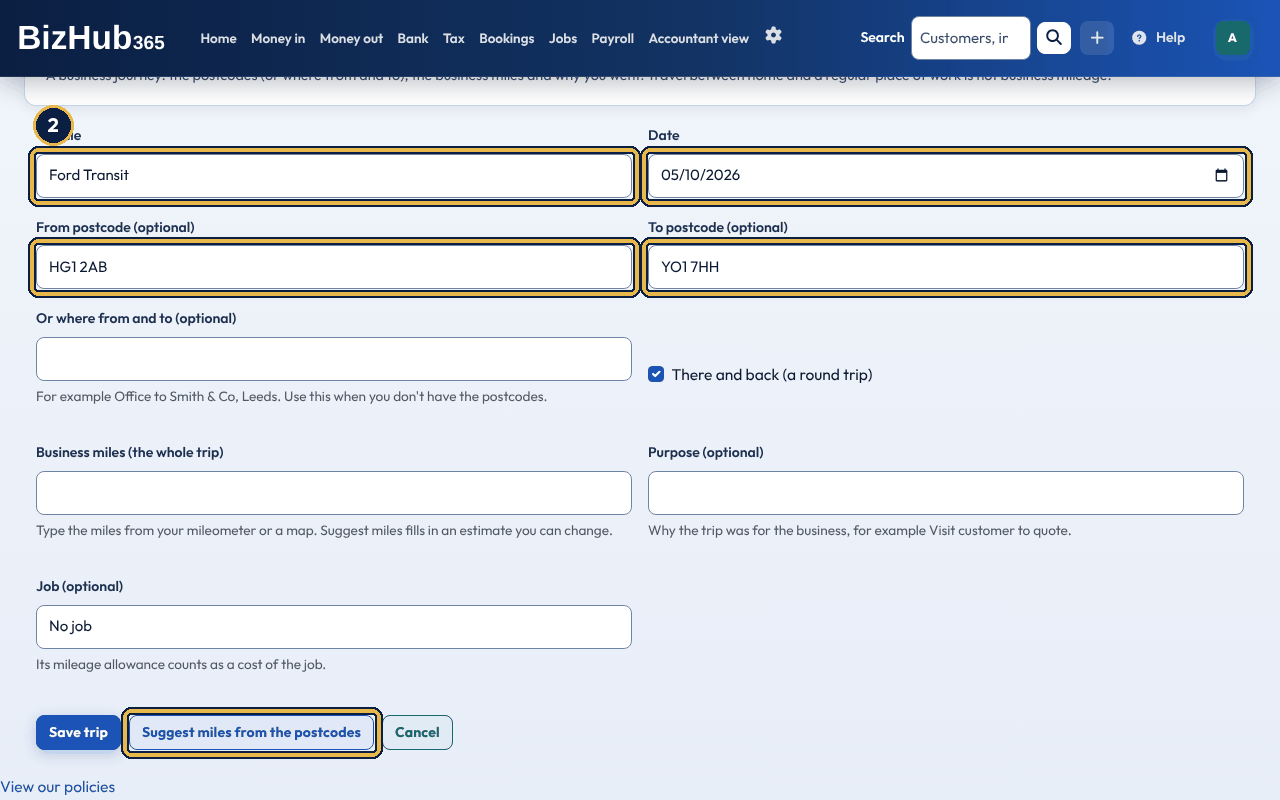
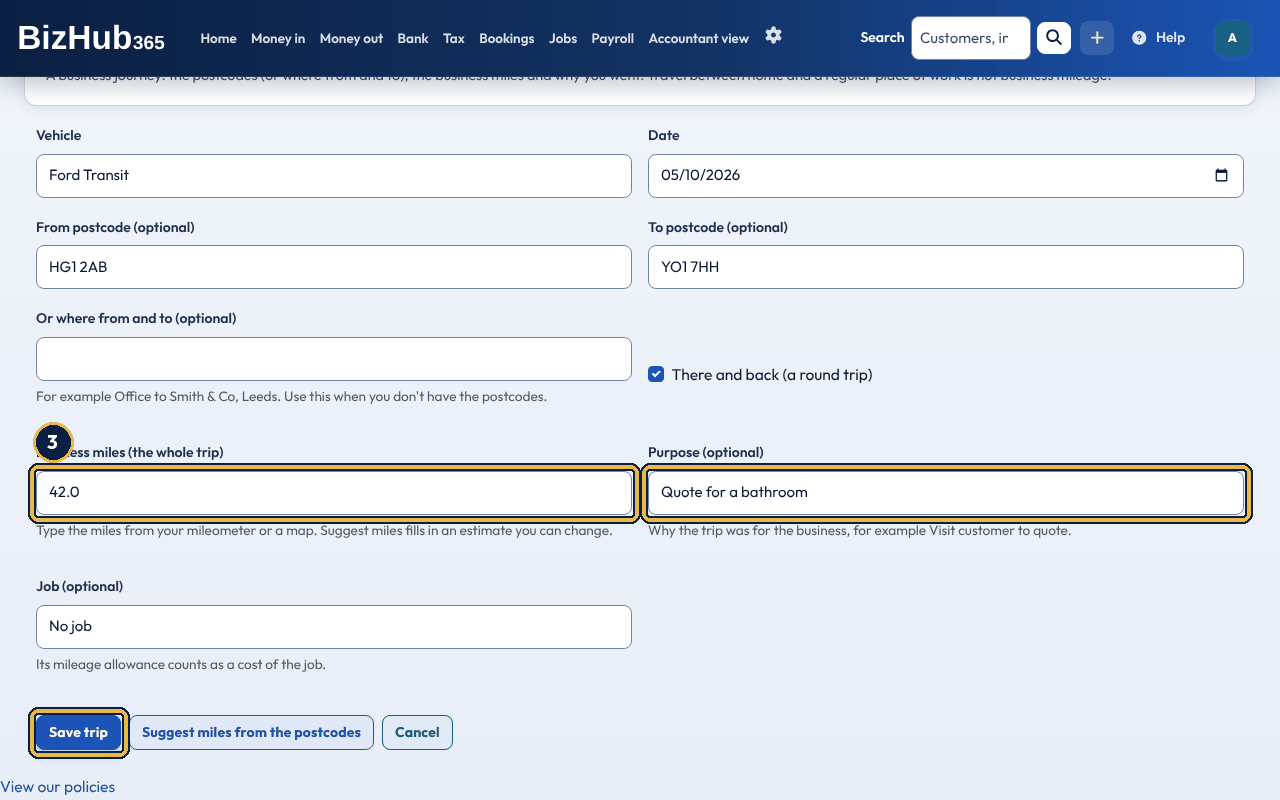
When it worked: The message that the trip is saved appears, and the trip is listed in its month with its allowance.
| If this happens | Do this |
|---|---|
| The suggested miles look wrong, or no suggestion appears. | The suggestion is the straight line between the two postcodes plus a fifth for the roads, so it is only a guide. Type the miles from your mileometer or a map instead. If the postcodes can't be looked up, a message asks you to type the miles. |
| Change or Delete is missing on a trip. | The trip is on a mileage expense already. Delete that expense on the Expenses page first; its trips can then be changed and added again. |
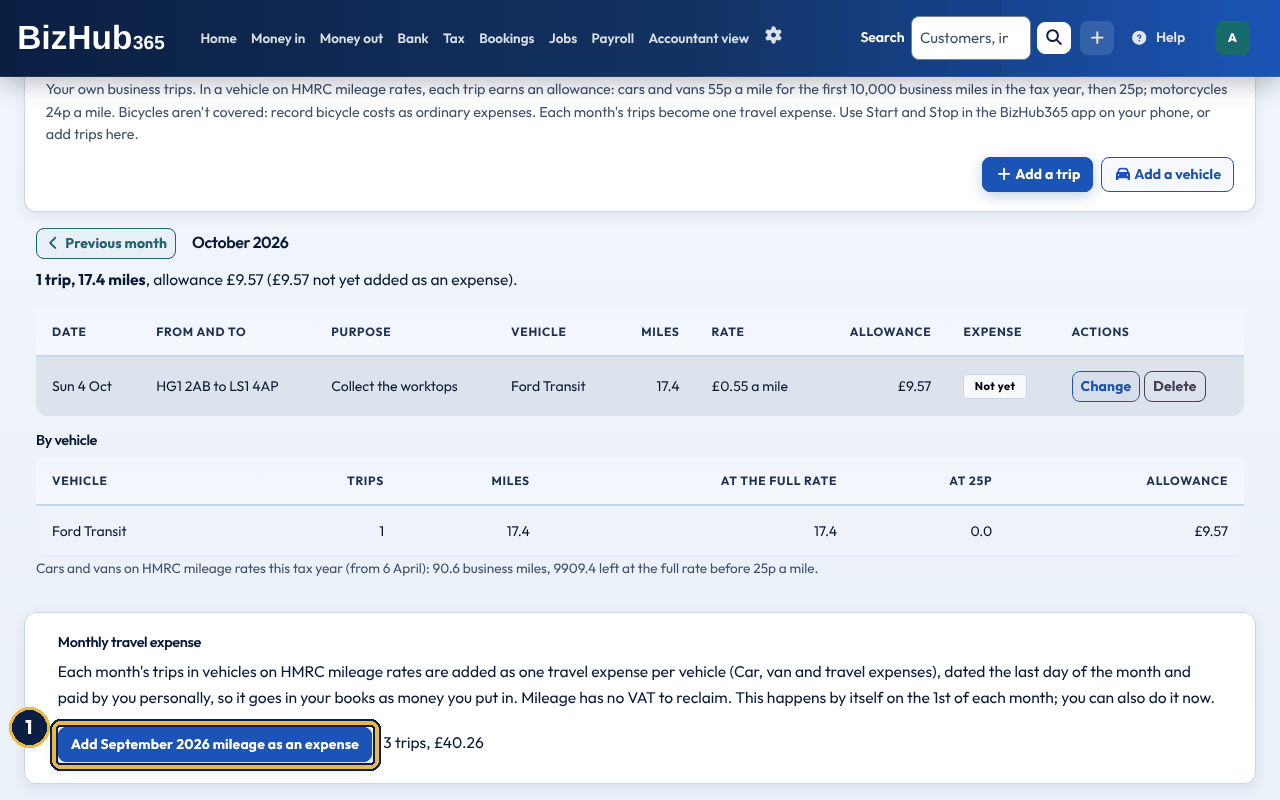
When it worked: One expense is added for each vehicle on HMRC mileage rates, in Car, van and travel expenses, dated the last day of the month (or the first day after a VAT return or year end you have closed) and described, for example, Mileage: 3 trips, 73.2 miles (Ford Transit, September 2026). It has no VAT, and it is recorded as paid by you personally (Owner's capital introduced), because you paid for the fuel and the vehicle yourself. Trips already on an expense are never added again.
A limited company pays its director's business mileage through an expense claim, so for a company the trips on this page are a log only and no monthly expense is added: claim the miles on My expense claims (see below).
Instead of starting and stopping each trip, you can have the app record your drives by itself. Automatic trips are off unless you turn them on, and they are your own choice on your own phone: anyone else who signs in to BizHub365 on the same phone chooses for themselves, and trips recorded for you are only ever shown to you and sent under your name.
While automatic trips are on, the app uses your phone's location, including when the app is closed or not in use, to notice when you start driving (faster than about 15 km/h, or more than 500 metres in a few minutes) and when you stop (about 5 minutes in one place). It works out the miles on the phone. The location readings stay on your phone and are deleted when each trip ends. On Android a notification, Recording business trips, shows while it is on; an iPhone shows its location indicator.
Nothing is sent until you sort the trip. Each recorded trip waits in Mileage under Trips to sort, with its date, times, miles and vehicle. Business saves it to your mileage with the miles (change them first if they look wrong), an optional purpose and the postcode areas where it started and ended (for example Automatic trip: LS1 to LS2); on the website it is marked Automatic. Personal deletes it from your phone and nothing is sent. Your route is never uploaded. With no signal, a business trip waits on your phone and uploads later, as other trips do.
If notifications are allowed for the app, the phone tells you when a trip has ended (Trip to sort); tap it to open Mileage. The app never asks for notification permission just for this.
When it worked: The message Automatic trips are on for (vehicle) appears, and the Automatic trips card in Mileage says it is on. After each drive the trip appears under Trips to sort: tap Business or Personal.
| If this happens | Do this |
|---|---|
| The app says automatic trips need location all the time and stay off. | You allowed location only while using the app. Open your phone's settings, choose BizHub365, Location, and choose Allow all the time (Android) or Always (iPhone), then turn automatic trips on again. Starting and stopping trips yourself works without it. |
| Automatic trips turned themselves off. | Location access for BizHub365 was taken away in the phone's settings, or you signed out. Turn them on again in Mileage. |
| A trip's miles look wrong, or one drive was split in two. | The miles are worked out from the phone's location and a long stop (5 minutes or more, for example in traffic) ends a trip. Change the miles before tapping Business, or tap Personal and add the trip by hand. |
To turn automatic trips off, open Mileage, tap Automatic trips settings and tap Turn off automatic trips, or take away BizHub365's location access in your phone's settings. A trip in progress ends there and waits to be sorted.
Where to find it: Money out→Expense claims
People in the business claim back money they spent, or miles they drove, on the My Expense Claims page. Owners and team members find it under Money out → More → My expense claims; subcontractors have it in their top menu. A manager approves or rejects each claim in Money out → Expense claims. Approving a claim creates a bill owed to the person who claimed. Pay it back from the Expenses list like any other bill (see Pay a bill). A mileage claim pays the business's mileage rate for each person's first 10,000 business miles in a tax year (6 April to 5 April), and HMRC's 25p a mile after that; the claim shows both parts when it crosses 10,000. The rate starts at 55p a mile, HMRC's approved rate from 6 April 2026, and can't be set below 45p a mile. Each claim keeps the rate in force when it was submitted.
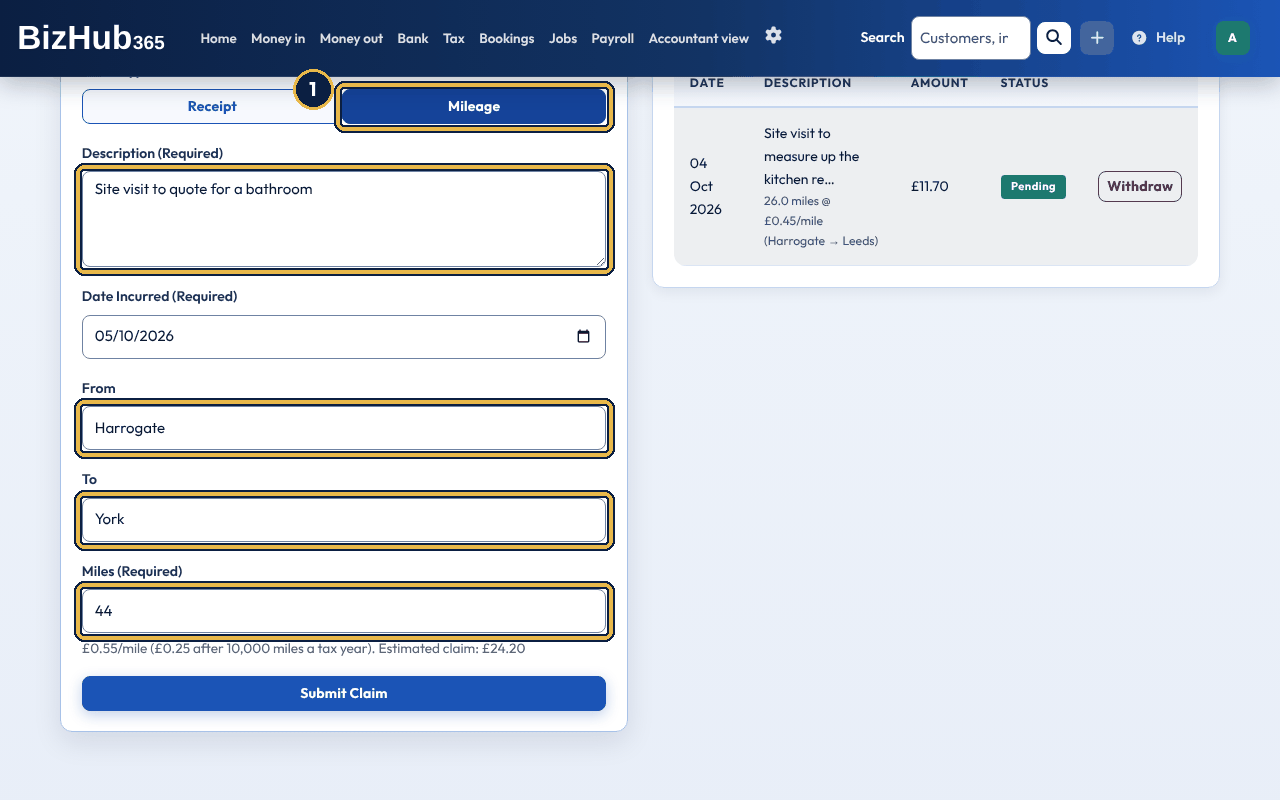
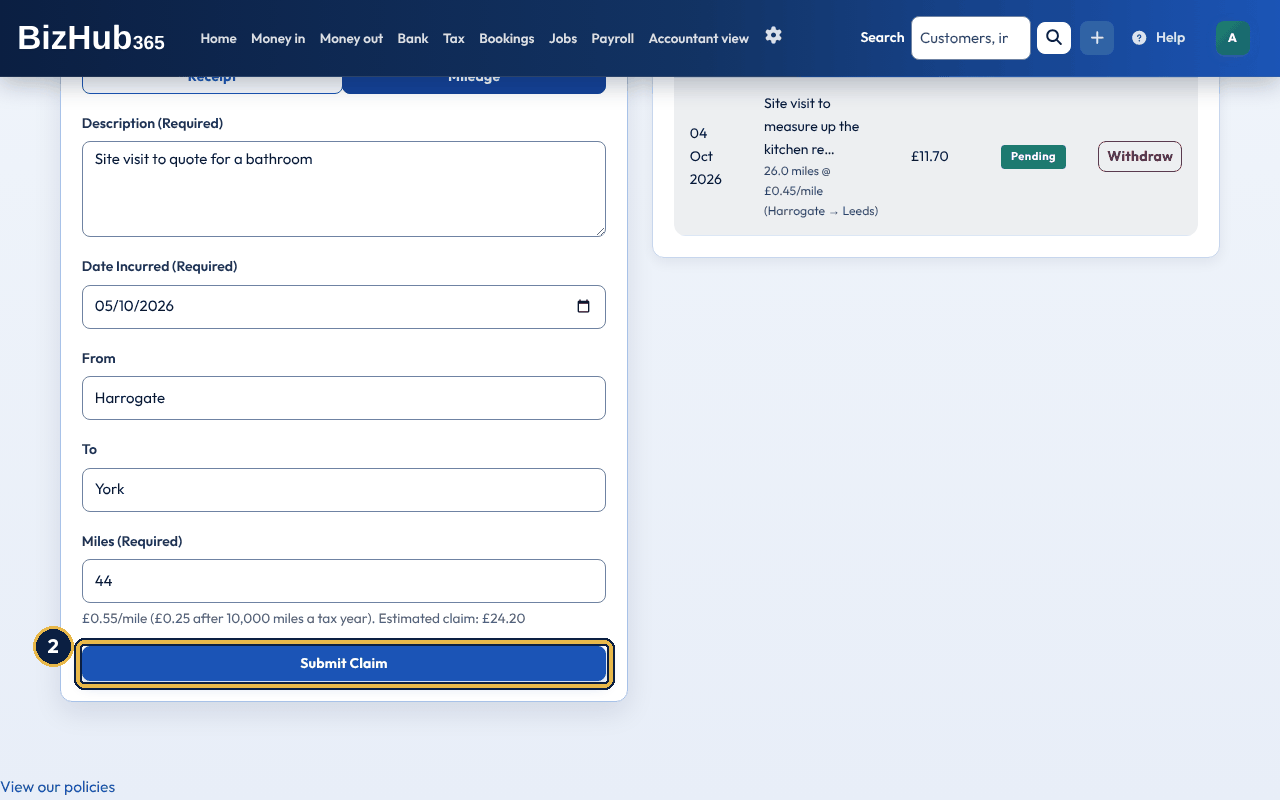
When it worked: The message Mileage claim submitted appears and the claim is listed under My Claims as Pending.
| If this happens | Do this |
|---|---|
| You claimed by mistake. | Choose Withdraw on the claim while it is still Pending. |
For a Receipt claim, choose Receipt instead and fill in the category, the amounts and the receipt photo. Scan with AI beside the photo fills the amounts in for you to check.
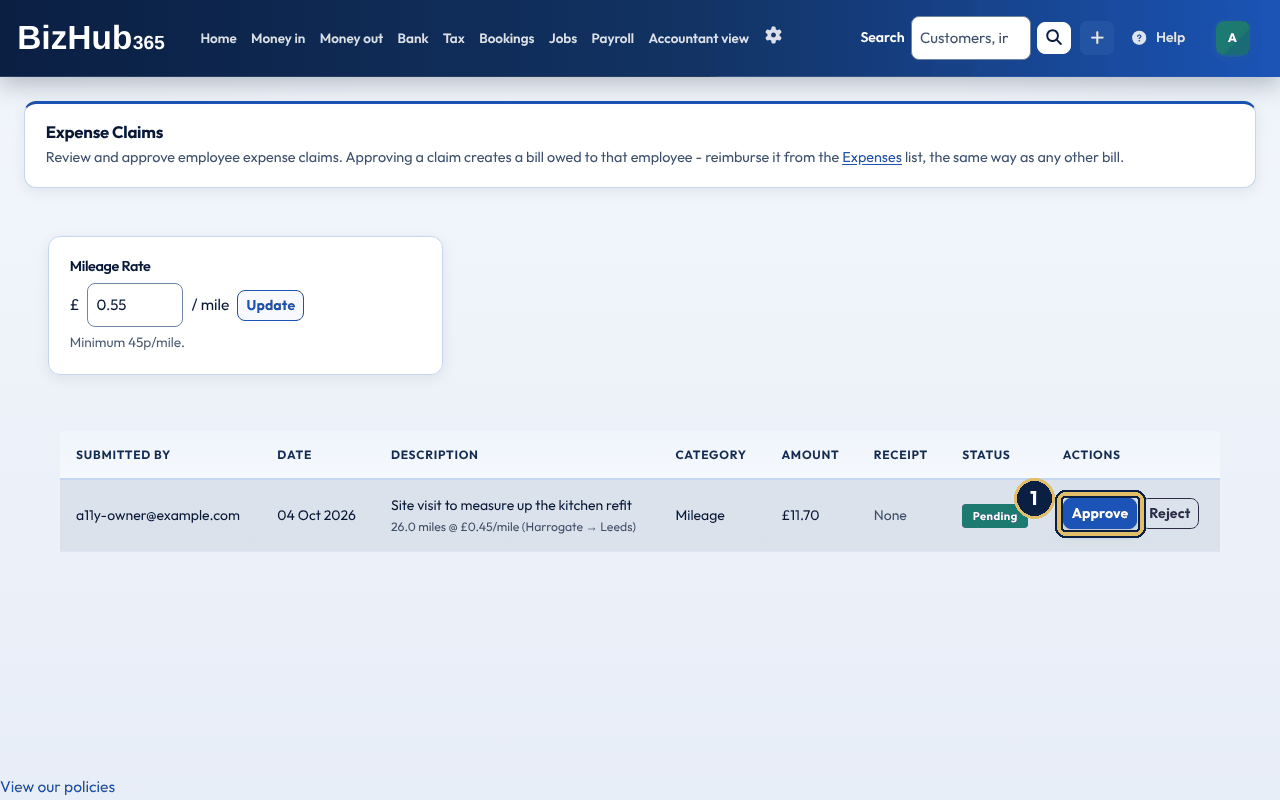
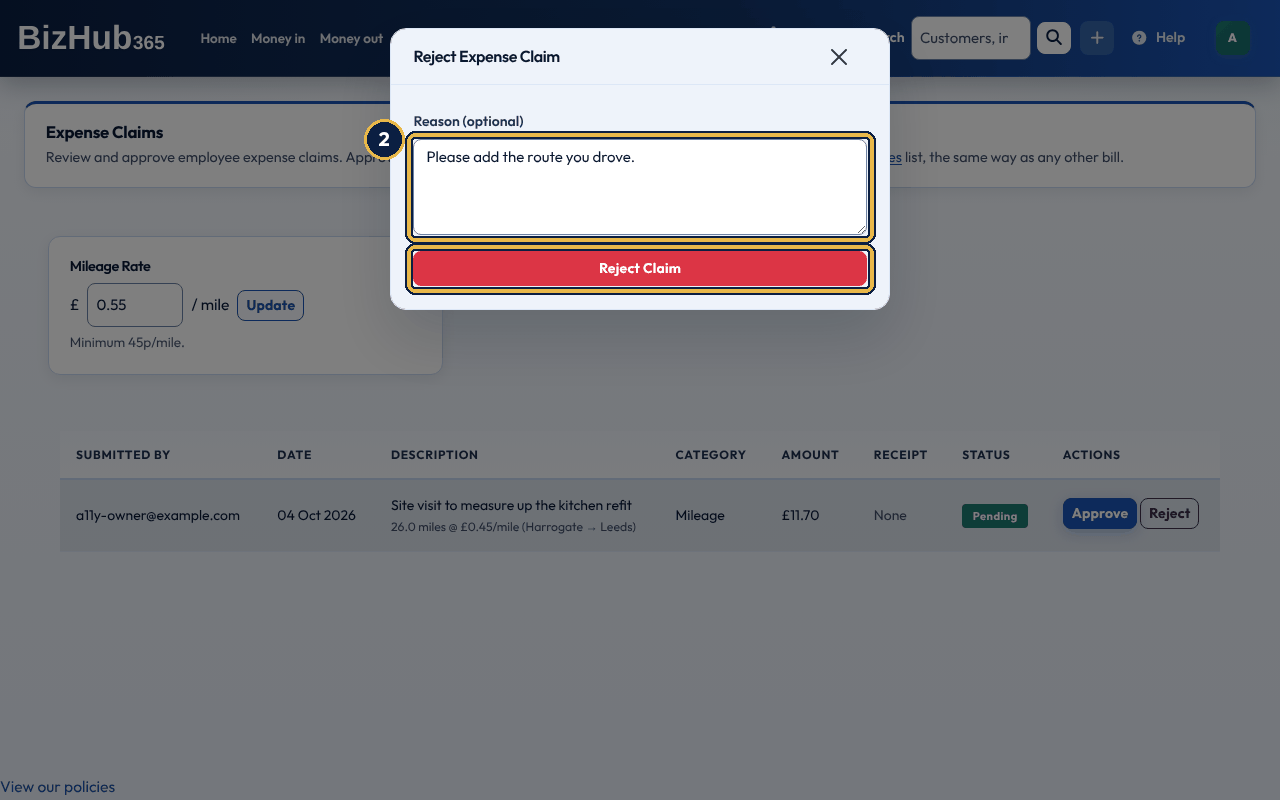
When it worked: Approve: a message says the claim is approved and the expense number created, ready to reimburse from the Expenses list. Reject: the message Expense claim rejected appears.
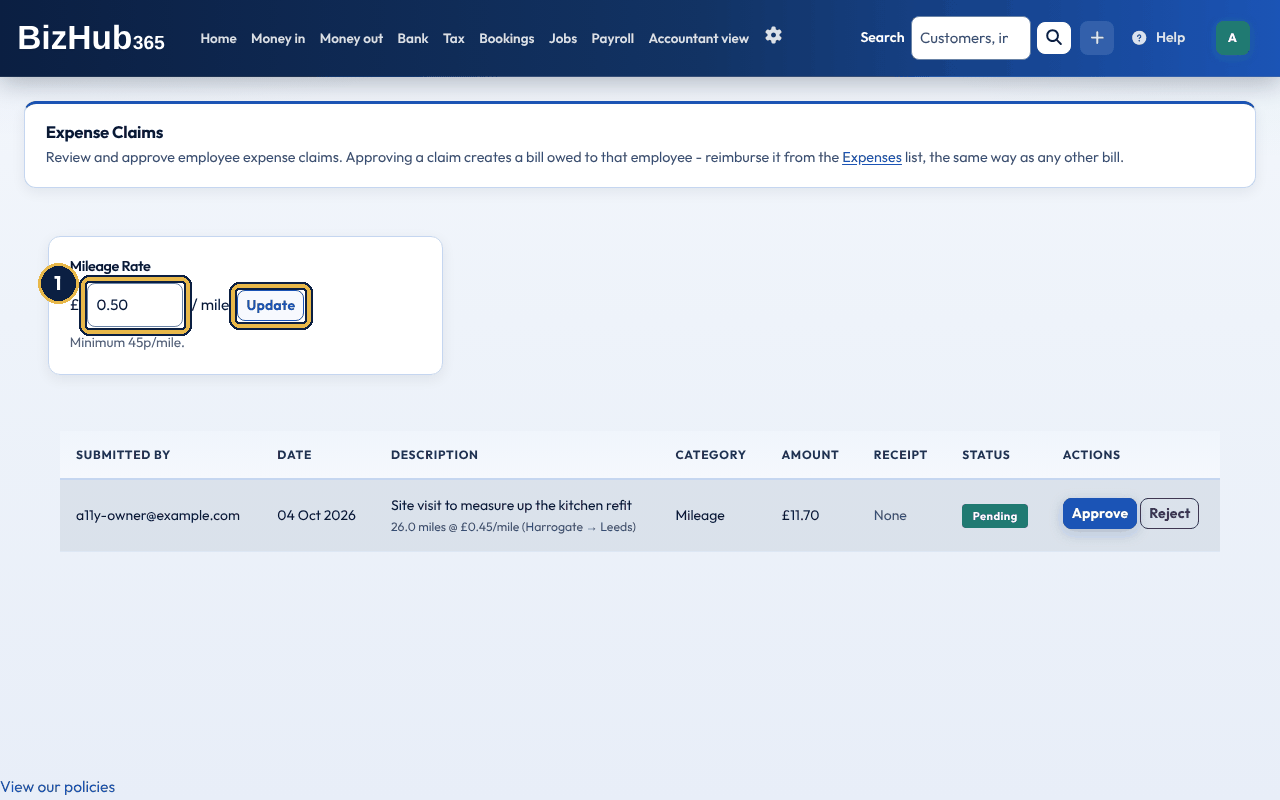
When it worked: A message says the mileage rate is updated, in pence per mile. Claims already submitted keep their rate.
Where to find it: Money out→Suppliers
The supplier list holds each supplier's name, email, phone, address and CIS status (and VAT number, if you are VAT registered). Edit, Delete and a paperclip for documents are on each row, and CSV and PDF export the list.
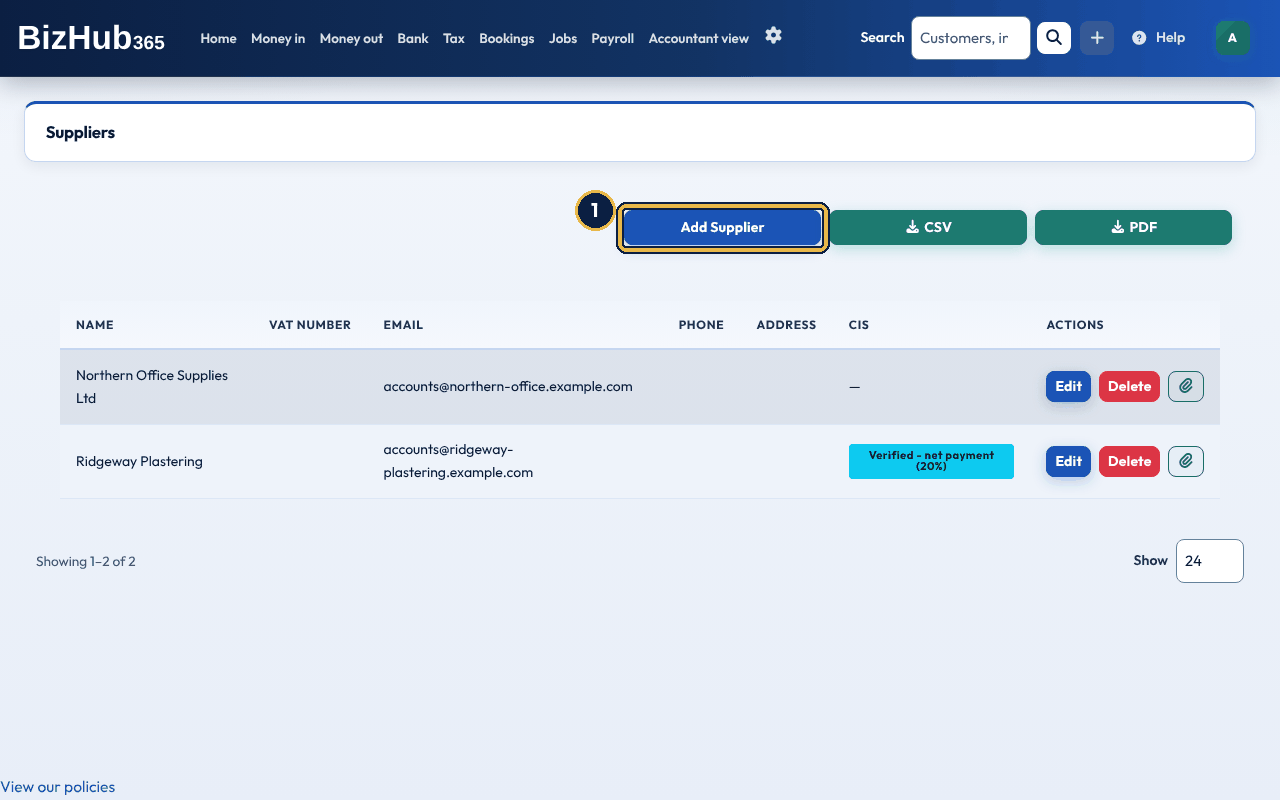
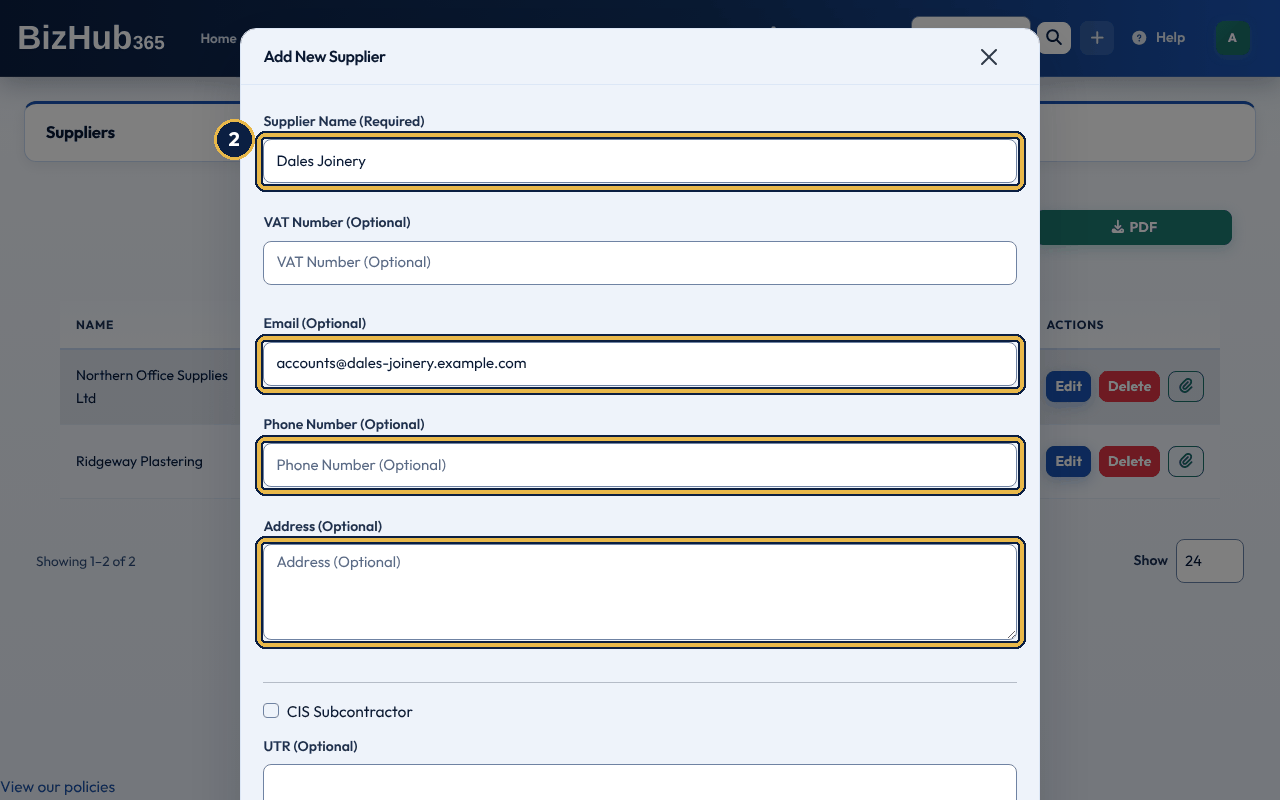
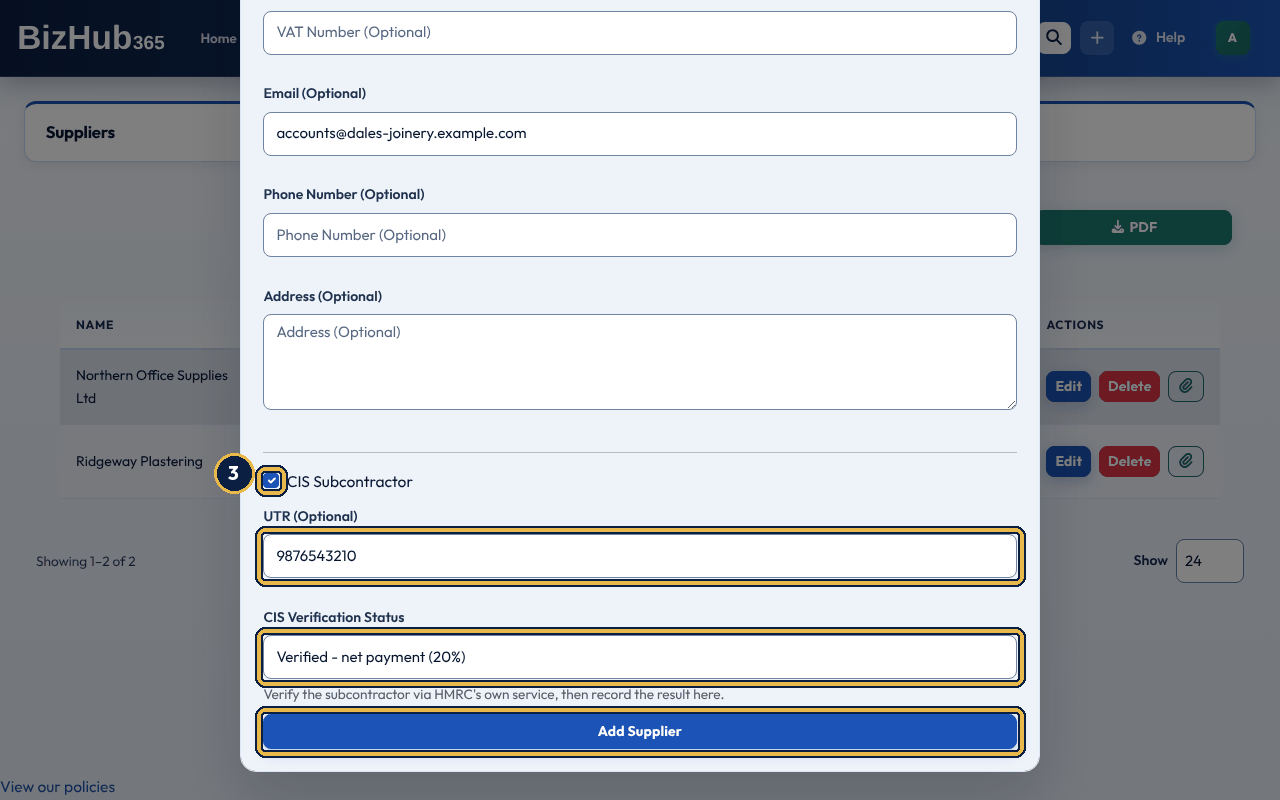
When it worked: The message Supplier created successfully appears and the supplier is in the list.
The CIS Verification Status sets the deduction: Unmatched (30%), Verified - net payment (20%) or Verified - gross payment (0%). The CIS statement and the CIS return show the gross payment (labour plus materials) and the net payment after deduction without VAT, as HMRC requires. Any VAT the subcontractor charges is paid on top. A subcontractor's bill counts in the month you pay it. If you pay it in parts, each payment counts in its own month, with its share of the gross, the materials and the CIS deducted (what it paid as a part of the amount due after CIS). The statement has a line for each payment, and the parts add up exactly to the bill once it is paid in full. The CIS details on suppliers and CIS Statements need the CIS section, which is on at the start for construction and trades businesses. Anyone else can switch it on in Business Settings → Sections. If you are not VAT registered, enter the subcontractor's labour and materials before any VAT on their invoice, and the full amount you pay as the Amount. The VAT stays part of your cost and is not shown anywhere else, but it is left out of the CIS figures.
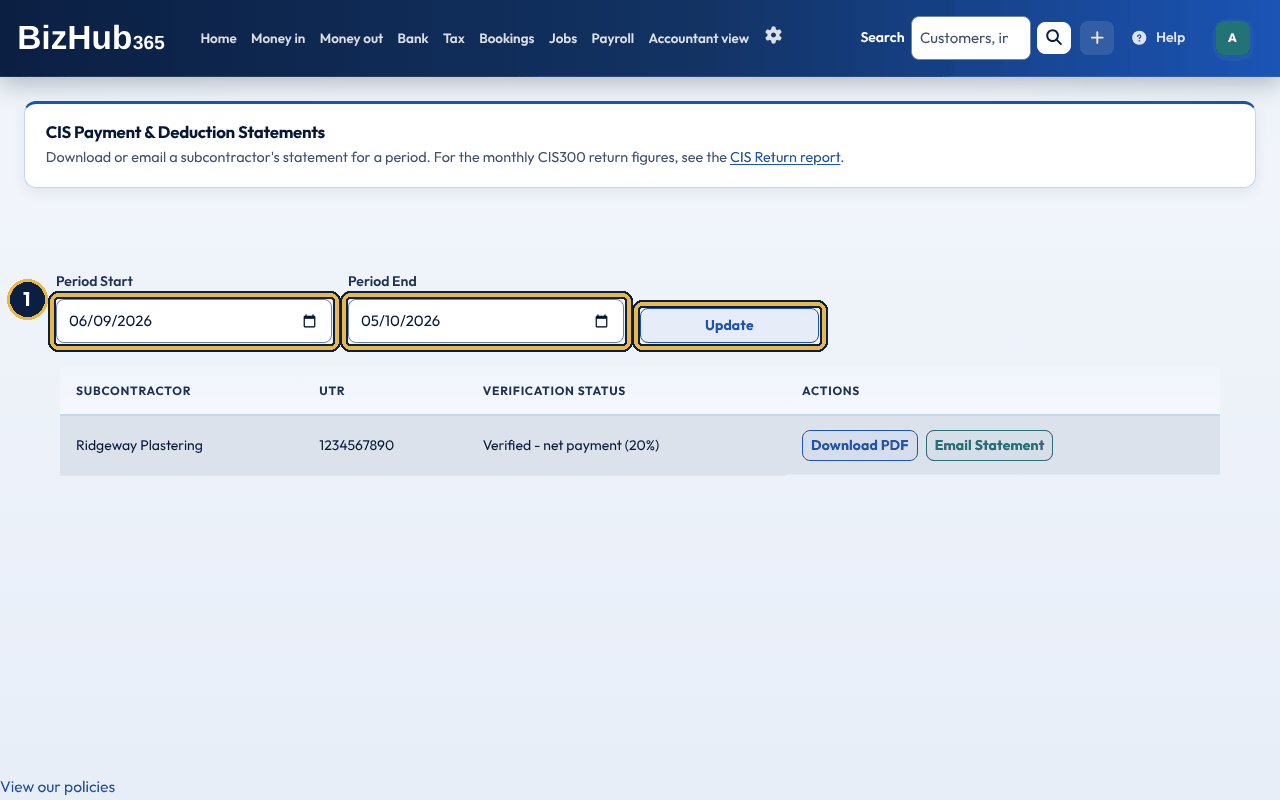
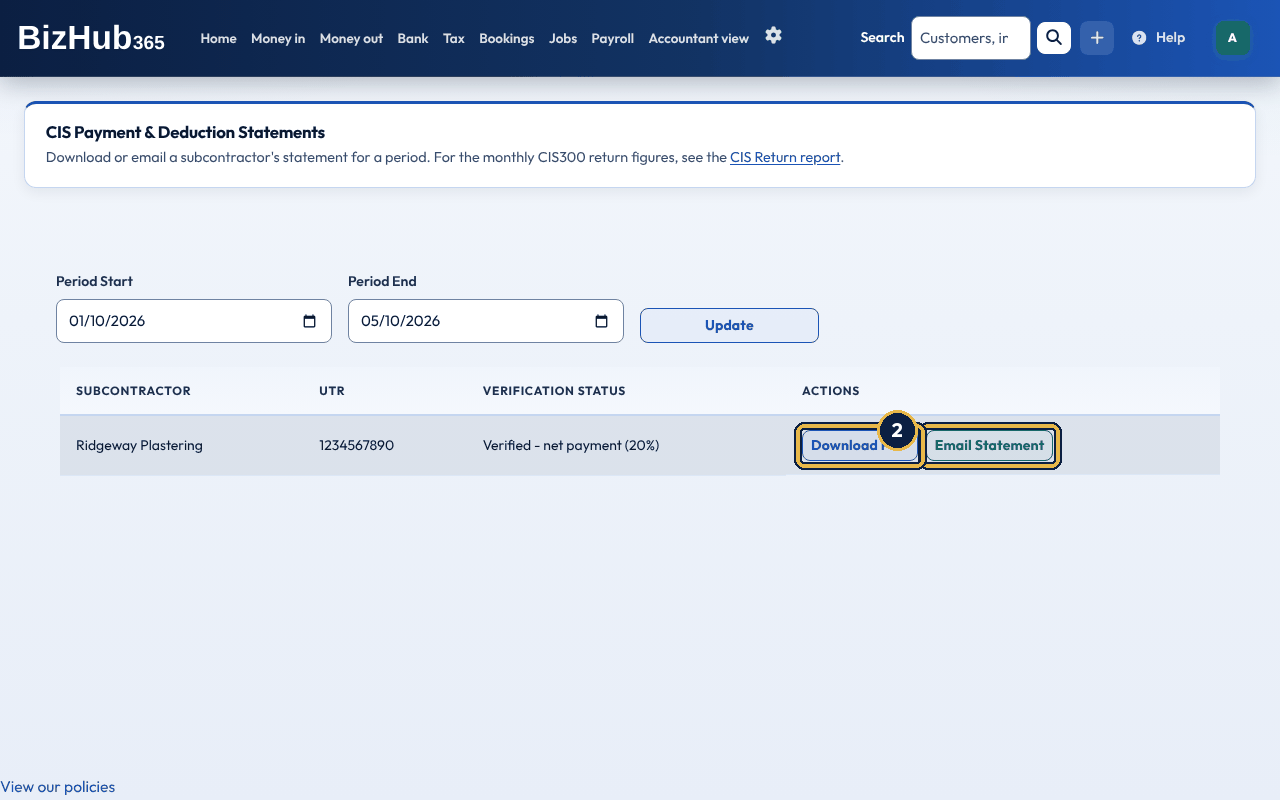
When it worked: A message says the statement is queued to email to the subcontractor. They receive CIS Payment & Deduction Statement from your business, with the PDF attached. Replies go to your business email address.
| If this happens | Do this |
|---|---|
| A message says the subcontractor has no email address on record. | Add one with Edit on Money out → Suppliers, or download the PDF and send it yourself. |
Where to find it: Money out→Fixed assets
Register plant, vehicles, and equipment you will use for more than a year. Fixed Assets is a section, on at the start for limited companies. Sole traders and partnerships can switch it on in Business Settings → Sections. BizHub365 puts the cost on the balance sheet as a fixed asset instead of counting it as an expense. Each month it then charges part of the cost to your profit and loss as depreciation, spread evenly over the useful life you enter. The list shows the monthly charge, the depreciation so far and the book value; the Fixed Asset Depreciation report has the full schedule.
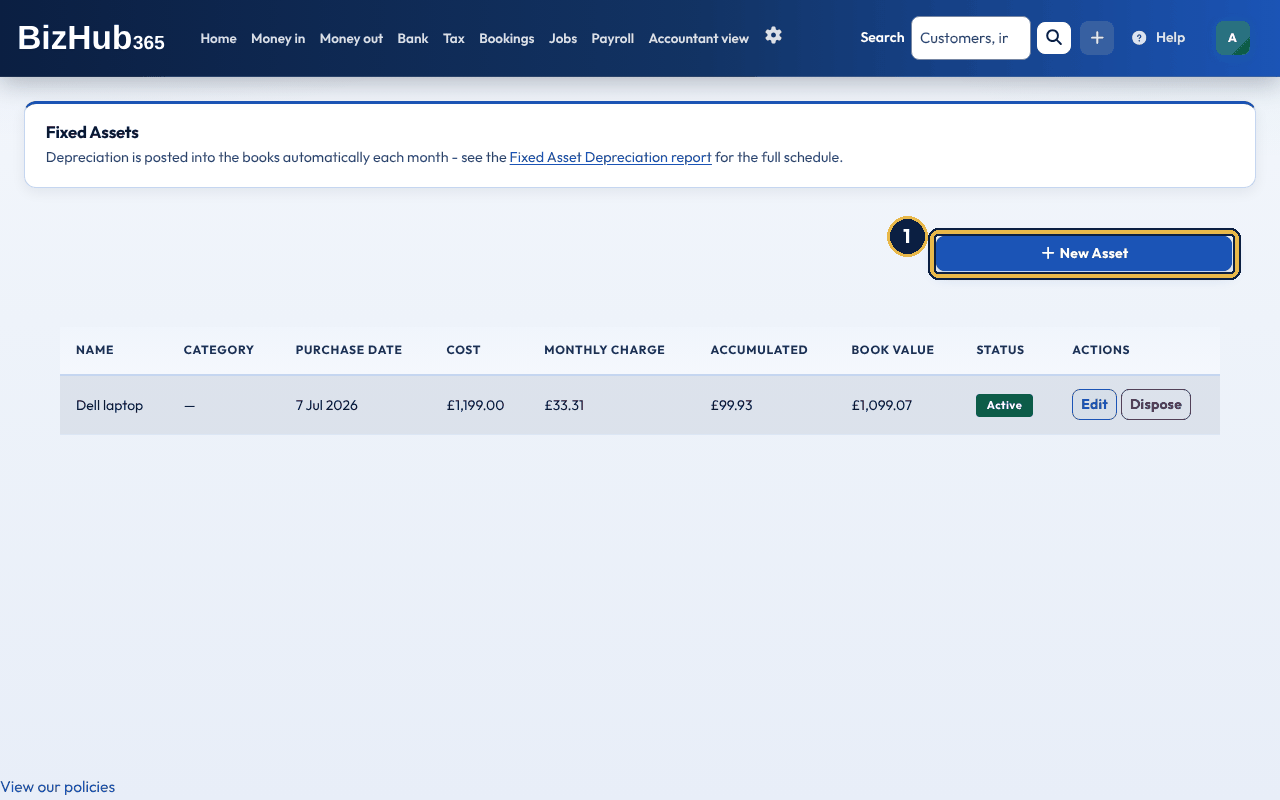
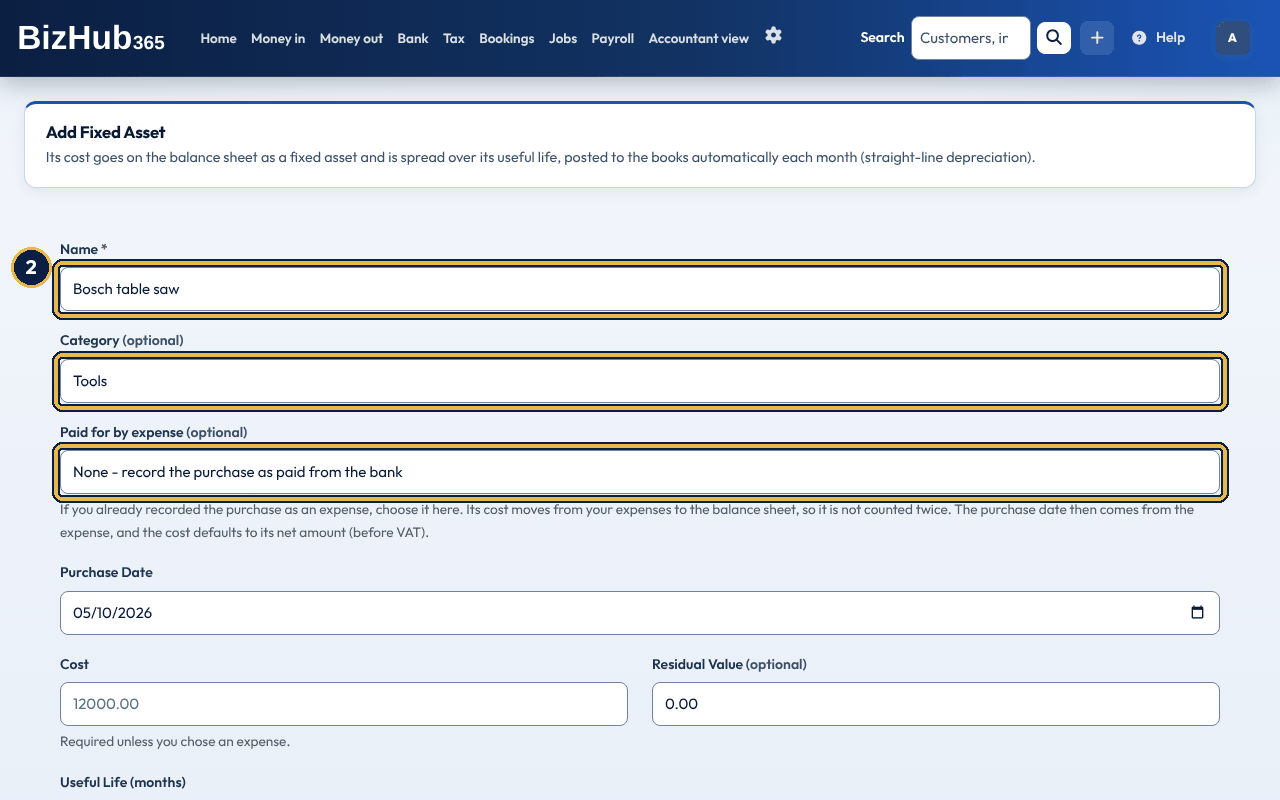
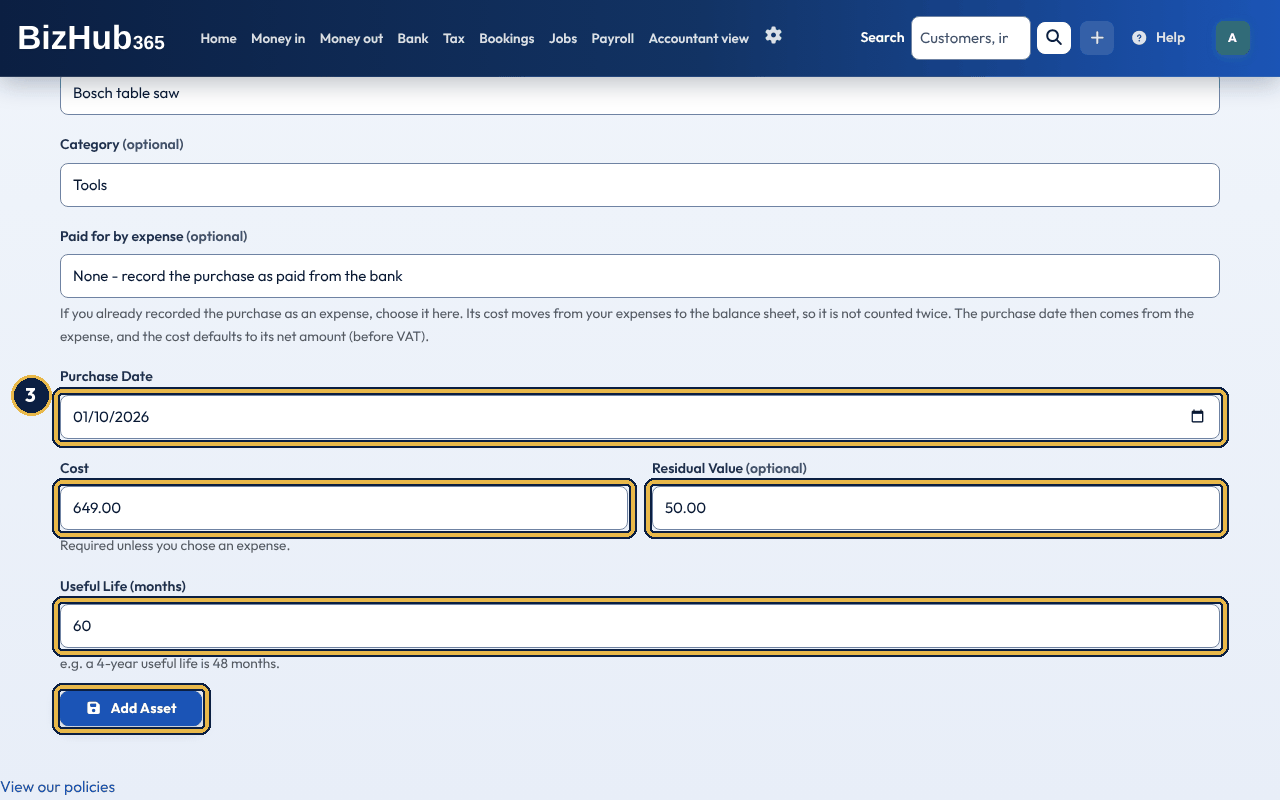
When it worked: The message Fixed asset created and its cost added to the balance sheet appears, and the asset is listed as Active.
| If this happens | Do this |
|---|---|
| The message says it costs less than your capitalisation threshold. | It is treated as an expense and not depreciated, and the list shows Expensed (below threshold). See below. |
| A message says the cost can't be more than an amount. | With an expense chosen, the cost can't be more than the part of the expense's net amount not already registered as an asset. |
If you choose an expense in Paid for by expense, the purchase date comes from the expense, and the cost starts at the expense’s net amount (before VAT). The cost moves out of your expenses and onto the balance sheet, so it is not counted twice. The VAT you reclaim stays as it was. If there is no expense, leave it at None. BizHub365 records the purchase as paid from your bank account on the purchase date.
Small items such as a drill or a keyboard are usually treated as an expense straight away, even if they last a few years. Set the amount in Settings → Business and tax setup → Fixed Asset Capitalisation Threshold. An asset that costs less than the threshold is treated as an expense: it stays in your expenses (or is recorded as an expense paid from the bank), it is not depreciated, and it does not appear on the balance sheet. The list shows it as “Expensed (below threshold)”. The threshold is 0 unless you change it, which puts every asset you register on the balance sheet.
Edit on the asset's row is there until its first depreciation is posted. If you change the cost or date, BizHub365 reverses the original purchase entry and posts a corrected one.
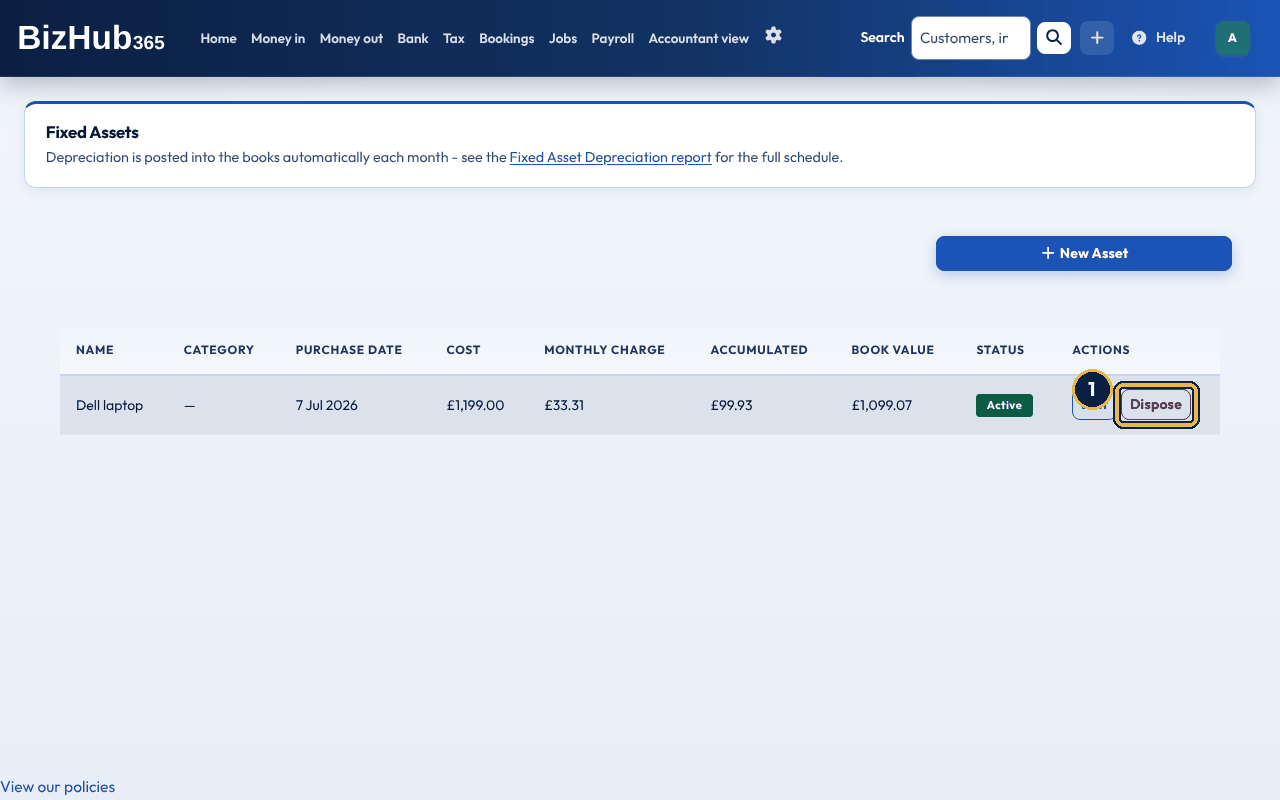
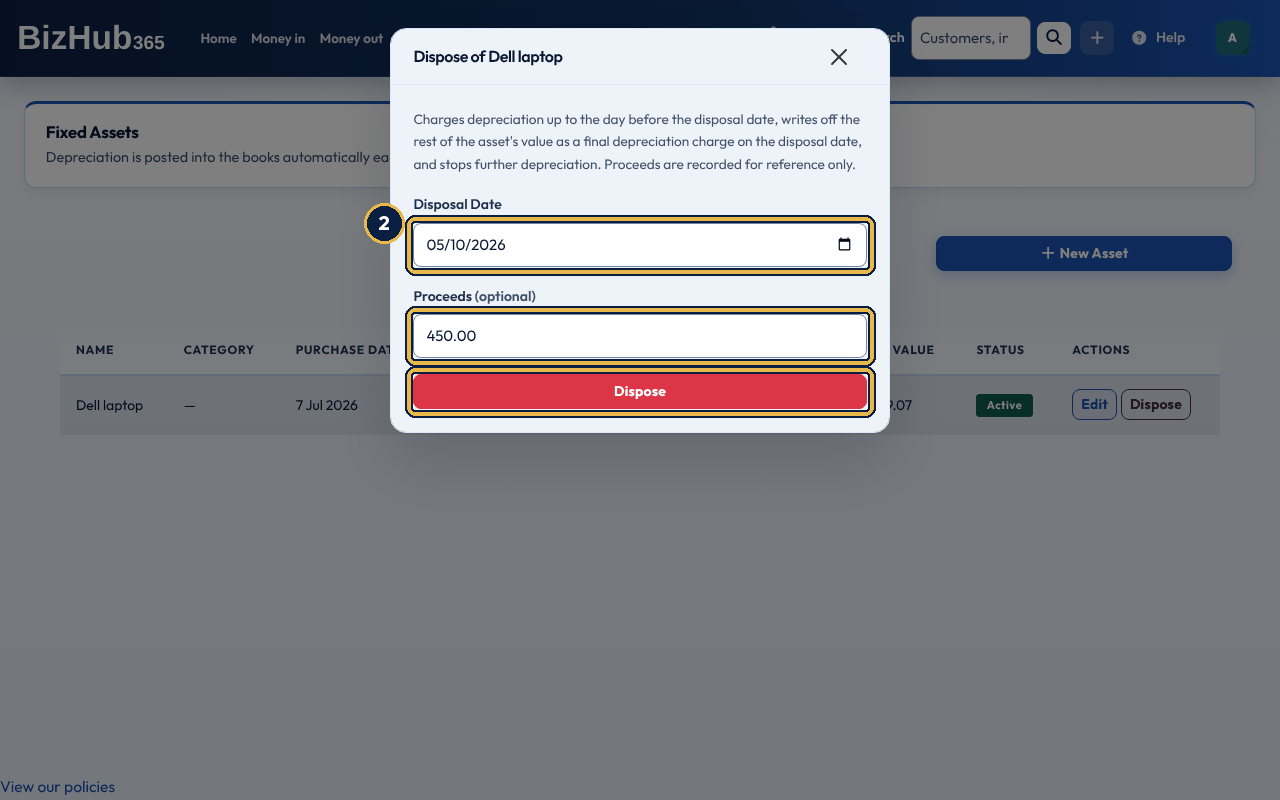
When it worked: A message says the asset was disposed of, and the list shows Disposed with the date.
BizHub365 posts depreciation up to the day before the disposal date, takes the cost and the depreciation so far off the balance sheet, records any proceeds as money received into your bank account, and books the difference as a profit or loss on disposal. The Dispose window says what will happen to that asset. An asset expensed below your capitalisation threshold is only marked disposed, and nothing is posted. An older asset whose purchase was never put on the balance sheet has the rest of its value written off as a final depreciation charge on the disposal date, and its proceeds are recorded for reference only.
Where to find it: Settings→Tax settings
Tax Settings is for businesses that sell outside the UK. Leave it off if you only trade at home. International trading turns on a currency choice on invoices and quotes, and works out tax by the customer's jurisdiction instead of always applying your home VAT rate. If you are VAT registered, you can also set your Home tax jurisdiction and declare the foreign tax registrations you hold (for example EU VAT OSS). Sales to customers outside your declared jurisdictions are treated as exports and zero-rated by default. Your VAT accounting basis (accrual or cash) is in Settings → Business and tax setup.
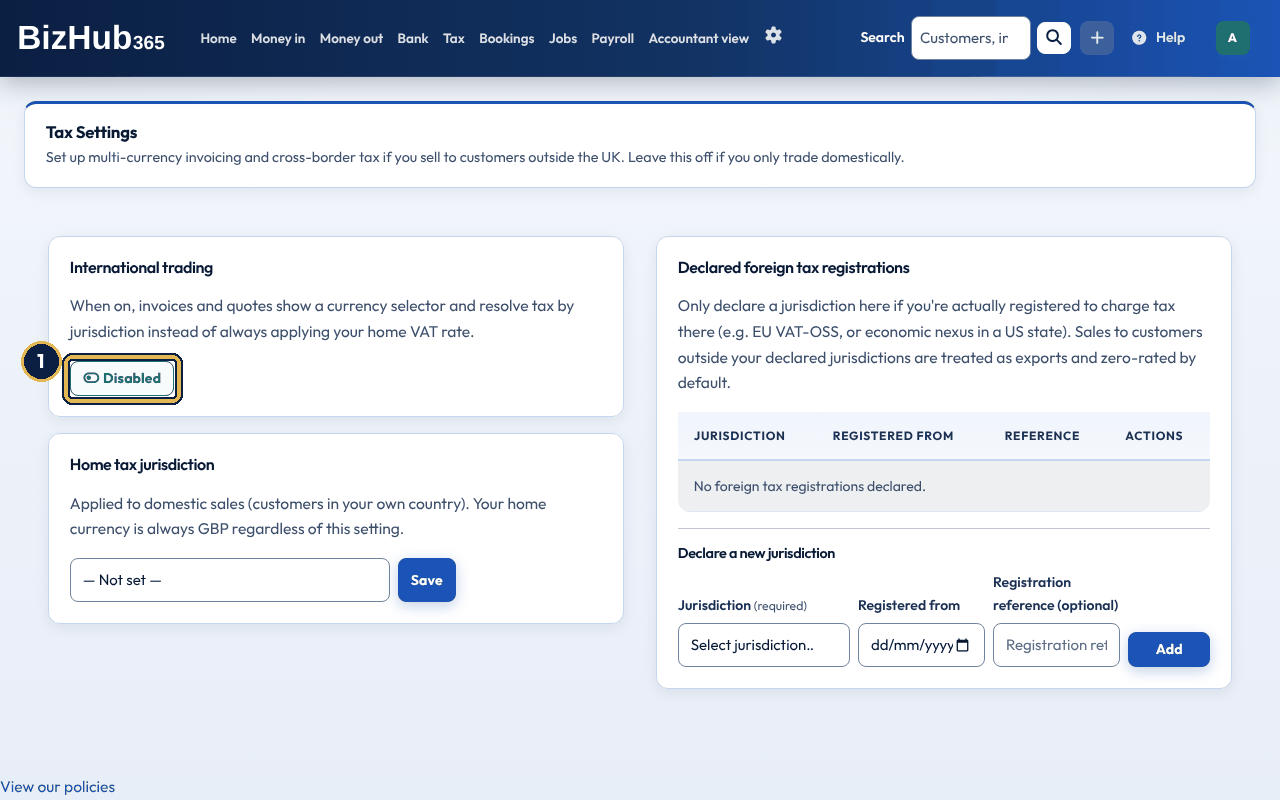
When it worked: The message International trading support turned on appears and the button reads Enabled. Choose it again to turn it off.
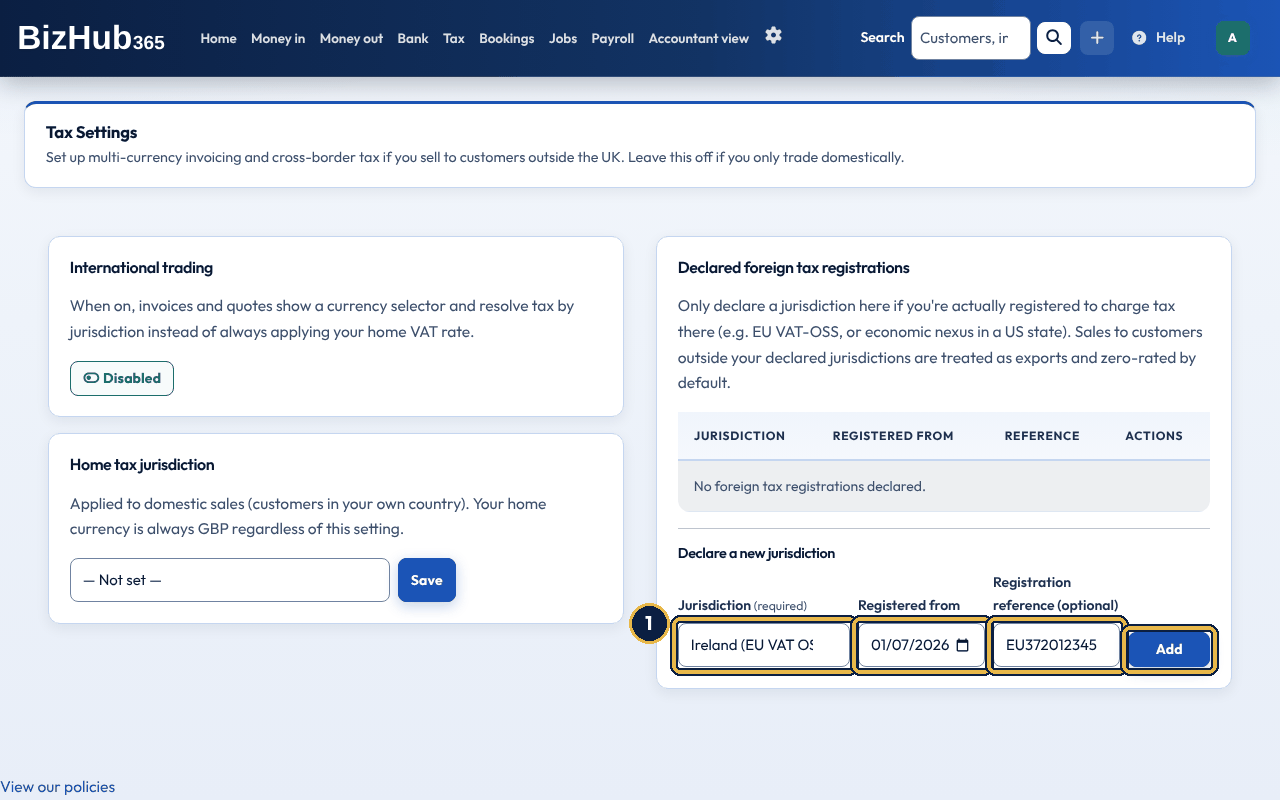
When it worked: A message says the tax nexus is declared for that jurisdiction, and it is listed under Declared foreign tax registrations with Remove.
Part III · Money · Chapter 15
A job is one piece of work for one customer. Link its quotes, invoices, expenses, trips and time to it and see the profit so far.
Where to find it: Jobs→All jobs
A job is one piece of work for one customer, such as a kitchen rewire or a garden fence. It has a title, the customer, the site address if the work isn't at the customer's own address, a start date and a due date, notes, and documents and photos. Quotes, invoices, expenses, mileage trips, time and bookings can each be linked to a job. The job's page then adds them up: what you quoted, what you invoiced, what you have been paid, what the job has cost and the profit so far. The Jobs menu in the top bar, shown while the Jobs section is on, has All jobs, New job (for members who can edit) and My time. The Jobs list has the tabs Open, Done and All, a Search box (title, reference, site address, notes or customer) and a Customer filter. Jobs is a section you can switch off in Business Settings → Sections. While it's off, the Jobs pages say so and send you to Sections, the Job list leaves the invoice, quote, expense, trip and booking forms, and the customer's job page link shows a page not found until you switch it back on. Before Jobs this section was called Projects: your projects are your jobs, and the old Projects links open the Jobs pages.
Each job shows its stage, worked out from what you have done:
Each job's page starts with its Steps, so you can see where the job is and what to do next. The current step is highlighted and its next action is the main button:
You can still choose Open again on a done job; it is checked again the next time one of its invoices is paid in full.
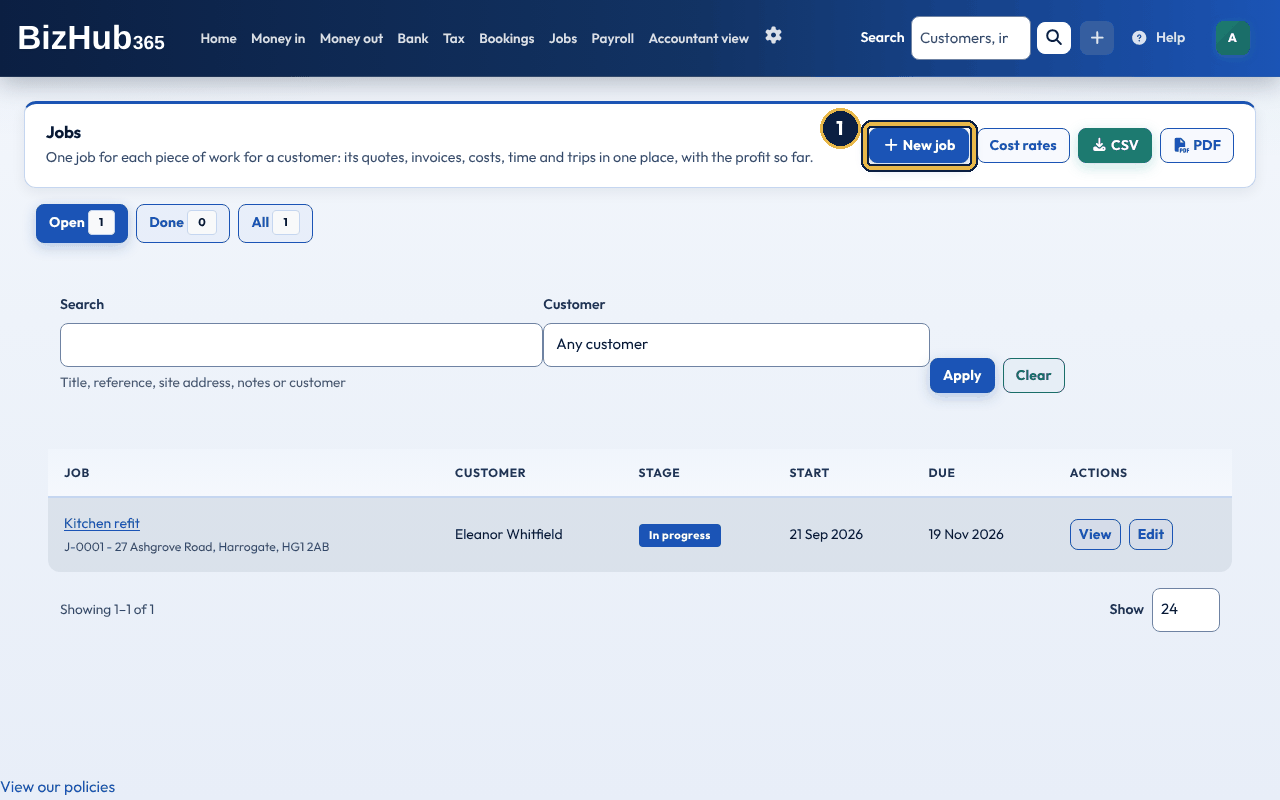
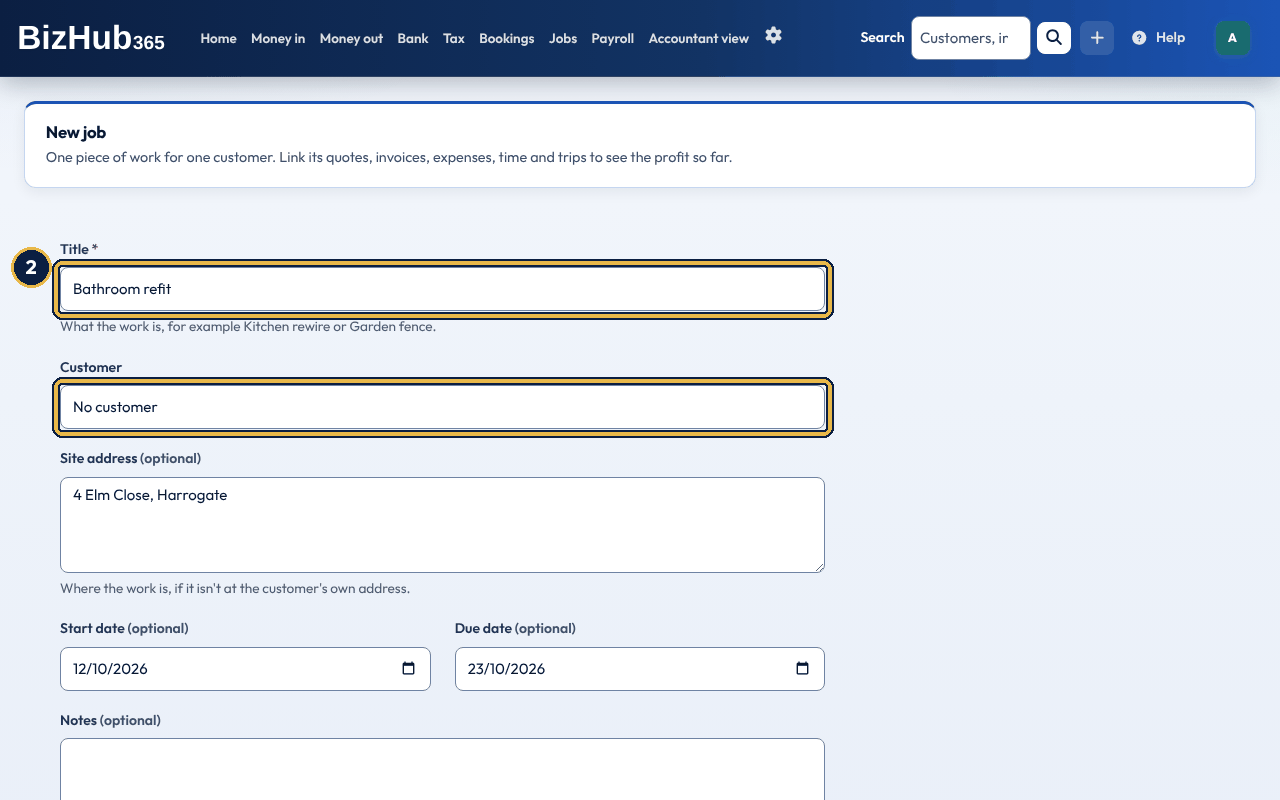
When it worked: You see Job created. and the job's page opens.
| If this happens | Do this |
|---|---|
| Enter the job's title, for example Kitchen rewire. | The form keeps what you typed. Type a title and choose Create job again. |
| A job with reference "[reference]" already exists. Enter a different one or leave it empty. | Each reference can be used once in your business. Change it, or empty the box to have one given. |
| The due date can't be before the start date. | Check the two dates and choose Create job again. |
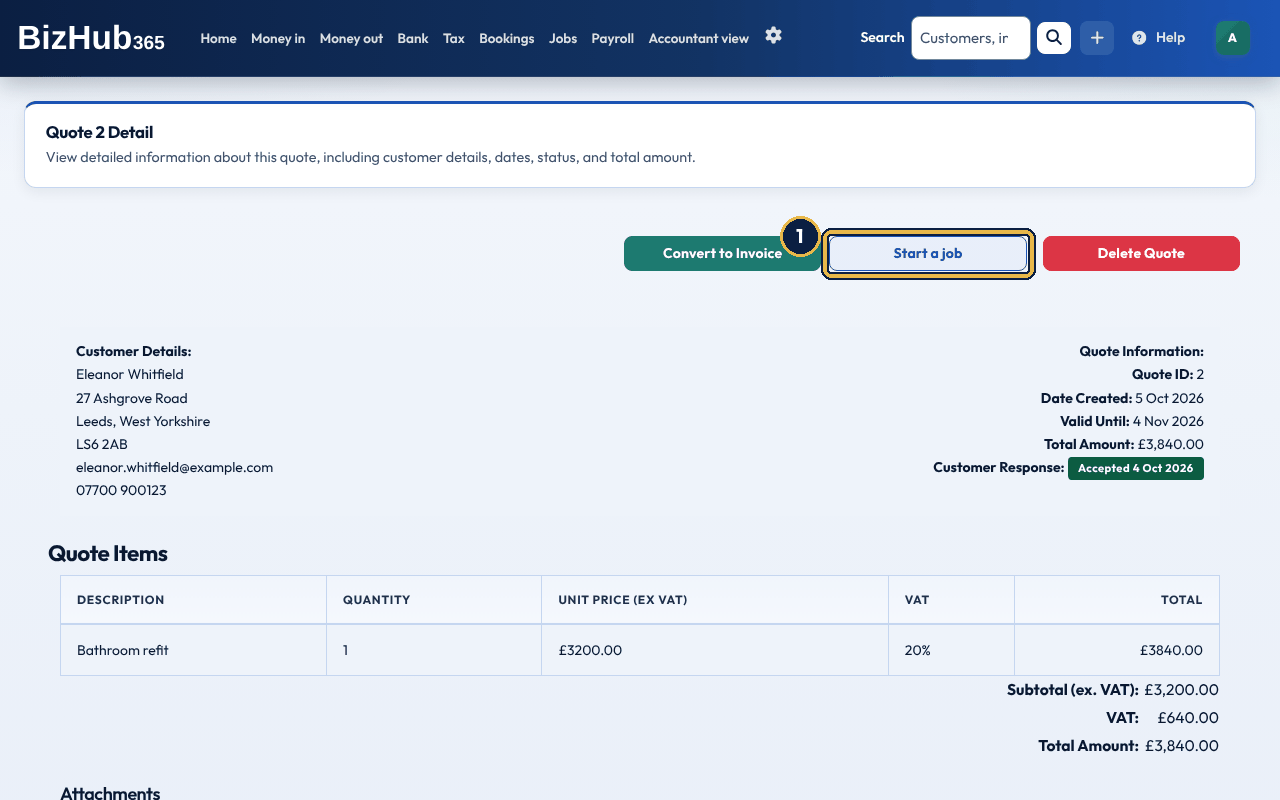
When it worked: You see Job started from Quote #[number]. Add the site address and dates with Edit job. The new job is open, has the quote's customer, is named after the quote's first line and has the quote linked. The quote's page then has View job. When you convert the quote, the invoice is on the same job.
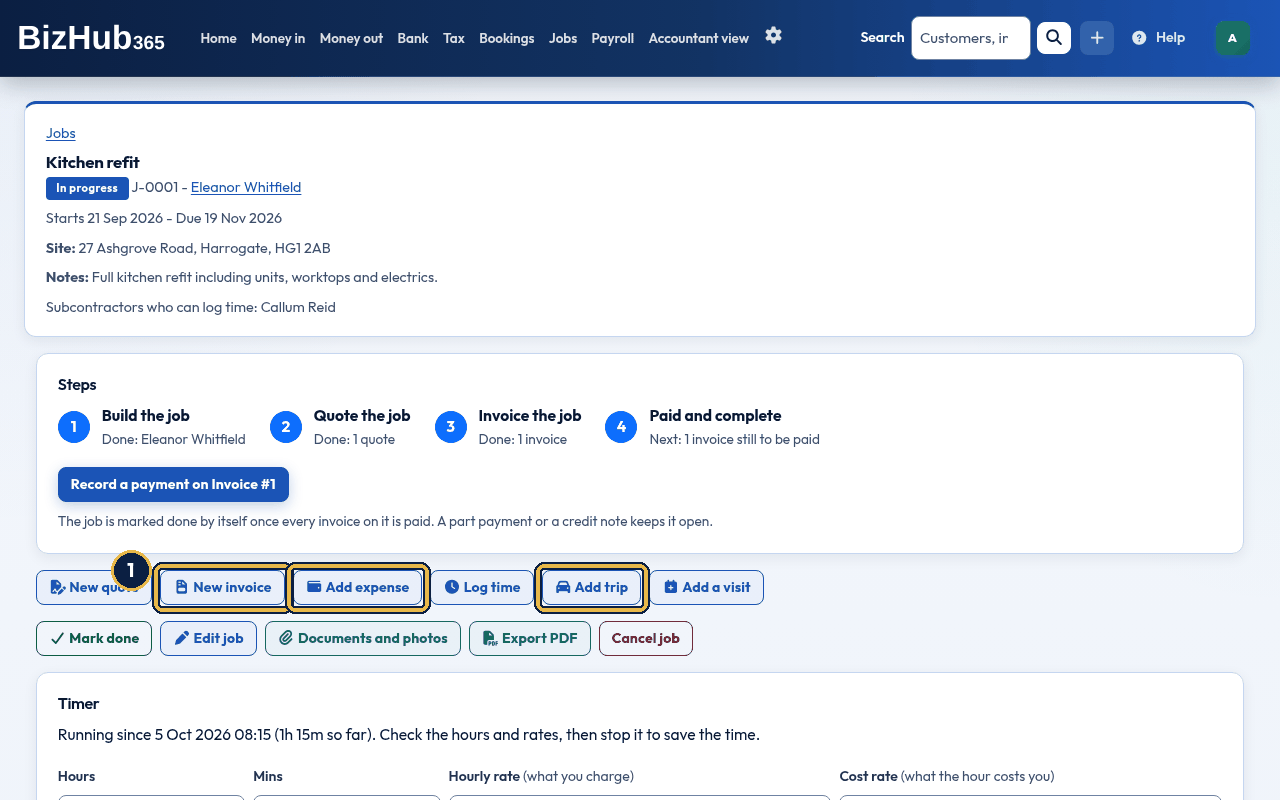
When it worked: It is listed on the job's page and counted in the job's figures. To link a booking you already have, open it from the Diary and choose the job in its Job list, then Update Booking. To book a new visit, see below.
A job's invoices and quotes show its reference and title (for example Job: J-0001 - Kitchen rewire) on their pages, in their PDFs and in the summary of the emails that send them, so your customer knows which job they are for.
A job can have several visits, such as a first fix and a second fix. Each visit is a booking in the Diary with the job chosen. The job's page lists its Visits, soonest first, with the date and time, what it is for, who is booked and its status.
When it worked: The visit is in the Diary and listed under Visits on the job's page. Add another visit the same way.
The job's page shows the stage, the reference, the customer, the dates, the site address and the notes, then the Steps, then New quote, New invoice, Add expense, Log time, Add trip and Add a visit, and Mark done, Edit job, Documents and photos and Export PDF. The Timer comes next (see Time work on a job with the timer). Under So far are these figures:
When you are VAT registered, Quoted, Invoiced, Paid and Still to be paid are shown in two columns, Before VAT and With VAT, and Costs and Profit so far are before VAT, because VAT isn't your income or your cost. When you aren't, there is one figure each: the full amounts. The figures only add up what is already saved: they never change your books or what is sent to HMRC. The Job Profitability report (Tax → Reports, under For your accountant) shows the same figures for every job. Below come the Quotes, Invoices, Expenses, Mileage trips, Visits and Time on the job, and the Customer's job page link. Documents and photos keeps files with the job (only you and your team see them).
On Jobs → All jobs, CSV downloads the jobs on the tab you are on (with your search and customer filter) as a spreadsheet, one row per job with its reference, title, customer, site address, status, stage, dates and its figures: Quoted, Invoiced, Paid, Still to be paid, Expenses, Mileage, Time cost, Costs, Profit so far, Hours and the cost budget. PDF gives the same jobs as a printable table; a long list is prepared in the background and you are emailed a link.
In the BizHub365 app, Money in → Jobs (while the Jobs section is on) lists your jobs with the same tabs and search. Each job's page shows its steps, its figures so far (with the Before VAT and With VAT columns when you are VAT registered), any open disputes from the customer, its visits and what is linked to it, and has Add expense, Add trip and Add a visit. Add expense, Add trip and Create Booking in the app also have a Job (optional) list. Adding, changing, quoting and invoicing jobs is on the website.
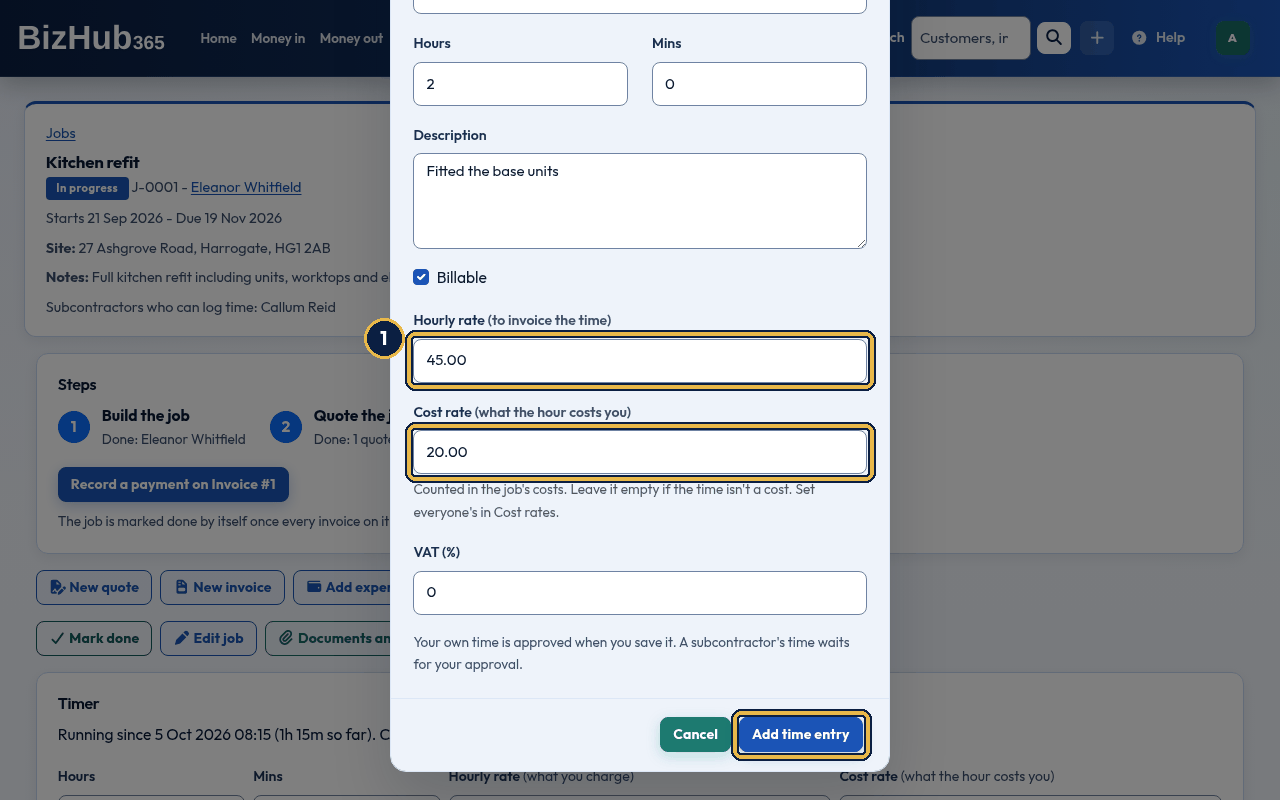
When it worked: You see Time entry added. The entry is listed under Time, and on your My Time page. Time you and your team log is approved when you save it; a subcontractor's time is Pending until you approve it (see Approve or reject time). With a cost rate, its cost is shown under Cost and counted in the job's Costs.
| If this happens | Do this |
|---|---|
| Enter the time as hours (for example 1.5 for an hour and a half) and whole minutes from 0 to 59. | Hours can be a decimal, such as 1.5, but not text or a negative number, and Mins must be a whole number up to 59. Nothing is saved; add the entry again. |
| Enter the rate in pounds an hour, for example 25, or leave it empty. | The Cost rate must be a number of pounds. Nothing is saved; add the entry again. |
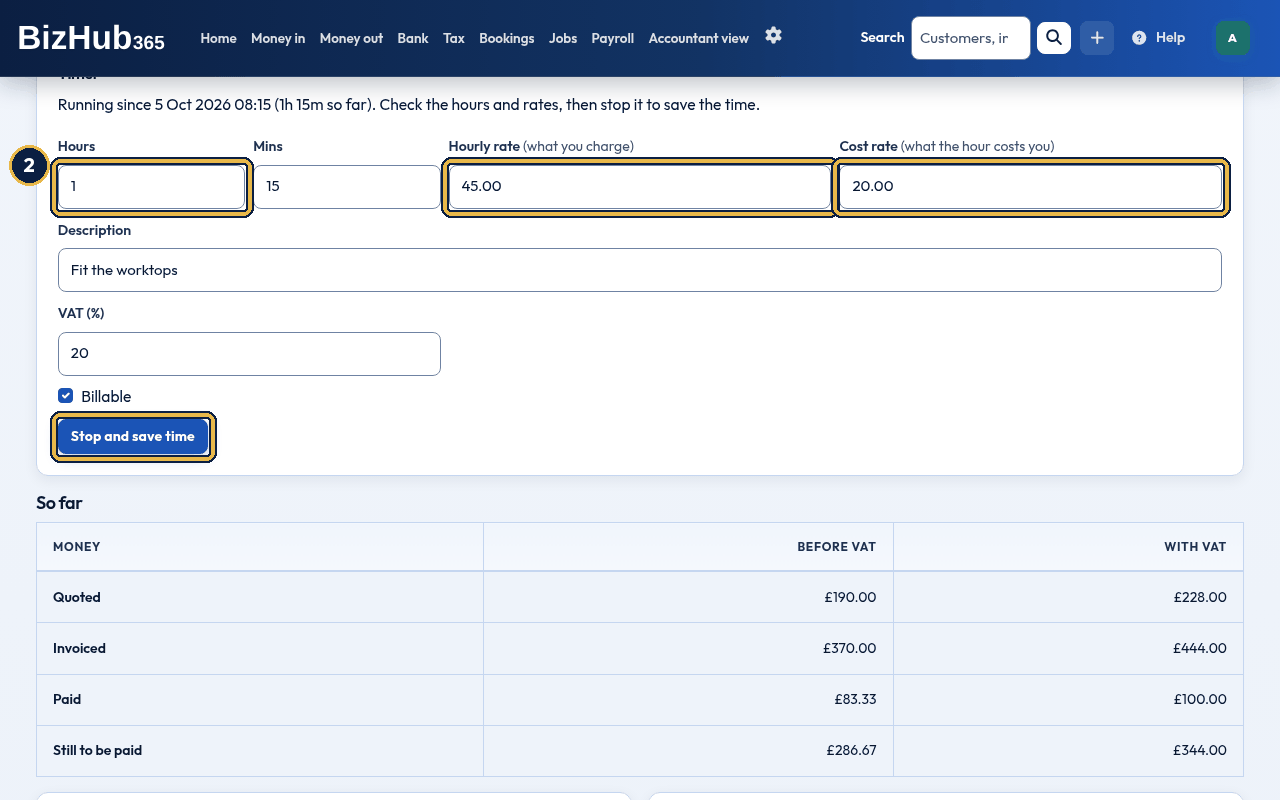
When it worked: You see Time saved: [hours]h [minutes]m. and the time is listed under Time, approved at once, as if you had logged it (a subcontractor's timer time waits for your approval). While a timer runs, the time list shows it as Timer running; it adds nothing to the figures until it's stopped. In the BizHub365 app, a job's page has the same Start timer and Stop timer; after Stop timer you check the hours and the rates, then choose Save time. With no signal, the start and stop are kept on the phone and uploaded when you are back online.
| If this happens | Do this |
|---|---|
| You already have a timer running on [job]. Stop it first. | Open that job and stop its timer, then start this one. |
| Enter the time worked: more than nothing and at most 24 hours. | Check the hours and minutes. For longer work, log each day's time separately. |
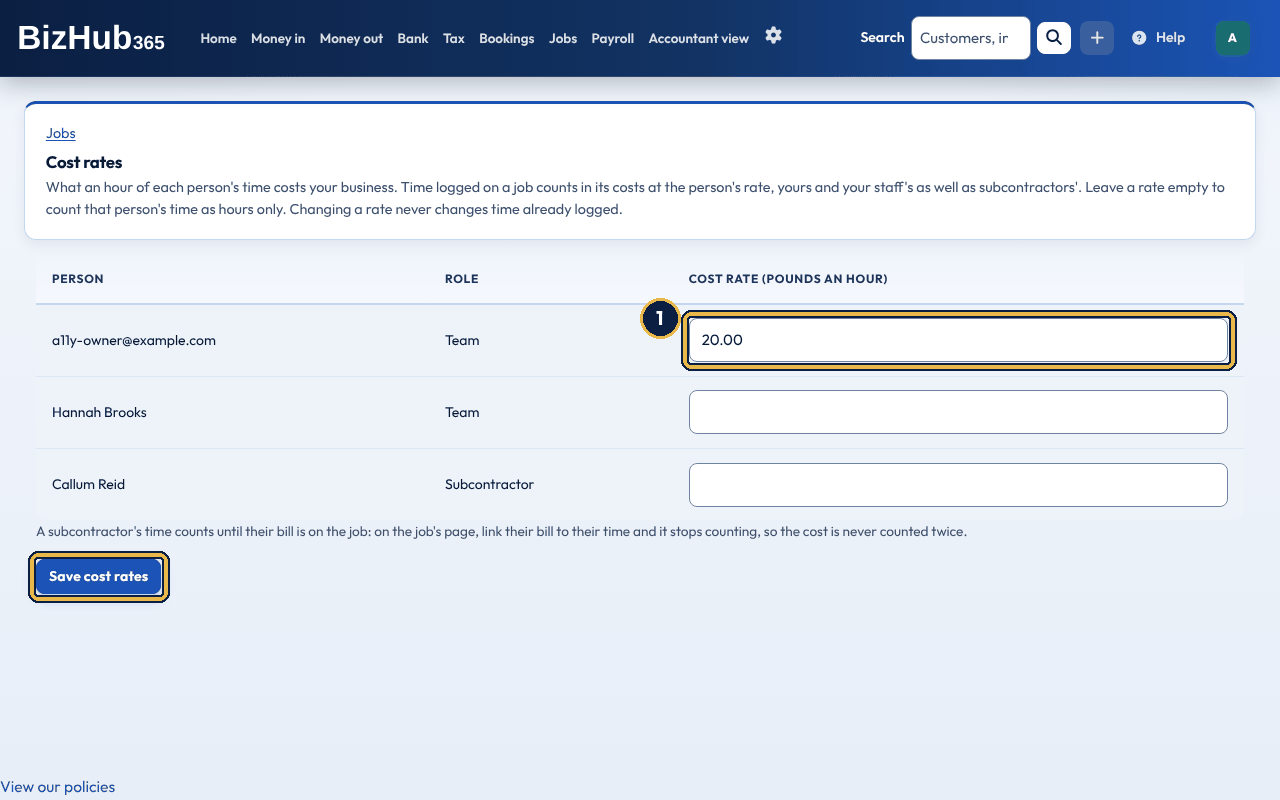
When it worked: You see Cost rates saved. Time logged from now on uses them. Each new time entry keeps the rate it was logged at, so changing a rate never changes time already logged.
| If this happens | Do this |
|---|---|
| Some rates need fixing. | The rate under the highlighted person isn't a number of pounds. Nothing is saved until every rate is right. |
A subcontractor's time counts as a cost at their rate until their bill is on the job. When you add their bill as an expense on the job (with CIS or not), the Time section asks Is a subcontractor's bill on this job?: choose the expense under their name and choose Link their bill. Their time up to the bill's date then shows In their bill and stops counting, so the job's Costs count the bill and never the same work twice.
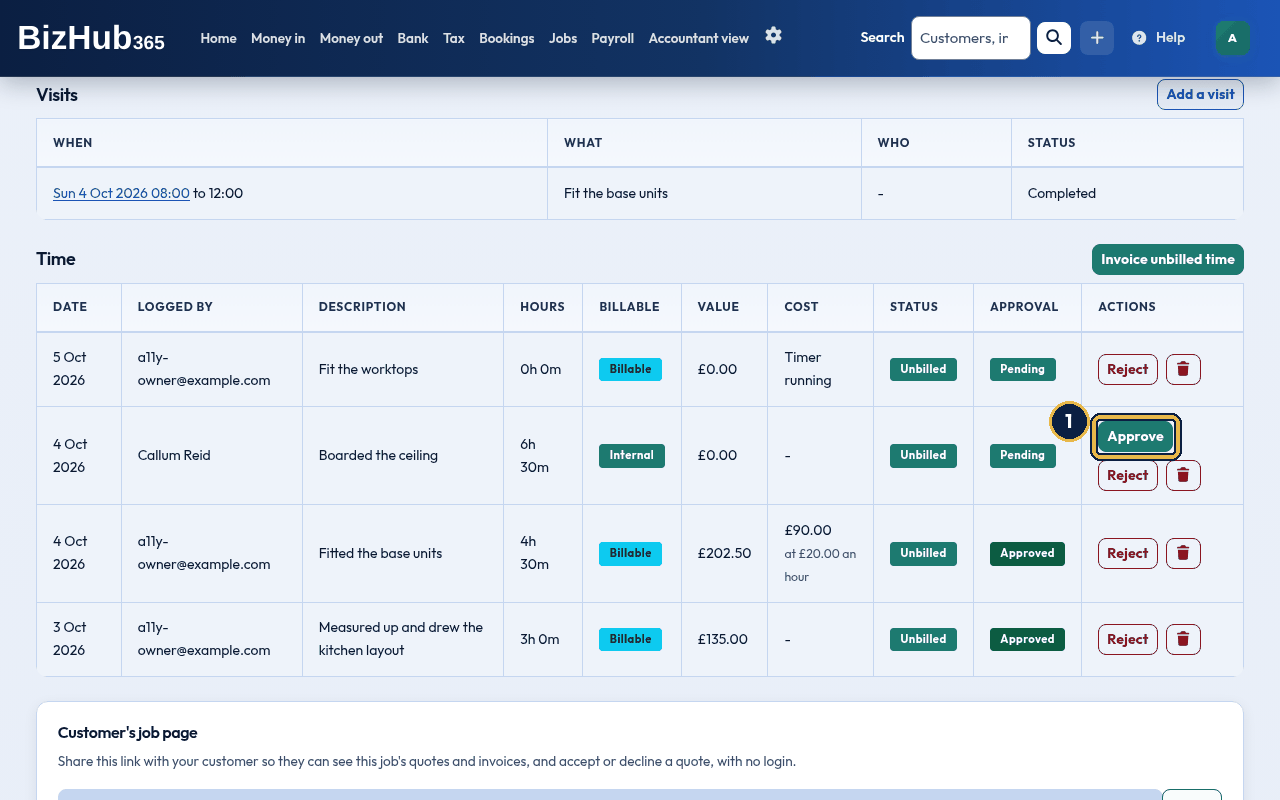
When it worked: You see Time entry approved. or Time entry rejected. A rejected entry shows the reason. An approved entry can't be deleted until it's rejected, except time you or your team logged, which you can delete while it isn't invoiced. Invoiced time can't be changed.
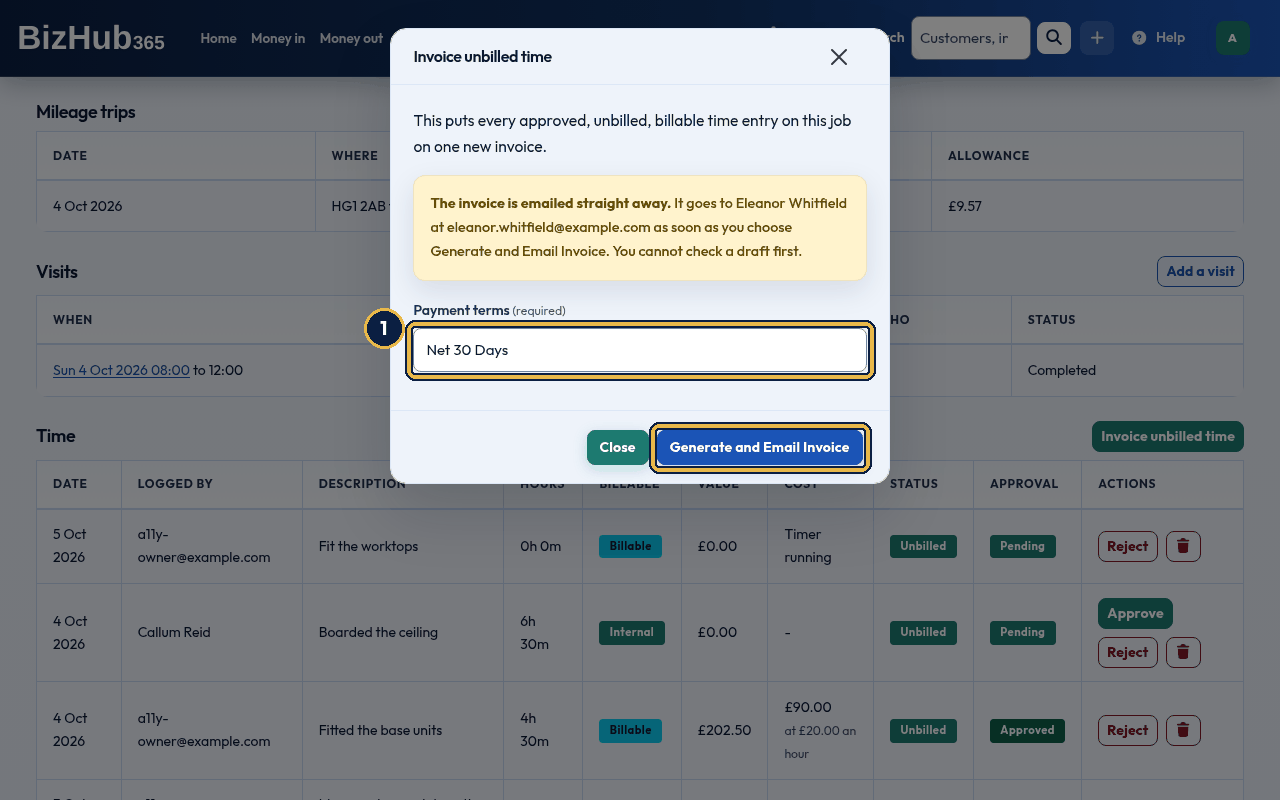
When it worked: You see Invoice #[number] generated from unbilled time. All the approved, billable, unbilled time goes on one invoice on the job, which is created and emailed to the customer as a PDF straight away. The entries show Invoiced.
| If this happens | Do this |
|---|---|
| There is no approved, unbilled billable time to invoice on this job. | Approve the time first. Entries marked Internal (not billable) are never invoiced. |
| This job has no customer. Add a customer to the job before invoicing its time. | Choose Edit job, choose the Customer and save. |
Each job has a link you can give the customer. With no login, they see the job (its title, reference, stage, dates and site address), Visits and time (each day with a visit booked or time logged: the visit's times and the billable time logged that day, added up per day), its quotes (and can accept or decline them) and its invoices with how to pay. If they disagree with a visit or the time logged, the page asks them to contact you directly: sort it out with them as you normally would. They never see your notes, who logged the time, its descriptions or rates, internal (not billable) or rejected time, costs, the budget or the profit.
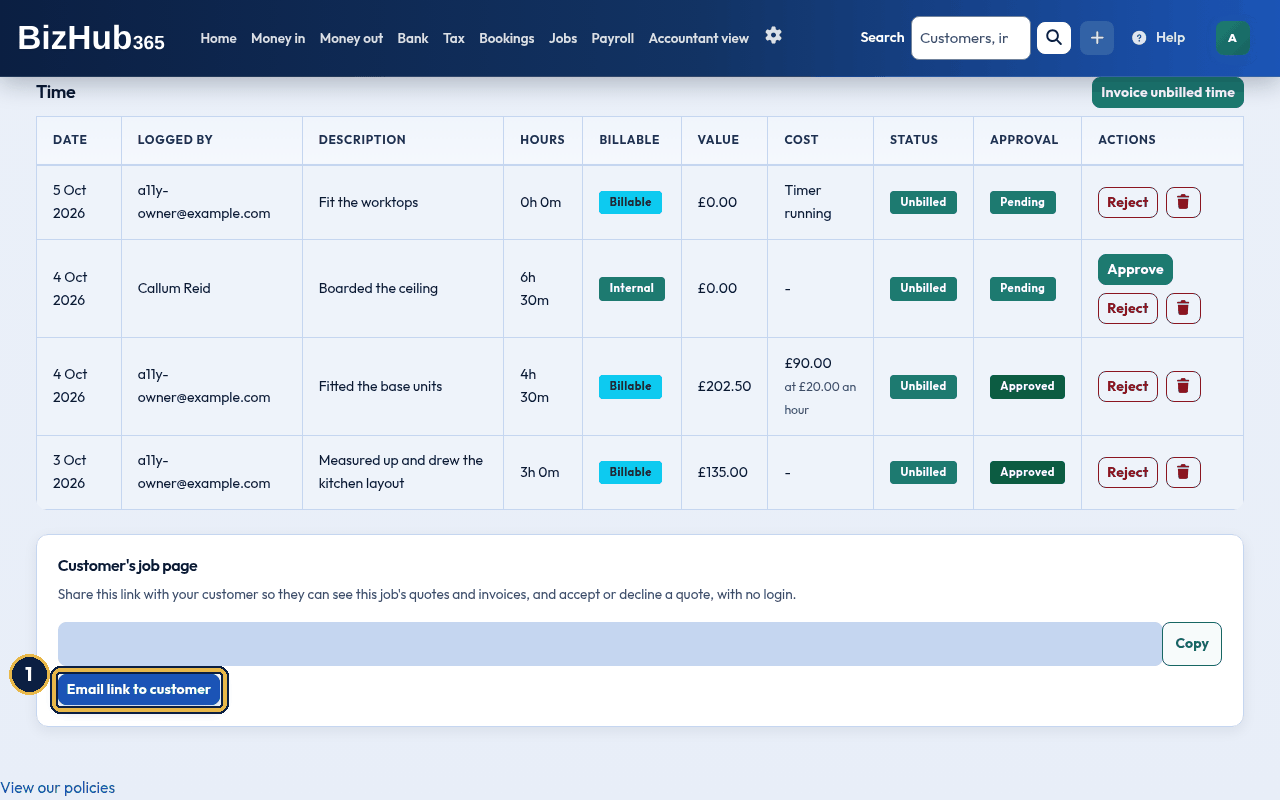
When it worked: You see Portal link emailed to the customer. They get an email headed Your job portal link - [job title], from your business, with the link.
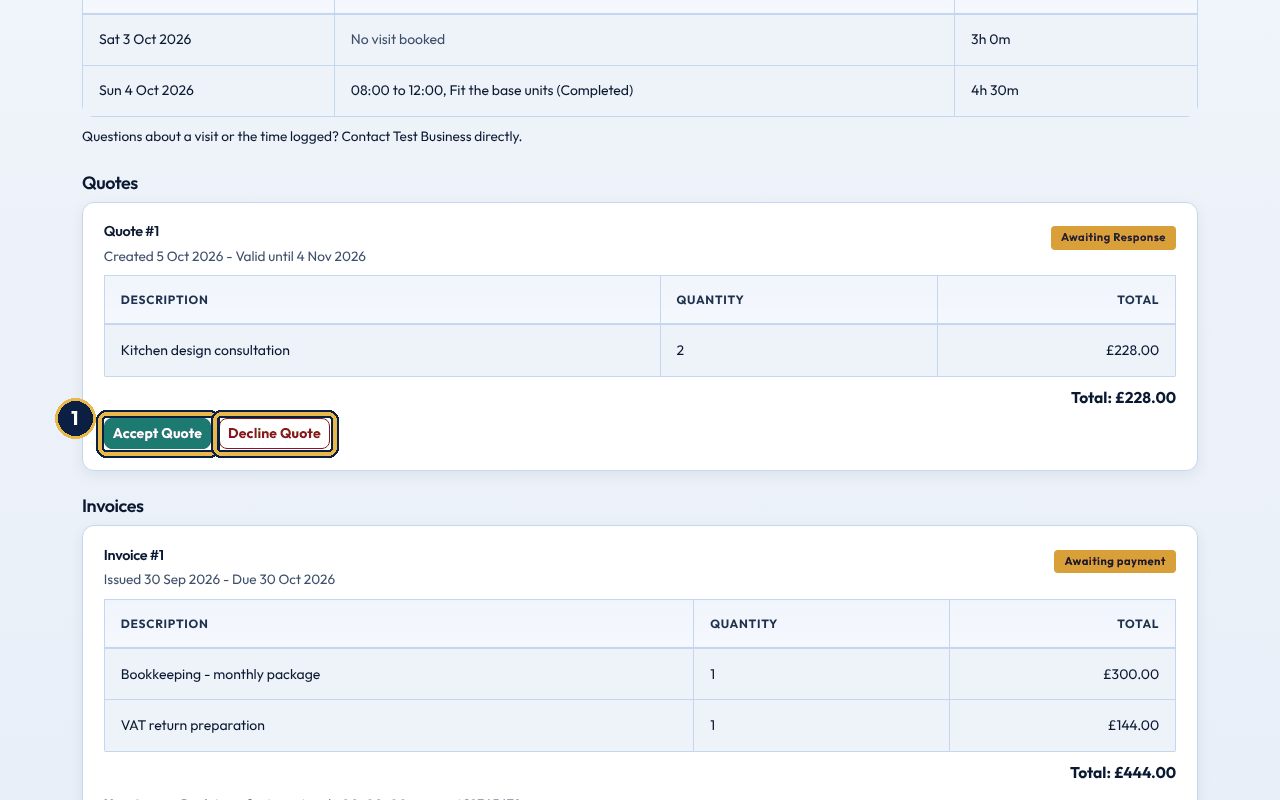
When it worked: The customer sees Thank you - the quote has been accepted. (or The quote has been declined.). Your business email address gets an email headed Quote #[number] was accepted by [customer] (or declined), and the job's Quotes list shows the answer and date. A quote can be answered once.
Jobs → My time lists the time you've logged on every job, with whether it's billable, invoiced and approved, and any reason it was rejected.
Part III · Money · Chapter 16
Upload a statement, then match each line to an invoice or a bill, or post it to the right account.
Where to find it: Bank→Transactions to sort
Banking brings your bank's transactions into BizHub365 so you can match each one to an invoice or a bill, or post it to the right account. You bring them in by uploading the statement file you download from your online banking. Every imported line waits in Bank → Transactions to sort, under Awaiting Processing, until you deal with it. Nothing reaches your accounts until you match it, post it or confirm a bulk action, unless you have switched on automatic payment matching or a matching rule that posts by itself. The Bank menu has Transactions to sort (the Transactions page), and for members with the Edit permission Upload a statement, Auto-sort rules (Matching Rules, which sort bank lines for you) and, under More, Import history.
Where to find it: Bank→Upload a statement
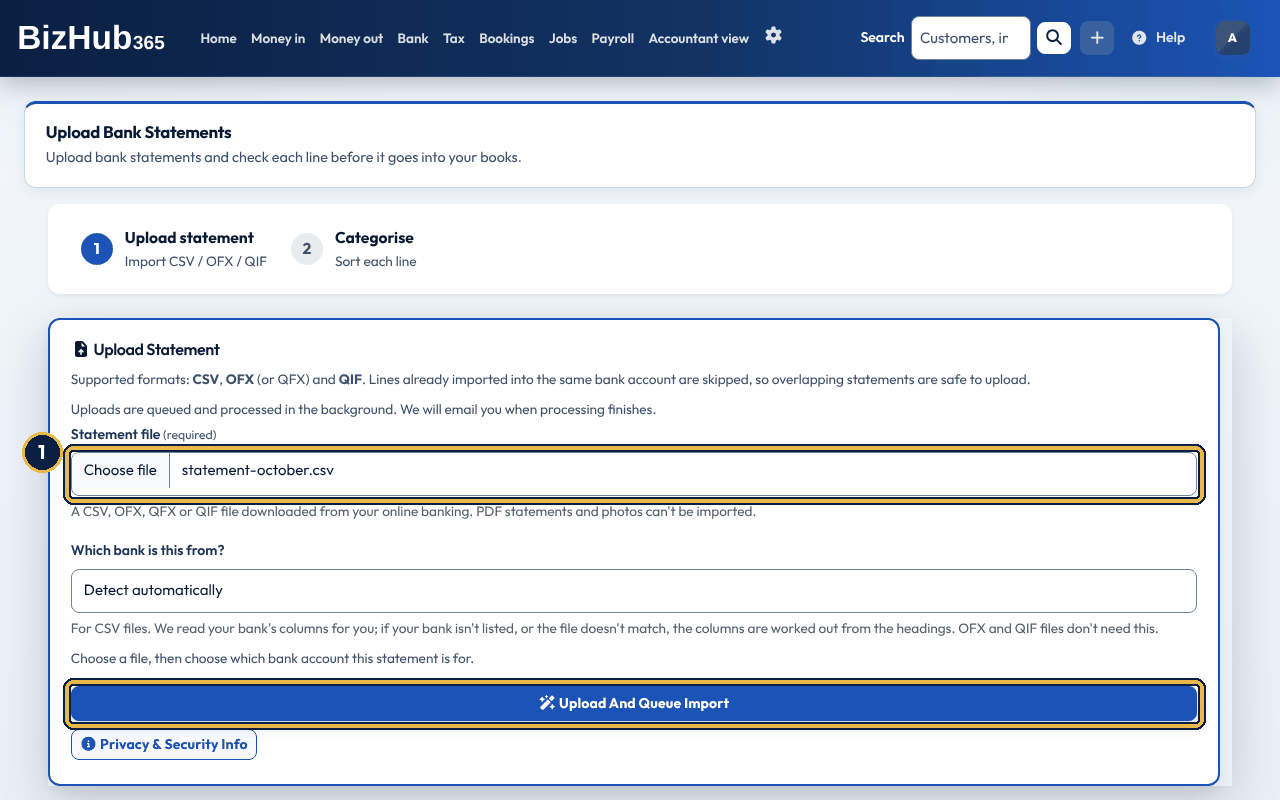
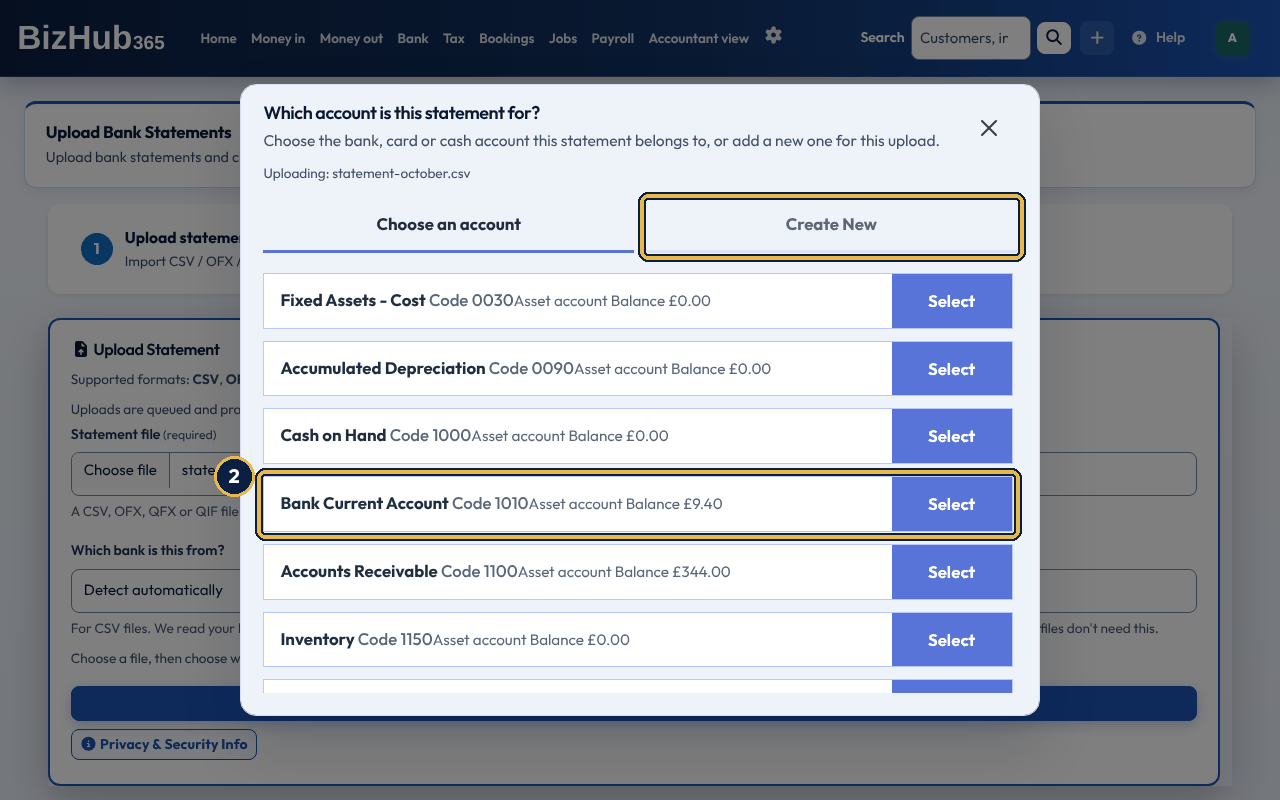
When it worked: You are back on Upload Bank Statements with the message Statement import queued for processing, and the upload is listed under Import History. The file is read in the background; you are emailed Statement import complete (or Statement import failed, with the reason) when it has finished, and its lines appear under Awaiting Processing. Import History shows how many lines were imported, how many were skipped because they were already imported, and which bank layout a CSV was read as.
| If this happens | Do this |
|---|---|
| The import failed because the columns were not recognised. | The CSV needs a date column and an amount column (or separate money in and money out columns), with a heading row. Choose your bank in Which bank is this from?, or download the file again from your bank as OFX or QIF if it offers them. |
| Fewer lines were imported than the file has. | Lines already imported into the same bank account are skipped. On Import History, choose Show the N skipped lines under the file (N is the number skipped) to see which ones and why. Lines a bank marks as declined or reverted (Revolut Business, Tide) are left out too. |
Which bank is this from? knows the CSV layouts of Tide, Mettle, Starling Bank, Monzo, Revolut Business, NatWest, Barclays, Lloyds, HSBC and Santander, so their columns are read for you. Detect automatically recognises most of them from the headings. For any other bank, or if the file doesn't match the bank you chose, BizHub365 works out the columns from the headings, such as Date, Amount, Paid in, Paid out, Description, Reference and Payee, and reads dates written day first (for example 02/10/2026) or as 2 Oct 2026. An OFX or QFX file (Mettle and most UK banks offer one, sometimes called Microsoft Money format) needs no bank choice: each line carries the bank's own transaction id, which BizHub365 keeps. Uploading a statement that overlaps one you uploaded before does not duplicate lines. A line is skipped when the same bank account already has a line with the same bank transaction id, or, without one, the same date, amount and description. Identical lines are counted, so two genuine identical payments on one day in a new file both import. Import History lists the skipped lines. Statements that come only as PDF can't be imported here, and Scan with AI reads receipts and bills, not bank statements. Ask your bank for a CSV, OFX or QIF download. Bank → Import history lists each upload with its status, how many lines it imported, and any error.
Where to find it: Bank→Transactions to sort
BizHub365 suggests a match for each line where it can. Money in is compared with your invoices: the same amount as an invoice's total, plus the customer's name or the invoice number in the bank text, makes it suggest that invoice. Money out is compared with your bills by amount. Otherwise your matching rules suggest an account. The suggestion is shown under Suggested Match. Each line shows one main button, for what BizHub365 suggests: Apply To Invoice # for a suggested invoice, Confirm Expense # for a suggested bill, Settle with payout, Settle card takings or Cash paid in for takings, otherwise Record as money in for money in and Add To Books for money out. Everything else for that line is under More actions beneath it: type another invoice number and Match To Selected Invoice, the takings buttons it didn't suggest, Record as money in, posting to an account you choose, Save As Rule and Ignore. Each choice can carry a note. If saving a line fails, its More actions stays open with what you typed. Money in is never posted straight to an income account from here: Record as money in says what it is (a customer's payment for one or more invoices, other income with its VAT, a refund from a supplier, or money that is not income), so it counts correctly in your VAT return and Income Tax figures. With the Accountant view section on, the line also has Post to an account (accountant) for your accountant.
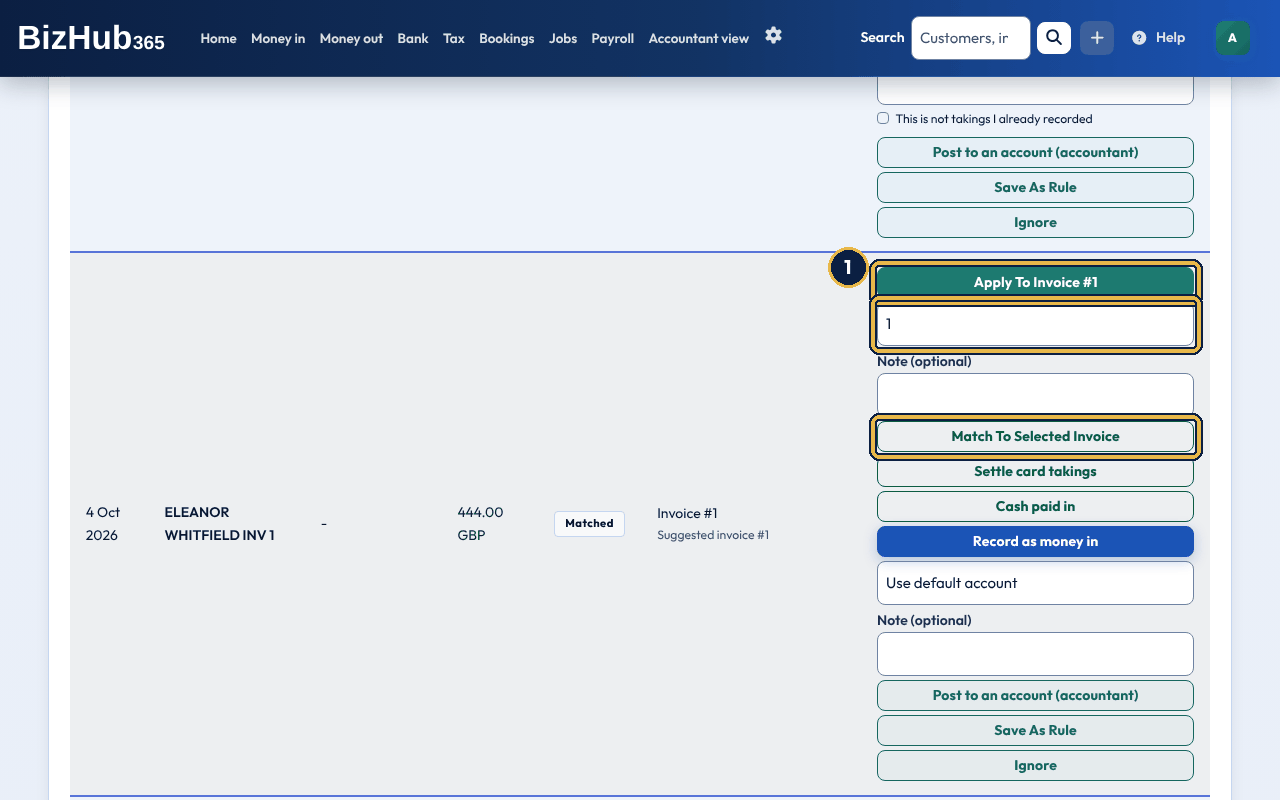
When it worked: A message says the transaction was applied to an invoice payment. The payment is recorded on the invoice, which shows as paid or part paid, and the line moves to the Import History tab.
| If this happens | Do this |
|---|---|
| The invoice was already marked paid by hand. | Applying the line reconciles it to the payment already on the invoice instead of recording a second one. |
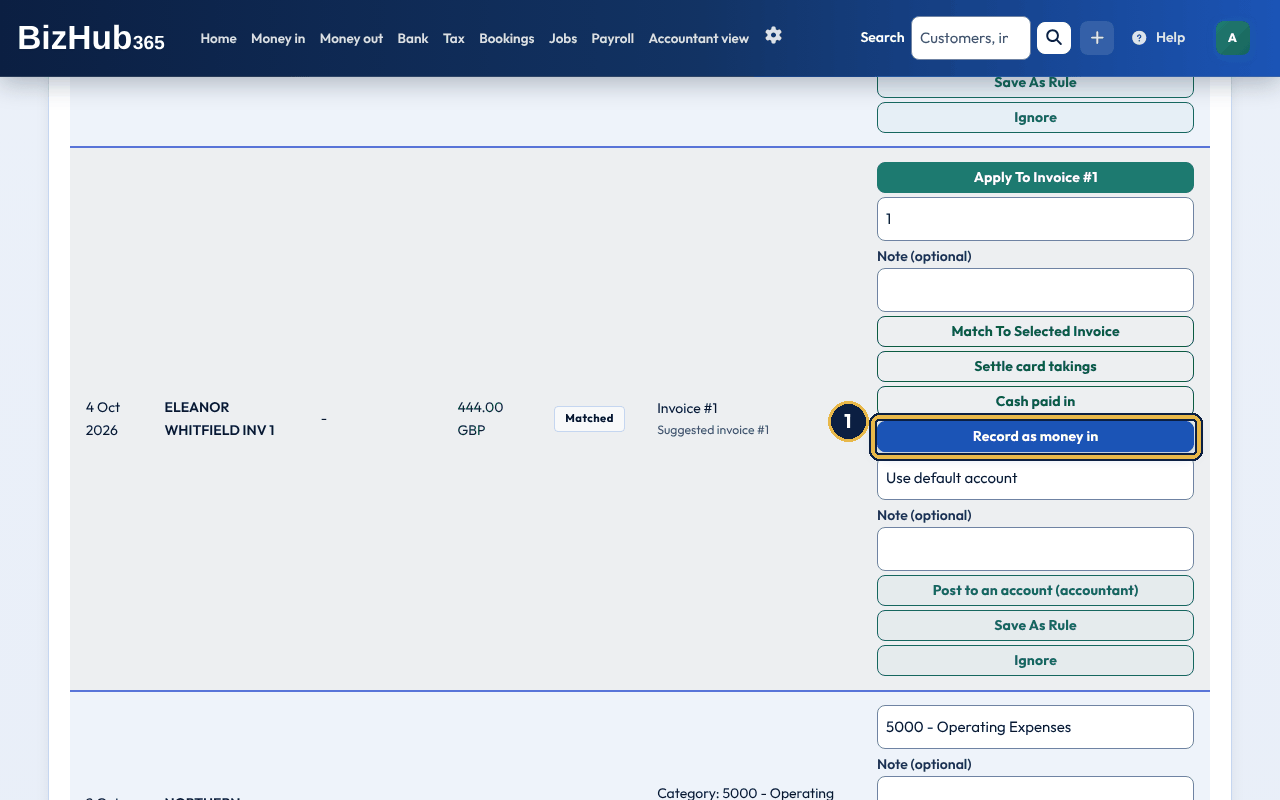
When it worked: The page says the money in was recorded and shows its page, with the bank line under How it arrived. The line moves to the Import History tab.
| If this happens | Do this |
|---|---|
| The page says the bank line has already been added to your books. | Someone has dealt with it meanwhile. Find it under Money in, or on the Import History tab. |
A payment out with a suggested bill has Confirm Expense # instead. Confirming it marks an unpaid bill paid from this bank account; if the bill was already paid, the line is simply matched to it.
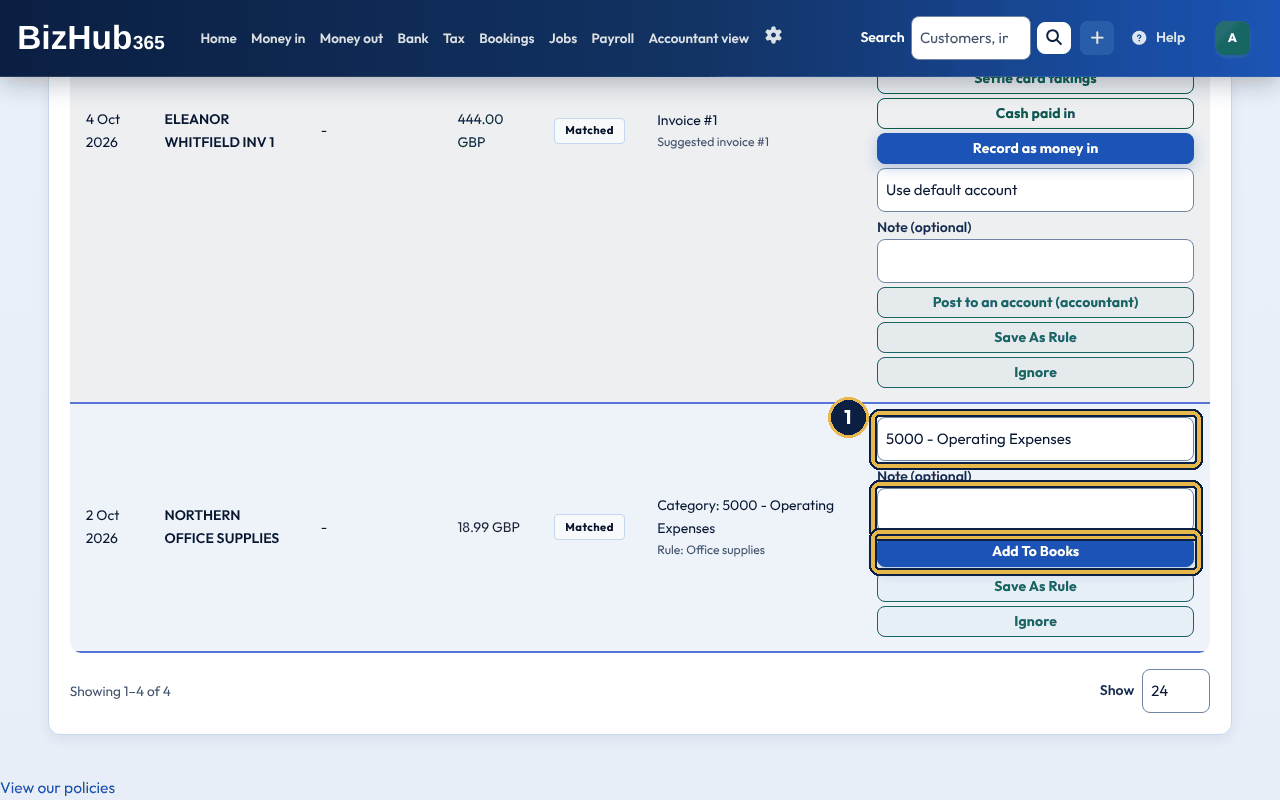
When it worked: A message says the line was added to your books. The line moves to the Import History tab, marked Added to your books.
| If this happens | Do this |
|---|---|
| You leave the list at Use default account. | It is posted to 5000 Operating Expenses. Choose an account instead if you know where it belongs. |
| The line isn't a real transaction, or you have recorded it some other way. | Choose Ignore. It moves to the Import History tab as Ignored and nothing is posted. |
Posting a single line is not listed under Recent bulk actions, so it can't be undone from there. If the post fails, the page says why and keeps your note, invoice number and account so you can try again.
Where to find it: Bank→Transactions to sort
If you record your till's daily takings, your takings are your sales: they were counted as income on the day you took them. Card takings wait in Card takings to come (account 1020) and cash in Cash on Hand. When the card company's payout or the cash you pay in reaches your bank, the bank line only moves that money to your bank account. It is not more income, so don't record it as money in. On a payment in, Settle card takings settles a card company's payout against your card takings, and Cash paid in records cash you took and paid into the bank. They show on money in when you have card takings still to come, or takings recorded. A line whose text names a card company (SumUp, Zettle, Square, Dojo, Teya, Stripe, PayPal, Worldpay and others) is suggested for Settle card takings, and a cash deposit, or a payment in of exactly a recent day's cash to bank, for Cash paid in: the suggestion shows under Suggested Match and the button is green.
| Action | What goes in your books |
|---|---|
| Settle card takings | The payout goes into your bank account and comes off Card takings to come. What the card company kept (the card takings you chose less the payout) is recorded as an expense for card fees: category Bank charges (finance charges for Income Tax), exempt from VAT, paid from Card takings to come. Together, Card takings to come goes down by exactly the card takings you chose. |
| Cash paid in | The amount moves from Cash on Hand to your bank account. Nothing else: it has no VAT and is not income. |
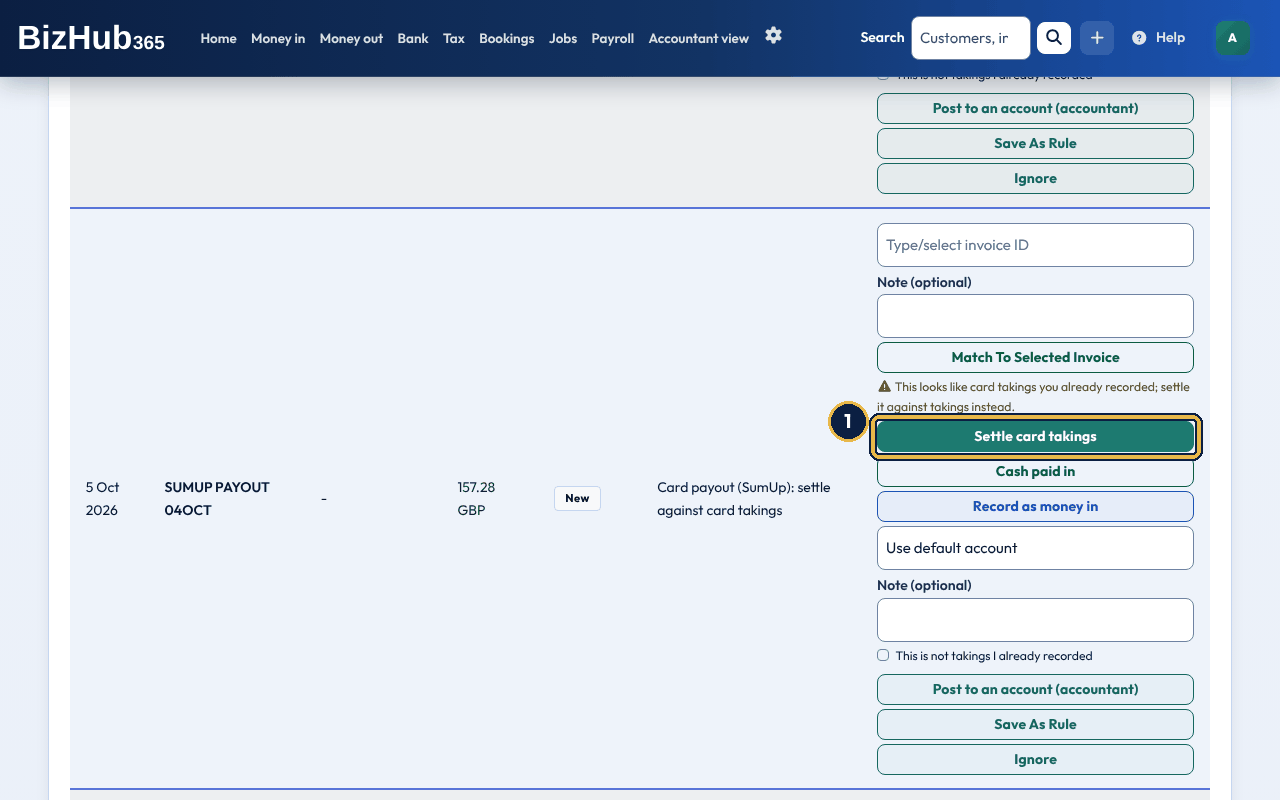
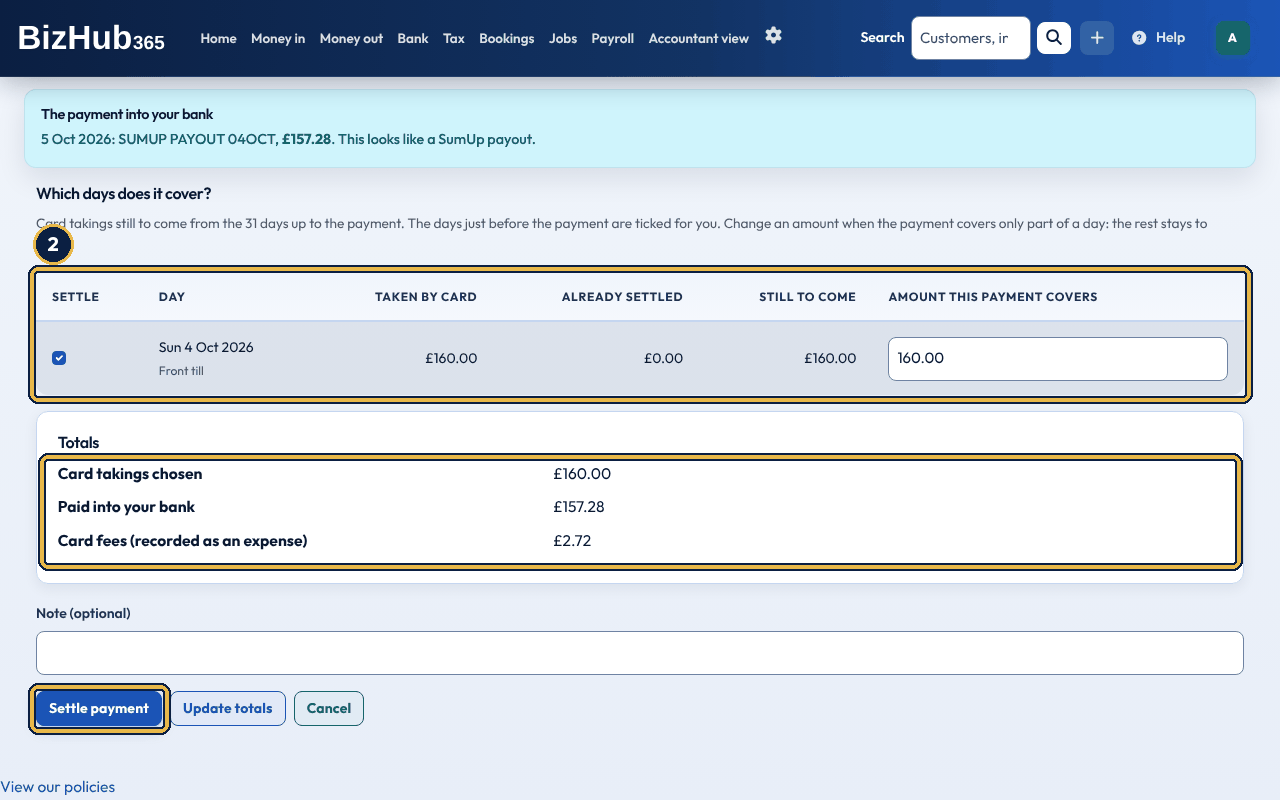
When it worked: A message says the card payout was settled against your card takings, and the card fees were recorded as an expense. The line moves to the Import History tab, marked Settled against card takings, and the card takings to come go down on the Takings page.
| If this happens | Do this |
|---|---|
| There is no Settle card takings button. | You have no card takings still to come: record the days' takings first. Or the line is money out, or already dealt with. |
| There is a problem says the days chosen are less than the payout. | The card takings you chose must add up to at least the payout. Tick more days, or show older days with Show older days with card takings still to come. |
| The payout covers half of a day; the rest comes in a later payout. | Type the part this payout covers in that day's amount. The rest of the day stays to come and is offered for the next payout. |
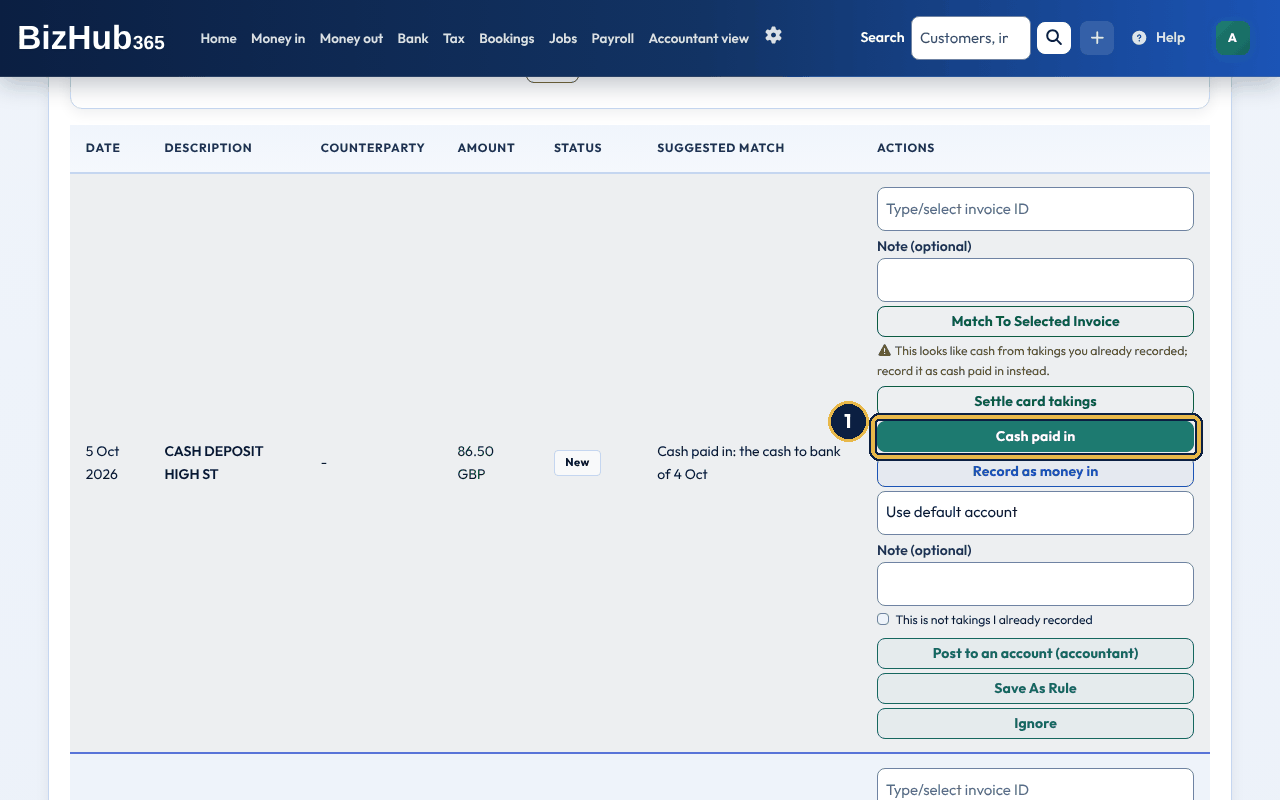
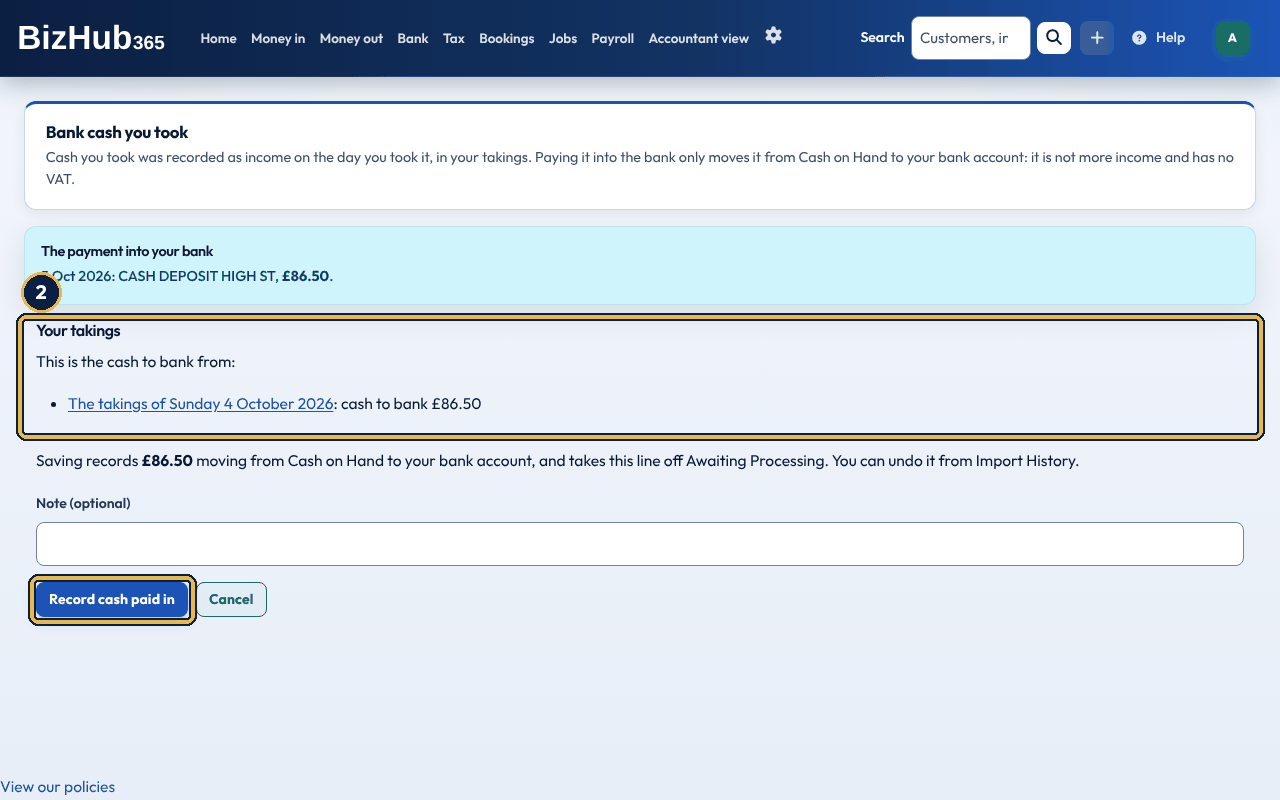
When it worked: A message says the amount was recorded as cash paid in, moved from Cash on Hand to the bank. The line moves to the Import History tab, marked Cash paid in from takings.
| If this happens | Do this |
|---|---|
| No day's cash to bank is the same as the deposit. | That is fine when you paid in several days' cash together, or kept some back for the float. Record it anyway. |
To undo either, open the Import History tab, find the line and choose Undo, then confirm. The entries are reversed, the card fees expense is removed, the card takings are to come again and the line goes back to Awaiting Processing. A settlement whose card fees are in a VAT return that has been locked or sent to HMRC can't be undone. While a day's card takings are settled, the day can't be deleted, and its card takings can't be changed to less than what has been settled; the card fees expense is removed only by undoing the settlement, not from the Expenses list.
A payment in of the amount of a payout from a payout report you imported, dated near its payout date, shows the payout under Suggested Match and a green Settle with payout button. Choosing it settles the line with that payout: against your card takings when the sales are in your takings (with the fees from the report), or from Card takings to come when the sales were recorded from the report. Its row warns This looks like a payout from a payout report you imported; settle it with that payout instead, or its sales are counted twice.
Where to find it: Bank→Transactions to sort
Auto-sort, the blue button at the top of Awaiting Processing, is the quickest way through: it sorts every line that has a suggestion, each with its own suggestion. A payment out with a suggested bill pays that bill, a payment in with a suggested invoice is recorded against that invoice, and any other line with a matching rule's category is posted to that account, exactly as the three buttons below would. Lines with no suggestion are left for you. Like the other buttons, it shows you everything first, and one Undo reverses the whole run. When nothing has a suggestion, the button is greyed out and says why.
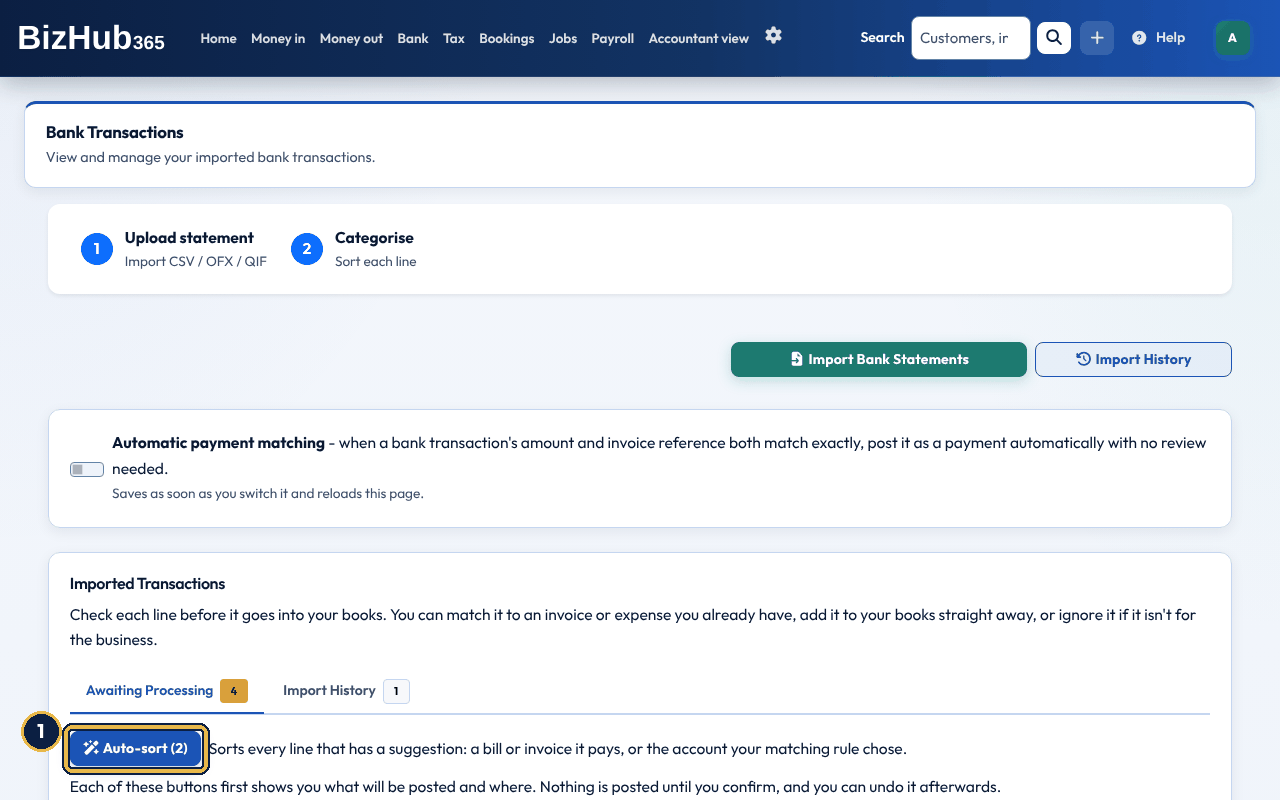
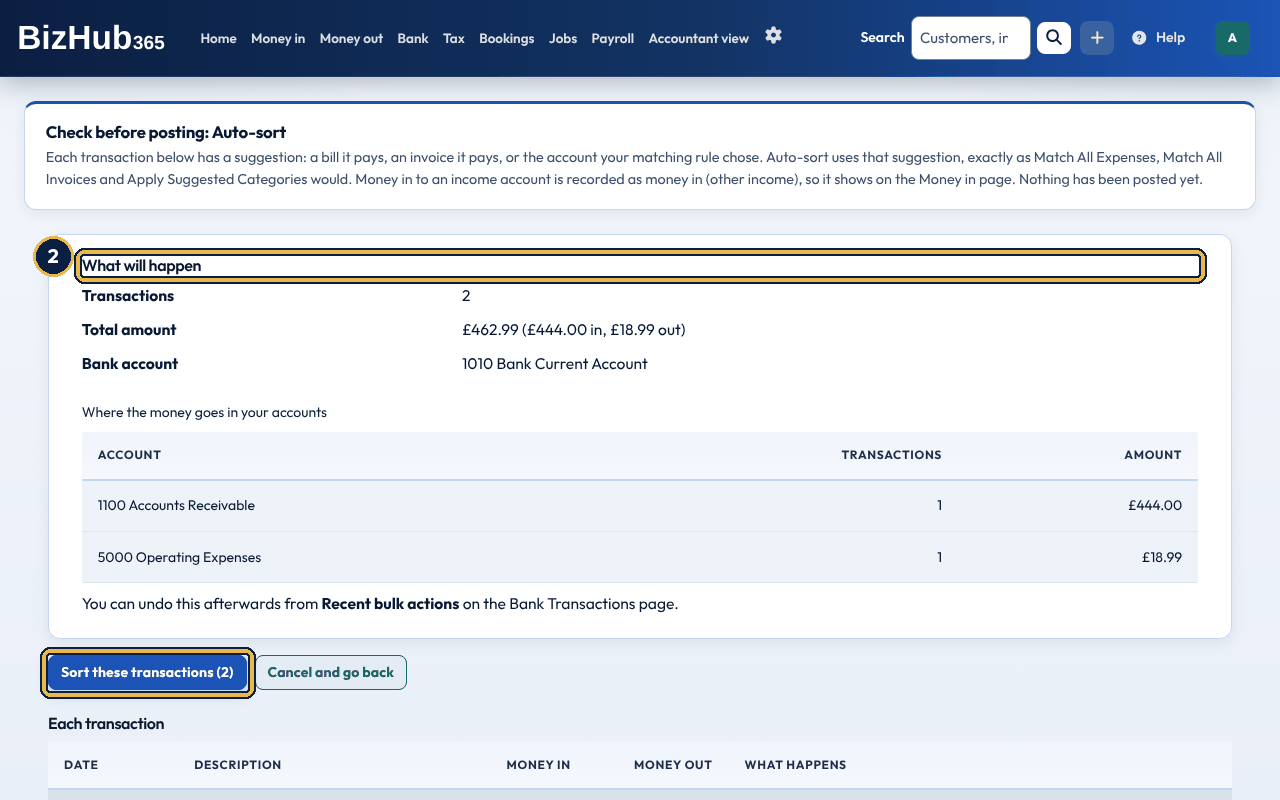
When it worked: A message says how many transactions were sorted, and the run is listed as Auto-sort under Recent bulk actions, ready to undo. Payments in to an income account are on the Money in page as other income, and payments in that look like card takings you already recorded are left for you to settle against your takings.
Under More ways to sort, just below Auto-sort, four more buttons deal with many lines at once: Match all expenses, Match all invoices, Apply suggested categories and Add all to books, with a link to Auto-sort rules. Choose More ways to sort to show them. Each shows how many lines it covers, and none of them posts straight away: each first opens a page that shows how many lines will be posted, the total, the bank account, which accounts they post to, what happens to each line, and any line left for you with the reason. Add all to books posts every line that has no suggested match. Money in is recorded as money in to match to an invoice later (it waits on the To match tab of Money in); money out goes to 5000 Operating Expenses. It runs in the background, and the page shows its progress and a summary when it has finished. If you record takings, it leaves out payments in that name a card company, and any line a matching rule suggests settling against card takings: settle those against your takings instead. Apply suggested categories posts each line to the account its matching rule chose. A payment in whose suggested account is an income account is not posted straight to income: it is recorded as money in (Other income on that account, as sales for Income Tax, at the standard rate of VAT if you are VAT registered and outside the scope of VAT if not), so it shows on the Money in page and counts once in your VAT return and Income Tax figures. Change it from its Money in page if the VAT or the Income Tax choice is different. If you record takings, a payment in that looks like card takings you already recorded is left for you, and the check page and the message after posting say how many: settle those against your takings instead. A payment in whose suggested account is an expense account is recorded as a Refund from a supplier on that account (category other expenses, with no VAT given back, because the bank line doesn't say what was bought): it counts exactly as posting it to the expense account did, and is never treated as takings. The check page says so; if the refund included VAT, open it from the Money in page, choose Change and pick the expense it refunds or the VAT. A matching rule set to post automatically does the same. Payments out, and payments in to other accounts (such as a loan), are posted as before. If the waiting lines change before you confirm (for example you post one in another tab), nothing is posted and the page shows you the new list to check.
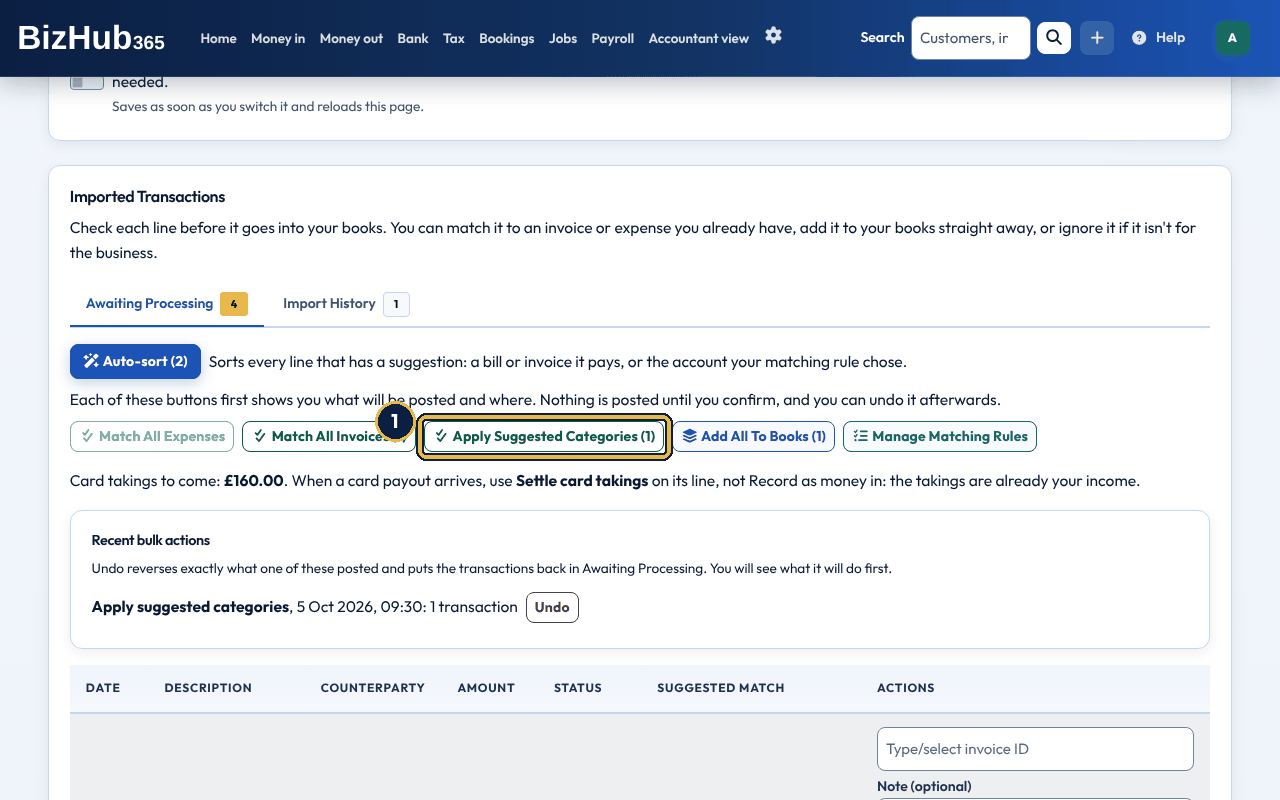
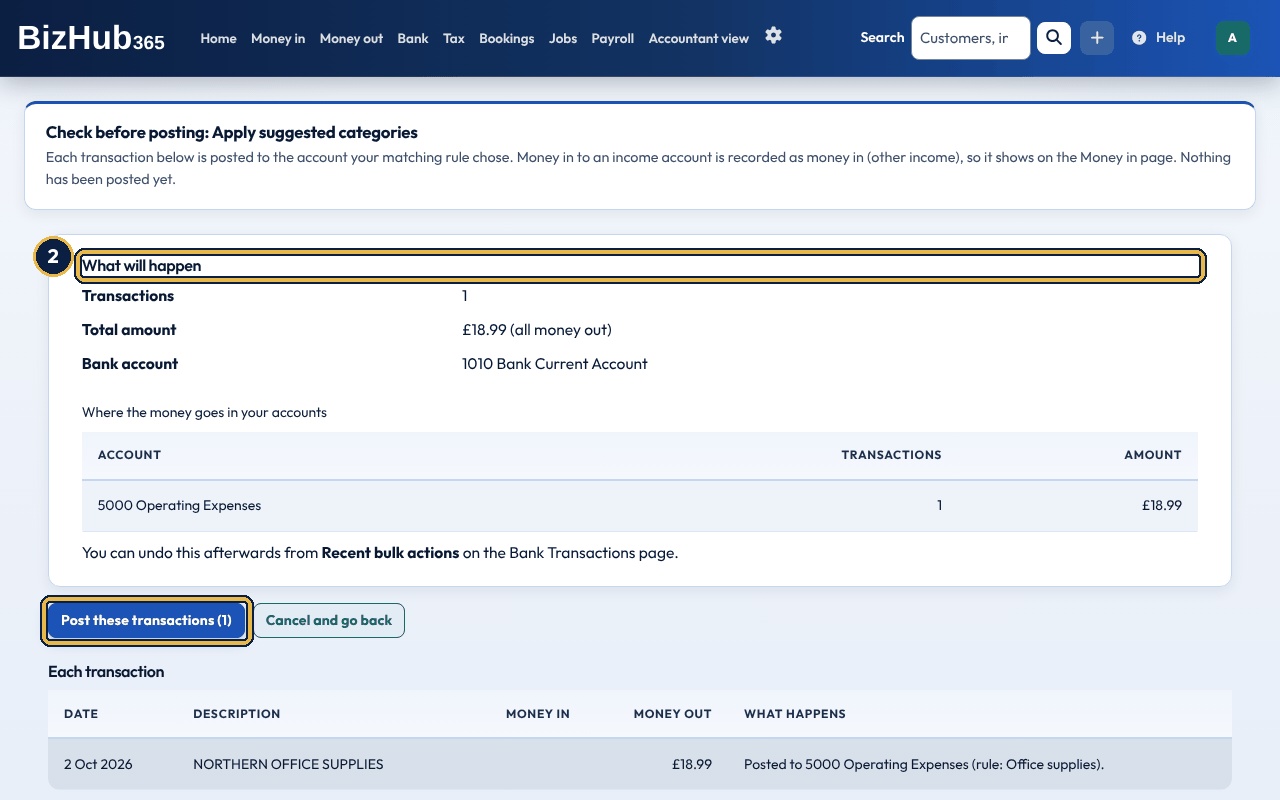
When it worked: A message says how many transactions were posted using their suggested category (payments in to an income account are on the Money in page as other income), and the action is listed under Recent bulk actions on Bank → Transactions to sort, ready to undo. Undo removes that money in again.
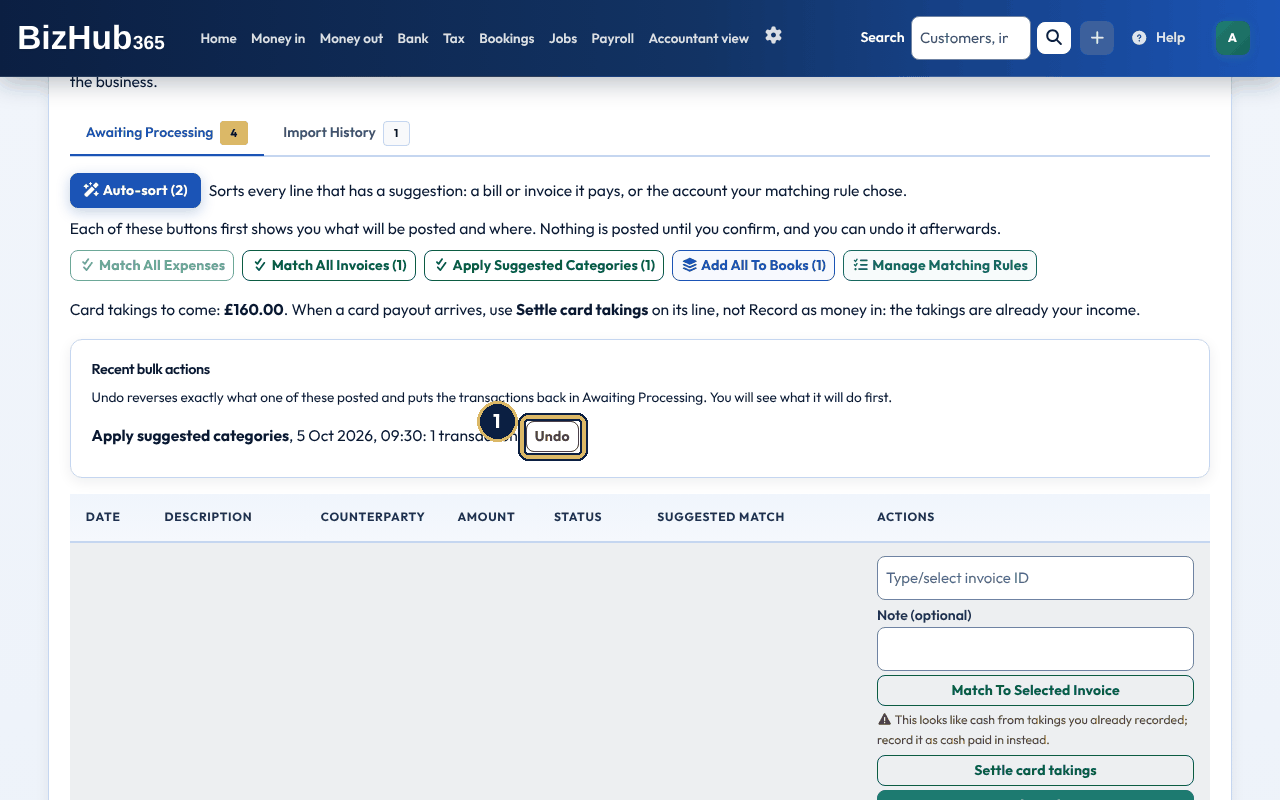
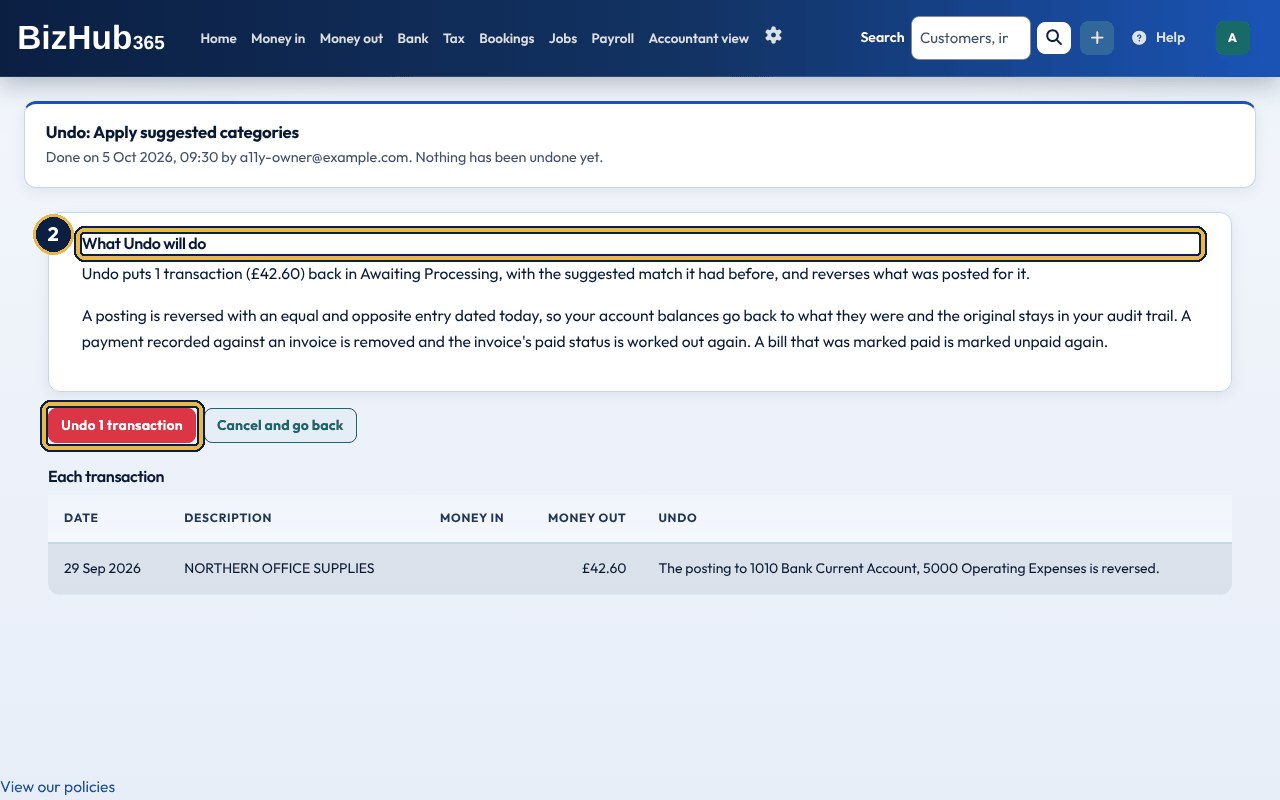
When it worked: A message says the transactions are back in Awaiting Processing and what was posted for them has been reversed.
| If this happens | Do this |
|---|---|
| A line says it can't be undone. | Undo leaves a line alone when changing it would change something locked: a payment or bill in a VAT return that has been locked or submitted to HMRC, a record you have locked, money in since matched to an invoice, or a line changed since. The reason is shown next to it. |
Undo reverses exactly what was posted for each line, and puts it back with the suggestion it had before:
Where to find it: Bank→Auto-sort rules
A matching rule recognises a line that comes up again and again, such as rent, the phone bill, software or a loan repayment, and suggests the account to post it to. Rules are checked in priority order (lowest number first), and only for lines with no invoice or bill match. A rule matches when the line's description, reference or payee contains the text you give (capitals don't matter), the direction fits, and the amount is within any minimum and maximum you set. Save As Rule on a line starts a new rule with its text and direction filled in. The list shows each rule's account, whether it posts by itself or only suggests, how many times it has been applied, and Edit, Pause (or Resume) and Delete. Deleting a rule doesn't change anything already posted. Under What the rule does, a rule can instead suggest settling it against card takings, for a card company's payouts whose name BizHub365 doesn't recognise by itself (for example your bank's own card service). Matching lines are suggested for Settle card takings. Such a rule is for money in only, never posts by itself (you choose the days each time) and has no target account; the list shows Settle against card takings. Save As Rule on a payout from a card company starts a rule like this.
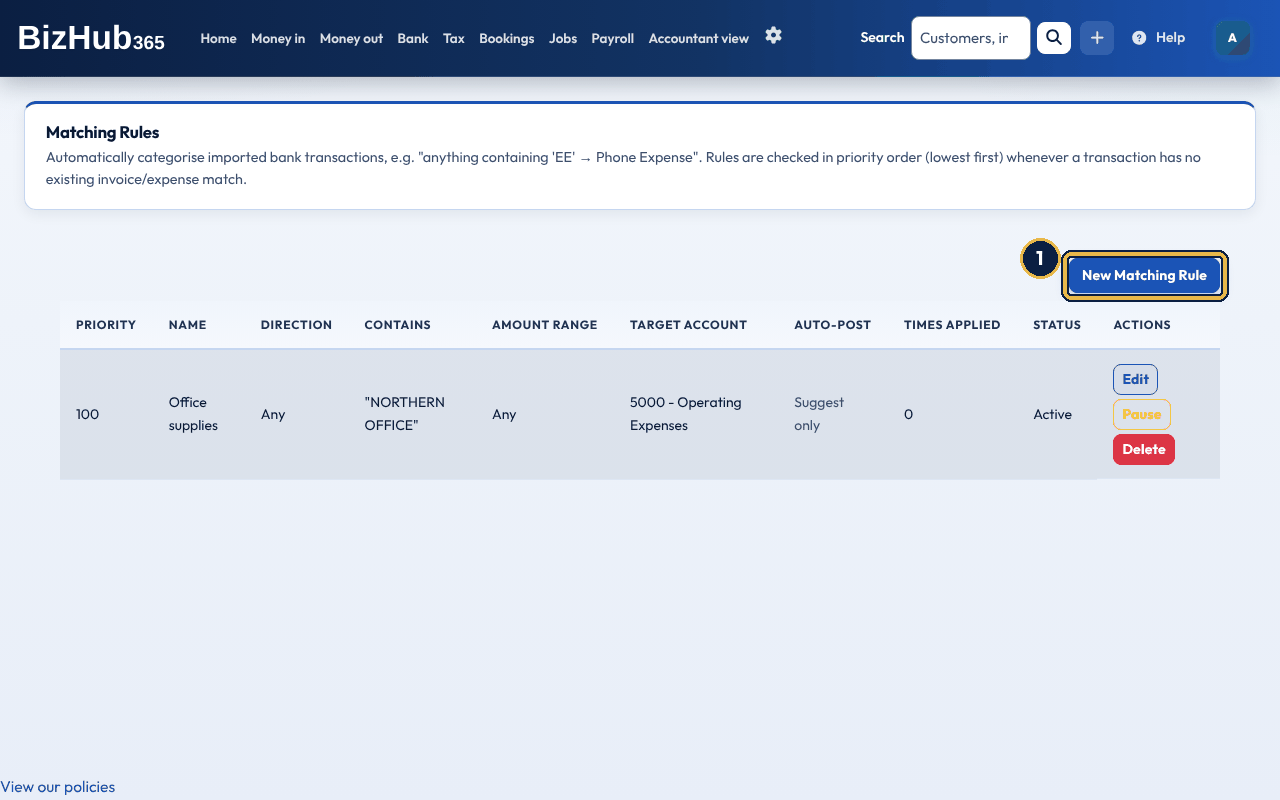
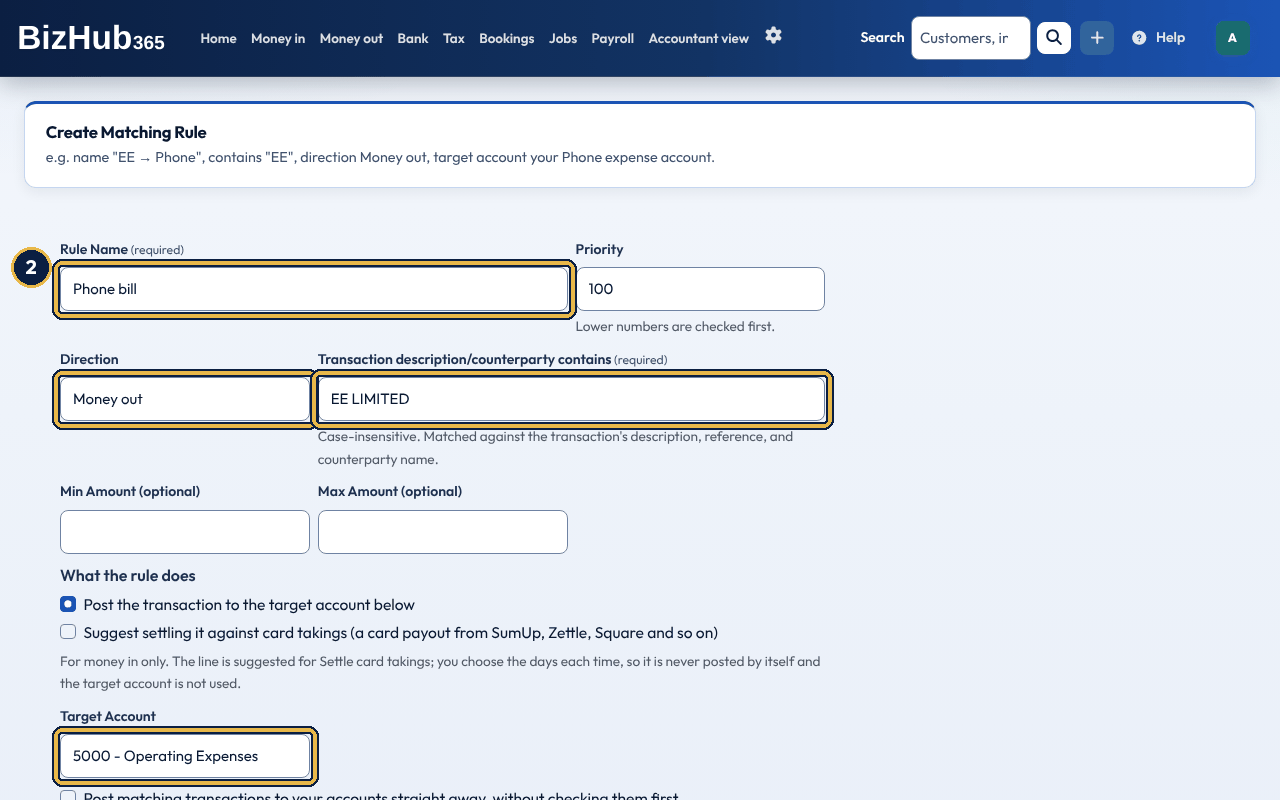
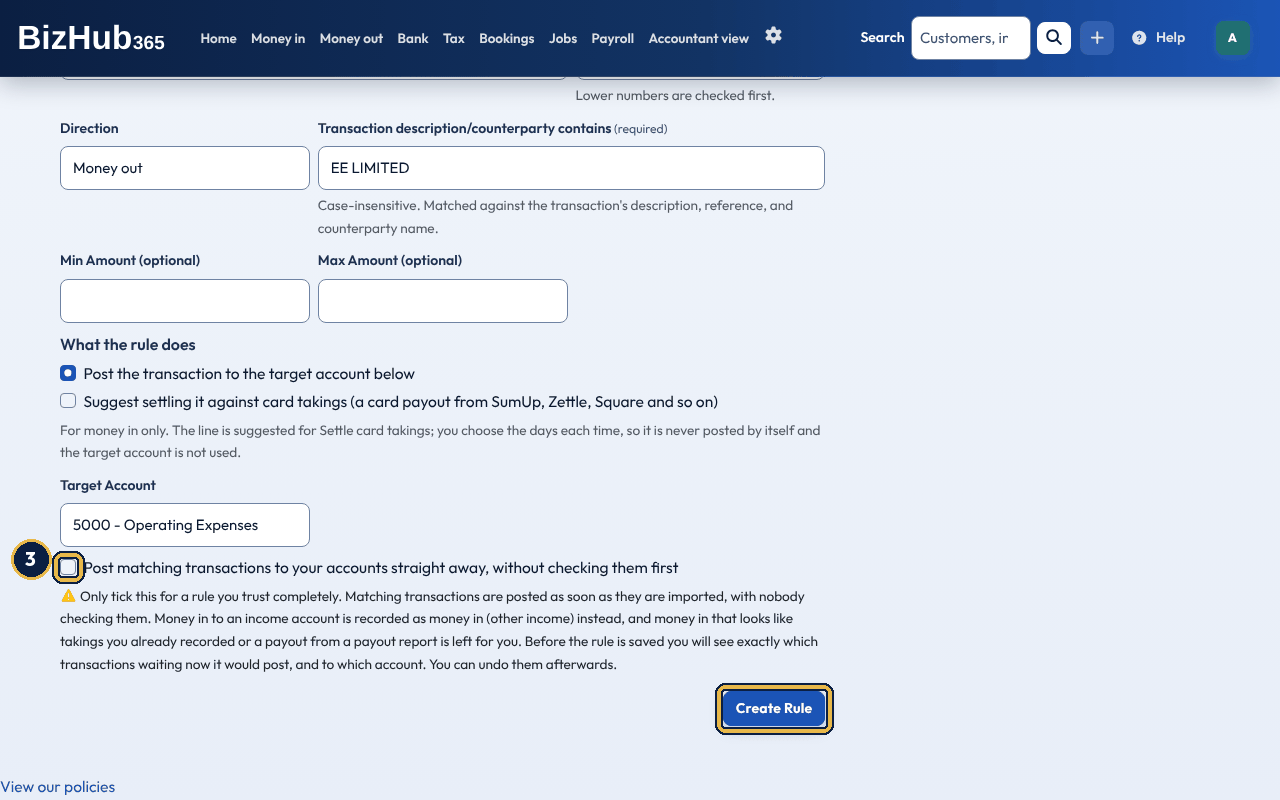
When it worked: A message says the matching rule was created and, if it applied to lines waiting now, how many. Those lines show the rule's account under Suggested Match, ready to post one at a time or with Apply suggested categories.
| If this happens | Do this |
|---|---|
| A page called Check what this rule will do opens. | The rule would affect lines already waiting, or posts by itself. It lists each line and what will happen. Confirm, choose Change the rule to go back to the form, or Cancel. |
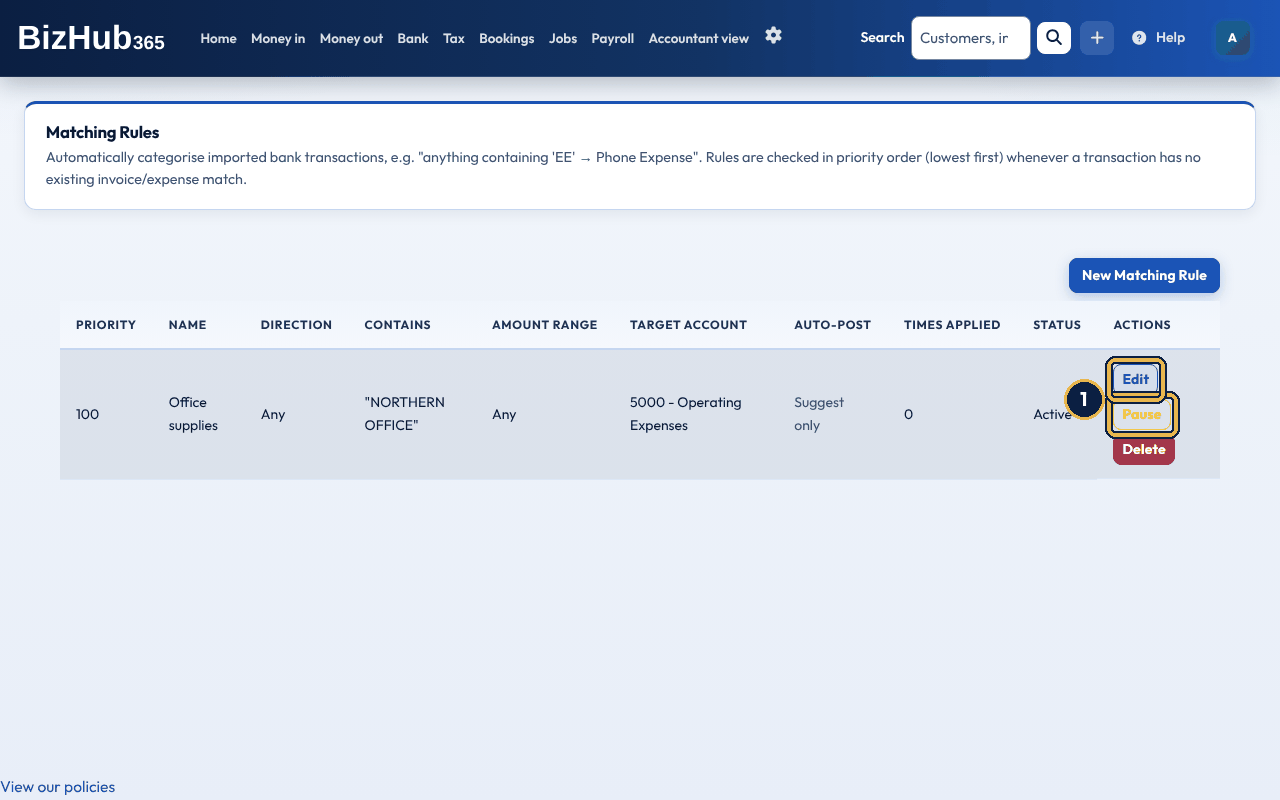
When it worked: You see Matching rule '[name]' paused. and the rule shows Paused. Resume switches it back on; if it would then post or categorise lines already waiting, a page lists them first for you to confirm.
Where to find it: Bank→Transactions to sort
When a payment in has exactly the amount of one invoice and that invoice's number in the bank text, BizHub365 can record the payment against the invoice by itself, with nobody checking it. It is off unless you switch it on. It applies when lines are next checked, for example as a statement is imported; lines already waiting are not checked again when you switch it on.
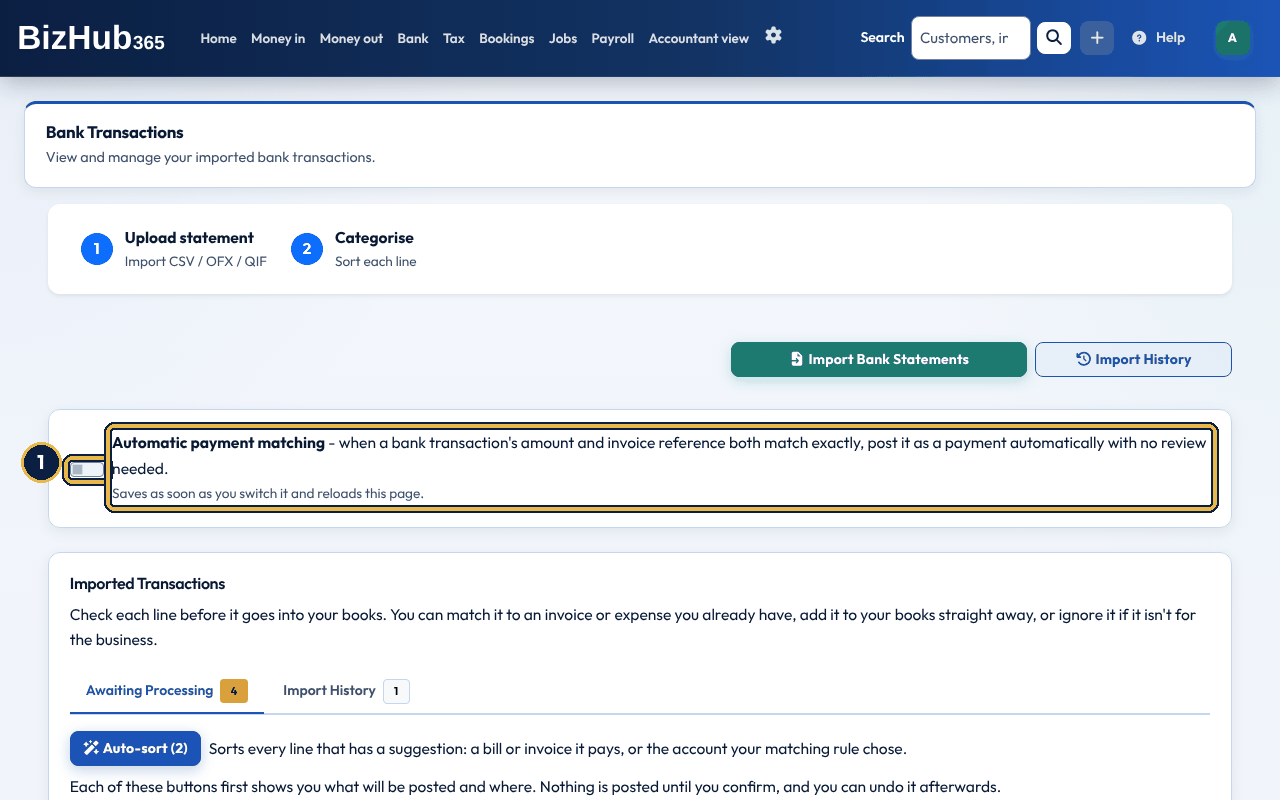
When it worked: The page reloads with the message Automatic payment matching turned on. Switch it off the same way.
Where to find it: Bank→Connect your bank
Where to find it: Bank→More→Bank connections
A bank feed brings your business bank account's transactions into BizHub365 automatically with Open Banking. The connection is provided by Fena, which is authorised by the Financial Conduct Authority to provide account information services: with your consent Fena reads your account details, balances and transactions and passes them to BizHub365 for your bank feed. It is read only: nothing can move money or make payments. Connect your bank starts with your bank: the most used banks are shown with their logos, Search for your bank finds any of them by name, and Show all banks lists the rest. Choose yours. Under the banks a short paragraph says what you're agreeing to: BizHub365 reads your account names, balances and transactions for 90 days through Fena Labs Ltd, an FCA-authorised provider (firm reference 934835), and you can disconnect at any time. More about how this works opens the full explanation: what is read, who provides it, why, for how long and how to stop. Nothing is read until you tick that you agree and choose Continue to your bank. You sign in to your own bank to approve access for Fena; neither BizHub365 nor Fena sees your bank sign-in details. When you come back, if your bank hasn't confirmed yet the page says so and has Check again. Then choose, for each account you shared, which bank account in your books its transactions go to (an existing one, a new one, or none). New transactions arrive under Bank → Transactions to sort a few times a day, ready to match and post like an uploaded statement. Only booked transactions are brought in, never pending ones. A line you already uploaded from a statement for the same day and amount is not brought in twice, and nothing is added to your books unless you switched on automatic posting. Bank → Bank connections lists your bank feeds: each account's status, the bank account in your books it feeds, its latest balance, when it last synced and how long the consent runs, with Sync now to fetch new transactions straight away and Connect a bank to add another.
UK rules ask you to confirm every 90 days that you still want your bank read. From 30 days before, each feed on Bank connections has Re-confirm: tick that you still agree and choose Re-confirm, with no need to sign in to your bank again. We email the person who connected the bank 7 days before. If the 90 days pass, the feed stops and shows Connect again, which takes you through your bank again and carries on into the same bank accounts in your books. Disconnect stops the feed straight away and asks Fena to stop access, for every account in the same consent. Transactions already imported stay in BizHub365. You can also withdraw access through your bank. Connecting, re-confirming and disconnecting need the Edit permission.
You can do all of this in the BizHub365 app as well: tap Bank connections at the top of the Bank tab. Connect a bank shows the same page as the website, in the same order: your bank with its logo, the short explanation, More about how this works, the tick and Continue to your bank. Your bank's page opens inside the app; when you have approved, it brings you back to the app, which finishes the connection and asks which bank account in your books each account goes to. If your bank hasn't confirmed yet, tap Check again. Connections made in the app and on the website are the same: you can re-confirm or disconnect a feed in either.
When it worked: The message Your bank feed is set up appears, the account shows Syncing with its balance, and its transactions are under Bank → Transactions to sort.
| If this happens | Do this |
|---|---|
| You want to connect from the app. | On the Bank tab tap Bank connections, then Connect a bank. Tap your bank (type its name in Search for your bank, or tap Show all banks, if it isn't shown), read the short paragraph, tick that you agree and tap Continue to your bank. Approve at your bank; you come back to the app, which asks which bank account each account goes to. Choose one, A new bank account or Not now, and tap Save. |
| The app says the bank connection has expired or doesn't match. | The link back from your bank works once, for an hour, and only for the person who started it. Tap Start again. |
| Your bank didn't confirm the connection, or nothing was connected. | You declined at your bank or the link timed out. Start again from Connect your bank. |
| A feed says Problem reading from your bank. | It is tried again a few times a day. If it says to connect your bank again, choose Disconnect and connect it again. |
| A feed says Stopped: consent ended. | The 90 days passed without re-confirming. Choose Connect again and approve at your bank; the feed carries on into the same bank account. |
Part IV · Books and tax · Chapter 17
Every invoice, payment, and expense is already in the books. Reports read that ledger, so you do not re-key figures.
Where to find it: Tax→Reports
Every invoice, payment, expense and bank line you record is posted to the ledger, and the reports read the ledger, so you never re-key figures. The Tax menu has Reports and For your accountant, next to Your tax and VAT returns when they apply to you (see HMRC Making Tax Digital). The Reports page starts with Your reports, the four most owners need: Profit and Loss, Sales by Customer, Expense by Category and Aged Debtors (who owes you). Every other report, and the Annual Accounts, are below under For your accountant, the pack your accountant or bookkeeper works from; For your accountant in the menu jumps straight there. Ledger accounts and Journal entries are in the Accountant view menu, which appears when the Accountant view section is on (accountants always see it), with Accountant reports, a link to the same pack.
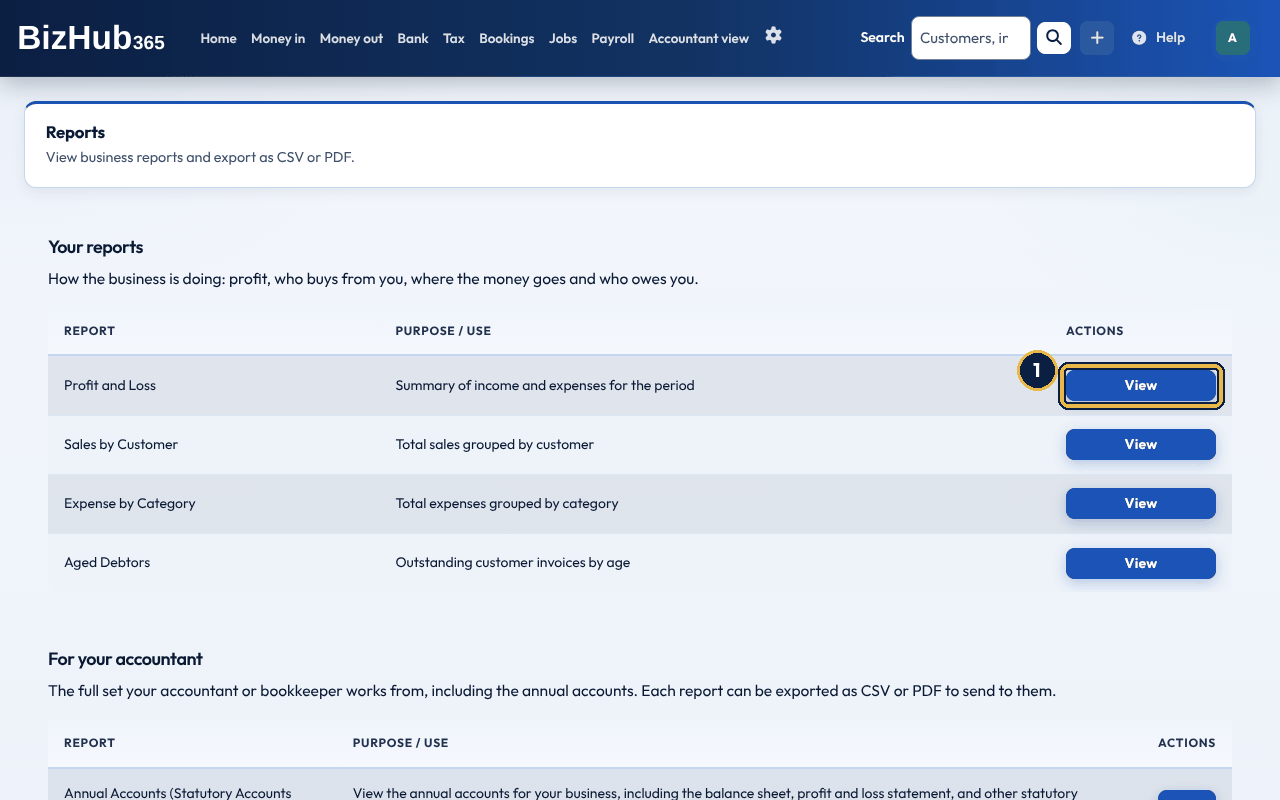
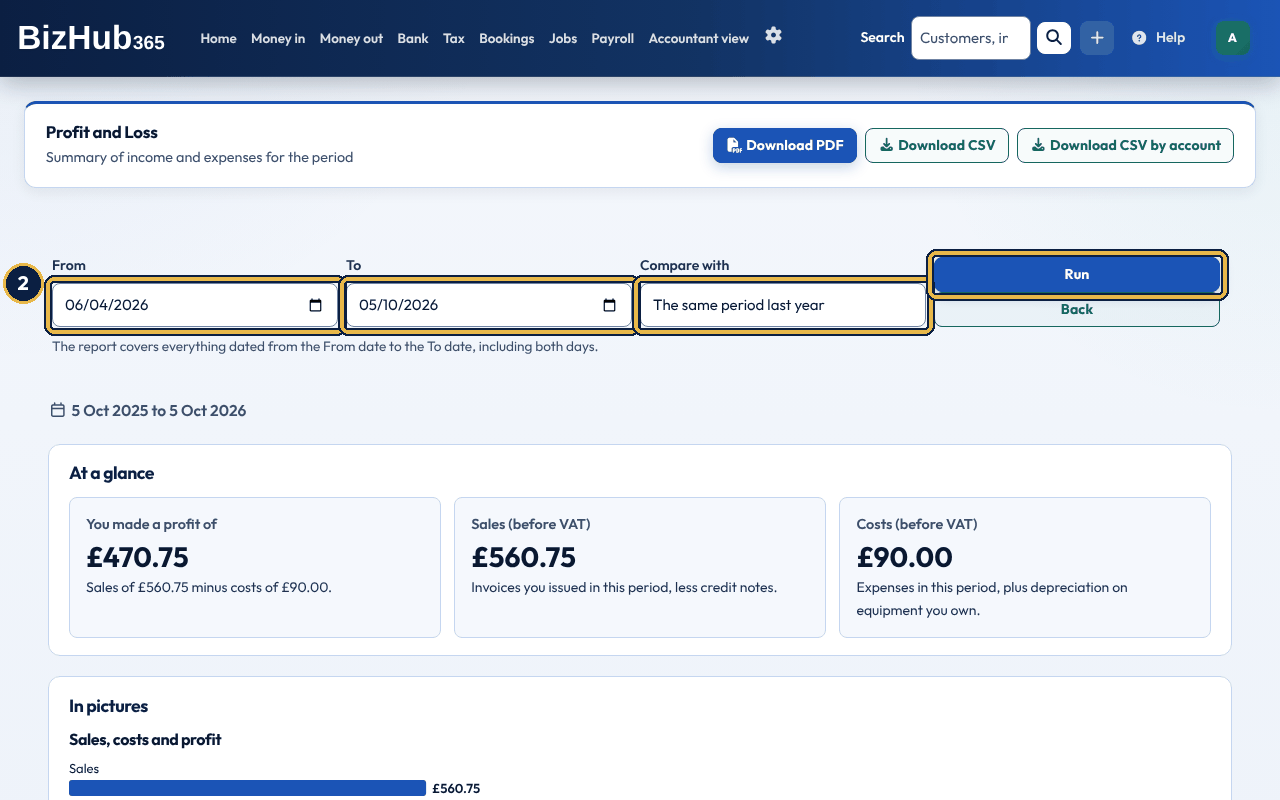
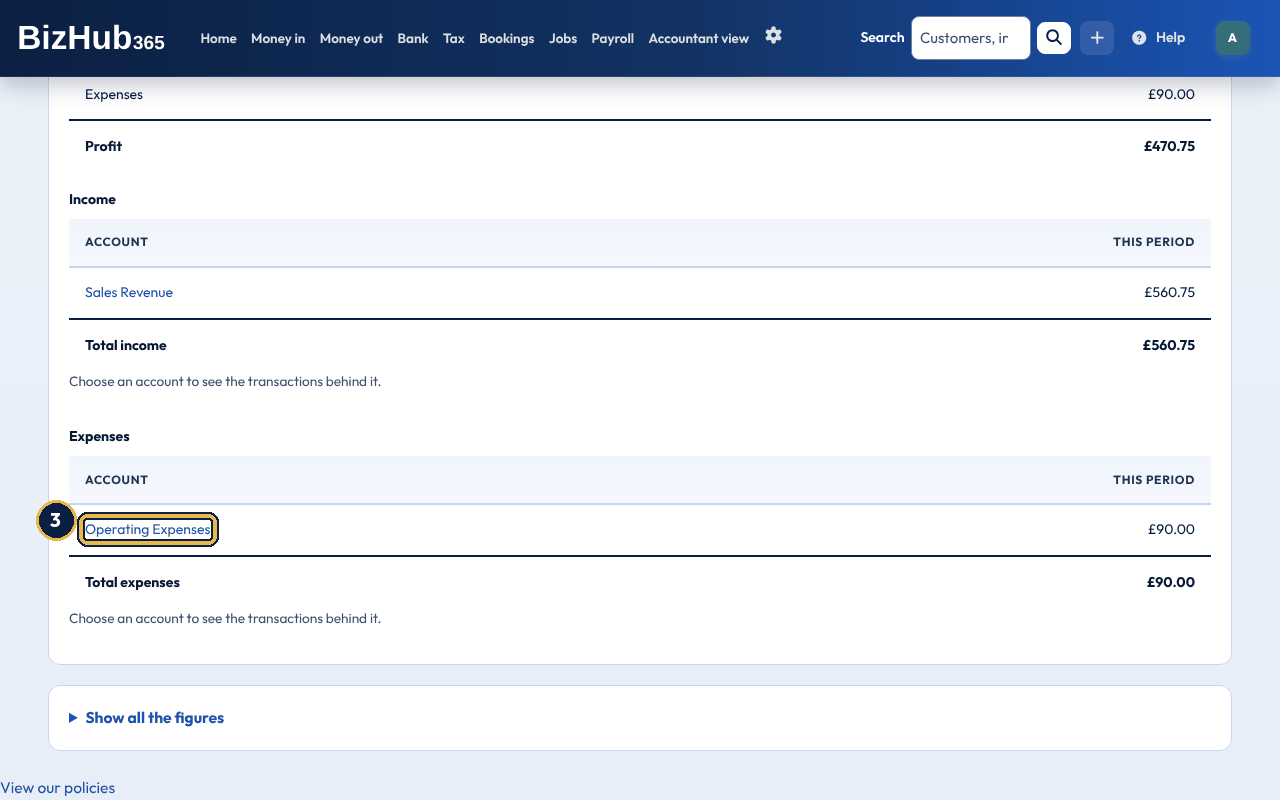
When it worked: The report shows the figures for your dates. Back returns to the list of reports.
Each report shows only the date boxes it uses, with a line underneath saying what they do:
Most reports are laid out for a business owner rather than an accountant, top to bottom:
Trial Balance, Fixed Asset Depreciation, Audit Journal Log, Full Accounts, CT600 and CS01 keep their fixed accountant or filing layout: a single table on screen, and the same table (or the official form) in the PDF.
Profit and Loss lists your income, any cost of sales, and your expenses, one line for each ledger account. Each record is counted under the account its ledger entry went to, so the lines add up exactly to the totals at the top. Cost of sales only appears when you have an expense account marked as cost of sales, and then the report also shows your gross profit. In Compare with, The period before is the same length of time just before your dates (whole months when your dates are whole months, so March is compared with February), and The same period last year is a year earlier. The report then shows the other period's figure and the Difference, this period minus the other one.
Aged Debtors shows one row for each customer who owes you money on the As of date, split into columns by how late it is: Current (not due yet), 1 to 30 days, 31 to 60 days, 61 to 90 days and over 90 days, with a total. Aged Creditors works the same way for the suppliers you owe. An invoice is overdue once its due date has passed: on its due date it is still current, and the next day it is 1 day overdue. The invoice list uses the same rule.
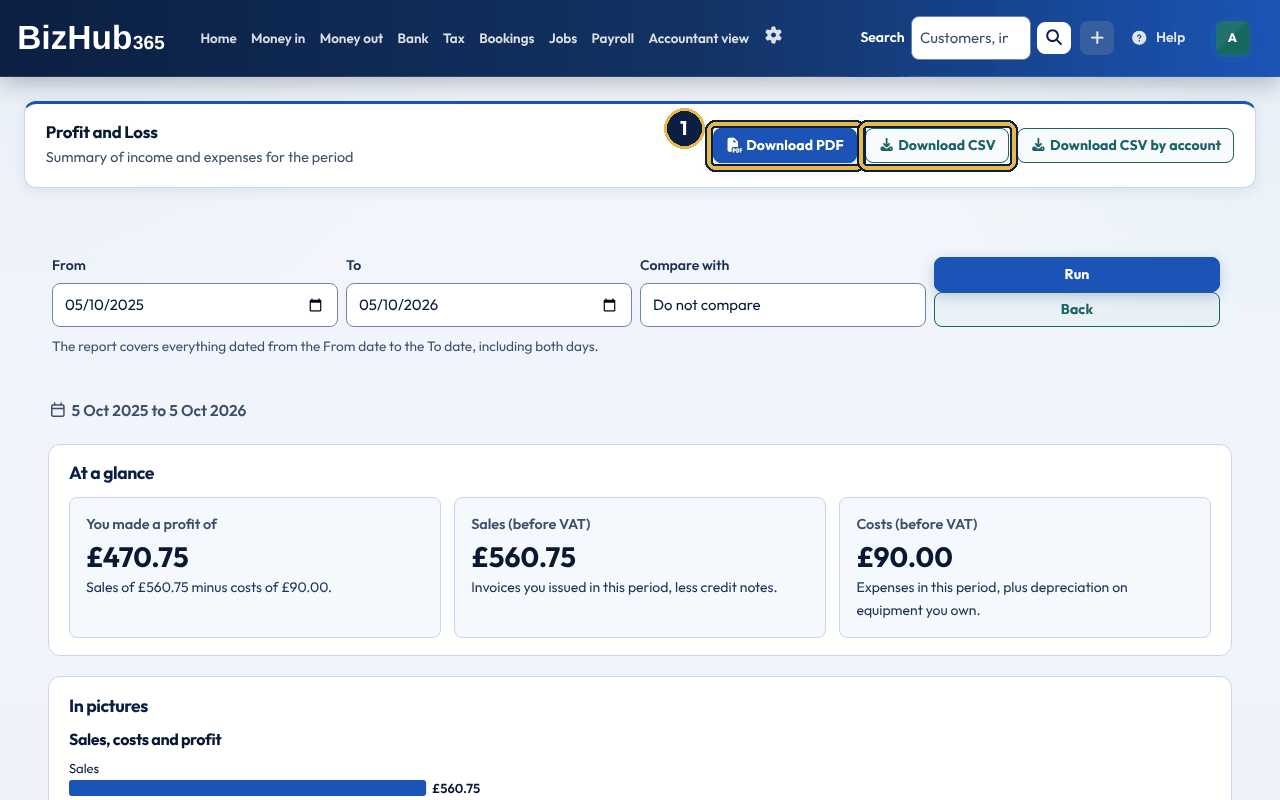
When it worked: The file downloads. A report with more than 500 rows is prepared in the background instead (see below).
| Report | Use it for |
|---|---|
| Profit and Loss | Income, cost of sales and expenses for a period, by account, compared with another period if you like. |
| Balance Sheet | What you own and owe on a date. |
| Cash Flow | Money in and out, not just invoices raised. |
| Trial Balance | A list of every ledger account and its balance, to check the books balance. |
| Aged Debtors / Aged Creditors | Each customer who owes you, and each supplier you owe, by how late the money is. |
| VAT Return Summary | The VAT due for a period. Listed only for VAT-registered businesses. |
| Sales by Customer | Where revenue is concentrated. |
| Expense by Category | Where money is going. |
| Job Profitability | Invoiced, costs and profit so far for each job, the same figures as each job's page. |
| KPI Dashboard | A one-page management snapshot. |
| Customer Concentration Risk | Over-reliance on a handful of customers. |
| Quote Conversion | How many quotes become invoices. |
| Director Loan / Dividend | Directors' balances and distributions. |
| Fixed Asset Depreciation | The fixed asset register in report form. |
| Corporation Tax Estimate | A planning figure from the ledger, including associated-company banding. |
| CIS Return | Monthly CIS300 figures for suppliers marked as CIS subcontractors. Payments exclude VAT. A bill paid in parts counts in the month of each payment, its gross, materials and CIS deducted split in proportion to what each payment paid. |
| Audit Journal Log | Every journal entry, for an audit trail. |
| Full Accounts / CT600 / Confirmation Statement (CS01) | Statutory and corporation-tax working papers. Listed only for a limited company (Ltd, PLC or CIC). |
Where to find it: Accountant view→Ledger accounts
Ledger Accounts is your chart of accounts. Choose an account's code or name to see every posting to it between two dates, with a running balance; choose a journal number to find that entry in Journal Entries. To add an account, fill in Add New Ledger Account on the same page (Code, Name, Type, System Tag and Parent) and choose Create Account. Accounts can't be edited or deleted there. Ledger Accounts and Journal Entries are the Accountant view section, which is off when a business starts. An administrator can switch it on in Business Settings → Sections. An accountant or bookkeeper you invite with the Accountant role always sees them under Accountant view. Your reports stay on whether the Accountant view is on or off.
Where to find it: Accountant view→Journal entries
Journal Entries lists every entry in the ledger, including the ones BizHub365 posts for you when you record invoices, payments, expenses and bank lines. Post your own when something has no record of its own, such as opening balances or a correction.
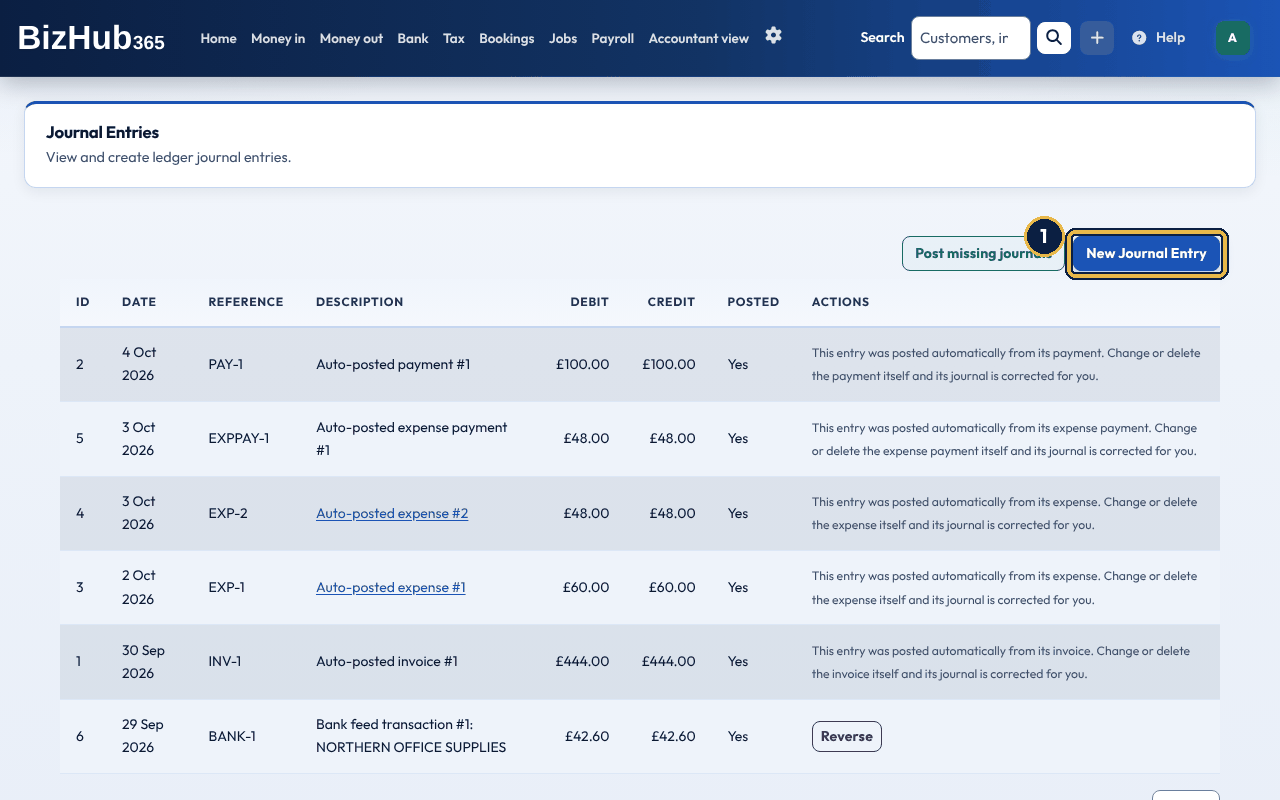
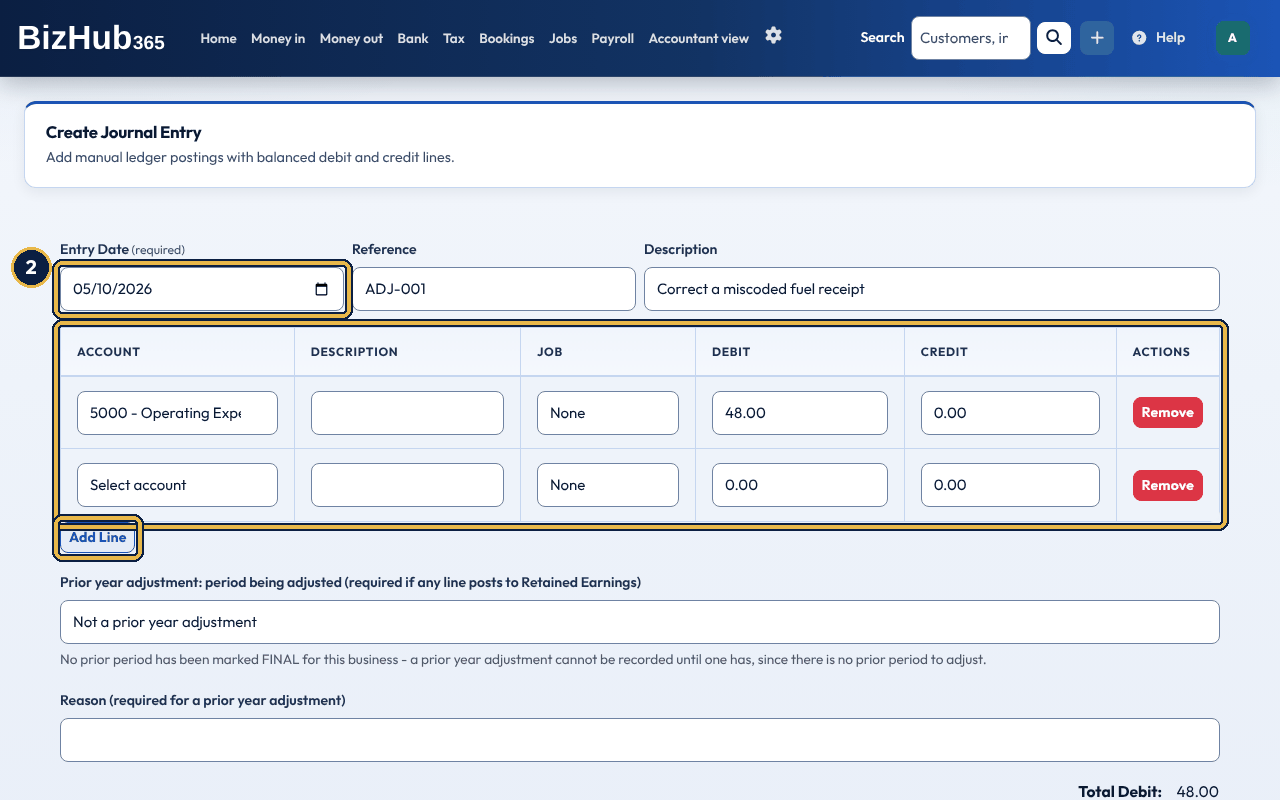
When it worked: You see Journal entry #[number] created. and it's listed under Journal Entries.
| If this happens | Do this |
|---|---|
| Journal is unbalanced. Total debit must equal total credit. | Make the debits and credits add up to the same; the lines stay on the form so you can correct them. |
| A message about retained earnings | Posting straight to retained earnings is only allowed as a prior year adjustment: choose the FINAL period being adjusted and give a reason. |
If a save fails, the form shows what went wrong and keeps the lines you typed, so you can correct them and save again. Journal entries are never deleted. To undo a manual journal, choose Reverse on Journal entries: an opposite entry dated today is posted and the original stays in the ledger. If the journal posted a bank transaction, that transaction is open to post again. Reverse is not offered for a journal posted automatically from an invoice, expense, payment or other record (change or delete that record instead, and its journal is corrected for you), for one already reversed, or for one dated in a period whose annual accounts are FINAL (post a correcting journal in the current period instead).
Every invoice, payment, expense, expense payment and money in has its own entry in the ledger. If entries were ever removed outside BizHub365, those records are left with nothing in your accounts. Post missing journals on Journal entries lists how many records of each kind have no journal and, when you choose Post missing journals on that page, posts each one exactly as when it was saved, on the record's own date. Nothing already in your accounts is posted again. A record dated in a closed period, one whose VAT return is locked, submitted or finalised or whose annual accounts are final, has its entry dated on the first open day after that period instead, so a period you have filed never changes. The record itself keeps its own date. Before you post, the page lists those records under Journals dated on the first open day, with each record's date and the date its entry will have. It needs the Edit permission and the Accountant view.
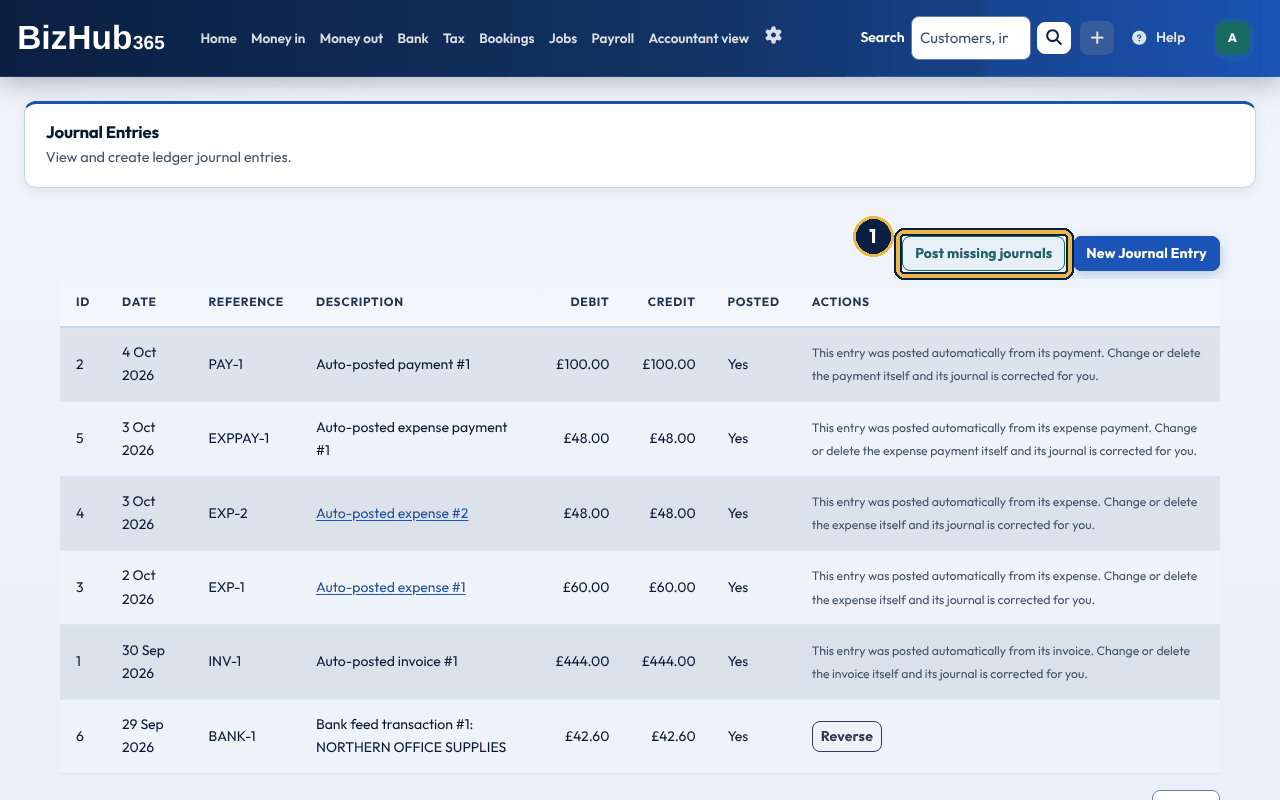
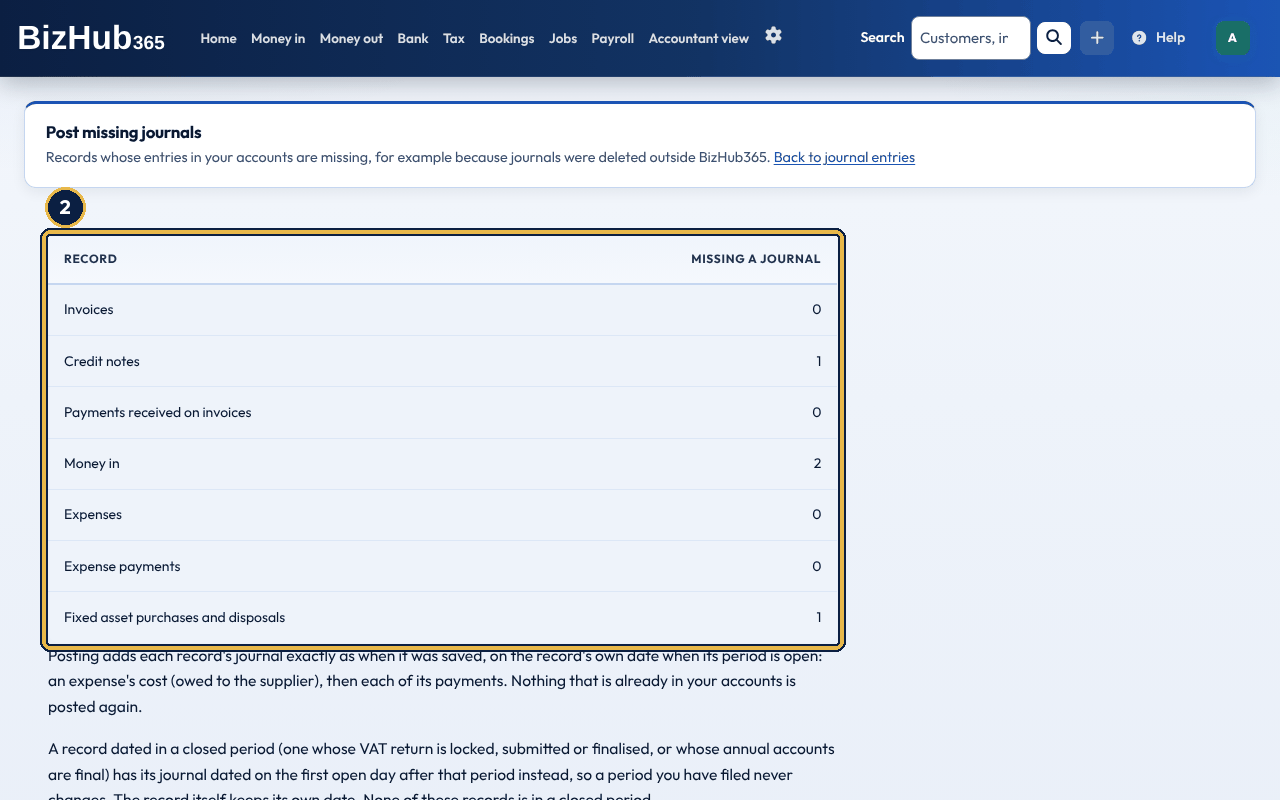
When it worked: A message says what was posted, and the page says nothing is missing.
| If this happens | Do this |
|---|---|
| The page says nothing is missing. | Every record already has its journal; there is nothing to do. |
Where to find it: Tax→Reports→Annual Accounts
Annual Accounts builds a statutory-style unaudited accounts pack as a PDF from your ledger: a cover page, officers, the directors' report, the profit and loss account, the balance sheet and the notes, with a detailed profit and loss account that doesn't form part of the accounts. It is for UK companies (Ltd, PLC or CIC); for other businesses the page says so. On the balance sheet, fixed assets are shown at cost less depreciation so far (their net book value), and current assets are your bank, debtors and other short-term balances only. The tangible assets note breaks the fixed assets down by category. Profit and loss includes the depreciation for the year, not the cost of assets you bought. The period is your accounting period, worked out from your accounting reference date if you have set one (otherwise the last year). Until the period has ended, the page offers Download Management Accounts (figures to date) instead.
Two BLOCKING items open their own repair pages from Fix this. When reserves moved by an amount that isn't explained by the period's profit or dividends, Repost Reserve Movement lists the entries posted straight to retained earnings: for each, choose the Correct destination (Cash / Bank if the money was received, Called up share capital not paid if it was not) and choose Repost. Disclosing such an entry doesn't resolve it. When the previous period's FINAL figures no longer match the ledger, the prior year adjustment page records the adjustment with your reason; you see Prior year adjustment recorded.
The CT600 report fills the HMRC boxes it can compute from the ledger and leaves the gaps blank rather than guessing. The Confirmation Statement (CS01) worksheet is built from the company register.
Part IV · Books and tax · Chapter 18
Run UK PAYE in BizHub365, produce payslips, and send FPS and EPS to HMRC through RTI.
Where to find it: Payroll→Payroll Overview
The Payroll menu has Employees, Payroll Overview and Timesheets, then Pay Runs, FPS Submissions and EPS Submissions, and Payroll Settings. Payroll is a section you can switch off in Business Settings → Sections. Payroll needs the payroll add-on on your subscription: £10 a month covers up to 5 employees, then £2 a month for each employee after the fifth. Without it there is no Payroll menu and no payroll step in Get set up; people who manage billing see Add payroll in the menu bar instead (see The payroll add-on). Adding an employee, an employee leaving or being taken back on updates the number of employees billed. Employee names, NI numbers, and tax codes are encrypted.
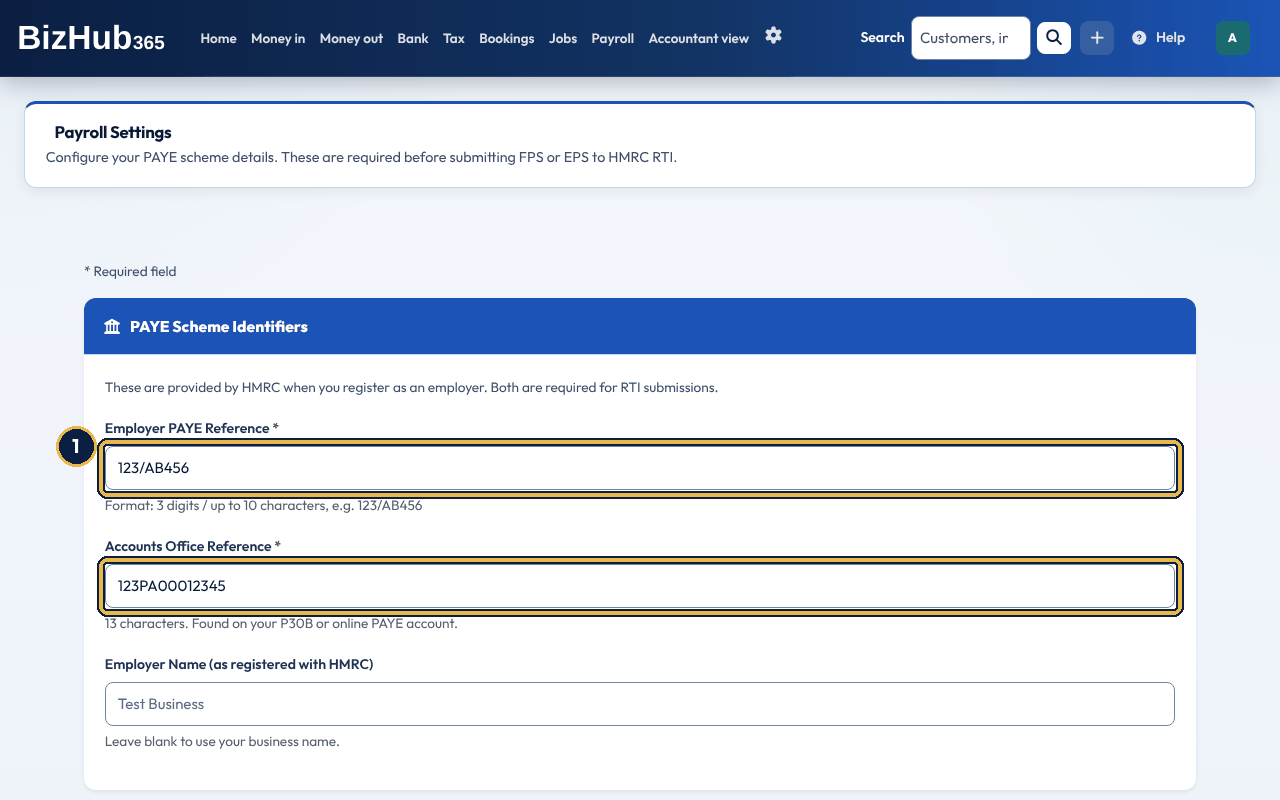
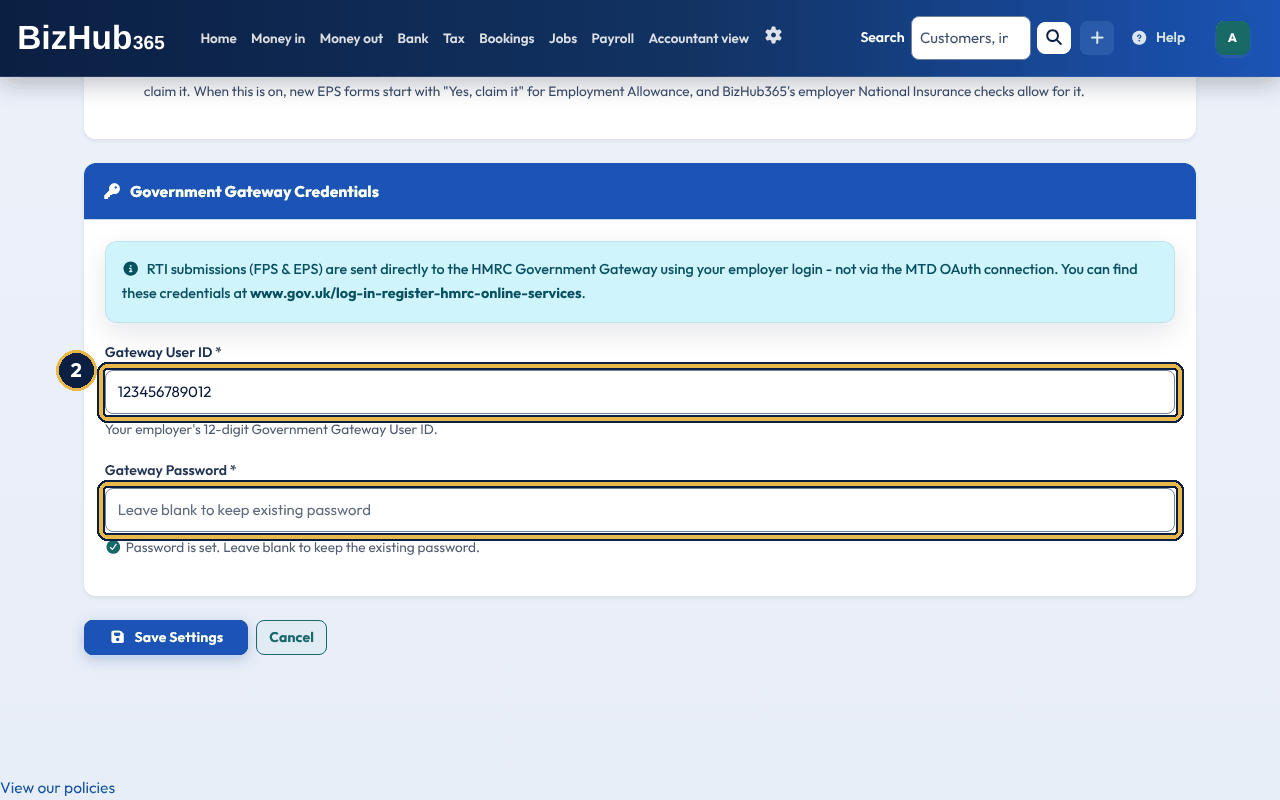
When it worked: You see Payroll settings saved successfully. and the Payroll Overview says Payroll is set up. The password is stored encrypted; leave the box blank later to keep it.
FPS and EPS go straight to HMRC with your employer's Government Gateway login, not through the Making Tax Digital connection used for VAT and Income Tax. Payroll counts as set up only when all four are saved: the PAYE reference, the Accounts Office reference, the Gateway user ID and the Gateway password. The Payroll Overview and the setup checklist on your dashboard use the same rule. Until then, the Payroll Overview lists what is still needed, and creating or sending an FPS or EPS takes you to Payroll Settings with a message naming the missing details, for example Before you create an FPS, add your Accounts Office reference and Government Gateway password in Payroll settings.
Switch on We claim Employment Allowance if your business claims Employment Allowance, which reduces your employer National Insurance each tax year up to HMRC's annual limit. A company whose only paid employee is a director cannot claim it. When it is on, new EPS forms start with Yes, claim it, and BizHub365's employer National Insurance checks allow for it.
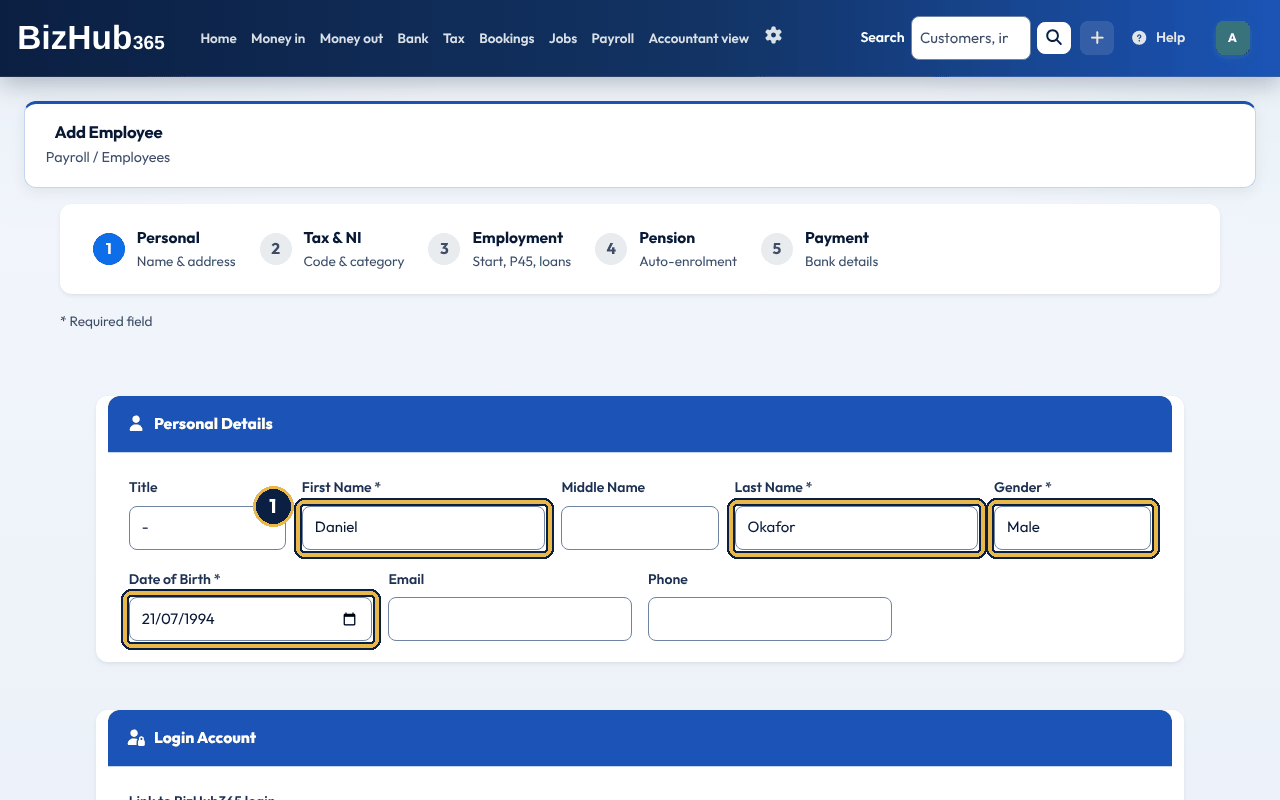
When it worked: You see Employee [name] added successfully. If the employee has an email address, they're emailed Welcome to [business] Payroll, and each time their record is saved, Your Employee Record Has Been Updated.
When someone leaves, set their Leave Date on their record and save. Once that date has passed, the record shows Download P45 and Email P45 to Leaver. A leaver is not offered for a pay run whose period starts after their leave date; someone leaving during the period stays in that run for their final pay. For each tax year they have payslips in, the record shows P60 and Email P60 to Employee. The emails go to the employee's address with the PDF attached. Employees can't be deleted.
When you add an employee you can also tick Postgraduate loan (as well as any student loan plan) and, for a director, enter the Director start date.
Pension status is one of Not enrolled, Opt-Out, Opt-In, Voluntary Joining, Automatic Enrolment or Re-enrolment. Not enrolled and Opt-Out take no pension contributions; the other statuses deduct the employee and employer percentages. The Pension box on the employee's page shows the status and whether contributions are deducted. If it says Enrolled (status not recorded), the status was lost by an earlier version of the page: choose the real status and save.
Turn off the Active switch to stop offering someone for new pay runs. A leave date that has passed makes them a Leaver; otherwise an employee switched off is shown as Inactive. The Employees list shows current employees; choose Show leavers and inactive to see everyone.
The welcome and update emails an employee receives show only the last characters of their NI number, sort code and account number.
The Employees, FPS submissions and EPS submissions pages always have a button at the top to add one: Add employee, Create FPS and Create EPS, even when the list already has entries.
The Payroll Overview answers two separate questions, each with its next step. Payroll is not set up yet means your PAYE reference, Accounts Office reference or Government Gateway sign-in is missing: choose Set up payroll. Payroll is set up, with no employees yet means you still need to add an employee. Draft pay runs not finished means a pay run was started but not finalised, so nobody has been paid through it and nothing has gone to HMRC: choose the link to finish the oldest one.
Run payroll is the one place to start or continue a pay run. It guides you from dates and employees through pay, finalising, and the FPS. On Pay Runs, Continue reopens a pay run that is not yet submitted and Details shows its breakdown.
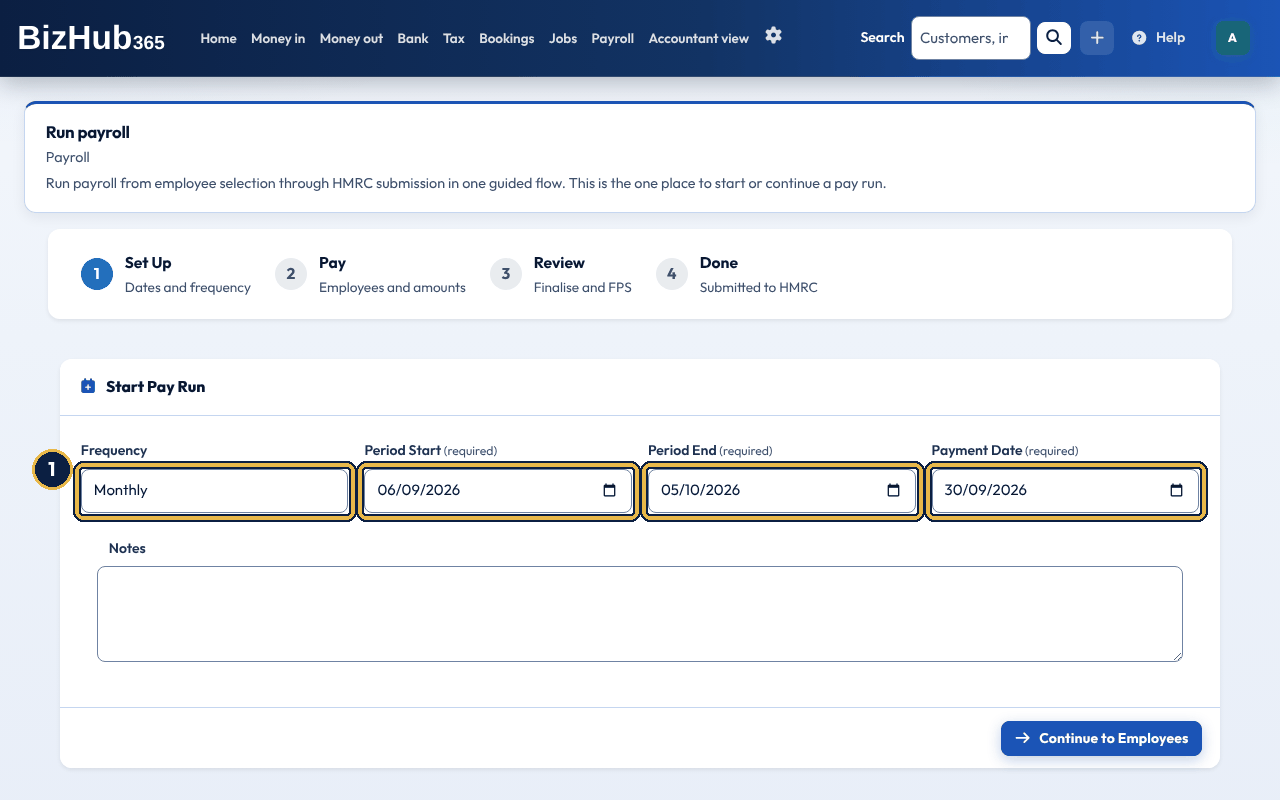
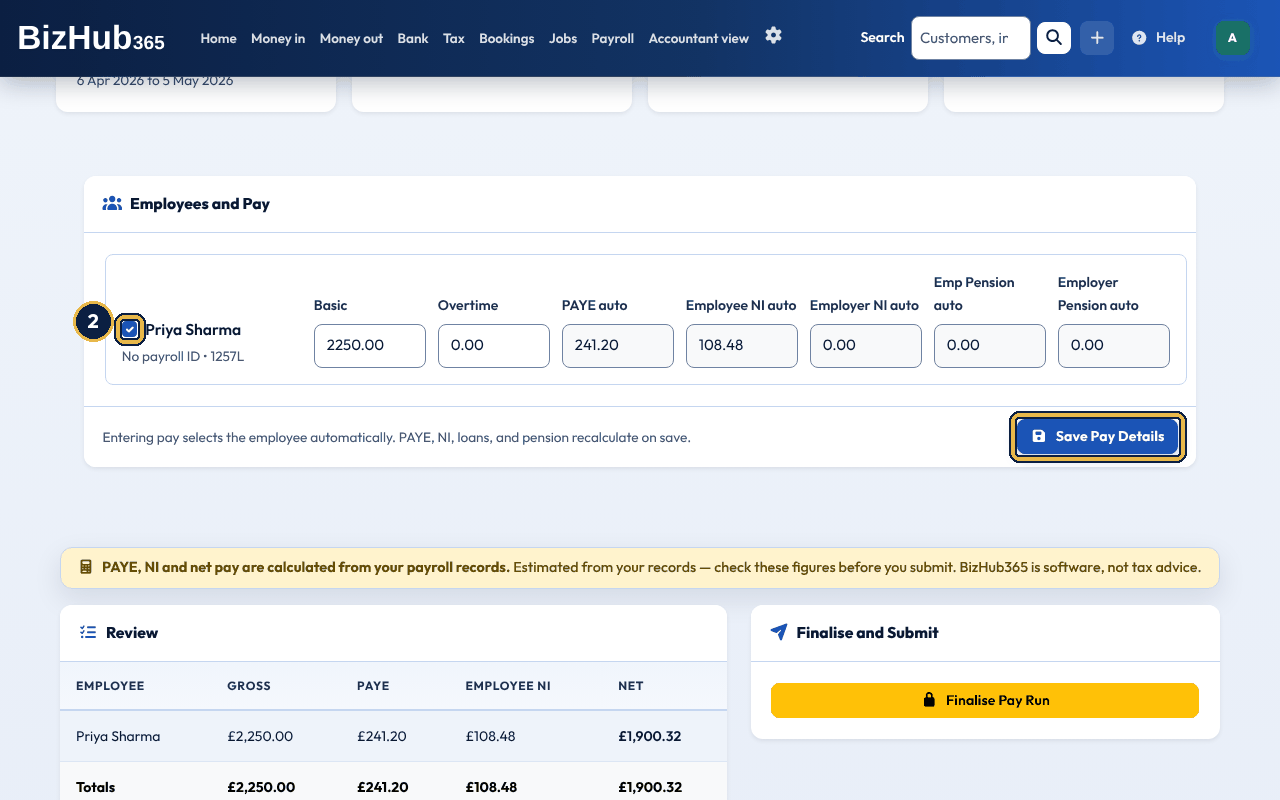
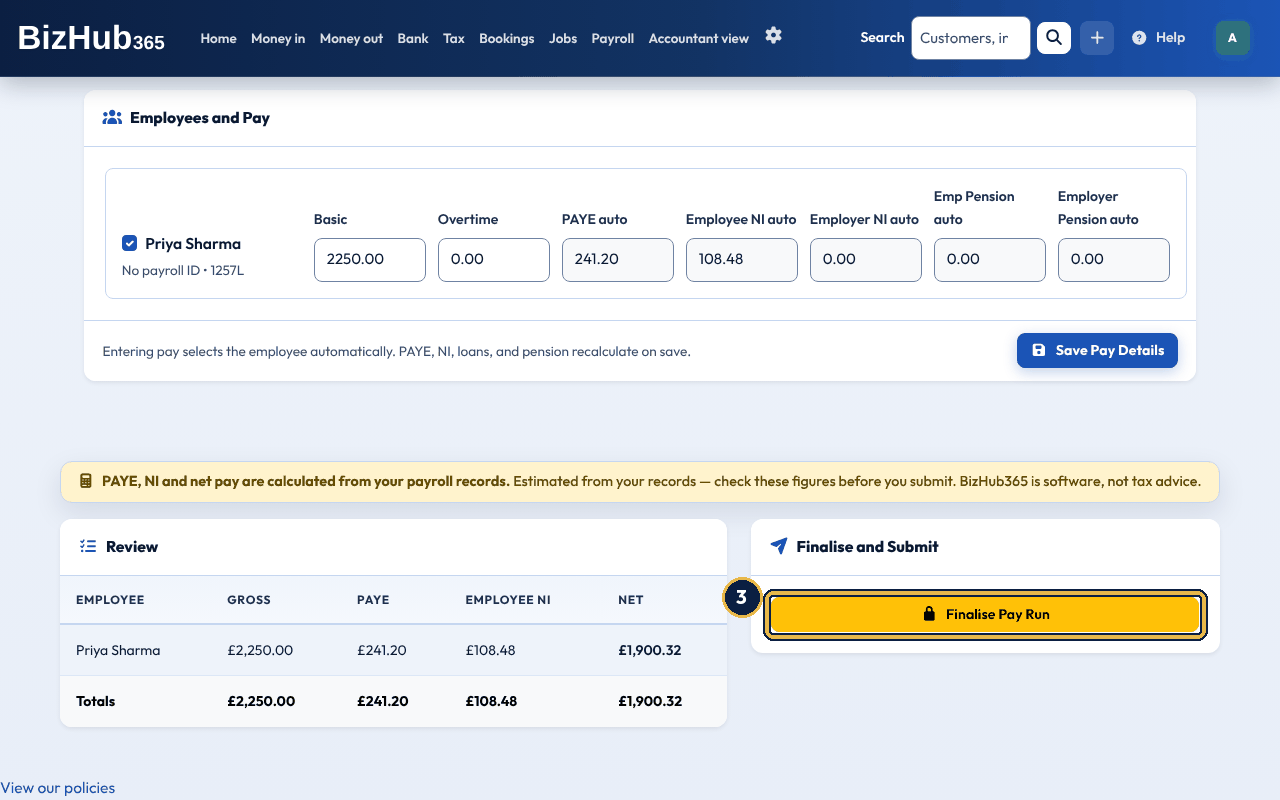
When it worked: You see Pay run finalised. and then FPS draft created. The wages, employer NI and pension are posted to your books, dated the payment date, with net pay treated as paid from the bank. A finalised pay run and its payslips are locked. Send the FPS as below.
The pay run page (Details on Pay runs) has two buttons at the top. Finalise pay run appears while the pay run is a draft with at least one payslip. Finalising locks the pay run's figures so you can create its FPS. Download payslips appears once the pay run has payslips and saves them all as PDFs in one ZIP file. While a pay run is a draft, Add Payslip on its page adds a payslip to it: choose the Employee and choose Add Payslip.
To send the FPS, tick the declaration that you have checked the figures, choose how to confirm it's you (an emailed code, an authenticator app code, a passkey or approving in the BizHub365 app), and choose Submit to HMRC, then OK. Like every HMRC send this needs the declaration and confirmation (see HMRC Making Tax Digital). FPS and EPS are sent to HMRC in the background. After you choose Submit to HMRC, the status shows Sending to HMRC while HMRC checks it, which can take a few minutes. You can leave the page; refresh it to see Submitted with HMRC's receipt, or the reason HMRC gave if it did not accept it. You cannot send the same FPS or EPS again while it is being sent, and you can only create an FPS for a finalised pay run that has not been submitted. When the FPS has been accepted, each employee with an email address is emailed Your payslip from [business] with their payslip attached. You can also download any payslip with PDF on the pay run's details page.
Bonus, commission, statutory pay (SSP, SMP, SPP, SAP, ShPP and parental bereavement pay), hourly pay and other deductions aren't in Run payroll: open the payslip with View on the pay run's details page, fill them in and choose Save Payslip before you finalise.
Non-Taxable / Non-NIC Payment, under Not taxed on the payslip, is for money you pay through payroll that has no tax or National Insurance, such as approved mileage or expenses you repay. It is not part of gross pay and doesn't change PAYE or NI, but it is added to net pay, shown on the payslip PDF under Not taxed, posted to your books with the wages, and reported to HMRC on the FPS as a payment not subject to tax or NICs. Pay runs finalised before this was added keep the net pay they had.
Pay runs are labelled with HMRC's tax month or tax week, for example Tax month 9 (6 Dec to 5 Jan). HMRC tax months run from the 6th to the 5th: tax month 1 is 6 April to 5 May. The month comes from the pay date, so a pay date from 6 December to 5 January is tax month 9, and a pay date from 1 to 5 December is tax month 8. Tax weeks run in 7-day blocks from 6 April. This is the number HMRC expects on the FPS.
Employees whose login is linked to their payroll record (Link to BizHub365 login) can send you the hours they worked each day from My Timesheets.
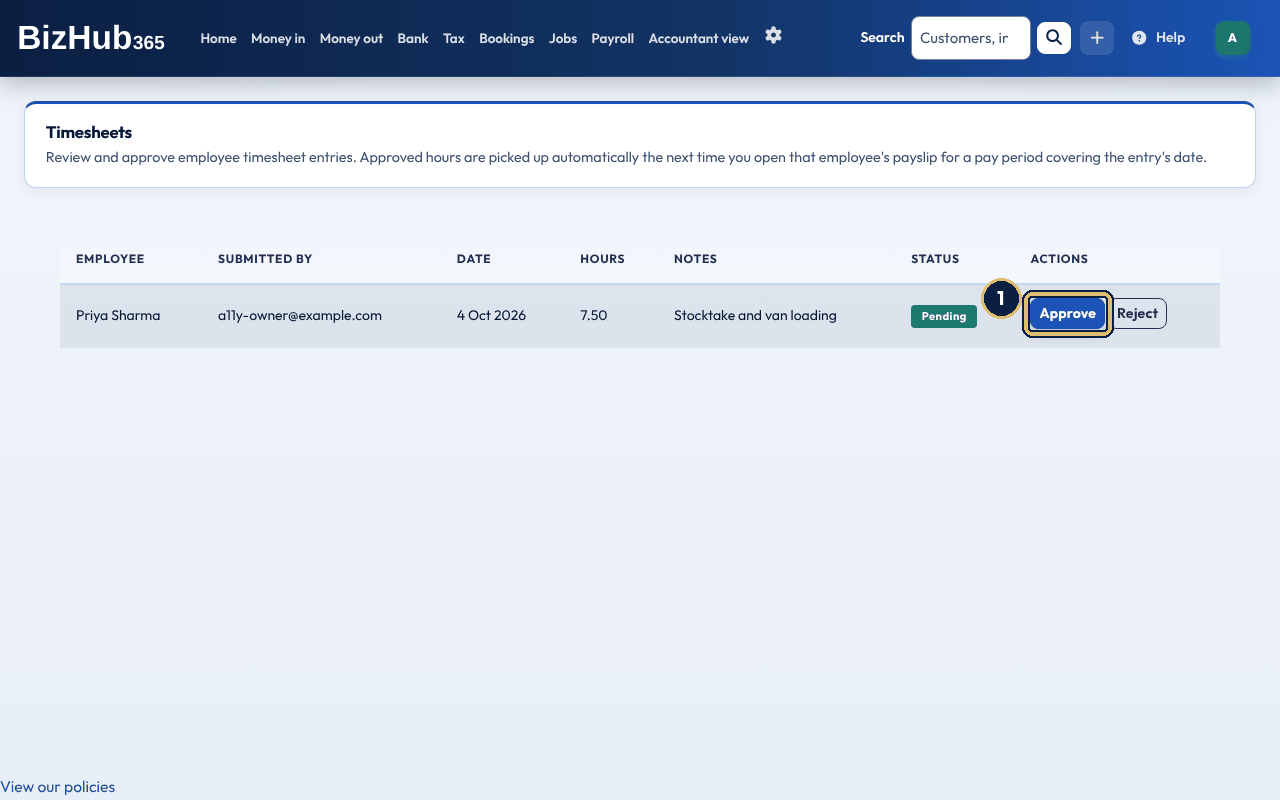
When it worked: You see Timesheet entry approved. When you open that employee's payslip in a pay run covering the date, with the pay type set to Hourly Rate, the approved hours fill in Hours Worked. Run payroll itself doesn't use timesheets.
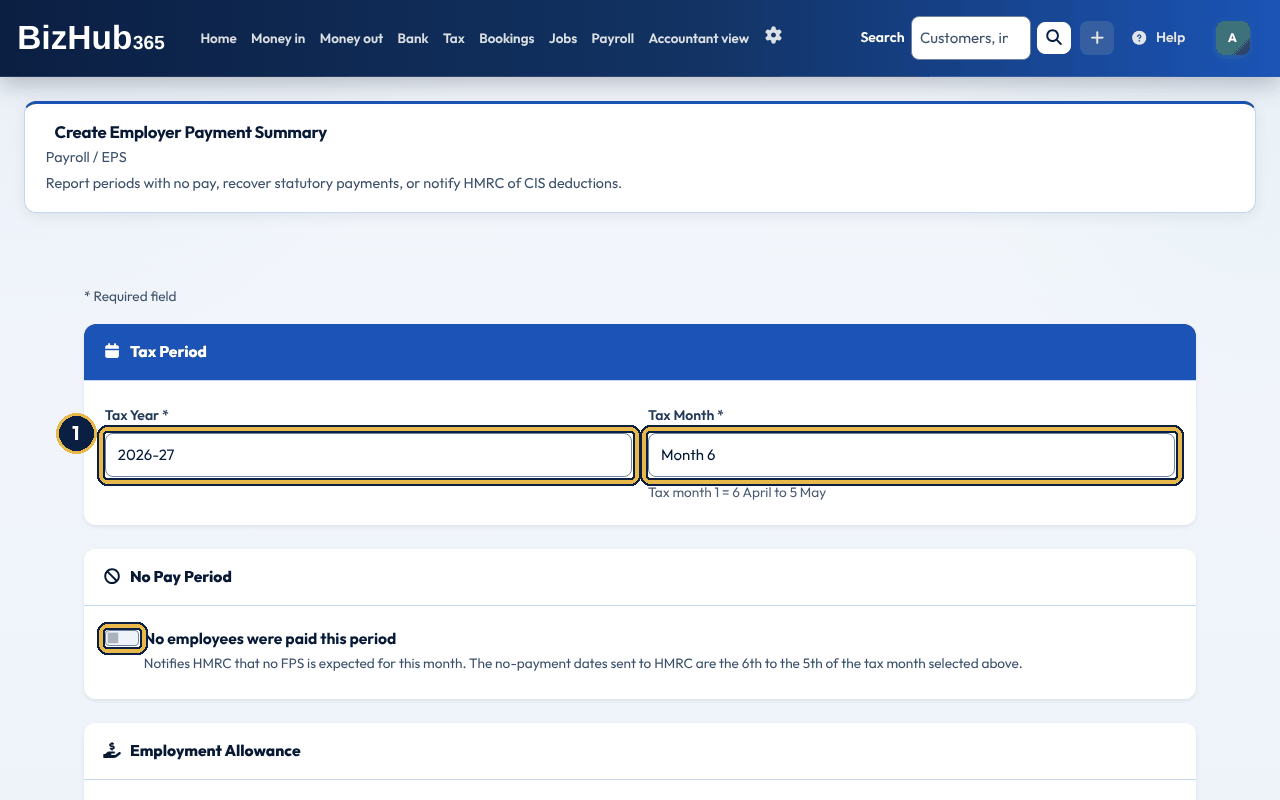
When it worked: You see EPS draft created. Review and submit when ready. Send it from its page the same way as an FPS. The EPS page shows the Employment Allowance choice it sends. If an amount or the tax month isn't valid, the form stays filled in and a message names the box to correct.
The Payroll Overview's HMRC Payment card shows what you owe for the latest pay run and when it's due (the 22nd of the month after, or the 19th if you pay by post). All HMRC payments (also HMRC Payments under Payroll in the menu) lists each tax month of finalised pay runs with the amount due; choose Mark as paid, type the payment date (and a reference and notes if you want) and choose Confirm to record that you've paid it, or Unmark as paid to undo it. Paying HMRC itself is done outside BizHub365. Pay runs are grouped by the tax month of their pay date, the same tax month the pay run shows. For example, a pay run for 1 to 31 December paid on 5 December counts towards tax month 8 (6 Nov to 5 Dec), so its PAYE is due by 22 December.
The pay run, payslip, FPS and HMRC payments pages carry a label saying the tax and NI figures are estimated from your records and should be checked before you submit, and that BizHub365 is software, not tax advice.
Part IV · Books and tax · Chapter 19
BizHub365 supports Making Tax Digital submissions for VAT and for Income Tax (UK and foreign property). Connect once, then file VAT and ITSA from the same books.
Where to find it: Tax→HMRC Hub
The HMRC Hub is where you connect BizHub365 to HMRC and keep the references HMRC needs. From it you open VAT (returns, liabilities, payments, penalties and the information HMRC holds) and Income Tax (your deadlines, updates, the tax calculation and the final declaration, and property returns). The Tax menu has Your tax (the Tax page, see The Tax page), VAT returns when you are VAT registered and, under More, HMRC Hub. The Income Tax pages (Income Tax updates, UK and foreign property) are linked from the Tax page and the HMRC Hub. Tabs along the top of each HMRC page move between them: the VAT pages show the VAT tabs with a Go to Income Tax link, the Income Tax pages show the Income Tax tabs with a Go to VAT link, and the Hub shows both.
Where to find it: Tax→Your tax
The Tax page shows the next thing you need to send to HMRC, the figures for it, and one Send to HMRC button. Your tax in the Tax menu and Your tax on the HMRC Status card on Business overview open it. It appears when the Tax section is on and you are a sole trader, freelancer or partnership (Income Tax), VAT registered, or both. Nothing is sent from the Tax page, and opening it does not contact HMRC: it reads the deadlines BizHub365 last fetched from HMRC and works the figures out from your records.
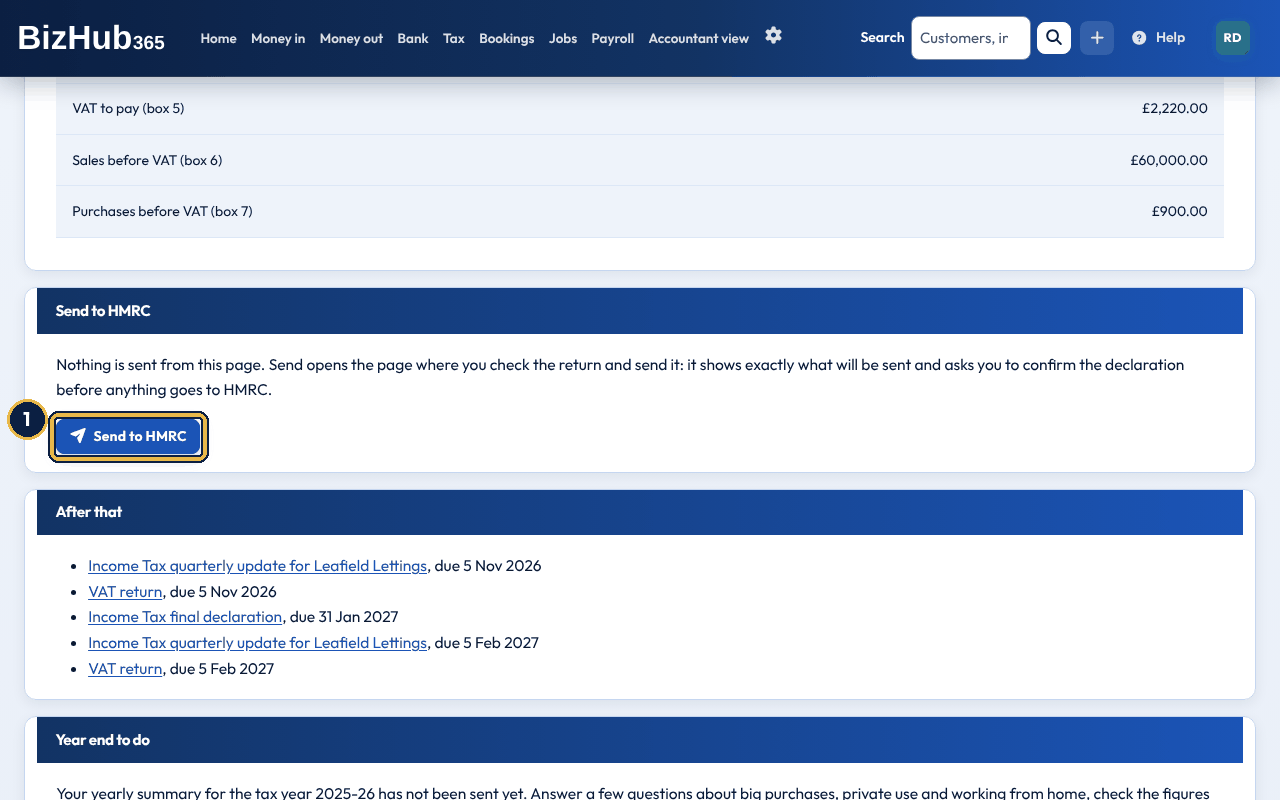
When it worked: HMRC receives the update or return and BizHub365 shows a message saying it was sent. The next time you open the Tax page after BizHub365 has fetched your deadlines again, the next one is shown.
| If this happens | Do this |
|---|---|
| The page says Connect to HMRC first. | BizHub365 is not connected to HMRC for this business. Choose Connect to HMRC and follow Connect your business to HMRC. |
| The page says Nothing due but you expect a deadline. | BizHub365 shows the deadlines it last fetched from HMRC. Open Income Tax updates, which fetches them again, or VAT returns and choose Sync VAT. |
| Instead of figures, the page says you can't send the update yet. | HMRC only takes an update once its period has ended, and only for tax years from 2025 to 2026. The message gives the reason. |
Where to find it: Tax→Your tax
After the tax year ends on 5 April, sole traders and partnerships send HMRC a yearly summary before the final declaration (due 31 January). The year end takes you through it in four short steps, each with one plain question, and works out the figures from your answers and your records. Open it from Start the year end or Year end on the Tax page. It offers the tax year that has just ended and the current one; your answers are saved for each tax year, and Tax to set aside on Home uses this year's answers. Nothing is sent until you tick the declaration and choose Send yearly summary or Send end of year adjustments on the last step. They are two separate sends, each with its own declaration.
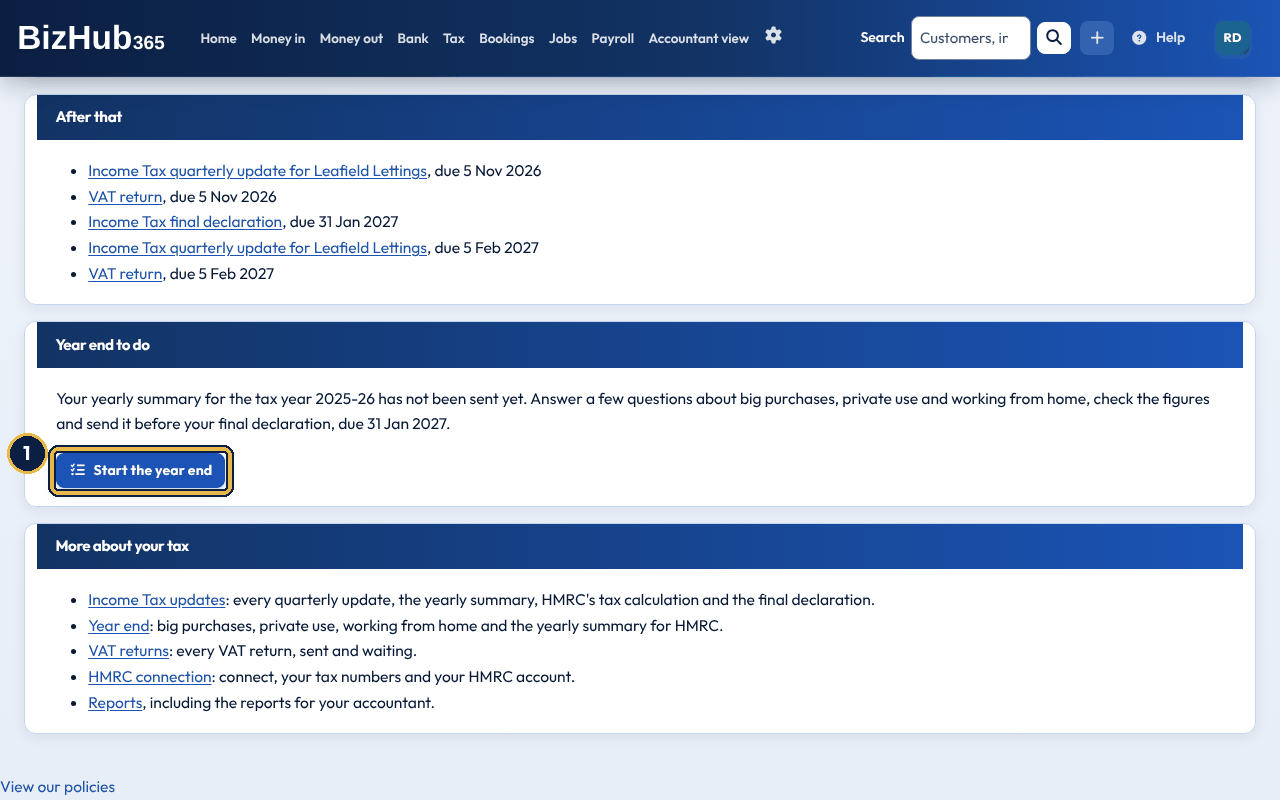
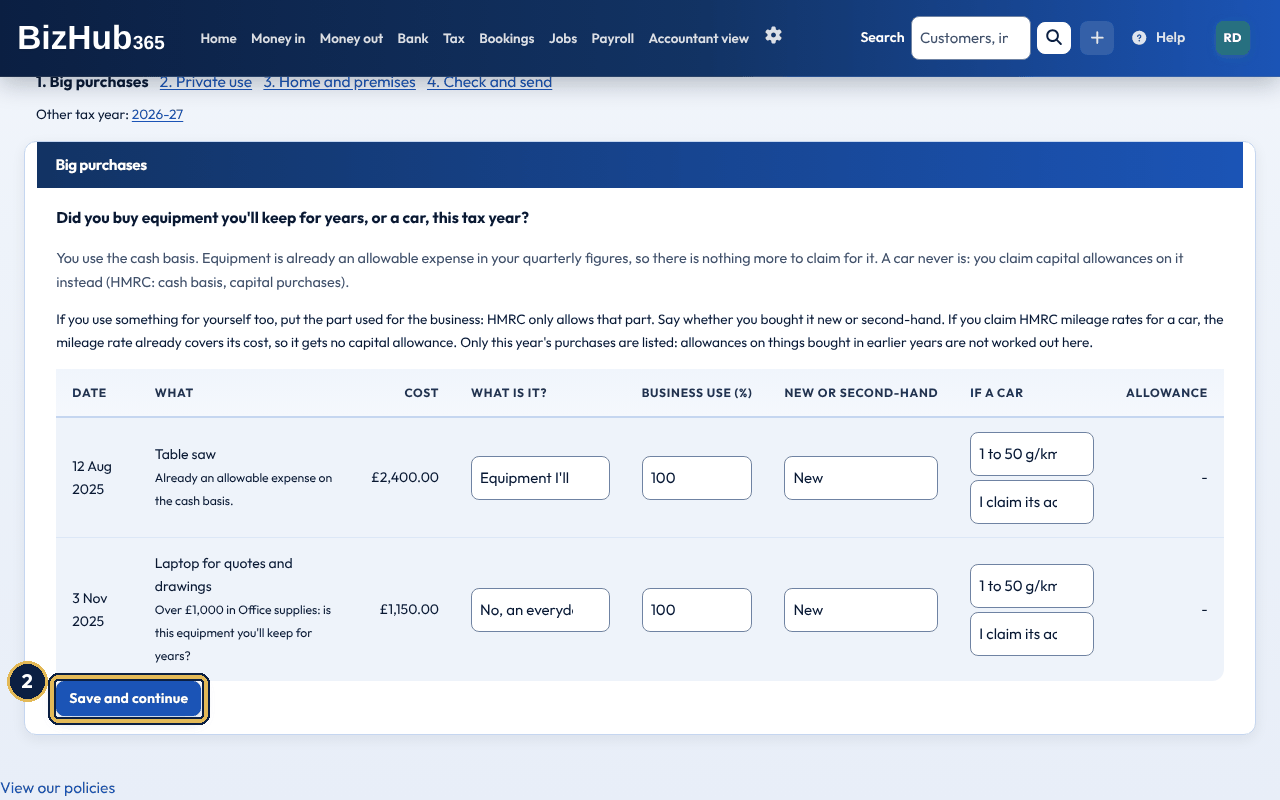
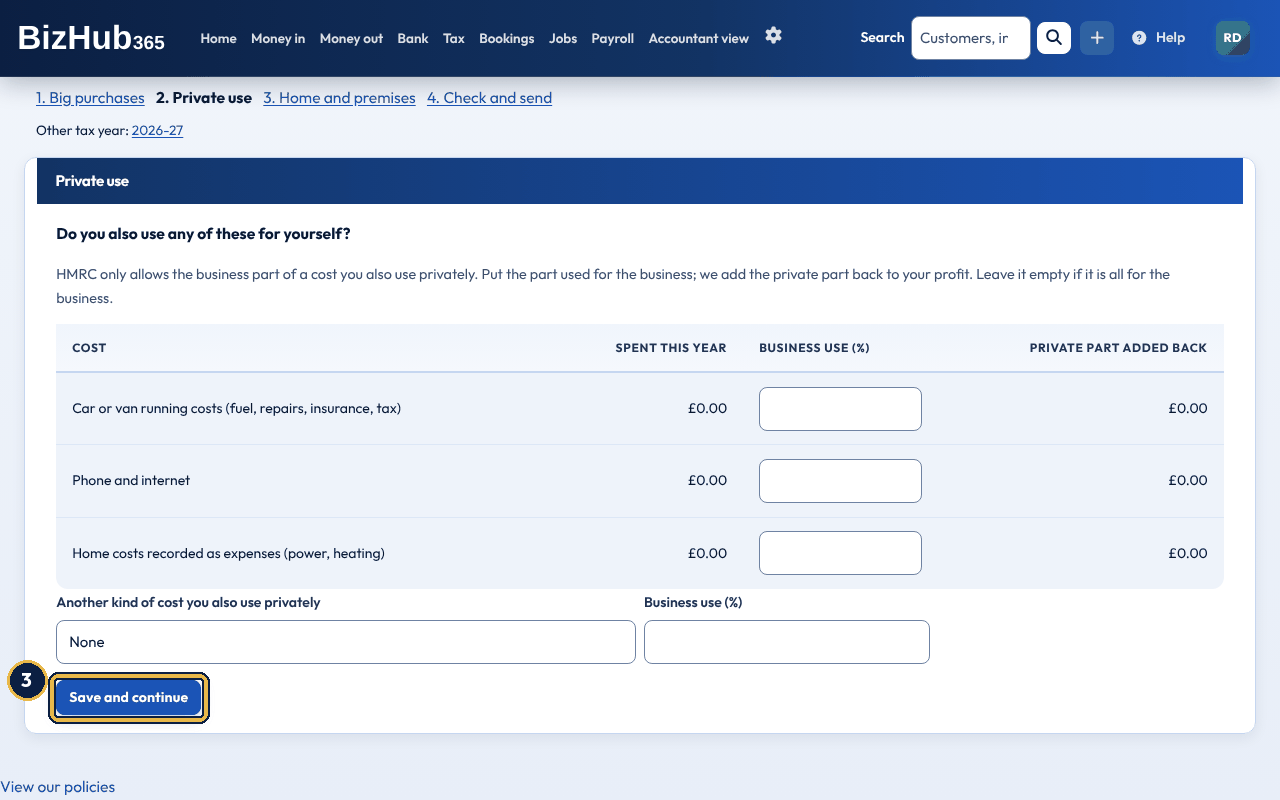
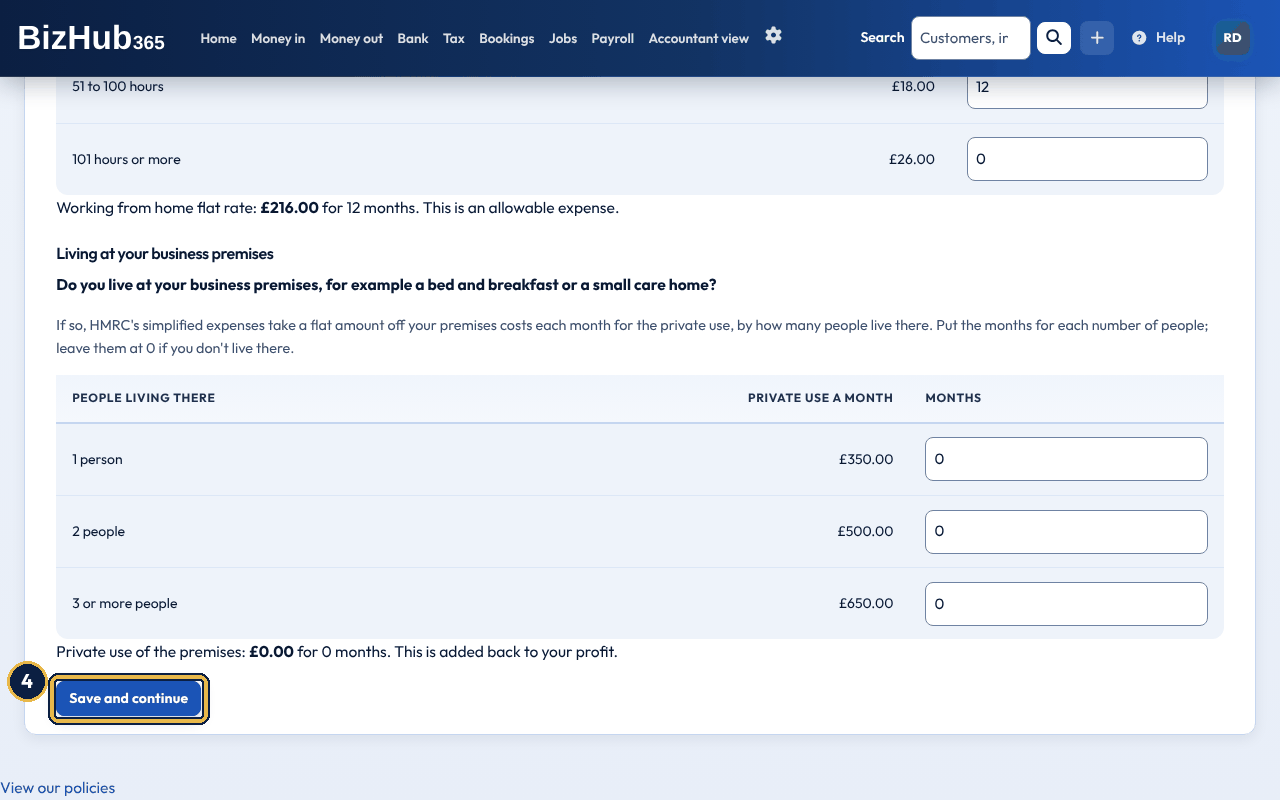
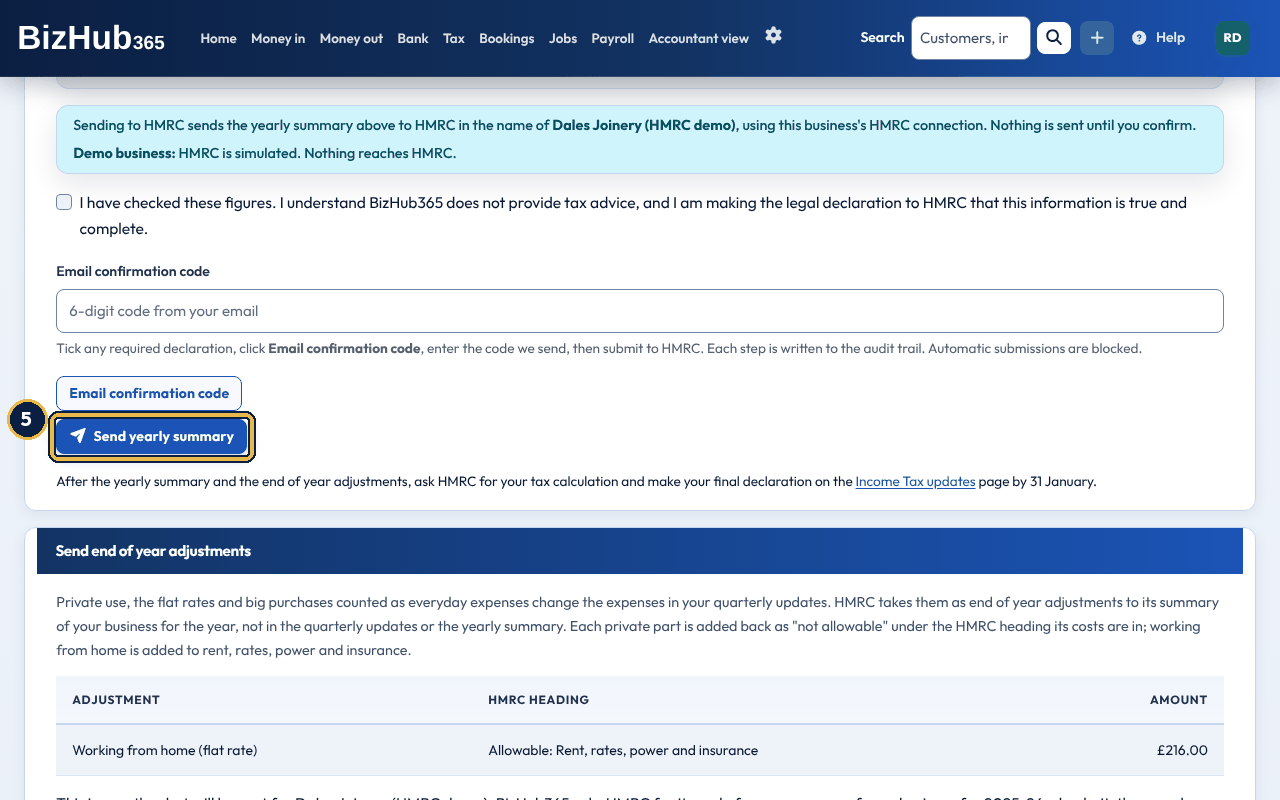
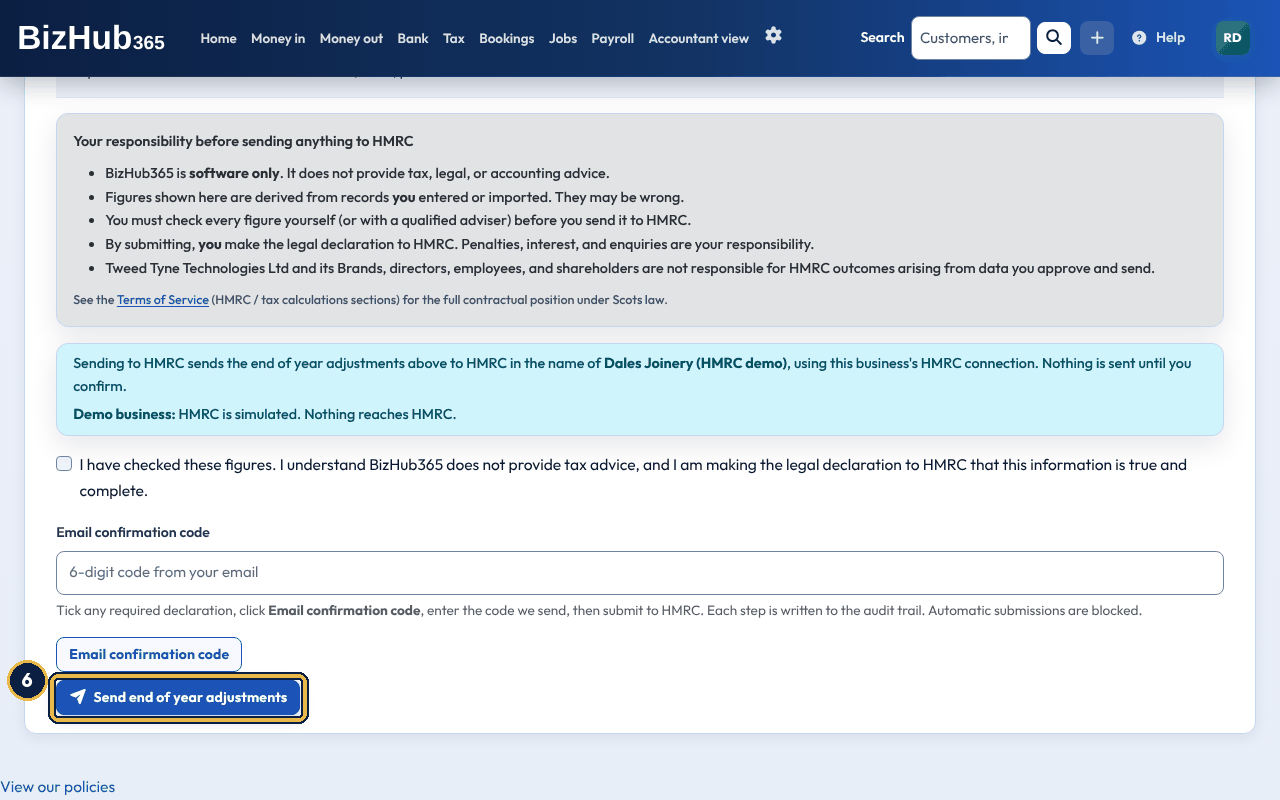
When it worked: HMRC receives the yearly summary with your capital allowances and, separately, your end of year adjustments; the page says when each was sent, and Year end to do leaves the Tax page. Then ask HMRC for your tax calculation and make your final declaration on the Income Tax updates page.
| If this happens | Do this |
|---|---|
| A big purchase you made is not listed. | Only expenses dated in the tax year are listed (on the cash basis, by the date paid). Add it as an expense in Capital assets (equipment) first. |
| The page warns that big purchases are counted as everyday expenses. | With traditional accounting, change their category to Capital assets (equipment) on the Expenses page and send your last quarterly update again, so they are not counted twice. On the cash basis a car is never an expense: ask your accountant how to take it out of your quarterly figures. |
| Instead of the Send button, the page says you can't send yet. | The message gives the reason: the tax year has not ended, BizHub365 is not connected to HMRC, or your records can't be matched to one of your HMRC income sources (send it from Income Tax updates instead). |
| HMRC refuses the end of year adjustments. | The message says why in plain words, and nothing is changed at HMRC. Usually a quarterly update for the year is still due (send it, then try again) or HMRC is still preparing its summary (try again in a few minutes). If HMRC holds your expenses as one total, ask your accountant to send the adjustments. |
BizHub365 emails your business's administrators (the members with every permission, as on the Team page) 14 days, 7 days and 1 day before each deadline on the Tax page: each Income Tax quarterly update, the Income Tax final declaration and each VAT return. The email names the deadline, the period and the due date, and links to the Tax page. Nothing is sent to HMRC from the email. Each reminder is sent once. When a deadline has been met (HMRC shows the update as received, or the VAT return has been sent) the reminders for it stop. The reminders use the deadlines BizHub365 last fetched from HMRC, so open Income Tax updates or VAT returns now and then to keep them up to date.
When it worked: The setting applies to everyone in the business. With the box unticked no reminder emails or phone notifications are sent; the Tax page and the dashboard still show what is due.
| If this happens | Do this |
|---|---|
| You expected a reminder but none came. | Check the box is ticked, that the Tax section is on, and that the deadline shows on the Tax page. Reminders go to administrators only, and only for deadlines BizHub365 has fetched from HMRC. |
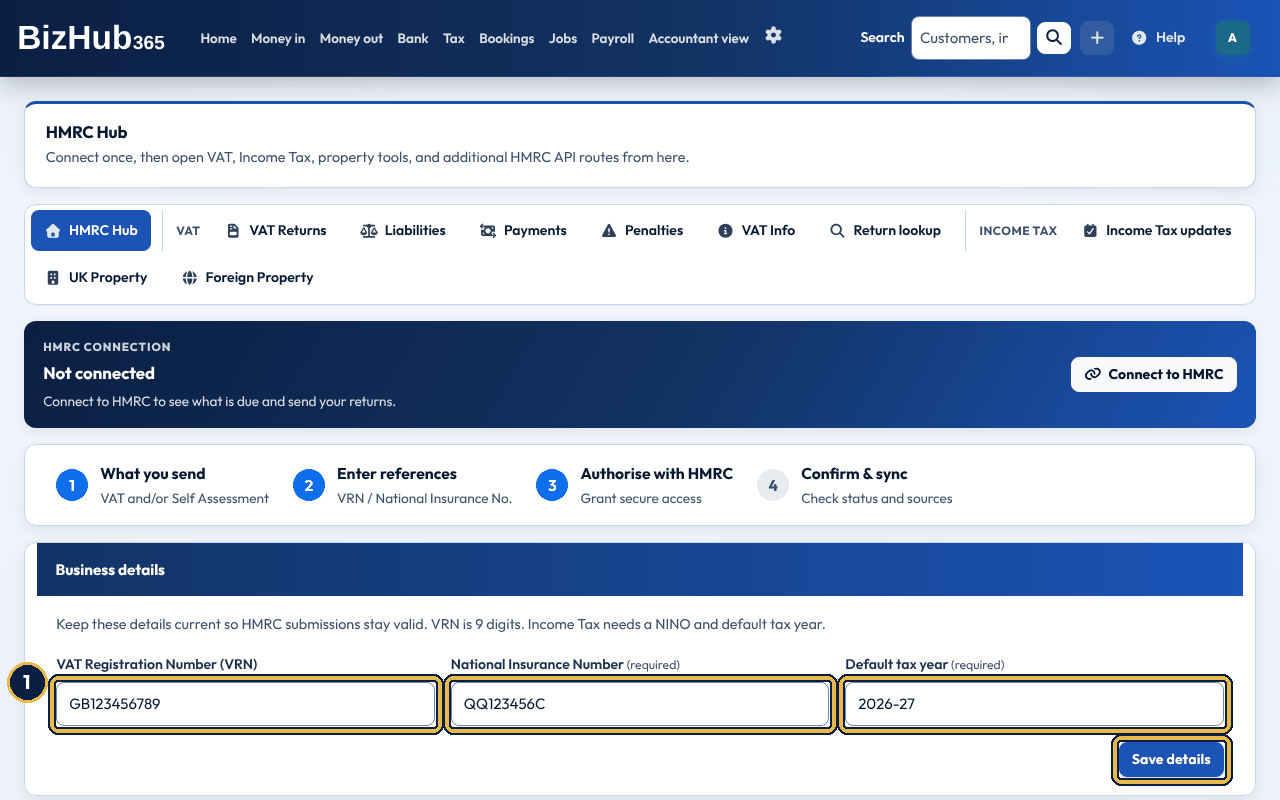
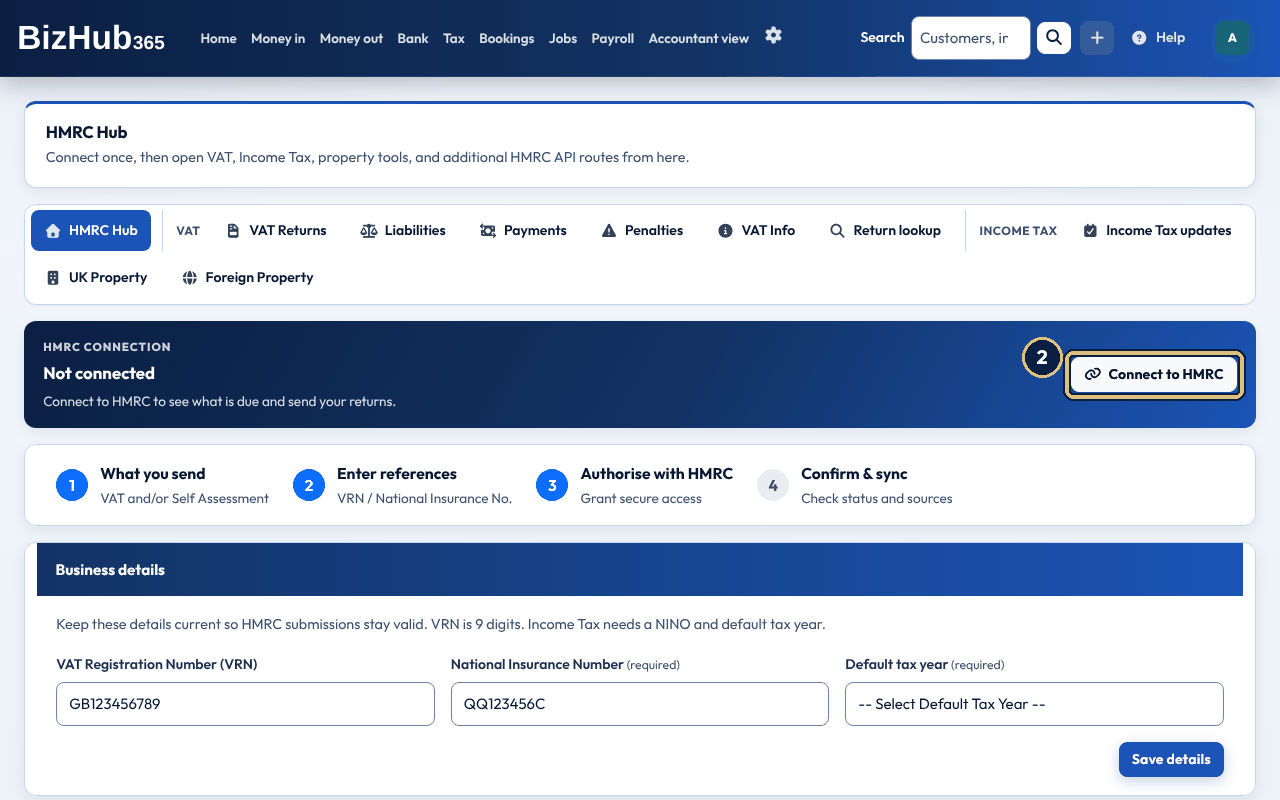
When it worked: You see Successfully connected HMRC for [business name]. and the HMRC connection banner says Connected, with HMRC Production or HMRC Sandbox beside it.
| If this happens | Do this |
|---|---|
| NINO appears invalid. It should look like AA123456A. | Type your National Insurance number as two letters, six numbers and a letter, then choose Save details again. |
| HMRC authorization was cancelled or failed. | The HMRC sign-in didn't finish. Go back to the HMRC Hub and choose Connect to HMRC again. |
Where to find it: Tax→VAT returns
Your VAT returns come from HMRC: BizHub365 fetches the VAT returns HMRC expects for the last 12 months and creates one return for each period. An open return's figures are worked out from your invoices, payments and expenses every time you open it, using the VAT basis you chose (accrual or cash). You then finalise the return, which locks those records, and submit it to HMRC. Money you receive without an invoice counts too, on the date it came in, on either basis: each line's VAT goes in Box 1 and its value before VAT in Box 6 (standard, reduced, zero-rated and exempt sales). Tips and money outside the scope of VAT add nothing, and nor does money that is not income, such as your own money paid in or a loan. A refund from a supplier reduces Boxes 4 and 7 instead. Bank transactions you categorise straight to an income account are counted as standard-rated sales on the date of the bank line: one sixth of the amount is VAT in Box 1 and the rest goes in Box 6. On the cash basis, money from a customer that is not yet matched to an invoice counts as a standard-rated sale in the period it came in, so you can always send the return. When you match it to an invoice later, the figures follow the invoice. If the period it came in has already been submitted, the difference between the invoice's VAT and the VAT already reported goes on your next return. On the accrual basis it is not counted: the invoice counts when you issue it.
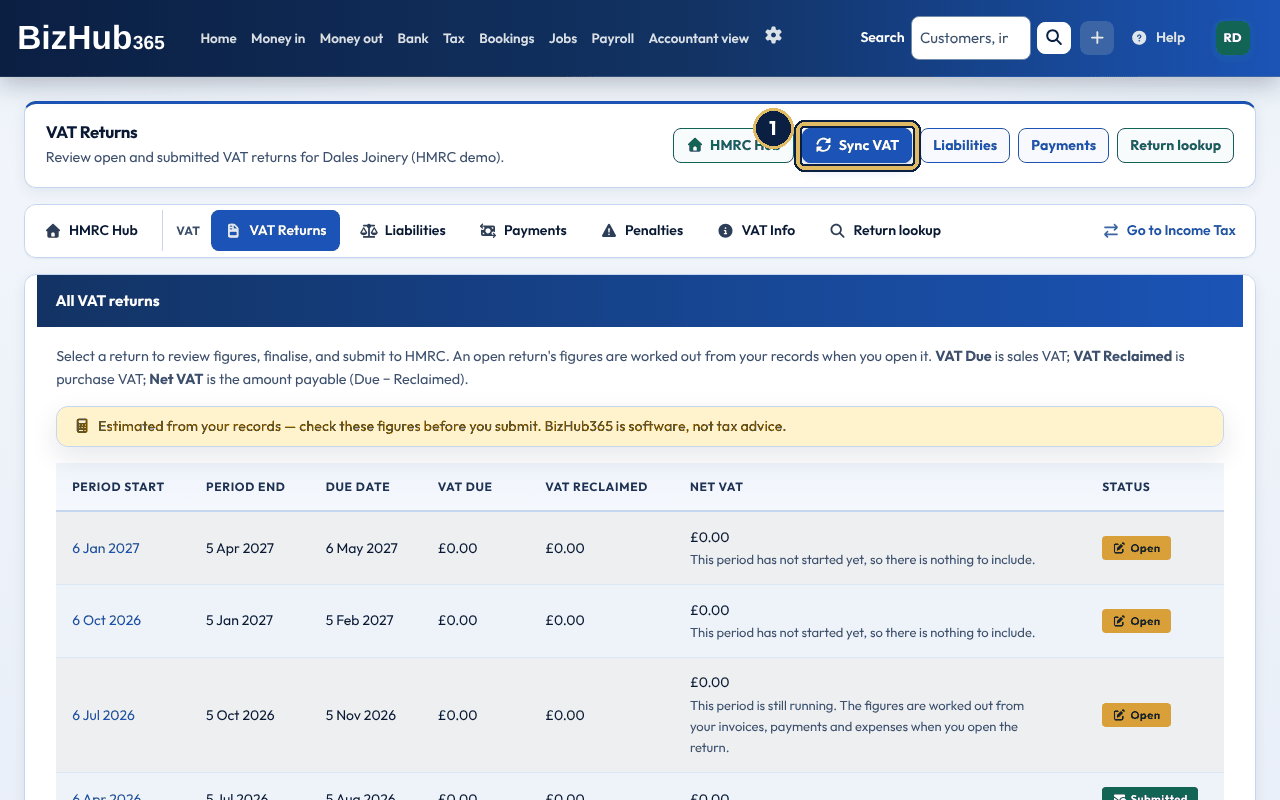
When it worked: You see Fetched your VAT returns from HMRC. Added [number] new VAT returns. and the new returns are listed. If HMRC's periods are all in your list already, the message says nothing new was added; if HMRC has none for the last 12 months, you see HMRC has no VAT returns due for the last 12 months.
The list shows each return's period, due date, VAT due, VAT reclaimed and net VAT, and its status: Open, Finalised, not submitted, Submitted, or Overdue in red when it has not been submitted and its due date has passed. Select anywhere on a row to open that return. Because an open return is worked out when you open it, a return you have not opened yet can show 0.00. When an open return shows 0.00, the list says why: the period has not started, the period is still running, the figures have not been worked out yet, the items in the period have no VAT on them, or your connected accounting app sent 0.00.
A return lists the invoices and expenses it includes, then the VAT Return Summary, the nine HMRC VAT boxes and the VAT Due Summary. Check each box against the VAT return summary report before you finalise. A submitted return shows HMRC's response under HMRC Response Data. A return you filed outside BizHub365 shows the date HMRC received it; if HMRC gave no date, it says HMRC shows the return as submitted.
If you use HMRC's VAT Flat Rate Scheme, tell BizHub365 in Settings → Business and tax setup, under VAT Flat Rate Scheme (shown once your VAT number is saved): tick We use the VAT Flat Rate Scheme, choose Your trade sector (this fills in HMRC's rate for it) or type the Flat rate percentage (0 to 20, up to two decimal places), enter the day This rate applies from and choose Save Settings. Check the rate against HMRC's list, which the form links to. You're a limited cost business, and must use 16.5% whatever your sector, if what you spend on goods is less than 2% of your sales including VAT, or more than 2% but less than £1,000 a year. Choose Limited cost business in the sector list. Tick Take 1% off in our first year of VAT registration and enter the Date your VAT registration started to get HMRC's first-year discount: the rate is 1 percentage point lower until the day before the first anniversary of your registration. If your rate changes, enter the new rate and the day it applies from and choose Save Settings: days before keep the old rate, and a return that covers both days uses each rate for its own days. Your rates are listed under the fields; tick Remove on a rate entered by mistake and choose Save Settings. If you leave the scheme, keep it ticked and enter the Date you left the scheme.
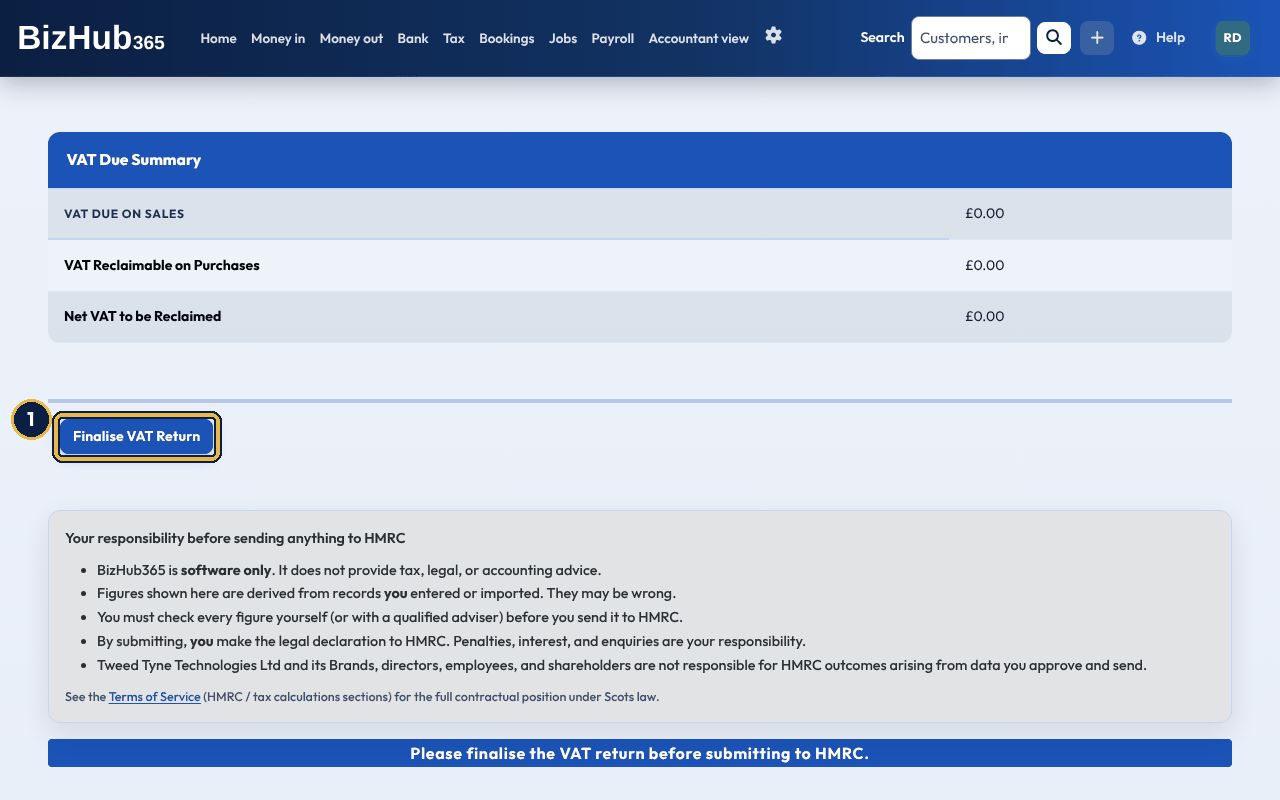
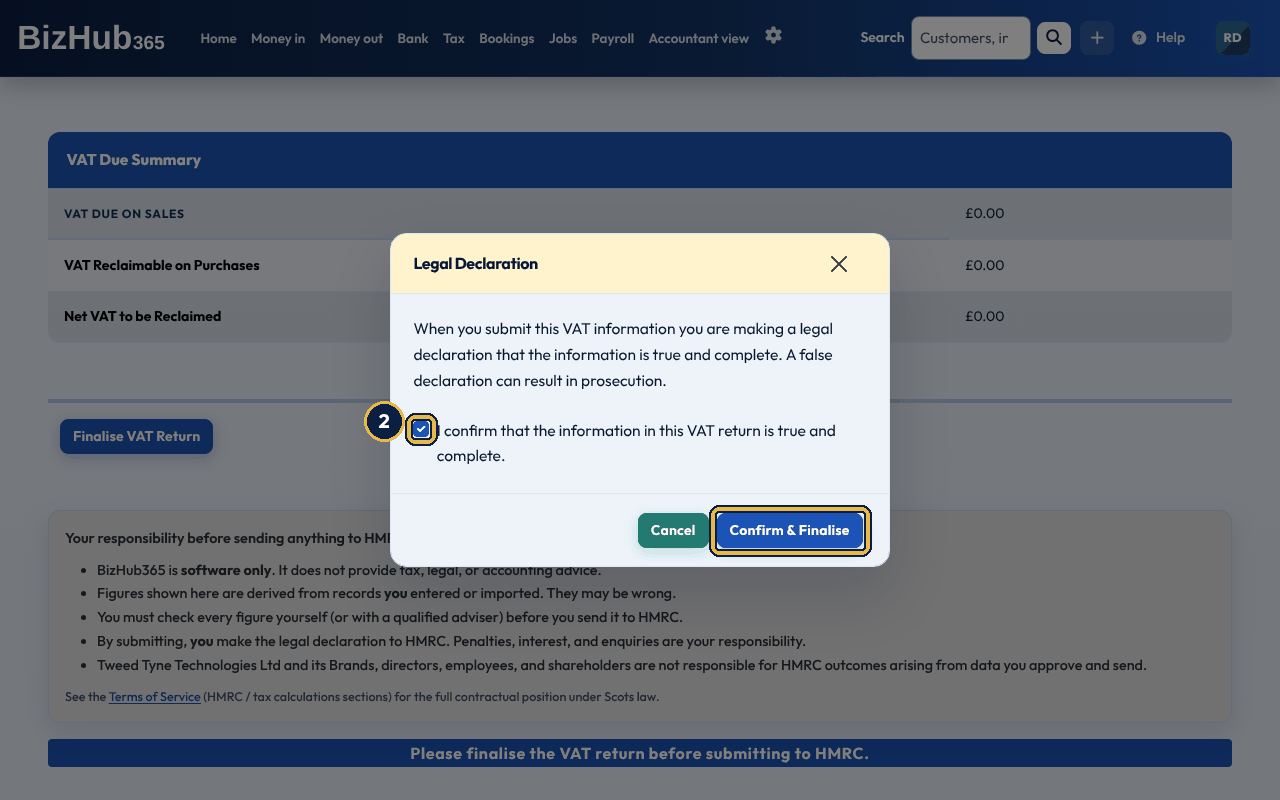
When it worked: You see VAT return finalised successfully. The return says This VAT return is finalised. and its invoices, expenses and payments are locked.
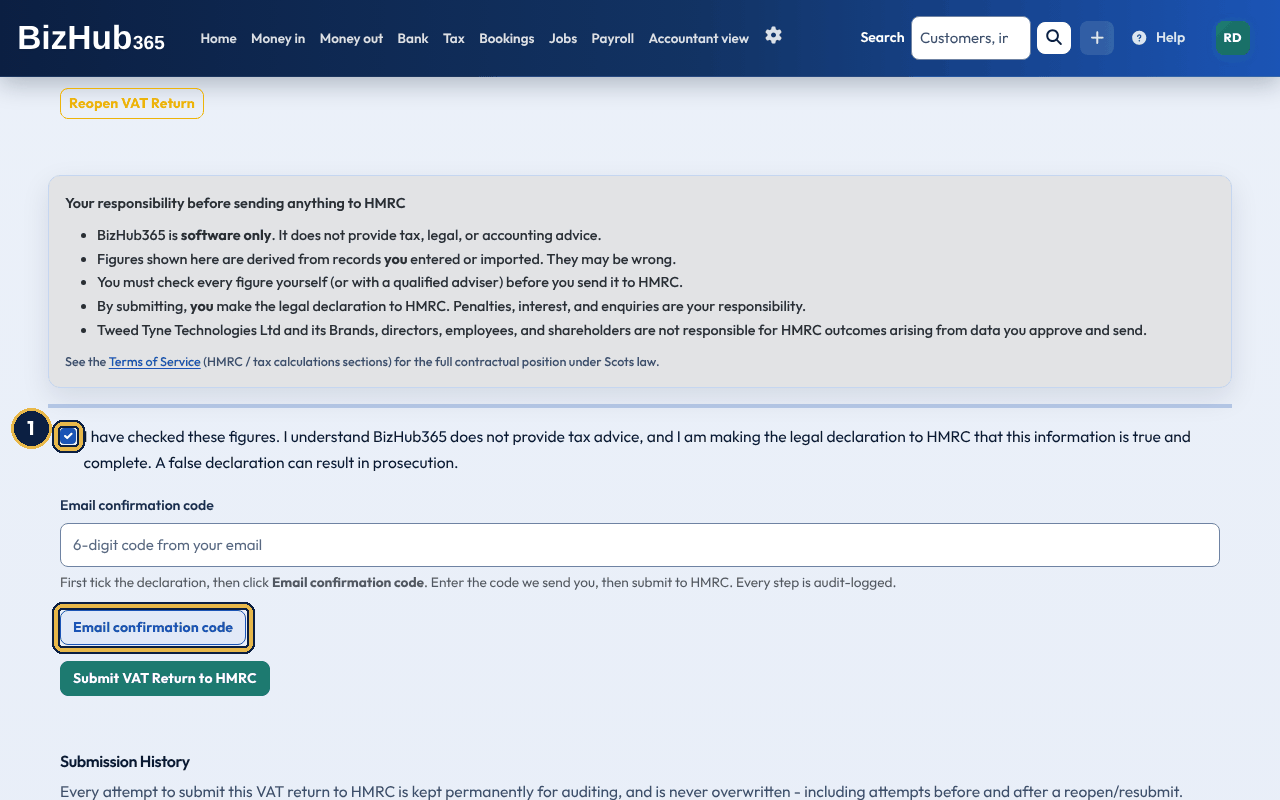
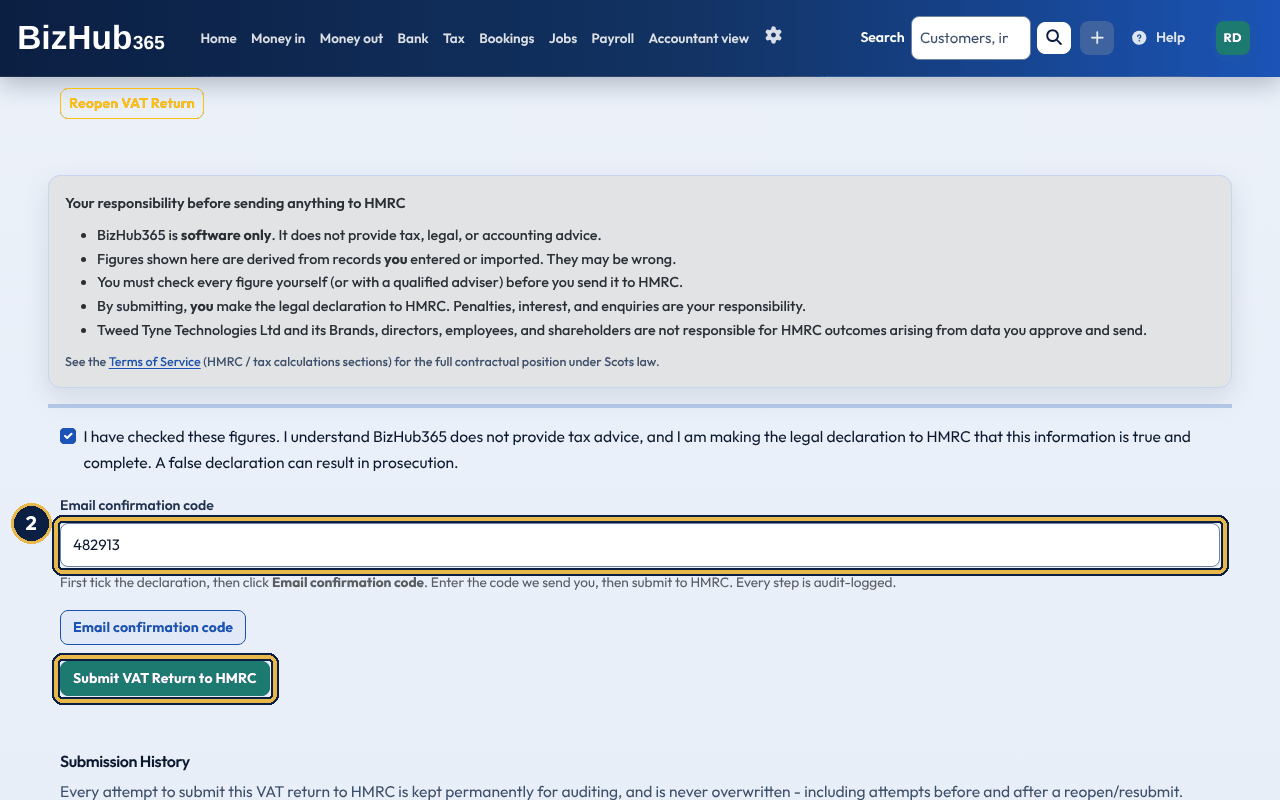
When it worked: You see VAT return submitted successfully to HMRC. and the attempt is added to the return's Submission History, with HMRC's receipt ID.
| If this happens | Do this |
|---|---|
| HMRC reports this VAT return was already submitted for that period. | HMRC already has a return for this period. The attempt is kept in the Submission History. |
| Totals inconsistent | The return's boxes don't add up. Reopen the return so its figures are worked out again, then finalise and submit it. |
| HMRC connection environment mismatch. Reconnect HMRC. | Disconnect on the HMRC Hub, then connect again. |
| A message beginning HMRC submission failed | The message gives HMRC's reason. Correct the cause and submit again; every attempt is kept in the Submission History. |
Reopen VAT Return on a finalised or submitted return unlocks its invoices, expenses and payments for editing, and you see VAT return reopened. Its invoices, expenses, and payments are unlocked for editing. On a submitted return you are warned first that HMRC may reject a second submission for the period as a duplicate. Every submission attempt stays in the Submission History, before and after a reopen.
VAT liabilities and VAT payments show HMRC's amounts in pounds (for example £2,450.00) and its dates as 5 Nov 2026. VAT customer information shows the VAT registration number HMRC was asked about, and the name HMRC holds for your business.
VAT boxes 1 to 9, the VAT returns list, the Income Tax periodic, annual and calculation sections, and the Income Tax calculation page all carry a notice beginning “Estimated from your records”, which reminds you to check the figures before you submit and that BizHub365 is software, not tax advice. The responsibility notice and declaration on the submit screens still apply.
The VAT tabs also show what HMRC holds for your VAT number. Each needs a connection to HMRC and a saved VAT number; without them you are taken back to the HMRC Hub with a message saying what to do.
| Tab | What it shows | What you choose |
|---|---|---|
| Liabilities | Each VAT liability: type, original amount, outstanding amount, due date and period. | A From and To date, then Retrieve liabilities. |
| Payments | Each payment HMRC received: amount and date received. | A From and To date, then Retrieve payments. |
| Penalties | Late submission and late payment penalty points and penalties, and each penalty record with its charge reference. | Nothing; Financial details on a penalty record shows HMRC's details for its charge reference. |
| VAT Info | The VAT customer information HMRC holds, such as your registration date. | Nothing. |
| Return lookup | A VAT return you have already submitted, as HMRC holds it. | The VAT period key, then Retrieve return. |
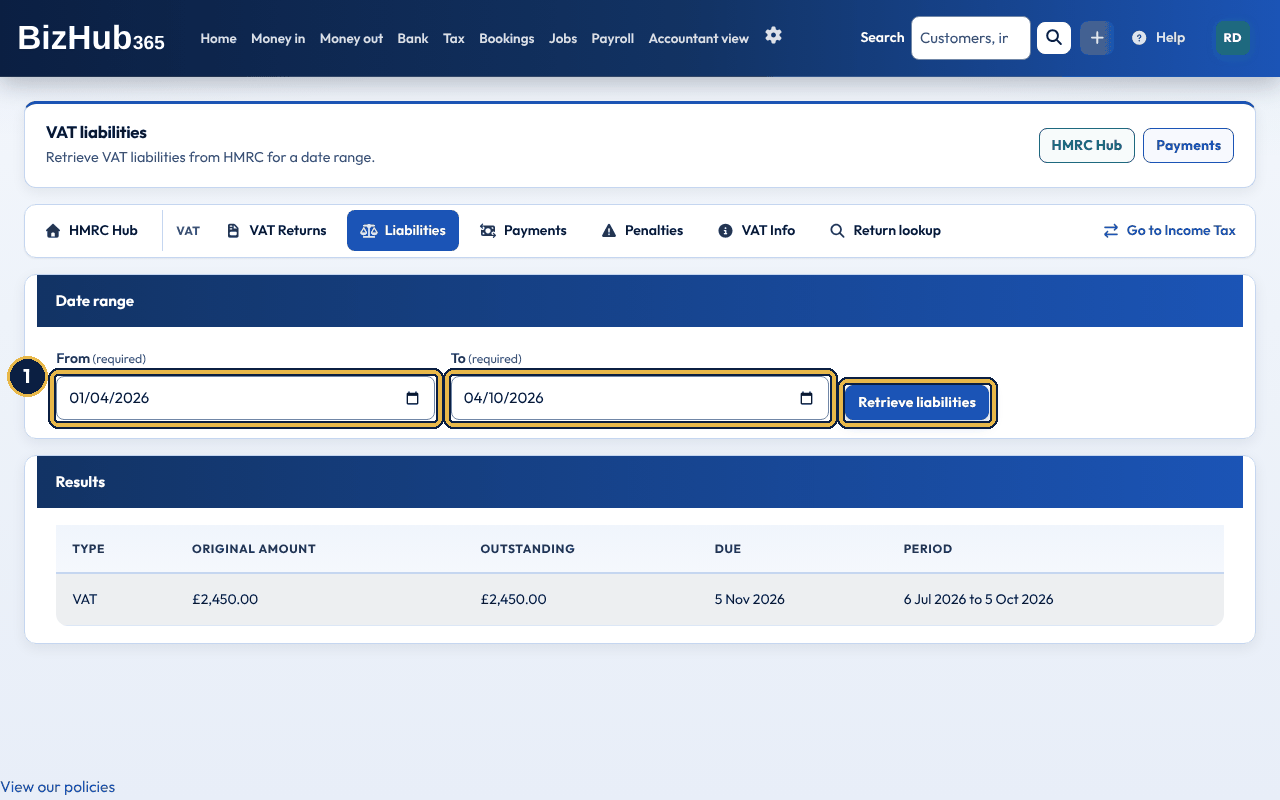
When it worked: The Results table lists what HMRC holds for those dates, or says none were found for the date range. A message beginning HMRC error gives HMRC's reason if it couldn't answer.
Where to find it: Tax→Your tax→Income Tax updates
Sole traders, freelancers and partnerships can send quarterly updates, the annual summary and the final declaration for Making Tax Digital for Income Tax. BizHub365 supports these income sources:
It does not treat employment income, CIS as an income source, dividends, interest, pensions or capital gains as Income Tax sources. The Hub's Unsupported income sources panel explains that unsupported sources must be reported using other compatible software where required. BizHub365 supports Income Tax submissions for tax years 2025-26 onwards. Older deadlines still open are marked unsupported: complete them through another HMRC-approved route, then check status again.
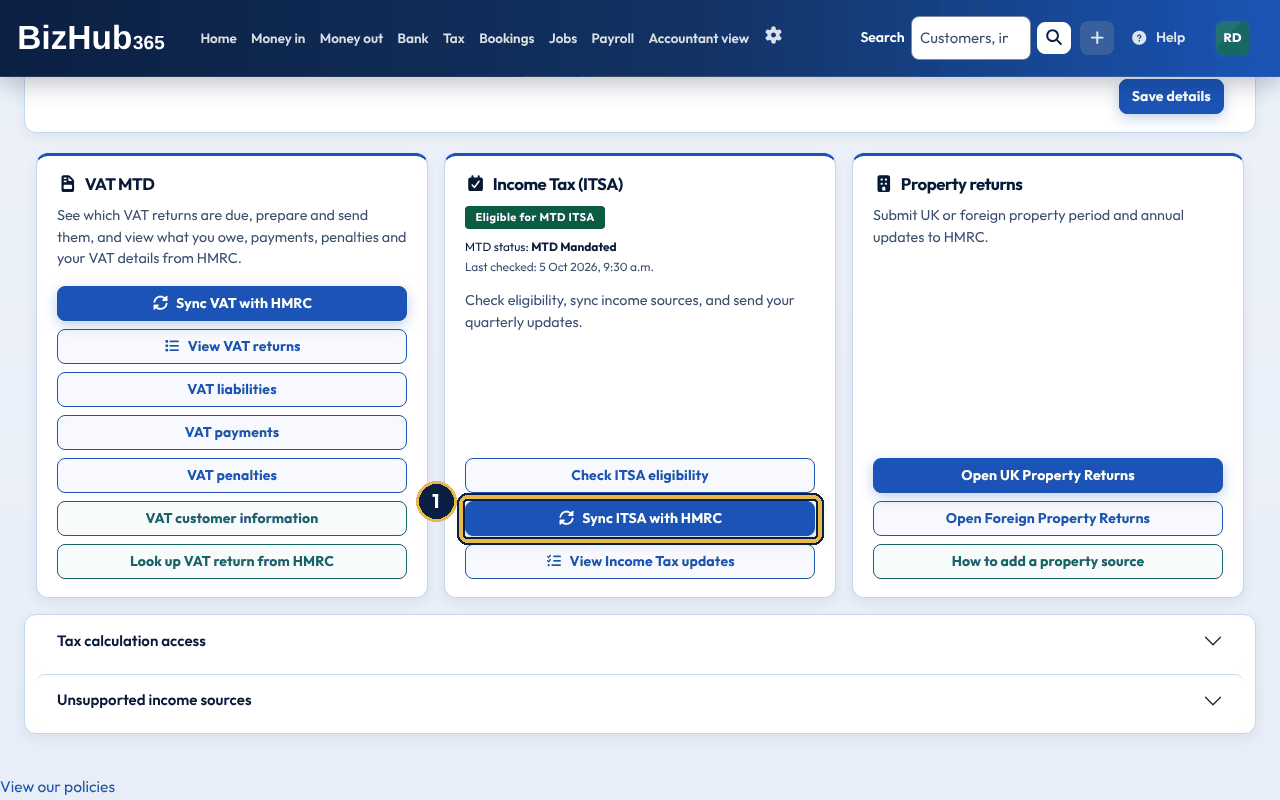
When it worked: You see Synced [number] ITSA income source(s) from HMRC. If HMRC has none for you, you see HMRC returned no income sources.
Check ITSA eligibility in the same tile asks HMRC whether you must use Making Tax Digital for Income Tax, and the tile shows the answer. Income Tax updates fetches your Income Tax deadlines from HMRC every time you open it and lists each one under Income Tax deadlines with its source, period, due date and status. View on a deadline, and each update, annual submission and calculation listed under History, opens its details as HMRC holds them; each of these record pages has a Download PDF button for your records. Links at the top jump to its sections: Periodic, Annual, Calculations, History and Deadlines.
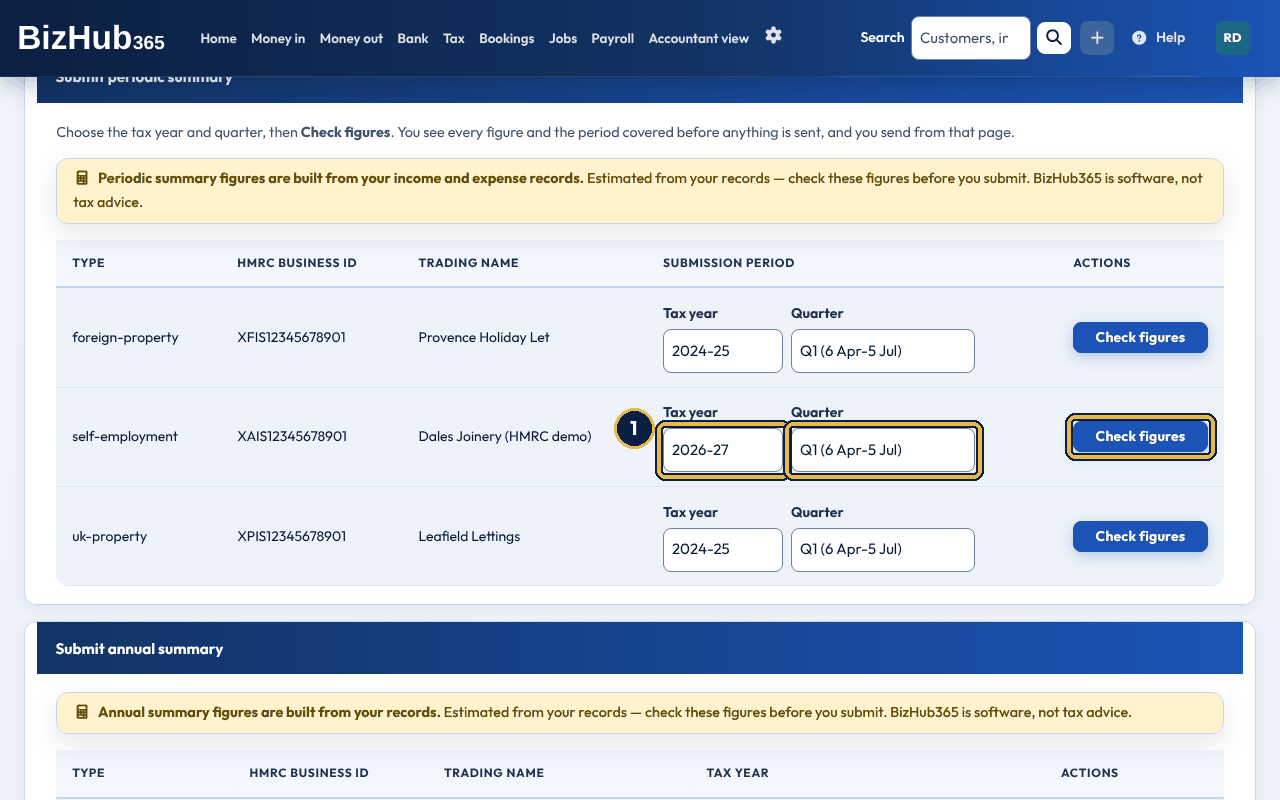
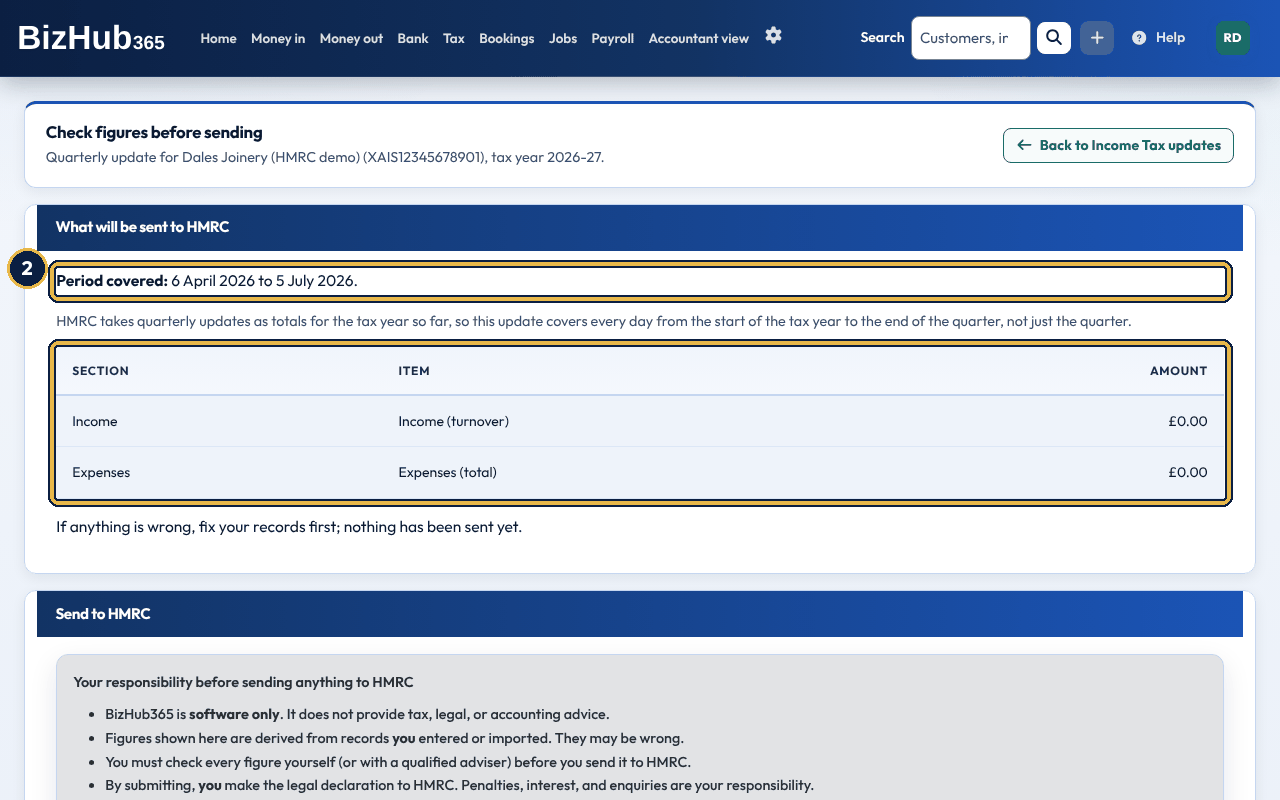
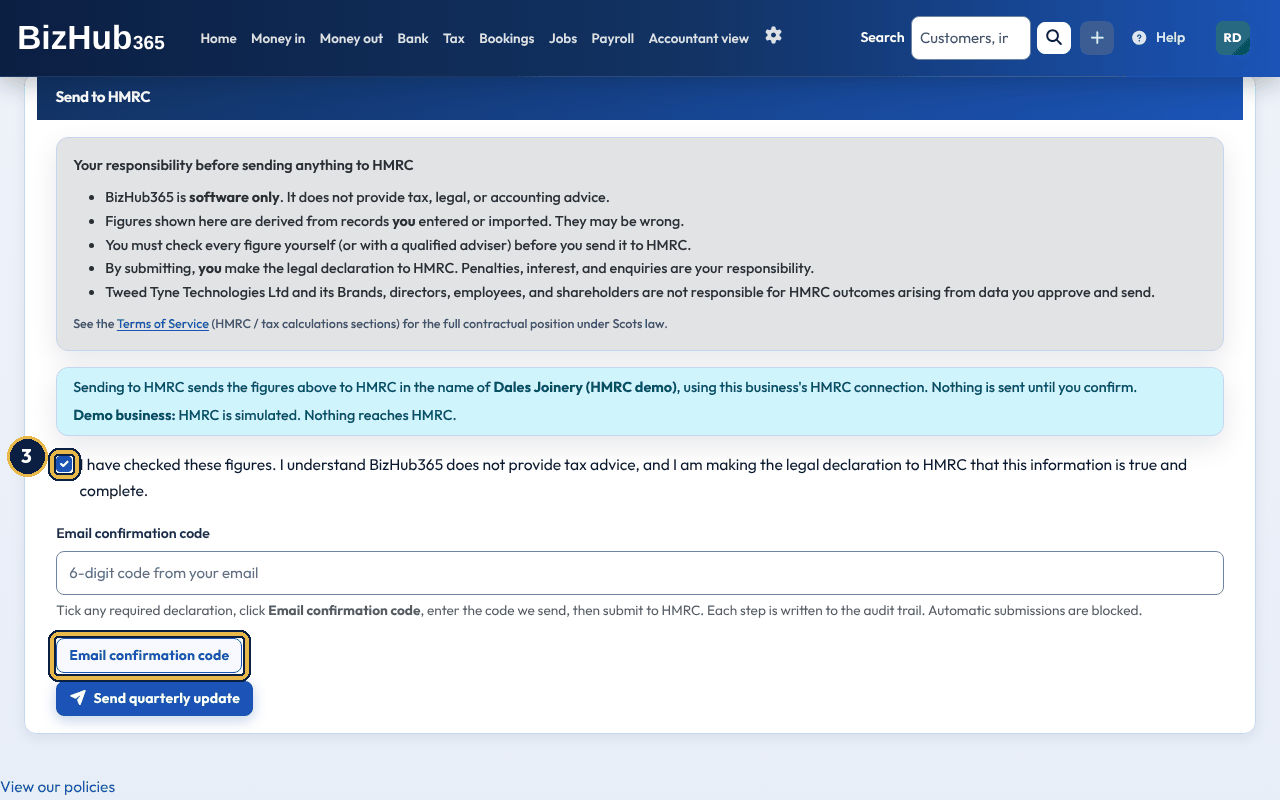
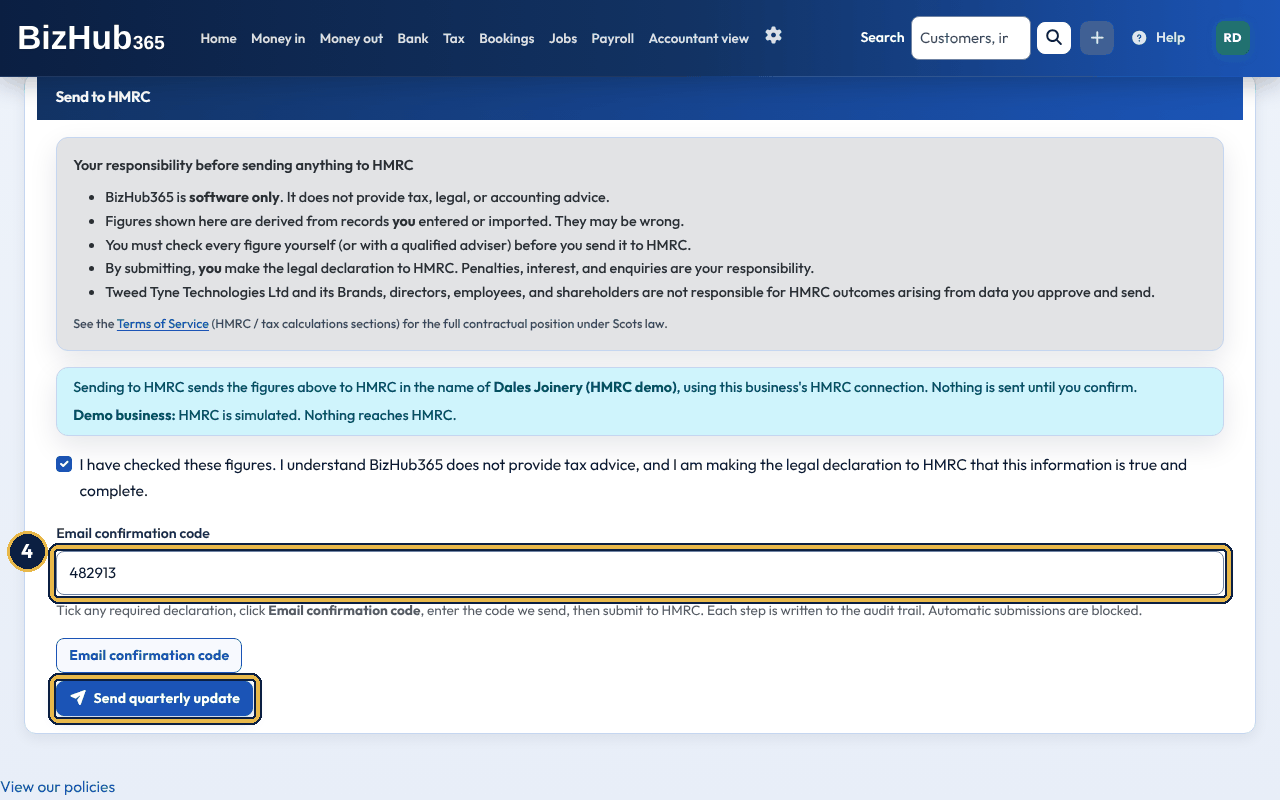
When it worked: You see Quarterly update submitted to HMRC. and the update is listed under Period summary submissions.
From the 2025 to 2026 tax year, each quarterly update covers the tax year so far: from 6 April (1 April if you use calendar quarters) to the end of the quarter you choose, as HMRC requires. If your business started during the year, it runs from your first accounting period instead. When you enter property figures yourself on the Property returns page, enter the year-to-date totals, not just the quarter. A quarterly update built from the books reports your invoices and expenses in pounds sterling. A foreign-currency invoice counts at the sterling value booked on the invoice. Expenses are sent in HMRC's own Self Assessment categories, worked out from the category you choose on each expense: for example fuel and train fares go under car, van and travel expenses, phone and stationery under office costs, and rent, rates and insurance under premises costs. A category BizHub365 does not know goes under other business expenses. Check figures shows the total for each HMRC category before you send. Client entertaining is sent but marked as not allowable, so HMRC does not set it against your profit. Equipment and other capital purchases count as expenses on the cash basis; under traditional accounting they are left out of the quarterly figures and claimed instead as annual investment allowance in the annual summary, which Check figures shows. Cars don't qualify for that allowance: ask your accountant about a car. Property income worked out from your books uses HMRC's property categories in the same way (premises costs, repairs, finance costs, professional fees, travel and other property expenses); client entertaining is left out, and loan interest goes in as residential finance costs, which HMRC allows only as a basic-rate tax credit. It also counts bank transactions you categorise straight to an income or expense account (with no invoice or expense behind them), and your payroll costs. If you are VAT registered, money in categorised straight to an income account counts without the VAT your VAT return takes from it (one sixth of the amount), so your turnover never includes VAT. Payroll costs are gross pay, employer's National Insurance and employer pension contributions, on each pay date. Journals you or your accountant post by hand, such as depreciation, are not counted. Money you receive without an invoice counts on the date it came in, on both bases: income marked as turnover goes in your turnover, and income marked as other business income is sent to HMRC as other income. If you are VAT registered the amount before VAT counts, otherwise the whole amount. Your own money paid in, loans and other money that is not income are not counted. On the cash basis, money from a customer that is not yet matched to an invoice counts as turnover in the period it came in (less one sixth for VAT if you are VAT registered). When you match it to an invoice, the payment counts on the date the money came in instead, so it is never counted twice. Under traditional accounting it is not counted until you invoice: the invoice counts when you issue it. Your invoices and expenses count towards one income source only, so they are never reported twice. If you have a self-employment source, they belong to it. If you have no self-employment source and only one property business, they belong to that property business. Enter the figures for any other property business on the Property returns page. If you have more than one self-employment source, BizHub365 cannot tell which trade each invoice belongs to and will not send a quarterly update from the books for either one.
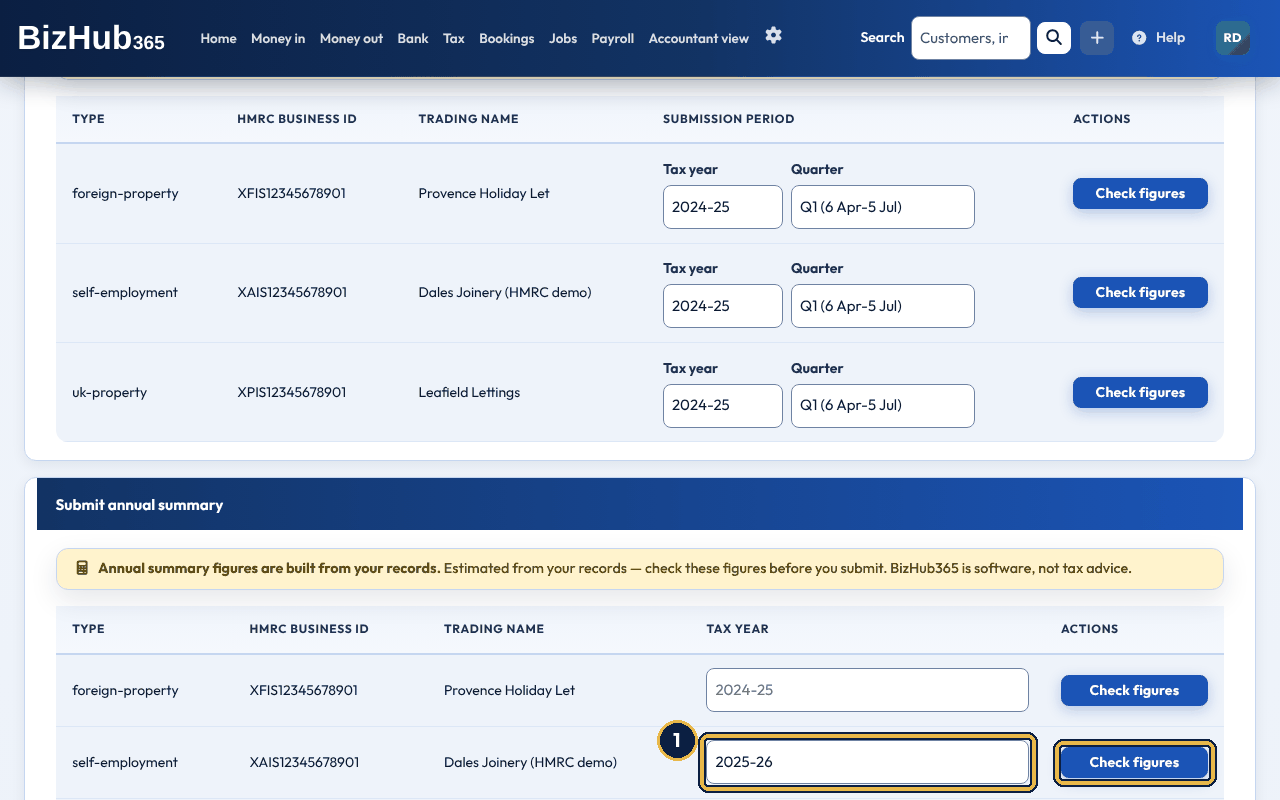
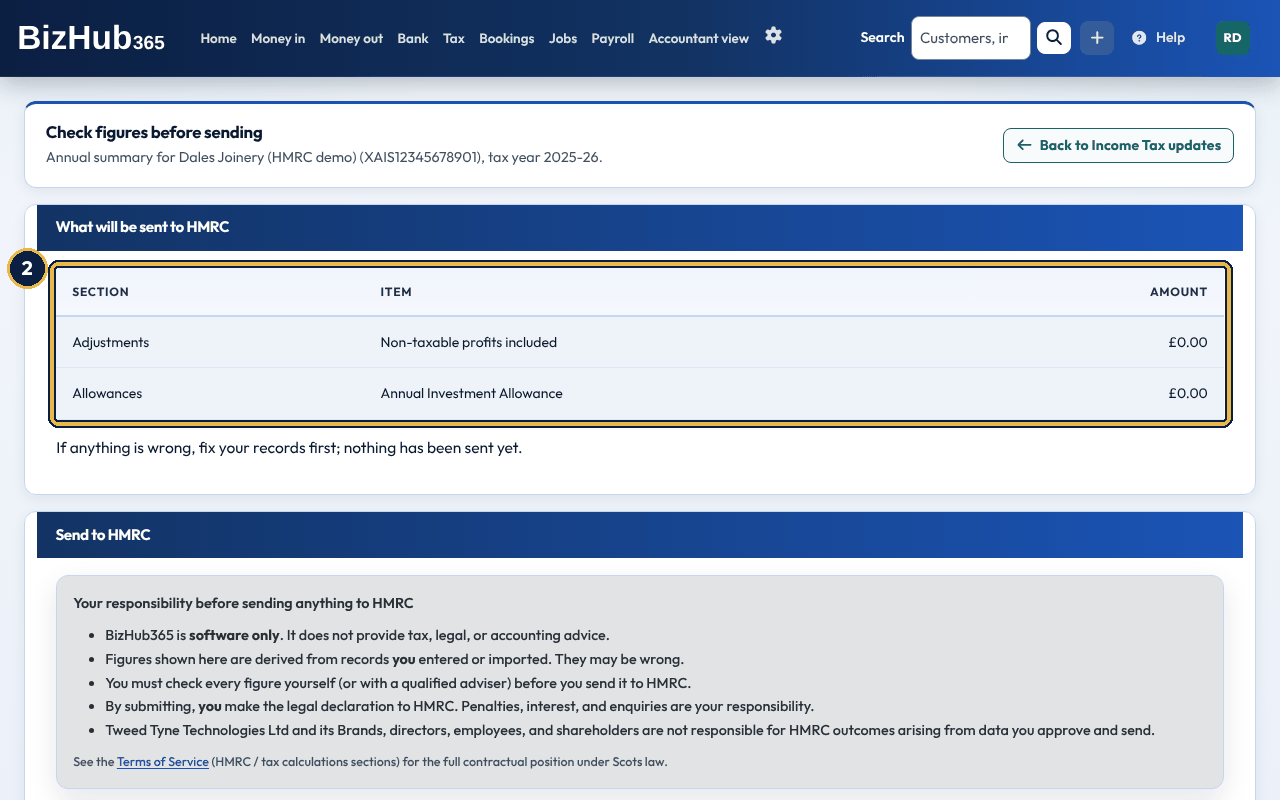
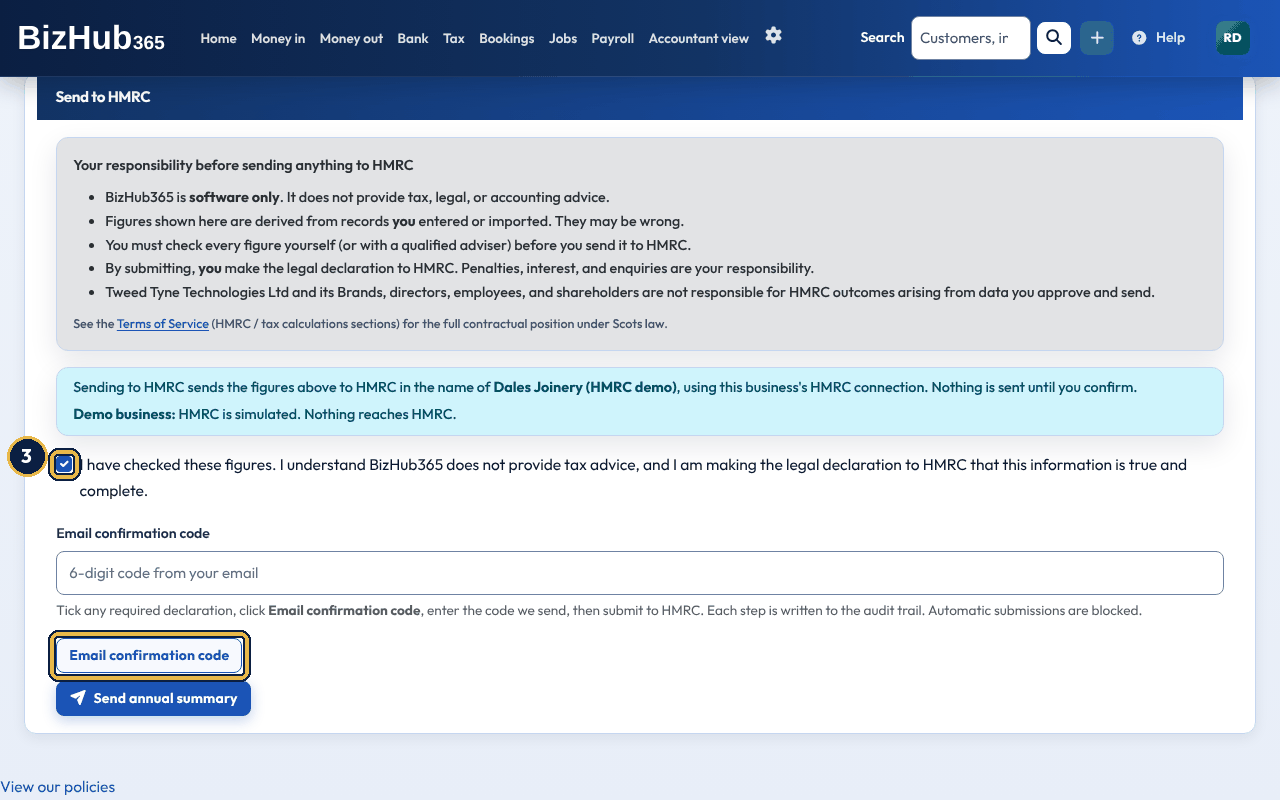
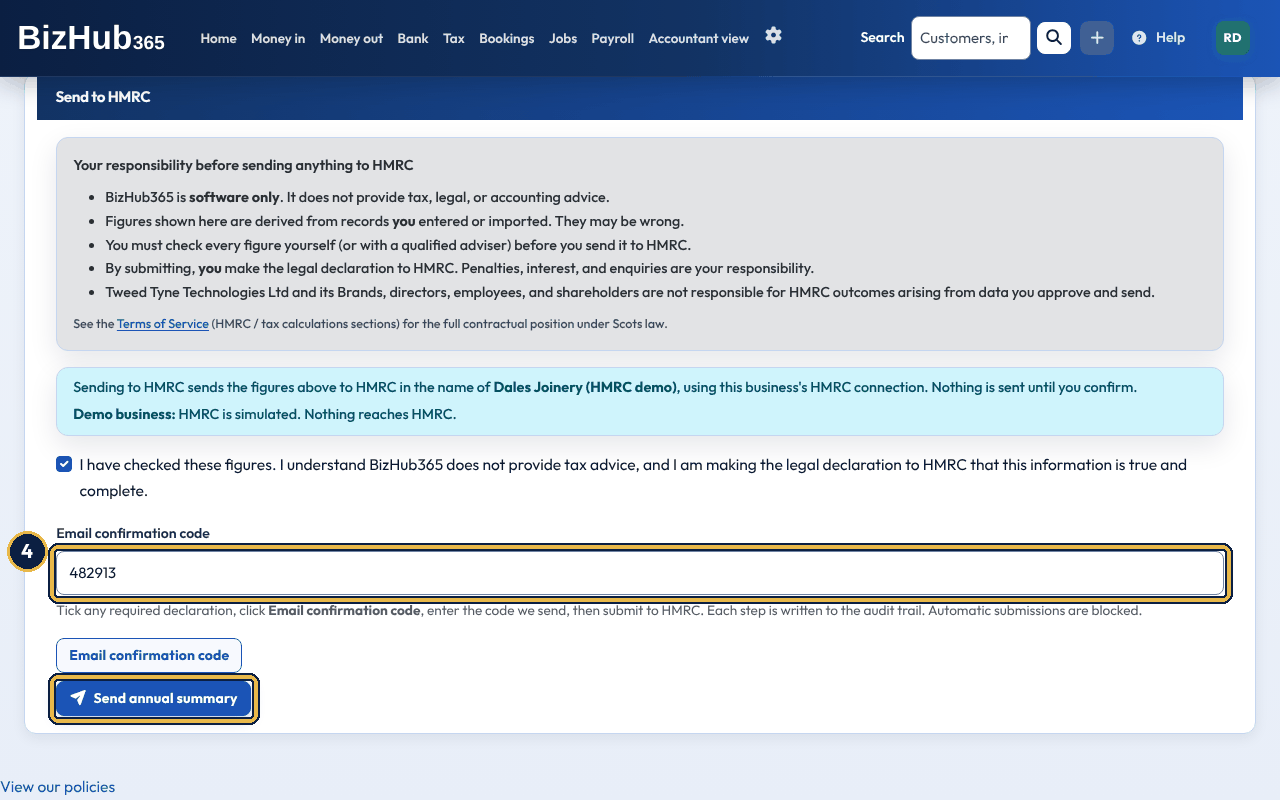
When it worked: You see Annual submission sent to HMRC. and the submission is listed under Annual submissions.
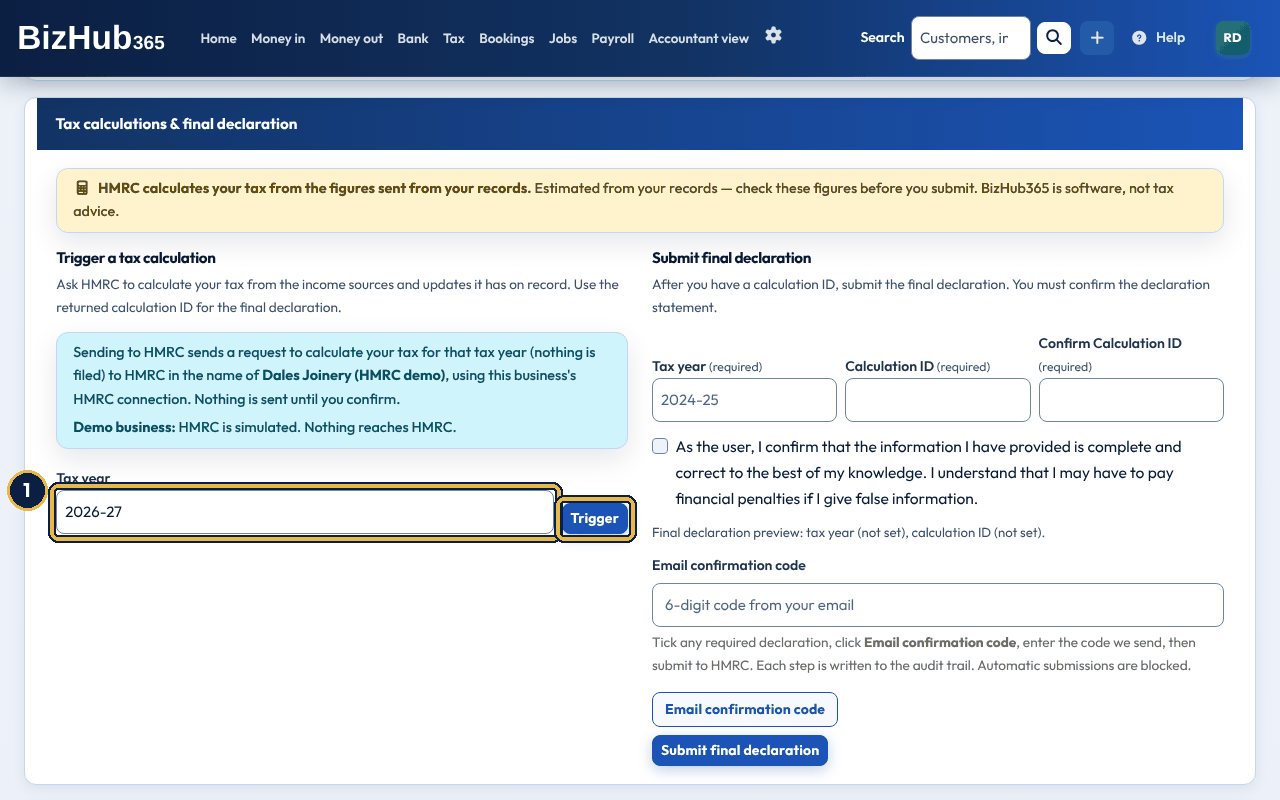
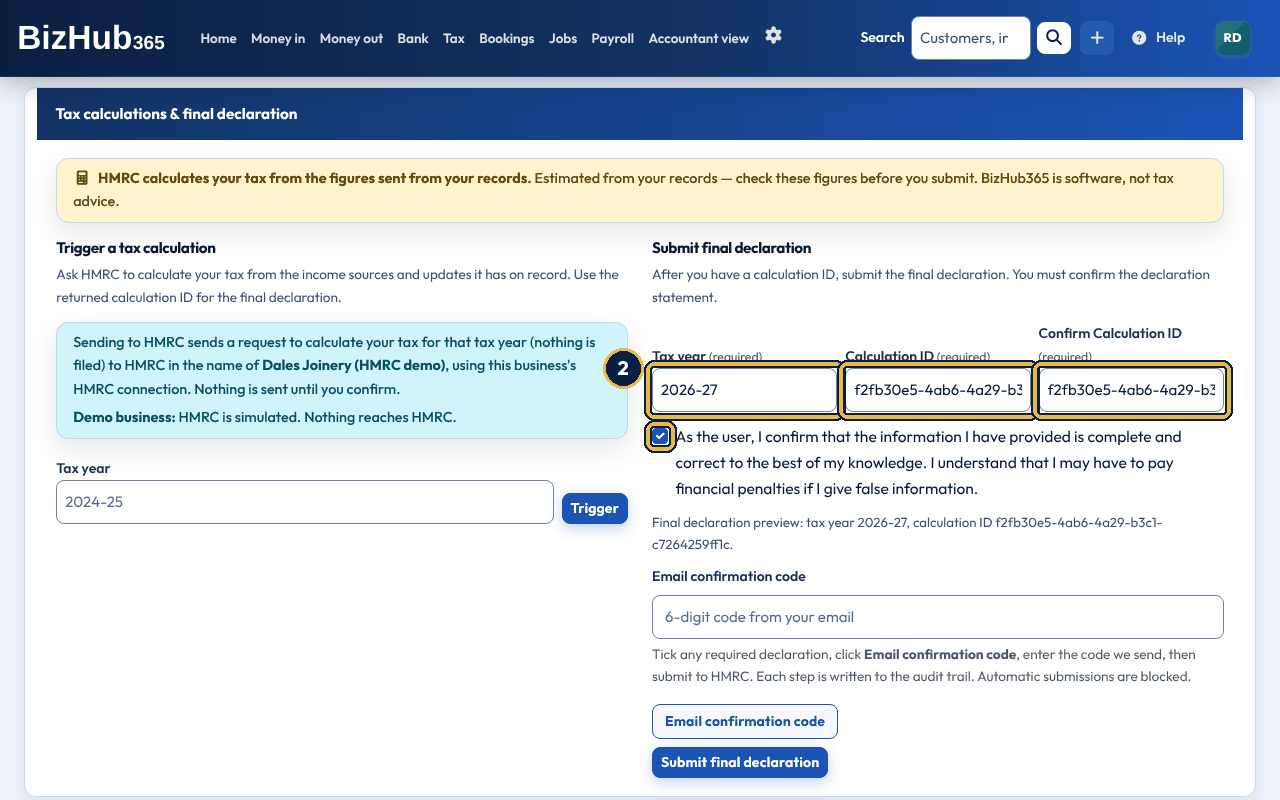
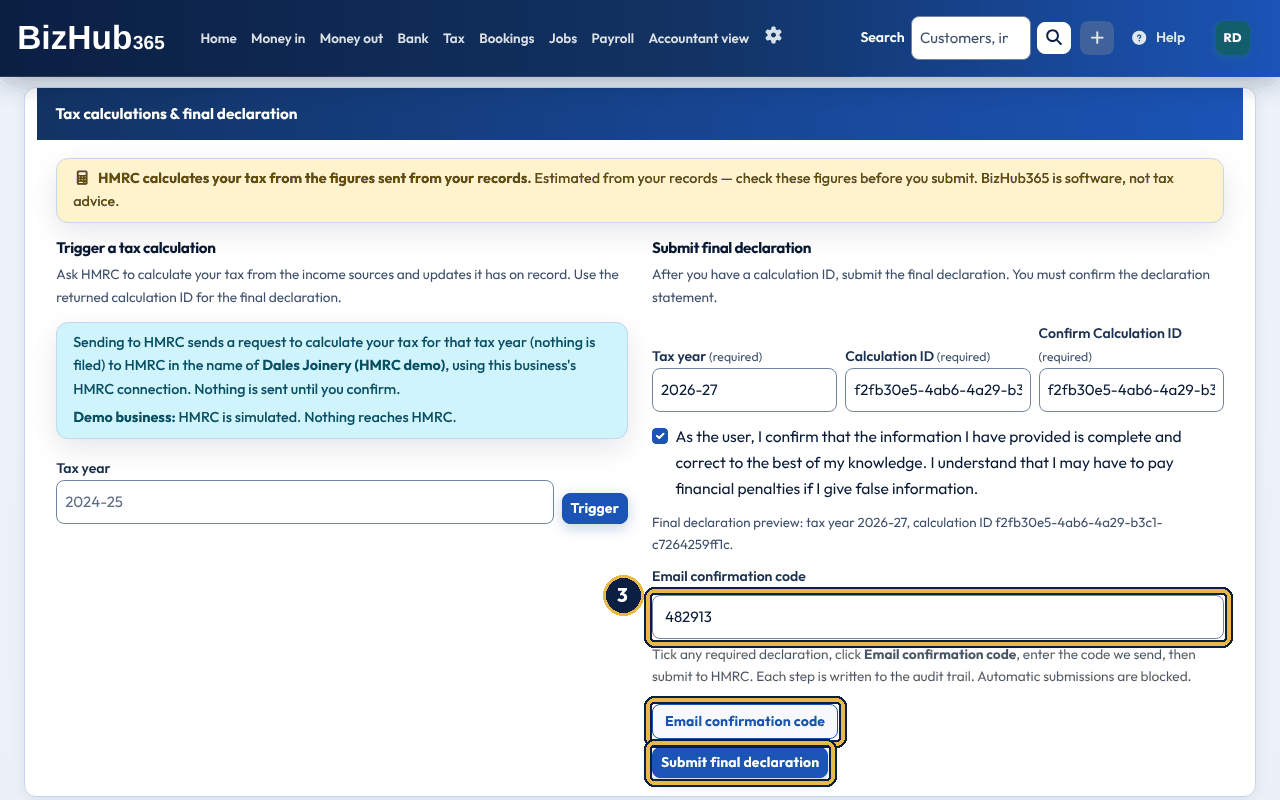
When it worked: You see Tax calculation triggered. Calculation ID: [ID] after step 1, and Final declaration submitted using calculation type: [type]. at the end.
UK Property and Foreign Property (also Open UK Property Returns and Open Foreign Property Returns on the Hub) are for the figures of a property business. They need the property business to be one of your income sources at HMRC; How to add a property source on the Hub explains how. Fill in the property profile and choose Save property profile, which only saves your figures. A UK property quarterly update or annual summary sent from Income Tax updates uses the figures, adjustments and allowances saved here for that tax year. A foreign property update or annual summary sent from Income Tax updates uses the saved property for that tax year; if none is saved, or you have saved more than one country, you are taken to Foreign Property Returns to send it from there. To send a return, use the Send to HMRC section: tick the declaration, choose Email confirmation code for the period return (or Email confirmation code for the annual return), enter the code, then choose Submit period return or Submit annual return. The code covers the figures it was sent for. If you change them, ask for a new code. If HMRC rejects a UK or foreign property return, the page shows HMRC's reason, including any fields it named, and keeps the quarter, period dates and amounts you entered, so you can correct them and submit again.
| Field | What to enter |
|---|---|
| Property source (Foreign property source) | The property business at HMRC, shown by its HMRC business ID. Only property sources brought in with Sync ITSA with HMRC are listed. |
| Tax year | The tax year as YYYY-YY, for example 2026-27. The end must be the next year. |
| Property type (UK only) | Non-FHL for ordinary lettings or FHL for furnished holiday lettings. |
| Country code (foreign only) | The 3-letter ISO code of the country the property is in, for example ESP for Spain. The box starts empty: BizHub365 never assumes a country, and nothing is sent to HMRC for a foreign property until you have saved its country. |
| Period income amount (Period rent income amount) and Period expenses amount | The income and expenses for the period, in pounds. |
| Quarter (optional), Period start (optional) and Period end (optional) | Choose a quarter, or type the start and end dates. Dates win if you give both. A period that has not ended yet can't be sent. |
| Non-resident landlord (UK only), Private use adjustment and Annual investment allowance | Used only for the annual return. |
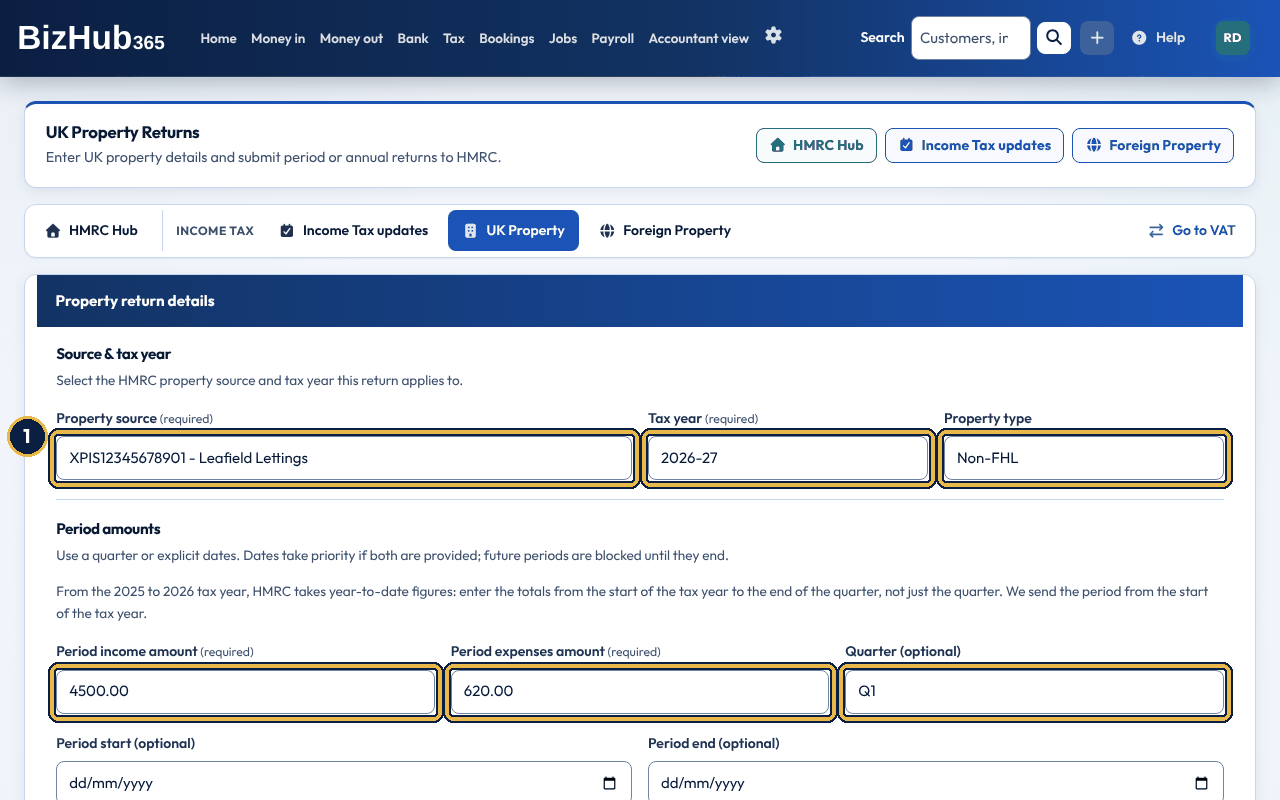
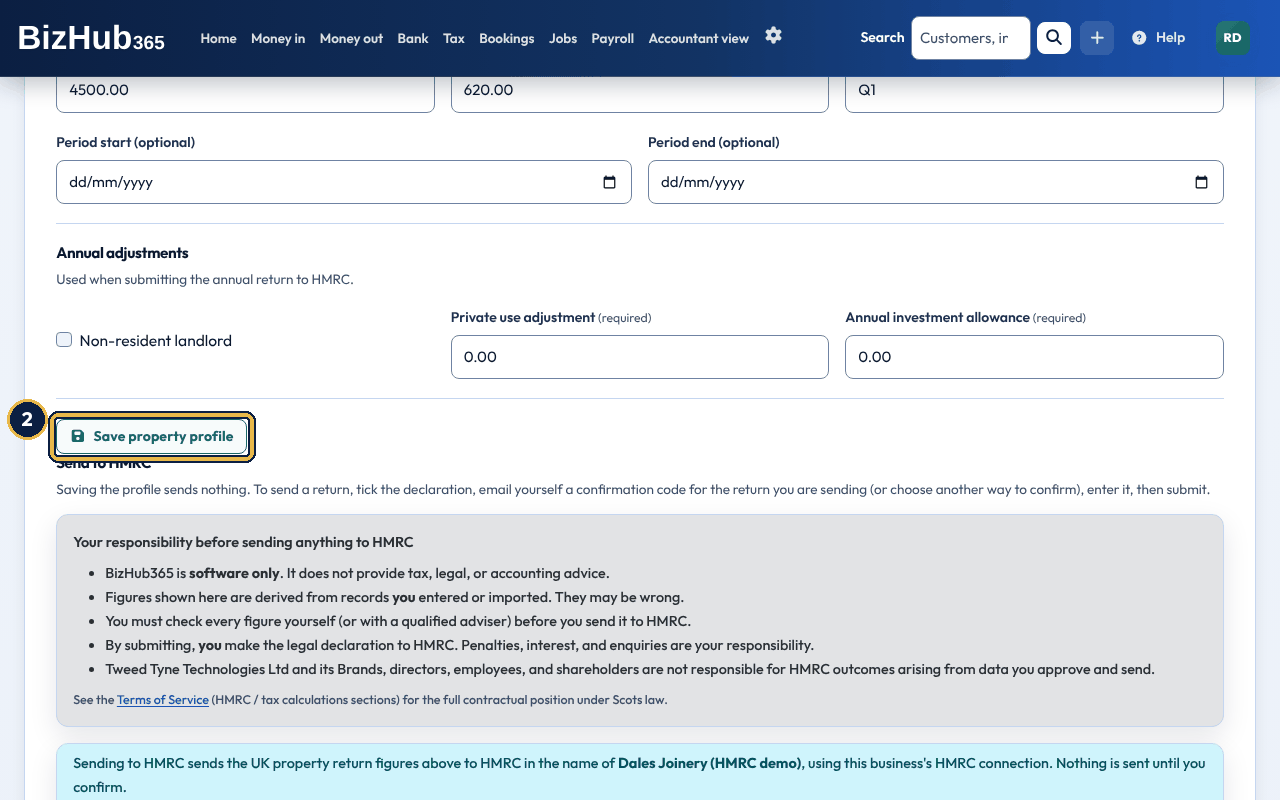
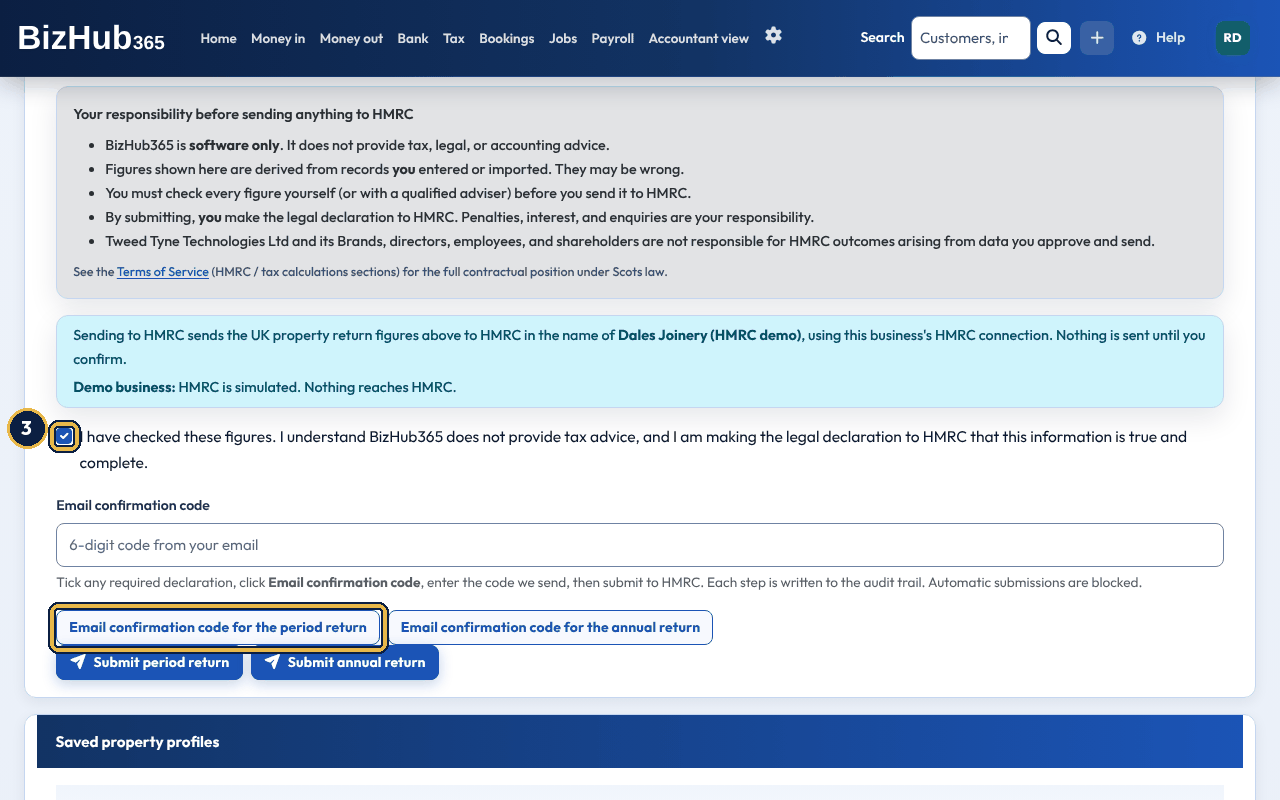
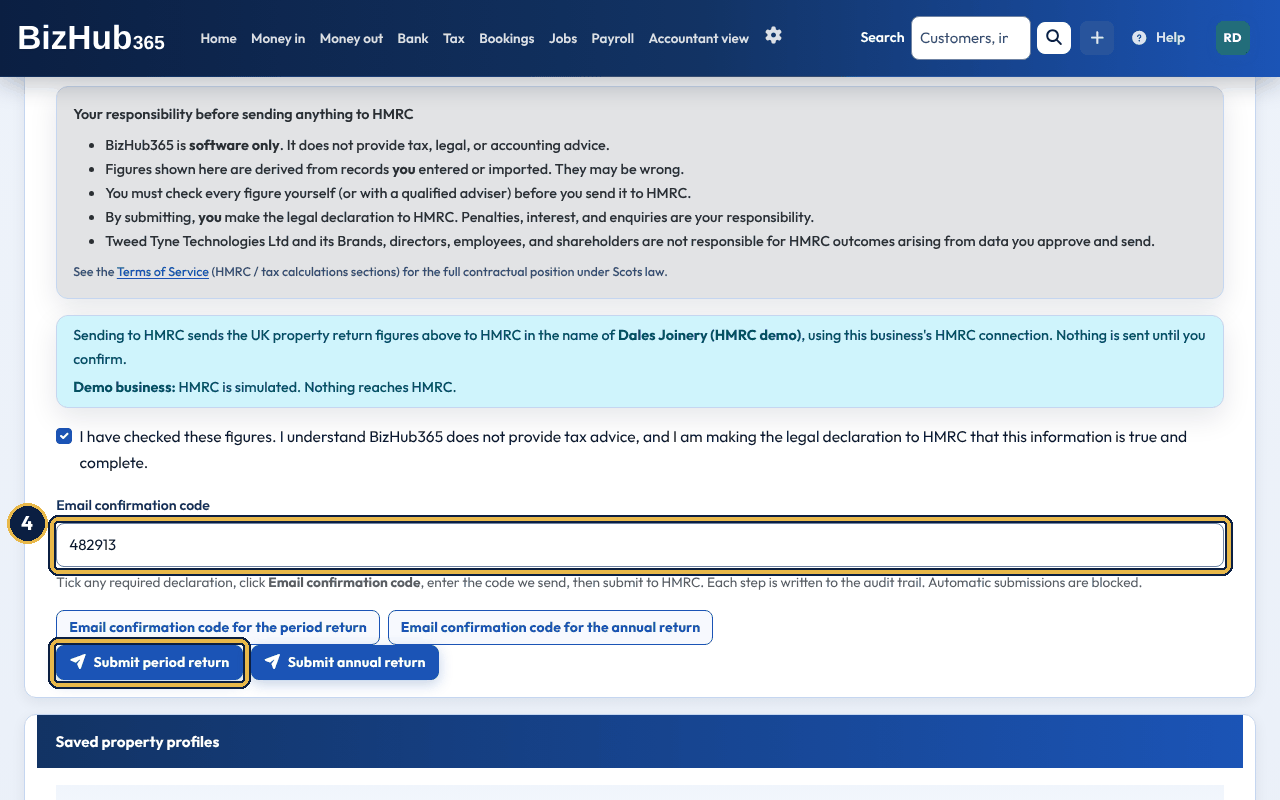
When it worked: You see UK property period submission sent to HMRC. and the return is listed under Recent period submissions. If the figures changed after the code was emailed, ask for a new code.
The annual return works the same way: fill in Annual adjustments, tick the declaration, choose Email confirmation code for the annual return, enter the code and choose Submit annual return. It can only be sent once the tax year has ended; before then you see Tax year [year] does not end until [date]. Submit the annual update on or after that date. When it is accepted you see UK property annual submission sent to HMRC. and it is listed under Recent annual submissions.
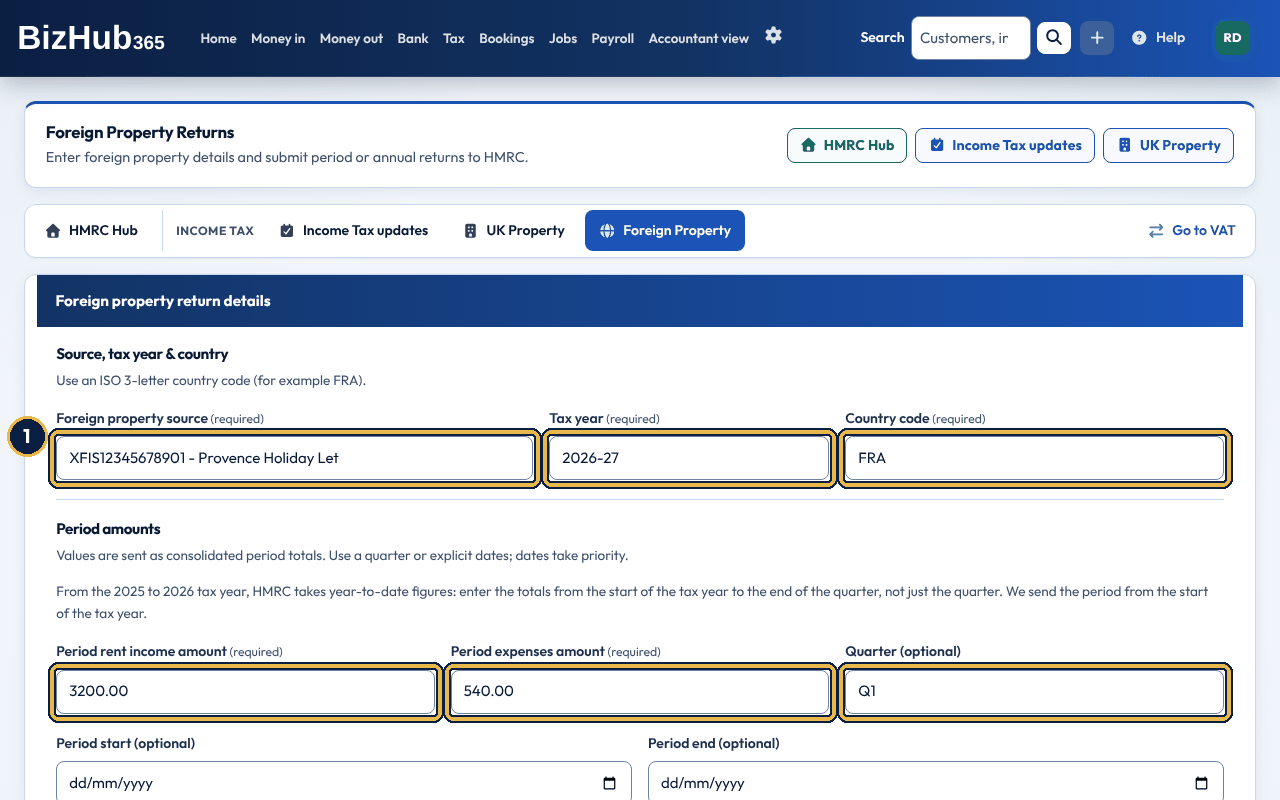
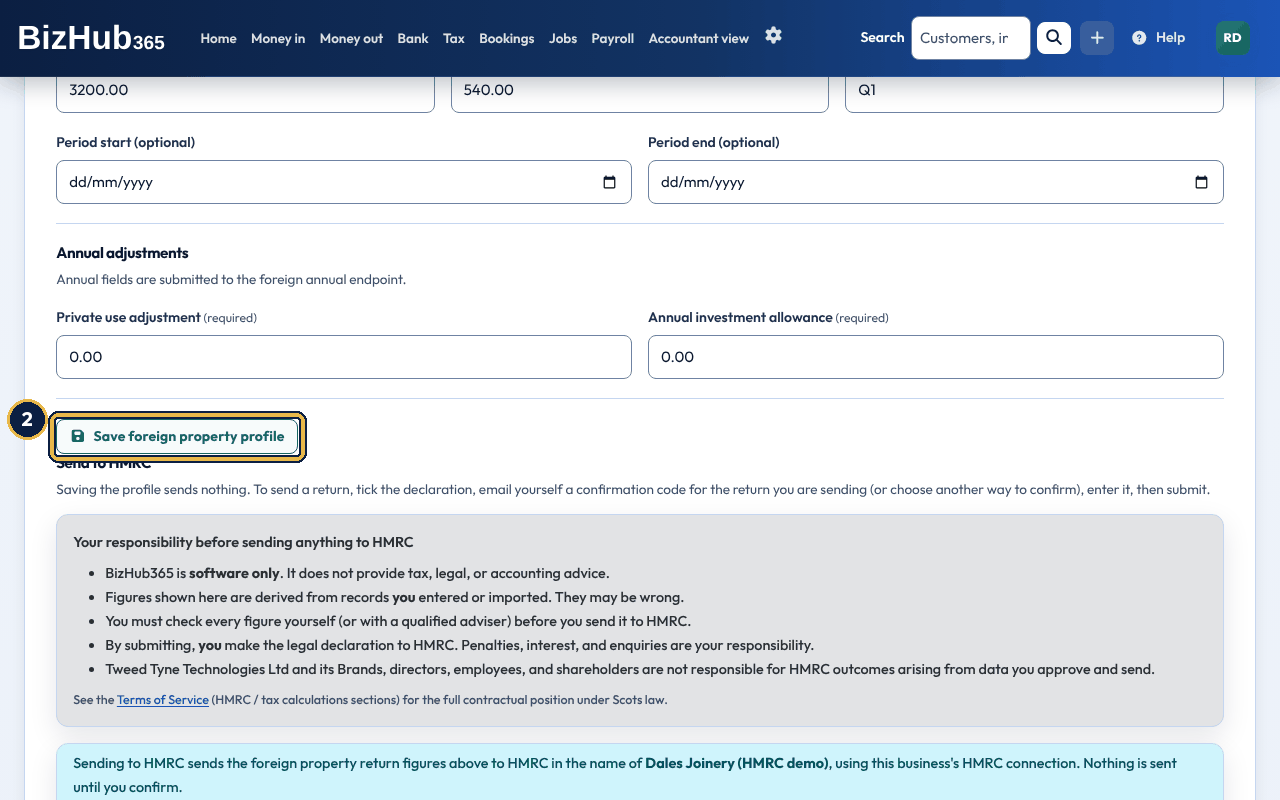
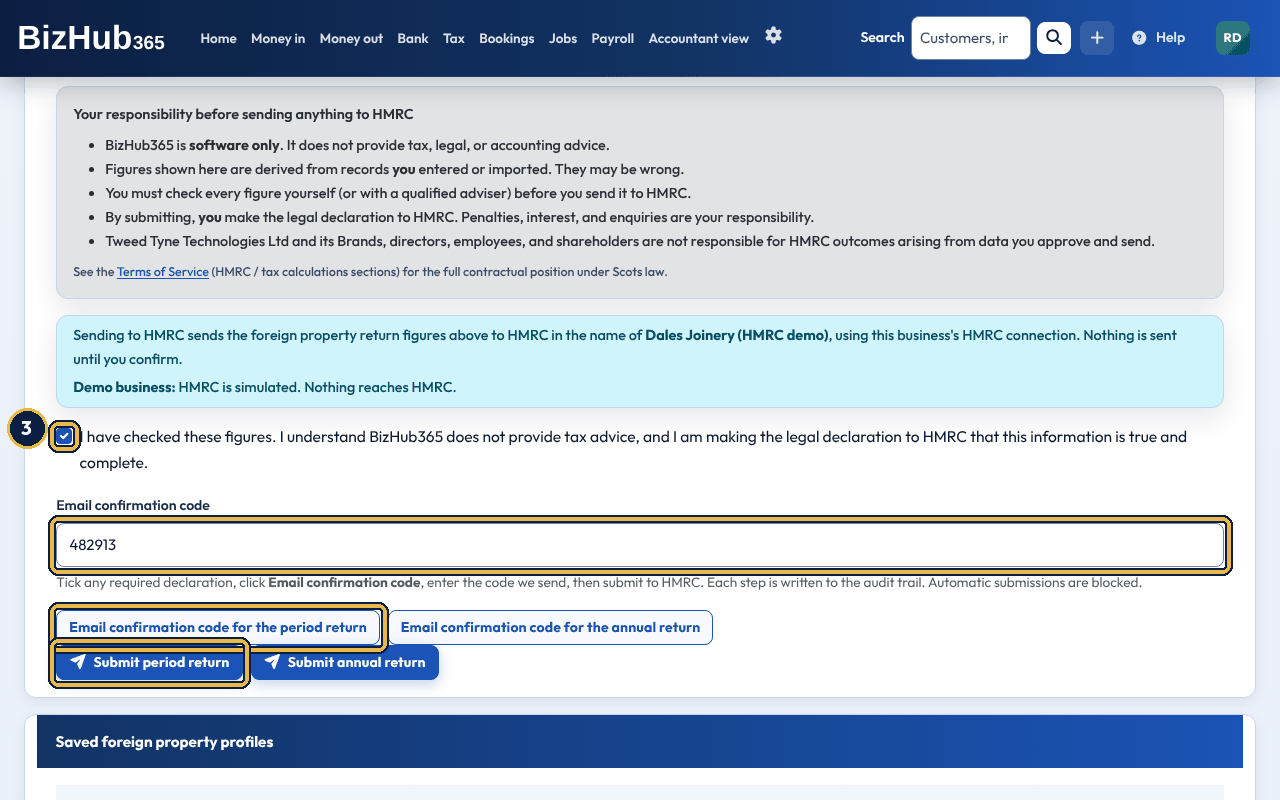
When it worked: You see Foreign property period submission sent to HMRC. and the return is listed under Recent period submissions. A country code that is not 3 letters is refused with Country code must be a 3-letter ISO code (for example, FRA).
Every live send to HMRC (a VAT return, an Income Tax quarterly update, annual summary or final declaration, a UK or foreign property period or annual return, an FPS and an EPS) needs two things from you at the moment you send it, on the website and in the mobile app. Actions that only read from HMRC, such as fetching what is due or checking your ITSA status, need neither. Each send screen also says what will be sent, that it goes to HMRC in your business's name, and whether it goes to live HMRC, HMRC's test service (sandbox), or nowhere (a demo business).
The code is emailed only to you, with the subject BizHub365: confirm HMRC submission ([code]). Each confirmation works once, for that one submission, and only for you; asking for a new code replaces the one before. Each step, including how you confirmed, is written to the audit trail. Integrations that use the BizHub365 API must send the same declaration and confirmation. A send without them is refused.
HMRC requires software to send fraud-prevention headers on every API call. The web app and the mobile apps collect the device information HMRC specifies. Allow that when the browser or OS asks.
Part V · Run the business · Chapter 20
The Settings page, behind the cog at the right of the top bar, is the control room: who you are, how documents look, and how the company is recorded.
The cog at the right of the top bar opens the Settings page, which lists every business setting in four groups (Your business, People and billing, Connections and data, Security and records), each with a line on what it is for. Everyone in the business sees Business and tax setup (the Business Settings page), Security and Audit log. Members with the Edit permission also see Invoice look (Branding & Templates), Holidays, Opening hours, Company register, Custom fields, Connect & Integrations and Import & Recover. Team (User Management) needs the Manage Users permission and Subscription needs Manage Billing (see Roles, permissions, and your team and Subscription, trial, and billing). Staff members and subcontractors don't see the cog or the Settings page.
Where to find it: Settings→Business and tax setup
Keep these accurate. They print on your invoices and quotes and drive your tax:
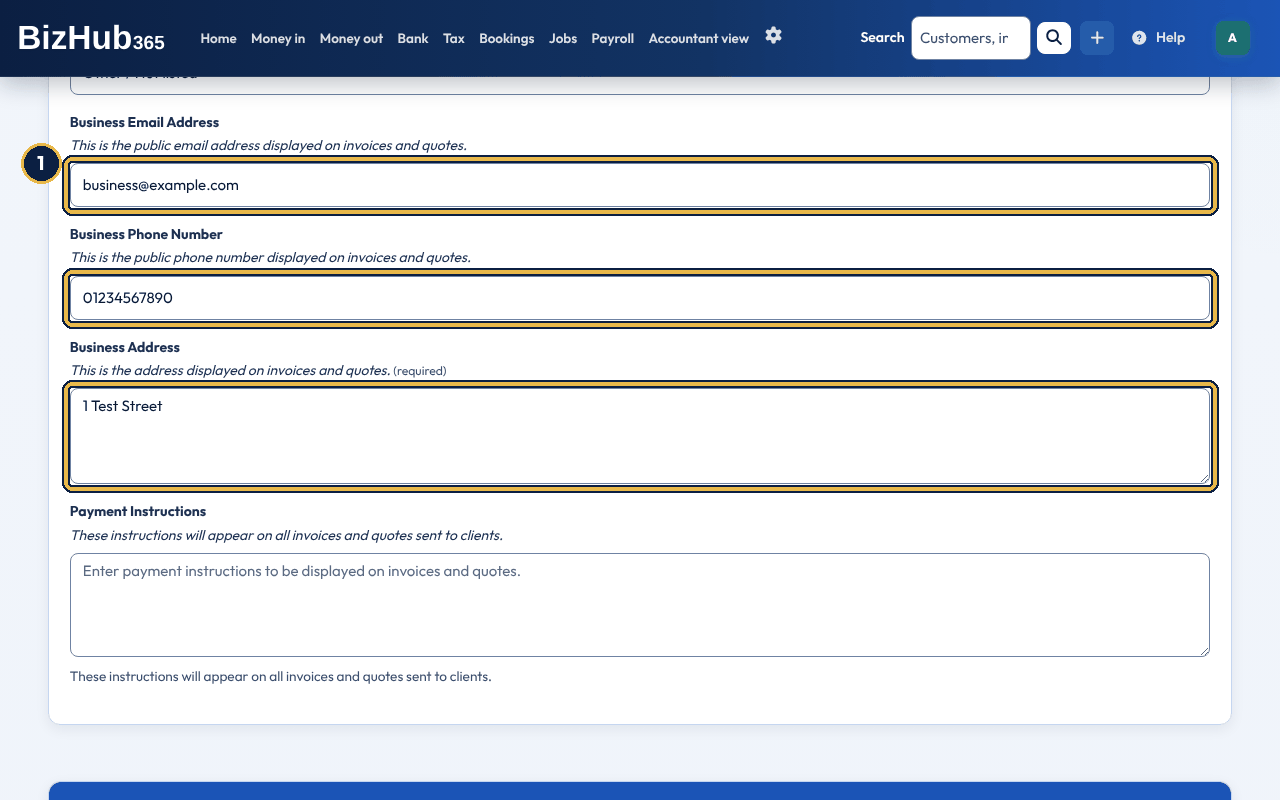
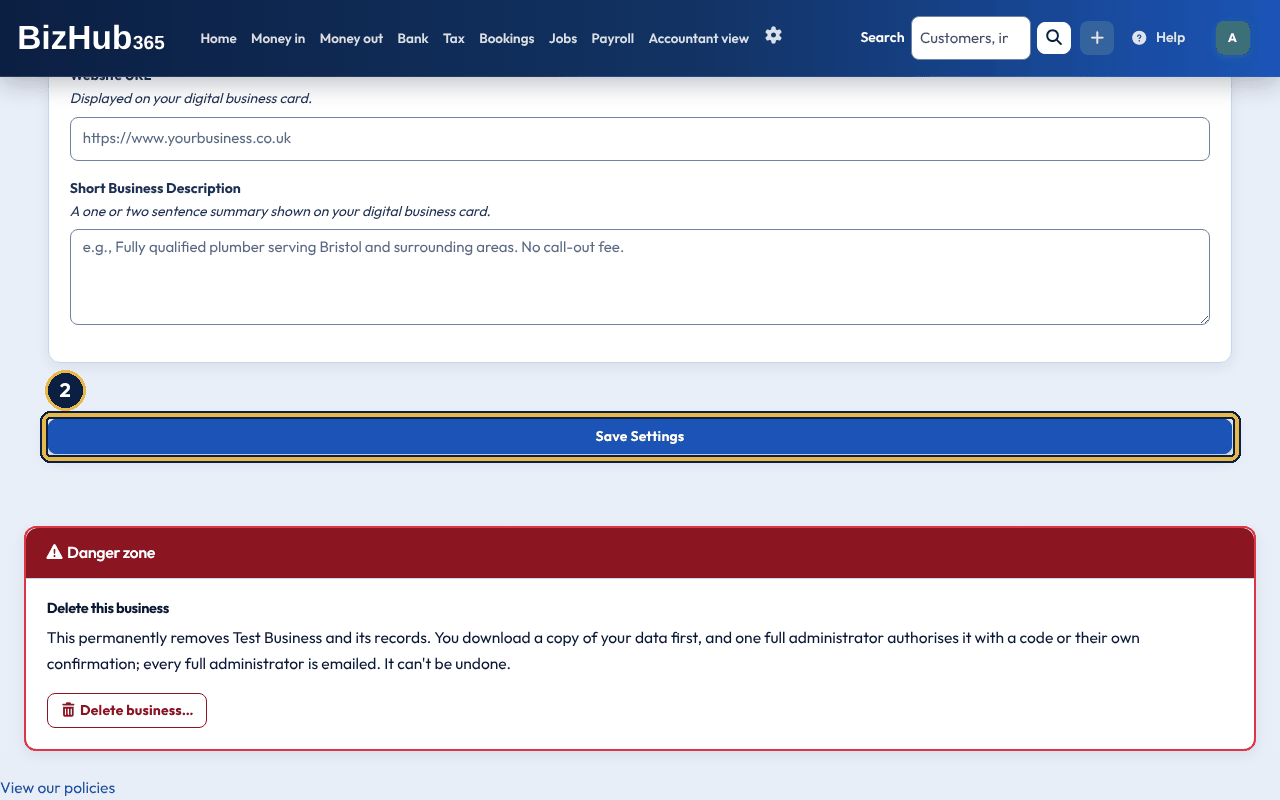
When it worked: You see Business settings updated successfully. New invoices and quotes use the new details. The change is written to the audit log.
| If this happens | Do this |
|---|---|
| Your logo was not changed. | The other settings were saved. Upload the logo again as a PNG, JPEG, GIF or WebP image; SVG files are not supported. |
| A message about one of the fields | The form stays filled in with what you typed. Correct the field the message names and choose Save Settings again. |
Changing the accounting reference date is recorded with an optional reason, and the page lists the change history. A new date that would make the first period shorter than 6 months or longer than 18 months is refused.
Where to find it: Settings→Business and tax setup→Manage sections
Switch off the parts of BizHub365 your business does not use, so the menus only show what you need.
| Switch | What it covers |
|---|---|
| Bookings | Diary, booking settings, appointment types, and staff availability. |
| Jobs | Jobs for your customers with their quotes, invoices, costs and time, and the customer job portal. |
| Banking | Bank transactions, statement uploads, import history, and matching rules. |
| Payroll | Employees, timesheets, pay runs, and HMRC RTI (FPS and EPS) submissions. |
| Tax (HMRC) | The Tax page, the HMRC hub, VAT returns and Income Tax updates, and reminders before each deadline. |
| Fixed Assets | The fixed asset register under Money out: adding, editing and disposing of assets, with monthly depreciation. On at the start for limited companies, off for everyone else. |
| CIS | The Construction Industry Scheme: CIS statements under Money out and the CIS subcontractor details on suppliers, and the CIS status in Business Settings for CIS invoices to contractors when you are a subcontractor. On at the start for construction and trades businesses, off for everyone else. |
| Accountant view | Ledger accounts and journal entries, in the Accountant view menu. Off at the start. Your reports, such as Profit and Loss, the Balance Sheet and the Trial Balance, stay on either way, and an accountant linked to your business always has it. |
| Online Booking | Your public booking page and the booking widget on your website. It also needs Bookings switched on. |
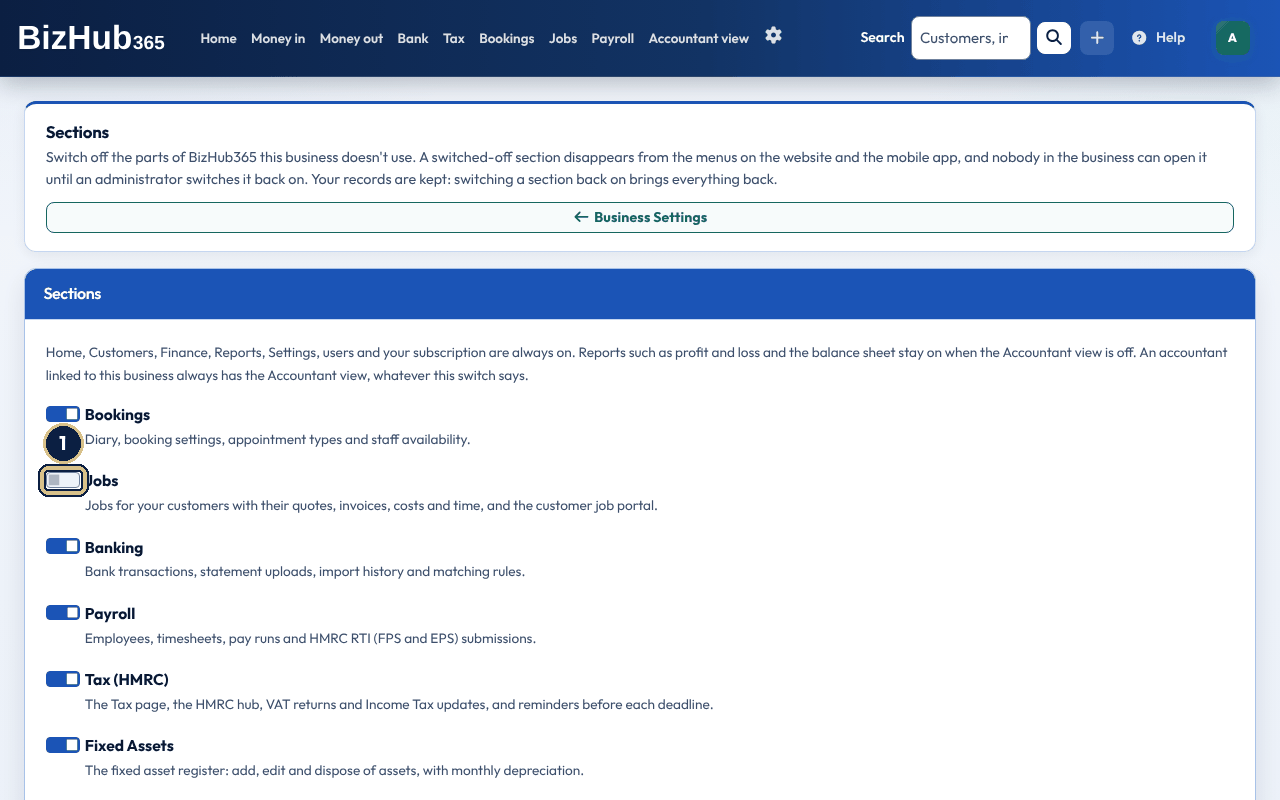
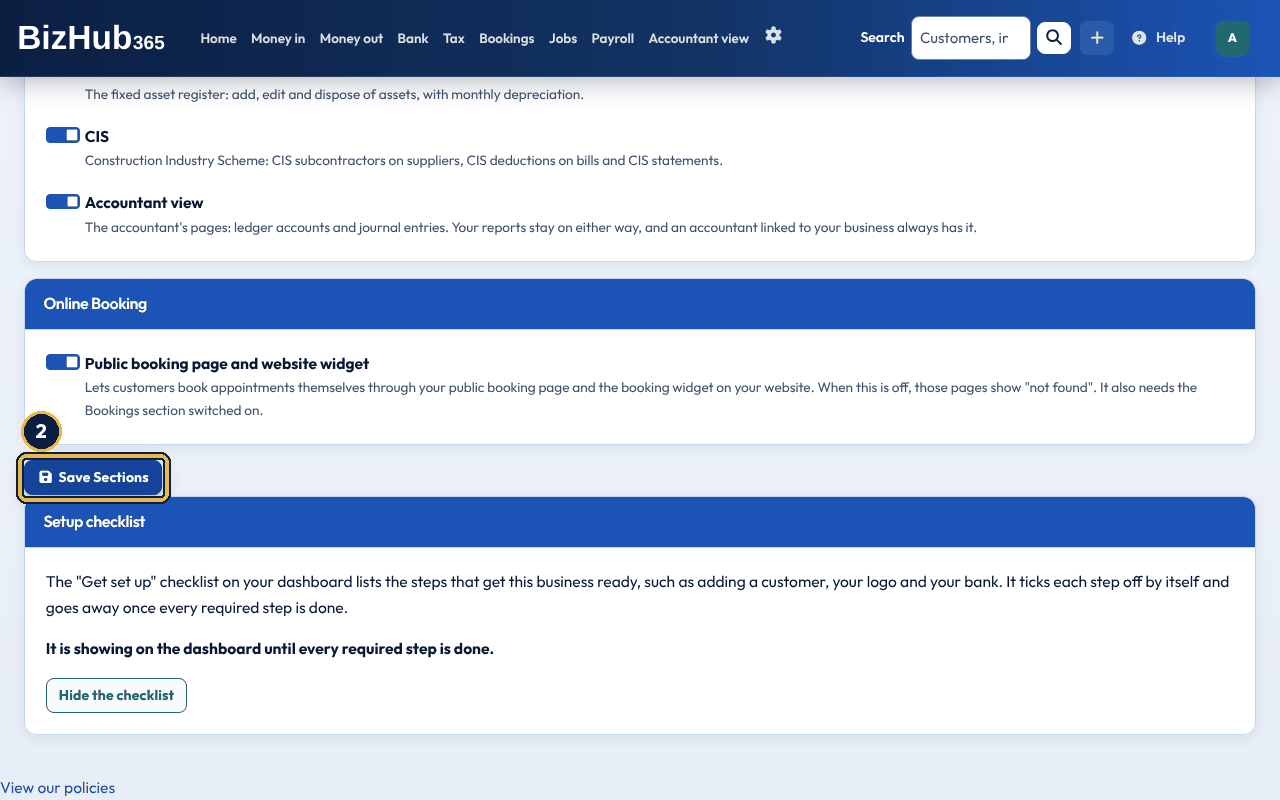
When it worked: You see Sections updated followed by what changed. The section disappears from the menus on the website and in the mobile app for everyone in the business.
The Sections page also has a Setup checklist card for the Get set up card on the dashboard (see Create your account and business). If it was hidden, choose Show the checklist on the dashboard to bring it back. Anyone with Edit permission can show or hide it.
Your operating hours and holidays decide when customers can book with you: the booking page offers no times on a holiday or outside your hours (see Bookings and your public booking page).
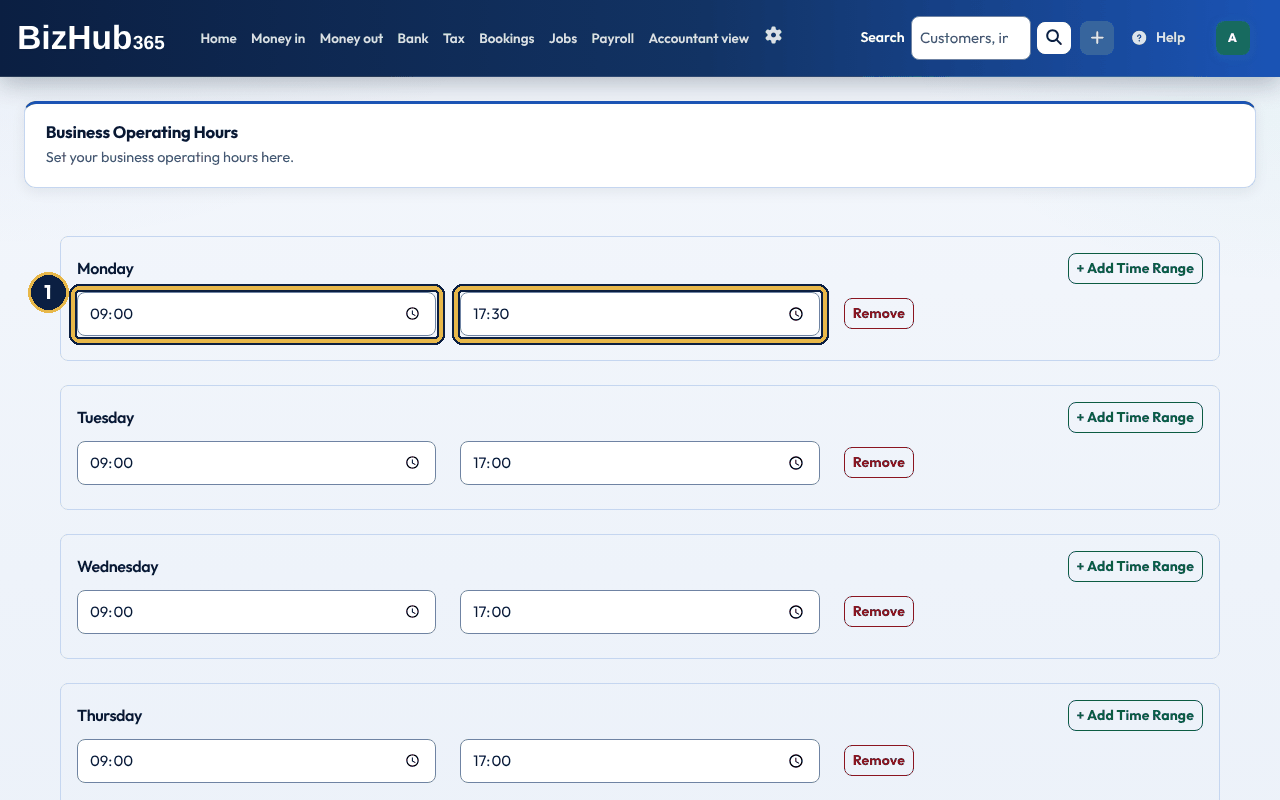
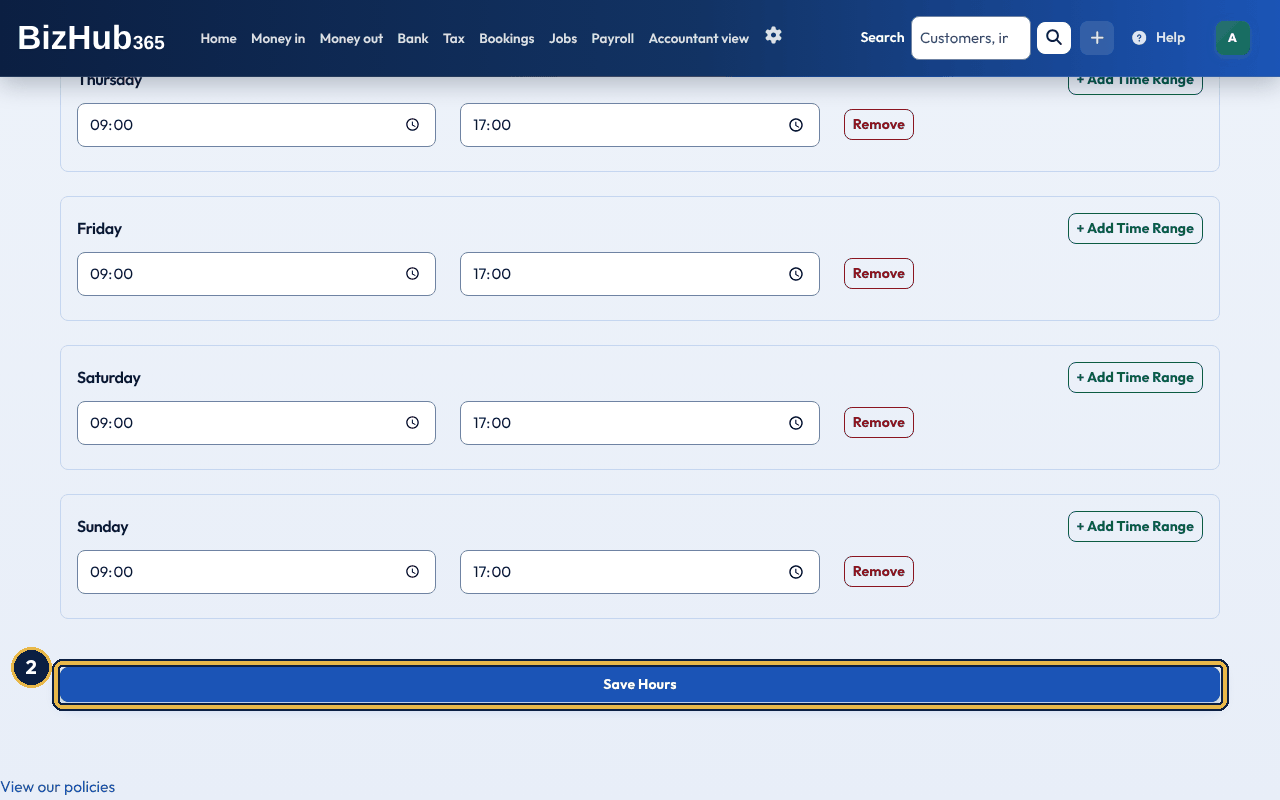
When it worked: You see Business operating hours updated successfully. People with View permission see each day's ranges, or Closed.
| If this happens | Do this |
|---|---|
| [Day]'s closing time must be after its opening time. Your hours were not changed. | Correct that day's times and save again. |
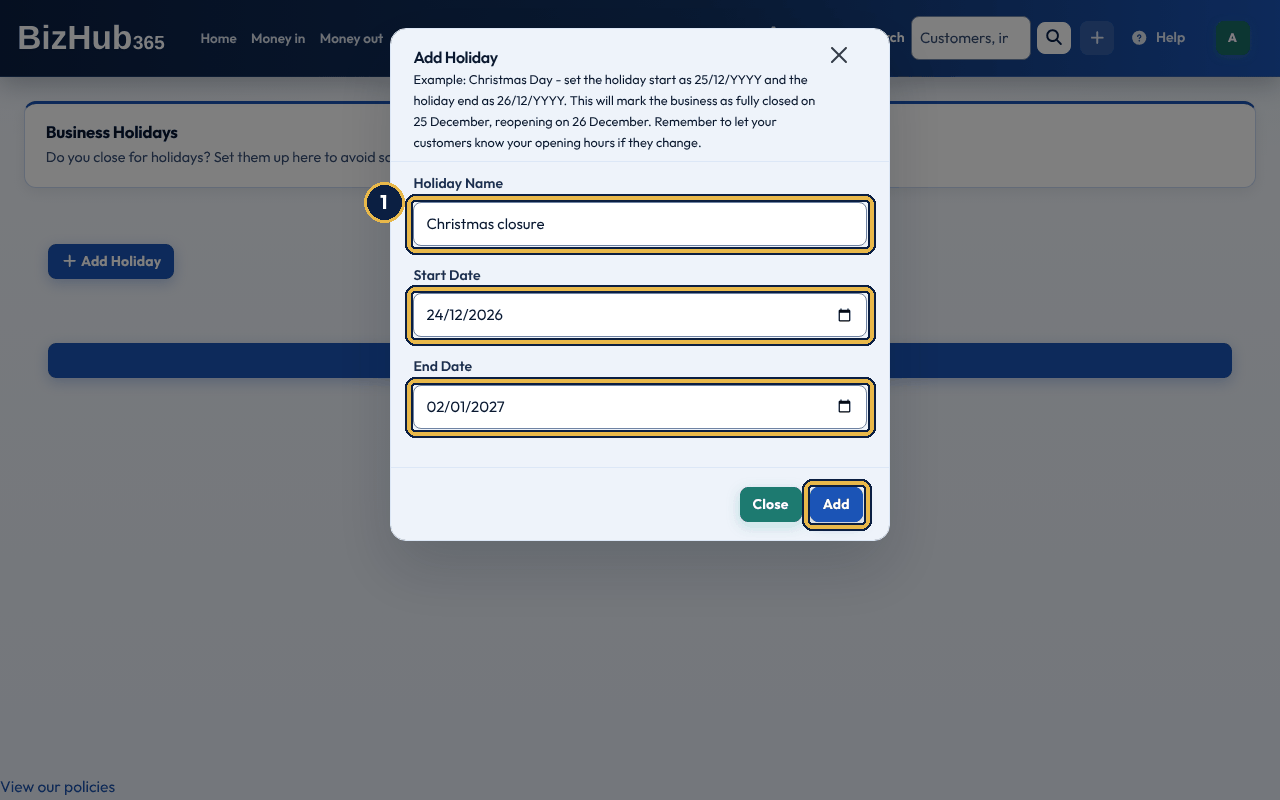
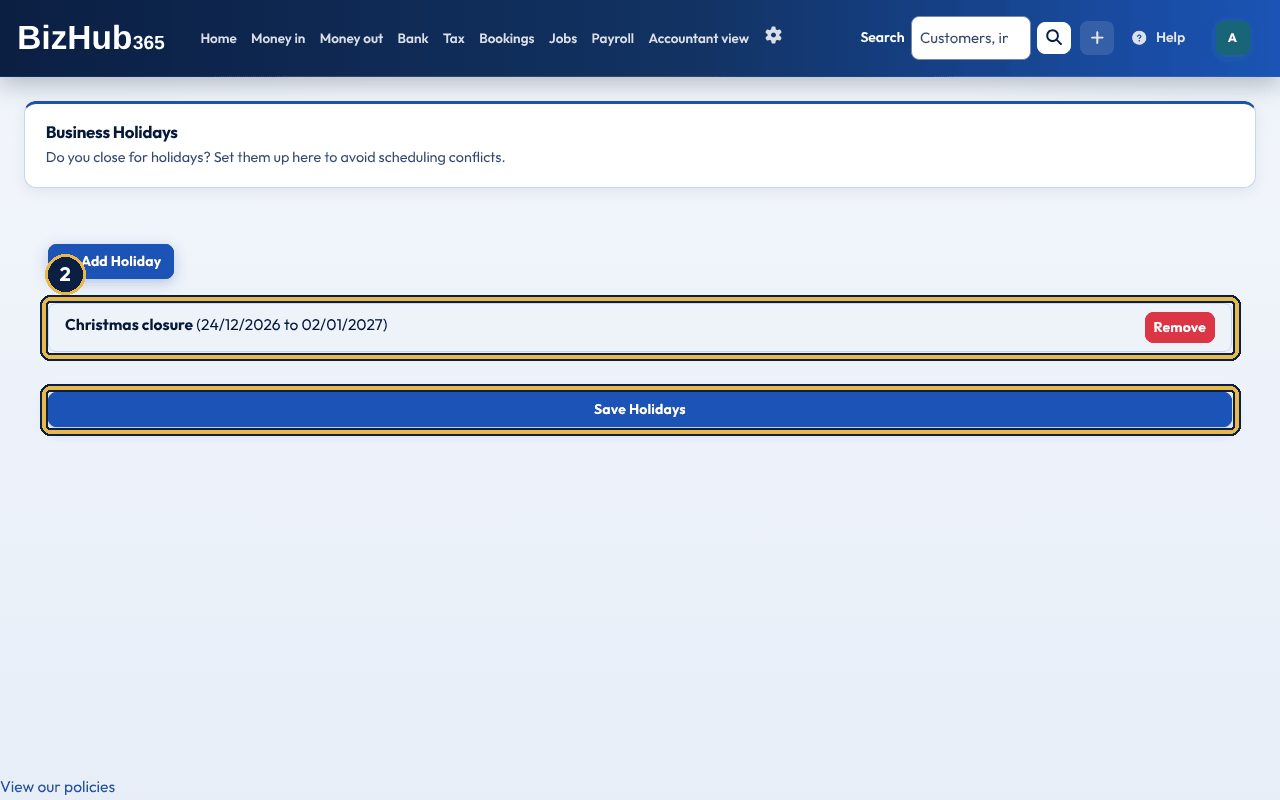
When it worked: You see Business holidays updated successfully. Remove on a saved holiday deletes it at once.
Where to find it: Settings→Invoice look
Each business has its own document brand: primary, secondary, accent and text colours, plus a font (Inter, Roboto, Open Sans, Lato, Merriweather, or Playfair Display). Set them in the bar at the top of the Template Editor and choose Save Branding; they apply to all your templates. Your logo comes from Business Settings.
Your customers need to be able to read what you send them. If a colour is too pale to read on white, the branding bar says so as you pick it, and again when you save. Documents and emails then use a slightly darker shade of that colour for text and links, and the email header title switches between white and dark text to suit your header colours.
The tabs are the templates you can change: the Invoice PDF, Quote PDF and Receipt PDF, and the Invoice Email, Quote Email, Payment Email, Credit Note Email and Statement Email. PDFs always use their template; an email uses its template once you have saved one, and until then BizHub365's standard email in your brand colours.
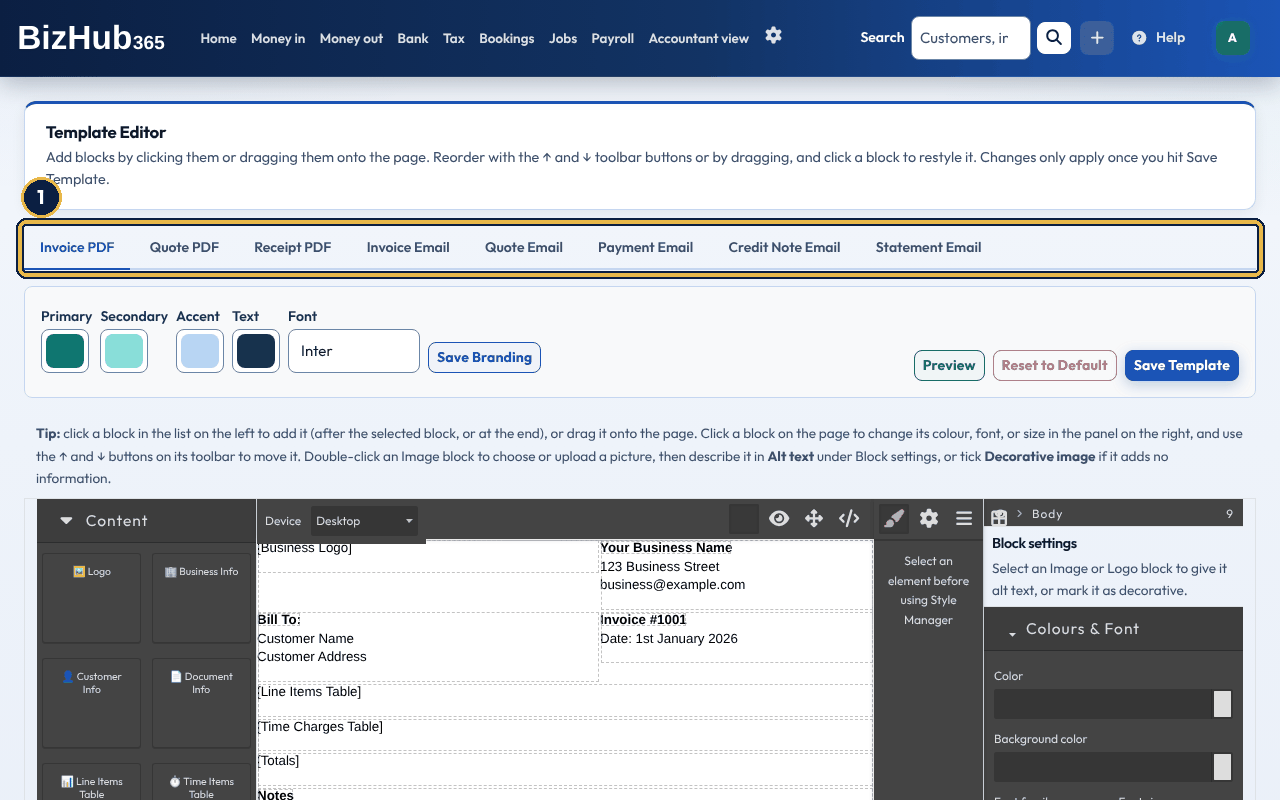
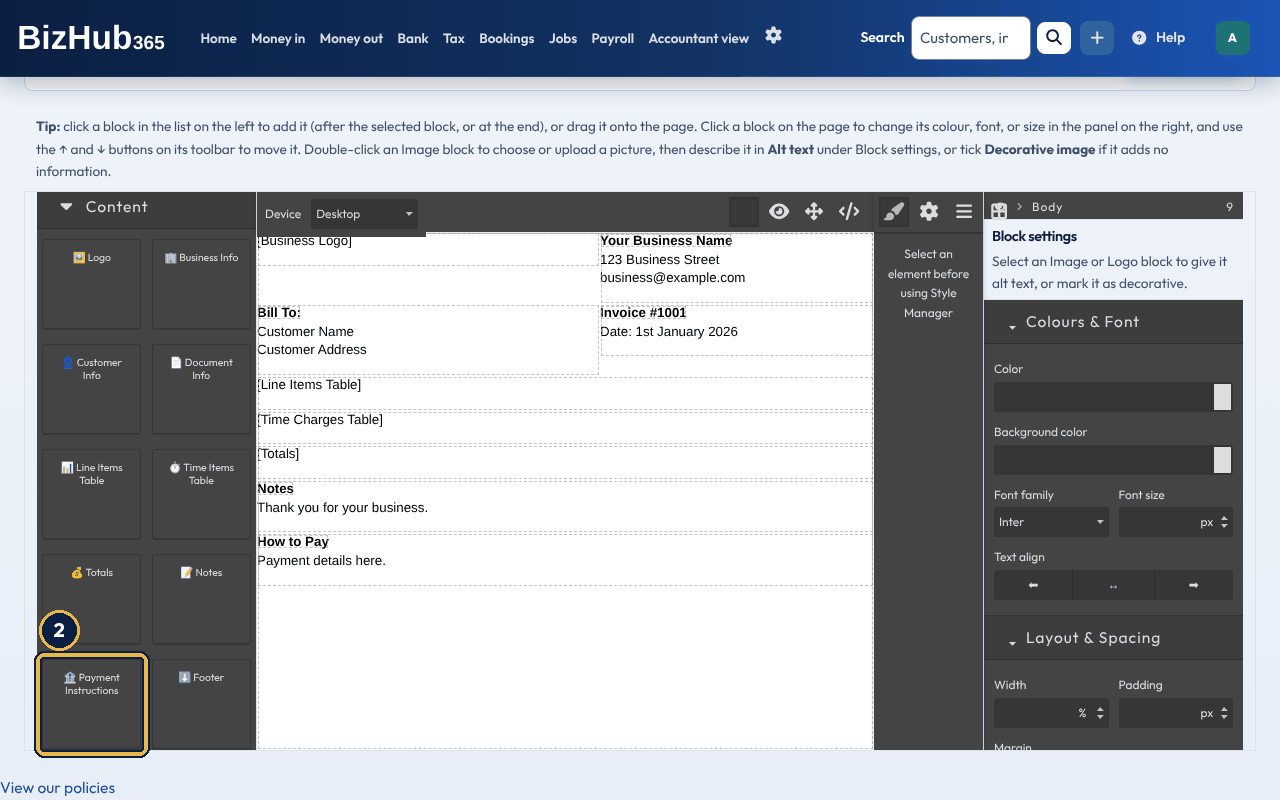
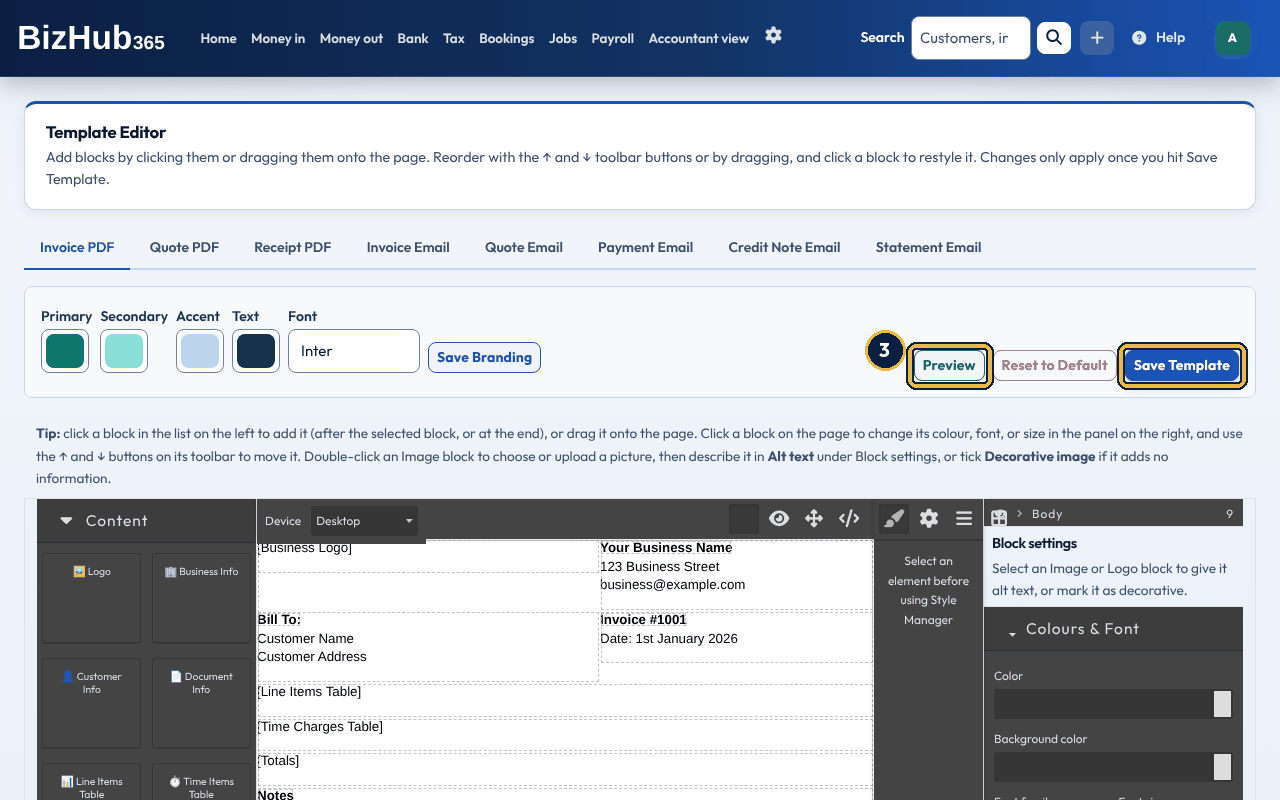
When it worked: The status line says Template saved. and new documents of that type use it. Reset to Default deletes your saved template for that type and goes back to the standard one; it is available as soon as you have saved once.
| Block | What it shows |
|---|---|
| Logo | Your business logo. |
| Business Info | Your business name, address, email, phone and VAT number. |
| Customer Info | The customer's company, name, address, email and phone. |
| Document Info | The document number and dates, such as the invoice date, payment terms and due date, or a quote's valid-until date. |
| Line Items Table | Each line with its quantity, price, discount, VAT and total. |
| Time Items Table | Time charges, when the document has any. |
| Totals | Subtotal, VAT and total; on a receipt, the payment and the balance remaining. |
| Notes | The document's notes. |
| Payment Instructions | Your payment instructions under “How to Pay”, when you have set some. |
| Footer | Your business name and website. |
| Message, Summary Table | On emails only: the email's message and a summary of the document. |
| Text, Image | Your own text, or a picture you upload. |
| Custom fields | One block for each custom field: its label and value, when the document has a value. |
Give every picture a text alternative so customers who use a screen reader know what it shows. Select an Image or Logo block and use Block settings on the right: type a short description in Alt text, or tick Decorative image if the picture adds no information (a border or pattern, for example). A logo with no alt text uses your business name. The text is saved with the template and goes into the PDF for screen readers. When you save, the editor tells you if an image still has no alt text.
Where to find it: Settings→Custom fields
Custom fields are extra boxes your customers need on their documents, such as a PO number or a site reference. Each is text, a number or a date, and applies to invoices, quotes or receipts. You fill it in when you create the invoice or quote; receipts print the value entered on the invoice, so a field for receipts must also be ticked for Invoice. Each field needs its own label.
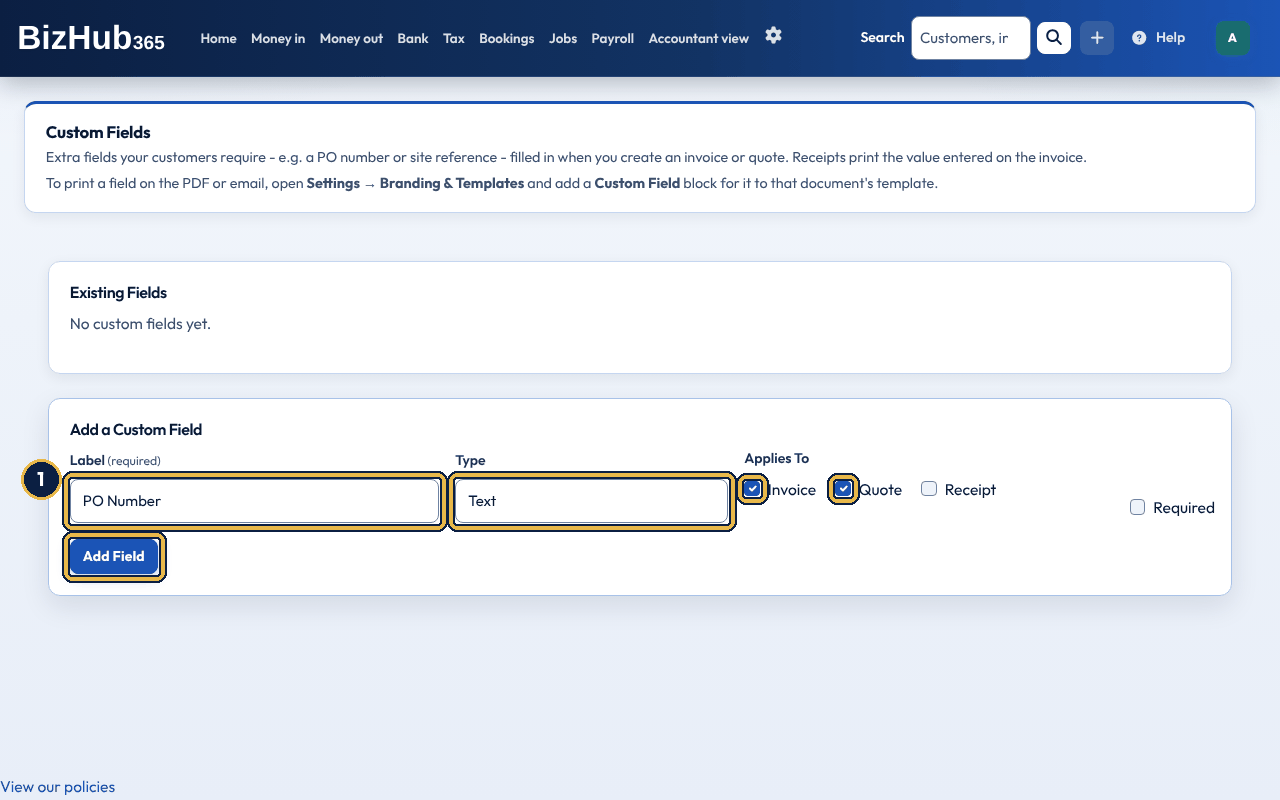
When it worked: You see Custom field "[label]" added. and it is listed under Existing Fields. The new invoice and quote forms show a box for it.
Where to find it: Settings→Company register
Record the company's officers, share classes and shareholders. The confirmation statement (CS01) report reads this register. Only people in your business can open it: View permission lets them see it, and Edit permission lets them add, change, or remove entries. Import from Companies House brings in the officers Companies House lists, once your company registration number is saved in Business Settings.
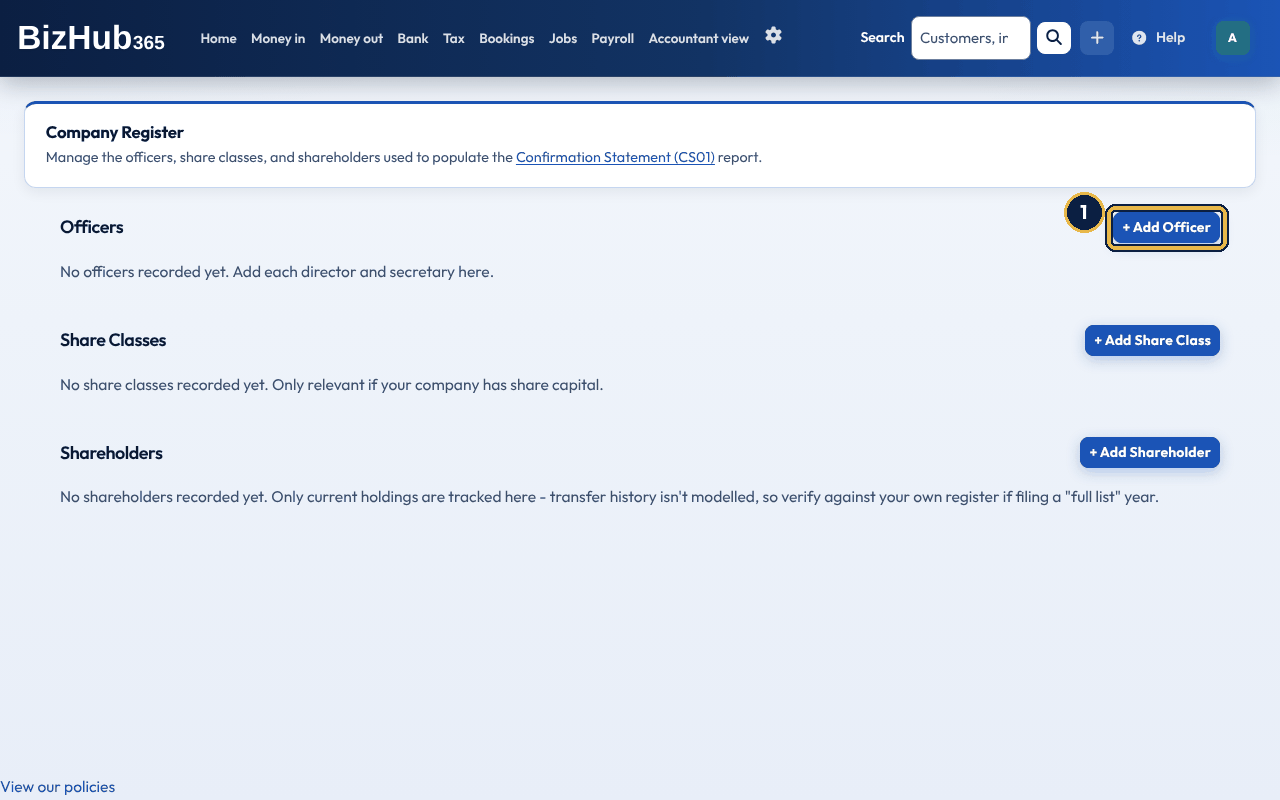
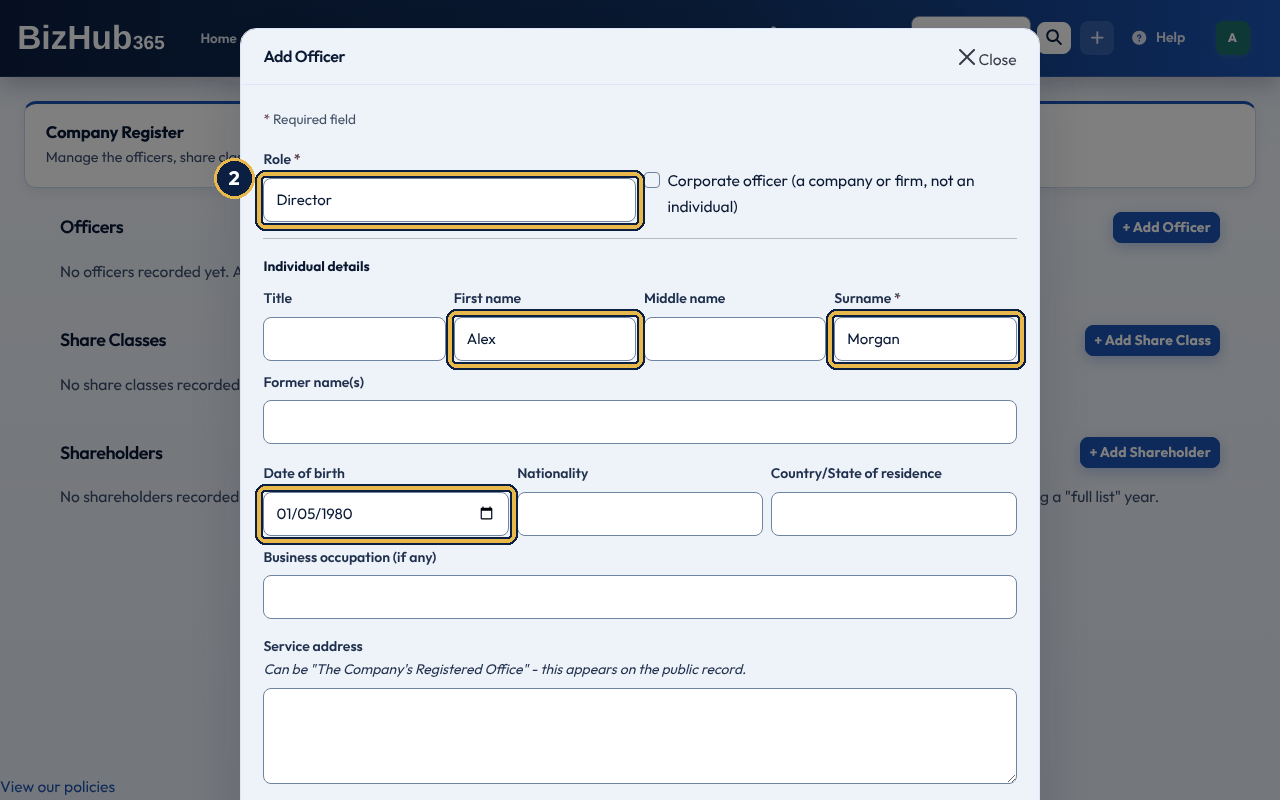
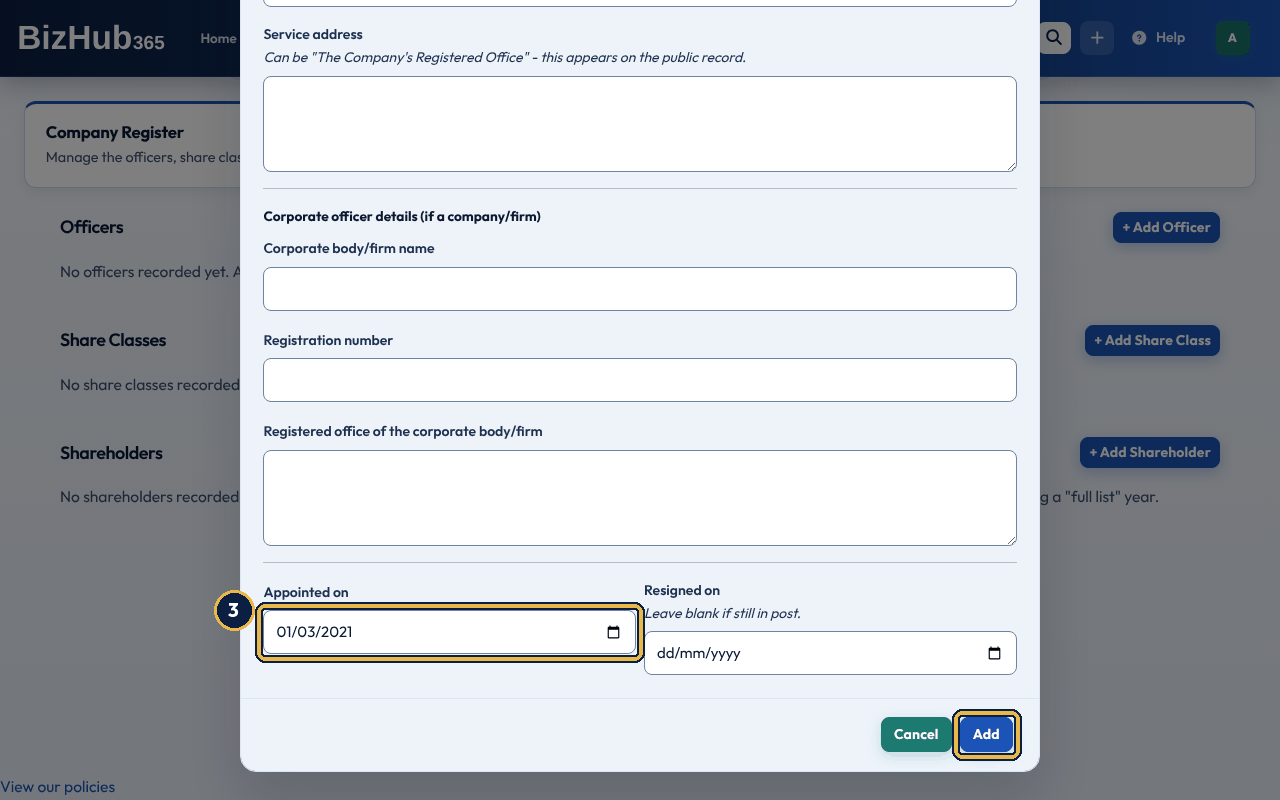
When it worked: You see Officer added. and the officer is listed with their role and dates. Edit and Remove on the row change or delete them.
| If this happens | Do this |
|---|---|
| Individual officers require a surname. | Type the officer's surname, or tick Corporate officer for a company or firm. |
Part V · Run the business · Chapter 21
Link payment providers, bring records in from your old accounts package, and restore a business from a backup.
Where to find it: Settings→Connect & Integrations
Connect & Integrations lists the payment providers you can link to BizHub365, under Payments. Each card shows Connected or Not Connected, has a How to set up guide you can expand, and a Connect or Manage button. A card marked Coming soon, with its button showing Unavailable, can't be used yet. Members with the Edit permission see it on the Settings page, under Connections and data.
Where to find it: Settings→Connect & Integrations→Open Connect
Open Connect at the top of the page opens Connect, with three cards:
The Payments cards let your customers pay an invoice online, with the money going straight to your own account with that provider. BizHub365 never handles the funds and takes no cut. Each provider's page needs the Manage Billing permission.
| Provider | What your customers see |
|---|---|
| Stripe Connect | Pay by card on the invoice email's Pay Now link, once you have finished Stripe's onboarding. |
| PayPal | Pay with PayPal: PayPal, Pay Later, or card. |
| Square | Pay by card (Square), only on invoices in your Square account's currency. |
| GoCardless | Pay by Direct Debit. The invoice is marked paid once GoCardless confirms the money has been collected, usually a few working days later. |
The SumUp card is different: it doesn't put a Pay button on your invoices. It brings your SumUp card payouts into Payout reports and checks your daily card takings against SumUp (see Card payouts from SumUp). When SumUp stops accepting the connection, the card says Connect again. Connecting Square also brings your Square card payouts into Payout reports and checks your daily card takings against Square (see Card payouts from Square). If your Square account was connected before that, the Square page says Connect Square again to read payouts.
Where to find it: Settings→Import & Recover
Under Import Data From External Platforms, you can import customers, invoices, expenses, payments, quotes, suppliers, credit notes, bookings and journal data from a CSV file, such as an export from QuickBooks, Xero, Sage or FreeAgent. You match each column to a BizHub365 field first. There is no live link to those systems.
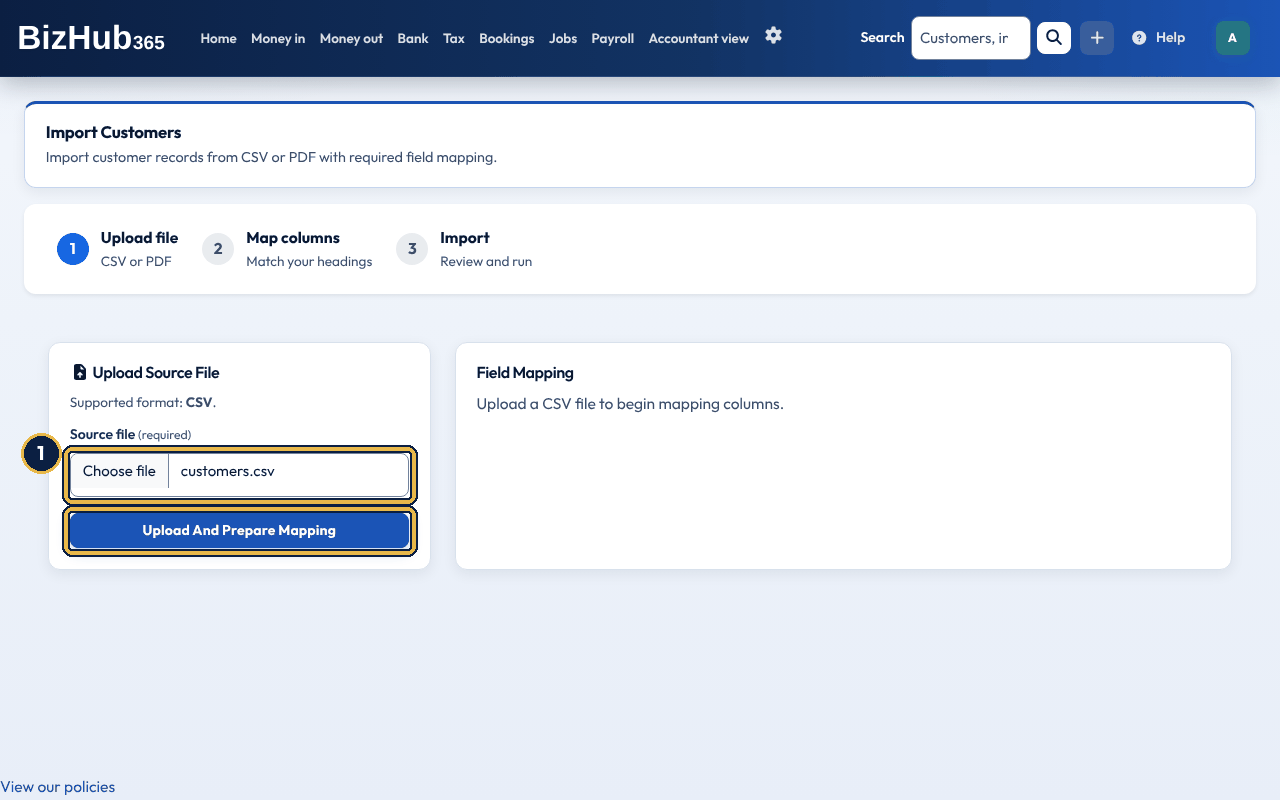
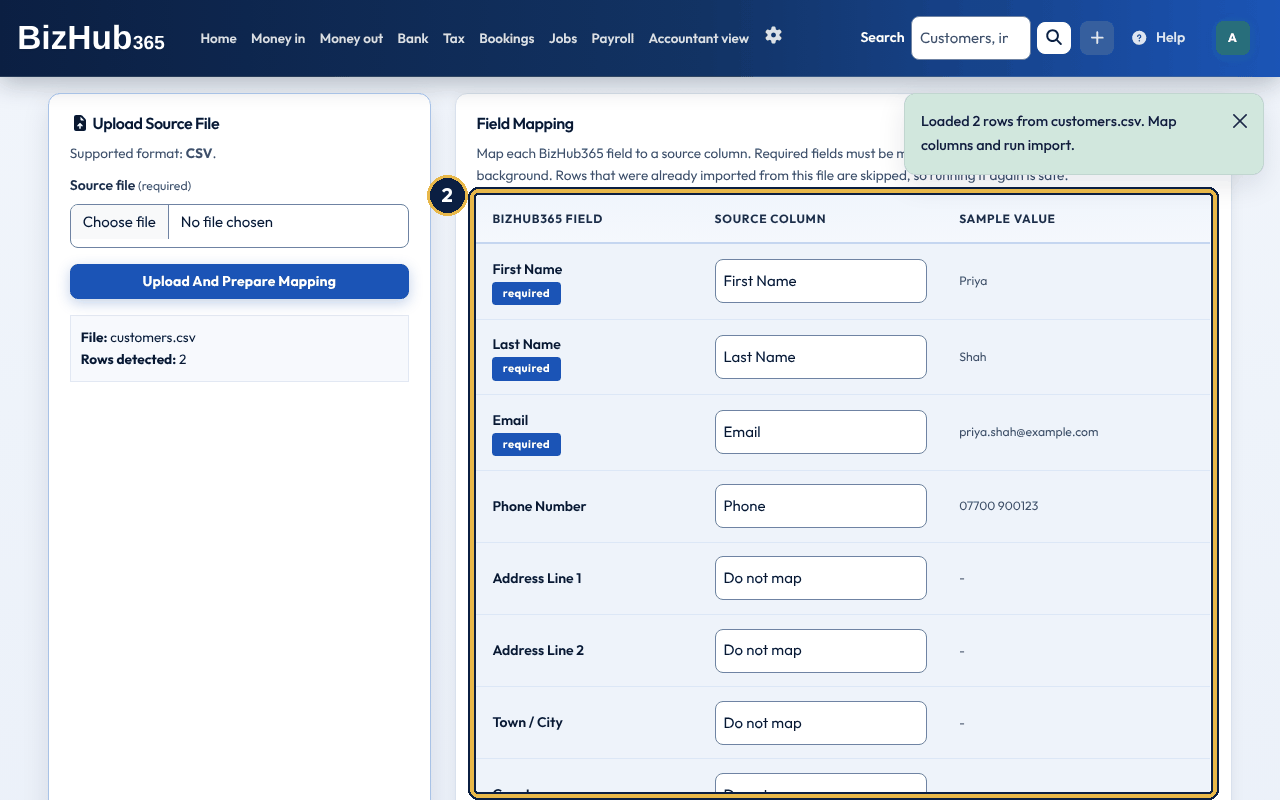
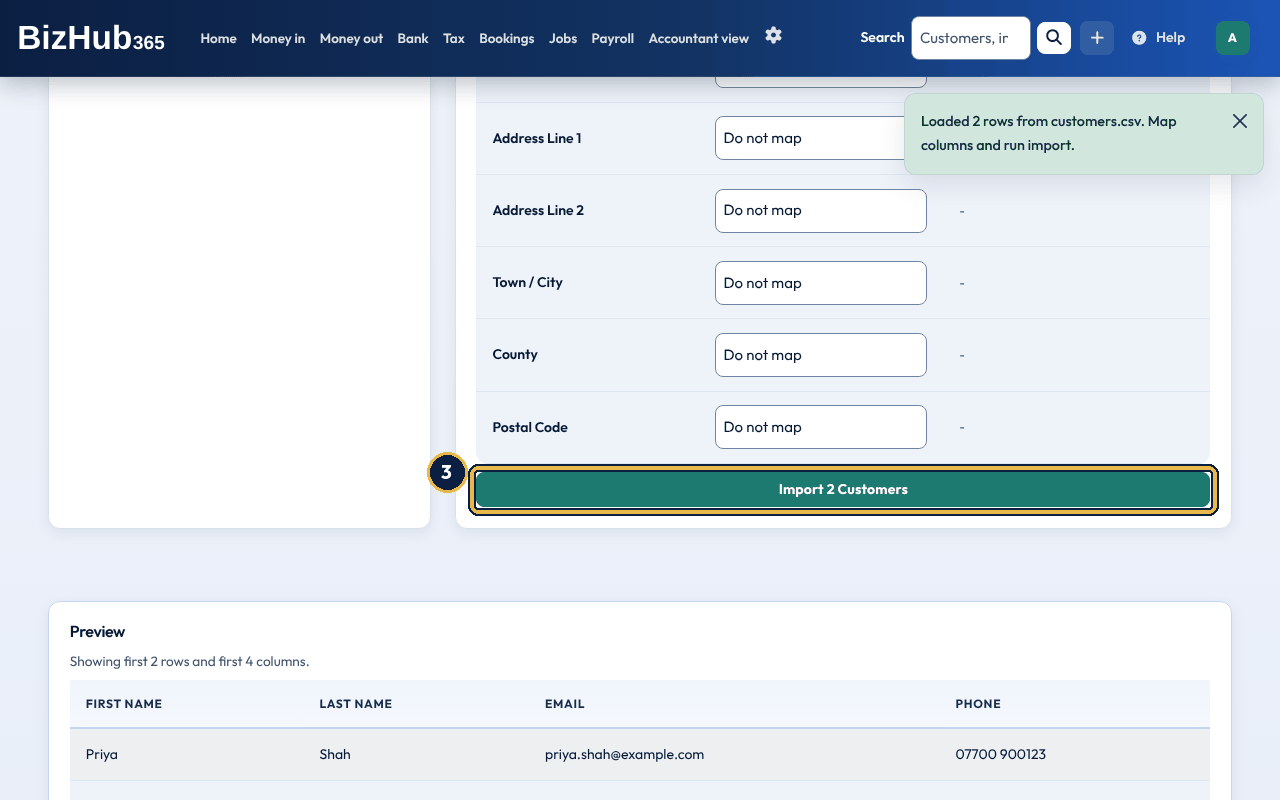
When it worked: The import runs in the background, so a large file does not time out. The page shows its progress and updates when it has finished, with the number of records created and any rows that could not be imported. You can leave the page while it runs.
Running the same file again is safe: rows that were already imported are skipped, not duplicated, and are counted as already imported. If an import stops part of the way through, run it again to finish it.
When a business is deleted, the first step offers an export ZIP of its records (see Security, audit, and deleting data). Restore from BizHub365 Backup on Import & Recover rebuilds a business from that ZIP: choose the file and choose Restore Backup ZIP.
Part V · Run the business · Chapter 22
Accountants register free, connect to clients, and can run a branded portal. Anyone else can register as a referral partner to earn from referrals. Clients keep paying for BizHub365 One.
Where to find it: Settings→Connect & Integrations→Open Connect→Browse Accountant Directory
The accountant directory lists accountants and bookkeepers who use BizHub365 and have chosen to be listed. Search by name, firm, address, phone or website.
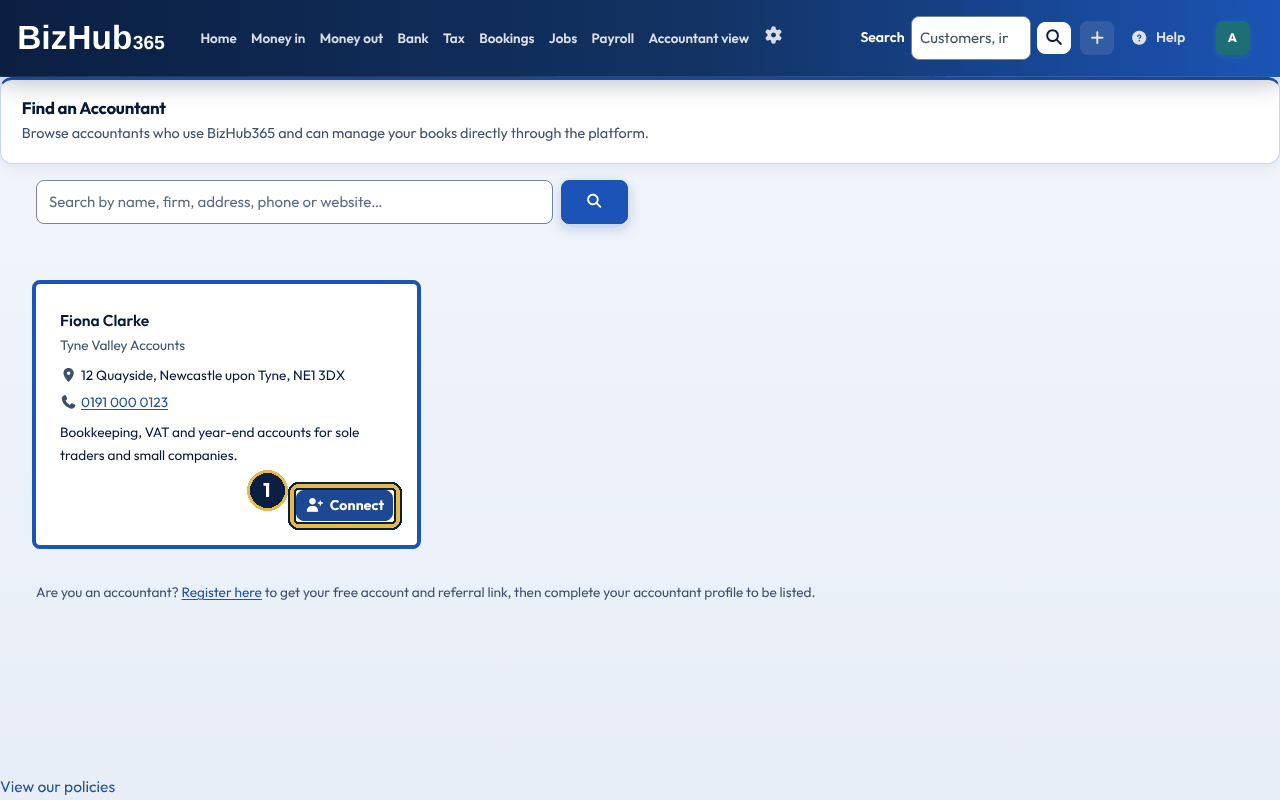
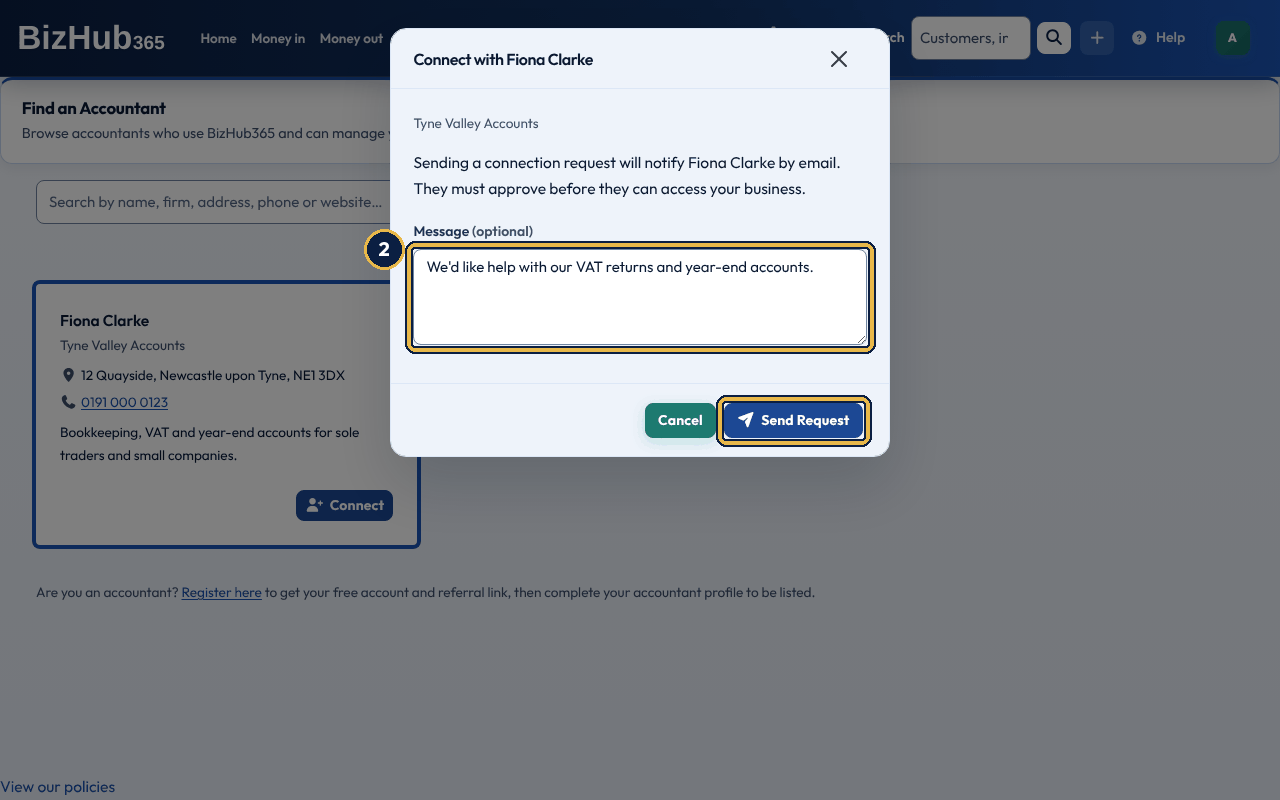
When it worked: You see Connection request sent to [name]. They'll be notified by email and can approve or reject it from their dashboard. Their card shows Request Pending. When they approve, the person who sent the request gets an email, the card shows Connected, and the accountant appears in your users with View, Edit and Manage Users access. They can work in the books but cannot change your billing.
You can also start sign-up from your accountant's referral link (/accountant/<code>/). The link is remembered and the accountant is connected to the business you create.
If you removed an accountant and want them back, choose Connect on their directory card again: they get a new request to approve. If an accountant declined your request, the directory says so and no new request is sent.
Everyone signs up at /referrer/ first, then accountants complete an accountant profile. There is no trial and no subscription for the accountant login. The old address /accountant/register/ takes you to the same page.
Your Accountant Dashboard lists your client businesses; Switch to Client opens one. When a business asks to connect with you from the directory, the request appears under Pending Connection Requests on your dashboard, and you get an email headed New client connection request. Choose Approve to get View, Edit and Manage Users access to their business, or Decline.
Anyone can earn from referring businesses to BizHub365 without being an accountant. Sign up at /referrer/ and stop there: you are a referral partner until you complete an accountant profile. It is free, with no trial and no subscription.
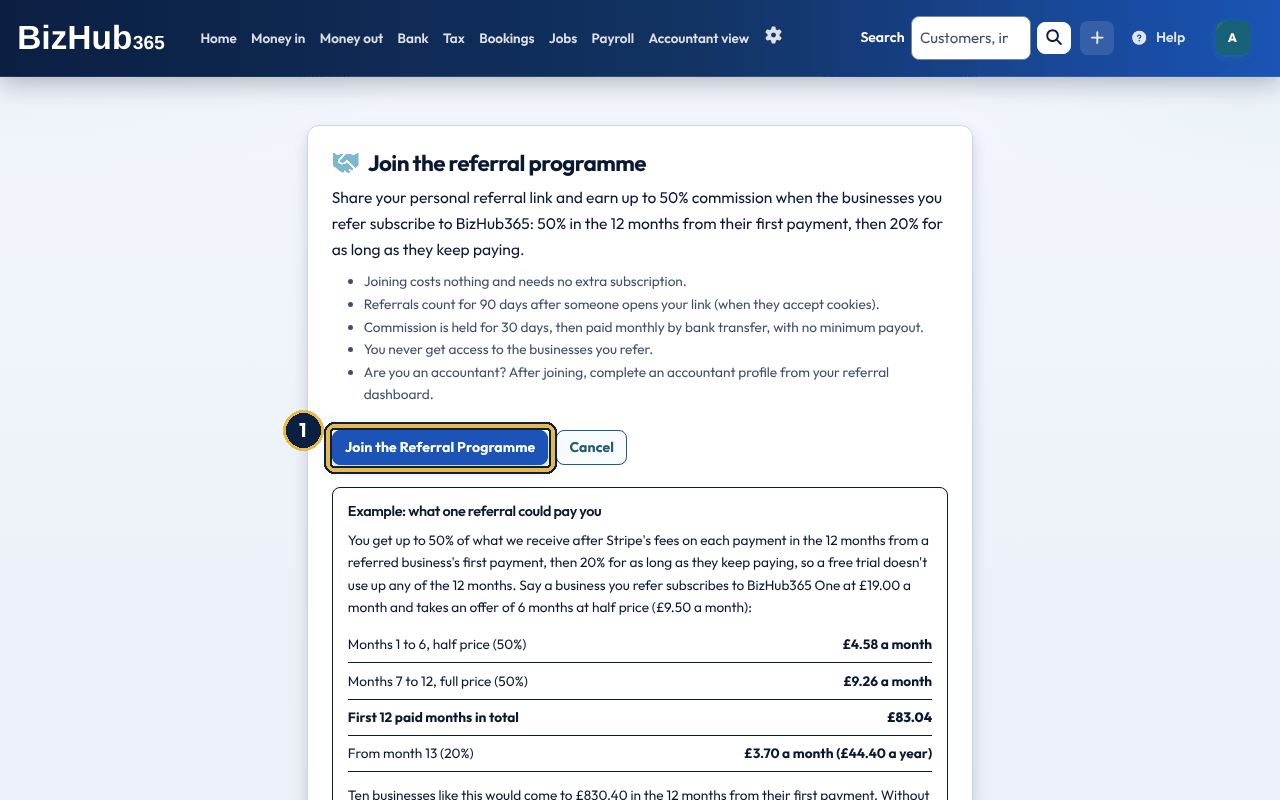
When it worked: You see You've joined the referral programme. Your referral link is ready to share. and your referral partner dashboard opens. From now on, the same menu item opens your dashboard.
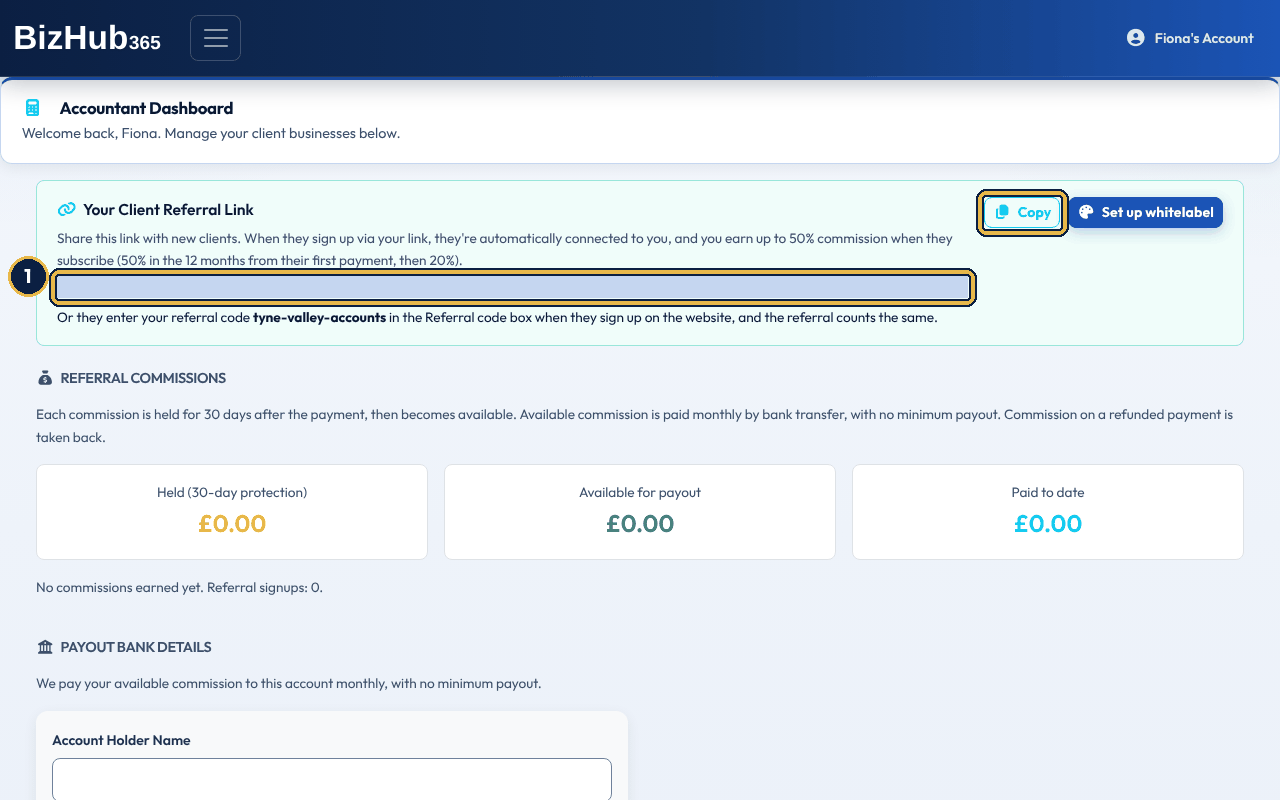
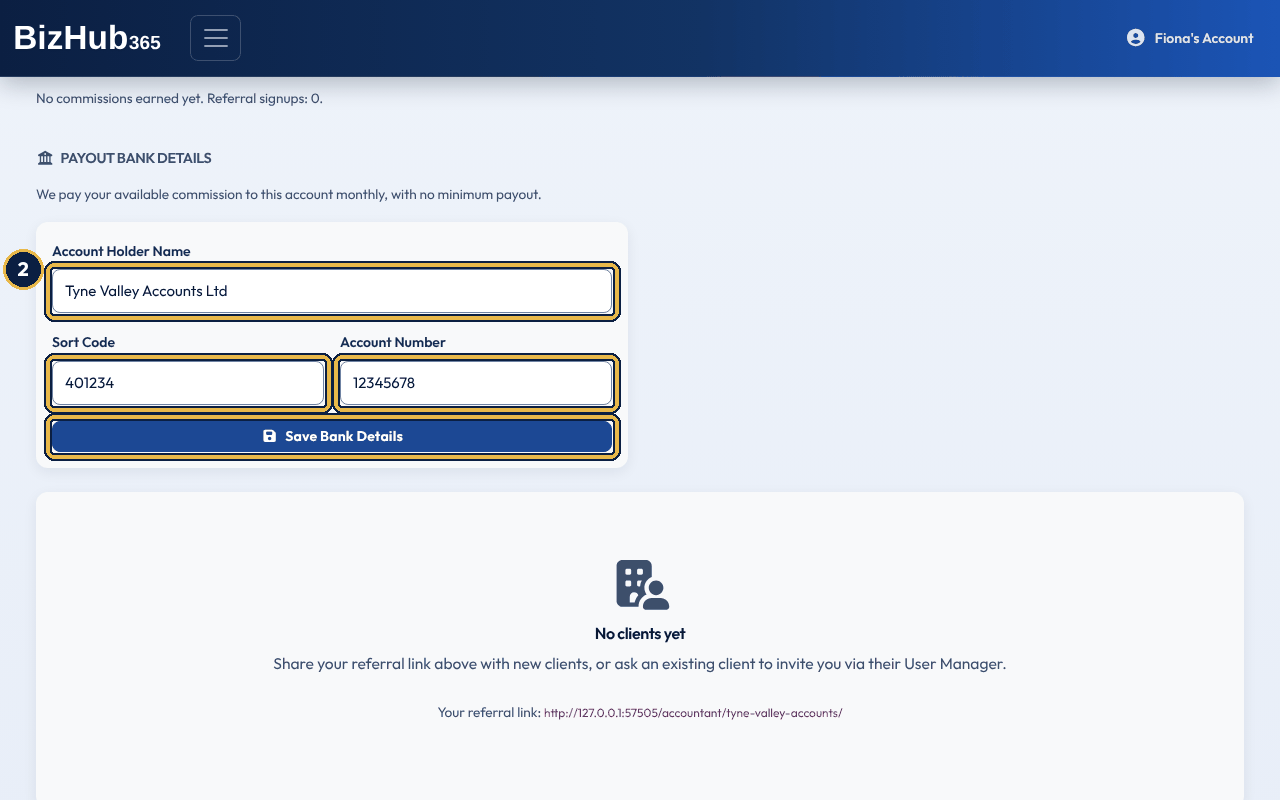
When it worked: You see Bank details updated. Your commission is paid to that account.
When a business signs up through your link and pays for BizHub365, you earn up to 50%: that is 50% of what we receive on each payment in the 12 months from the business's first payment, then 20% for as long as it keeps paying. What we receive is the payment less Stripe's fees: subscriptions are paid on the website only, through Stripe. Commission applies to payments made in pounds sterling (GBP). If a payment is refunded, its commission is cancelled, or taken off your next payout if it was already paid. Each commission is held for 30 days, then paid monthly by bank transfer, with no minimum payout. A business counts as your referral if it signs up within 90 days of opening your link (when it accepts cookies on our site), in the same visit, or with your referral code (there is a Referral code box on the sign-up form on the website). The partner sign-up page shows a worked example. The dashboard shows your held, available and paid commission, each commission with its rate, status and release date, and, for referral partners, the businesses you referred. In the iPhone and Android app, sign in with your partner account to see your referral code and commission; if you also use BizHub365 for a business, choose the Referral Programme tile in the Settings section of the menu.
If a client added you as their accountant while you are a referral partner, the referral partner dashboard also lists those businesses under Your Clients, with Switch to Client. If you are an accountant, choose Complete accountant profile on the referral partner dashboard. You keep your referral link, bank details and commission, you can be listed in the accountant directory, and new businesses that sign up through your link are connected to you. Businesses you referred before stay private: ask them to connect with you if you need to work in their books.
Where to find it: Accountant Dashboard→Set up whitelabel
Accountants can run a branded portal with their own brand name, logo, contact details and, if they add one, their own domain. Choose Set up whitelabel on your Accountant Dashboard, type a Brand name and choose Activate branded portal; the portal is live straight away, and the page then has your branding, contact and domain settings. Businesses that sign up through your portal earn the same commission as your referral link. Clients can install the portal as a desktop app from Chrome or Edge. It installs under your firm name and logo.
Account emails your clients get from the portal carry your brand: sign-in codes, sign-up and account deletion codes, password resets, security notices, team invitations and new-account details. When a client replies to one, the reply goes to the Reply-To email on your portal settings, or to your Contact email if that is blank, not to BizHub365. If neither address is set, replies come to BizHub365 support instead.
Part V · Run the business · Chapter 23
BizHub365 encrypts personal data, isolates each business, and keeps an audit trail you can export.
There is no password-only sign-in. The website and the mobile app both ask for the second check every time you sign in. An email code is valid for 5 minutes, and a new one replaces the one before. When you send something to HMRC, BizHub365 tells HMRC the time of that real two-factor sign-in, as HMRC's rules require.
Where to find it: Your avatar→Security
Choose how you confirm it's you when you sign in, delete your account or a business, or submit to HMRC. An email code always works as a backup. Your password is changed separately, from Password in your avatar menu. Adding or removing a passkey, the authenticator app or a phone asks for your current password, so someone using a device you left signed in can't change them.
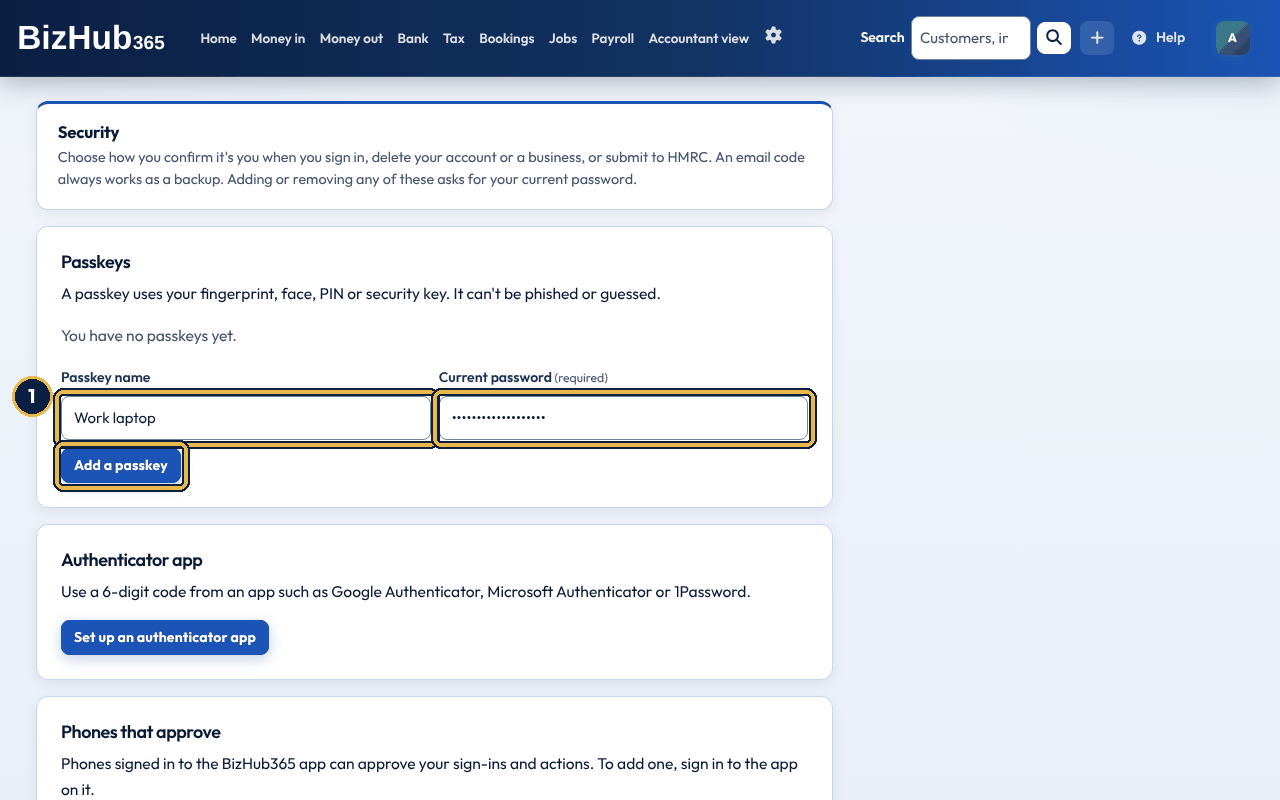
When it worked: You see Passkey added. You can use it instead of an email code. The passkey is listed with when it was added and last used; Remove deletes it.
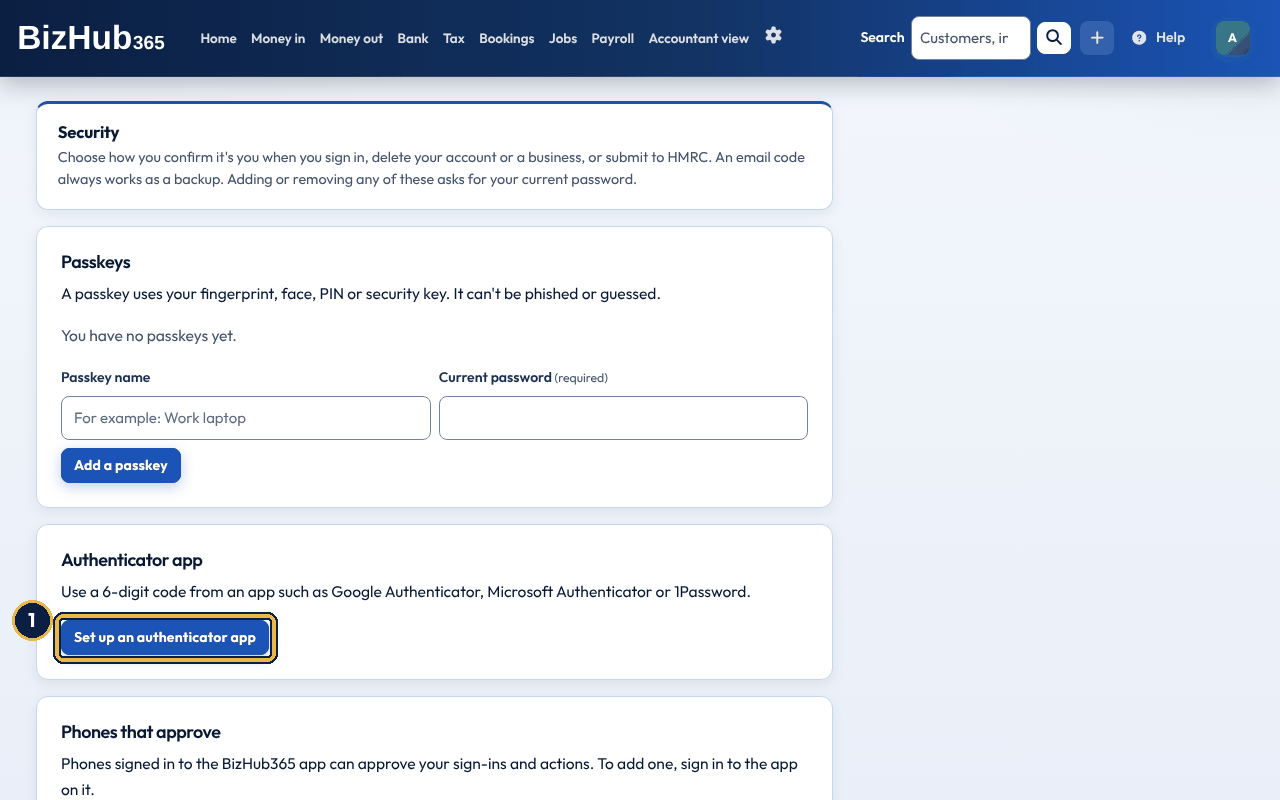
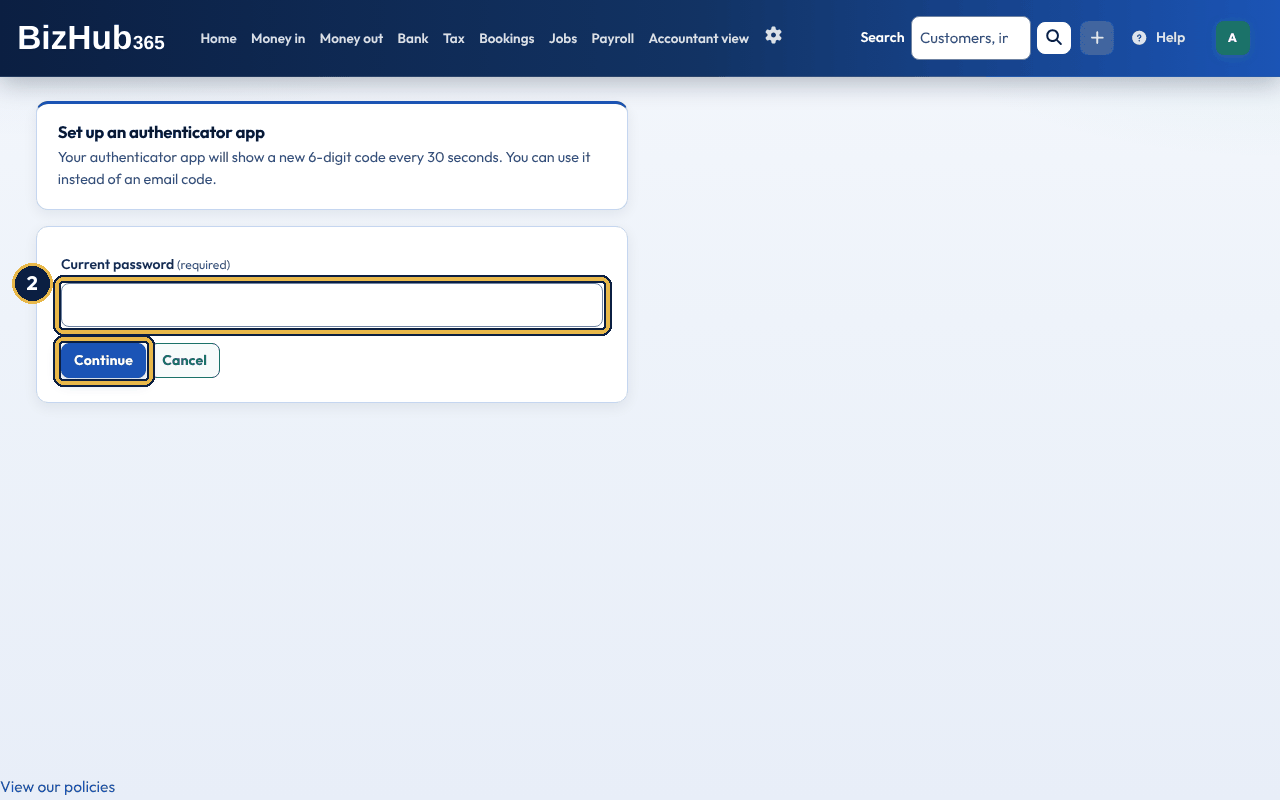
When it worked: The page shows a QR code: scan it with your authenticator app (or type the key shown under it), type the code the app shows in Code from your authenticator app and choose Finish setting up. You see Authenticator app set up. You can use its codes instead of an email code. Each code works once.
Where to find it: Your avatar→Password
Type your Current Password, then the New Password twice, and choose Change Password. The new password must be at least 8 characters, not a commonly used password, not only numbers and not too like your name or email address. We email you when your password is changed, and when someone tries to change it with the wrong current password, with the IP address and approximate location. A password reset link from the sign-in page works once, for 1 hour.
Where to find it: Settings→Audit log
The audit log is an immutable list of who did what, on which business, and when. It shows every entry for the business you're working in, and every entry you made yourself. Everyone in the business can open it. The page numbers keep your filters, and a date the page can't read is ignored with a message saying so.
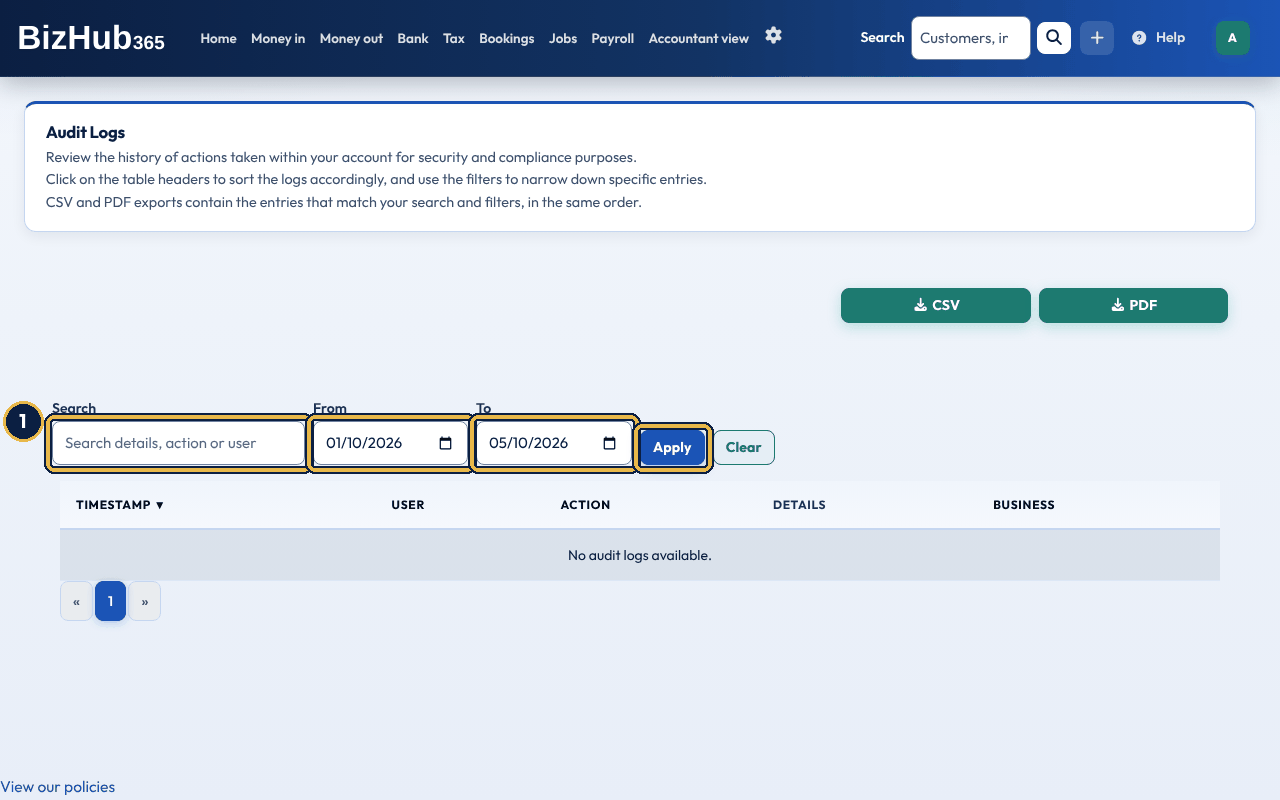
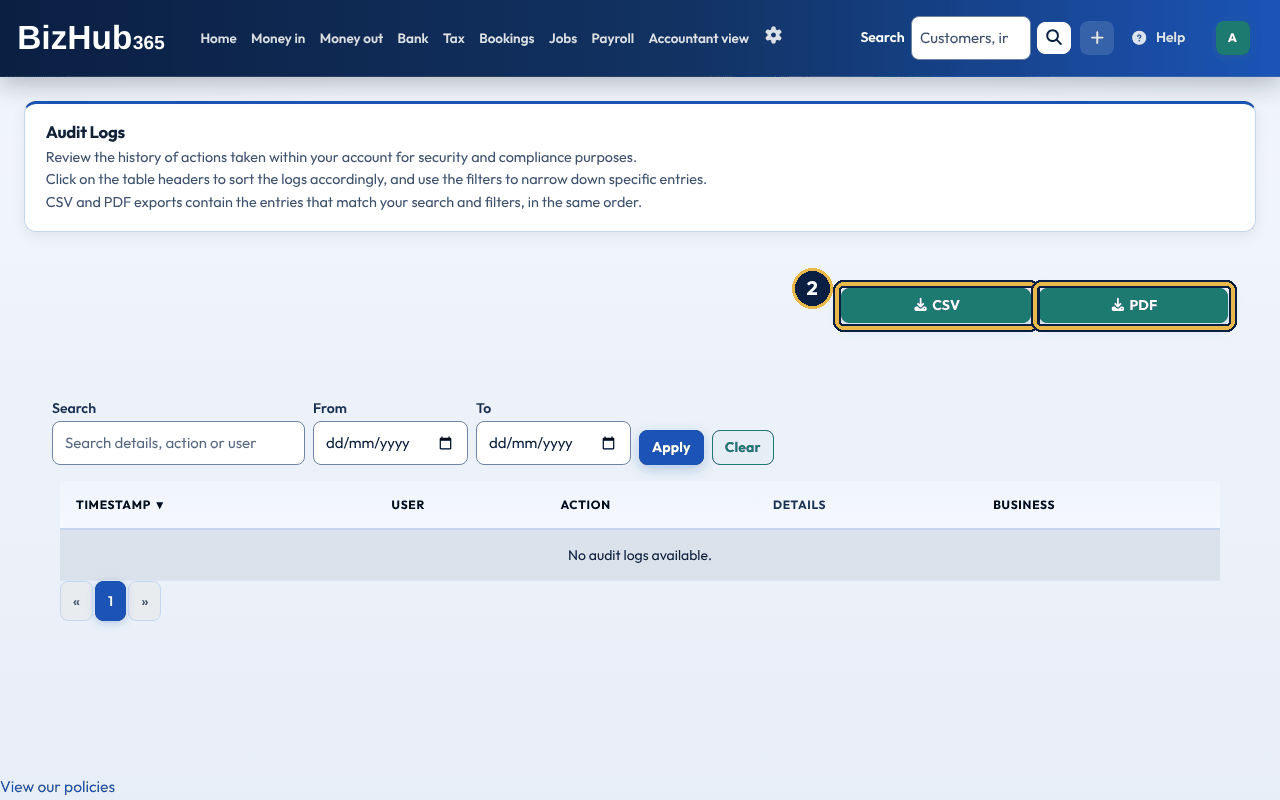
When it worked: The list shows 25 entries at a time. The CSV and PDF downloads contain exactly the entries that match your search and filters, in the same order, including other members' entries.
Where to find it: Your avatar→Security→Delete Account
This removes your login, permanently. It does not delete any business or its invoices. Delete Account is at the bottom of the Security page (open it from your avatar menu, or from the Settings page), whether or not a business is selected. If you are the only administrator of a business that has other members, make one of them an administrator first (Settings → Team). Until then the page says so and the account is not deleted. If nobody else belongs to a business, deleting your account cancels its subscription straight away and refunds the unused time. The page lists these businesses before you confirm.
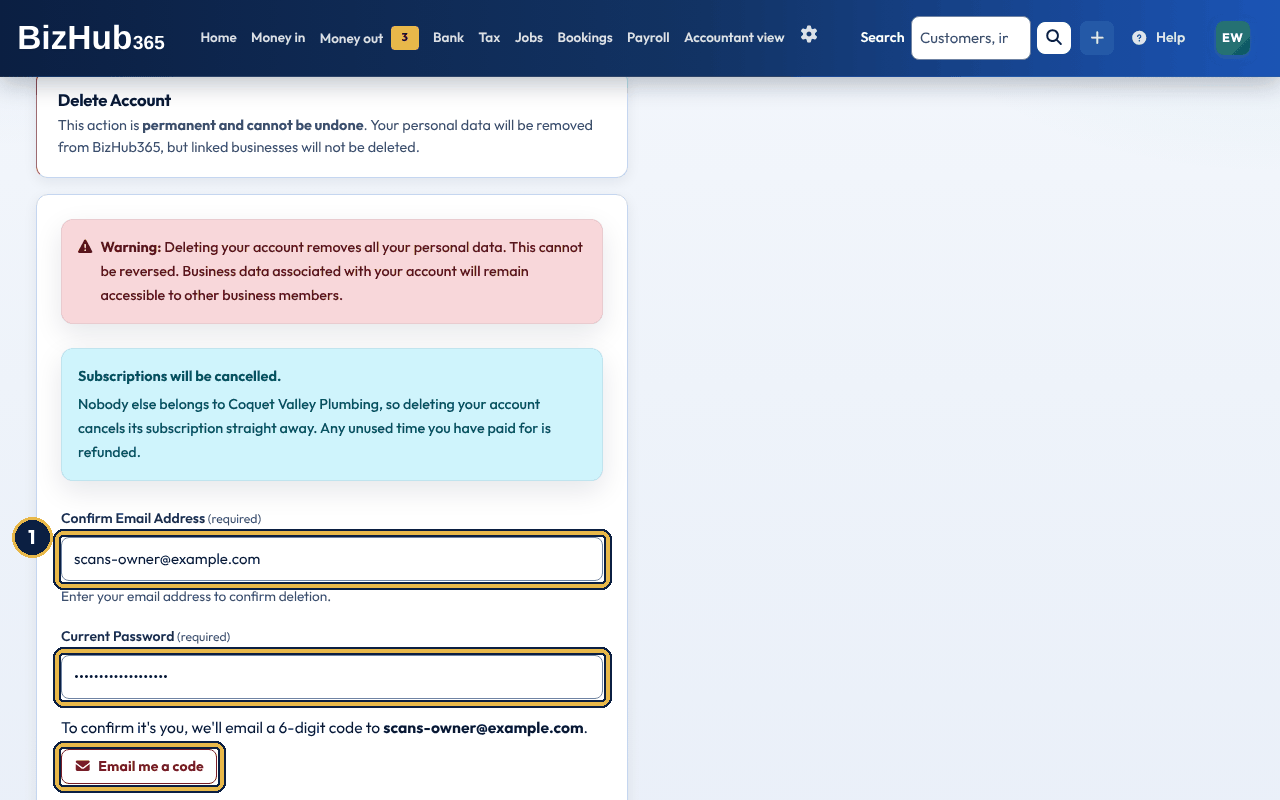
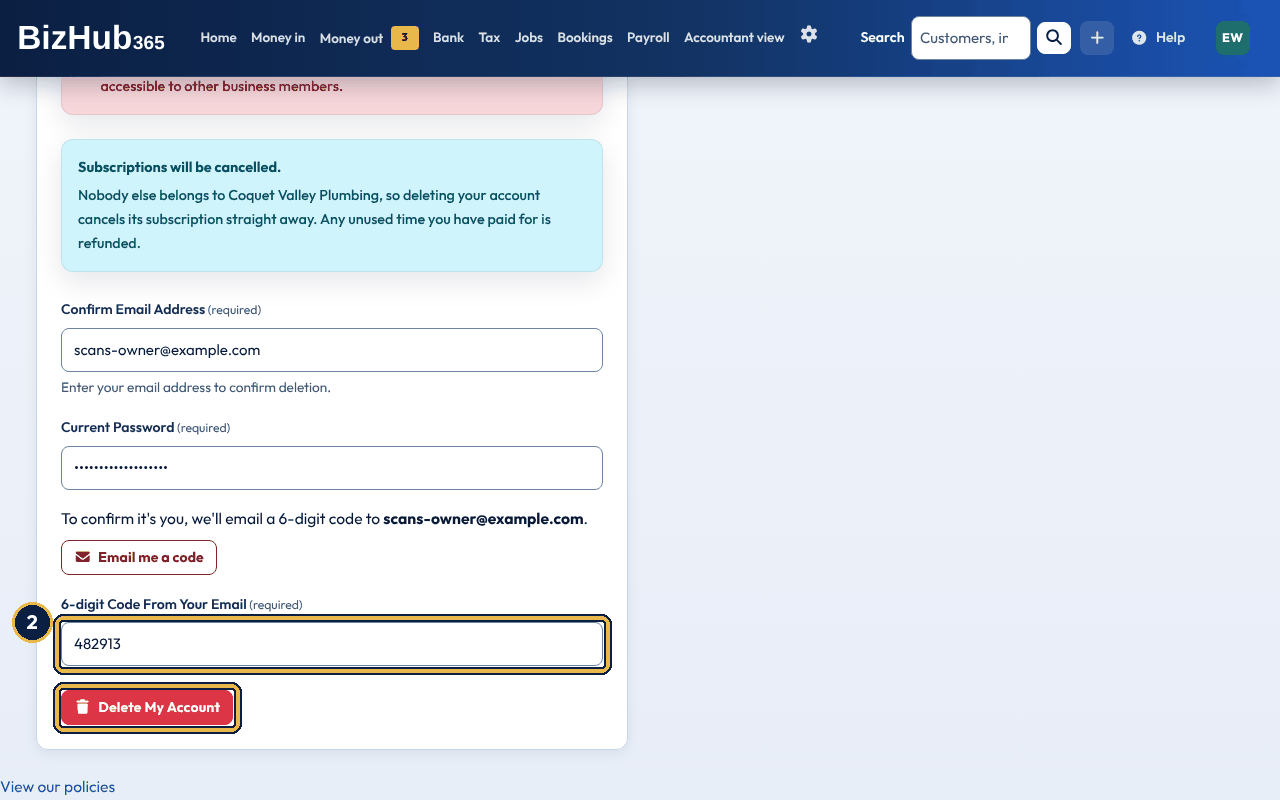
When it worked: You are signed out and your login is deleted, and you get an email confirming it.
In the mobile app, go to Settings → Delete Account. You need your current password and a passkey, authenticator code or emailed code there too. An older app version shows “Please update the BizHub365 app to continue.” Update the app and try again.
Where to find it: Settings→Business and tax setup→Danger zone→Delete business
Delete business is at the bottom of Business Settings, in the red Danger zone box, so it can't be chosen by mistake from the everyday Settings menu. People with the Manage Billing permission see it, and only a full administrator (View, Edit, Manage Users and Manage Billing) can go through with it.
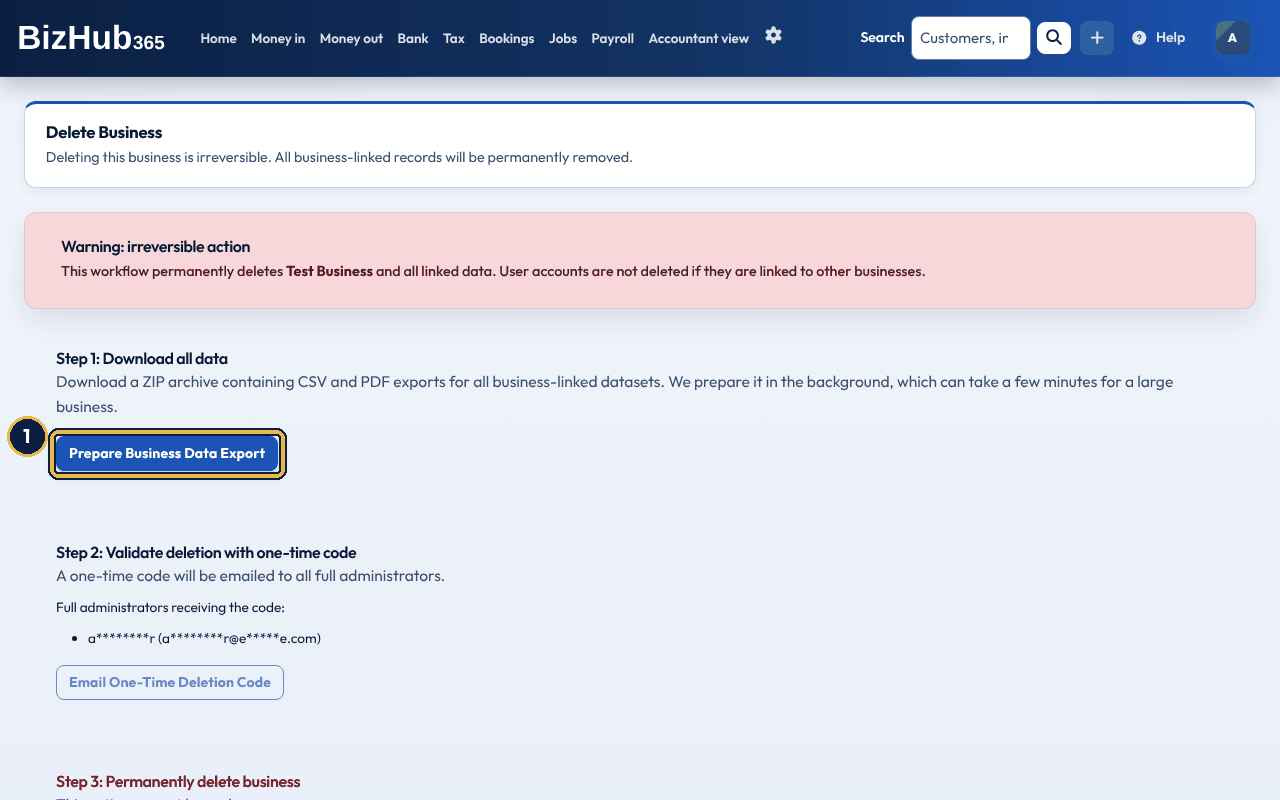
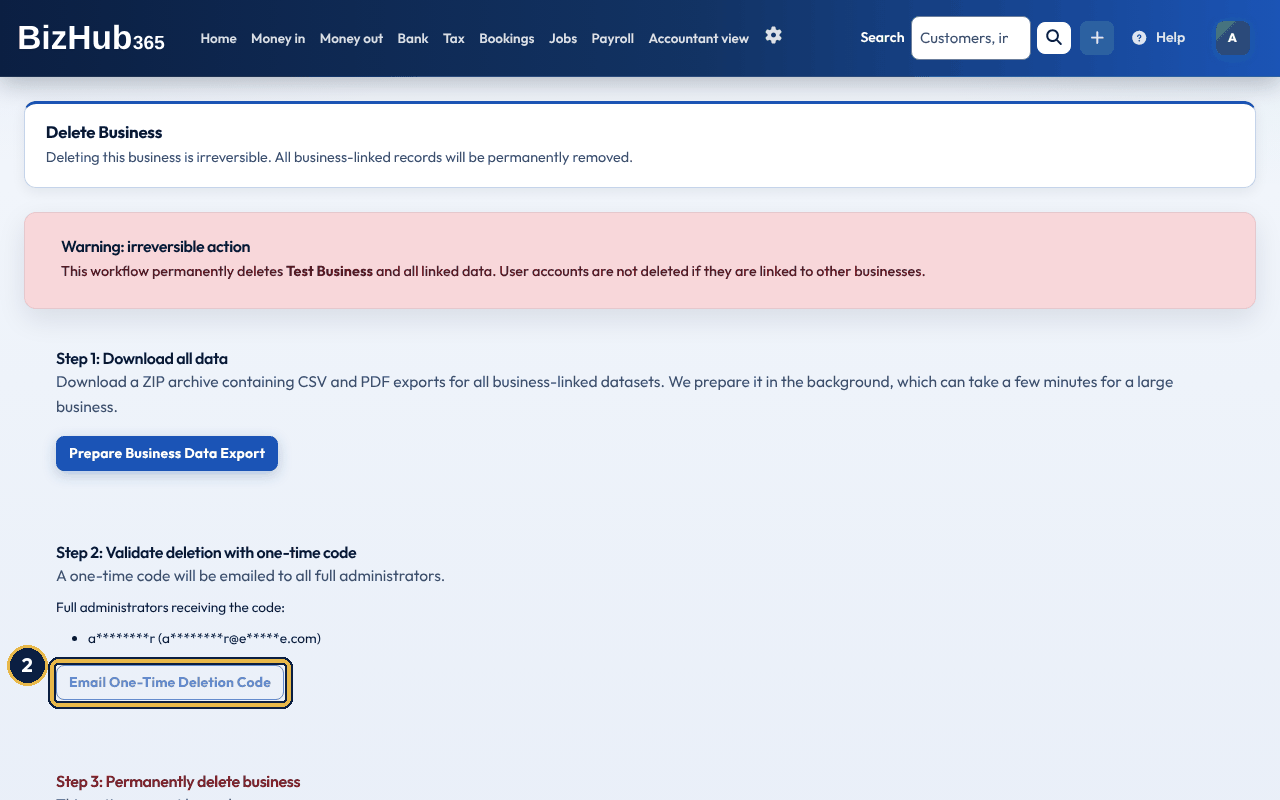
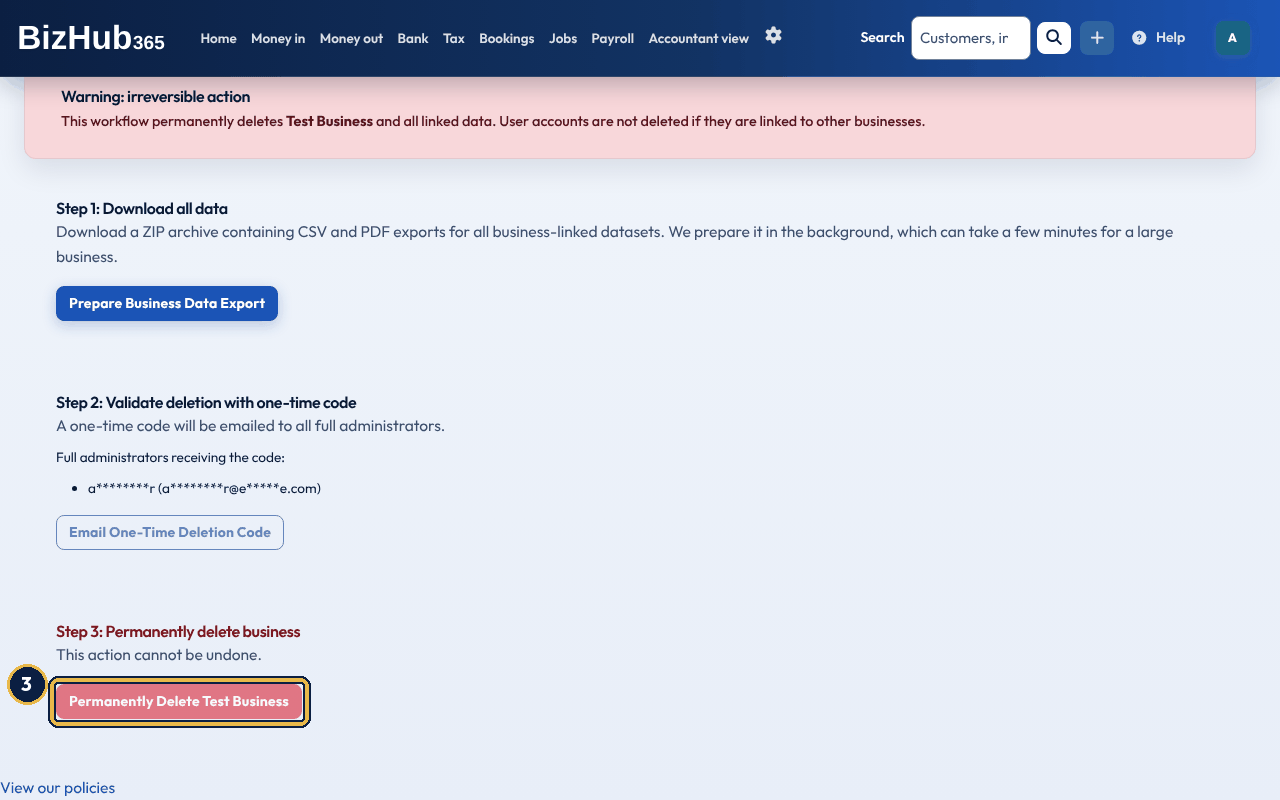
When it worked: The business's subscription is cancelled, then the business and all its records are deleted straight away. You see Business '[name]' has been permanently deleted. Users linked to other businesses were not deleted.
When our terms or policies change, a notice headed Our policies have changed appears at the top of the pages you open, naming the documents that changed. Choose Continue to dismiss it until a policy changes again; by continuing to use BizHub365 you accept the updated documents. View our policies, at the foot of each page, opens the current documents.
If an email you send from BizHub365 can't be delivered, for example because the customer's address doesn't exist, BizHub365 stops sending to that address and emails your business once, headed An email from BizHub365 could not be delivered, with the address and the reason. Check the address and update the customer, supplier or employee record; emails go to the new address as normal once it is changed.
Part V · Run the business · Chapter 24
Use this manual for how the product works. Use the Support Hub when something is broken or you need a human.
| Need | Go here |
|---|---|
| How do I…? | This user manual — bizhub365.com/guide |
| Help with the page I am on | The Help button in the top bar (see Find your way around) |
| Something is wrong | Support Hub from the footer, or email [email protected] |
| Buy / migrate / demo | [email protected], listed in the footer |
| Is the service up? | System Status in the footer |
| Privacy, terms, DPA, accessibility | legal.tweedtynetechnologies.co.uk |
We record which versions of the Terms of Service, the Privacy Policy and the documents that form part of the Terms (the End User Licence Agreement, the Promotions Policy and the Data Processing Addendum) you agreed to or were shown, and when. When any of them changes, the next page you open after signing in shows a notice at the top: These policies have changed since your last visit, followed by the documents that changed and their new versions. Each one links to its page on our legal site, with a short note of what changed. If an agreement changed, such as the Terms of Service or the Data Processing Addendum, the notice says that by continuing to use BizHub365 you accept the updated versions of those agreements. If the Privacy Policy changed, the notice says that it explains how we use your personal data and does not need your agreement.
The notice doesn't stop you working: every page still opens while it is showing. Choose Continue and it goes away until one of the documents changes again. Until you choose Continue, it shows again at the top of each page. The mobile app shows the same notice, with links to each document and Continue.
Tweed Tyne Technologies Ltd, 5 South Charlotte Street, Edinburgh, Scotland, EH2 4AN. Companies House SC874131. ICO ZC184042. Phone 0330 190 0667.
BizHub365 supports Making Tax Digital for Income Tax submissions for UK and foreign property, and Making Tax Digital for VAT.
Reference · Chapter A
Short definitions for terms you will see in menus, on HMRC screens, and in this book.
| Term | Meaning in BizHub365 |
|---|---|
| B Card | Public digital business card and QR page. |
| CIS | Construction Industry Scheme. Subcontractor statements and CIS300 figures. |
| CT600 | Corporation Tax return working report, filled from the ledger where possible. |
| EPS | Employer Payment Summary — RTI message for certain payroll periods. |
| FPS | Full Payment Submission — RTI message sent when you pay people. |
| ITSA | Income Tax Self Assessment under Making Tax Digital. |
| Journal | A balanced double-entry posting in the ledger. |
| Money in | A record of money your business received: a customer's payment, a day's takings, other income, or money that is not income (such as your own money paid in). Listed under Money in → Money in. |
| MTD | Making Tax Digital — HMRC’s digital filing rules. |
| PWA | Progressive Web App — the installable desktop client. |
| RTI | Real Time Information — how PAYE is reported to HMRC. |
| Stripe Connect | Card payments that settle to your own Stripe account. |
| Takings | A day's money from your till: cash, card and other payments, the sales at each VAT rate, tips and any cash paid out of the till. Recorded under Money in → Takings. |
| Tips | Money customers chose to give on top of the bill. Outside the scope of VAT; your income (4010 Tips) unless Business Settings says they are owed to your staff (2410 Tips owed to staff). |
| To match | Money from a customer not yet matched to an invoice (once called an unallocated receipt). It waits on the To match tab of Money in. |
| VAT basis | Accrual (invoice date) or cash (payment date) for VAT returns. |
| Whitelabel | Accountant-branded portal sitting on BizHub365. |
Reference · Chapter B
A one-page reminder of the jobs most people do every week.
| Job | Path |
|---|---|
| New customer | Create (+) → Customer |
| New invoice | Create (+) → Invoice |
| New quote | Create (+) → Quote |
| Record a day's takings | Money in → Takings → Record takings |
| Capture a receipt or bill | Money out → Expenses → Scan with AI |
| New booking | Create (+) → Booking |
| Share booking page | /book/<business-id>/ |
| Upload bank statement | Bank → Upload a statement |
| Match bank lines | Bank → Transactions to sort |
| VAT return | Tax → VAT returns |
| Next tax deadline and Send | Tax → Your tax |
| Income Tax updates | Tax → Your tax → Income Tax updates |
| Pay run | Payroll → Pay runs |
| Invite a user | Settings → Team |
| Connect HMRC | Settings → Connect & Integrations → Connect |
| Change invoice look | Settings → Invoice look |
| Import Sage / Xero CSV | Settings → Import & recover |
| Download this guide | bizhub365.com/guide |
Reference · Chapter C
Short answers to the questions teams ask after week one.
No. The subscription is per business. Invite the whole team.
The card you entered is charged for BizHub365 One (£19 a month, or £190 a year on annual billing), plus the payroll add-on if you added it. Cancel before the trial ends and you are not charged.
Yes. Use Settings → Import & recover and map the columns. Start with customers, then invoices and payments.
Yes, when those modules are enabled. BizHub365 supports Making Tax Digital submissions. VAT returns and ITSA quarterly / annual submissions are supported. See HMRC Making Tax Digital.
No. Help-centre answers about HMRC, MTD, VAT returns, ITSA, PAYE and RTI, CIS, and Corporation Tax open with: “This is operational how-to guidance for using BizHub365, not tax advice. Speak to an accountant about your own tax position.”
Yes. They register as an accountant and you connect them. They never see your Stripe subscription page.
Yes — iOS, Android, and an installable desktop PWA. See Mobile app and desktop install.
Product questions: this manual and the Support Hub. Outages: System Status. Commercial: [email protected] or 0330 190 0667.